


If you often read the author’s articles, you usually right-click the mouse and select “Run as administrator” to execute. For example, “command prompt character” is used to execute console programs or some DOS shell programs under Windows systems. Some commands require system administrator permissions. Most applications in the Windows system do not require system administrator rights to run. However, some application tools cannot operate without system administrator rights. In addition to the user account control (UAC) mechanism, do you want to run the application as a system administrator? Let’s take a look at 4 methods to execute as a system administrator.

In fact, some Windows programs do not actively ask for increased permissions and are executed directly as a system administrator, such as Microsoft’s own built-in abacus, Office software, etc. However, some programs will ask for increased permissions during the execution process, and these programs that require increased permissions will be subject to UAC control.

After Widnows 7 turns off UAC, it directly gives the system administrator permissions, so it is almost omnipotent, which is very convenient for players, but the risk is really high. After Windows 8/10, it feels like it is not given unconditionally. Even if the UAC function is turned off, programs that are not controlled by UAC will still be denied access. The user account control shutdown in Widnows 8/10 is not completely closed. This is the biggest difference between Widnows 7 and Windows 8/10. For this part, please refer to “Talking about User Account Control (UAC) in Windows 8/10“article.

In order to facilitate the execution of some special tools and software, the author has developed the habit of right-clicking the mouse and selecting “Run as system administrator” to execute it. If you want to run the application as a system administrator by default in Windows 10, let’s take a look at 4 methods of running it as a system administrator.
Method 1: Find and press Ctrl + Shift + Enter simultaneously
usesearchAfter the function finds the application, press the [Ctrl + Shift + Enter] shortcut keys at the same time to execute the application as a system administrator. However, it is recommended that you be careful when using this method and do not allow untrusted applications to obtain administrator rights. This is quite risky.

Method 2: Right-click and select “Run as administrator”
If you often read articles about being kicked by strangers, you will usually right-click and select “Run as System Administrator” when you see the execution. Although this method is not as clean and neat as double-clicking to execute, you can decide whether to open it with the default permissions or as a system administrator each time you execute it.

Method 3: Specify the system administrator identity as the default execution permission on the shortcut
Right-click the shortcut and select Content.

[Shortcut] Press [Advanced] on the paging screen.

On the [Advanced] content screen, check “Run as administrator” and click [OK] to exit.

If the following access denied dialog box appears, please click the [Continue] button to complete.

You can also use “Run this program as an administrator” on the Compatibility tab.

Method 4: Use login to edit program settings
Press [Window Key] + [R] and enter “regedit” to open the login editor.

Find the path “HKEY_CURRENT_USER\Software\Microsoft\Windows NT\CurrentVersion\AppCompatFlags” and add a new code named “Layers”. If it has already been created, you can skip this action.
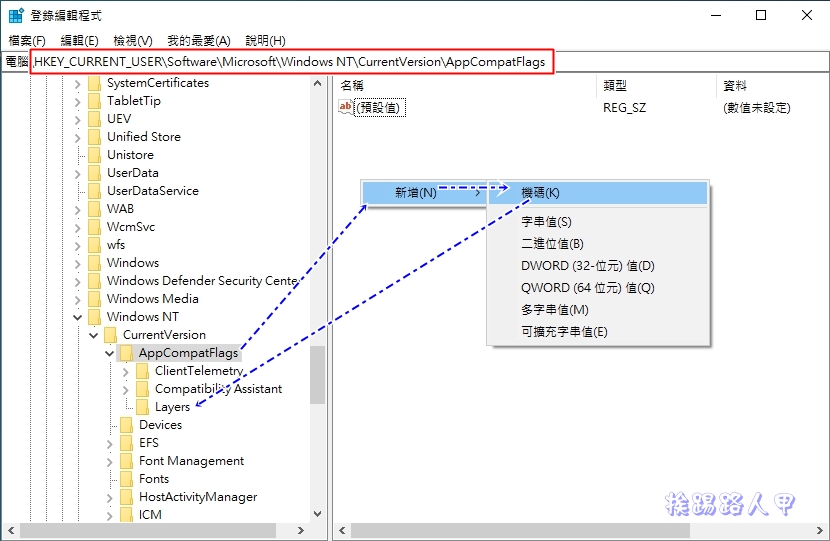
Then create a string value under “Layers”.

The numeric name of the string value is the complete path of the application, and the numeric data is “~RUNASADMIN”. In fact, this method is not recommended.

Further reading:
- Use the projection function of Windows 10 to use your laptop screen as a second screen for your PC
- How to adjust configuration when launching Windows 10 Sandbox
- Windows 10 version 1903 provides safe and reliable sandbox mode
Source: KOCPC Chinese