


Finally, finally! The moment everyone has been waiting for. NotebookLM ModifyPresentationThis feature was officially announced earlier today, meaning that once a presentation is generated, you can directly edit it inside NotebookLM if anything needs adjustment, without relying on third-party tools. In addition, export options now include PPTX format, and the company teased that support for exporting to another platform will be coming soon. Google Functions of a presentation.
NotebookLM officially announced that you can now edit presentation content and export it in PPTX format.
Thanks to Nano Banana Pro, NotebookLM presentations are generated with very high quality, so many people now use it to create the presentations they need. However, there has always been one issue—things like typos in the content used to require third-party tools to fix, such as the ones we introduced before. Edit Banana、DeckEdit、NBLM2PPTX Wait.
Earlier, NotebookLM officially announced in its official community that it has introduced a feature for modifying presentations. However, instead of editing through an editor, it uses prompts, so the workflow differs somewhat from other third-party tools.
Additionally, the video shows that slide editing is not done slide by slide; instead, prompts for all the slides that need to be modified must be provided first, and then a new presentation is regenerated. As a result, the entire editing process may take longer.
After generating a new presentation, the results may not be as good as you expected, and further editing may be needed.
So, if you just need to fix a few typos in your presentation or make minor adjustments, third-party tools may be more efficient for now.
In terms of export formats, the original PDF is now joined by PPTX support. That said, I haven’t yet found a PPTX option in my NotebookLM, so it’s unclear whether exported slides are editable or just static images (I suspect the latter).
According to the official announcement, these two new features are gradually rolling out to paid users, including Google AI Ultra and Google AI Pro. Free users will also be able to use them in the future, but availability will come a bit later—likely in one to two weeks.
How do I use NotebookLM’s presentation editing feature?
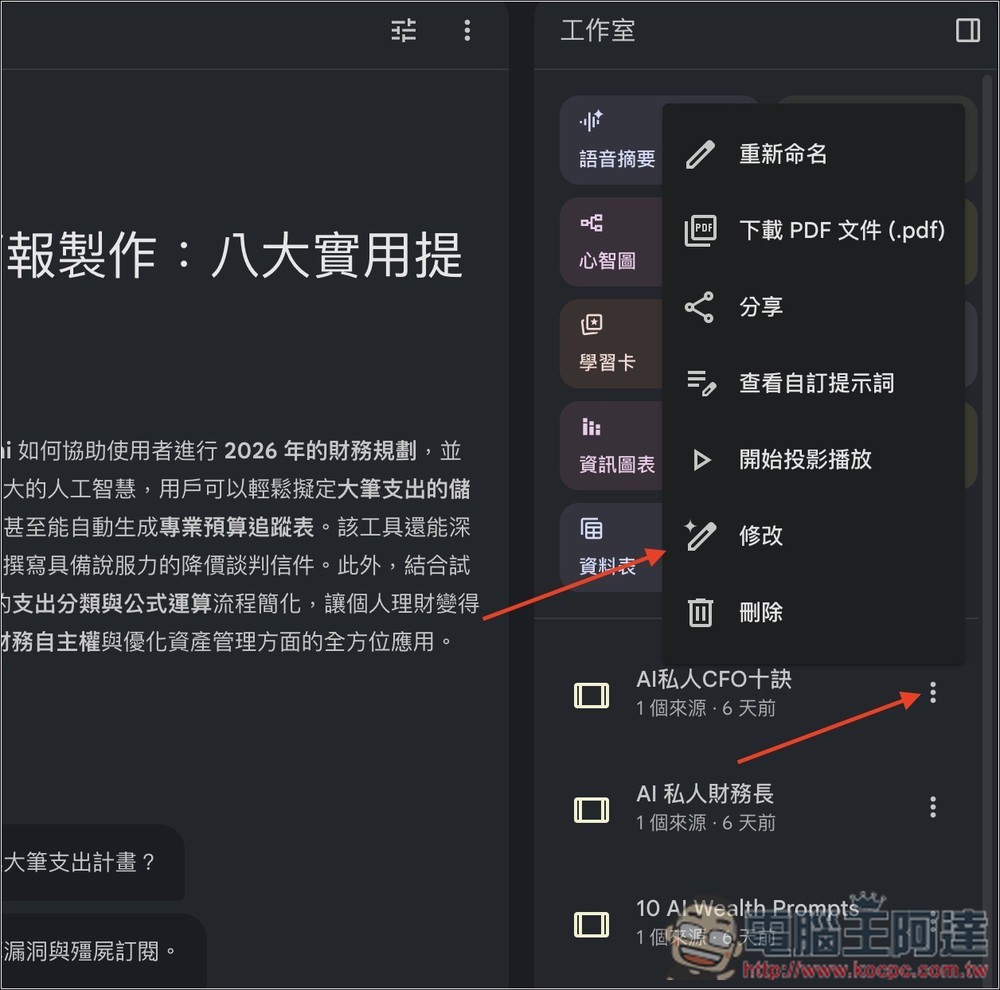
If you’re as lucky as I am and have already received the rollout for this new feature, open the presentation you want to edit in NotebookLM, and you’ll see an “Edit” option in the right-side menu:
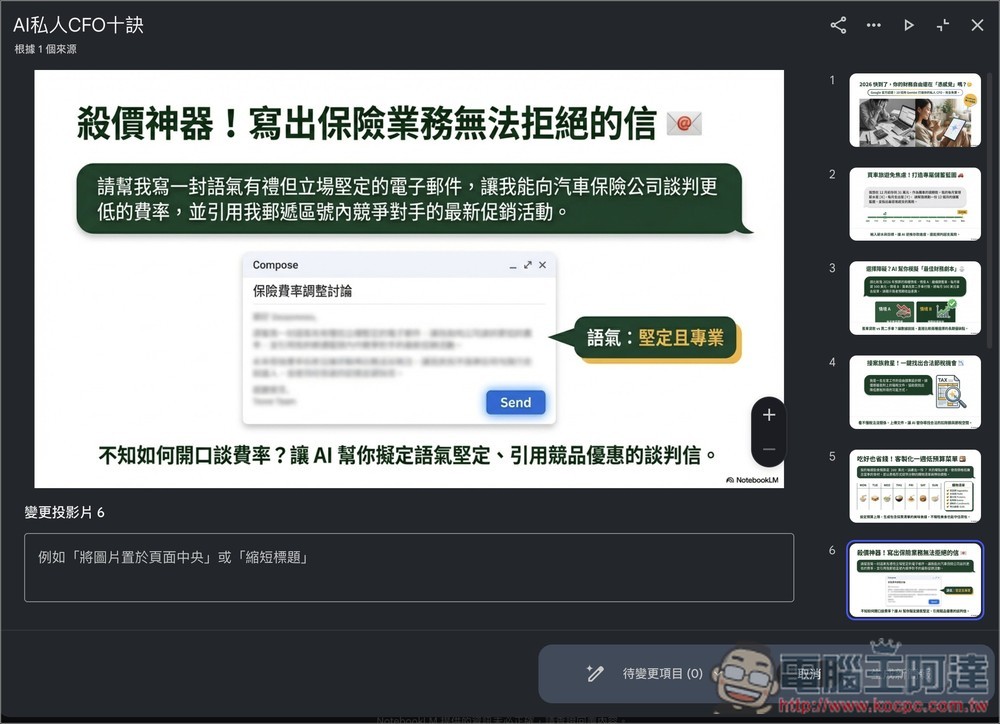
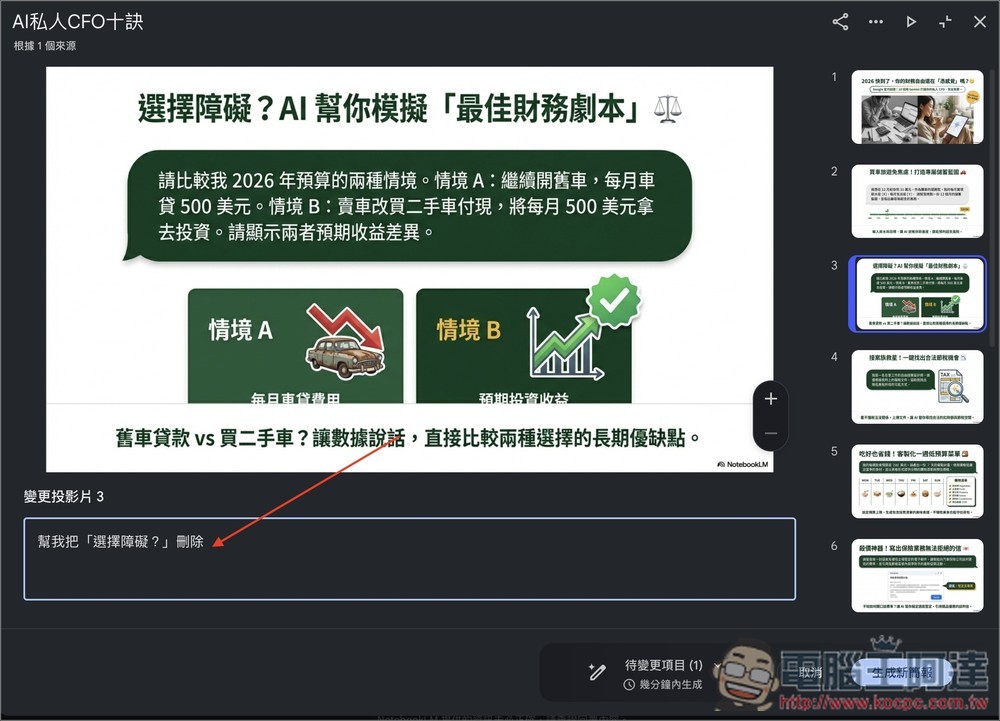
Next, we’ll go through each slide one by one. If you spot any issues and want to make edits, enter your revision prompt below:
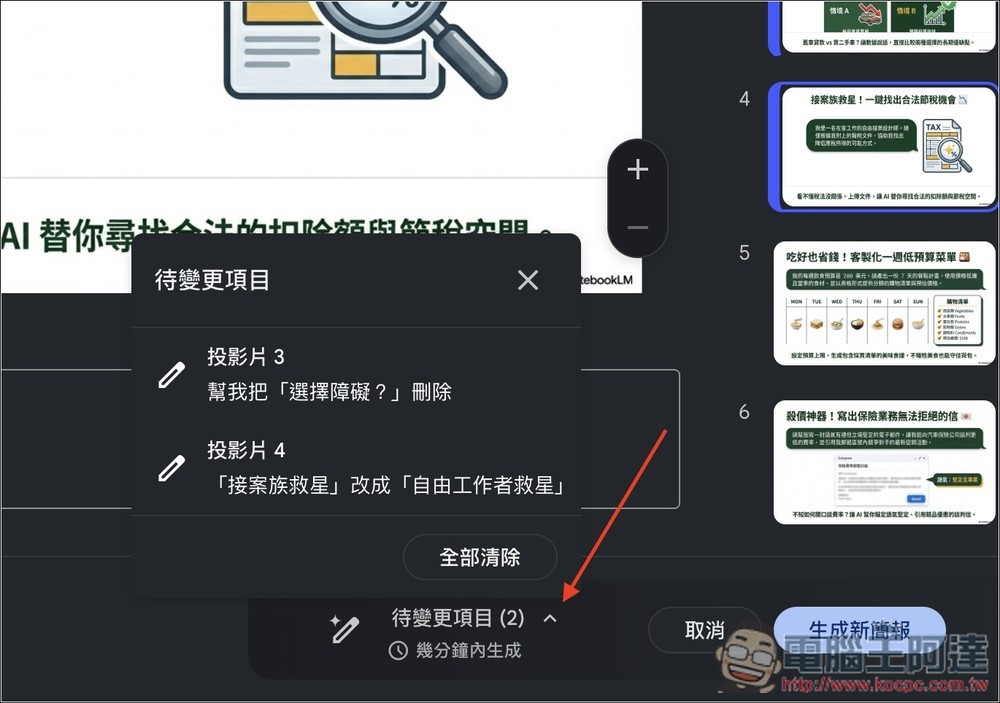
Once you’ve entered everything, we recommend opening the “Pending Changes” section at the bottom left to double-check that all the prompts you entered are correct. If everything looks good, click the “Generate New Presentation” button on the right:
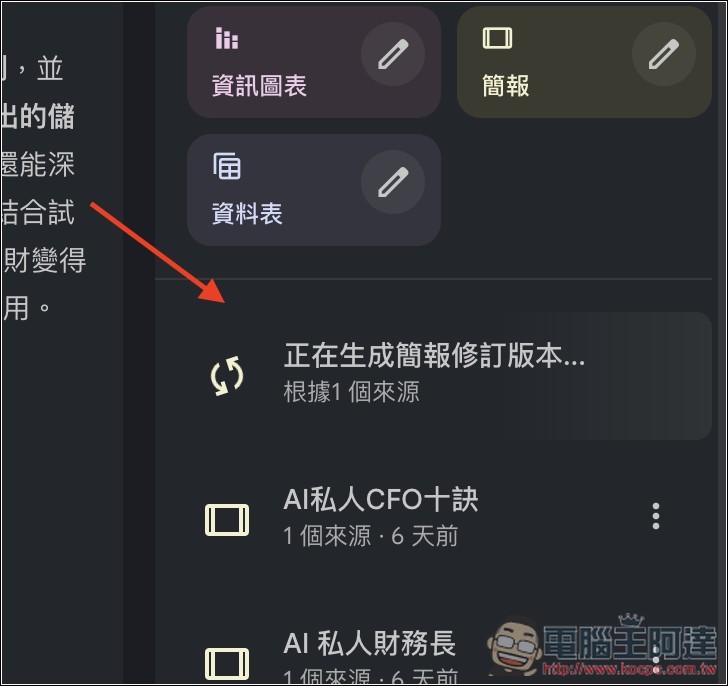
Then, in the repository on the right, you’ll see the status showing that a revised version of the presentation is being generated. Compared with creating a brand-new presentation, the generation time feels much shorter, so it doesn’t take as long:
Source: KOCPC Chinese