


Many people think LINE As long as the voice messages exist in the chat room, it is fine. However, when the phone is changed, the account is abnormal, or the other party deletes the conversation, these voices carrying memories are likely to disappear in an instant. Many netizens have also asked for help in the community, trying to save the voice messages of their loved ones and important recordings at work, but found that it was weird how to save them. In fact, LINE itself has a very practical transfer station function built in. As long as it is combined with Keep notes, the recording file can be saved in a real audio file format, and then downloaded to the mobile phone or cloud for backup. The whole process is not complicated, just follow it once and you will be done.
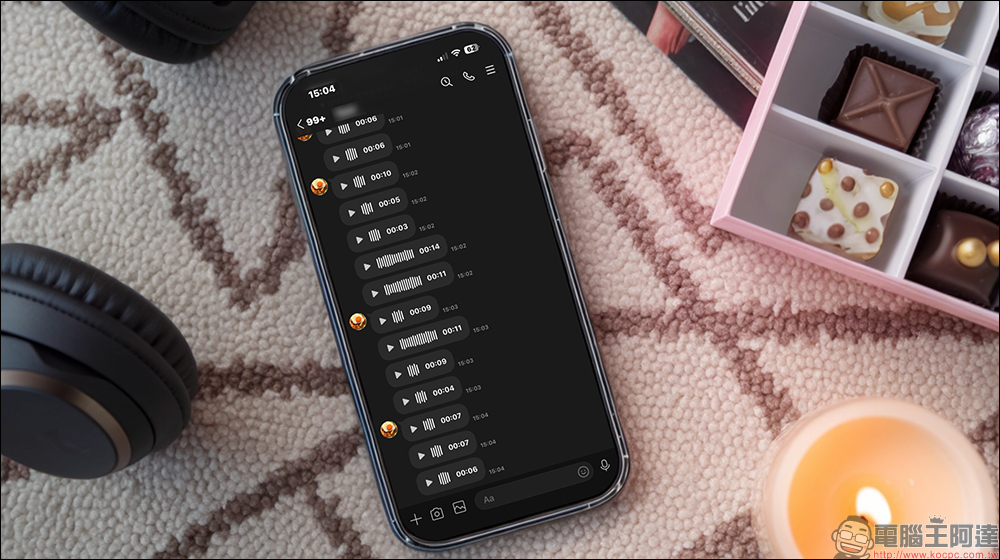
How to download LINE voice messages (recording files)? 3 steps to save precious voices to your mobile phone, and downloading them to your computer is even easier!
Many people try to download LINE for the first time voiceMessage, the intuition is to long press the message in the chat room, and then choose to share or save to the device. On the surface it seems to be going well, but after actually saving it, you will find that the file format has changed to “.mp4” instead of the common “.m4a” audio file. In this case, compatibility issues often occur during playback or transfer, and are not suitable for subsequent editing or long-term storage.
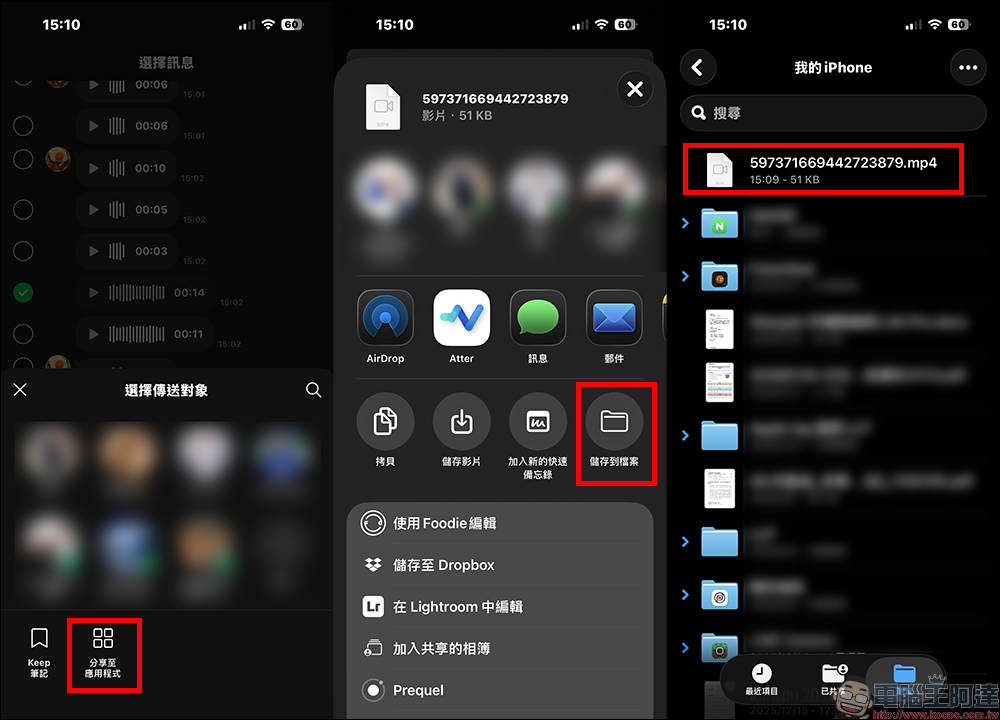
In fact, the more stable and less error-prone method is to transfer through LINE’s Keep notes. This function was originally designed to collect important information, including text, links, pictures and recordings. Although LINE has adjusted its policy after August 2024, Keep can no longer save photos and videos, but voice messages can still be saved normally, so this trick is still effective until now.
How to save LINE voice messages on mobile phone?
Step 1: Save the voice message into Keep notes
In the chat room, long press the voice message you want to download and select Keep note. Saved reminders will appear, and you can jump directly to Keep with one click.
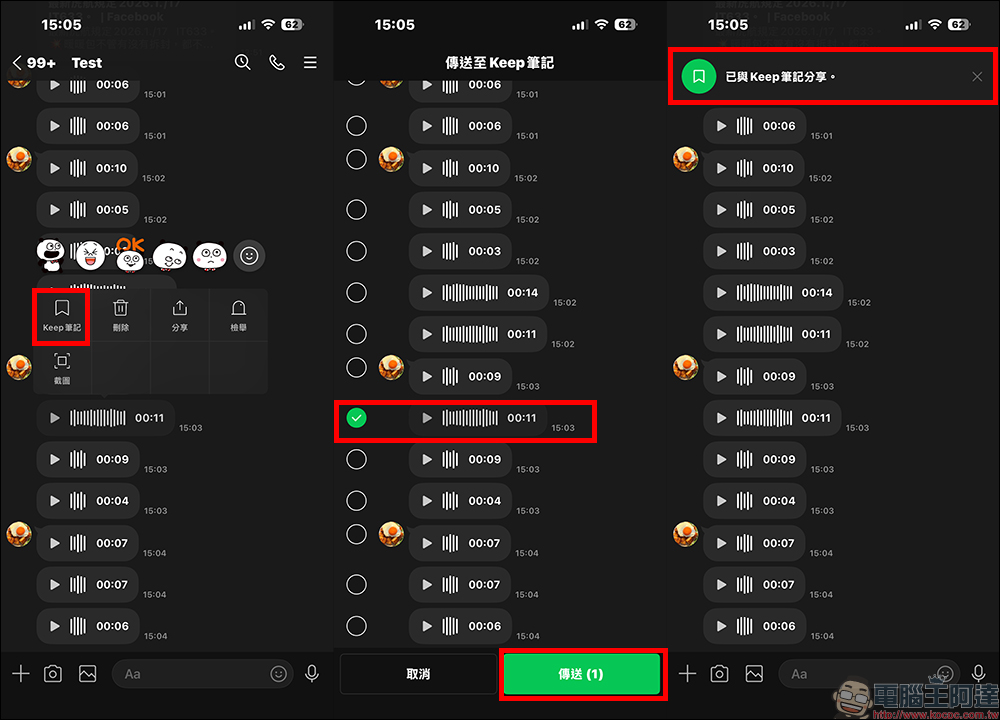
If you accidentally miss it, you can also go back to the LINE homepage, click on your profile in the upper right corner, and then enter Keep notes to view it.

Step 2: Share the recording file from Keep
Find the voice note in the Keep note, press and hold it and select share. Please note here, do not share it directly with your friends, but click Share to App below. This option will open the complete system sharing menu.
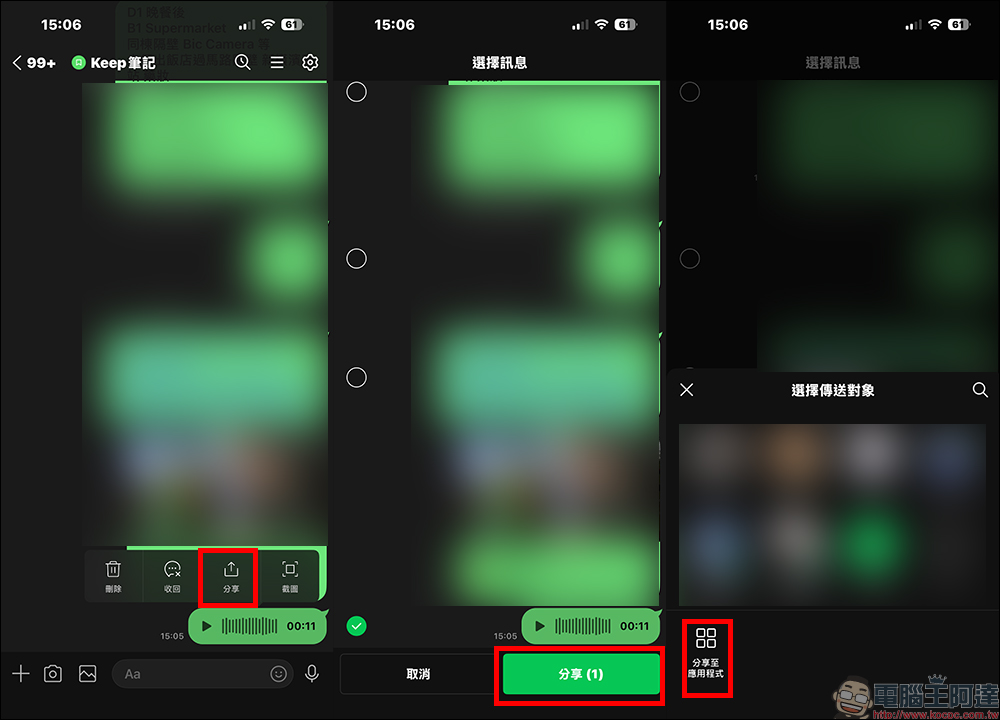
Step 3: Select the storage location and save
Then you will see the familiar sharing interface. You can choose to save to the File App, save to Quick Notes, attach to an email or message, or even use AirDrop to send it to other devices. If you have editing or transcoding needs, saving to file is the most flexible option because it will be saved in a true audio file format.
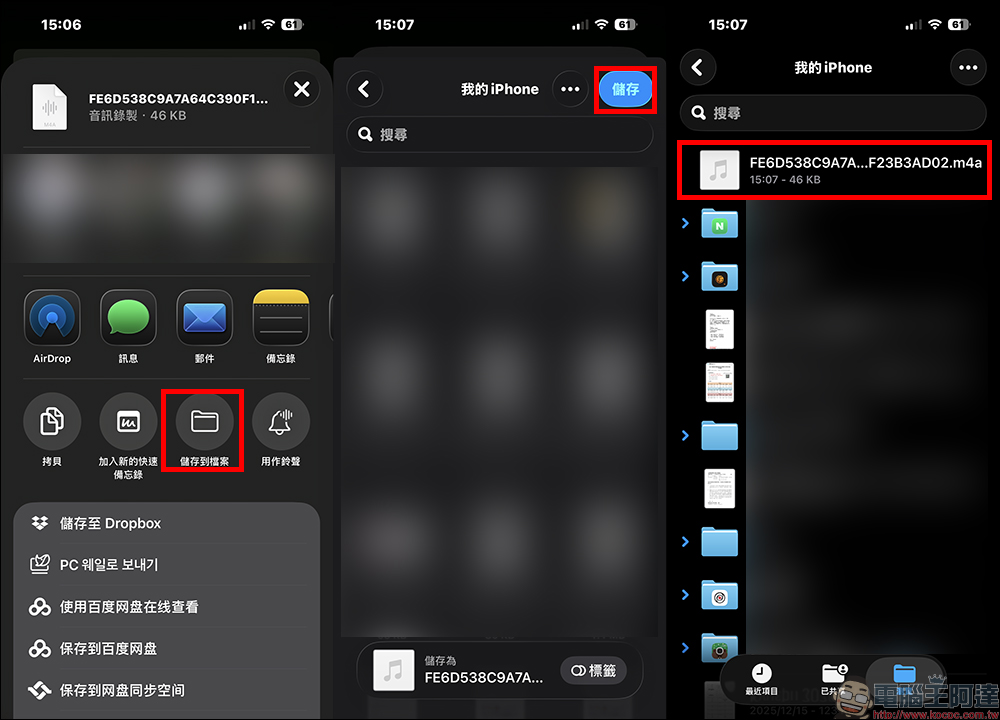
After the entire process is completed, you will get a voice file on your phone that can be used independently. You are no longer limited to the LINE chat room, and you are not afraid of the message suddenly disappearing one day.
Is there an easier way? Save on computer
If you feel that the above method of accessing LINE voice message files is too cumbersome, you can actually just save them through the PC version of LINE. First, open the PC version of LINE and find the chat room where you want to access the voice message, then click “Save” below the voice message.
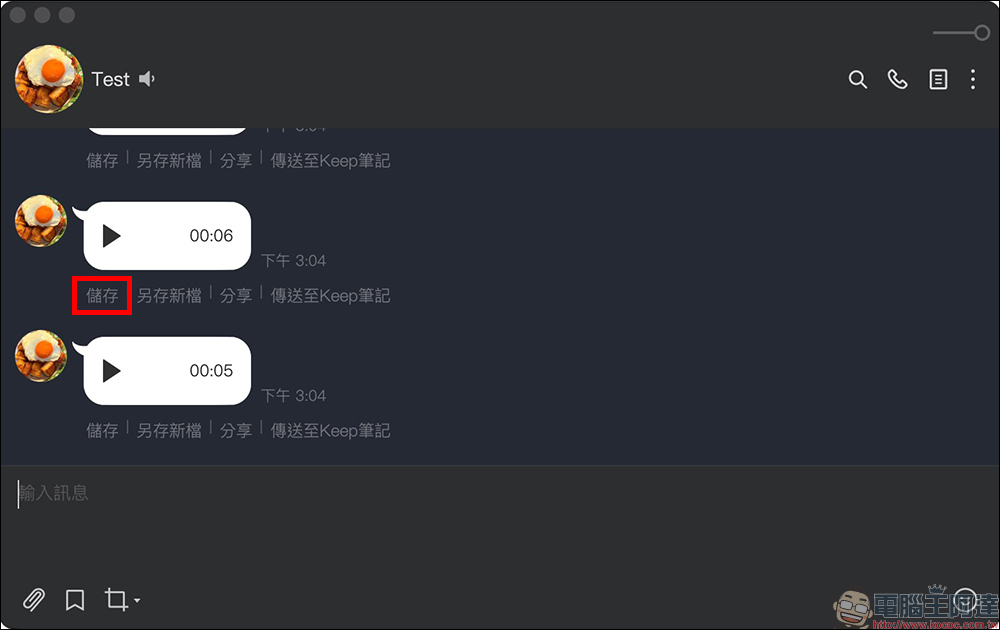
After successfully downloading to your computer, click to open the folder:
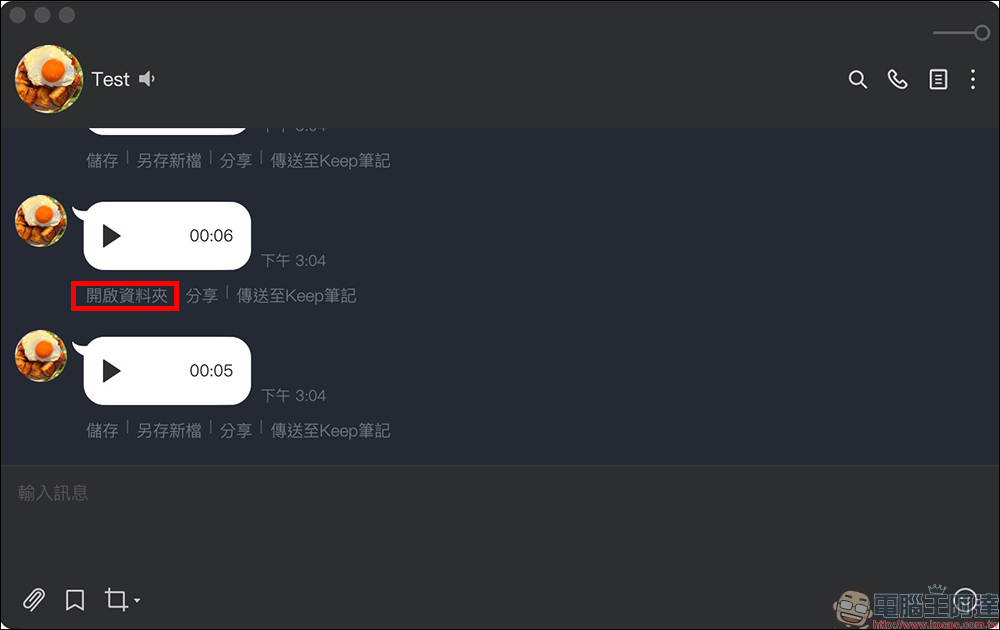
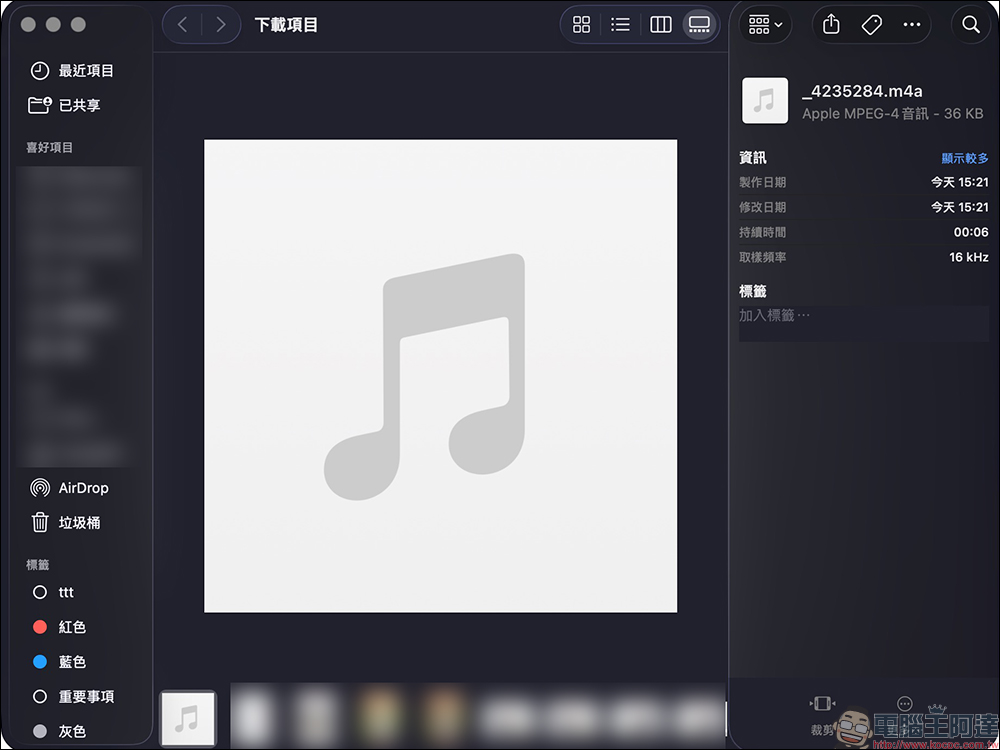
Then confirm the downloaded file and you will find that it is directly in the audio file format of “.m4a”.
Conclusion
Downloading LINE recording files through Keep notes is currently the simplest and most stable method purely through mobile phones. However, we still have to remind you that LINE has already adjusted the storage policy of Keep. No one can say whether it will be revised again in the future. Therefore, Keep is more suitable as a relay station rather than a long-term safe.
If those voices are really important to you, it is recommended to do an extra layer of backup after downloading them to your phone, such as uploading them to Google Drive or iCloud. Especially the voice messages left by elders or relatives are often more heartwarming than photos. Having more copies means you will have less regrets. When you look back and hear that familiar voice in the future, you will definitely be glad that you took these few minutes to save it.
If you have a computer at hand, it is recommended to use the computer version directly to save, which will be simpler and more intuitive to operate.
Further reading:
Source: KOCPC Chinese