


Obviously I bought support ProMotion of MacBook Pro, but I always feel a little less smooth when swiping the web page, which is different from the experience on iPhone or Chrome. In fact, the key is probably that Safari update rate setting. In order to take into account battery life performance, Apple Lock Safari browsing at 60Hz by default, even if the screen supports it 120Hz, and cannot fully exploit its advantages. However, as long as you adjust a few hidden options, Safari can unleash its true high refresh rate capabilities, making scrolling smoother and the screen more responsive. This article will take you step by step to unlock the 120Hz mode of Mac, and also remind you how to choose between smoothness and battery life.

Does your Mac slide smoothly? Teach you how to forcefully enable Safari 120Hz true smooth mode
After many people buy a MacBook Pro or an external high refresh rate screen, their first expectation is to enjoy the smoothness brought by 120Hz in daily operations. Whether they are scrolling web pages, reading long articles, or switching paginations, they should be more comfortable than ever. However, when actually using Safari, I often find that the screen still seems to be stuck at 60Hz, and it does not have that “silky smoothness” no matter how smooth it is.
In fact, this is not your illusion, but a deliberate restriction made by Apple to save power. Safari locks the web page rendering update rate at close to 60fps by default. Even if your screen supports ProMotion, it will not automatically operate at full speed. The good news is that this restriction can be turned off manually, but the option is hidden deep enough that ordinary users will rarely notice it.
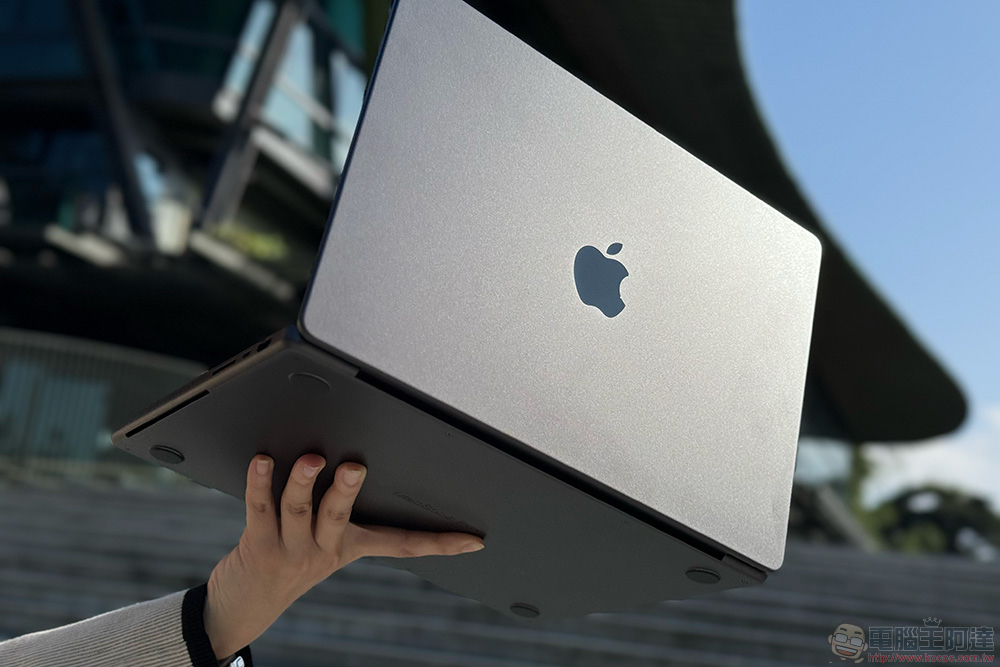
this methodCompatible with 14-inch and 16-inch MacBook Pro launched after 2021, and other Macs with ProMotion displays. If you have an external monitor that supports 120Hz, the same applies.

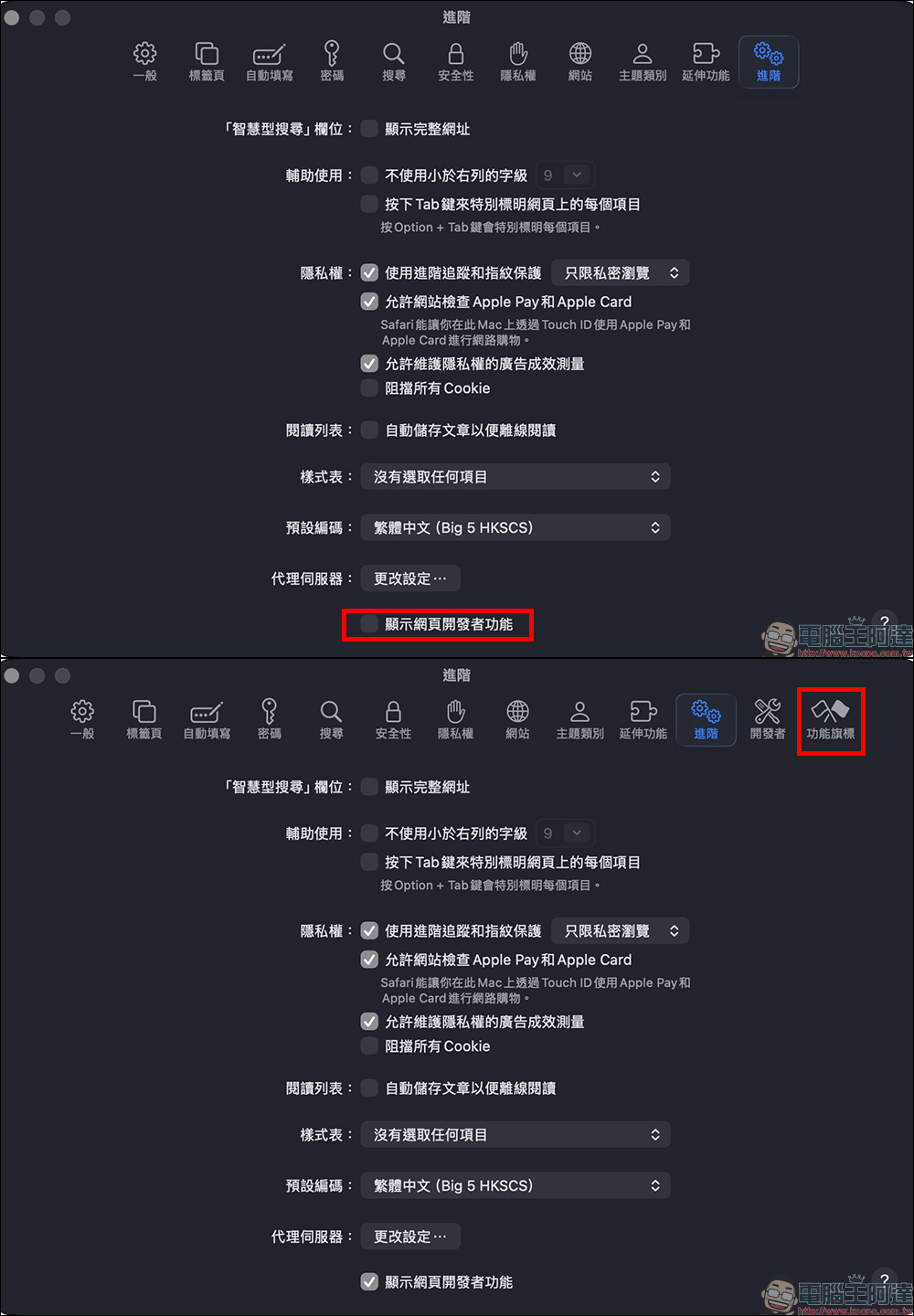
First open Safari, go to “Settings” in the upper menu, switch to the “Advanced” tab, find “Show Web Developer Features” at the bottom and check it. After completion, a new “Function Flag” option will appear in the menu bar at the top of the screen.
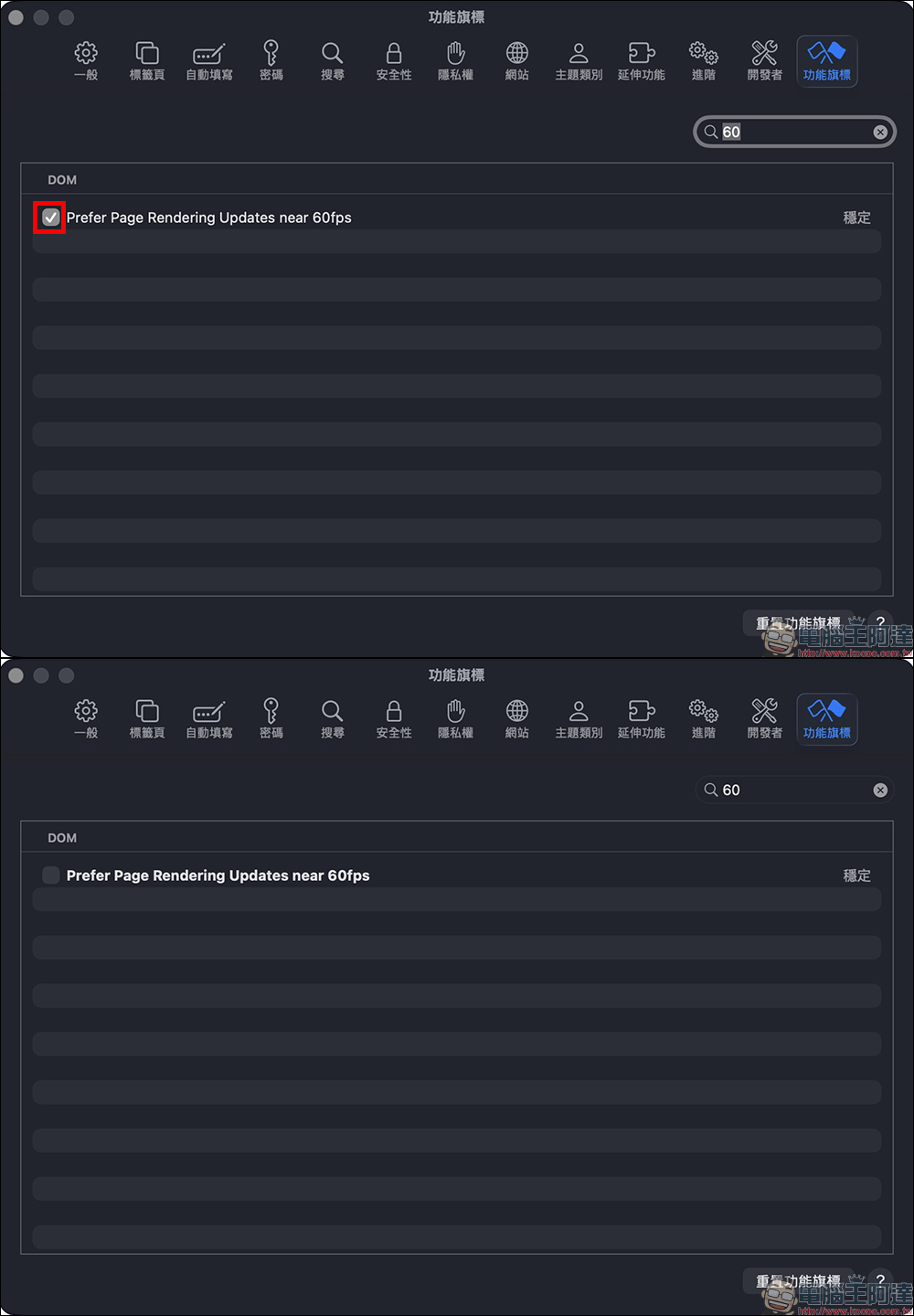
Then click on the newly appeared menu and enter “60” in the search box in the upper right corner. You will see an option called “Prefer Page Rendering Updates near 60fps”. This setting is the key to limiting the Safari update rate. As long as you uncheck it, it is equivalent to lifting the 60fps upper limit.
The last step is very important. Please press the “Cmd + Q” shortcut key to completely close Safari, and then reopen the browser for the settings to take effect.

After reopening, if your screen itself supports 120Hz, you can now feel a significantly smoother picture response when scrolling web pages. In actual experience, text smearing will be reduced when scrolling long pages, the moment when the sliding stops is more accurate, and the overall visual experience is closer to the smoothness of the high update rate of the iPhone Pro series. For users who are sensitive to images, read for long periods of time, or frequently switch between tabs, the improvement is actually quite impressive.
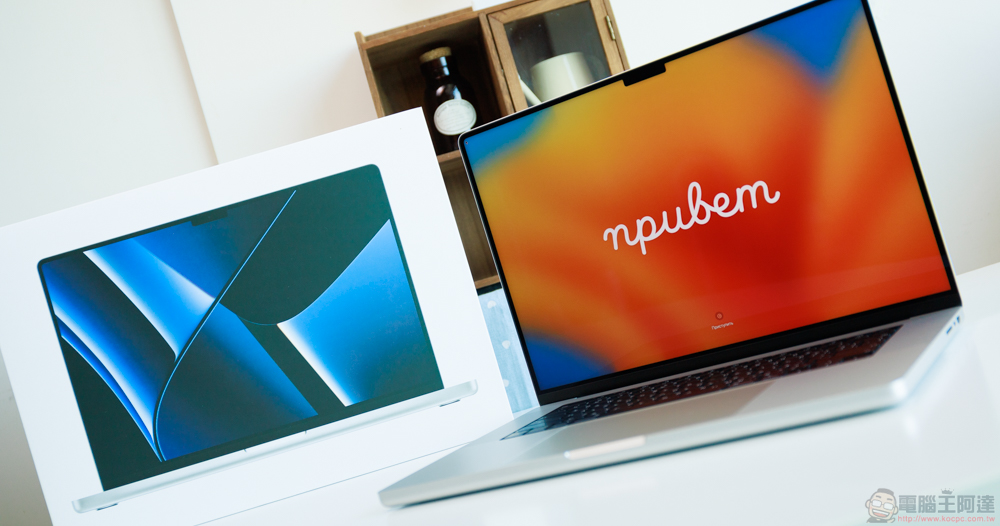
Conclusion
But before enjoying the smoothness, we must also remind everyone to pay attention to the changes in battery life. The main reason why Apple locks it at 60fps by default is to save power. When the update rate is increased to 120Hz, the rendering load on the GPU will increase significantly, and the battery may also decrease faster than usual when browsing the web for a long time.
If you are very concerned about the smoothness of the picture, or are used to the smooth feel brought by high update rates, then unlocking this restriction will really allow the Mac’s ProMotion screen to perform as it should. But if you often go out and use it, charging is inconvenient, or you care about battery life, then maintaining the default setting is actually a safer choice. The best way is to flexibly adjust according to your own usage scenarios to find the balance between performance and battery life that suits you best.
Further reading:
Source: KOCPC Chinese