


After using Windows for a while, you’ll more or less encounter situations where it feels like performance has degraded or speed has slowed down. This article introduces a very useful Windows system optimization and acceleration open-source tool: “OptimizerDuck”, which has a Traditional Chinese interface, so you don’t have to worry about not understanding it. Each tuning feature is designed as a switch, allowing you to turn it on or off anytime. For example, you can enable allocating more CPU resources to the application currently in use to get a faster experience, thereby achieving an acceleration effect. Additionally, there’s a useful bloatware removal feature to free up more hard drive space.
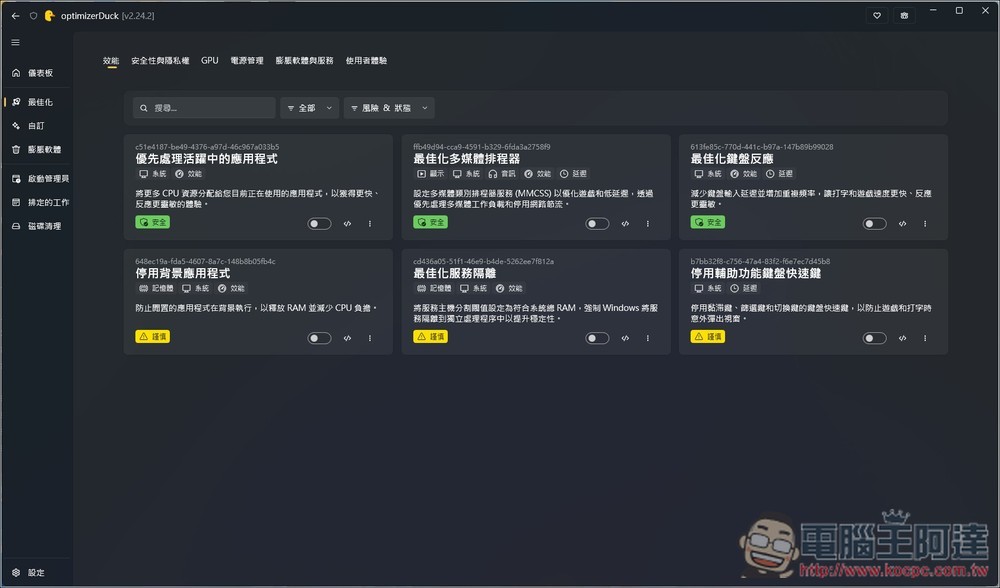
OptimizerDuck Introduction and Tutorial
OptimizerDuck is a free, open-source system optimization and cleanup tool designed specifically for Windows, developed using C# and .NET technologies, offering the simplest and most intuitive way to boost PC performance, protect privacy, and streamline your system.
Many Windows system tools, by default, enable numerous background services, telemetry data collection features, and pre-install a lot of bloated software that is rarely used. These not only consume hardware resources (such as CPU, memory, and disk space) but may also raise unnecessary privacy concerns and potential risks.
OptimizerDuck transforms dozens of deep Windows registry, Group Policy, and system service settings into a clearly categorized graphical interface. Users no longer need to manually search through complex technical documentation or risk modifying low-level operating system settings. They can safely apply these optimization tweaks, which have been repeatedly verified by the developer and community, simply through intuitive toggle operations.
Additionally, it comes with a comprehensive and essential safety protection mechanism that automatically creates system restore points before each modification and supports one-click restore functionality. If you’re unsatisfied with the performance after modifications, or encounter any software incompatibilities or system abnormalities, you can restore to the original pre-modification state at any time.
Key Features
- Fully open source and community-driven
- Powerful Windows System Optimization Suite
- Multilingual accessibility support
- Bloatware Management and Removal
- Built-in startup manager, disk cleanup, and many other useful tools
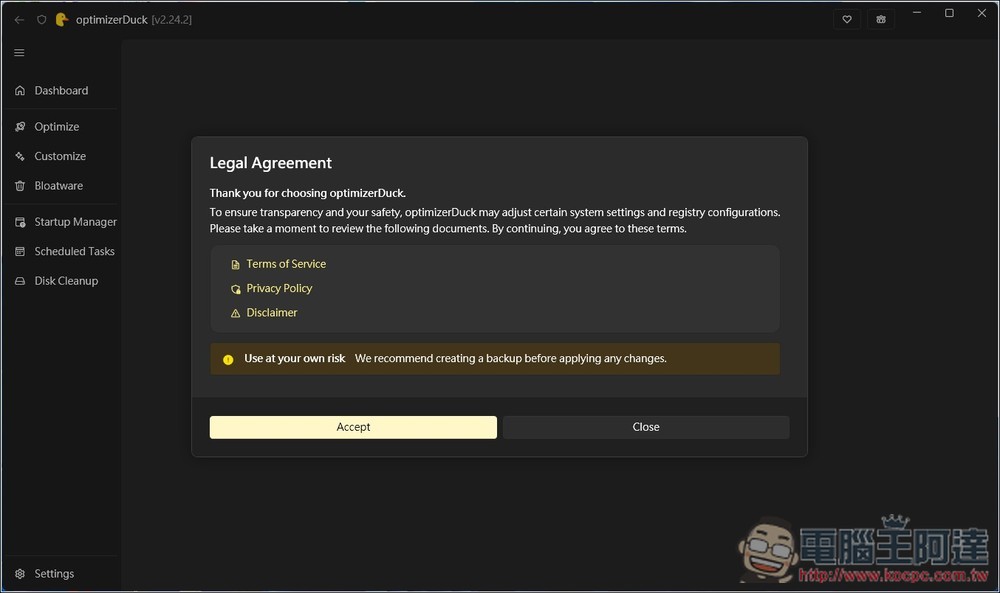
Download the latest version of OptimizerDuck via the link above, then double-click to open and use it directly—no installation required. An agreement window will appear first; click Accept:
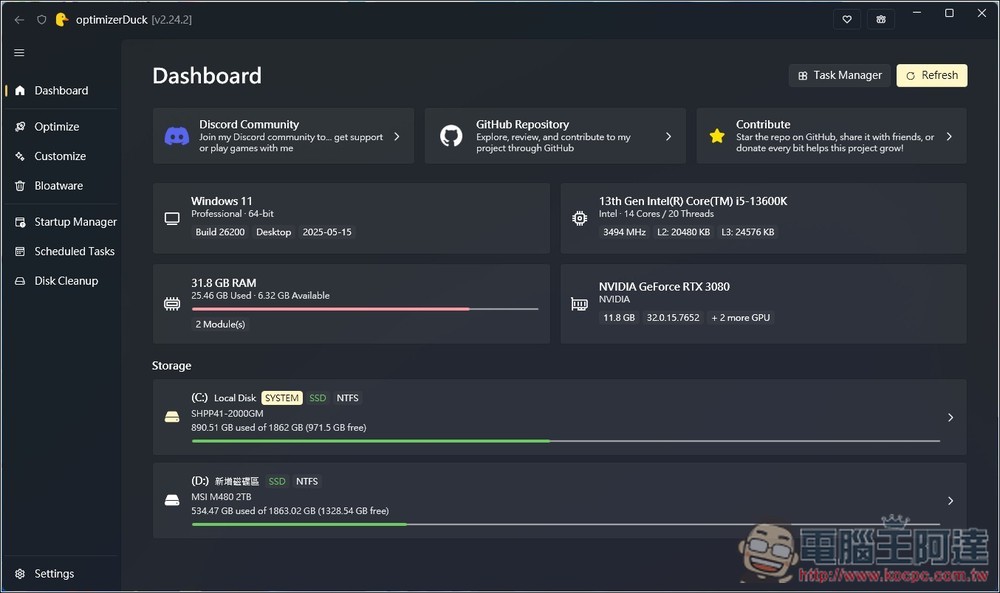
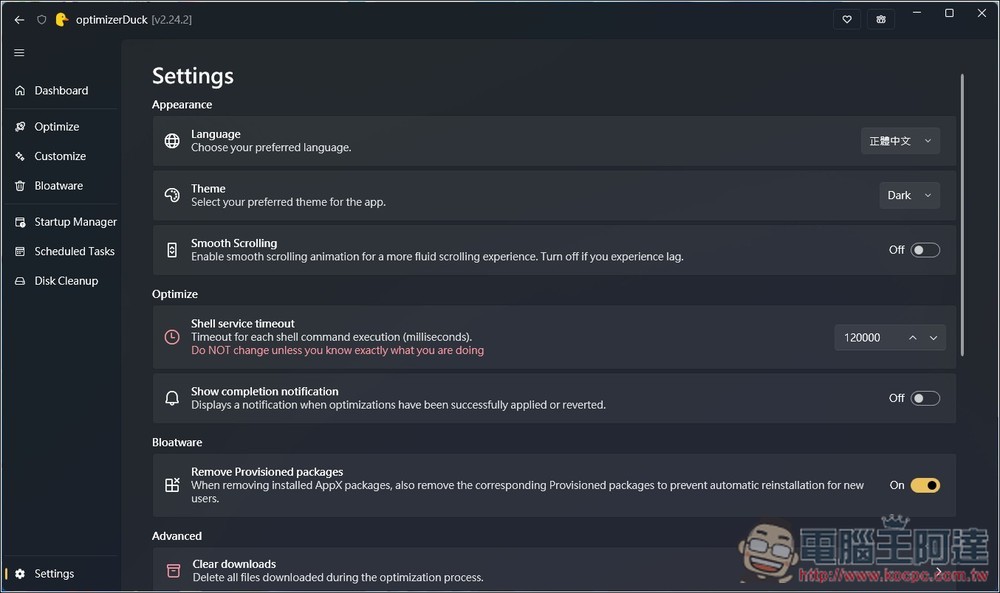
Then, after entering the main screen, it will list the various hardware support on your computer. The default interface is in English. If you want to change to another language (e.g., Traditional Chinese), go to Settings in the lower left corner:
Change the Language at the top to Traditional Chinese:
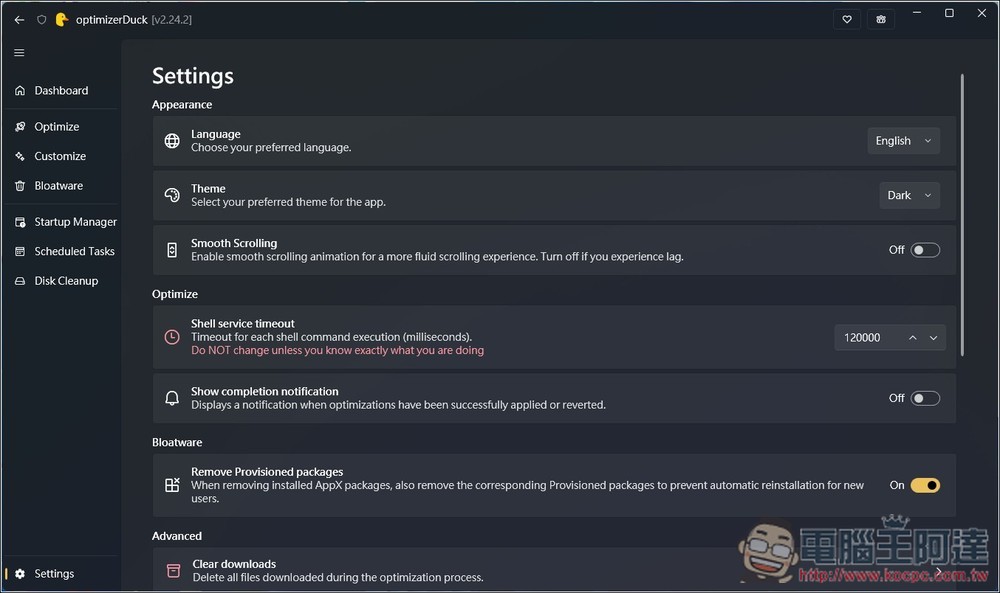
As shown in the figure below:
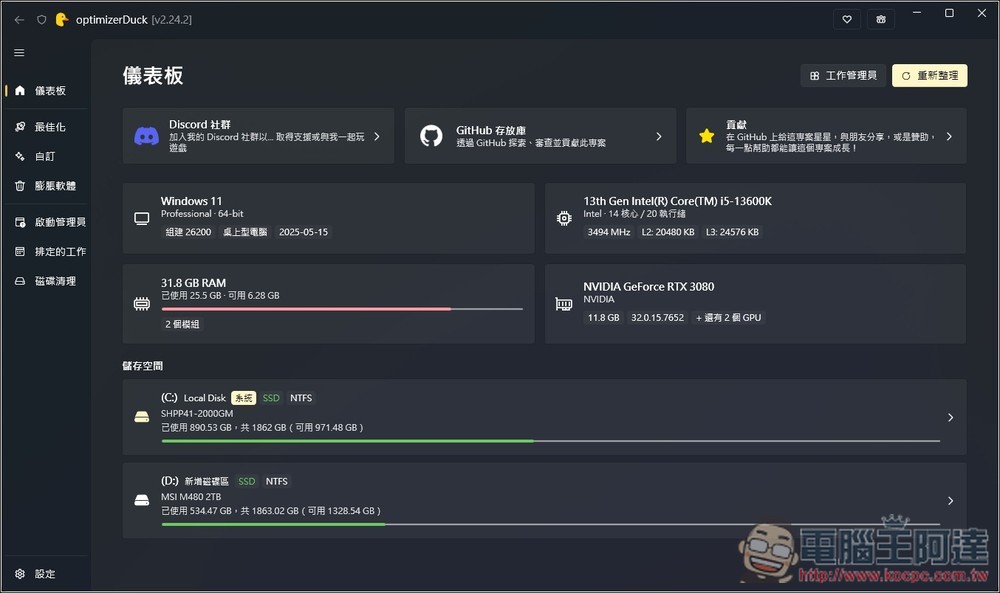
After restarting, the interface switched to Traditional Chinese:
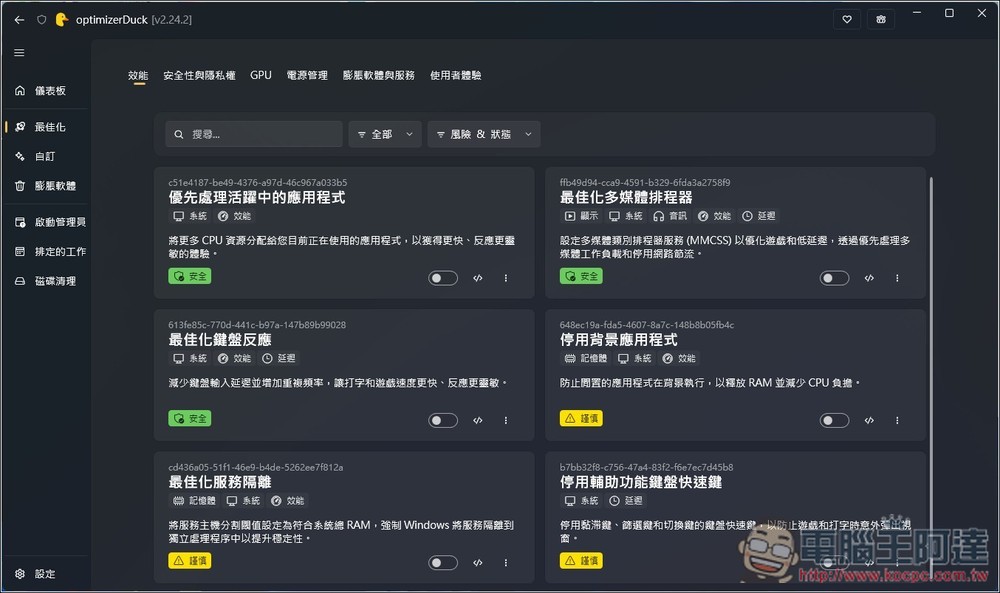
Enter the optimization menu to find various ways to boost performance, such as optimal keyboard response, disabling background apps, optimizing service isolation, and more. Each item displays its safety rating in the bottom left corner. Generally, if it says “safe,” you can safely toggle it without affecting other functions much, but options labeled “cautious” or similar require extra care.
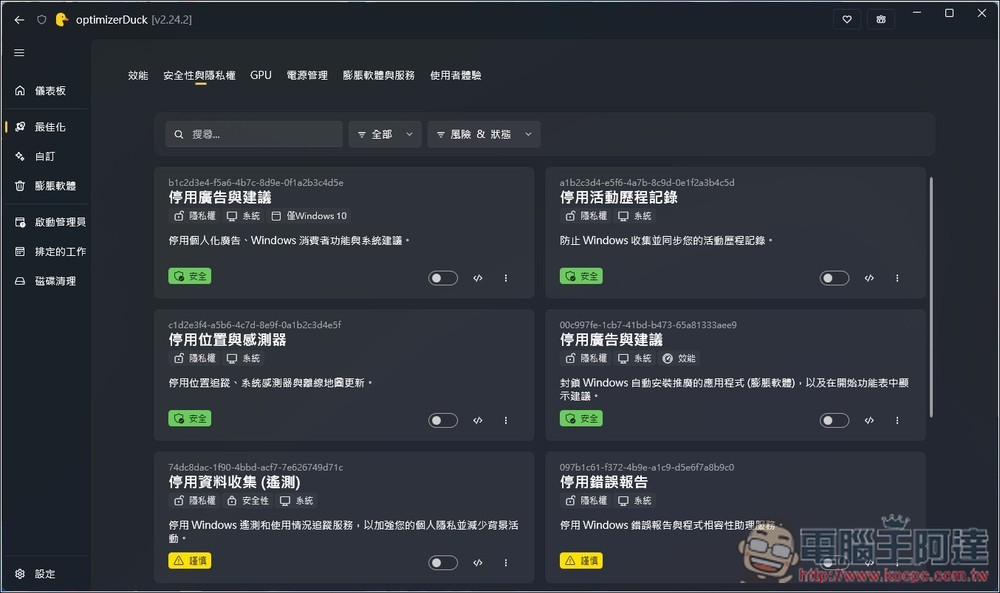
The Security and Privacy menu contains many options to disable Windows data collection and advertising features, such as Ads & recommendations, Location & sensors, and Activity history:
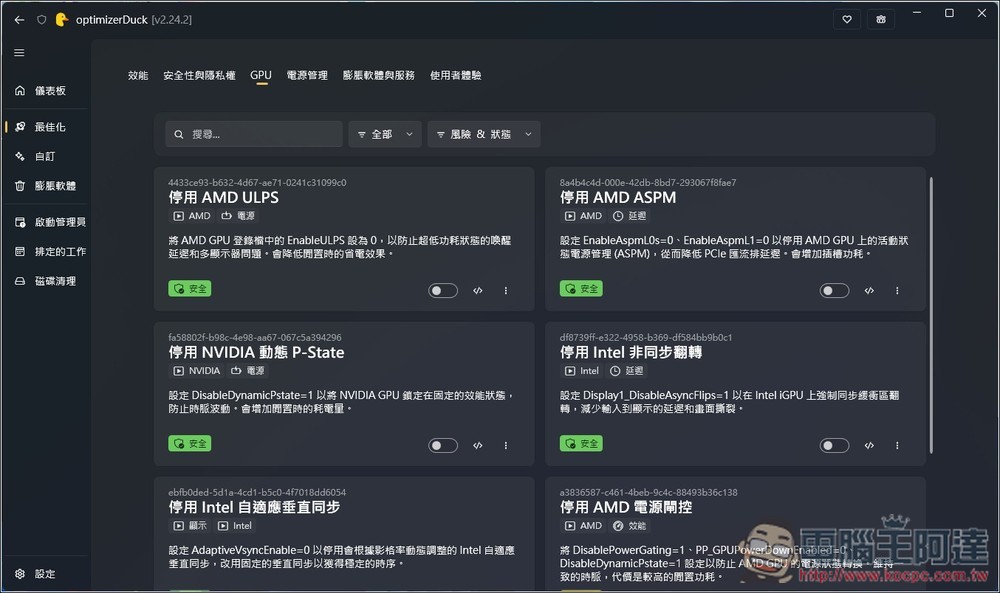
The GPU menu also has quite a few options, including disabling AMD ULPS, AMD ASPM, NVIDIA Dynamic P-State, and Intel Async Flip:
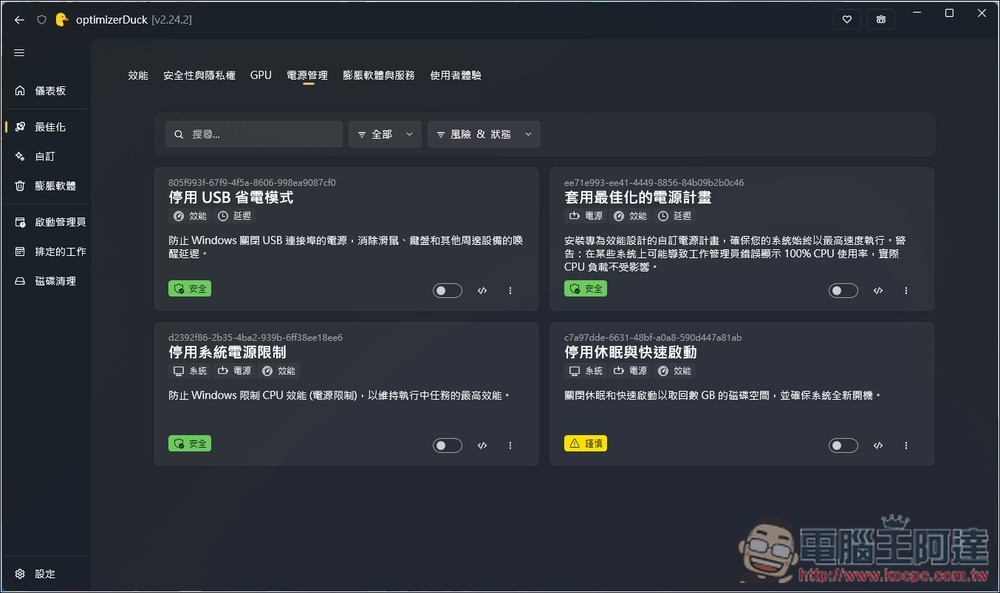
it can even disable USB power-saving mode, apply optimized power plans, and disable system power limits:
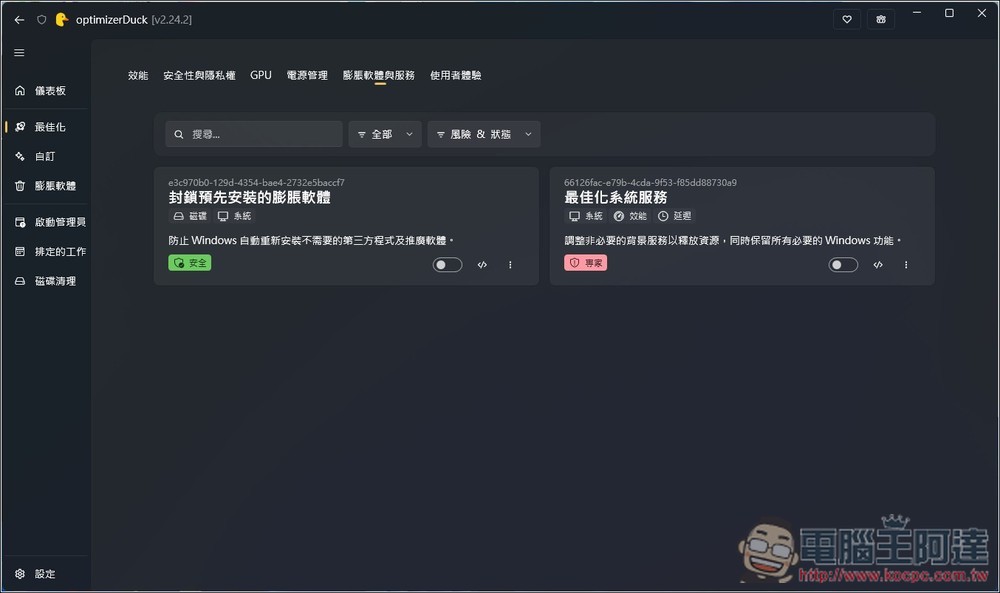
You can also configure it to block pre-installed bloatware
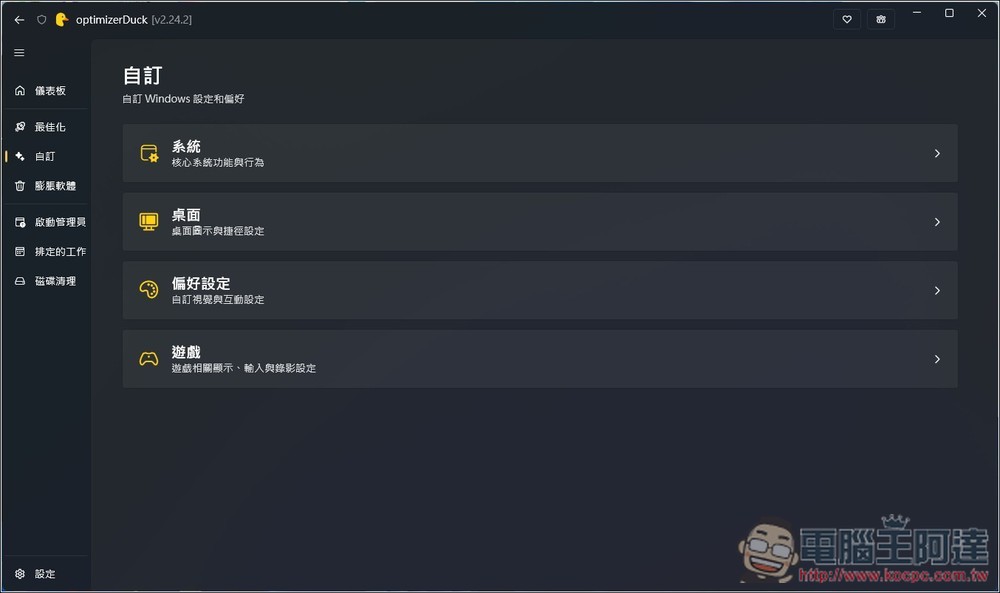
Additionally, in the custom menu, you can quickly configure various Windows settings and preferences:
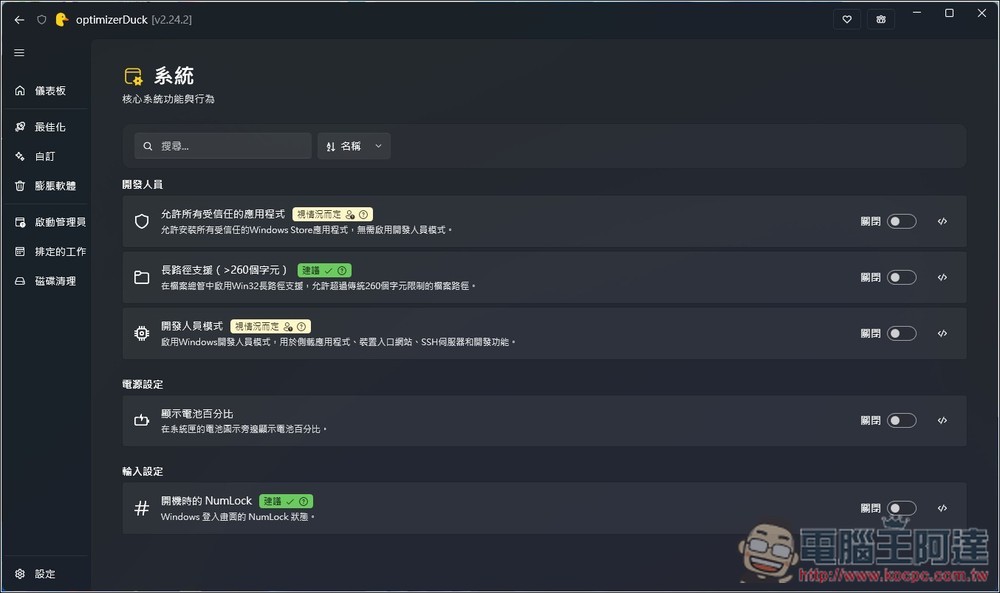
Such as whether to allow all trusted apps, Developer Mode, Show battery percentage:
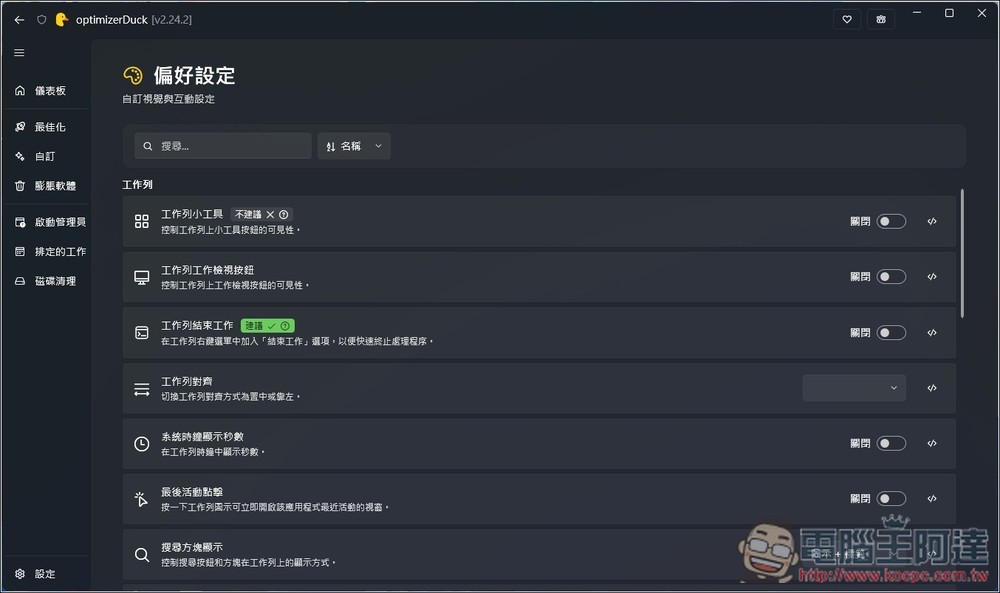
Taskbar widget button visibility, taskbar alignment, search box display:
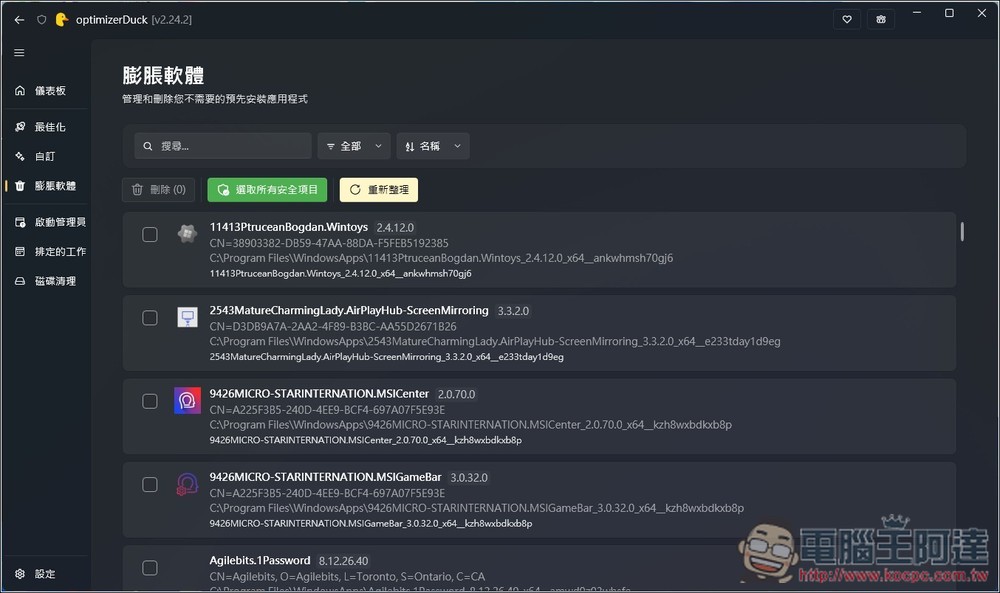
If you feel your disk space is running low, you can first check the bloatware for any pre-installed apps you aren’t using.
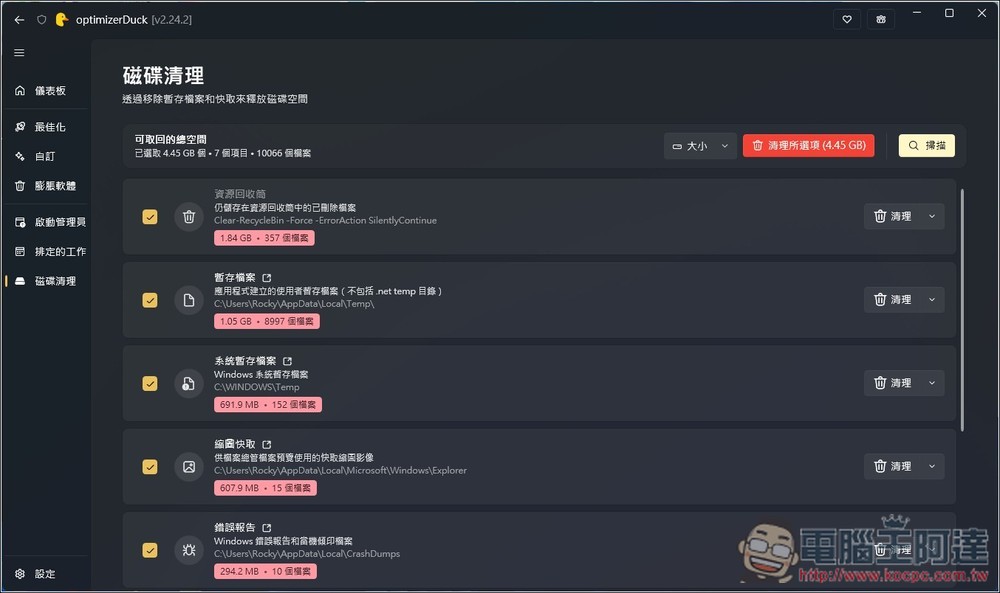
Also provides disk cleanup functionality:
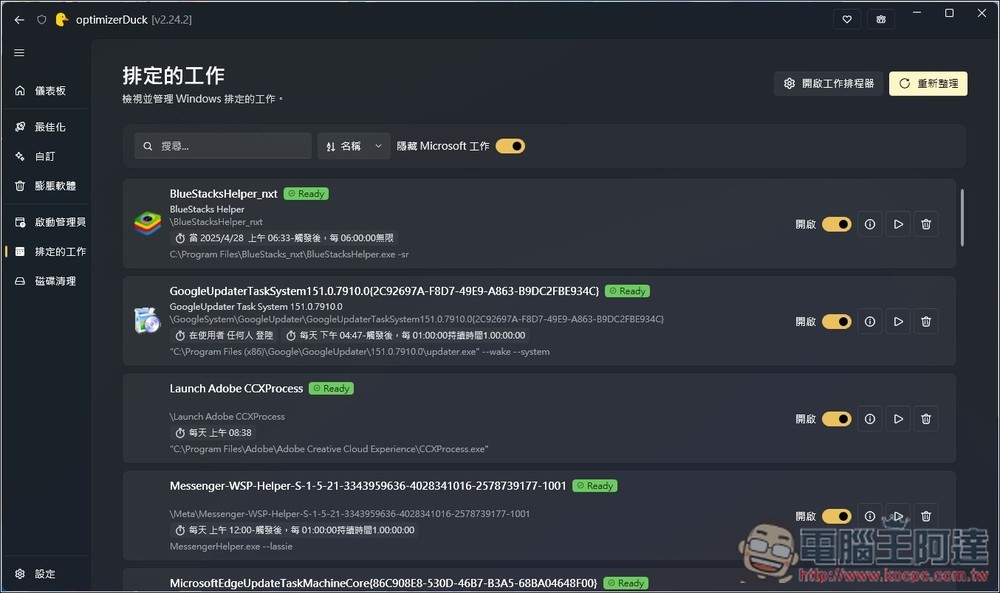
This scheduled task is quite handy. Many people don’t realize that some software will automatically create scheduled tasks after installation. If you find it unnecessary, you can turn it off here anytime:
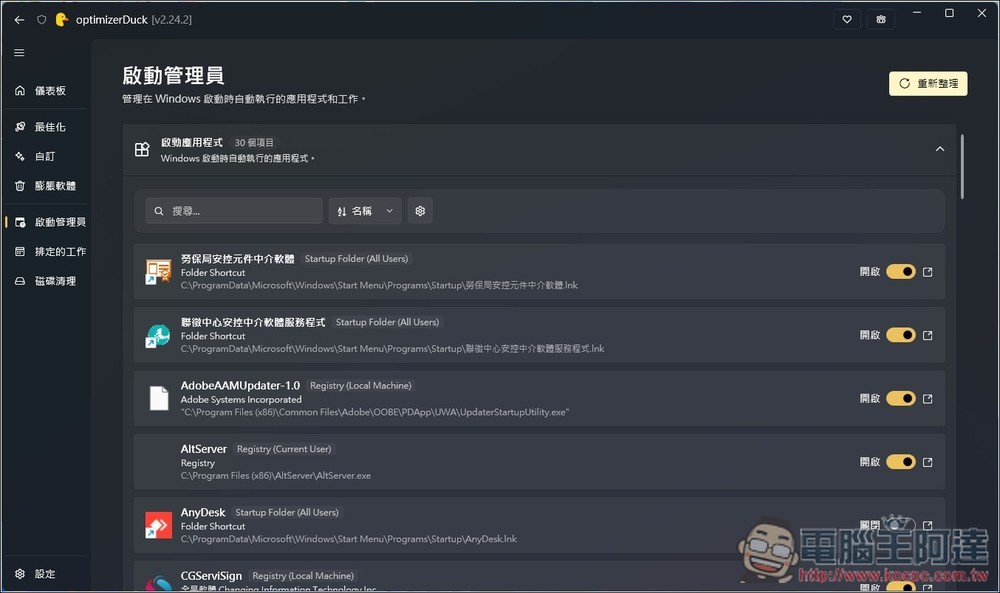
The Startup Manager is also very useful, letting you easily manage which tools will automatically run after boot:
Source: KOCPC Chinese