


If you usually MacBook If you connect an external screen and use it as a desktop computer for a long time, you may have become accustomed to leaving it plugged in all day long. It seems convenient, but in fact, this method of use actually has a considerable impact on the health of the battery. Especially if it is maintained at full charge for a long time, the battery life will slowly shrink.
Now with macOS 26.4 launch, Apple Finally, a practical new setting has been added to MacBook, allowing users to control the charging limit to prevent the battery from maintaining high power for a long time. This change is not just a small update, but may be an important factor affecting the user experience for those who use laptops for a long time.

MacBook battery life savior! macOS 26.4 adds “charging limit” setting tutorial
If you are like me and usually use your MacBook with an external display screen at home or in the office, it is easy to fall into a habit of rarely unplugging it. Over time, the laptop will stay charged for a long time and even almost stay at 100%.
But here’s the problem, because what’s most scary about lithium batteries is actually not using them, but maintaining them at extreme levels of power for a long time. For example, keeping the battery fully charged all the time, or frequently using it until it is almost empty before charging, both of these situations will slowly cause the battery health to decline. When the health of the battery declines, the most direct feeling is that the battery life becomes shorter, and the battery may even need to be replaced early.

In the past, on MacBooks, although Apple provided an “optimized battery charging” function, it would learn your usage habits through the system to delay the time to charge to 100%. However, this function is relatively automatic, and users cannot actually set the upper limit of battery power by themselves.
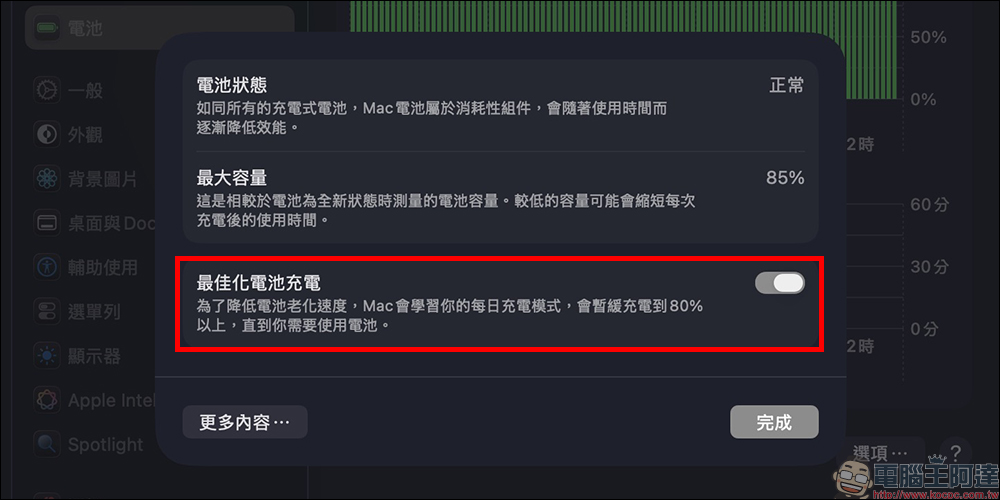
If you are more concerned about battery life, you will usually find third-party tools to solve the problem and reach the manual limit of charging limit. But after all, it is not an official function, and some people still worry about stability or security. It wasn’t until macOS 26.4 that this matter was finally solved.
The built-in “charging limit” is officially launched
After the macOS 26.4 update, there is a “Charging Cap” option in the MacBook battery settings. This means that you no longer need to rely on third-party tools and can control the power limit directly through the system.
The setting location is actually not difficult to find. Just enter the system settings and open the battery option, where you can see the “Charging” related settings.
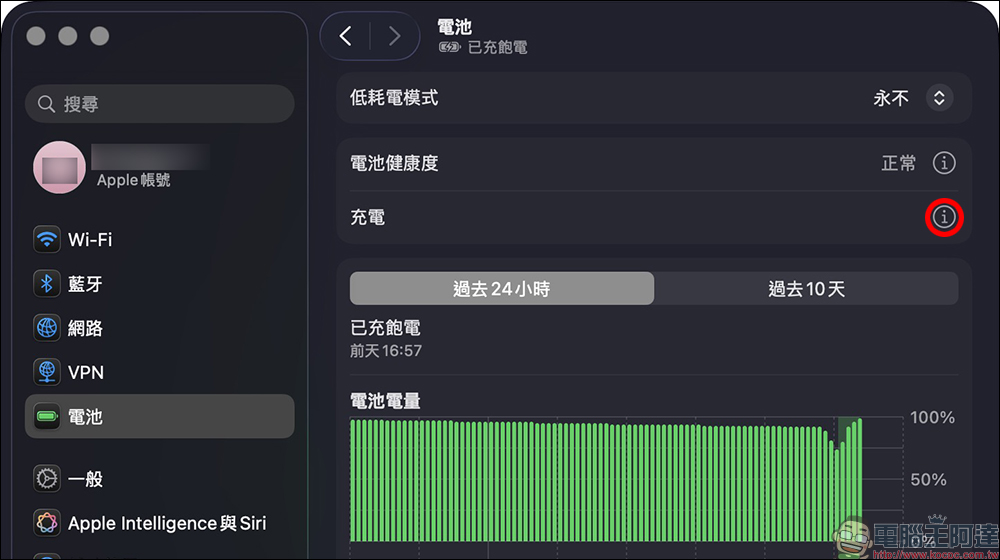
If you don’t see this option, remember to first confirm whether the system version has been updated to macOS 26.4 or later. The core of this function is to let you decide how much power your MacBook needs to be charged at most.
The upper limit of power can be adjusted freely
The options provided by Apple this time are quite flexible. Users can choose different charging limits according to their own usage scenarios, such as 80%, 85%, 90% or 95%.
This kind of design is actually critical, because when the battery no longer stops at 100% for a long time, it can effectively reduce the battery aging rate. Although on the surface it may seem like the battery is a little less, the result is longer battery life, which is more cost-effective in the long run.
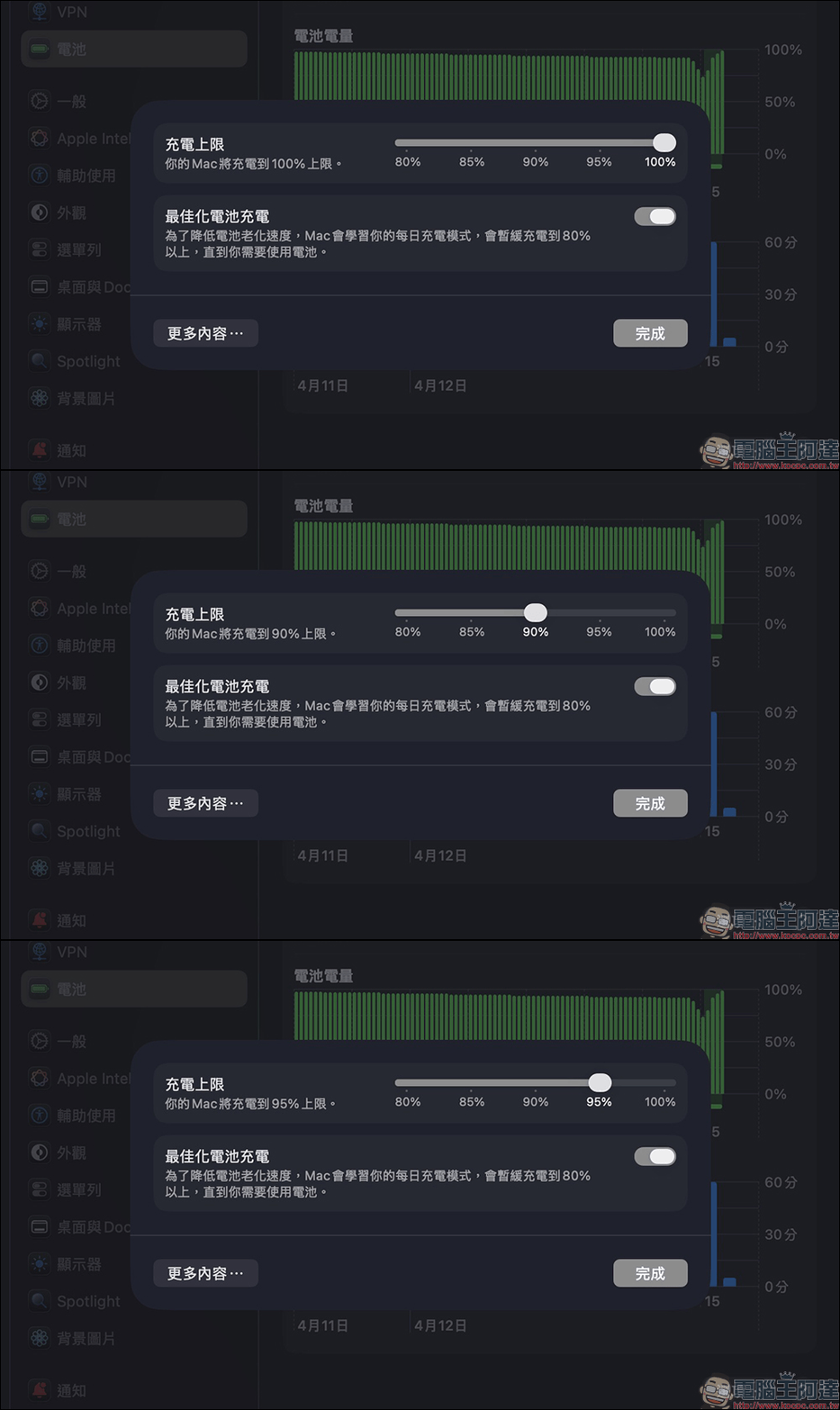
For example, if you usually use it plugged in and rarely use the battery, then setting the upper limit to 80% or 85% is very suitable. On the other hand, if you still need to take it out occasionally, you can adjust it to 90% or 95% to strike a balance between power and lifespan.
What setting is most suitable?
If you ask about the most recommended settings, there is no absolute answer. It still depends on your usage habits. But I can give you a few simple suggestions:
- If you mostly use it plugged in:
Recommended setting is 80% to 85% - If you occasionally take it out:
Can be set from 85% to 90% - If you need more battery life flexibility:
Can be set from 90% to 95%
In addition, it is also recommended to use it with “Optimized Battery Charging”, so that the system can automatically adjust the charging rhythm for you and double protect the health of the battery.
In fact, iPhone already exists
This feature is actually not the first time it has appeared. As early as iOS 18, Apple has enabled iPhones to support custom charging limits. In the earlier iOS 17, it was only limited to 80%.
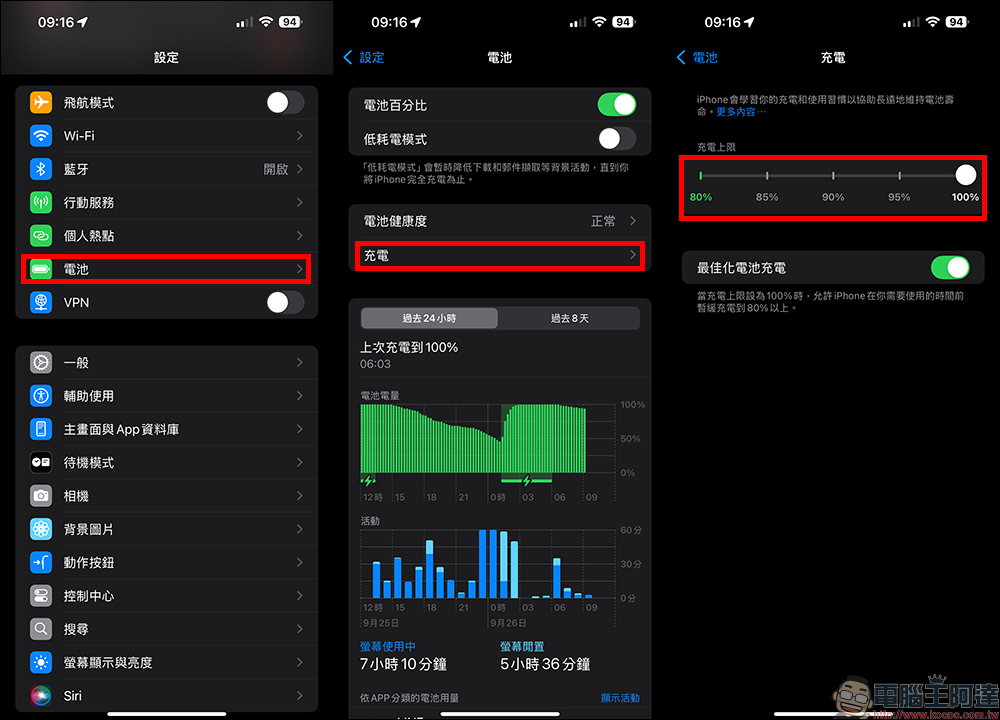
However, what surprises many Mac users is that this feature will not be officially added to macOS until 2026. For those who work with laptops for a long time, this update can be said to have been a long time coming.
Conclusion
The charging limit function added to macOS 26.4 this time seems to be just a small setting, but in fact it has a huge impact on daily use. Especially now that more and more people regard MacBook as their main work machine, it is almost normal to plug it in for a long time. With this function, you can use it with more peace of mind and no longer have to worry about the burden of keeping the battery fully charged for a long time.
More importantly, this is the first time Apple has opened up such a high degree of freedom in battery management options on Mac, and it also means that users will finally have more control over battery health in the future. If you are a heavy user, it is really recommended to spend some time adjusting this setting. There will be a significant difference in the long run.
Further reading:
Apple 50 週年致敬之作!8BitDo Retro 68 AP50 限量機械鍵盤登場,復刻 Apple II 經典設計
Source: KOCPC Chinese