


Previously, we introduced allmfit can detect which AI models your computer can run smoothly in just one secondIt’s a free tool, but it requires downloading, and its interactive TUI might be unfamiliar or inconvenient for some people. Plus, it’s limited to computers—mobile phones can’t run the check—so there are still some inconveniences. The one this article will introduce, “CanIRun.ai,” is a simpler solution: just open a webpage and immediately find out which [games/software] can run smoothly LLM the model, and it can be tested on any device that has a browserComputerlaptops, tablets,mobile phoneAny of them will do.

CanIRun.ai Introduction and Operation Tutorial
CanIRun.ai is a free online tool designed for local AI enthusiasts, primarily used to determine whether your computer or phone can successfully run various AI models. For those who are now increasingly trying to run LLMs locally, this tool is extremely useful. By detecting your hardware specifications, it directly determines which models you can actually run, saving you a lot of testing time and avoiding frustration.
Usage is also very simple. Once you enter the site, it immediately detects your GPU, VRAM, memory bandwidth and other information (you can also manually adjust these), then displays a whole list of AI models with clear ratings like “Runs great”, “Runs well”, “Decent”, “Too heavy”. You can quickly see which models will run smoothly, which ones are borderline, and which ones aren’t worth trying at all.
Better yet, it doesn’t just list model names—it also provides VRAM requirements, inference speed (token/s), context length, and more for each model. It even supports various quantization formats (like Q4, Q5, Q8), allowing advanced users to evaluate performance and resource usage with greater precision.
Main Features
- Automatically detect computer GPU, VRAM, memory bandwidth, and other hardware information
- Supports manual hardware configuration adjustment to simulate different device performance
- List runnable AI models directly (Llama, Qwen, Mistral, etc.)
- Provide clear performance ratings (Runs great / Runs well / Too heavy)
- Display VRAM required, inference speed (tokens/s), and context length
- Supports multiple quantization formats (Q2-Q8, FP16) performance evaluation
- Filter models by task category
After clicking the link above to go to CanIRun.ai, the top of the page immediately displays your current device’s hardware specs, including CPU, VRAM, bandwidth, and other information. If there’s an error, you can manually correct it. Below that, it immediately tallies how many LLM models you can run smoothly—for example, my Apple M1 Pro 16GB can run 16 models, with 11 being acceptable.
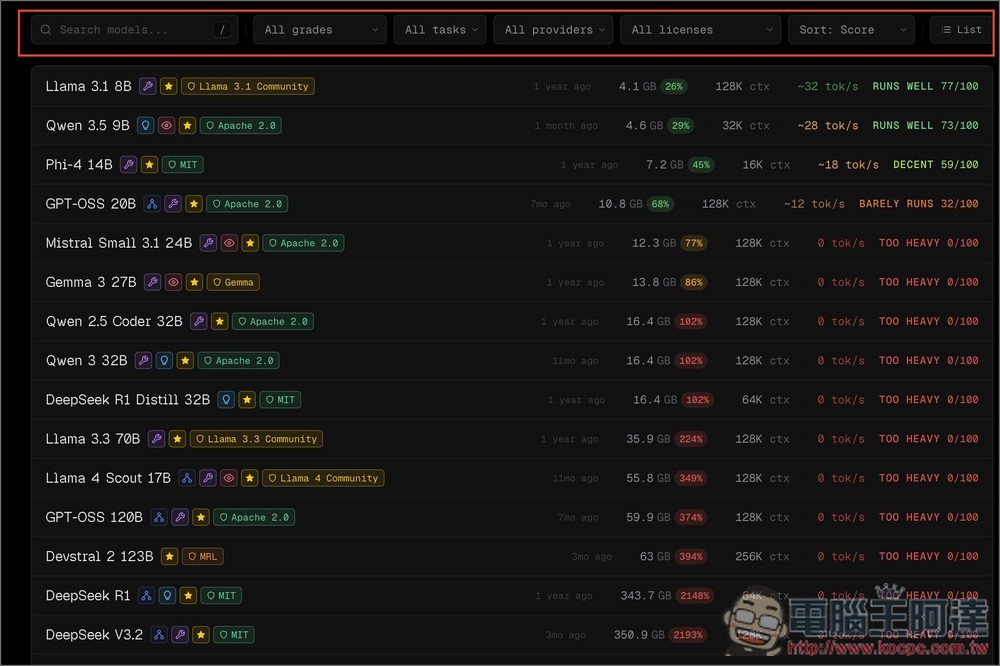
If there are too many options or they’re too varied to read easily, you can use the filters above to narrow things down by model keywords, runtime tier, suitable tasks, provider, etc.:
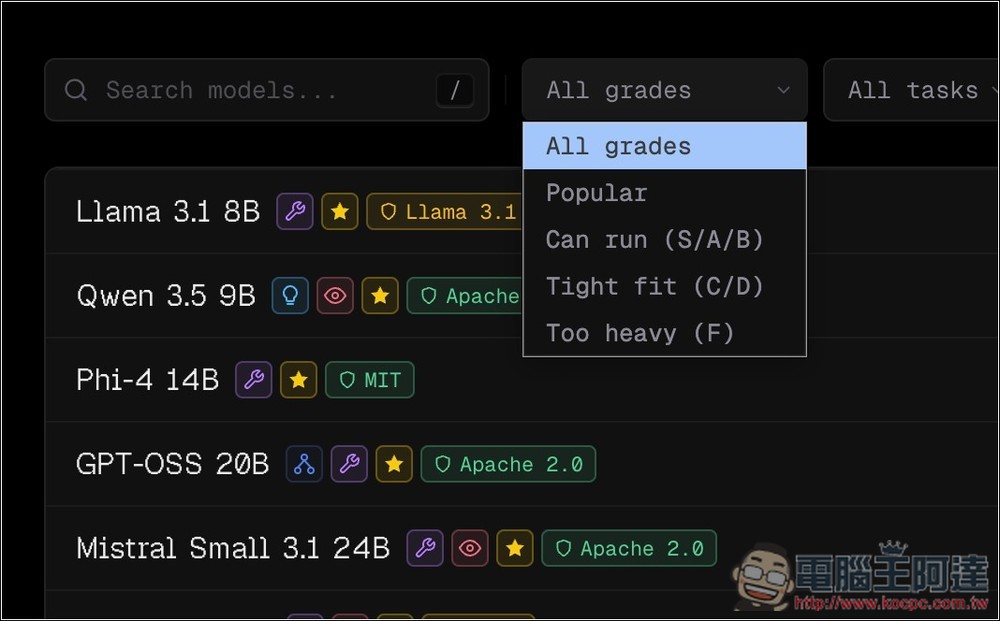
If you only want to see which models can run smoothly, switch “All grades” to “Can run”:
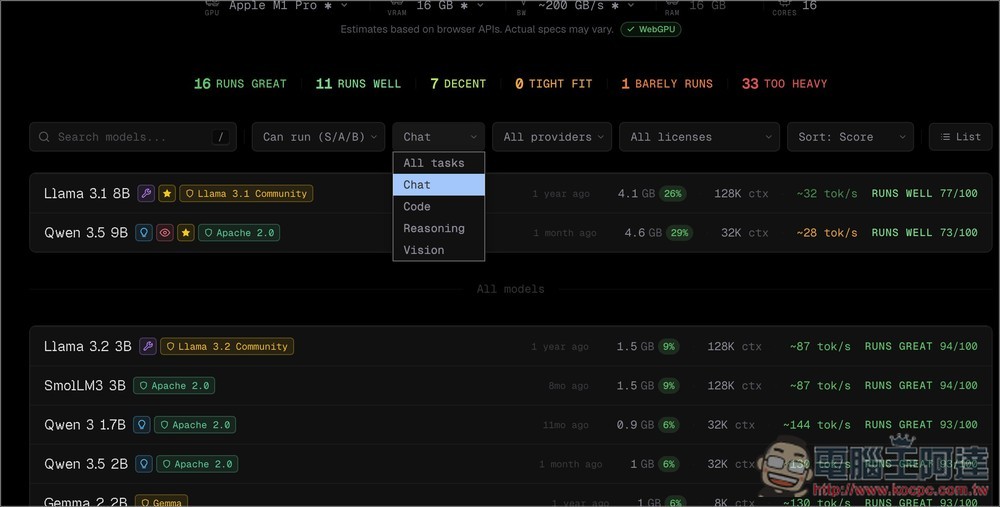
The following list shows what you can run smoothly, for reference scoring:

The task section includes chat, programming, reasoning, and vision:
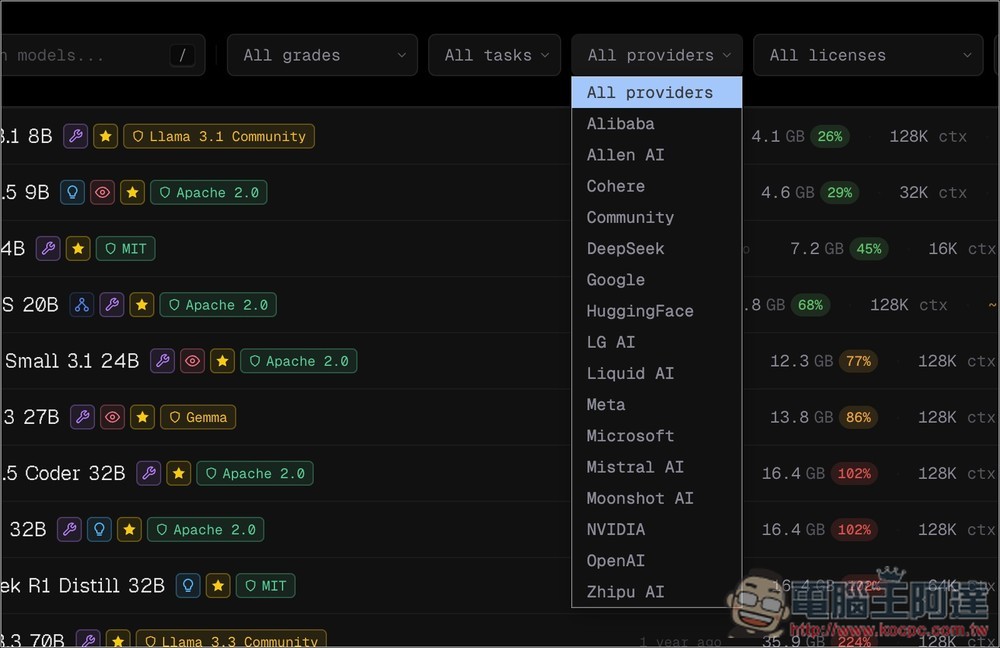
All the major model providers are available, such as Google, DeepSeek, OpenAI, NVIDIA, Alibaba, and more:
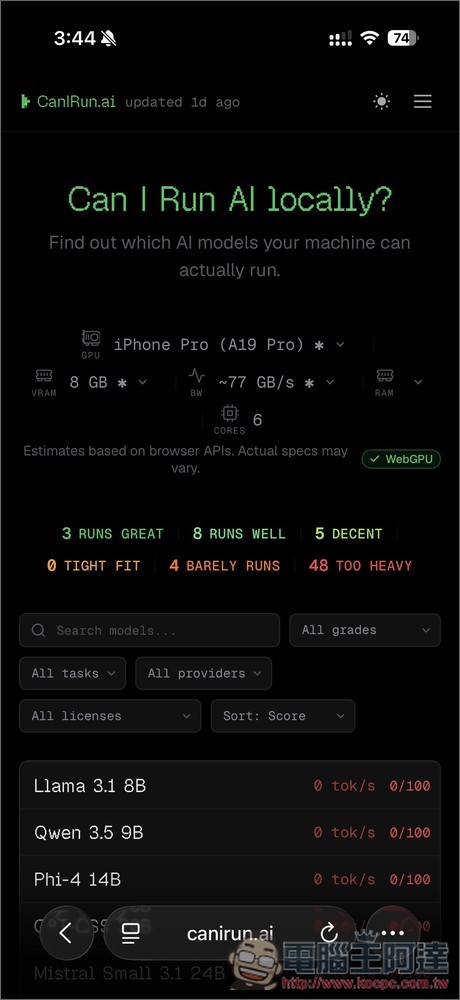
The same applies to the mobile version – after I opened CanIRun.ai on my iPhone, it accurately identified my hardware specs right at the top:
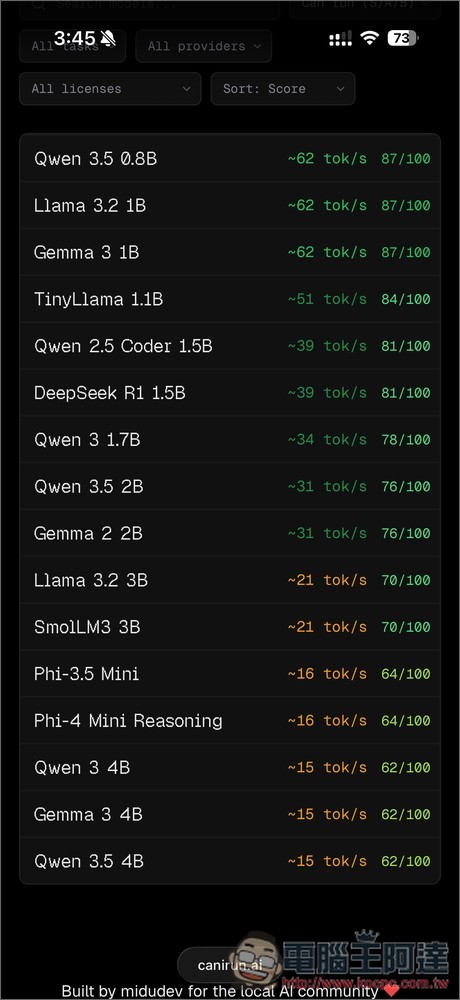
Surprisingly, only 6 models have a running speed score above 80 on the iPhone 16 Pro:
Source: KOCPC Chinese