


Google It can be said to have started accelerating in 2026 Chrome the browser’s AI functions from the beginning of the year Gemini Sidebar integration, Auto Browse agent, Imagen 3 image generation, and even expanded to 50+ languages last month—there’s something new almost every month. Just now, Google launched another brand new feature called “Skills.” Simply put, it’s a place to save AI prompts, so you can reuse them with just one click instead of typing them out every time.
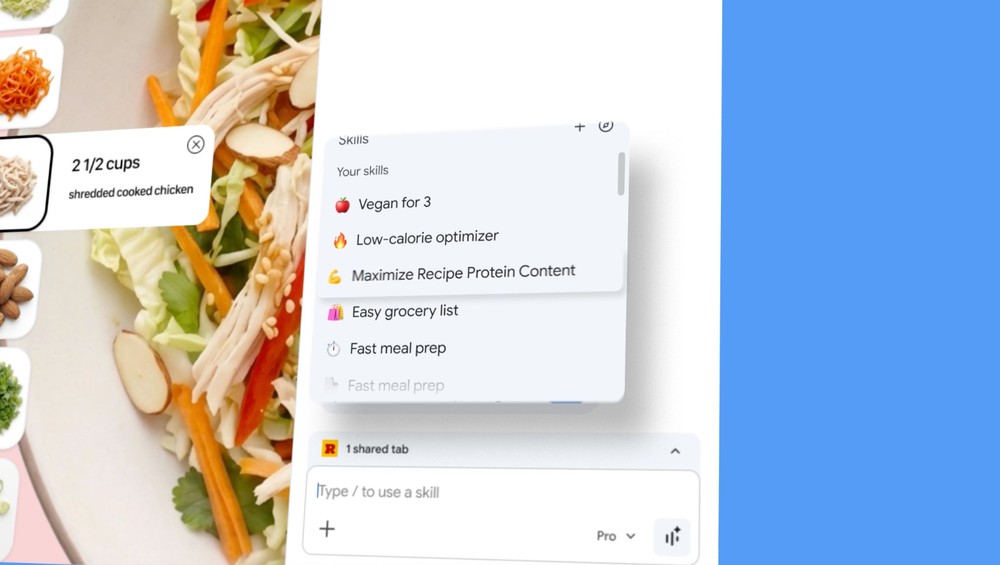
Chrome launches ‘Skills’ feature: turn your most-used AI commands into one-click tools, eliminating the hassle of repetitive typing
When using AI browsers, you’ll inevitably need to use the same prompts repeatedly. Previously, Gemini in Chrome didn’t support prompt storage functionality, so you had to rely on browser extensions to achieve this, like the one we previously introduced called “Gemini VoyagerWith the Skills feature now available, there’s no longer any need to use third-party tools.
When you have prompts that you use frequently, you can save them in Skills. When you need to use them again, just type a forward slash “/” in Gemini’s input field, or click the “+” button next to it, to quickly access your saved Skills and execute them with one click.
The setup process is straightforward too. After chatting with the AI in Gemini’s sidebar, if you find a prompt particularly useful, you can save it directly as a Skill—you can even give it a name and add an emoji for easy identification. More importantly, these saved Skills sync and back up to your Google account, meaning if you log into the same Google account on Chrome from other devices, you can use them right away without any extra configuration.
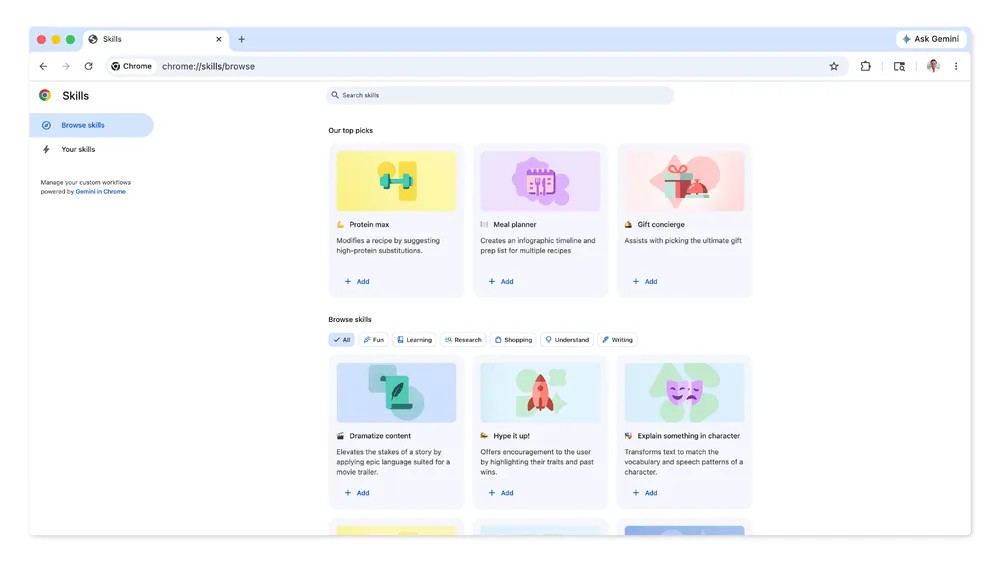
In addition to building your own, Google also has a pre-built library of useful Skills. You can browse them at chrome://skills/browse, where they’re organized by categories like Learning, Research, Shopping, Writing, and Health. These are ready-to-use Skills that you can add directly to your list or modify to suit your needs.
What’s particularly special is that Skills also supports cross-tab functionality. For example, if you have multiple shopping websites open at the same time comparing prices, you can use the “+” button to add multiple tabs at once, allowing AI to simultaneously analyze the information on these pages and help you organize product specification comparison tables. Beyond price comparison, other use cases mentioned by the official include: calculating protein content in recipes, quickly scanning lengthy documents and summarizing key points, converting webpage data into visual charts, and more.
On security, Google stated that when Skills perform more sensitive operations (such as adding Google Calendar events or sending emails), they will first show a confirmation window asking for your approval before executing, rather than automatically doing these things on your behalf.
It’s worth noting that Skills currently only supports users who have set their Chrome language to English. In other words, if your Chrome interface is set to Chinese, you won’t be able to use this feature for now.
However, Google only just last month Gemini in Chrome’s language support expanded to over 50 languages (including Traditional Chinese)so it’s only a matter of time before Skills expands to more languages, though Google hasn’t announced a specific timeline yet. Additionally, the Skills feature is also being rolled out gradually, so even if your Chrome is already up to date, you may need to wait a few days before you see it.
Source: KOCPC Chinese