


In this era of thin and light notebooks, notebooks have fewer and fewer ports, and in order to charge PD, the Type-C port has to be used as a power hole. But for users like Ada, whose work requires a large number of external devices, connecting multiple screens, wireless keyboards, wireless mice, external SSDs, etc. has become quite commonplace. In order to connect multiple devices, my desk is always littered with various adapters and hubs, not to mention having to pull another laptop charging cable. This not only makes the desk messy, but also makes me feel very confused. And especially for users of the MacBook M1 to M5 series, if they want to connect an external “dual screen”, they are often limited by the hardware limitations of the system itself, which is really a headache.
If you want to solve the above problems, of course you have to leave it to professional external equipment. The expansion base I unboxed this time comes from j5create launched「 JCDP4140 USB-C 14-in-1 all-purpose dual 4K charging expansion dock”! It’s not just a Hub that gives you a full range of ports, it provides you with 14 expansion ports at once. What’s even more amazing is that it has a built-in 163W power supply. You no longer need to prepare an extra laptop transformer or PD power supply. Just use its built-in power cable to provide up to 100W fast charging for your laptop. It can also painlessly break through Mac limitations to achieve dual 4K screen output. in the end j5create How powerful is the docking station for this flagship workstation? Let’s unbox it and take a look!
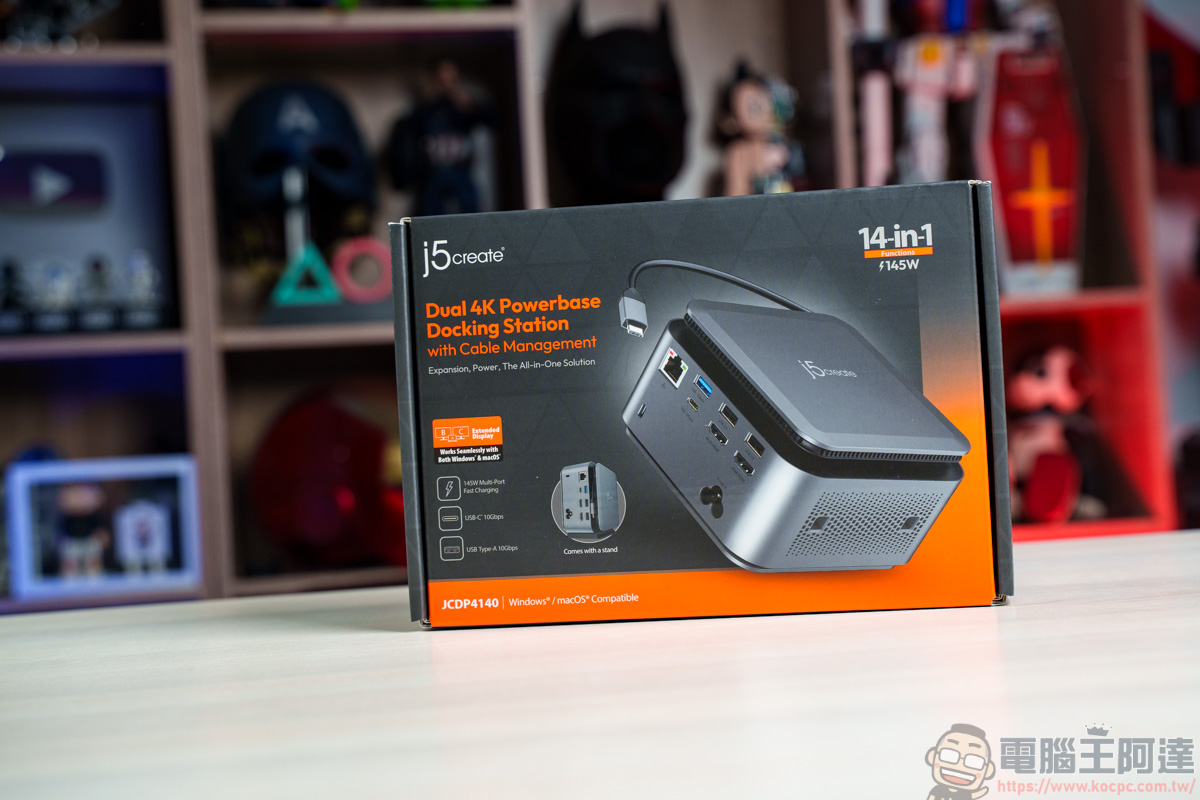
j5create JCDP4140 unboxing
Let’s take a brief look at the features of j5create JCDP4140:
- Suitable for MacBook (M1-M5) and Windows laptops
- Total power 145W charging specifications
- USB-C 10Gbps high-speed transmission specification
- USB-A 10Gbps high-speed transmission specification
- Supports high-definition dual-screen display up to 4K@60Hz + 4K@30Hz
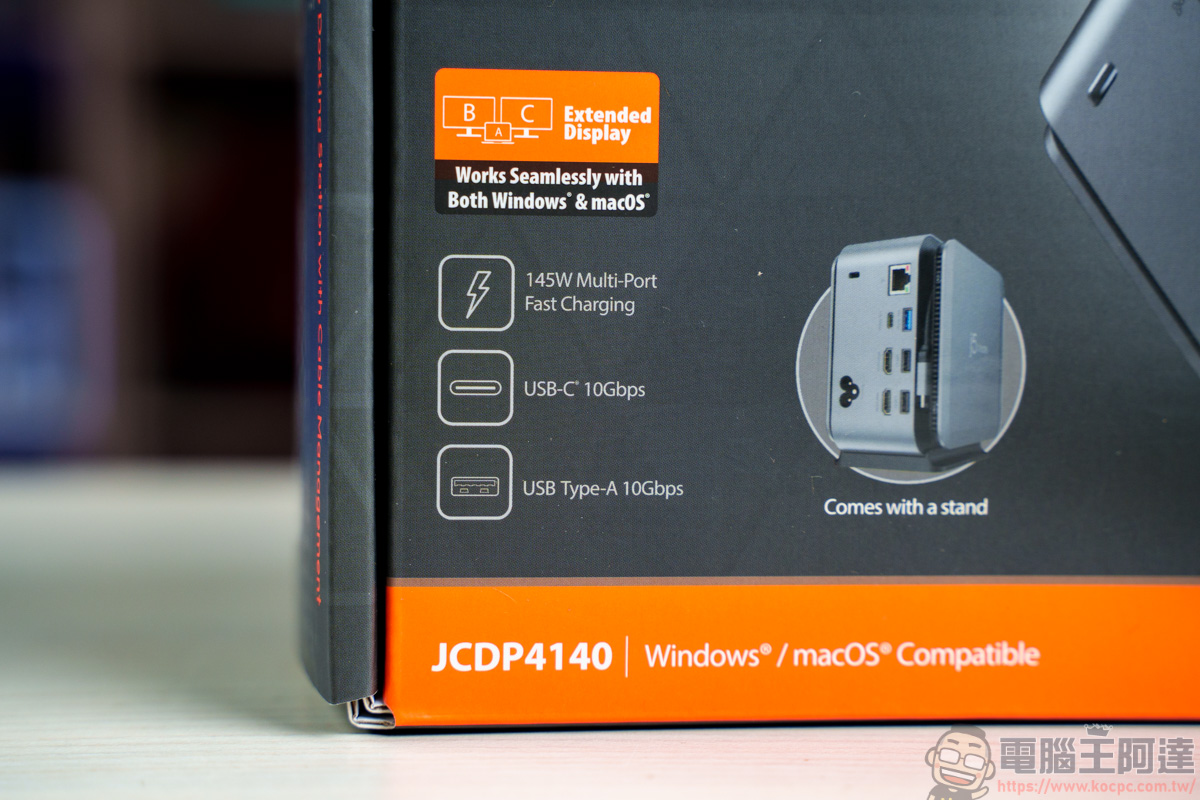
The contents of j5create JCDP4140 include: host*1, upright base*1, 180cm AC plum blossom hole power cord, instruction manual
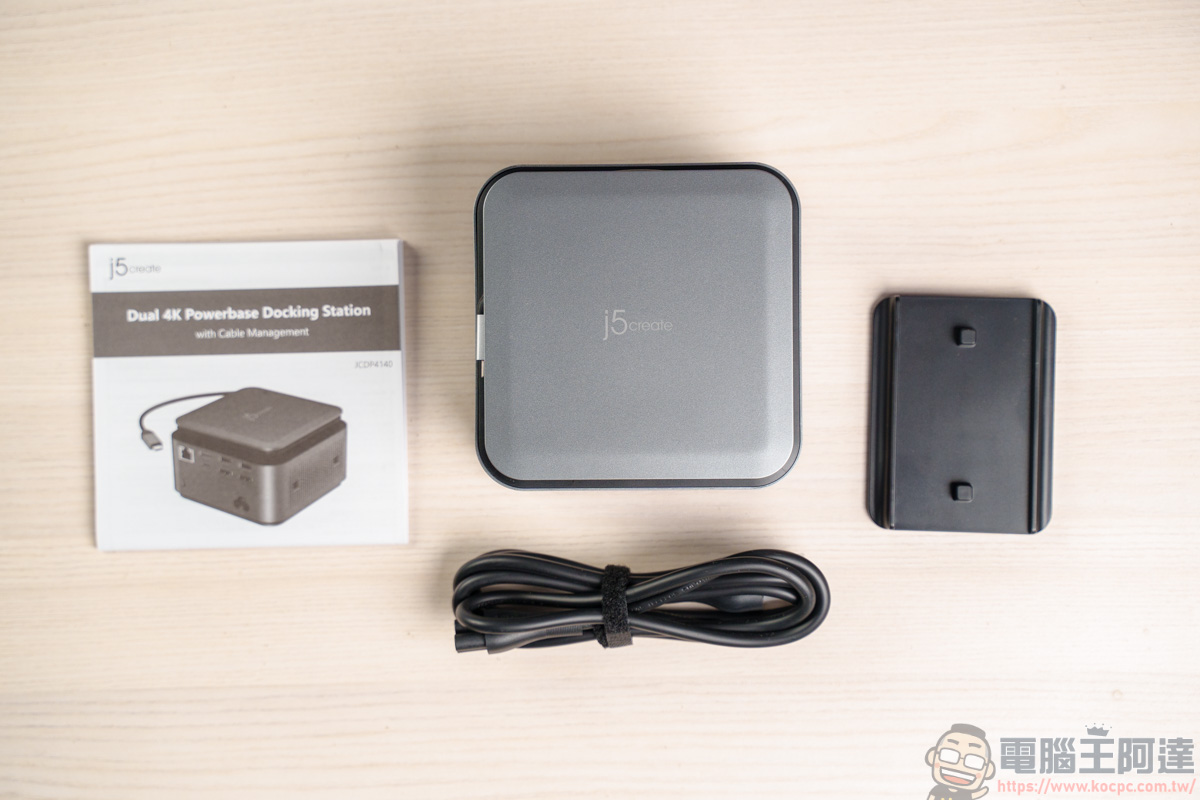
j5create JCDP4140 itself provides a 2-year product warranty. If you log in to the product online within 30 days of purchase, you can also extend the warranty for 6 months for free, which is equivalent to a 2-and-a-half-year warranty, which is very good:
j5create JCDP4140 14-in-1 docking station buy here
Appearance introduction
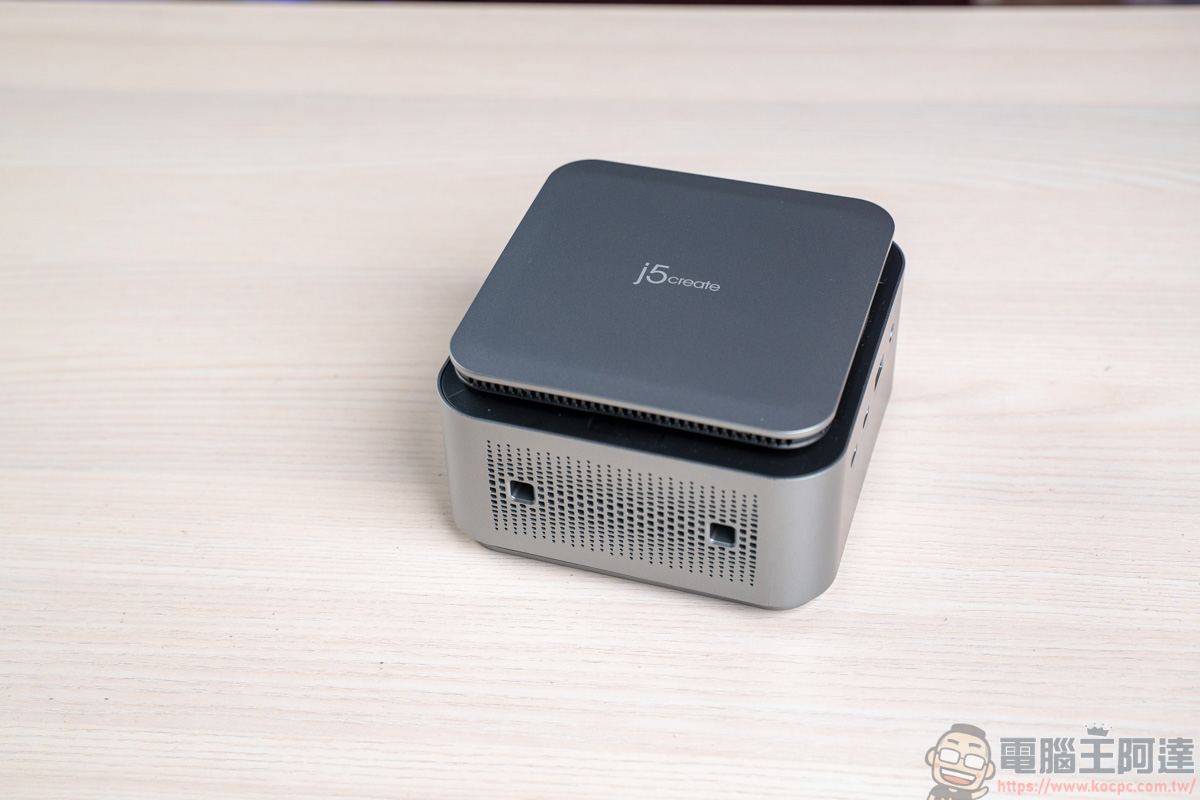
Compared with ordinary Hubs, the size of j5create JCDP4140 is obvious at a glance and cannot be underestimated. The volume is approximately 78.75 long x 130.4 high x 130.4mm deep, and the weight is approximately 759g. This size and weight are more suitable for use at home or in the studio. As the flagship workstation j5create JCDP4140, it is equipped with quite a few functions and ports, which can perfectly solve the problem of users who need multiple ports:
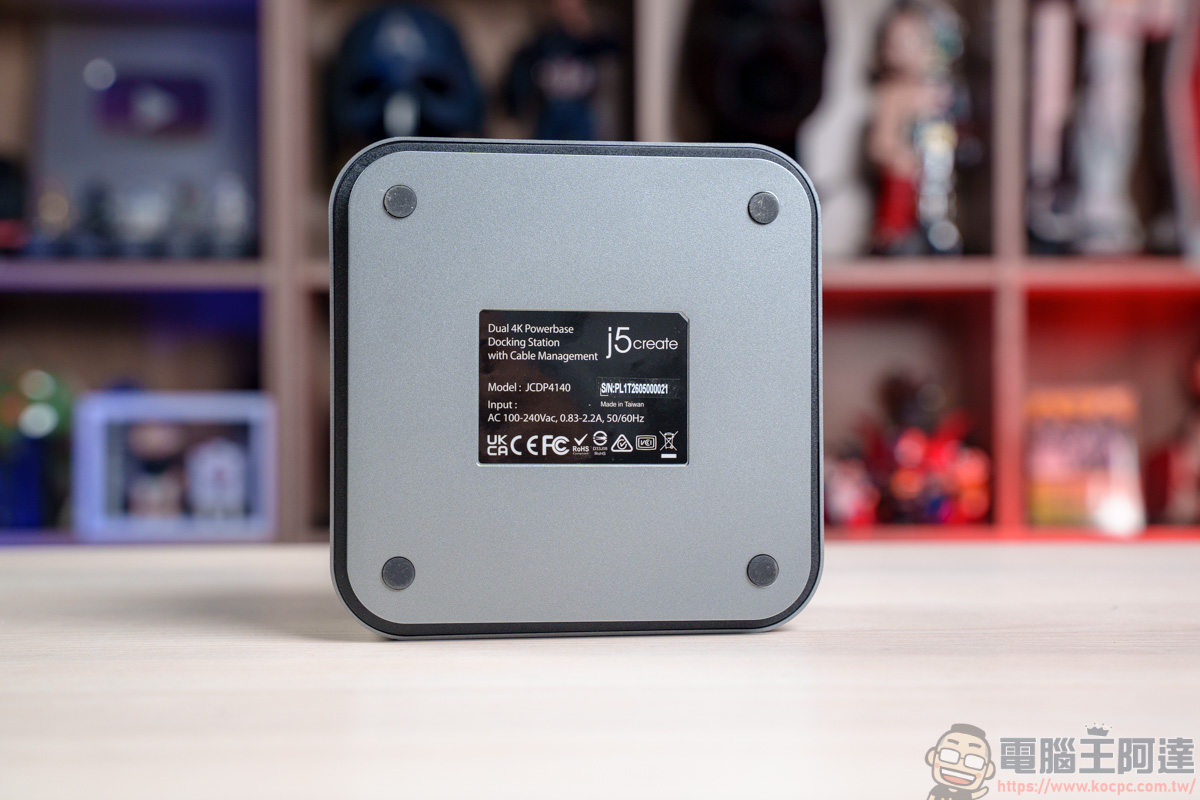
There are four anti-slip pads at the bottom, which can be placed safely on the table:
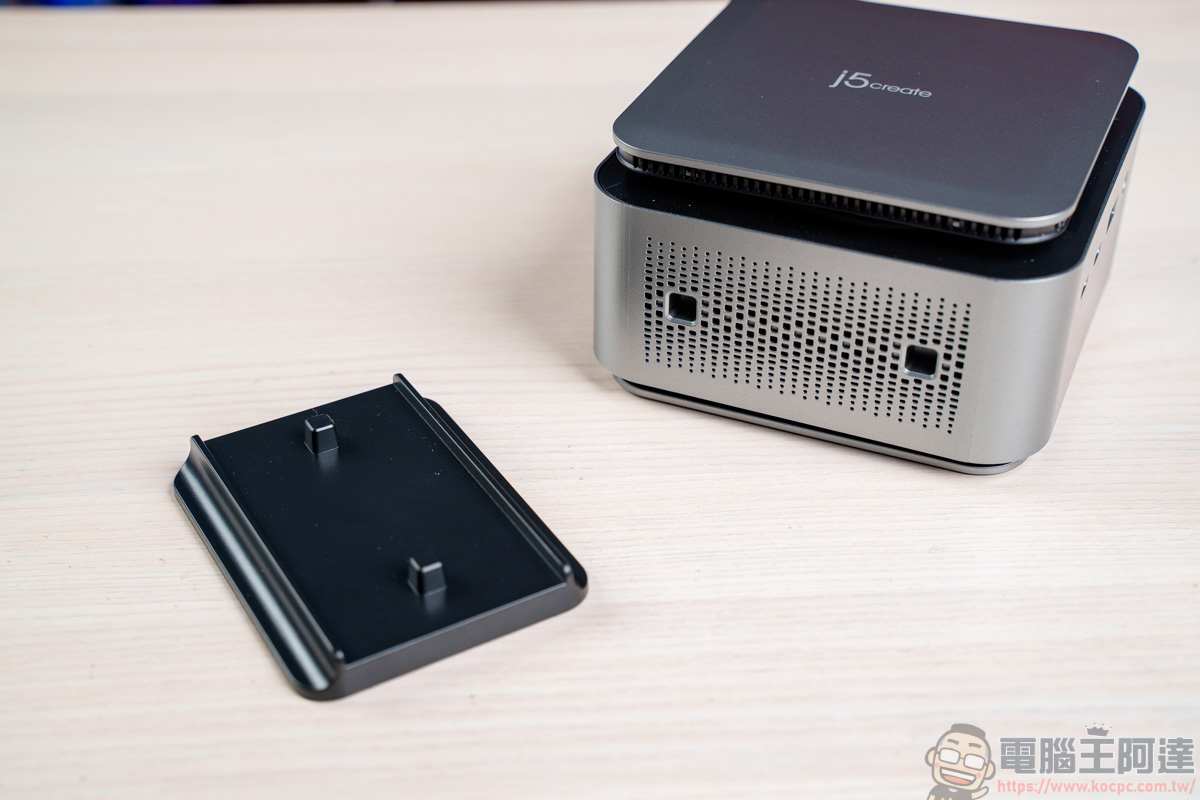
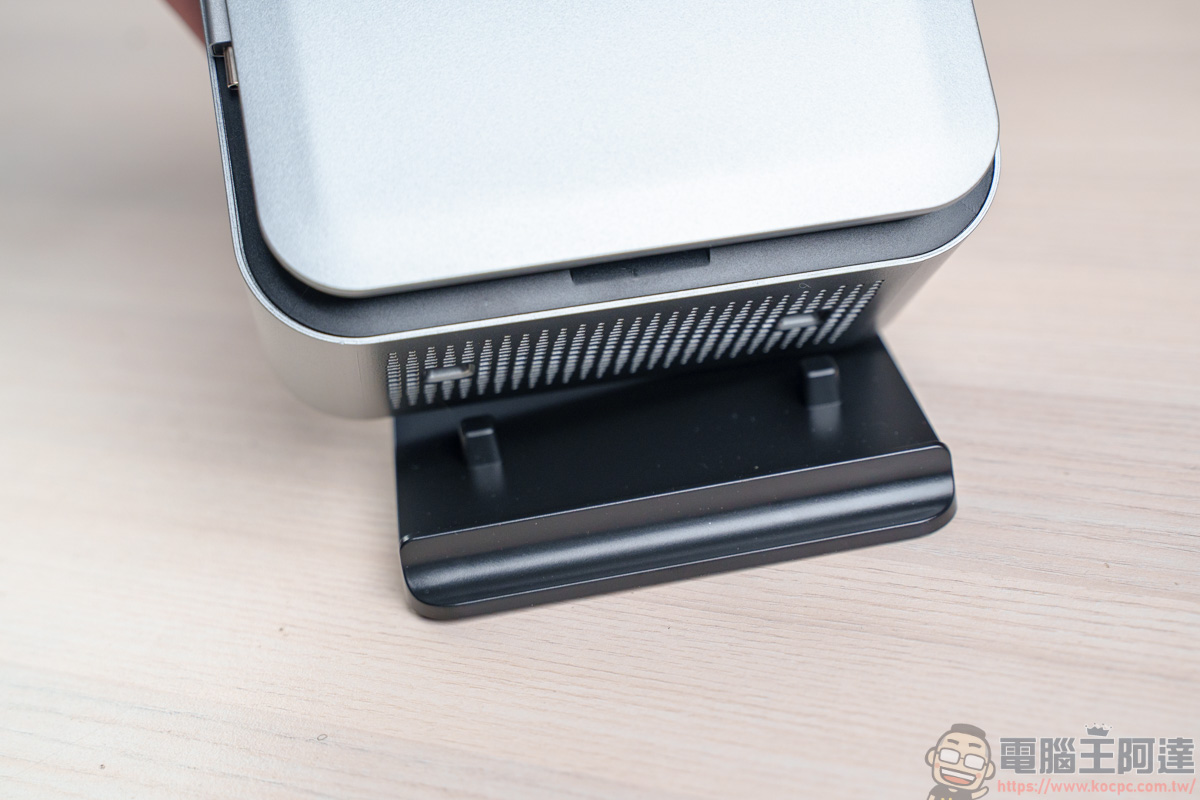
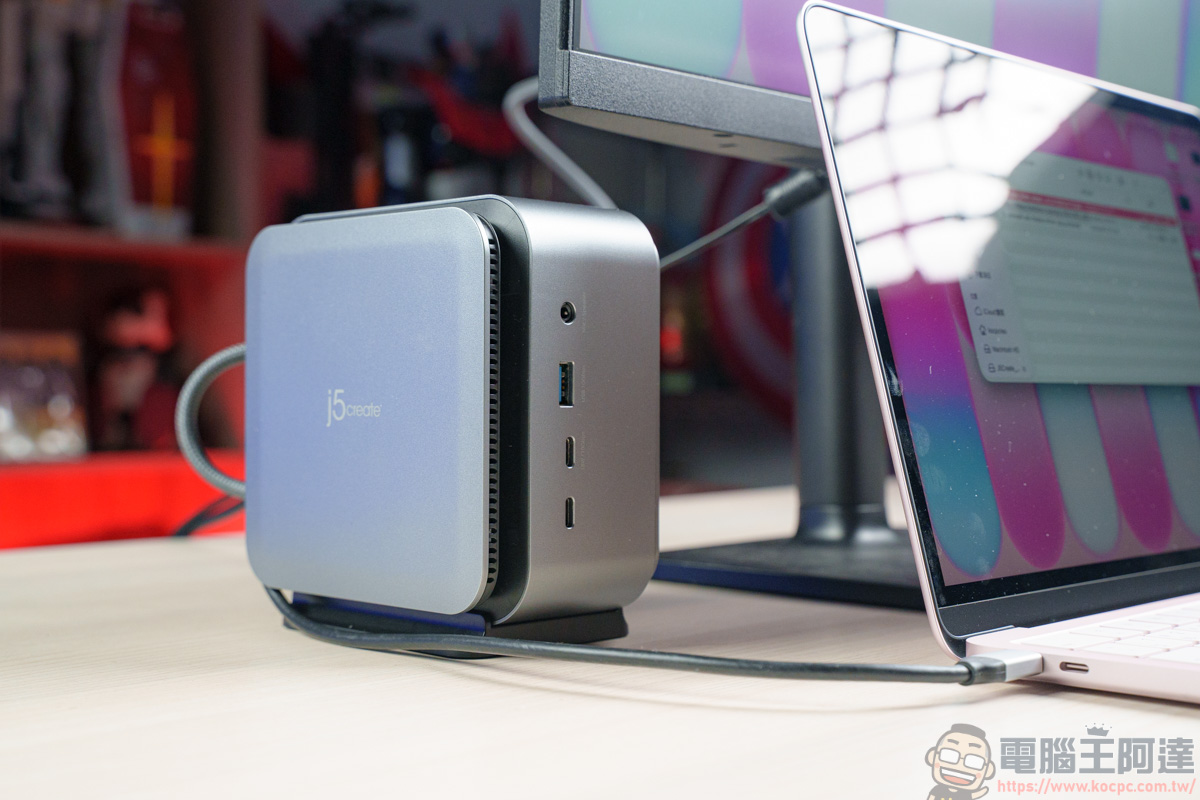
If you feel that placing it flat takes up too much space on your desk, a set of upright bases are included with the product to change the placement pattern of j5create JCDP4140:
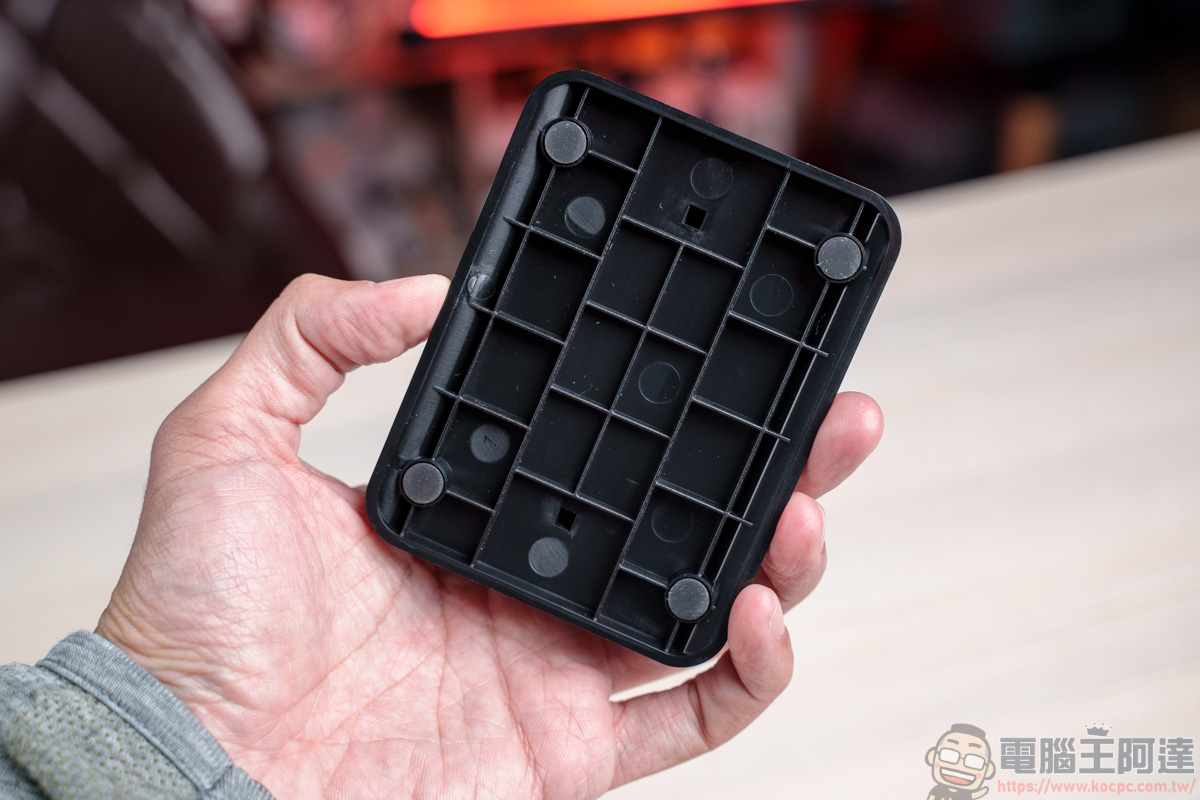
The upright base also has four anti-slip pads:
The installation method is quite brainless, just install it facing the side hole:
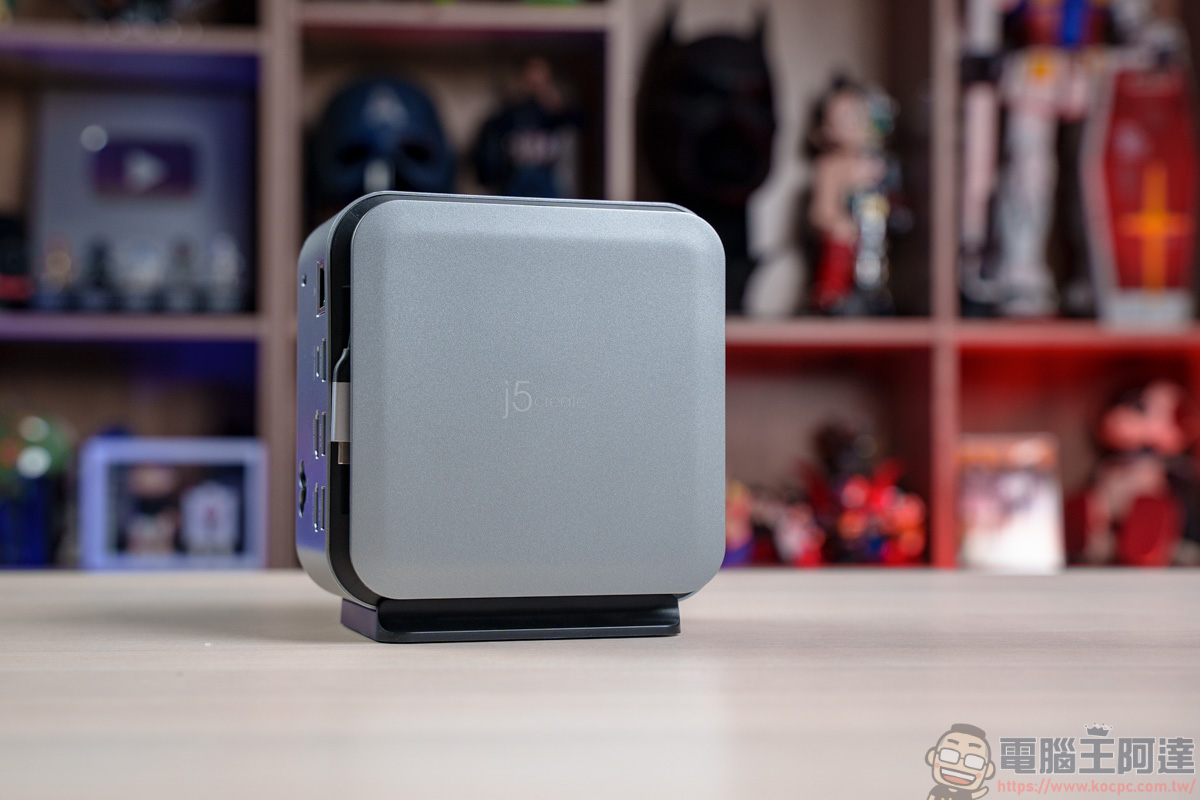
By installing an upright base, j5create JCDP4140 can be converted into a vertical form, and the desktop area will also increase from 130.4mm→ 78.75mm, making the desktop look more concise:
j5create JCDP4140 function introduction
First, let’s connect a laptop with a screen:
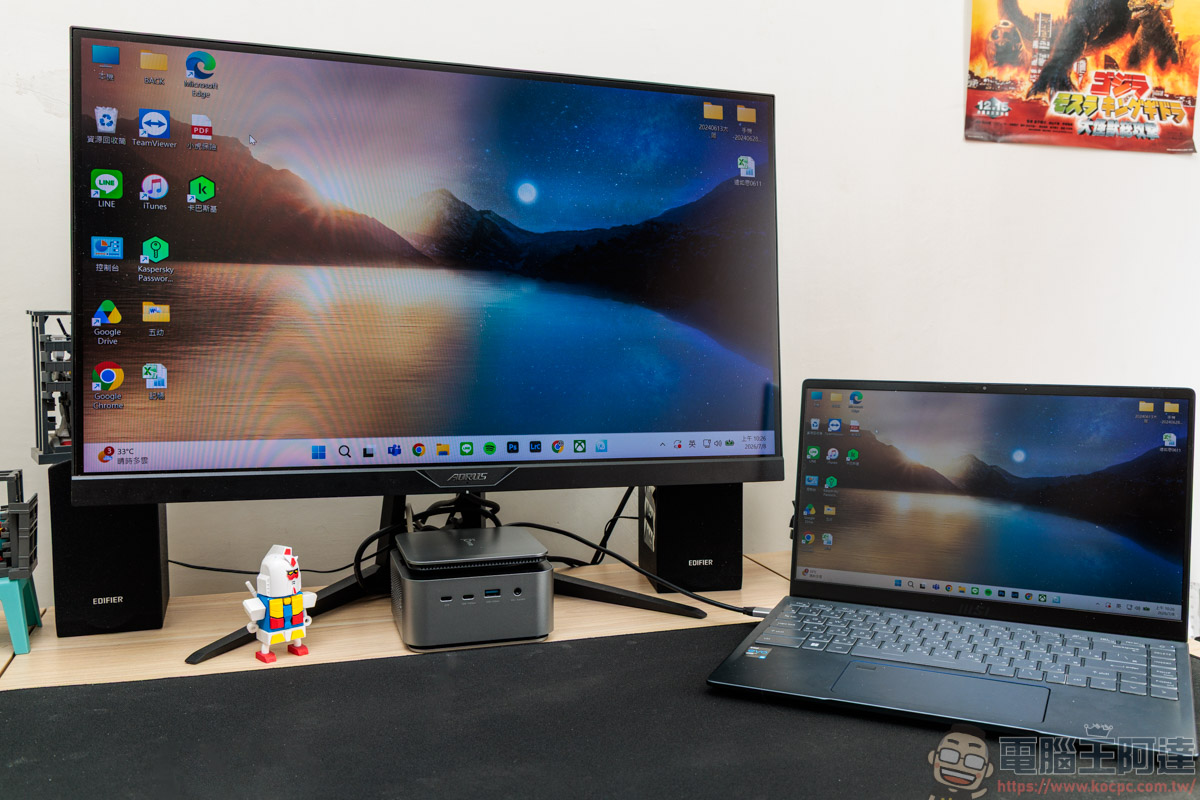
The use of j5create JCDP4140 is very simple. After connecting the AC power cord, connect the Type-C cable on the body to a laptop that supports Power Delivery 2.0 & 3.0 and supports DisplayPort Alternate Mode. It can provide up to PD 100W power supply and video output function for the laptop:
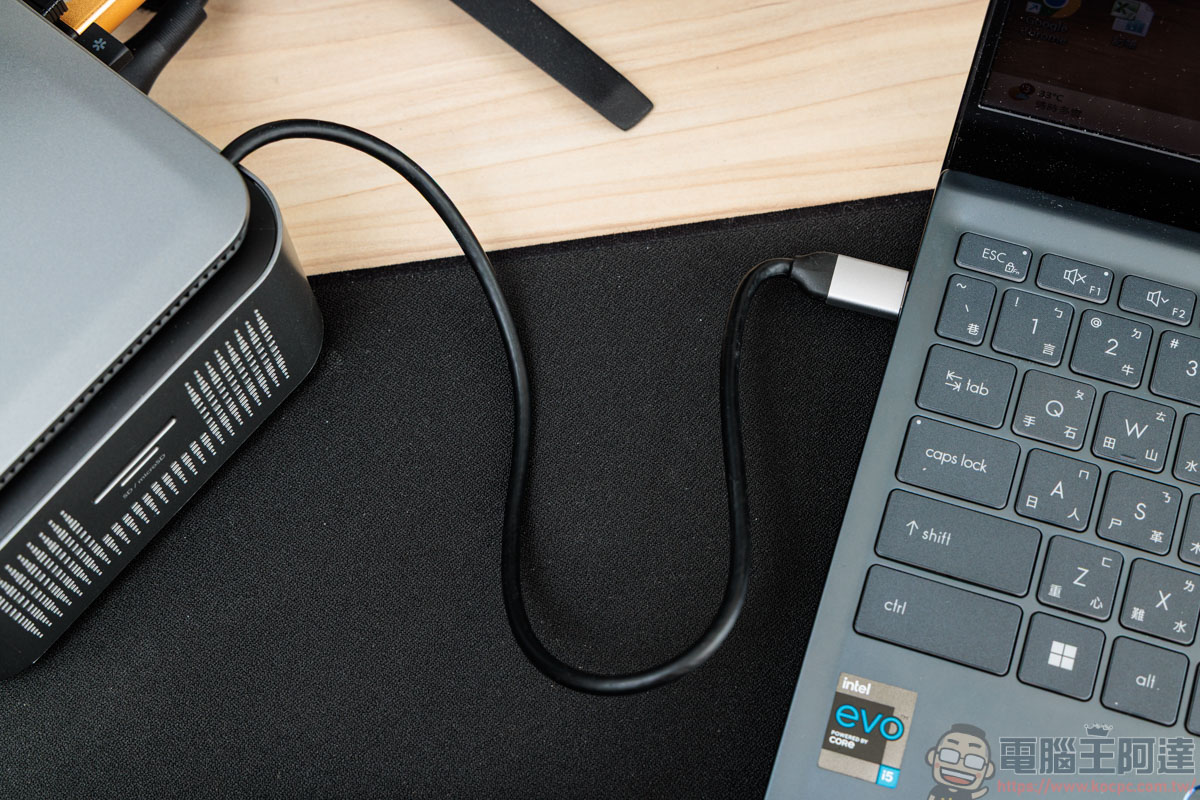
This Type-C cable can usually be stored in a roll in the internal storage cable trough:
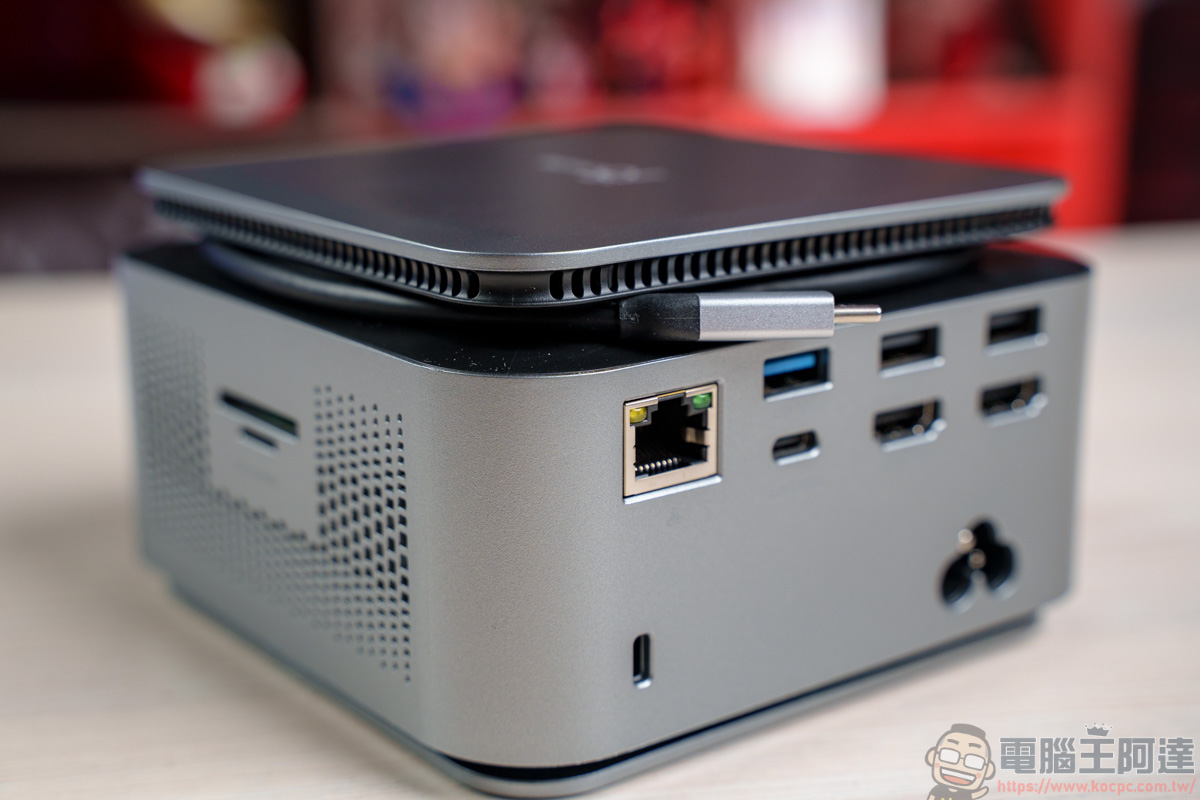
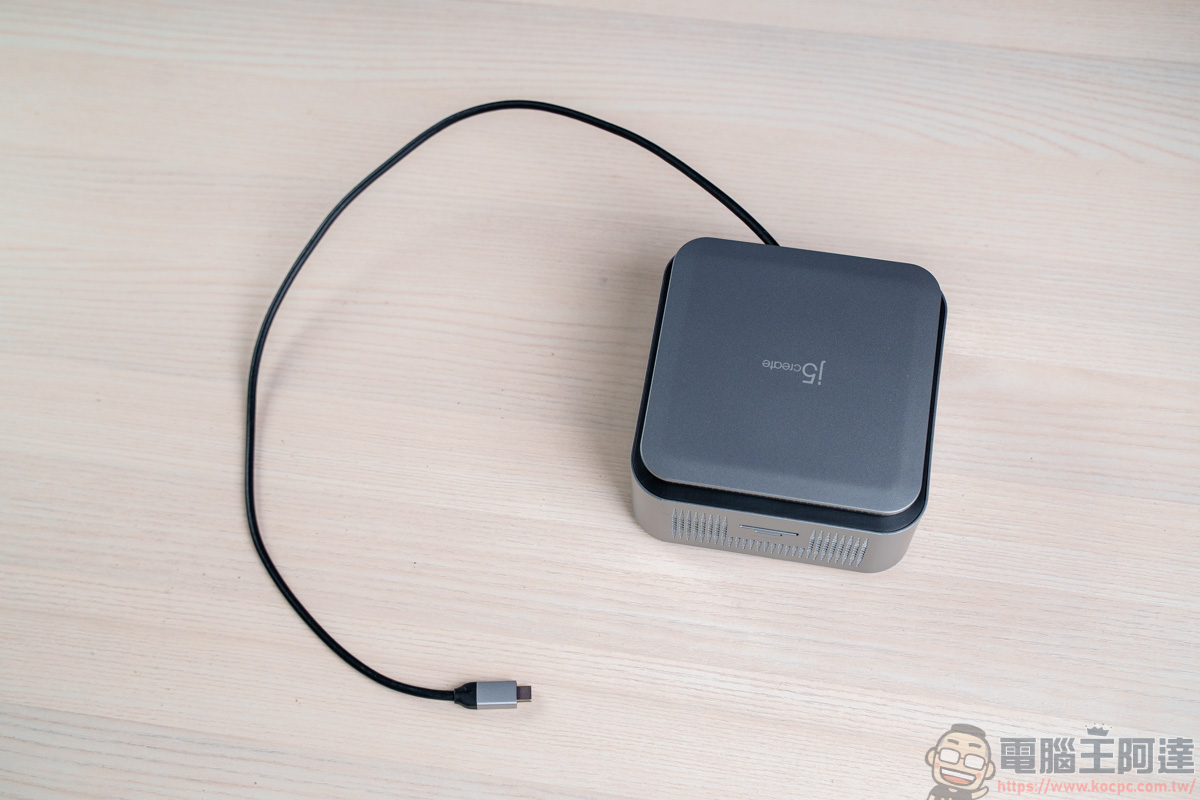
The total length of the cable is about 695 mm, which is quite sufficient for general daily use:
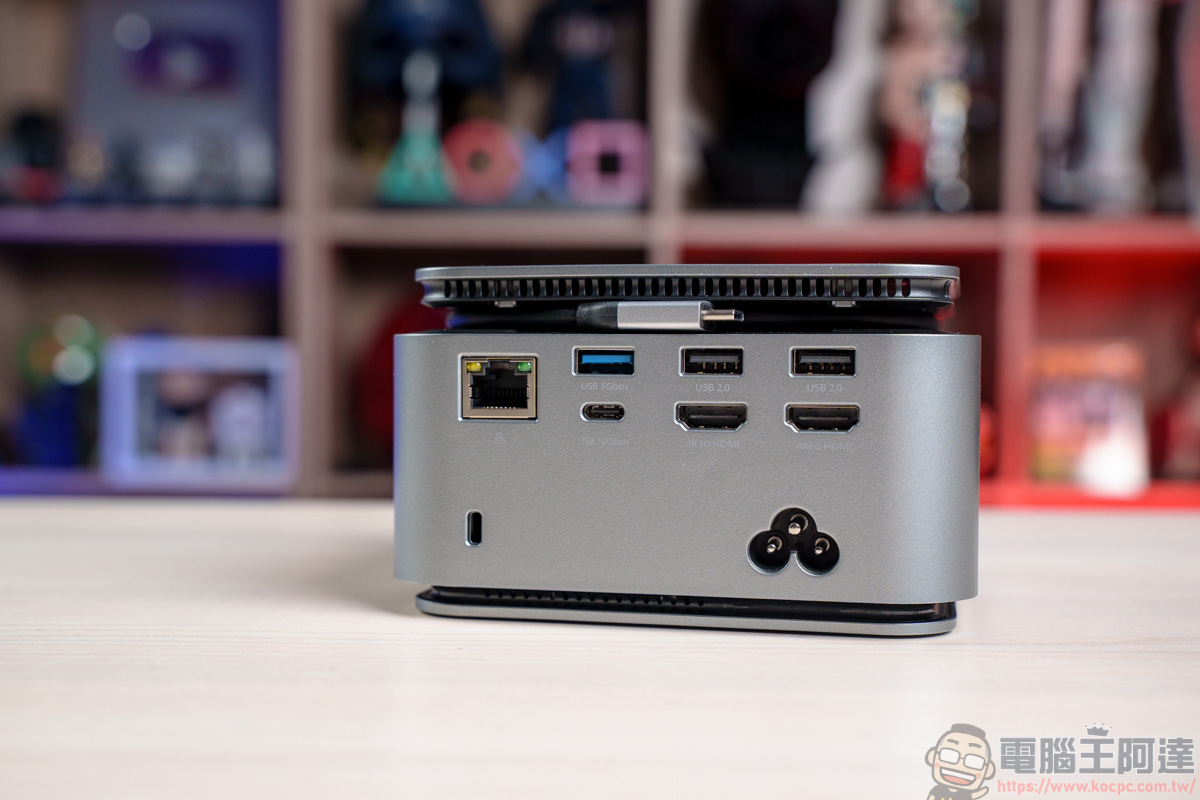
The connection ports on the rear of the fuselage are quite rich, including:
- Physical RJ45 1000Mbps Gigabit Ethernet
- 1 x USB Type-A 10Gbps
- 2 x USB Type-A 480Mbps
- 1 x USB-C 10Gbps
- 2 x HDMI(4K@30Hz & 4K60Hz)
- AC plum blossom power jack
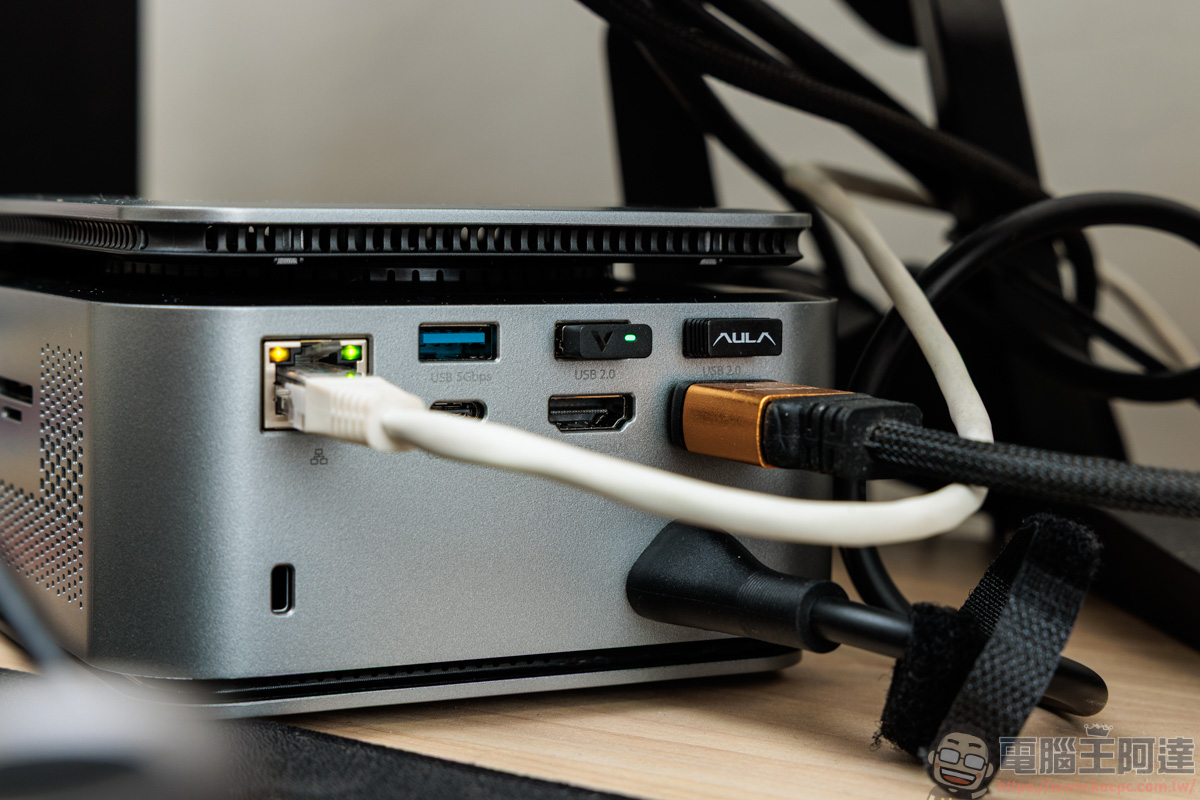
In terms of daily use, most of the two rear USB 2.0 holes are used to plug in keyboard and mouse receivers. Because of the single-screen connection, I will choose to plug it into 4K60Hz HDMI. At the same time, the RJ45 network cable is connected to ensure the stability of the network connection, and the Wifi speed will not be affected by the distance of the router:
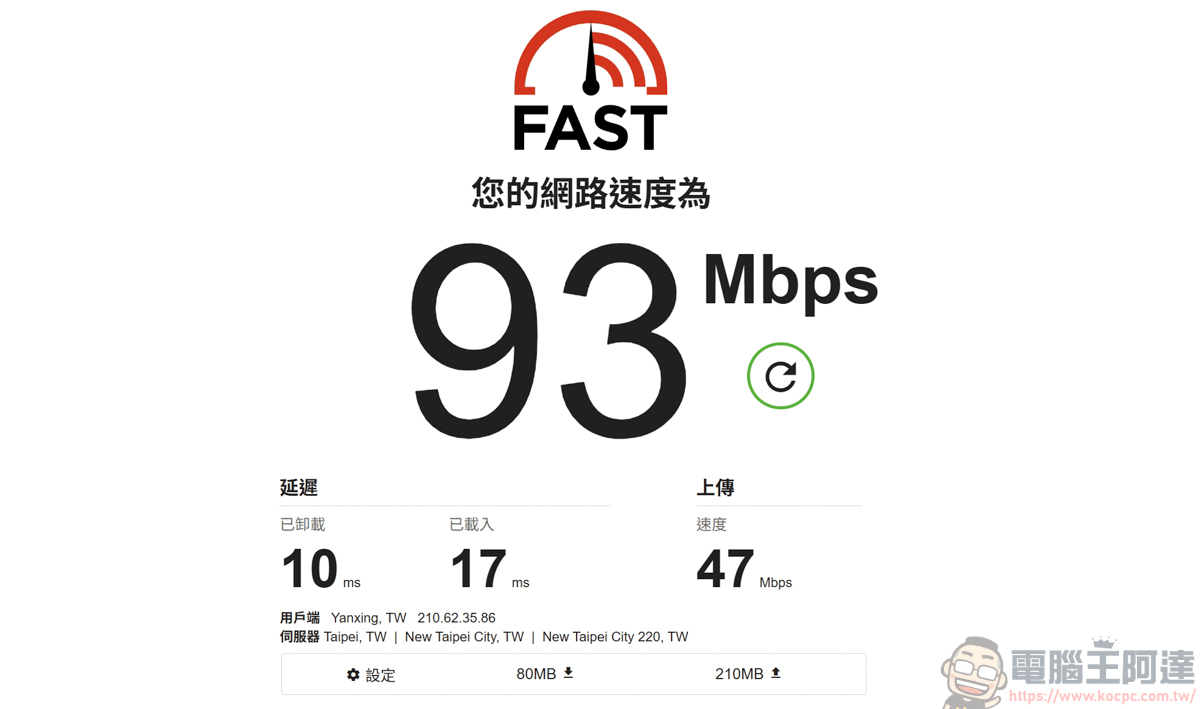
I also conducted a slight network speed test. Taking my home 100M network environment as an example, the speed test result fell around 93 Mbps, which is close to the limit:
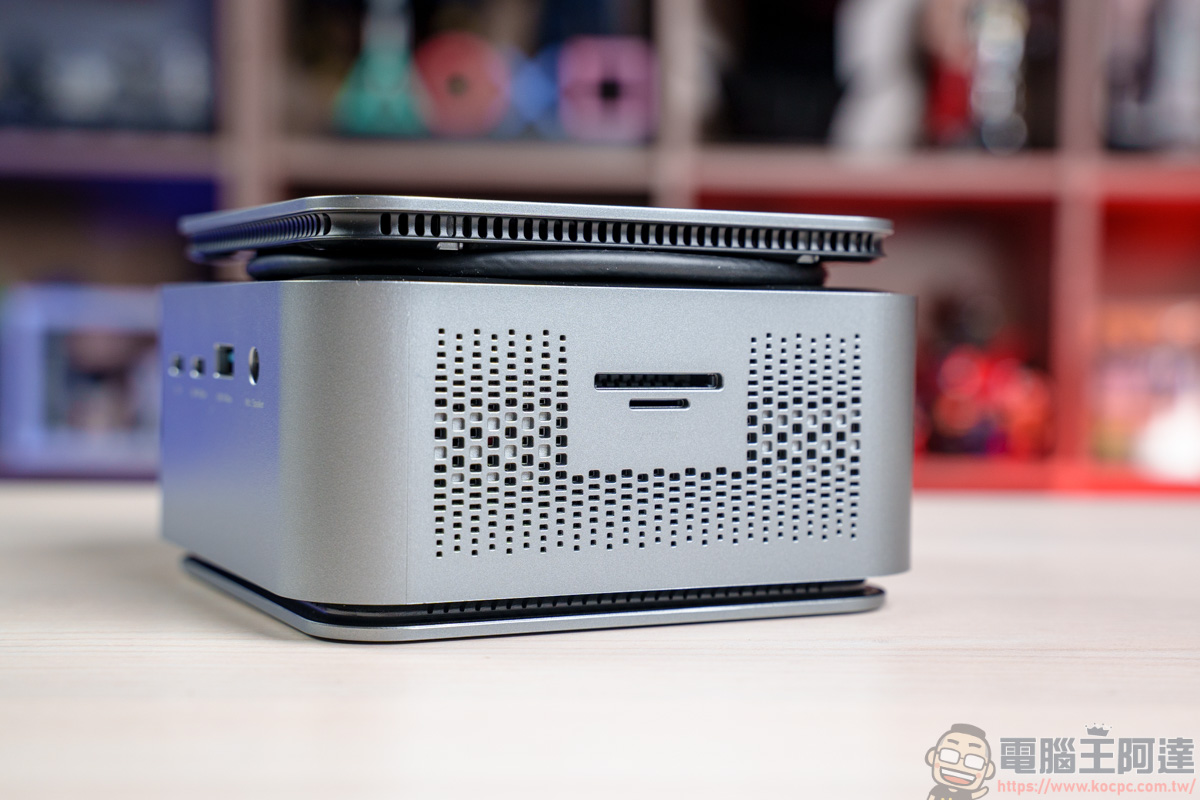
On the side is an SD & Micro SD 3.0 card reader, which supports simultaneous reading and has a maximum transfer speed of approximately 104MB/s:
It is really good to support simultaneous reading function, so that SD & Micro SD memory cards can be plugged in at the same time for access, and the transfer efficiency will be much faster:
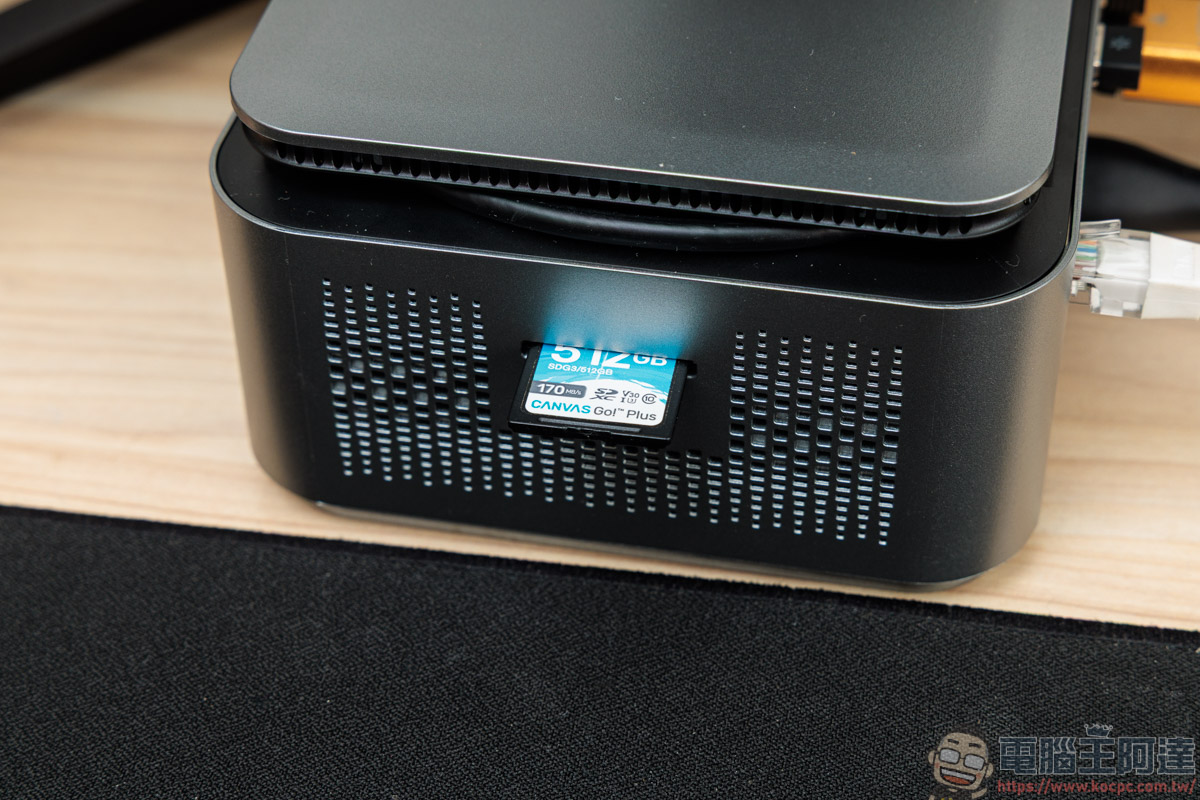
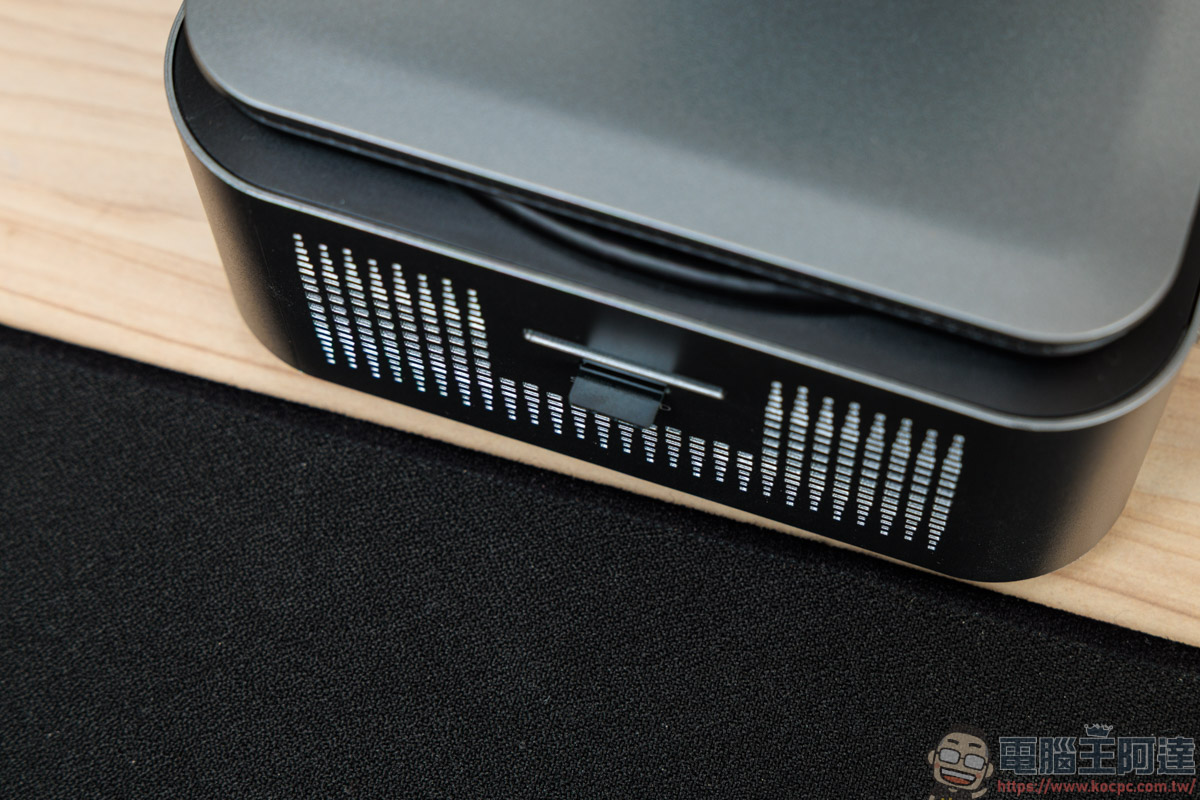
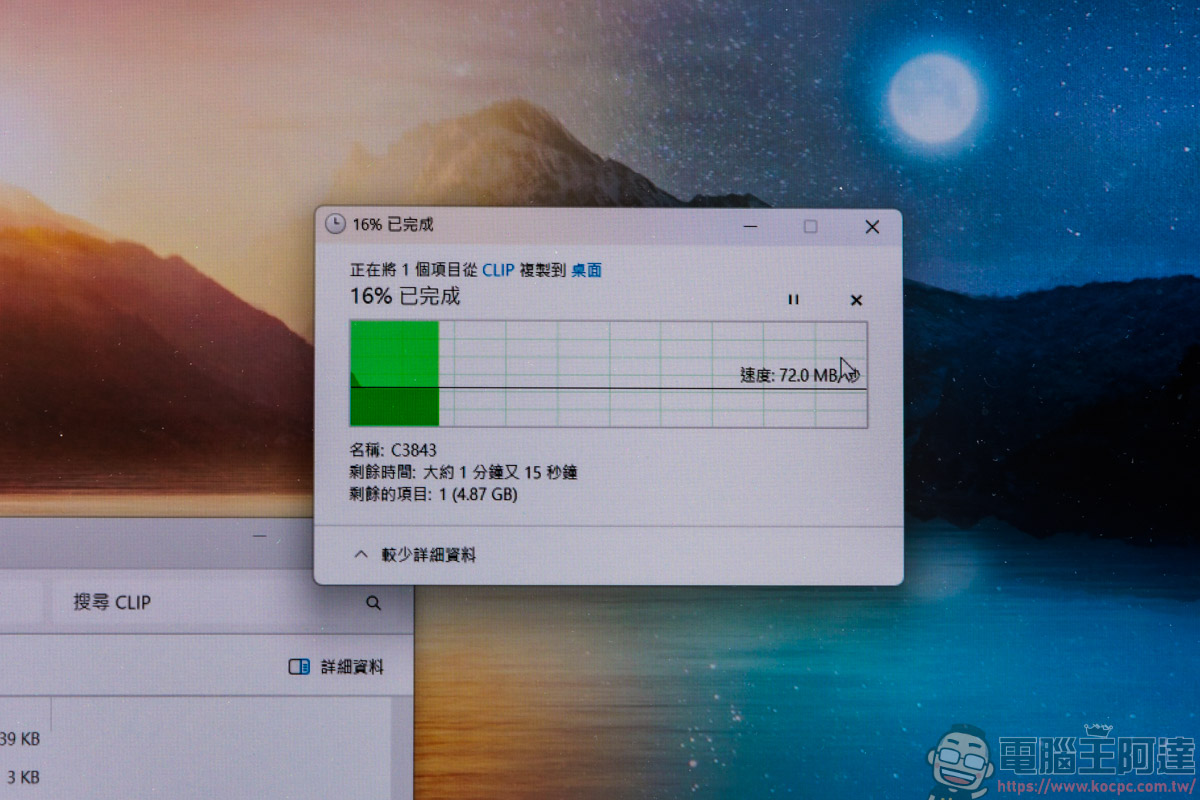
Testing the U3 SD memory card I have on hand with a read and write speed of 170MB/s, the speed of transferring large videos is around 7xMB/s. In terms of the performance of this card, this transfer speed is very good:
Finally, let’s look at the front connection ports of j5create JCDP4140. From left to right they are:
- USB-C supports PD3.0 27W fast charging
- USB-C supports 10Gbps transmission & PD 18W charging
- USB Type-A 10Gbps
- 3.5mm microphone/audio source hole
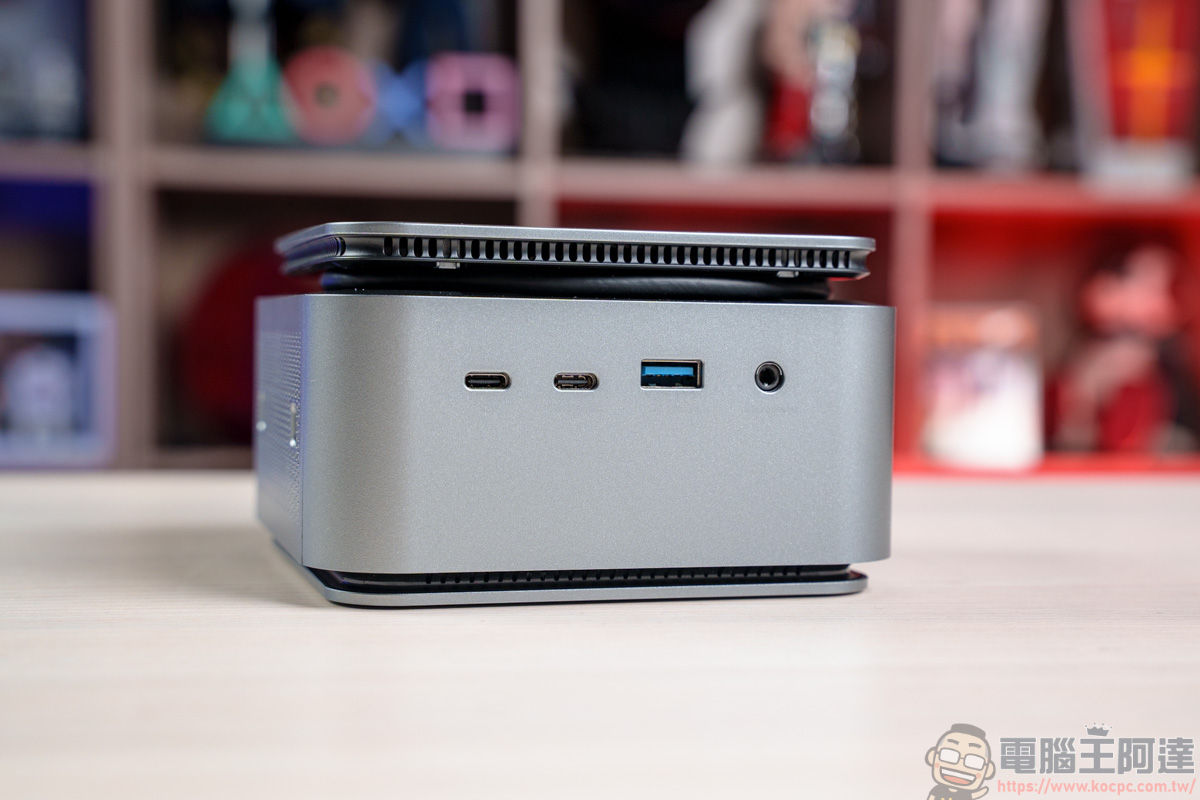
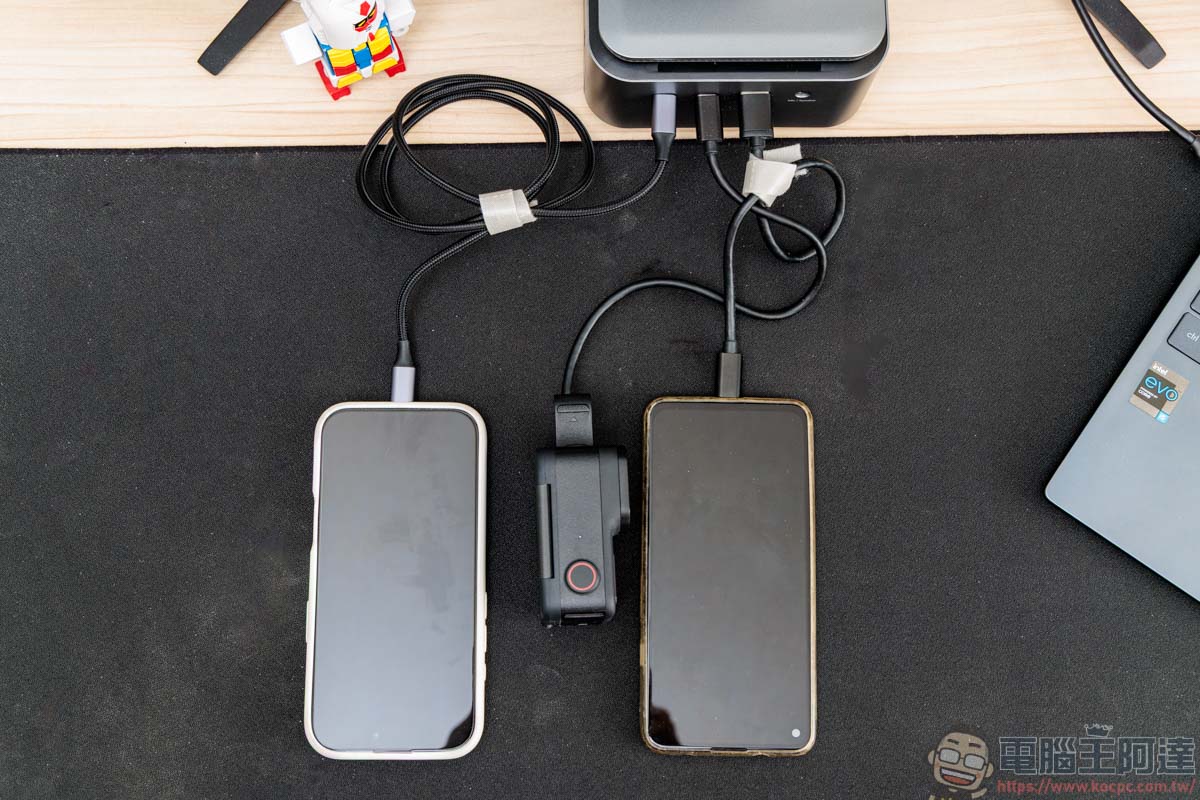
First of all, these three USB ports all support power supply capabilities. The USB-C on the far left supports PD 3.0 27W high-speed charging, which can be used to charge mobile phones, tablets, or slow charge the Steam Deck. The USB-C on the second left supports PD 18W charging and can also be used to charge devices such as mobile phones and tablets. The third USB-A port also has basic power supply capabilities, but the power supply capability is not as high as USB-C. It is sufficient for slow charging of low-power products such as Bluetooth headsets:
If there is no power output, the USB-C support and USB-A in the middle support 10Gbps high-speed transmission capability and can be used to connect external SSD, USB flash drive or external hard drive:
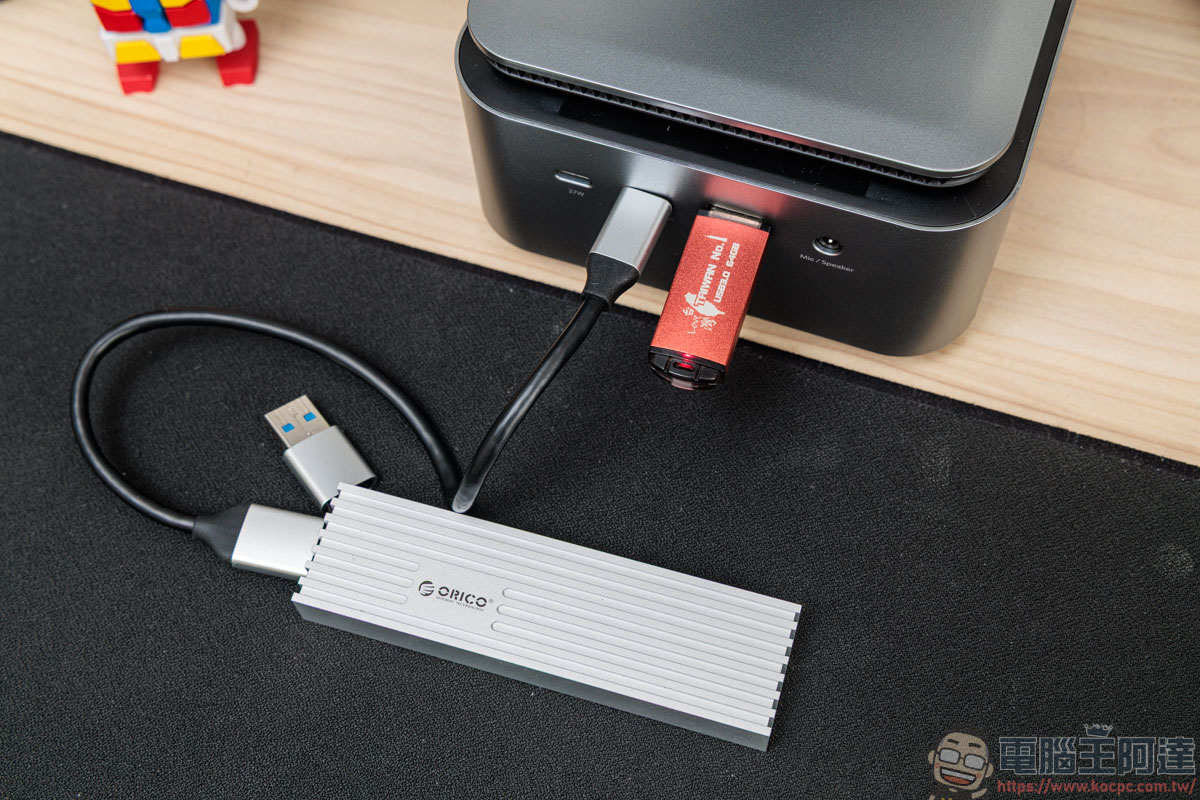
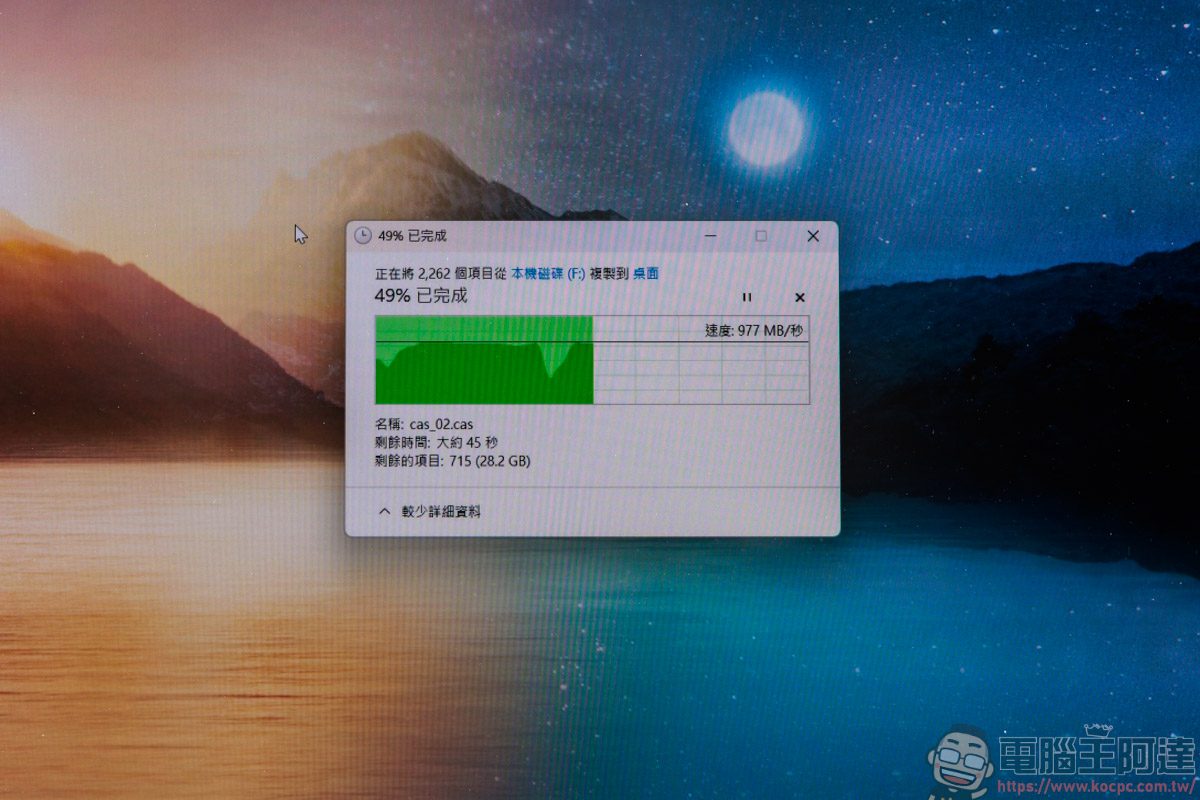
The speed of these two ports is also measured here. The first is USB-C. The measured transmission speed averages around 9XXMB/s, which is quite close to the 10Gbps transmission speed. If you are a user who needs to edit videos, you can just put the video materials in the SSD external box and edit them directly in this way. You will not feel stuck, and there is no need to copy to the laptop hard drive to occupy space first:
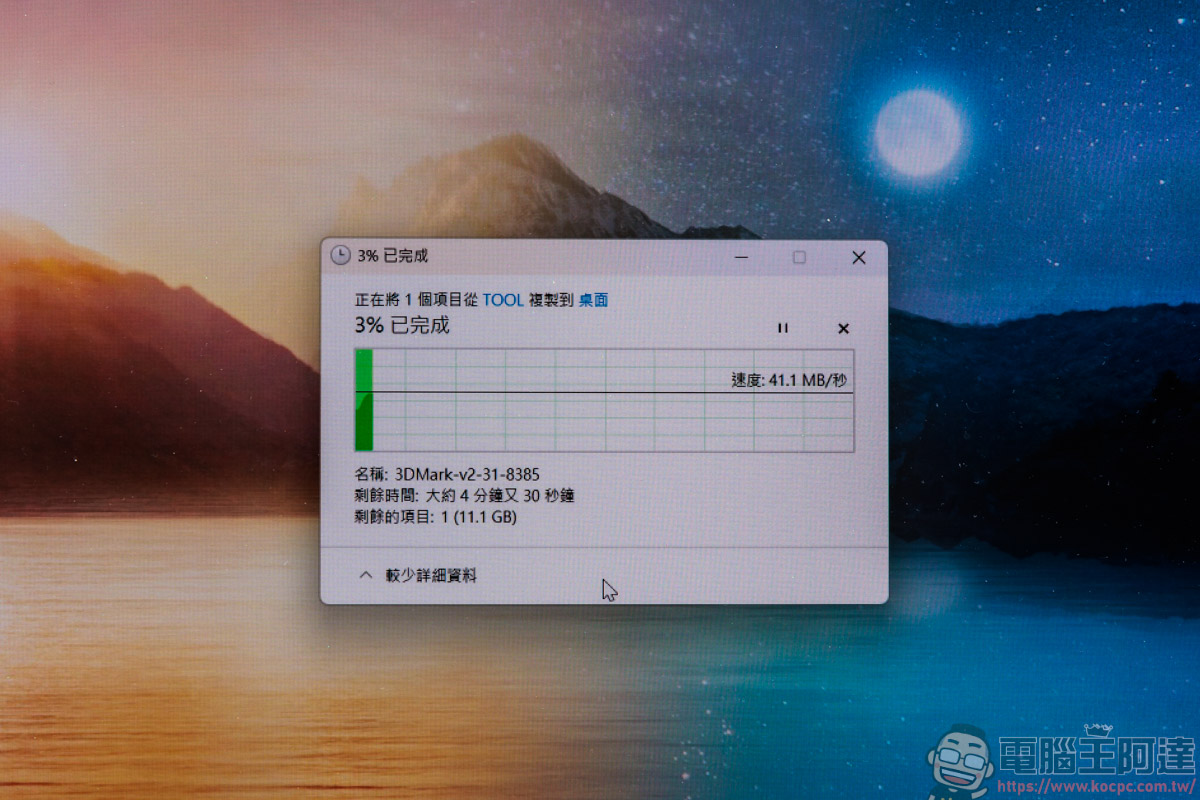
As for the USB-A speed test, since it is not a high-speed flash drive, the transfer speed is measured at about 4XMB/s. However, for this kind of flash drive, this transfer speed is actually acceptable:
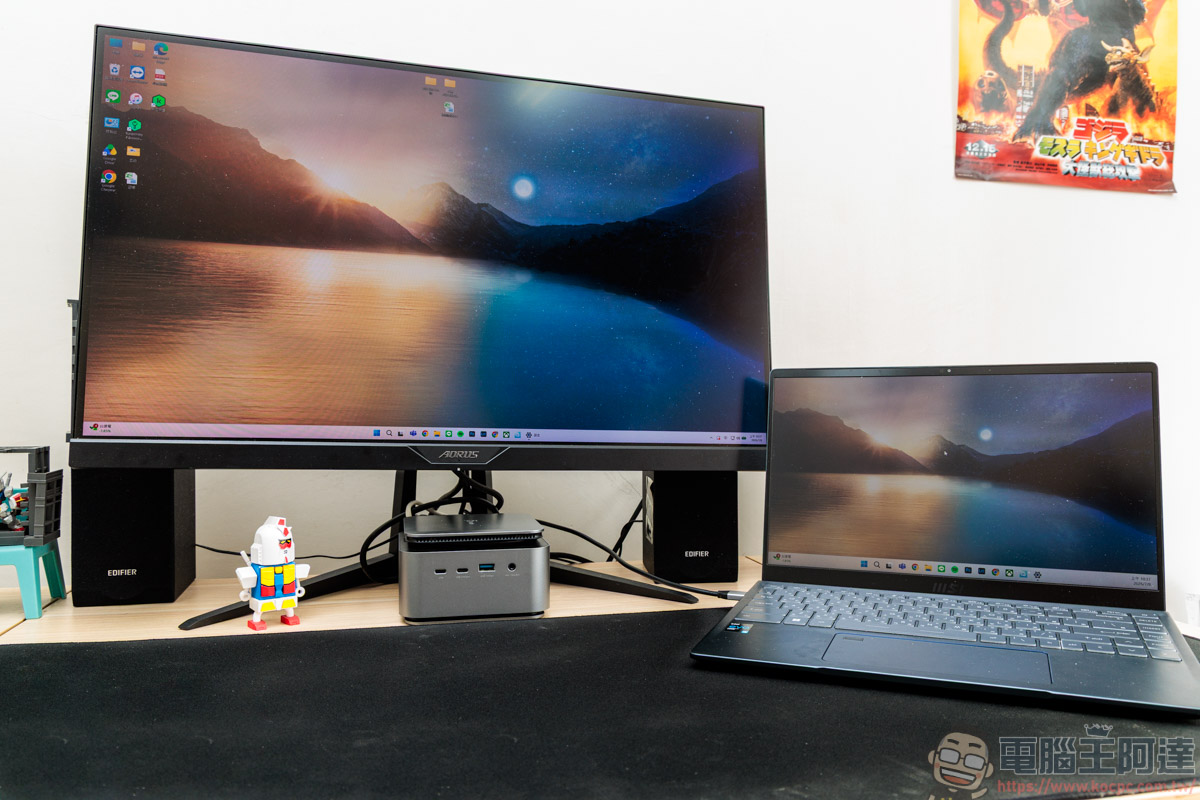
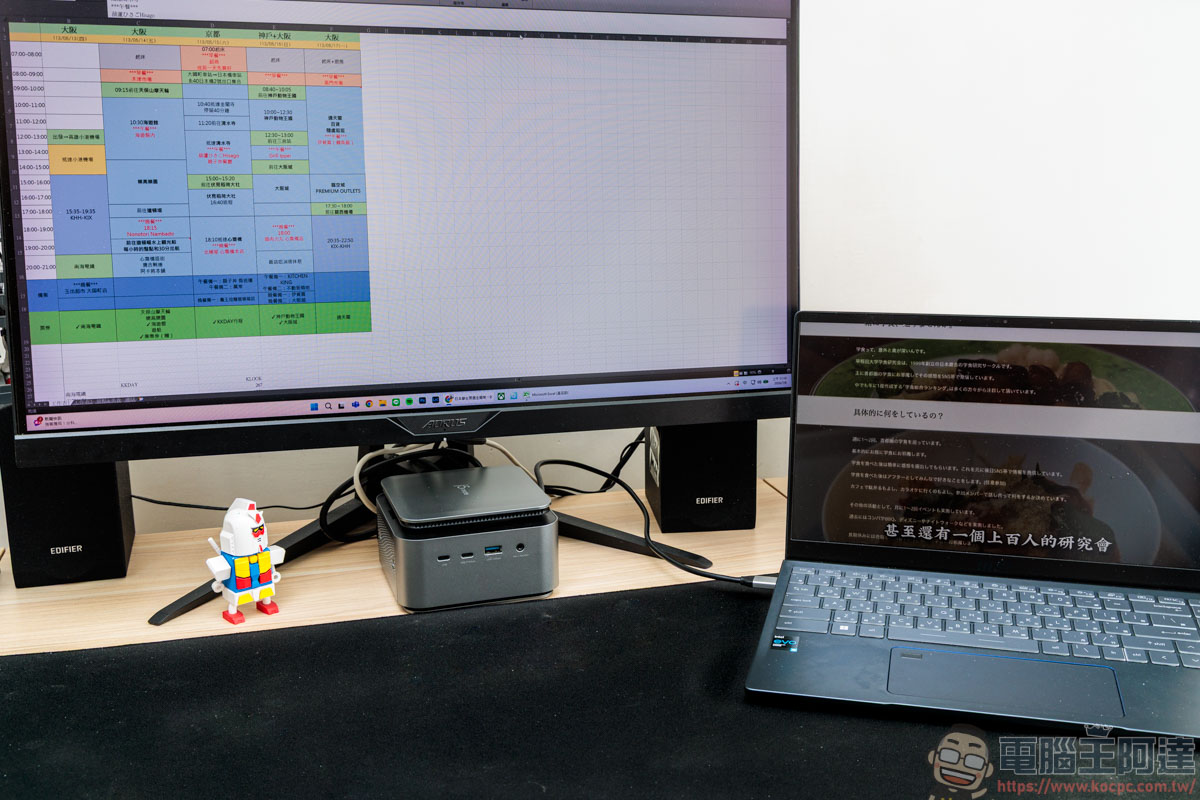
When using a single screen, in addition to using the screen as a mirror, you can also use the screen as an extension like this, so that you can achieve the function of dual screens on one machine:
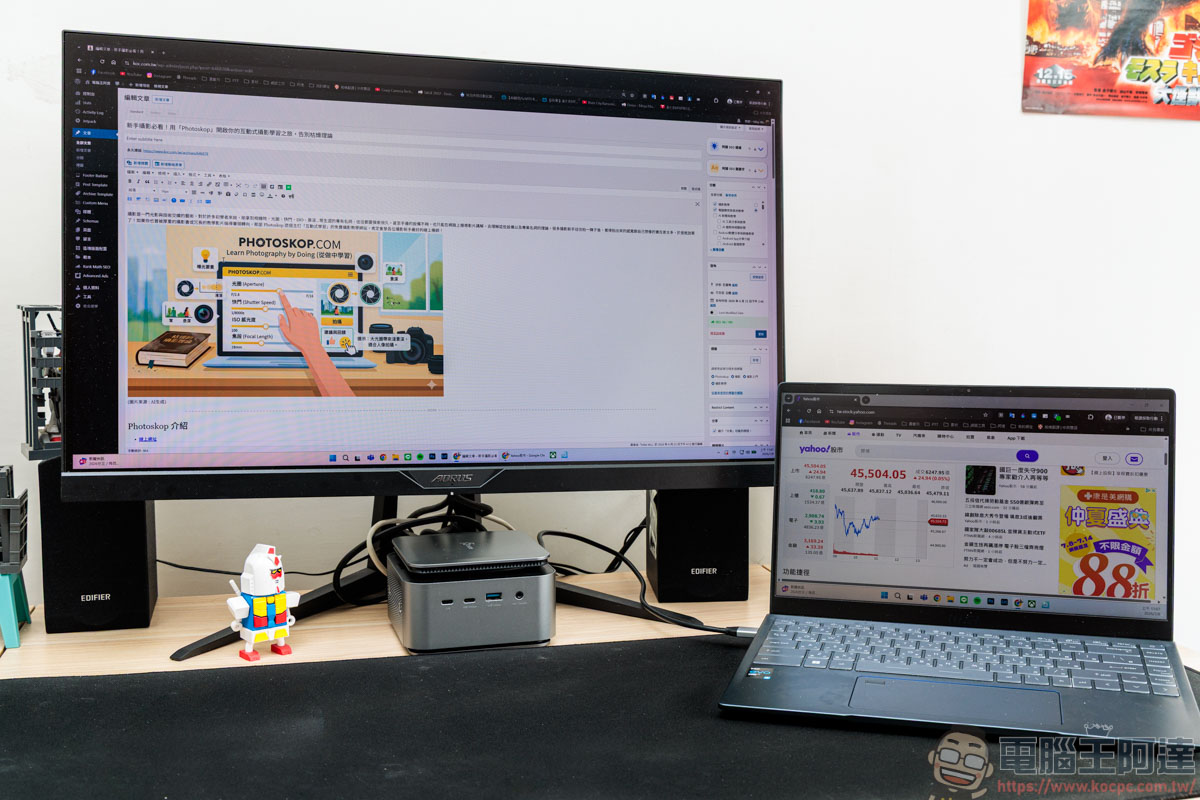
For ordinary users, in this way, you can use two screens to do different tasks, such as reading stocks while writing an article:
Or you can open a file to plan your itinerary while watching a video introducing the travel itinerary. Having an extra screen for collaboration makes your work much more convenient:
j5create JCDP4140 14-in-1 docking station buy here
Dual 4K screen external support to create your multi-tasking environment
The biggest feature of j5create JCDP4140 is that it supports dual 4K output. As long as your laptop supports DisplayPort Alternate Mode, it can output 4K@60Hz + 4K@30Hz dual screens (4K@60Hz needs to support DisplayPort 1.4). If you add the laptop’s own screen, you can achieve triple-screen output capability:
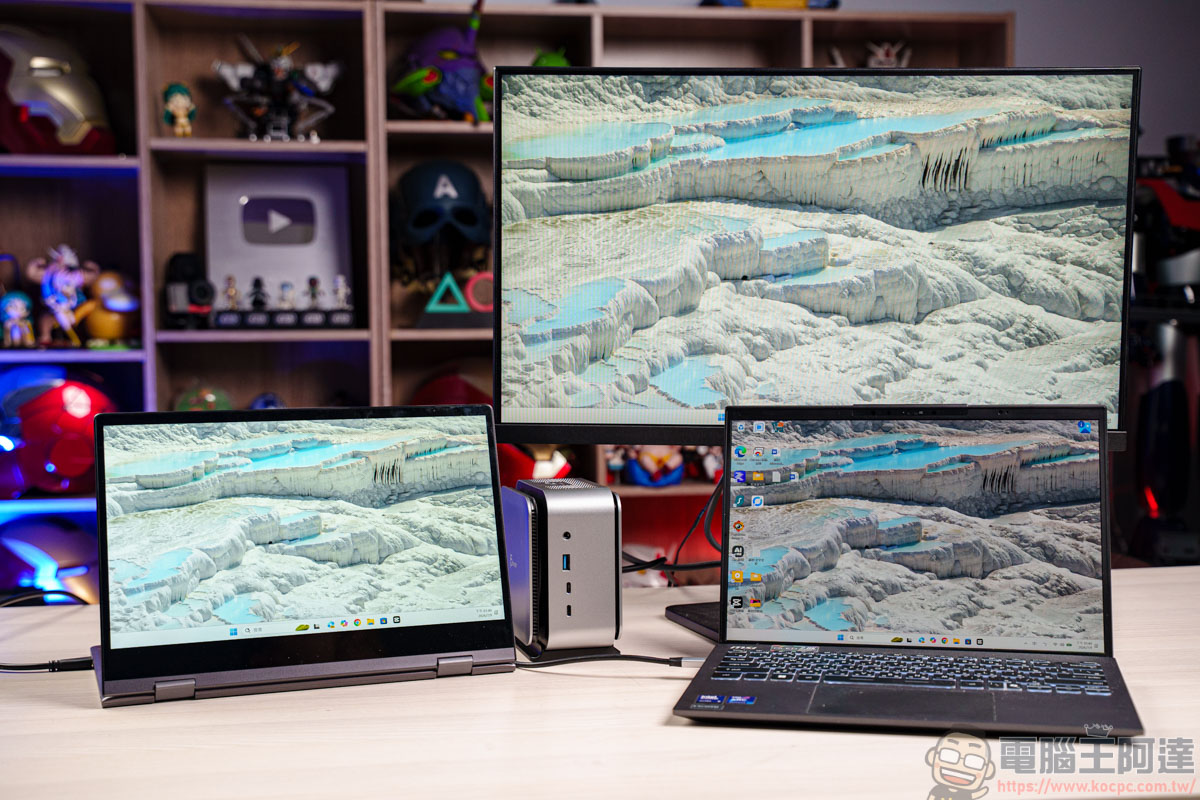
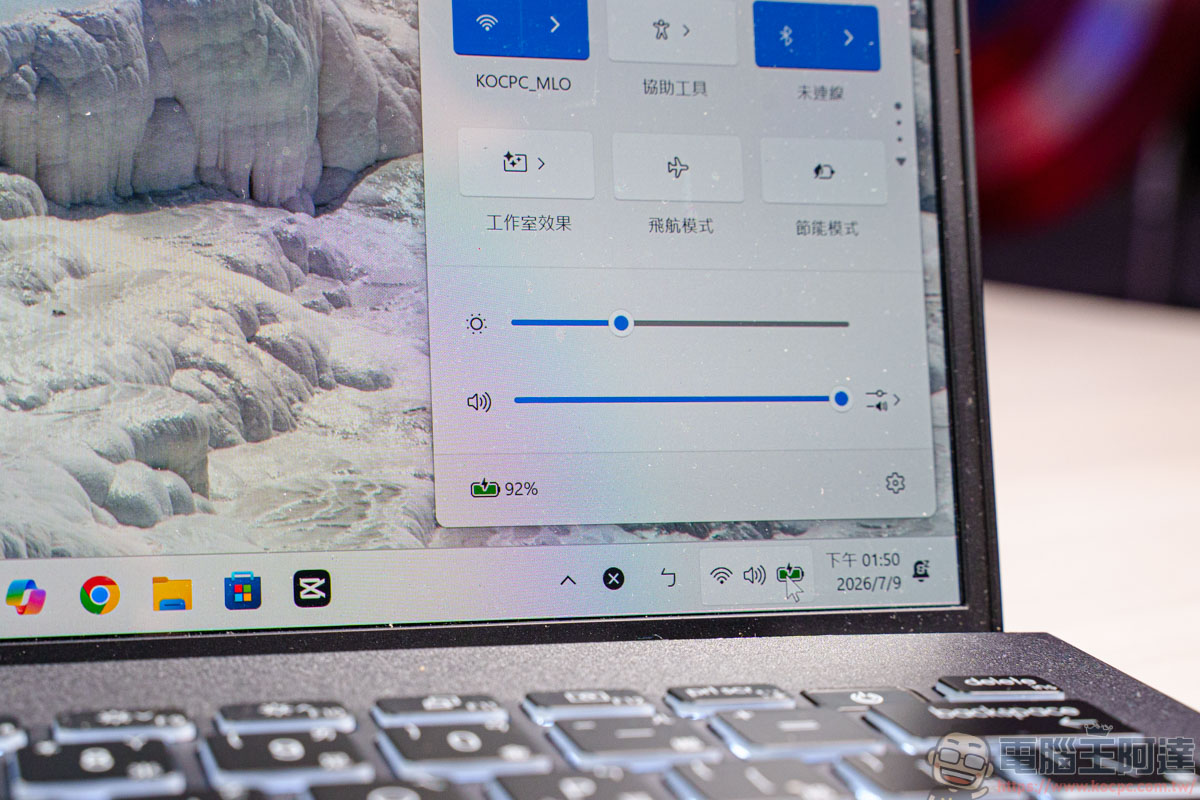
At the same time, the output voltage of 20V 5A can stably power the laptop:
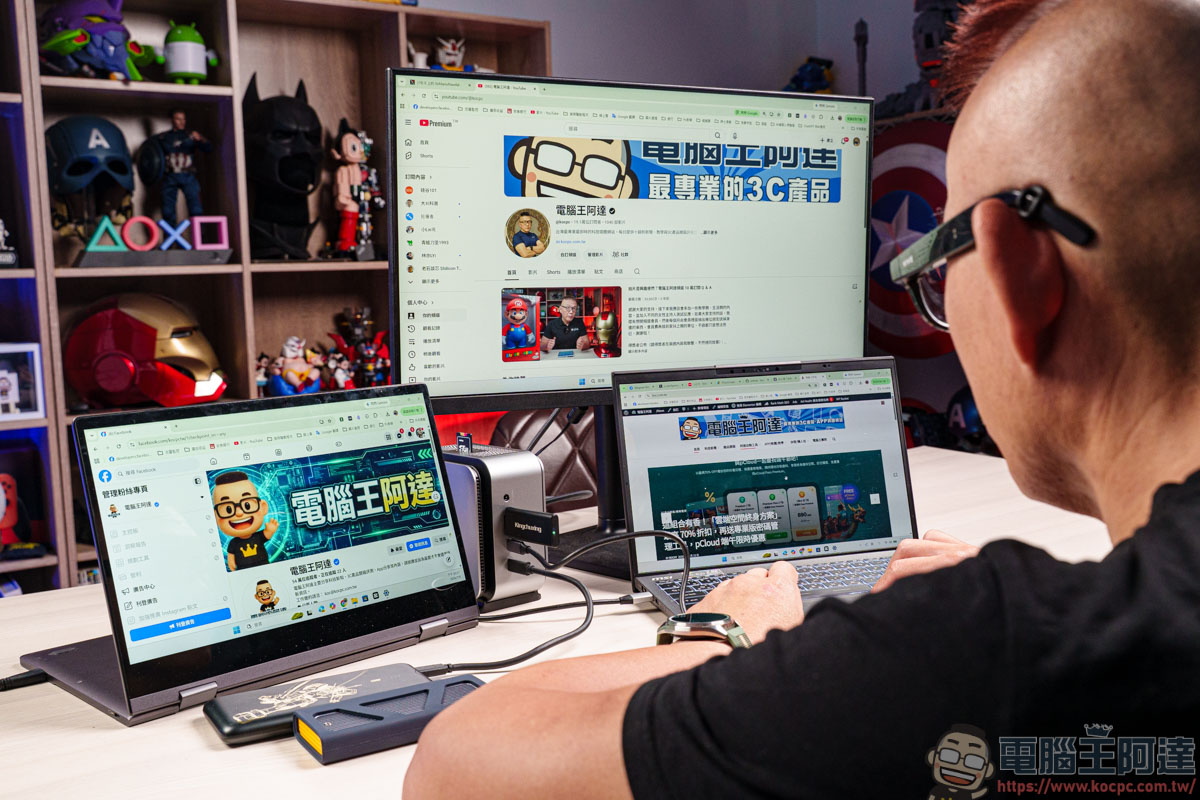
For someone like Ada who is used to working with multiple screens, the functions and configuration of j5create JCDP4140 meet my needs. Whether you want to write articles, run a fan club, or edit videos, you can do it all by connecting all the cables to j5create JCDP4140:
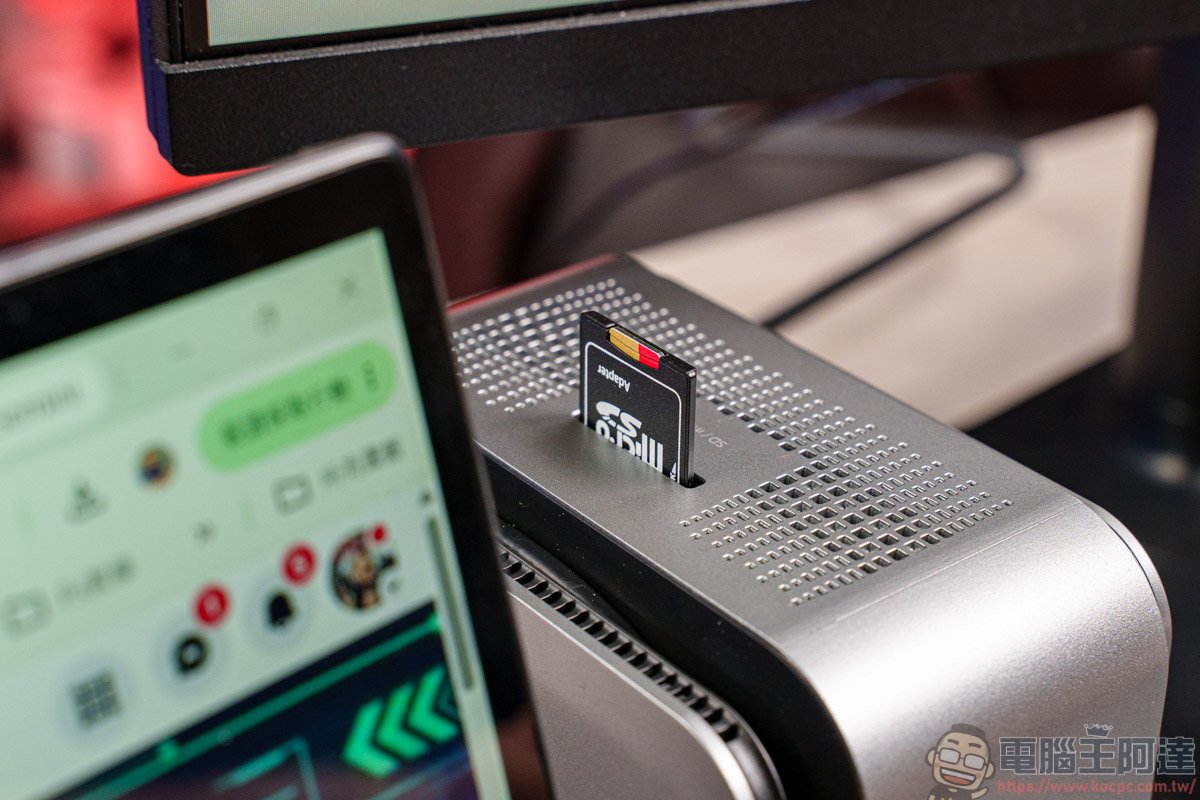
The advantage of placing the machine upright is that in addition to reducing the size when placed on the desktop, the memory card slot will also be moved to the top, making it much more convenient to insert the memory card:
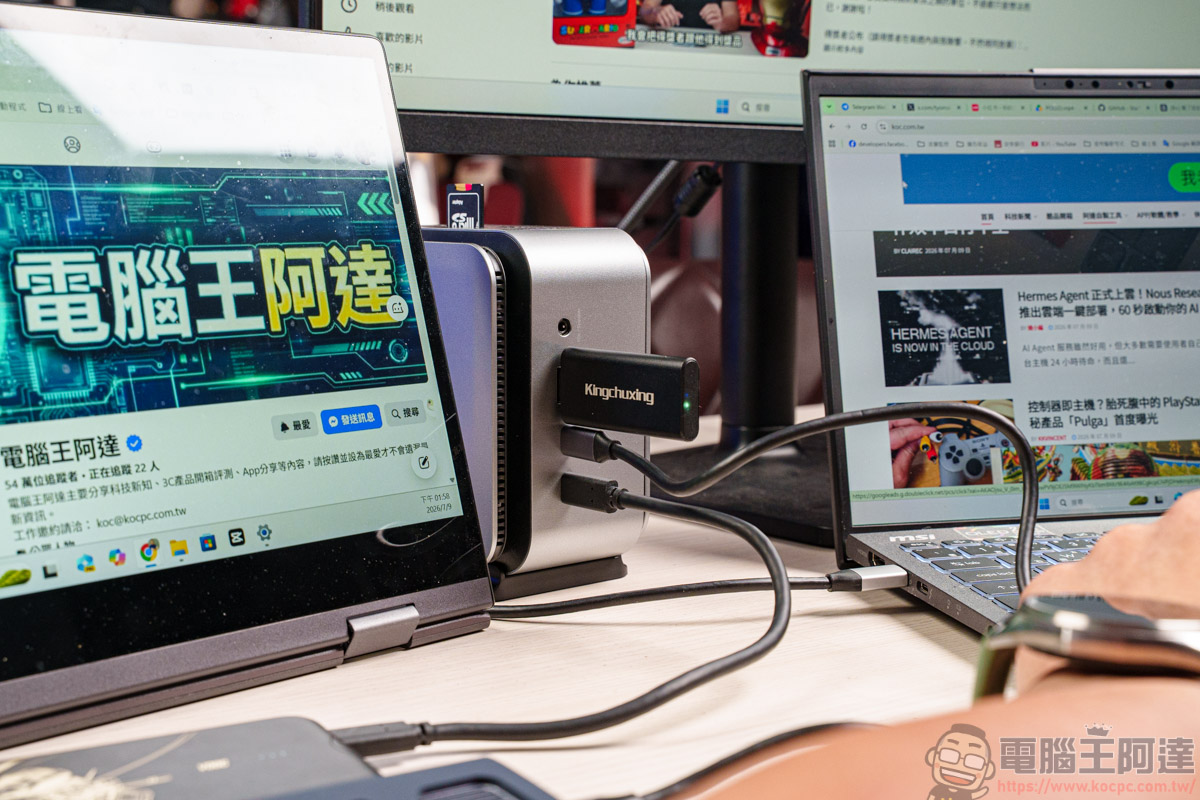
The multi-hole connection ports on the front and rear can be used like a normal Hub to connect the USB, connectors… etc. you need. In addition, it supports transmission speeds up to 10Gbps, so you can enjoy high-efficiency transmission without connecting to a laptop:
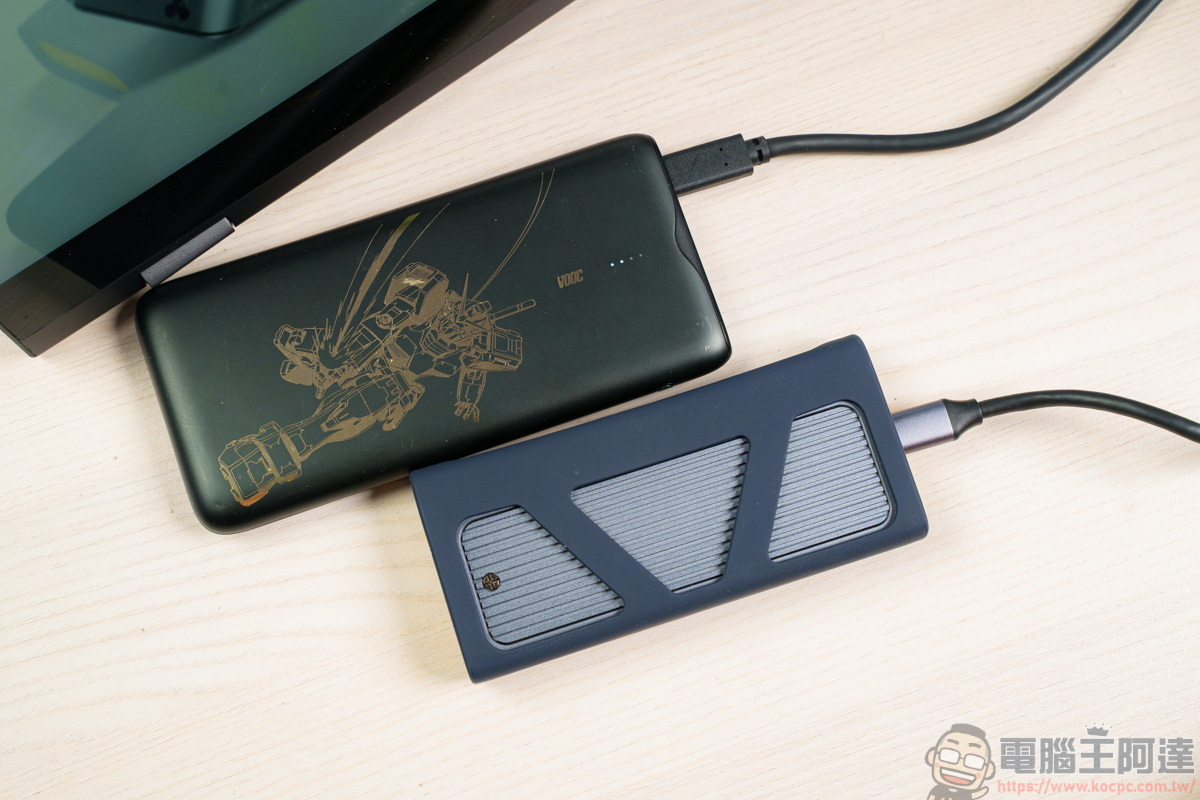
Even if the connection port is not used for transmission, it can also be used to power other devices. It supports up to 27W fast charging, which is very convenient for charging mobile phones, power banks, etc.:
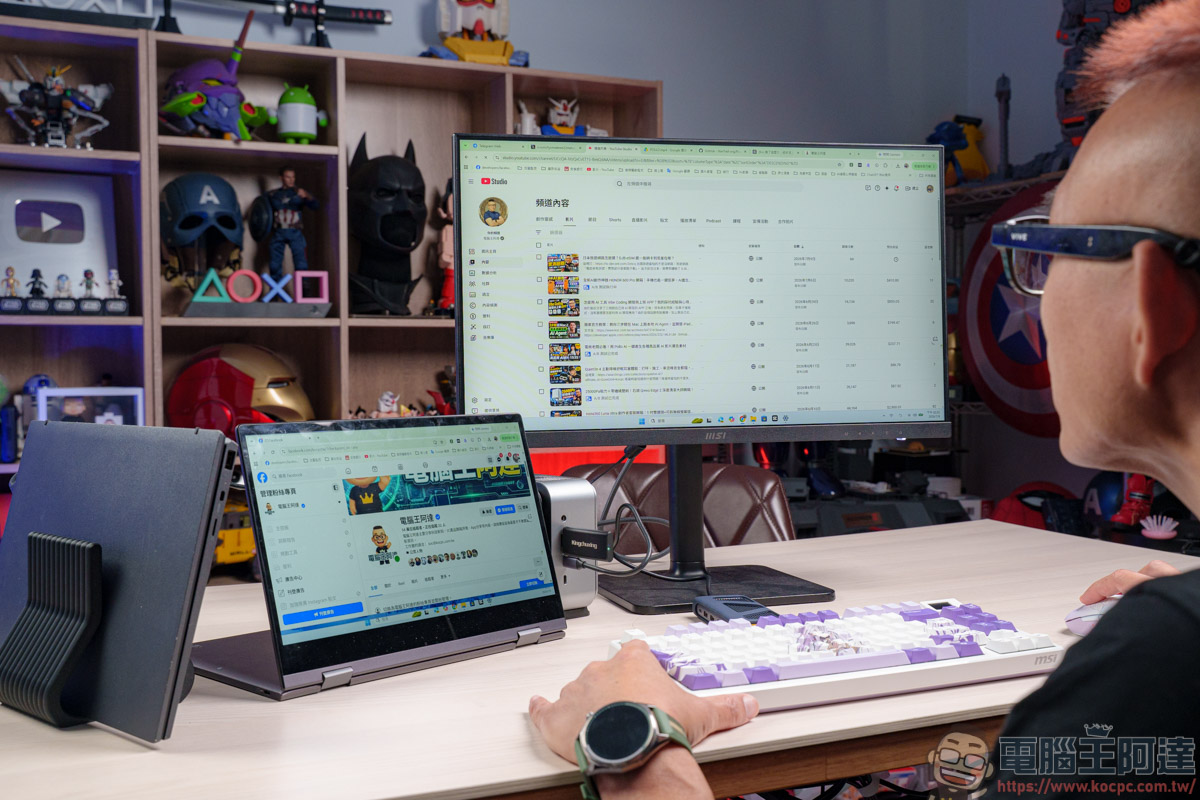
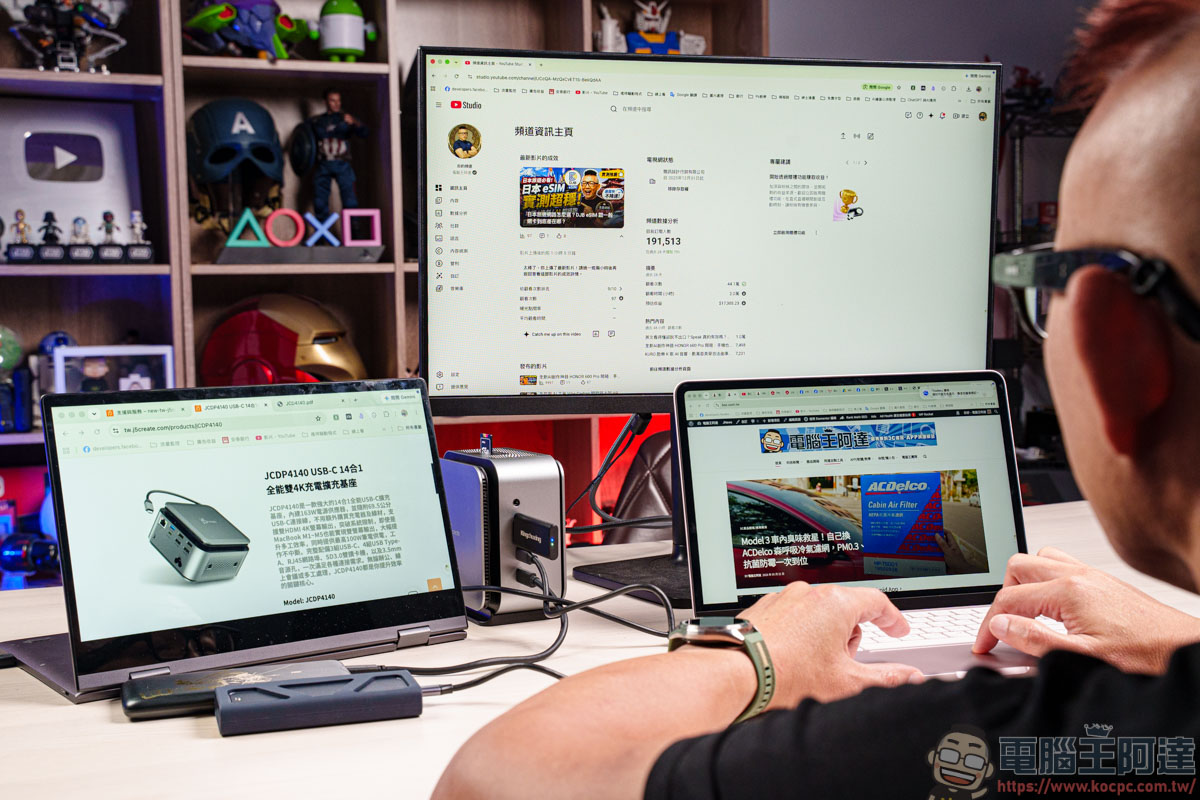
For those who don’t like to use laptop keyboards and trackpads, you can also close the laptop like Ada and use it with an external wireless mouse and wireless keyboard. To be honest, I use three screens because I have too many things to do (laughs). However, for most users, the use situation of dual screens is still more used by many people, so an external device like this is more suitable for the use situation of ordinary people:
Supports Mac M1~M5 dual 4K output
After looking at the usage scenarios of Windows, it doesn’t seem like a big deal, right? After all, it is too easy for Windows to create multiple screens, and the real devil, Mac, is laughing and saying nothing. That’s right! Because of Apple’s precise knife skills, many cheaper Mac products do not support multi-screen output. At most, they can only connect one external screen. But j5create JCDP4140 relies on powerful built-in display technology to directly help you bypass Apple’s hardware limitations. Regardless of whether you have an M1 or the latest M5 chip, as long as you connect it, the MacBook, which can only be connected to one external screen, can instantly light up the “dual 4K screen”, perfectly making up for the lost multitasking experience. This is also the core killer application of j5create JCDP4140!
First, let’s test the effect of connecting an external screen. This time we used the lowest-end MacBook Neo, which can indeed be used with an external screen:
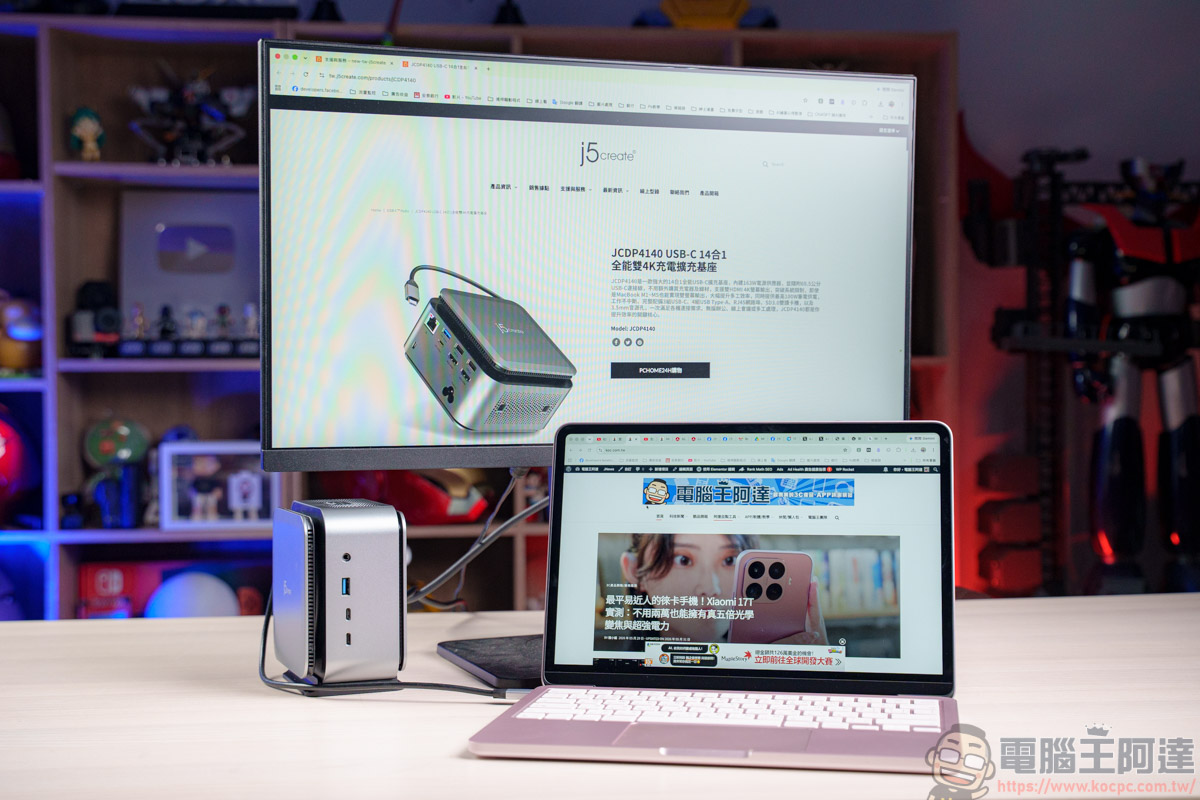
Before continuing to introduce Mac external multiple monitors, there is a step that needs to be set up first. Regardless of whether it is a new version or an old version of macOS, you must follow the instructions in the manual to install the driver. The installation steps are a little complicated, but you can successfully complete it by following the steps:

After getting the driver, connect j5create JCDP4140 to MacBook Neo. Everyone, come and witness the miracle here! This low-end version of MacBook Neo can actually do dual-screen output, which is really amazing! However, because the images on the second screen are compressed by the CPU and converted into USB data for transmission, it will consume a little bit of the computer’s CPU performance. However, considering the powerful computing power of current M series chips, this load is almost negligible. You will not feel any delay at all when writing documents, reading disks, writing programs or surfing the Internet:
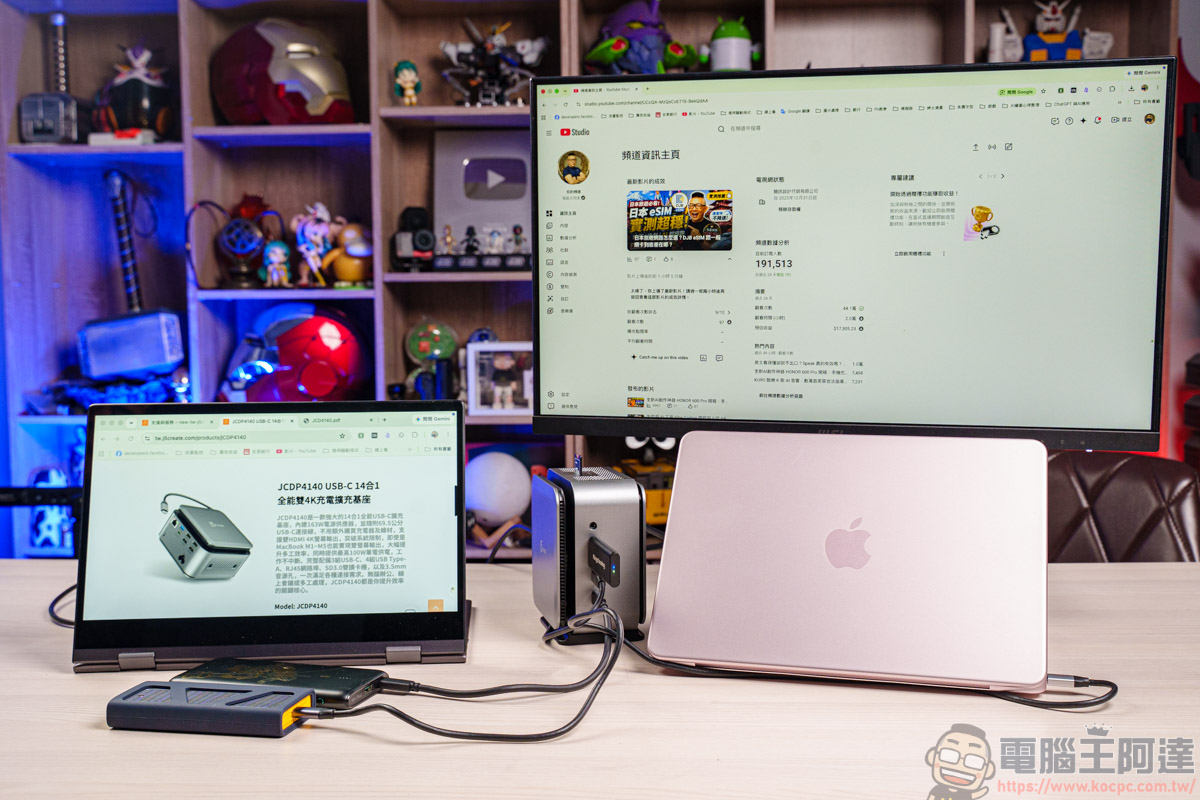
After seeing this picture, people who know it should understand XD
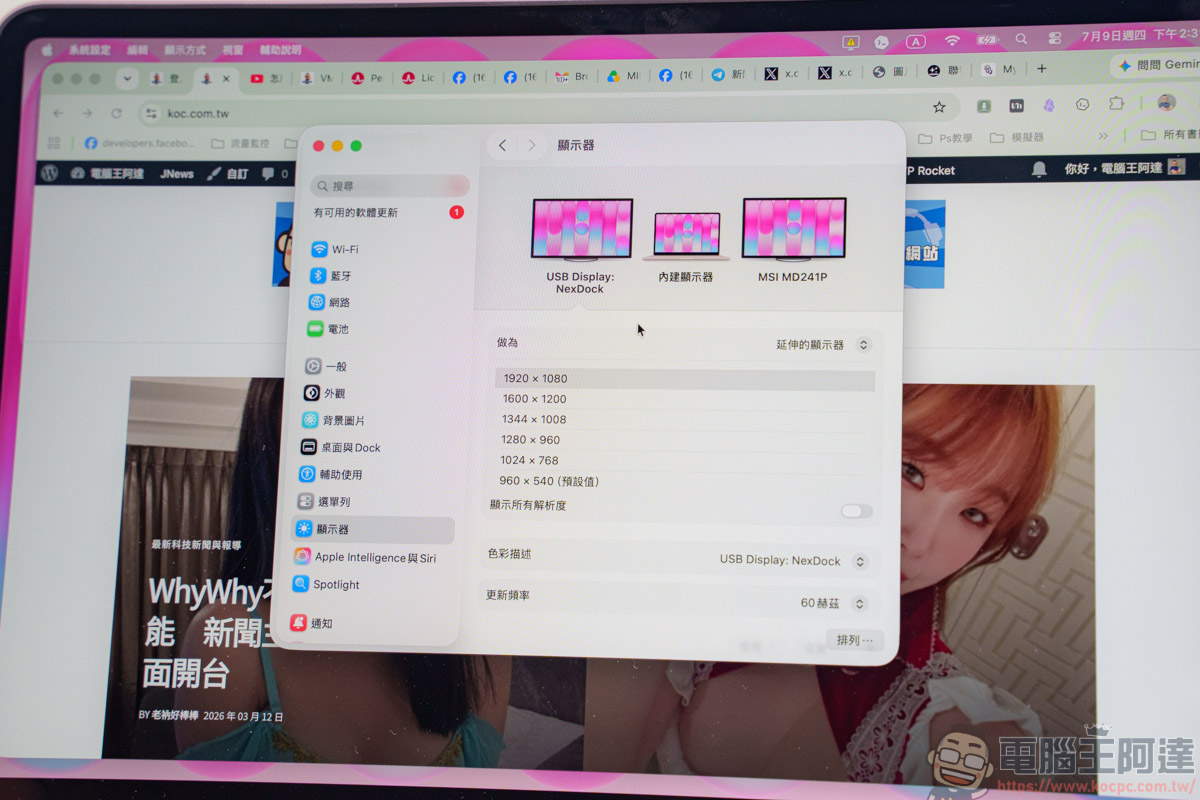
Before coming into contact with j5create JCDP4140, it was very troublesome to connect a Mac device to multiple screens. If in order to connect an additional screen, the user would have to give up the high CP value of the basic model Air or Pro when buying a Mac device, and would have to stretch the budget by tens of thousands to buy an M Pro. or Only the high-end MacBook Pro with M Max chip can do these things. This part is honestly too expensive for many users who only need word processing and light editing, but rely heavily on multi-screen comparison data. It is impossible to use the iPad as a second screen for this purpose, or use AirPlay to project it to a TV or Apple TV. This kind of delay will be very heavy, and it is not suitable for work use.
But now you only need to spend a little budget to buy the j5create JCDP4140 to solve this pain point. It not only painlessly unlocks the dual-screen restriction of MacBook, but also directly saves tens of thousands of dollars in buying high-end chip computers or ultra-large screens, and eliminates the bulky power transformer on the desktop. Believe me! This is definitely the desktop upgrade solution with the highest CP value currently:
j5create JCDP4140 14-in-1 docking station buy here
j5create JCDP4140 usage experience
After this actual test, my biggest impression of j5create JCDP4140 is that it “turns complexity into simplicity.” In this digital age that emphasizes lightweight and high efficiency, this docking station allows you to avoid being tied up by various wires and adapters. It has a built-in 163W power supply and allows you to put away the transformer. Paired with the upright design, the originally crowded desktop instantly becomes more than half refreshed, making the desktop no longer cluttered. Coupled with a stable physical network port and laptop fast charging up to 100W, it is completely tailor-made for high-intensity work.
In terms of performance and expandability, the complete 14-in-1 configuration can be said to be uncompromising. For people like Ada who frequently run websites, type articles, or frequently transfer audio and video materials for editing, the 10Gbps high-speed transmission and dual card reader synchronous reading functions provided by JCDP4140 can significantly reduce annoying waiting time.
certainly! The most irreplaceable killer highlight is that it perfectly breaks the hardware limitations of the MacBook’s basic M series chip. There is no need to squeeze your wallet to buy a Pro chip. With just one cable, you can painlessly unlock the ultimate multi-tasking productivity brought by dual 4K screens. This kind of satisfaction of getting back the castrated performance is really something you can’t go back to after using it.
If you are fed up with the entanglement of desktop cables, are troubled by the single-screen limitation of Mac, or are a heavy user who relies heavily on multi-screen collaboration for work, then j5create JCDP4140 is definitely the smartest investment with the highest CP value on the market. I am currently using it and am quite satisfied with it!
Source: KOCPC Chinese