


You’re probably used to using a computer with a mouse, but when it comes to the mouse, most people only use it to click, scroll, and drag files—overlooking the fact that Windows lets you do much more. In this article, we’ll share some little-known tips to help you reduce the number of clicks, save time with your mouse, and make using your computer even smoother.
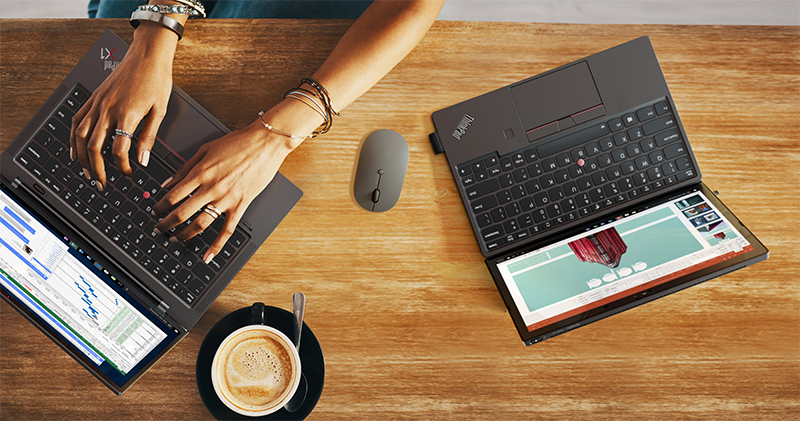
More Than Just Clicking and Dragging: Here’s How You Can Use Your Mouse in Windows!
Click the middle mouse button to scroll the page automatically
Scrolling with the mouse wheel makes it easy to move through text, but this is only true for shorter pages. In long documents or web pages, endlessly scrolling with the mouse wheel can quickly become tiring. Fortunately, Windows includes a handy auto-scroll feature that lets you control the scrolling speed simply by moving the mouse.
To use this feature, click the mouse wheel anywhere on the page. A circular icon will appear, indicating that auto-scroll is enabled. Move the mouse cursor up or down—the farther and in whichever direction you move it, the faster the page will scroll. When you’re done, simply release the mouse wheel to turn off auto-scroll.

Use the scroll wheel to navigate between tabs
When you need to open a folder in a new tab in File Explorer, most people right-click and select “Open in a new tab” from the menu. This method works, but it’s a bit slow. A faster way is to click the middle mouse button (scroll wheel) on the folder; it will open immediately in a new tab, without having to right-click at all.
You can also click the close button in the title bar of a File Explorer tab to save time and keep your workflow smooth. Even better, this trick isn’t limited to File Explorer. In your browser, you can middle-click a link to open it in a new tab, or middle-click a bookmark to open it without leaving the current page.
Enable the full classic right-click menu
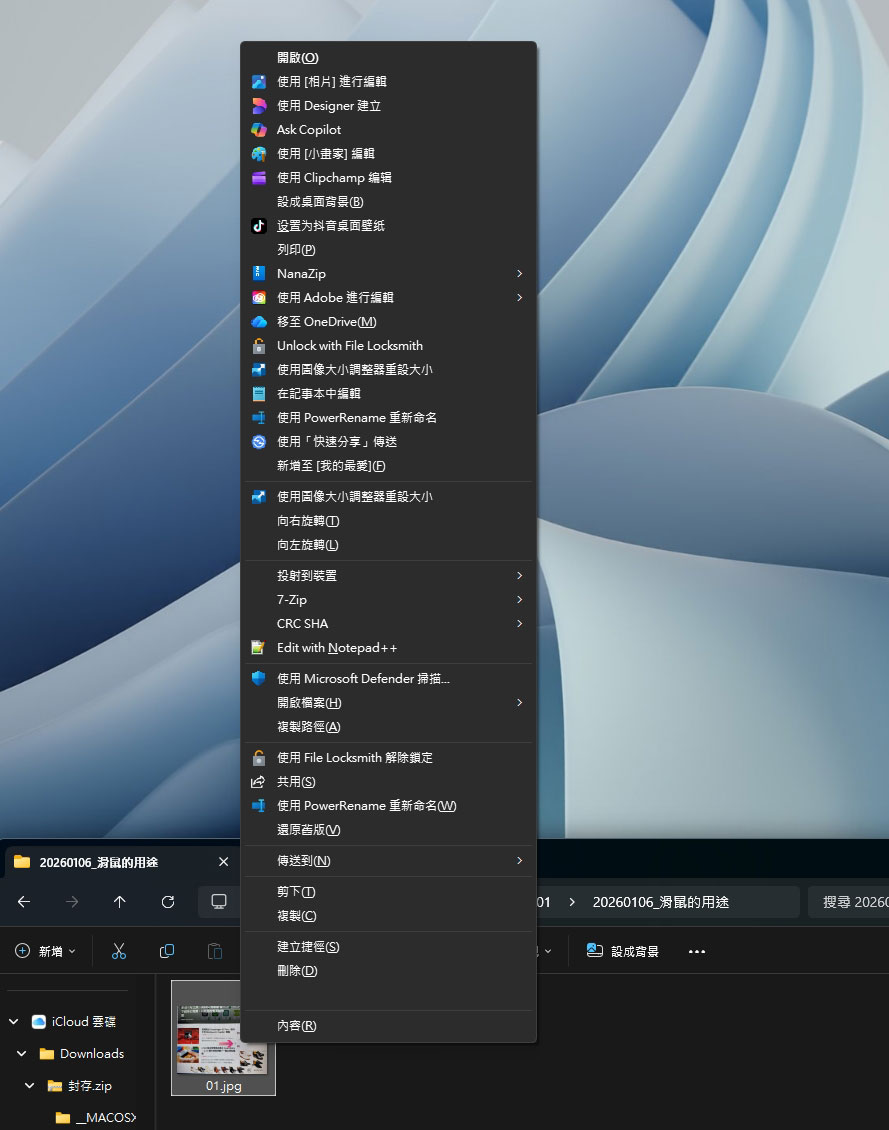
Windows 11 has simplified the right-click menu to display only the most frequently used options. Some people aren’t too fond of this change because it hides some advanced commands that are sometimes needed, and it can be annoying to have to expand the compact right-click menu just to access the options tucked away inside. Fortunately, Windows provides a handy shortcut that lets you open the full, classic right-click menu at any time. Simply press “Shift + right-click” to instantly expand the entire menu, giving you immediate access to the hidden options and allowing you to use the classic menu whenever you want without having to change any settings.
Scroll horizontally using the mouse wheel
Although we’re used to scrolling vertically with the mouse wheel, scrolling horizontally usually requires finding the horizontal scroll bar, which can be quite cumbersome. This is common when browsing wide spreadsheets, large timelines or charts, or webpages and documents with a horizontal layout. Fortunately, Windows offers a simple solution.
Hold down the Shift key while scrolling the mouse wheel to move the view horizontally, which makes it much easier to browse extensive content. So the next time you need to scroll through an Excel spreadsheet, a timeline, or a wide chart, you won’t have to look for the horizontal scroll bar anymore. When you want to scroll vertically again, simply release the Shift key to return to normal scrolling.
Source: KOCPC Chinese