


Recently, at GitHub I found a pretty interesting third-party app on [platform] YouTube App: “YT PRO”—similar to YouTube ReVanced—also comes with built-in ad-blocking, supports background playback, and allows users to download videos and music. Its standout feature is that it also integrates Gemini, There is a Gemini button below the video; tap it to get thatVideoA summary of the key points—you can even customize itPrompt, to get the answers you’re looking for.
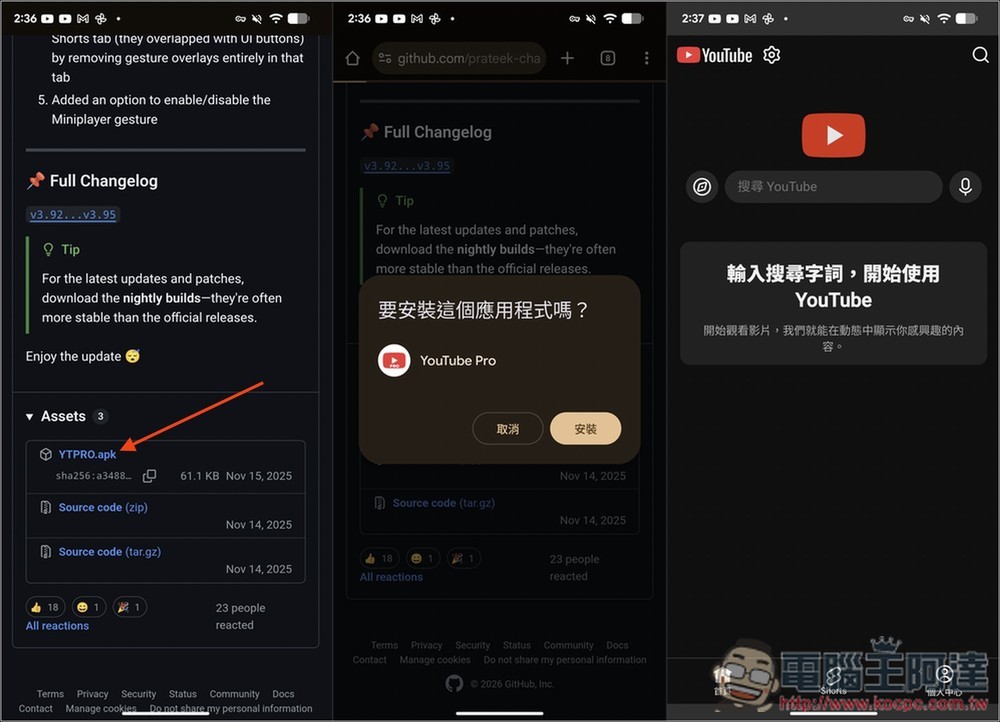
Of course, this app isn’t available on Google Play—you’ll need to install it via an APK file. You’ll also need to sign in with an account to use Gemini, so we recommend using a secondary Google account instead of your main one. If you still have security concerns, we suggest you avoid using it altogether.
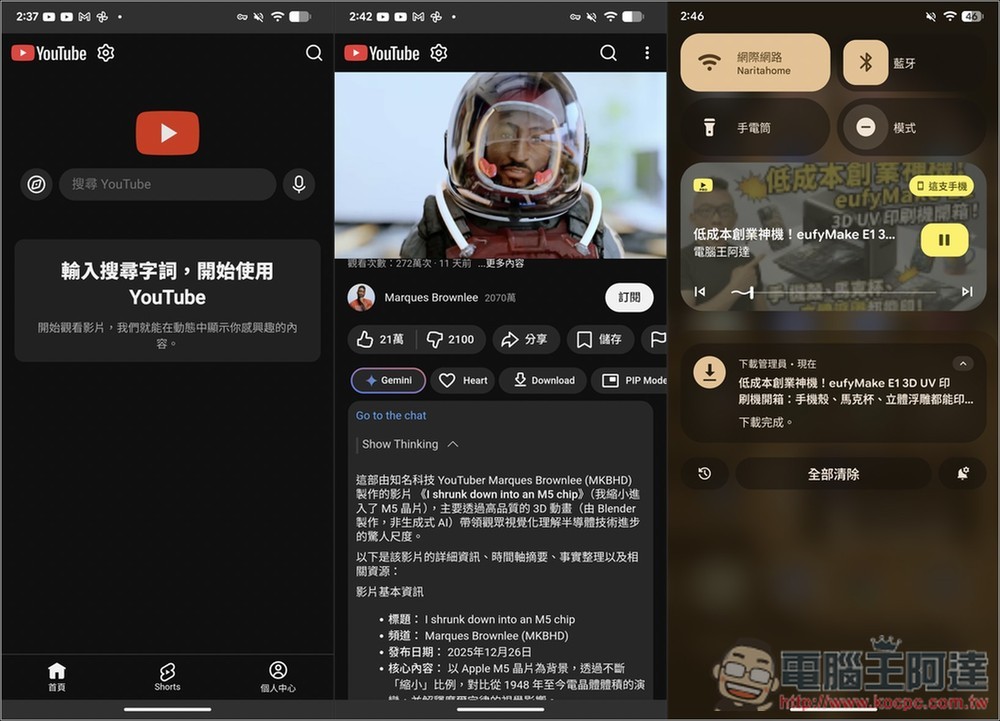
YT PRO is a third-party YouTube app developed by Gemini that features built-in ad-blocking and supports background playback.
YT PRO is a third-party YouTube app primarily designed for the Android platform, featuring “compatibility with older Android devices” and “ultra-lightweight performance.” With a minimalist design, a very small APK size, and low hardware resource requirements, it is ideal for older phones, backup devices, or users looking to reduce system load.
Not only does it support practical features such as background playback, picture-in-picture (PiP), and gesture controls for adjusting volume and brightness, but it also includes built-in ad blocking—skipping ads automatically during video playback—so you can enjoy an ad-free experience even without a YouTube Premium subscription.
In addition, YT PRO integrates Google Gemini, allowing users to generate summaries, perform content analysis, and create custom prompts directly for videos—a major plus for users who want to quickly grasp the key points of a video.
Key Features
- Supports older versions of Android, offering high compatibility
- Background Playback / Picture-in-Picture (PiP)
- Ad Blocking and Skipping Sponsored Content
- One-Click Download of Videos, Shorts, Thumbnails, and Subtitles
- Gesture Control for Volume and Brightness
- Integrate Gemini: Enables video summarization and intelligent analysis
- Customize Gemini Prompts and the Models You Use
- The APK file is very small
After clicking the link above to go to the YT Pro GitHub page, you can download the file with the .apk extension. Once the download is complete, open the file to install it manually. When you open YT Pro, since you haven’t signed in with a Google account, the default home screen won’t display any videos; you’ll need to search for them manually:
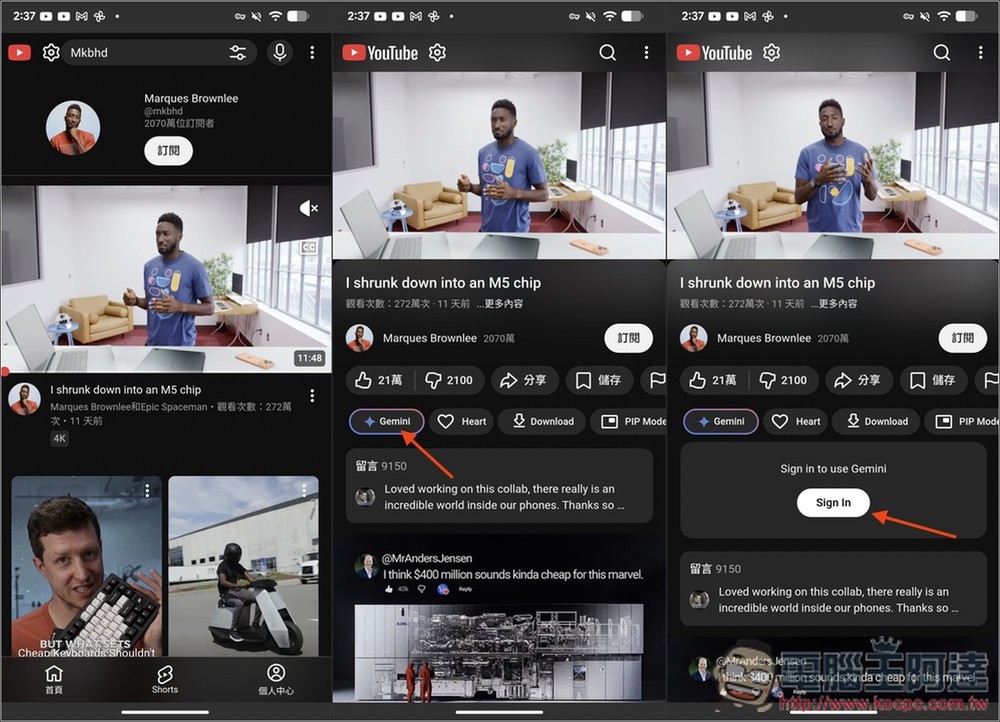
I’ll just pick any MKBHD video to start with. Once you’re on the video playback page, you’ll see the Gemini button at the bottom. However, you’ll need to sign in with a Google account to use it. Once you’re signed in, YT PRO will also sign in with that account. Since this is a third-party app, we recommend using a secondary Google account instead of your main one—it’s safer:
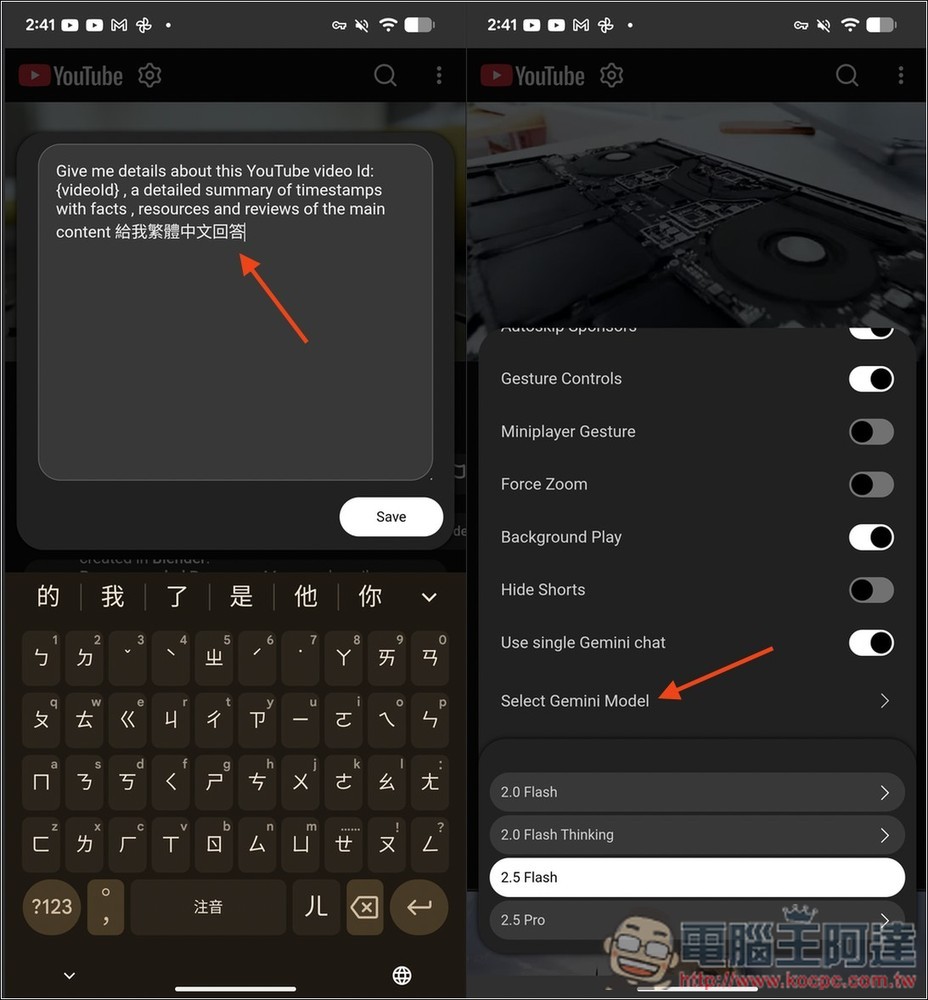
By default, Gemini’s prompt is in English, so the responses you receive will also be in English. To change this, click the settings icon at the top; you’ll then see an option labeled “Edit Gemini Prompt,” where you can modify the prompt. You can also change it to a prompt you frequently use to get the answers you want:
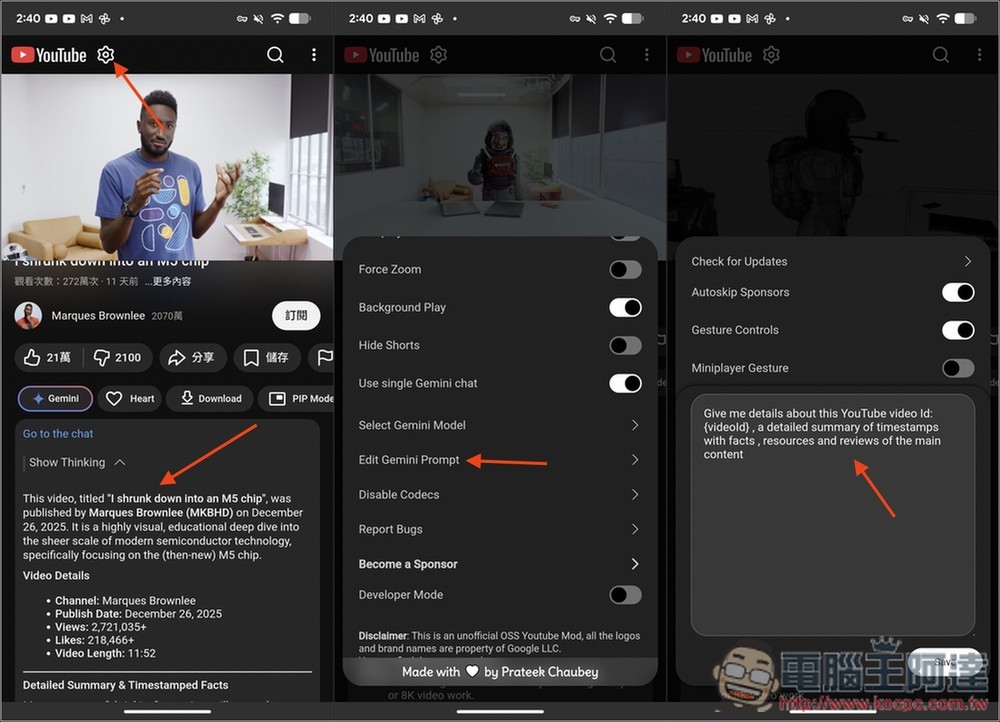
If you want to try the default setting, just add “Give me an answer in Traditional Chinese” at the end. The “Select Gemini Model” option lets you choose which model to use, but it seems the developers haven’t updated the model list yet, so it still shows the old 2.5 and 2.0 models. However, I found during testing that even if you select the 2.5 Flash model, it will actually use Gemini 3 Flash:
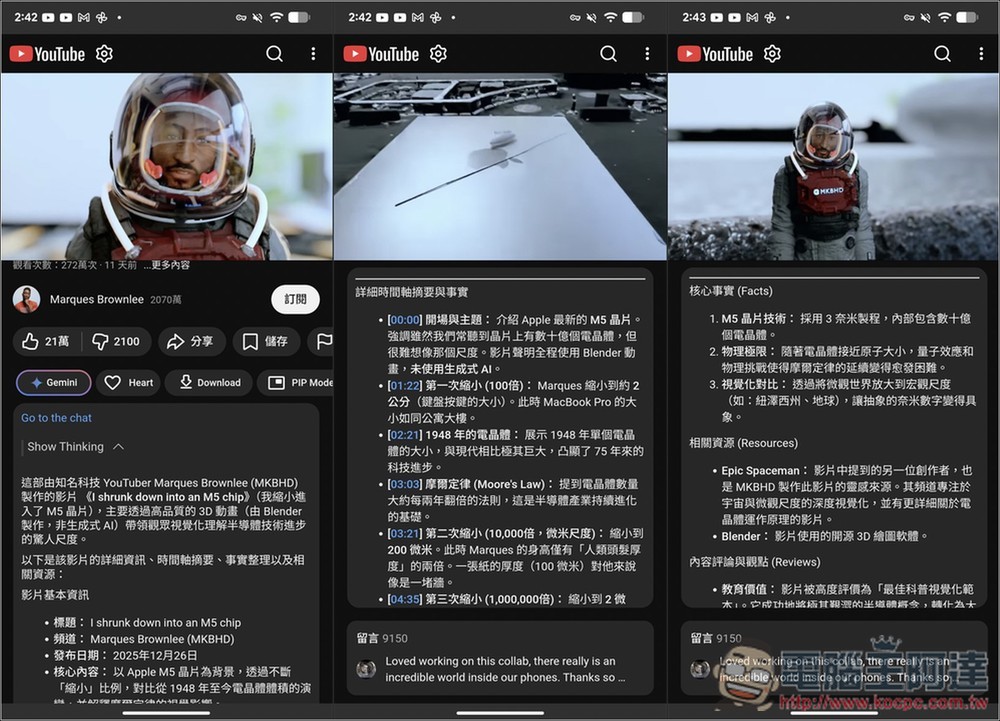
Then, when you press the Gemini button again, you’ll receive a response in Traditional Chinese. The content generated by this prompt is actually quite comprehensive—in addition to a brief introduction to the video’s content, it also provides highlights worth watching, key facts, related resources, as well as reviews and perspectives on the content:
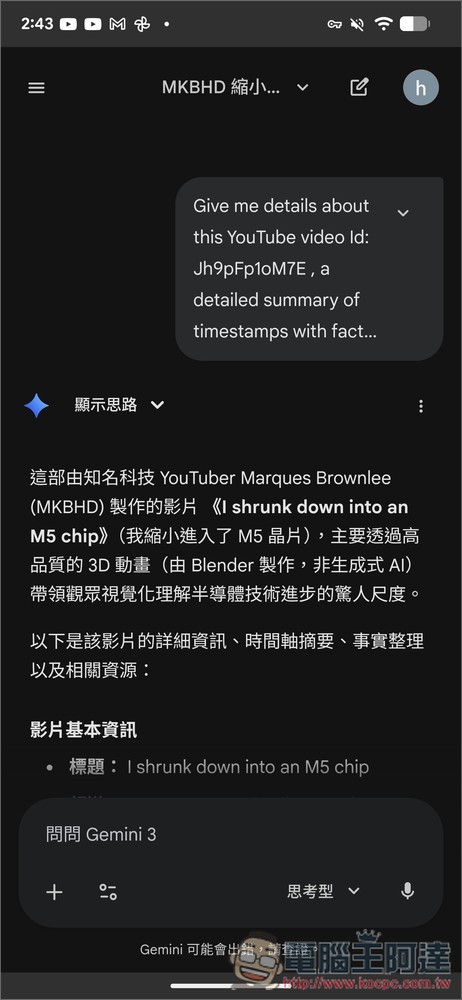
It’s a bit of a shame that you can’t chat with Gemini directly below a YouTube video; if you click “Go to the chat,” it will open Gemini’s chat window:
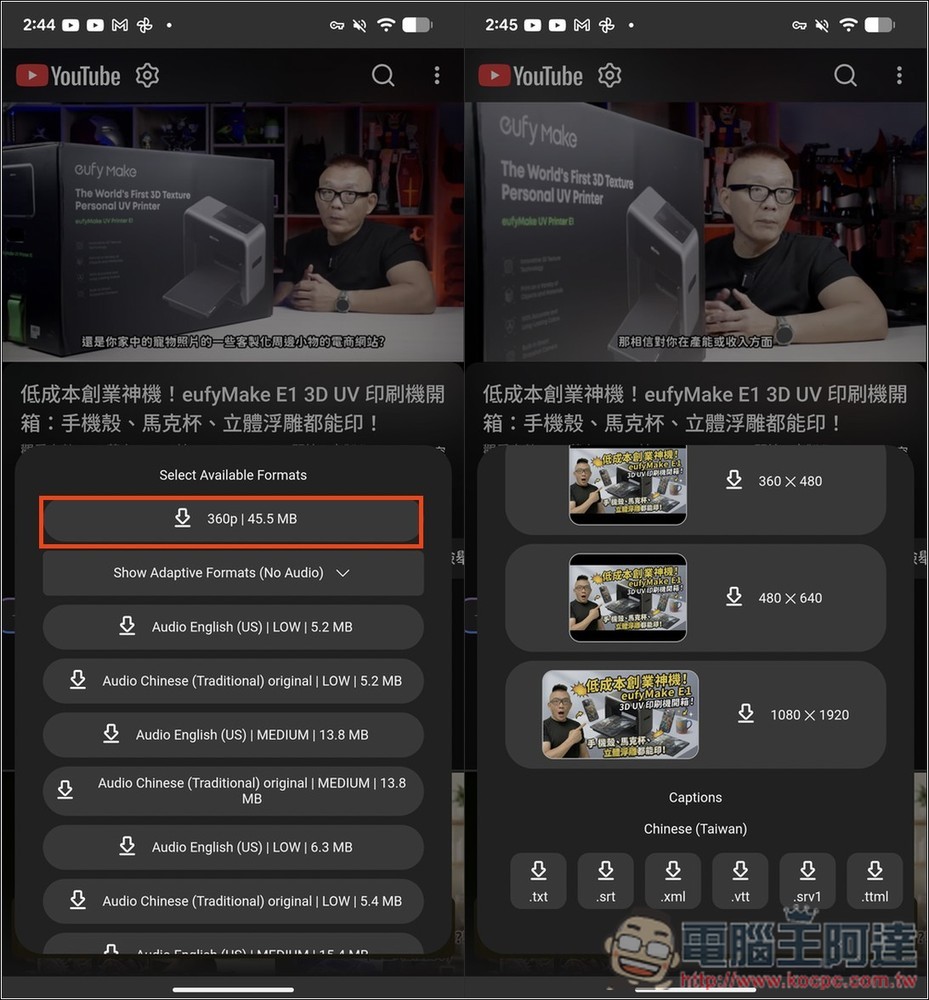
The “Download” button on the right lets you download videos, music, and thumbnails. For videos, the maximum resolution you can download is 360p:
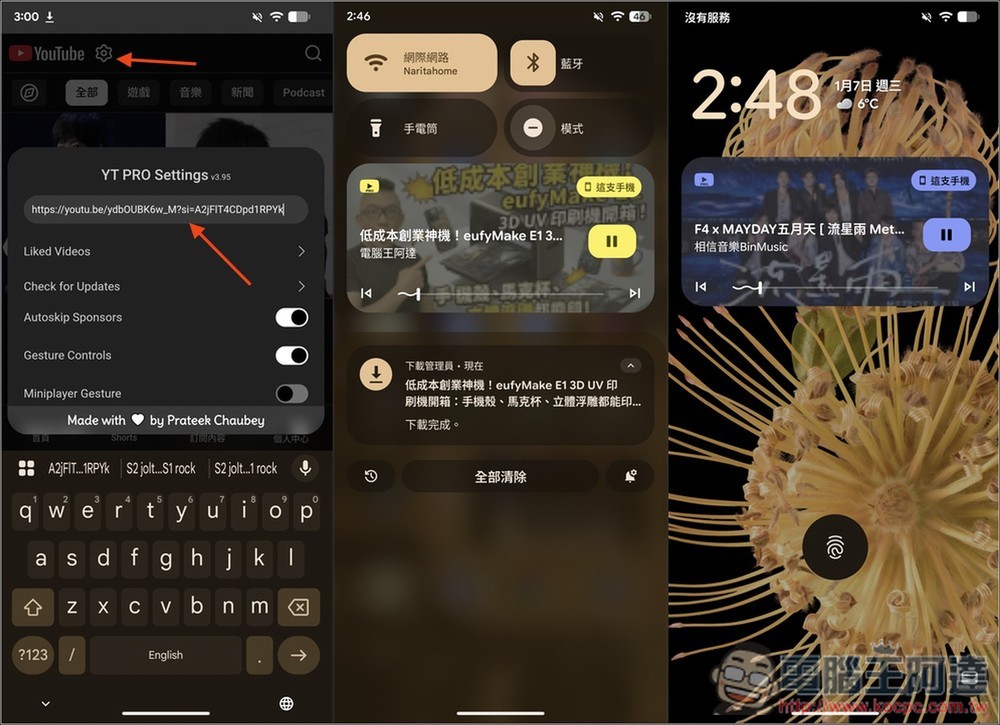
Here’s an important point about background playback: If you switch directly from a YouTube video to your desktop, Picture-in-Picture (PIP) mode will be enabled. If you don’t want the small window to appear, follow these steps:
- Enter the URL of the YouTube video in the URL field in the settings above, then click Submit.
- It will open that YouTube video, and then return to the main screen.
This will result in background playback without a pop-up window:
Source: KOCPC Chinese