


In recent years, one of my personal favorite browser trends has been vertically displayed tabs. Moving the tab bar from the top of the browser to the side may not seem like a major change at first glance, but it actually makes your browser look cleaner and more organized. Plus, the tab names don’t get squished as the number of tabs increases, so you can see all your tabs at a glance.

How to Enable Vertical Tabs in Google Chrome
Although many browsers—such as Microsoft Edge, Firefox, Arc, and Vivaldi—have long supported vertical tabs, Google Chrome has been notably absent from this feature. Now, however, that has finally changed, and vertical tabs have arrived in Chrome. If you’ve been patiently waiting for Chrome to gain this feature, you can now enable and use it.
To enable the vertical tabs feature in Google Chrome, you’ll need to use the Chrome Beta or Canary version. Although this feature will eventually make its way into the stable release, it’s currently unclear when that will happen. If you already have the required version of Chrome, you’ll need to enable it via a flag:
- Open Google Chrome Beta or Canary.
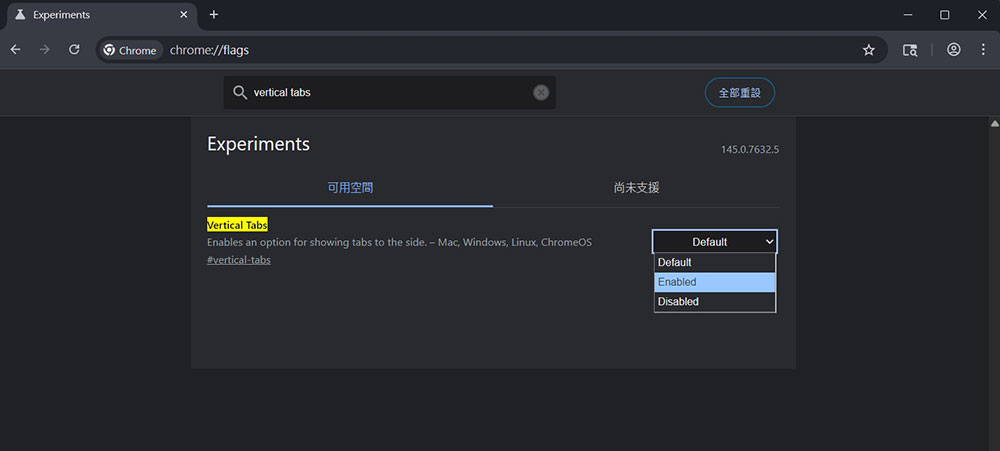
- Type “Chrome://flags” into the address bar.
- Type “vertical tabs” into the search bar.
- Click the drop-down menu on the right and set this option to “Enabled.”
- Finally, click the “Restart” button at the bottom to restart your browser.
After restarting the Chrome browser, right-click the area above the address bar and select “Move tabs to the side.” You’ll then see the tab titles displayed on the left side. If the traditional horizontal tab bar is still there, close Chrome and reopen it; this will ensure that only the vertical tabs are displayed.

When you switch to the vertical tab view, the tab search button moves to the top of the tab list, while the “Create New Tab” button in the tab group appears at the bottom.

If you find that Chrome’s vertical tabs aren’t right for you, the good news is that you can just as easily switch back to the traditional horizontal tabs. Here’s how:
- Right-click in the top area above the vertical tab bar.
- Click “Move tabs to the top.”
- Just like that, your tab is moved back to the top of Chrome, as if nothing had ever happened.

There are still some areas that need improvement. In minimized view, tapping a tab closes it, and there doesn’t seem to be any way to change this behavior. As a result, you can’t switch tabs when the vertical tab menu is minimized, which is a shame. Since vertical tabs are still in the early testing phase, Google will likely make adjustments and updates before rolling them out widely.
Source: KOCPC Chinese