


Today, OpenAI CEO Sam Altman officiallyIt has been officially announced that ChatGPT subscription accounts can be used to raise Openclaw.After sharing this message, I realized that quite a few users didn’t know how to set it up. At first, I thought, “It’s so simple—I probably don’t need to make a tutorial, right?” But seeing the enthusiastic response from users, I’ll go ahead and briefly explain how to link your OpenAI account to OpenClaw. The process for Hermes is pretty much the same—if you need a tutorial for that, I’ll put one together separately.
Here’s How to Use Your OpenAI Account to Raise Openclaw via OAuth Authentication
OAuth Terms of Use for Shrimp and Horse Farming
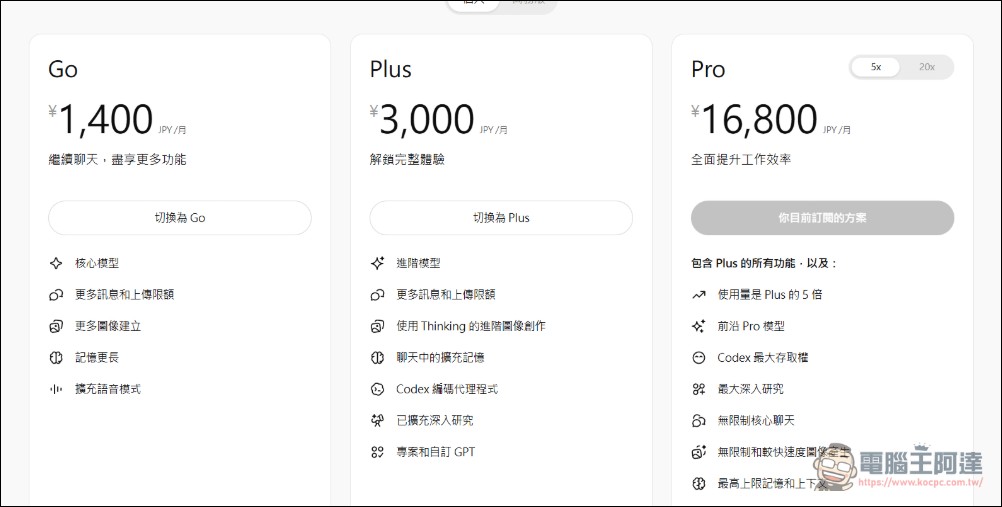
First, let’s make it clear that there are restrictions on using your OpenAI account to “raise Openclaw” or “raise horses.” First, you must be at least an OpenAI Plus member (the $20-per-month plan)—free users can forget about it. OpenAI is currently the most generous when it comes to “farming” with its models (go ahead and try doing this with Claude—they’ll ban your account immediately). If you want to save even more, your only option is to use DeepSeek V4 Flash. Second, even if you’re a member, usage isn’t “unlimited”—quotas vary by membership tier. I’ve never hit a quota limit running general tasks with my Plus membership, and it’s actually more than enough; its AI capabilities are currently the best available. In Codex Analysis PageYou can see your current usage. Of course, the more you pay, the higher your usage limit. Since Codex is so great, I’ve already canceled my Claude subscription.
Plus costs $20 per month (about 660 TWD), while Pro comes in two tiers ($100 and $200 per month) with usage limits that are 5x and 20x those of Plus—roughly equivalent to Anthropic’s Claude Max. but Codex doesn’t currently lose its intelligence, and you can generate images to your heart’s content (though it does count toward your quota—you’ll likely never use it all up). Also, I’m not sure why my pricing page is listed in Japanese yen:
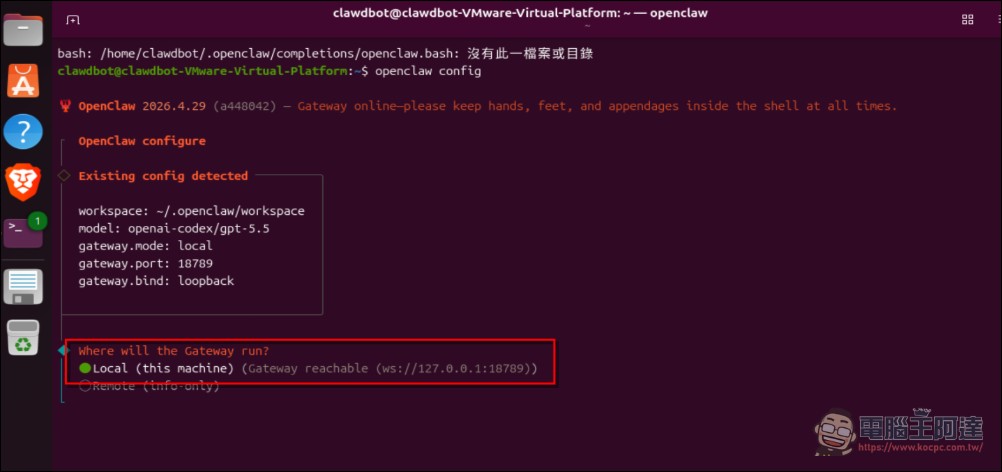
Next, I’ll walk you through how to set things up if you’re already running Openclaw. I’ll use Linux as an example here—the method is exactly the same for other systems. On both Mac and Linux, you’ll run commands in the “Terminal,” while on Windows with WSL2, you’ll use PowerShell. First, open the Terminal and enter the command “openclaw config” to access the OpenClaw settings (we recommend updating to the latest version). Next, select the first option, “LOCAL”:
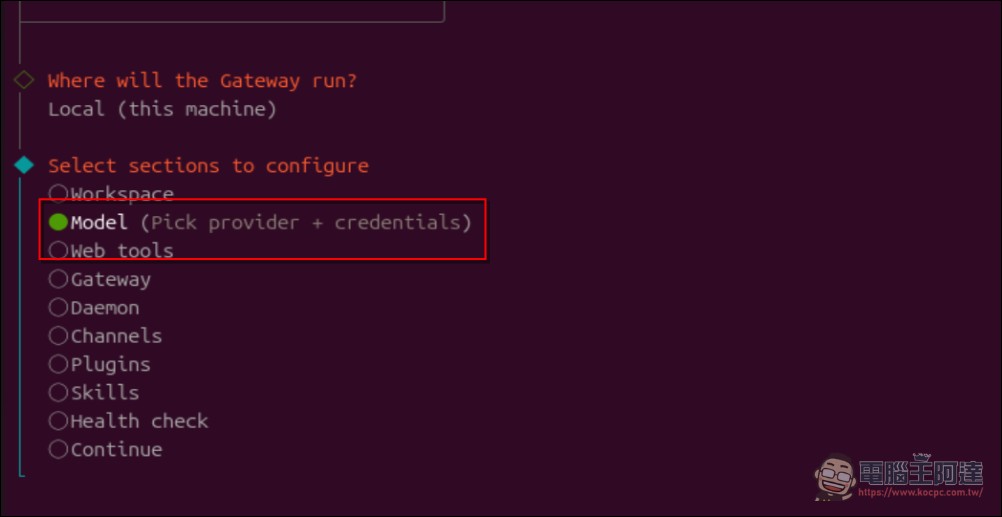
Next, select “Model”:
Select “OpenAI Codex”—this is the one that uses OAuth; the other is an API key billed by usage. Once you’re in, select “Browser Login”:
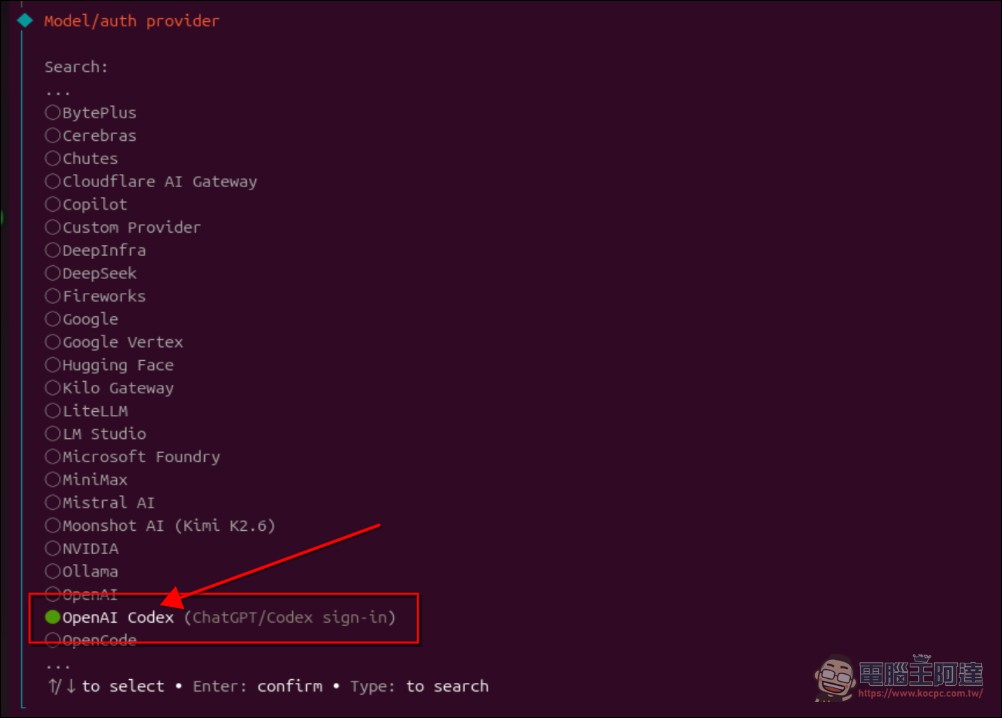
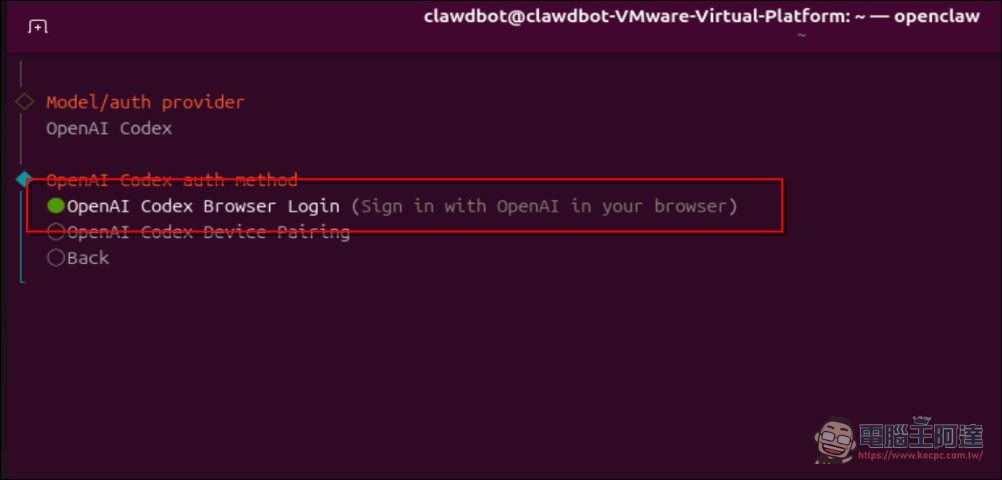
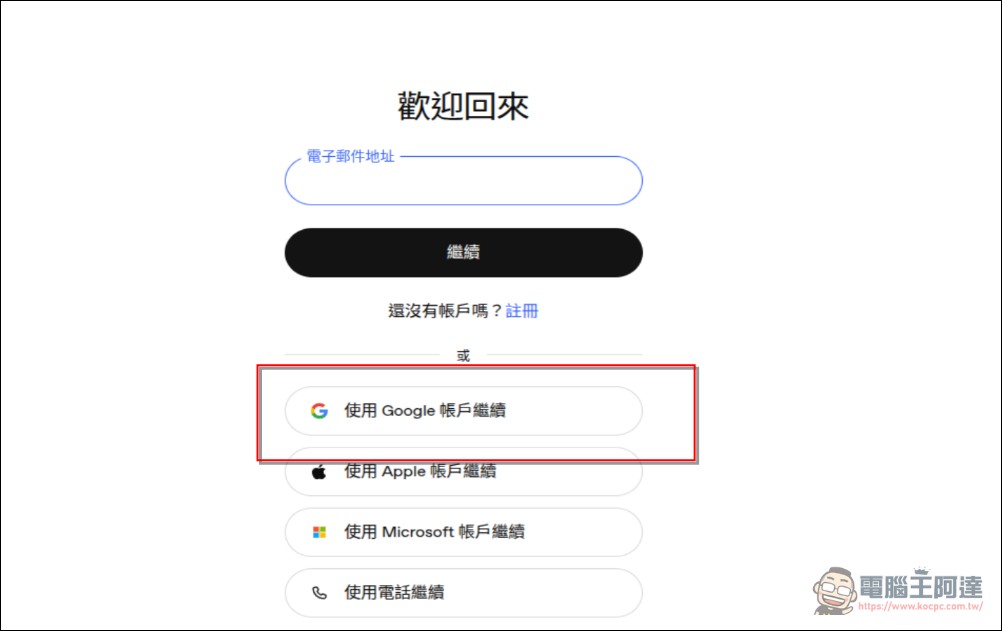
A browser window should then open automatically. If you’re prompted to enter a password, enter your Linux or Mac login password, then select your OpenAI login method. Here, I’m choosing Google:
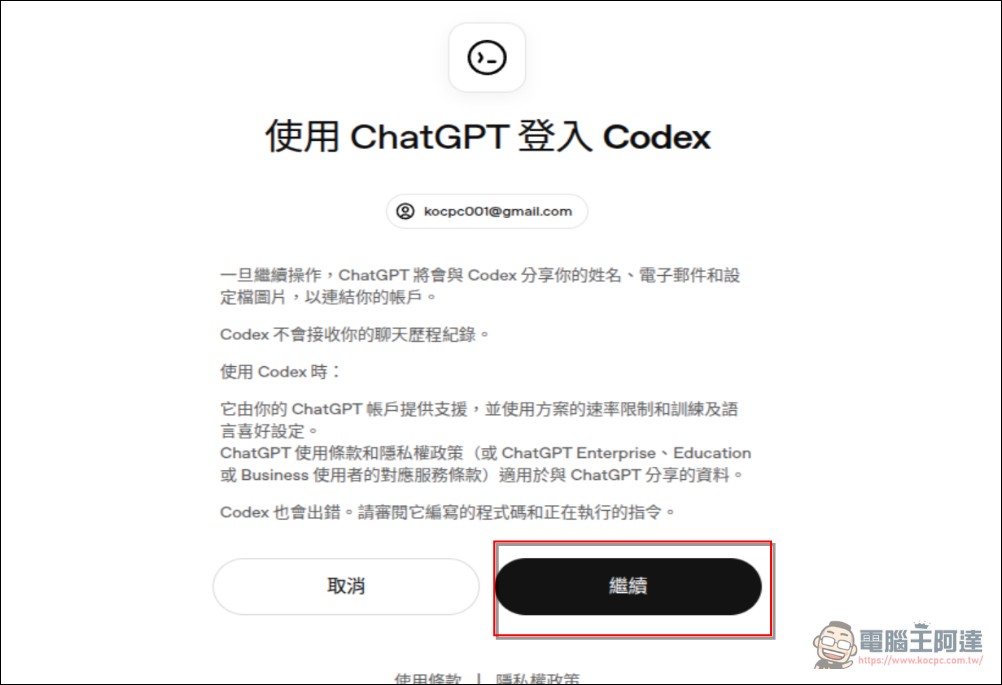
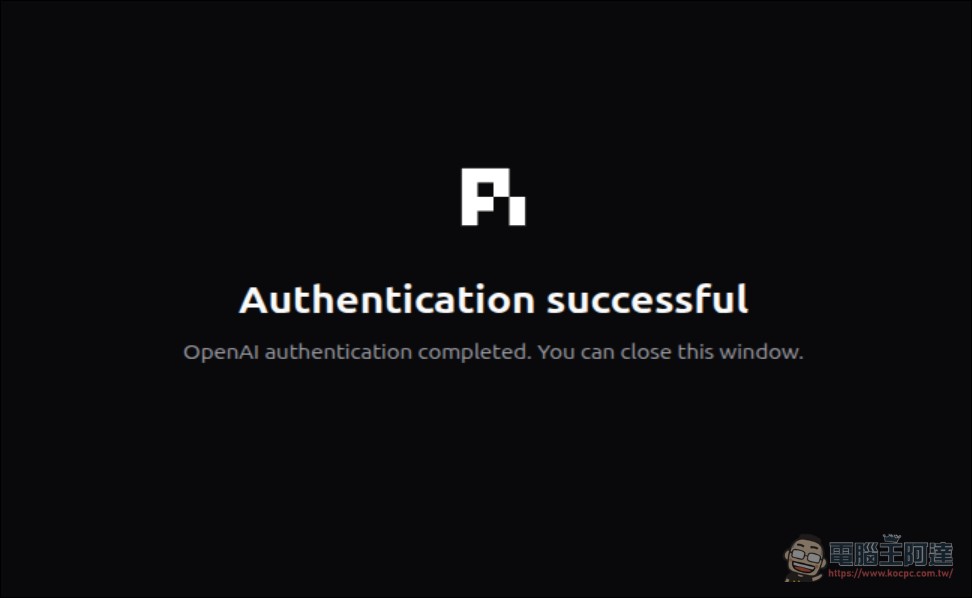
Next, select “Continue” (if you’re not a paid member, this option probably won’t appear or won’t work). Once you see the “Authentication Complete” screen, you’re all set—it’s that simple. Then go back to the terminal screen you were on earlier:
Select a model—of course, choose the GPT-5.5 OAuth option here: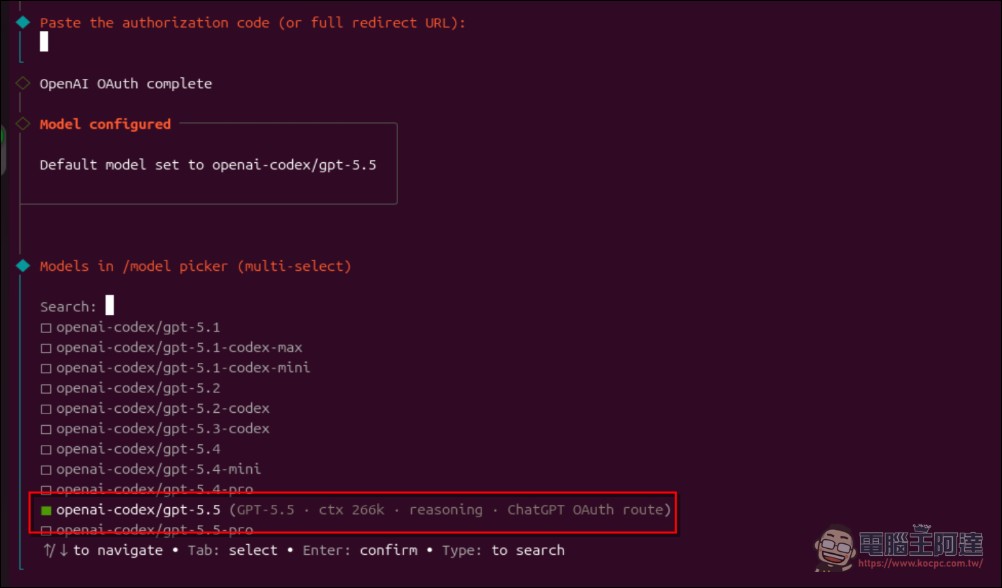
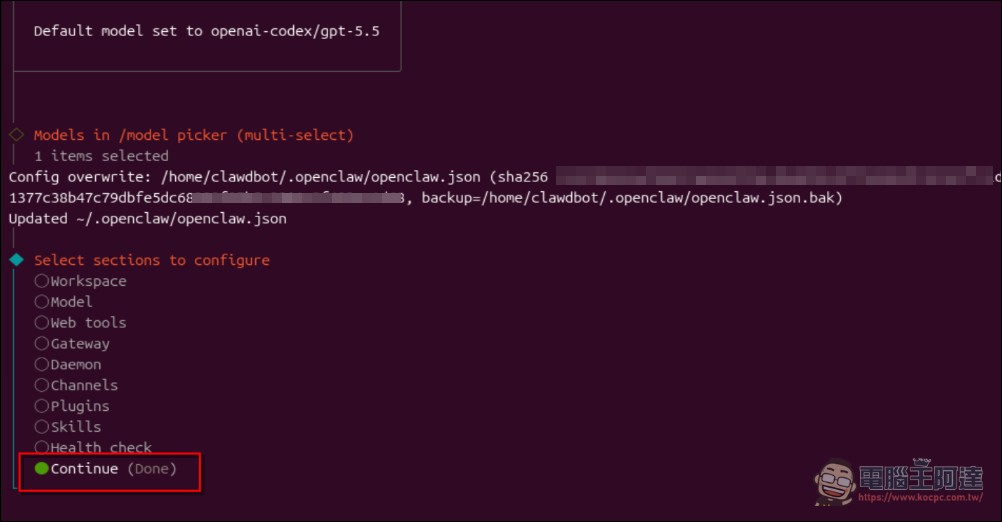
Finally, select “Continue” to finish the setup. At this point, you can enter “openclaw gateway restart” to restart the session, and then return to the WebUI or Messenger chat:
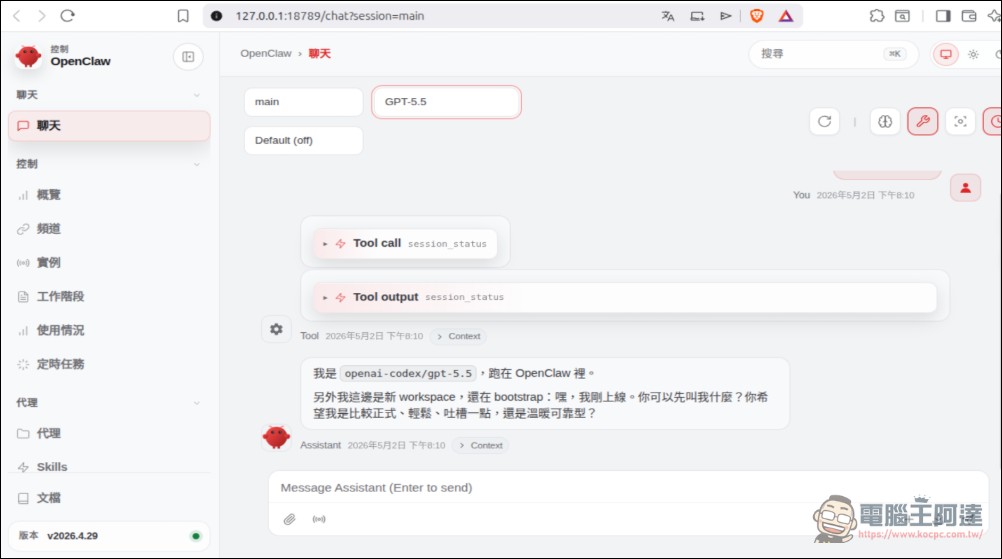
If you ask it what model it is, it’ll say GPT-5.5—the model is also displayed in the top-left corner. Hope you all enjoy keeping shrimp:
If you’re setting it up from scratch, check out my video—just select “OpenAI Codex” in the model selection menu:
Source: KOCPC Chinese