


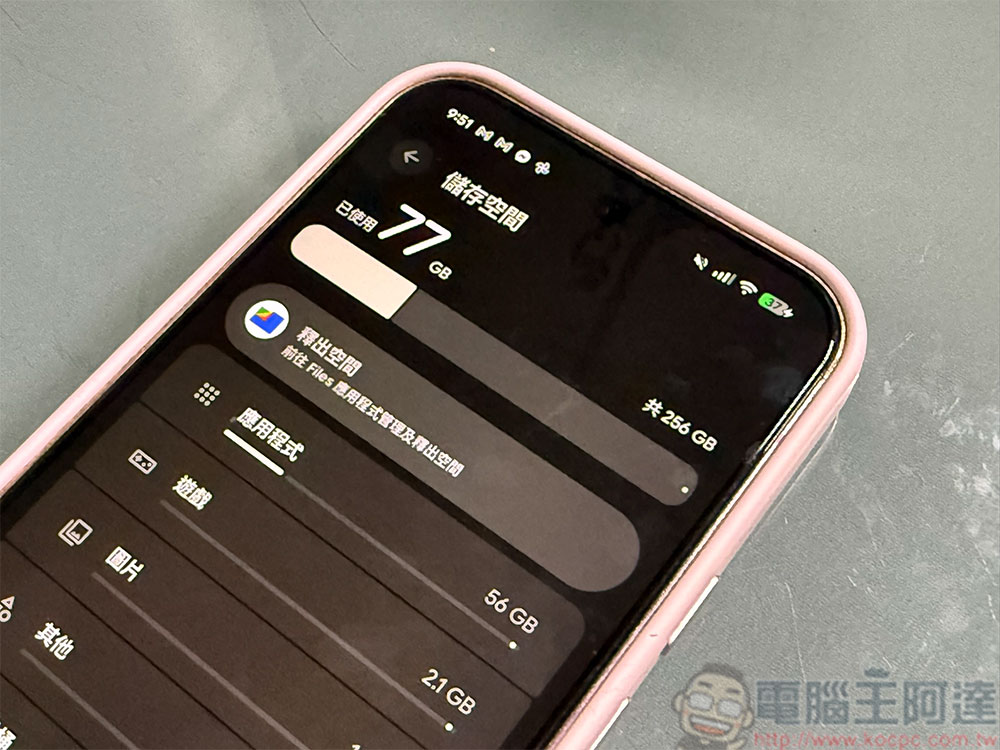
When an Android phone shows that there is insufficient storage space, we often immediately point the finger at various apps, videos or other large files, and then delete them in a hurry. This does free up some space, but there are many hidden sources of storage usage that are often overlooked and may take up more capacity than you think. Let’s take a look at where these “invisible garbage” come from and how you can effectively clean them up.
These things also take up Android storage space, you may not have noticed it
Residual files of uninstalled applications
Many people think that after uninstalling an app, all occupied space will be released, but this is not the actual behavior of Android. Even if an app has been removed, profiles, downloads, or cache data are often left behind. Over time, these residual files will accumulate and quietly eat up a lot of storage space, so it is very necessary to clean them up proactively.
To find these hidden residual data, you can open your phone’s file manager, go to the Android folder in the internal storage, and look for a folder named after the uninstalled application. If you’ve never organized it, you may have seen some app files sitting there that you no longer use. Check for redundant APKs, cache folders, or media files and delete any that are no longer needed. However, you must be careful when cleaning to avoid accidentally deleting application data that is still in use. Otherwise, settings may be reset and even affect the normal operation of the app.

Offline maps from travel records
Do you often download offline maps from apps like Google Maps so you can navigate when you don’t have an internet connection? If you hike, camp, or enjoy exploring remote areas, this is probably your routine. However, what many people don’t know is that each offline map can take up hundreds of MB to several gigabytes of space, which can quietly eat up a lot of storage capacity over time.
If you want to clear old maps, areas you’ve visited, or routes you no longer need, just open Google Maps and click the profile icon in the upper right corner to enter “Offline Maps.” Find the unwanted map in the list, click the three vertical dots next to it, and then click “Delete”.
If you are using another navigation app, such as Waze, the operation method may be slightly different, but you can usually find the option to delete unused maps and free up space in the settings or offline map menu.
Cache files and application data
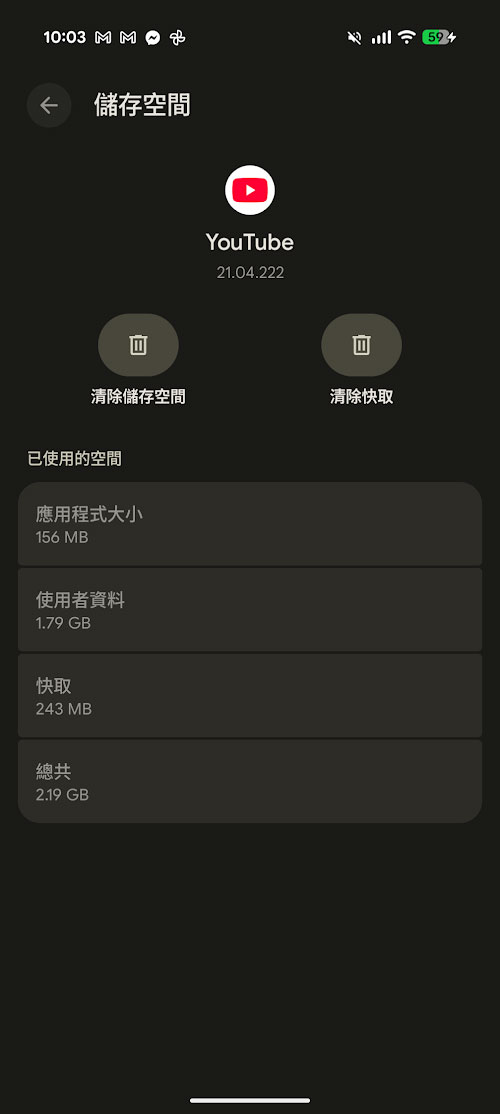
When the application is running, it will store various temporary files, such as images, scripts and other resources, to speed up loading and improve the user experience. These are collectively called “cache”. As for “Application Data”, it includes your settings, login information, and content downloaded or generated by the App. Clearing the cache is generally safe, but be careful when deleting application data, as important information may be removed as well.
Cache and application data can take up considerable storage space, especially high-traffic apps like Instagram, YouTube, or browsers. If you want to free up space, you can go to settings, enter “Applications”, select a specific app, and click “Storage Space”. If you just want to clear the cache, click “Clear Cache” and confirm in the pop-up window. If an app is taking up too much space and you don’t mind resetting settings, logging in again, or losing downloaded content, selecting “Clear Data” can reclaim more storage space.
Duplication and large files
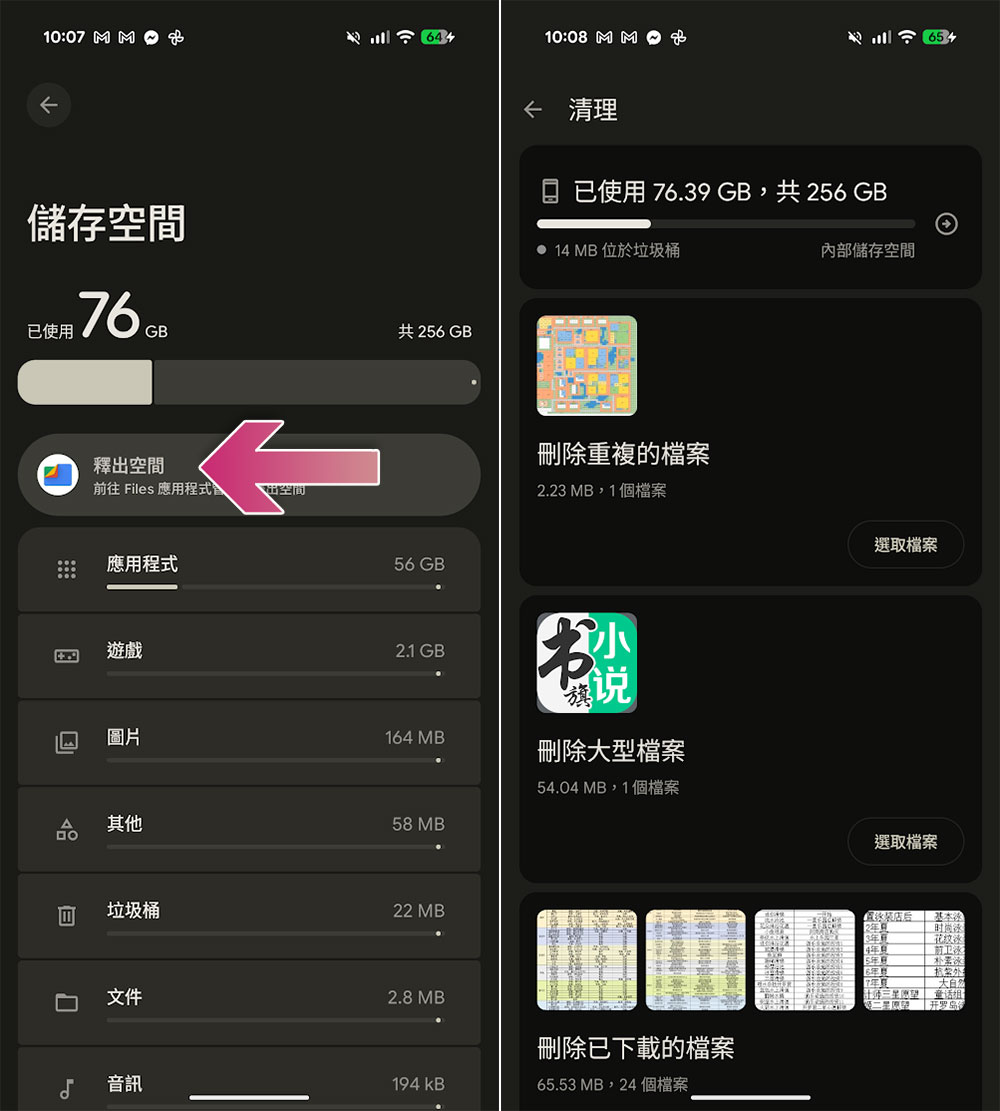
Manually searching through folders may not necessarily find all large files taking up space, but sorting them by size may make organization more troublesome. What’s even more troublesome is that duplicate files are often scattered in different folders, making tracking and cleaning difficult. In fact, Android has built-in tools that can identify large files and duplicate files at the same time, greatly simplifying the organization process.
To use this feature, go to “Storage” in Settings. Here you will see two categories: “Duplicate Files” and “Large Files”. Click on “Duplicate Files” to view all duplicate items by name, size and type, making it easy to clear them all at once. If you want to deal with large files that take up space, select “Large Files” to sort by capacity, select the content you no longer need, and delete it.
Although deleting the very large files at the top of the list can quickly free up space, the real cause of tight storage space is often the accumulation of small, unnecessary files, so it is still important to check and clean them regularly.
Deleted items in trash
Have you ever deleted photos, videos or files to free up space, only to find that the available capacity has not changed at all? The reason is that these deleted items are actually moved to the trash first and then permanently removed after 30 days. In other words, things you thought you had cleared may still be secretly occupying your storage space.
To really get that space back, remember to empty the recycling bin as you organize your phone. Go to “Storage” in “Settings”, slide the page and click “Trash”, select and clean it. Doing so can truly free up the occupied storage space.
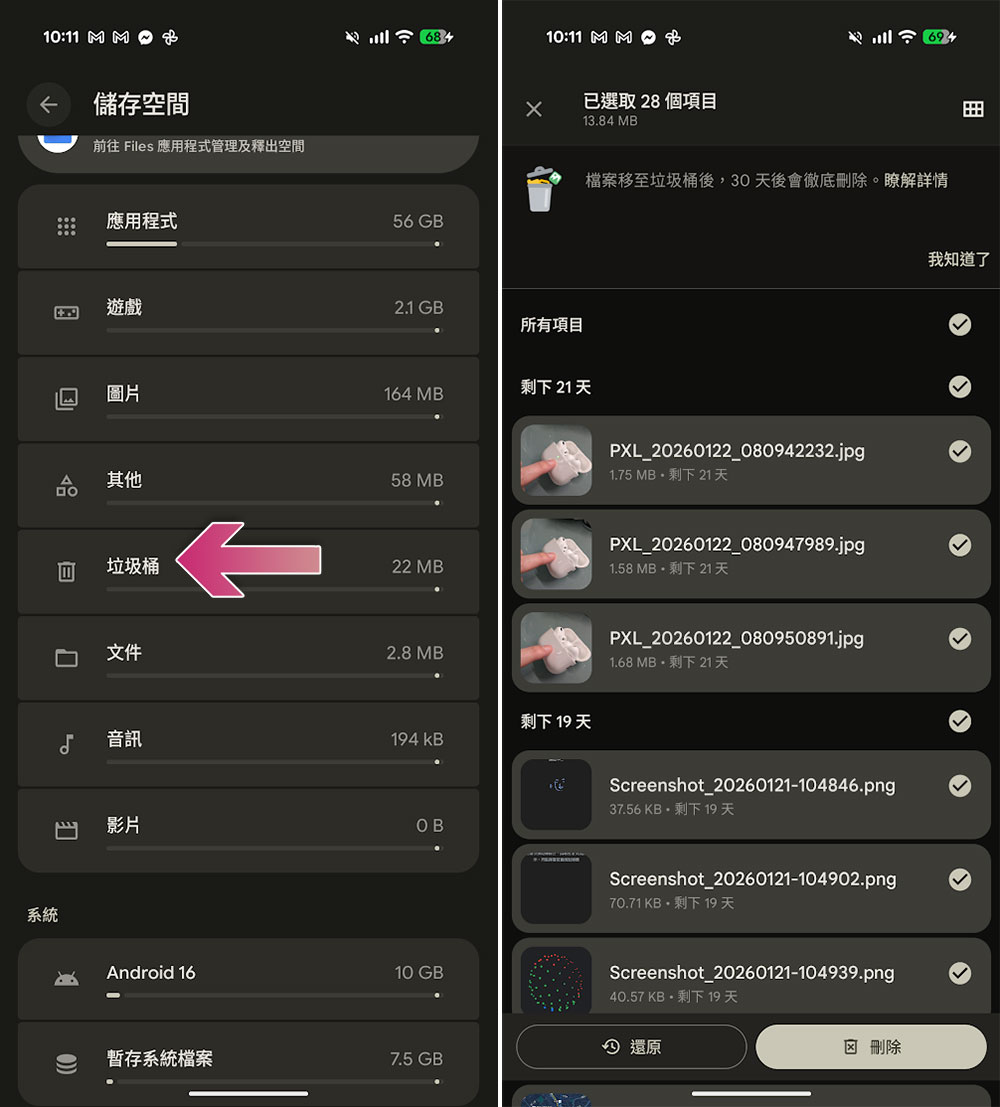
In fact, most of the “hoardings” that take up space are often hidden in front of us, but we usually don’t pay special attention to them. From leftover app data after uninstalling, accumulated offline maps, to files in the recycle bin that have not yet been actually deleted, these seemingly inconspicuous contents can quietly eat up a lot of storage space. Clean up regularly as mentioned above and make it a habit to check these hidden corners, and your device won’t be prone to running out of space again.
Source: KOCPC Chinese