


Today’s iPad performs very well in mobile computing, thanks to its powerful hardware and intuitive, streamlined iPadOS interface. However, no matter how reliable a device is, it will inevitably encounter some annoying glitches. Facing occasional software errors or persistent hardware problems are actually an unavoidable part of using technology products. When your iPad suddenly has a problem, don’t panic, and don’t immediately think of high repair fees. Before rushing to book an Apple repair or start looking for a new device, you might as well confirm whether the problem can actually be eliminated with simple methods. The key to effectively resolving your iPad situation is to first figure out what the problem is and then try to fix it yourself step by step.
In most cases, there may be more than one solution to a problem, so it is recommended that you try them one by one in order. As long as you are patient, check and eliminate various possibilities step by step, you can greatly increase the chance of successfully repairing your iPad, which will not only save time and money, but also make your device work smoothly again.
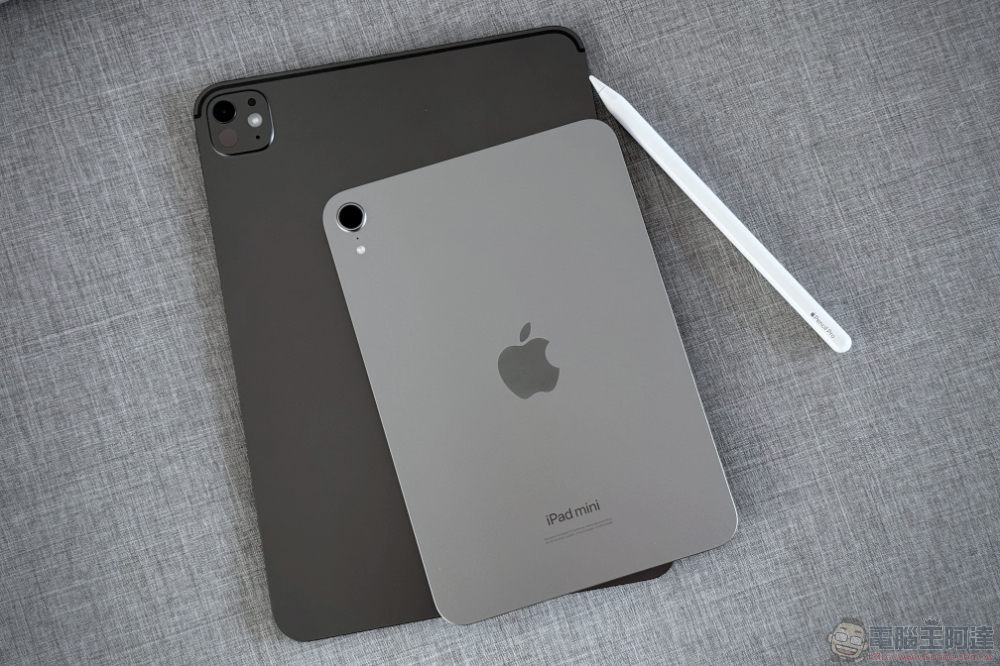
14 common iPad problems and solutions
Battery drains too quickly
The main causes of rapid iPad battery drain are mostly caused by excessive background activity or screen brightness settings that are too high. Since large screens consume a lot of power, no matter how large the battery capacity is, the power demand will continue to exist. Therefore, the first step to troubleshoot the problem is to enter the “Battery” settings to see which apps are using a lot of power.
You can first turn down the screen brightness, or enable automatic brightness adjustment directly. At the same time, shortening the automatic lock time to about two minutes can also prevent the screen from staying on unnecessarily when idle. If you want to further reduce power consumption, you can turn on dark mode (especially effective for OLED screens) and reduce notifications that frequently wake up the screen. If there’s still no improvement after adjusting settings, you may want to update iPadOS to the latest version. Older systems often suffer from poor battery performance due to suboptimal performance or bugs, and updates often bring fixes and improvements. However, please note that after a large update, the system may perform background maintenance (such as re-indexing data), and power consumption may increase in a short period of time, but it will usually return to normal after a period of time.
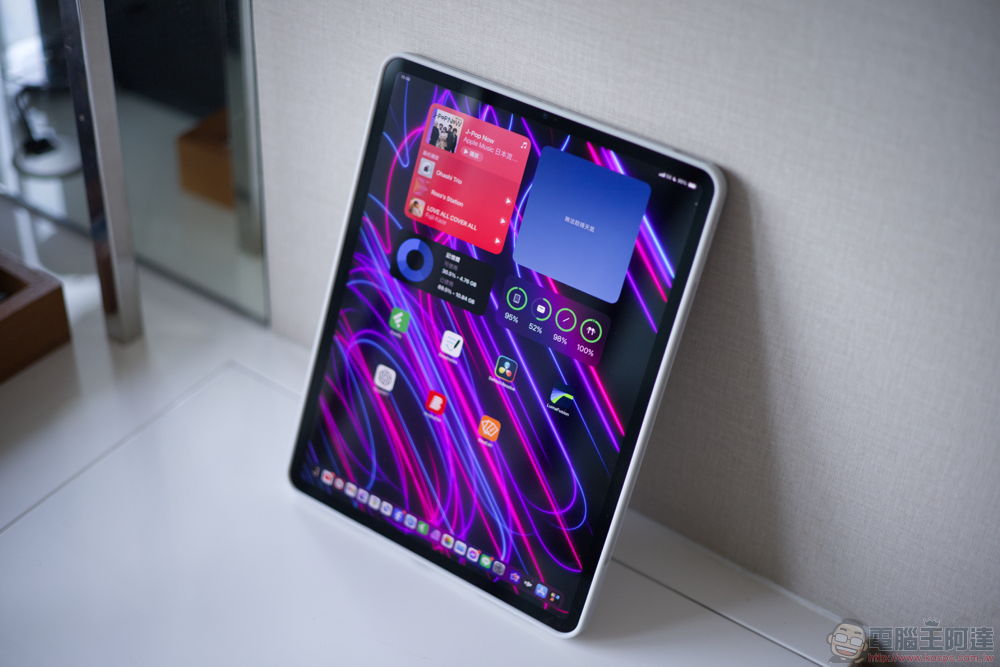
Screen freezes or becomes unresponsive
When the iPad screen is completely frozen and unresponsive to any touch, the most effective solution is to force restart, which quickly cuts power and clears temporary memory errors. If you are using an older iPad with a Home button, just press and hold the Home button and the Power button at the same time, and keep pressing until the Apple logo appears on the screen. For newer iPads, it works slightly differently: Press and release the Volume Up button, then press and release the Volume Down button, then press and hold the Power button until you see the Apple logo appear. This sign indicates that the system is restarting, and a force reset is usually the best way to deal with software crashes or system freezes.
One of the common reasons why your device freezes or freezes is insufficient storage space. When the space is too low, the system cannot effectively allocate memory to background programs and apps, and instability is naturally prone to occur. In addition, outdated iPadOS versions may also cause system abnormalities, so make sure your device is updated to the latest version.
Wi-Fi connected but no network
When your iPad shows that it is connected to Wi‑Fi but cannot load any web pages, the first step is to turn off Wi‑Fi and then on again. Directly from the Control Center is the fastest way to do this. If this still doesn’t work, try turning airplane mode on for about 10 seconds and then turning it off again to reinitialize all wireless signals and force the device to re-establish the connection.
The next step is to remove and rejoin the Wi‑Fi network. Go to “Settings > Wi‑Fi”, click the blue “i” information button next to the current network, and then select “Forget this network.” This will clear stored passwords, proxy settings, and potentially out-of-date DNS data. After rejoining and entering the password, iPad will treat the connection as a new setting, which can often resolve many connection anomalies.
If only the iPad at home cannot access the Internet, and all other devices are working normally, the above steps can probably eliminate the problem. But if all devices cannot connect, you need to restart the network equipment: unplug the modem and router for at least 30 seconds, then reconnect them to allow the network service to re-initialize. If the problem persists, it may be a hardware or system-level failure. It is recommended to go to the Apple Store for further inspection.
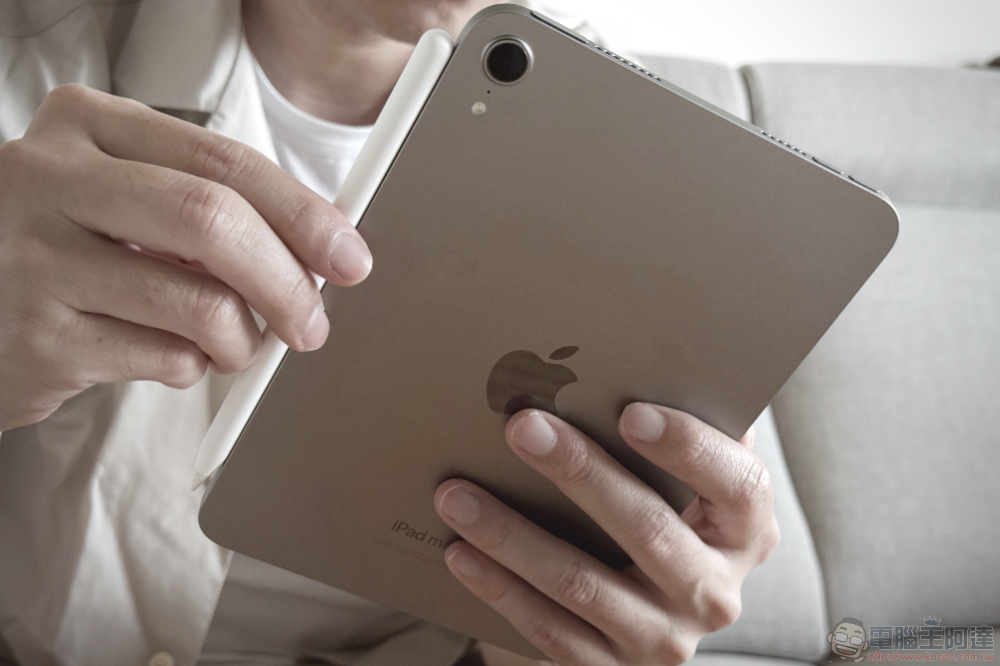
iPad won’t charge
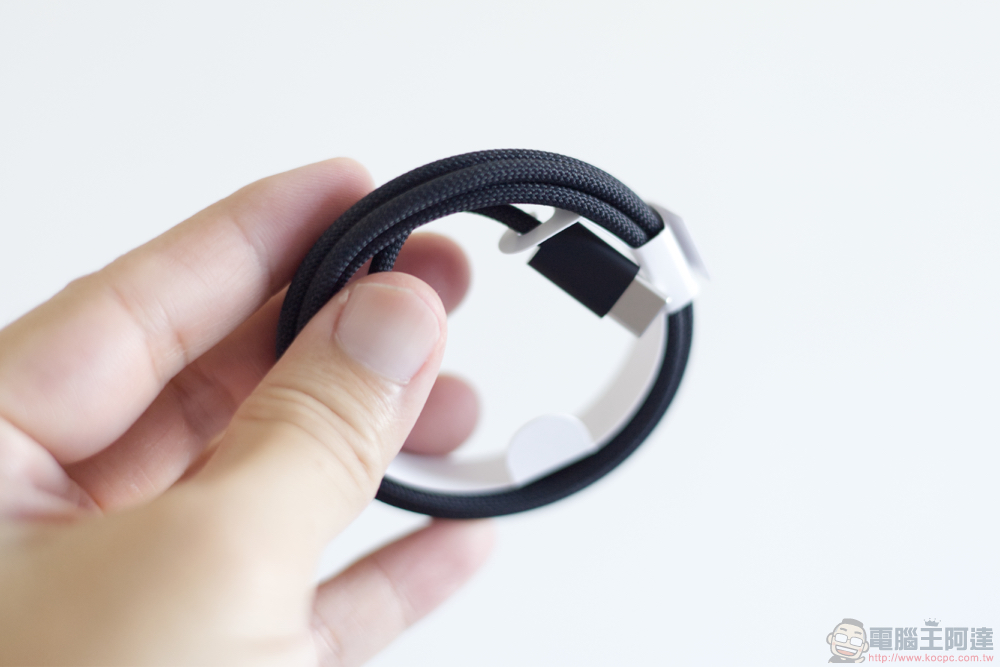
When your iPad fails to charge smoothly, the problem does not necessarily lie with the battery itself. The most common reasons are dust accumulation in the charging port or damaged cables. You can use a flashlight to check whether there is lint or dust stuck in the charging port, and use a non-conductive tool (such as a wooden or plastic toothpick) to gently clean it. Be sure to avoid using metal objects such as paper clips and needles, as the metal may scratch the contacts and even cause a short circuit, causing permanent damage to the motherboard, especially if you received the iPad as a gift.
After confirming that there is no problem with the charging port, the next step is to replace the charging cable and power adapter. Wires are bent and pulled every day, and the internal circuits may have been damaged, even if they appear to be intact on the outside. Remember to use Apple-certified (MFi) accessories, because cheap uncertified cables often have unstable current and may even be directly rejected by the iPad.
Also, try to use a wall socket for charging. The computer’s USB port has a low power output and often cannot provide enough power, causing the iPad to display a “Not Charging” message because the device drains power faster than the USB port can provide power.
App keeps crashing
When an app keeps crashing, it usually means that the software version is out of date, or the device has insufficient available memory to support the operation of the app. If the app keeps crashing, gets stuck on the startup screen, or cannot be opened at all, the first step should be to force close it and clear the current execution state. If your iPad doesn’t have a Home button, swipe up from the bottom of the screen to the middle to bring up the App Switcher, then slide the app’s card up to close it completely. If it is an older model with a home button, double-click the home button to enter the multitasking screen, and then slide the app up. Closing and reopening the app can usually eliminate temporary errors or memory lags.
Next, go to the App Store to see if an update is available for download. If you still have problems after updating, the most effective method is often to delete the app and reinstall it. In addition, don’t forget to confirm whether your iPadOS is the latest version, because an outdated system will also cause the app to operate unstable.
Bluetooth accessories cannot connect
When there is a Bluetooth connection abnormality on the iPad, most of the time it can be solved by simply re-pairing it. This forces the device and accessory to “handshake” again, clearing out any remaining incorrect settings from the old connection. First, tell your iPad to forget the accessory, then be sure to restart your iPad to make sure all Bluetooth programs are reloaded. Also make sure the accessory itself has enough power and check if it accidentally connected to another nearby device, such as your iPhone. Low battery is a common cause of Bluetooth disconnection, especially for accessories that require continuous power, such as the Apple Pencil or wireless keyboards. Also, pay attention to whether there are other wireless devices or physical obstacles causing signal interference.
Make sure the accessory is within about 10 meters of your iPad to maintain a stable signal. If the problem persists, you can try turning Bluetooth off and on again. Don’t forget to make sure you have the latest version of iPadOS, as older systems are more likely to have compatibility issues when using new accessories. If none of the above methods can improve the problem, it is recommended to take the device to the Apple Store for further inspection.
Touch screen ghost touch (random input)
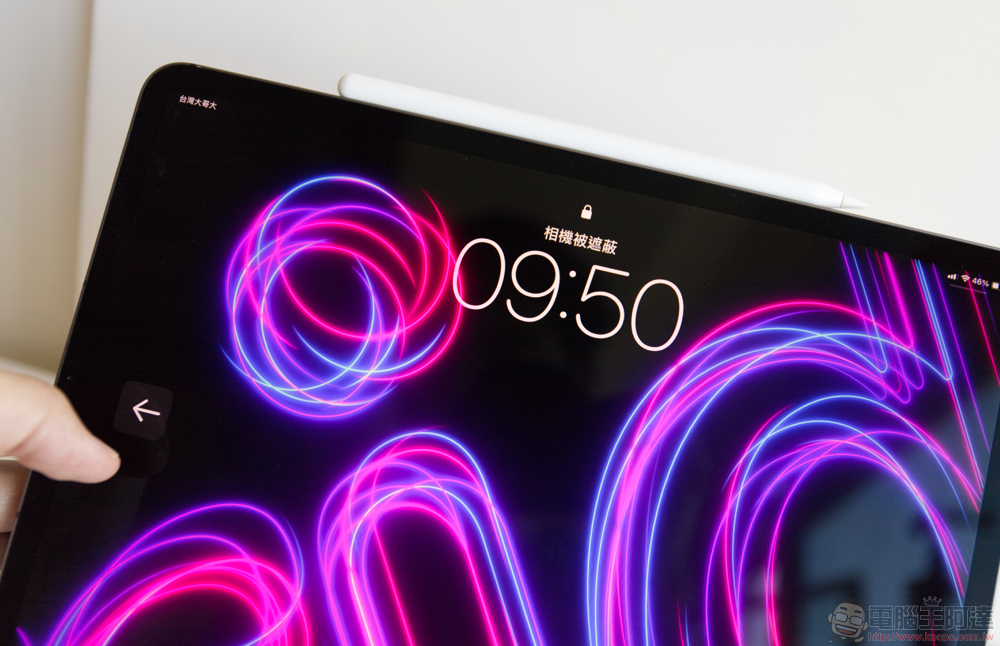
The so-called “ghost touch” refers to the iPad opening apps, entering text, or executing commands without you touching it at all. Such problems often originate from simple environmental factors, such as a dirty screen surface. The first step should be to clean the screen thoroughly, as invisible grease, water marks, or tiny dust may interfere with the capacitive touch sensor. After cleaning, it is recommended to restart the device to eliminate temporary memory errors or software conflicts that may trigger random input. If the issue persists, check to see if a system update is available, as Apple occasionally releases updates that correct touch sensitivity.
If deep cleaning and restarting cannot improve the problem, you should consider whether the screen protector or case is causing the interference. A protector that is of poor quality, is too thick, or poorly fitted may exert uneven pressure on the edge of the screen or allow conductive particles to get stuck on the glass surface, causing accidental touches. As for the protective case, if you plan to remove it for testing, remember to prepare a new replacement, because some cases cannot be put back intact after being removed.
No sound or audio distortion
If your iPad suddenly has no sound, or the audio behaves abnormally, the first step is to check the external buttons and system settings. First make sure that silent mode is not turned on and the volume is turned up. Also pay attention to whether focus modes such as “Do Not Disturb” are enabled, as these functions may suppress system prompts and notification sounds. You can go to “Settings > Sound” and drag the volume slider of “Ringtones & Alerts” back and forth to test. If you can’t hear any sound at all in this screen, there may be something wrong with the speaker hardware. Also, don’t ignore Bluetooth devices. Sometimes the iPad is outputting audio to headphones you forgot to turn off, or to a Bluetooth speaker in another room.
If there is still no sound, then check whether the microphone and speaker openings are blocked by dust or debris. Similarly, if there are foreign objects in the charging hole or headphone hole, it may cause the iPad to mistakenly judge that headphones are plugged in. You can use a dry, soft fine-bristled brush to gently clean the speaker holes and various interfaces. After completing the cleaning, remember to restart the device, as audio problems are sometimes caused by temporary system abnormalities.

Apple Pencil doesn’t work
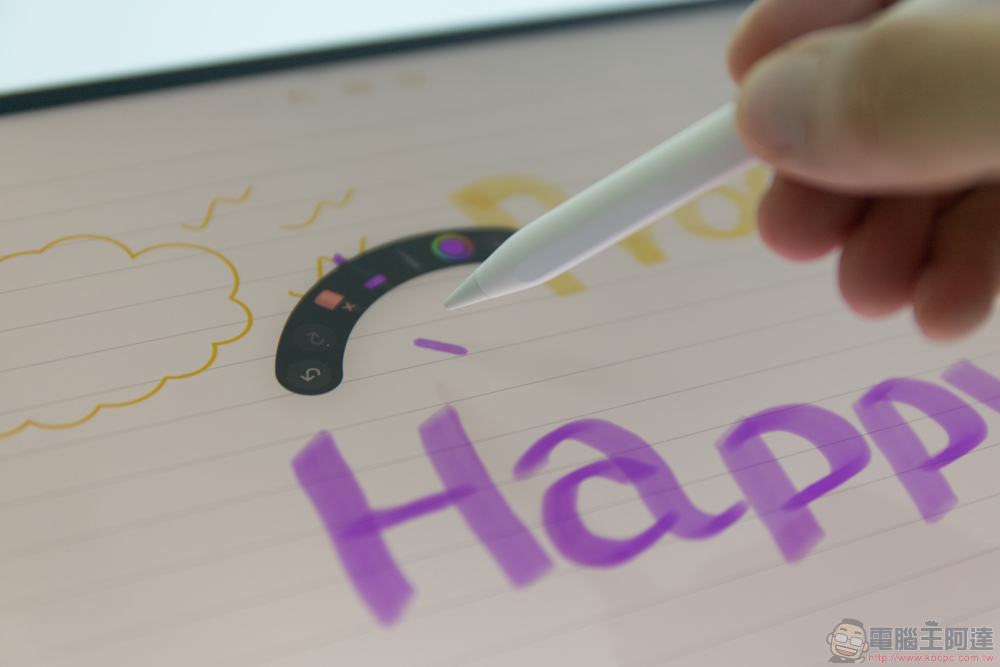
When Apple Pencil fails to write properly, the most common reasons include compatibility incompatibility, a loose tip, or a broken Bluetooth connection. Before dealing with other issues, make sure your Pencil is compatible with your iPad model, as different generations are not interchangeable. If there is no problem with the compatibility, then check whether the pen tip is locked. You can gently tighten the pen tip clockwise to ensure a stable contact. If the pen tip is worn, rough, or obviously damaged, it is recommended to replace it immediately.
If it still doesn’t work, the next step is to pair again. Go to Settings to tell iPad to forget the Pencil, then completely restart iPad to clear the temporary memory error. After restarting, attach the Pencil to the magnetic edge (or plug it into the Lightning port, depending on the model) and reconnect it. Additionally, if the Pencil is left idle for several weeks, the battery may be completely drained. Please charge it for at least 15 minutes, and then check the “Battery” widget in Today View to confirm whether it is successfully powered. As long as the power is restored, most connection problems can be solved smoothly.
iPad stuck on Apple logo (boot loop)
If you want to fix the problem without erasing all your data immediately, the best way is to connect your iPad to your computer first. The computer requires iTunes (for Windows or older versions of macOS) or the Finder (macOS Catalina and later). Before you start, make sure your cables are in good condition and your computer system and software are updated to avoid getting stuck in the entire repair process due to simple wiring errors.
Next, you need to put your iPad into “recovery mode.” If you’re using an iPad without a Home button, quickly press the Volume Up key, then the Volume Down key in sequence, and then press and hold the top Power button until you enter recovery mode. If you have a classic iPad with a Home button, just press and hold the Home button and the top power button at the same time. When the computer detects the iPad and pops up the option, this step is very critical: Please select “Update” instead of “Restore”. Selecting update will reinstall iPadOS, but it will not delete your personal data, which is the safest repair method.
AirDrop not working
AirDrop relies on both Wi‑Fi and Bluetooth to work properly, so both your device and the other party’s device must have both features turned on. The most common problem is actually the “Visibility” setting. You can go to the AirDrop options and adjust the visibility to “Everyone (10 minutes)” to ensure that your device can be discovered. At the same time, be sure to confirm that the “Personal Hotspot” on both devices is turned off. Because AirDrop will temporarily take over the Wi‑Fi antenna to establish a point-to-point connection, the hotspot function will block this process and even prevent the device from appearing in the sharing list. The distance between the two devices is also important, and it is recommended to keep it within about 10 meters to ensure that the Bluetooth handshake is completed smoothly.
If basic checks don’t resolve the issue, check to see if Do Not Disturb or another focus mode is enabled, as these settings may suppress AirDrop notifications. If the problem persists, force restarting the device will usually clear up the temporary error affecting the background search process. The last resort is to reset the network settings, which will clear Bluetooth and Wi‑Fi related data, but you will need to re-enter all Wi‑Fi passwords after the reset.

Screen rotation lock
If the screen doesn’t rotate when you turn your iPad, the most likely cause is that Rotation Lock has been turned on by mistake. You can open Control Center and click the rotation lock icon to turn it off. In addition, if you are using an older iPad, also check whether there are physical switches on the side; the side switches of some older models can be set to mute or orientation locked, which may affect screen rotation. At the same time, remember that not all apps support screen rotation. Some games or apps originally designed for iPhone will be fixed in portrait or landscape mode, so it may seem like the rotation is disabled, but it is actually a limitation of the app itself.
If you’ve verified that rotation lock is off and you still can’t flip in a native app (e.g. Safari, Photos), it’s possible that the accelerometer or gyroscope is temporarily stuck due to a software bug, and restarting iPad can usually get the sensors back to normal operation.

Microphone not working
If you find that the other party can’t hear you in FaceTime, Zoom, or another calling app, the first step is to confirm that the app has microphone access. You can quickly check in “Settings > Privacy > Microphone” to ensure that the relevant app permissions are turned on. Also, don’t forget to check the content and privacy restrictions in Screen Time, as parental controls or restrictions profiles can sometimes block microphone access without your knowledge.
Next, check whether the microphone opening is covered by a protective case or screen protector. Some protectors do not reserve openings for the front microphone, which will directly block the sound; tiny dust or invisible debris may also affect the sound pickup effect.
If you see any buildup, gently brush it away with a dry, soft toothbrush, but be sure not to stick sharp objects into the holes as they may damage the microphone element. Also make sure the iPad is not secretly connected to nearby Bluetooth devices, such as headphones in your bag, as they can intercept audio input. The fastest way to test is to turn off Bluetooth directly from the control center to see if the problem improves immediately.
Face ID can’t recognize you
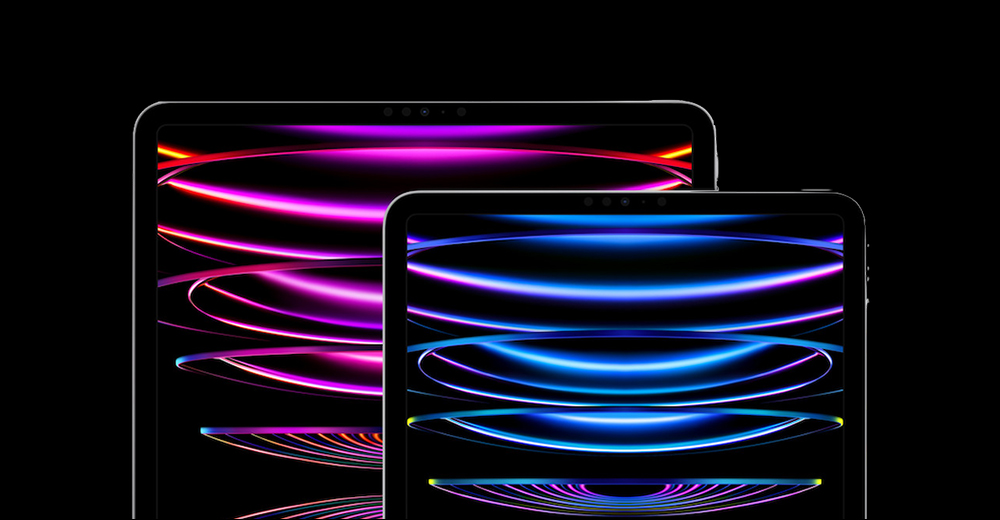
If Face ID suddenly stops working on your iPad Pro, the most common reason is that the TrueDepth camera is obscured. This set of sophisticated sensors is located on the screen bezel, and the new iPad’s bezel is narrower and can easily be accidentally blocked by fingers, case edges, or other objects. First make sure the camera area is not blocked at all. Next, check the area for fingerprints, oil, dust, or an inappropriate screen protector that may block infrared rays. Use a clean microfiber cloth to gently wipe the sensor location to ensure the surface is clean before further troubleshooting software issues.
If the lens area is clean, you can go into settings and temporarily turn off “Require gaze to activate Face ID.” This setting is especially helpful if you wear sunglasses that block infrared light, or if your eye features make it harder for the sensor to recognize it. If the problem persists, you can try to reset Face ID and re-establish facial data. Normal recognition can usually be restored.
Source: KOCPC Chinese