


Although Adobe Photoshop is very powerful, it is too expensive and not everyone can afford it. Therefore, many people may switch to GIMP, a free open source tool. It’s just that the GIMP interface is really a bit outdated, and the experience of using it is not that good. This article will recommend a great PhotoGIMP open source project, which can make the GIMP interface look like Photoshop in seconds. People who are useful highly recommend installing it.
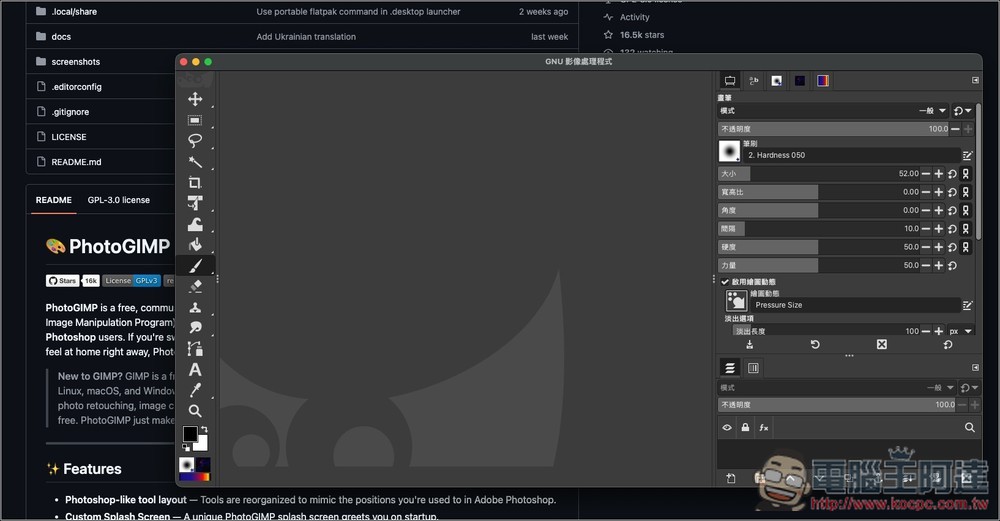
“PhotoGIMP” introduction and operation tutorial
PhotoGIMP is a free modification patch developed by the open source community (mainly driven by the Diolinux team). For many users who have just switched from Adobe Photoshop to GIMP, GIMP’s completely different operation logic, toolbar configuration, and shortcut key settings can be said to be a major obstacle to learning, and PhotoGIMP is designed to solve this pain point.
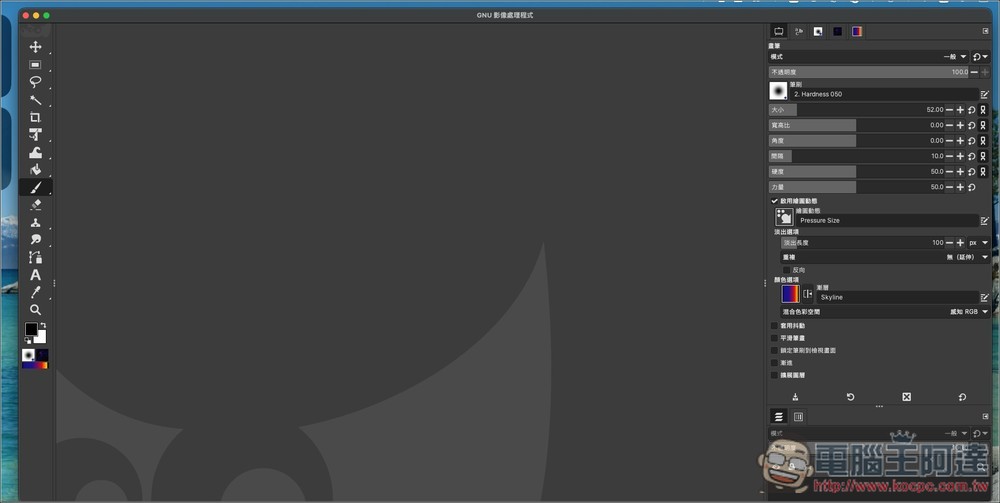
It is not a brand new independent software, but by replacing the internal configuration files of GIMP, it greatly “Photoshops” the original interface layout, icon style, shortcut keys, and even the startup screen. By installing this patch, users can obtain a very friendly working environment. The arrangement of the toolbox will become similar to Photoshop, and the layers, color plates, and path panels on the right will also be adjusted to familiar positions. In addition, it is preset to maximize the canvas space, allowing creators to focus more on image processing.
Main features
- Interface layout reorganization: Adjust the toolbar and panel positions to a layout similar to Adobe Photoshop.
- Shortcut key synchronization: The corresponding settings are completely based on Adobe’s official Windows version shortcut keys, so that veterans do not need to re-memorize them.
- New startup screen and icon: Provide exclusive customized startup screen and application icon.
- Canvas space optimization: The default profile maximizes the working area and reduces the space occupied by redundant panels.
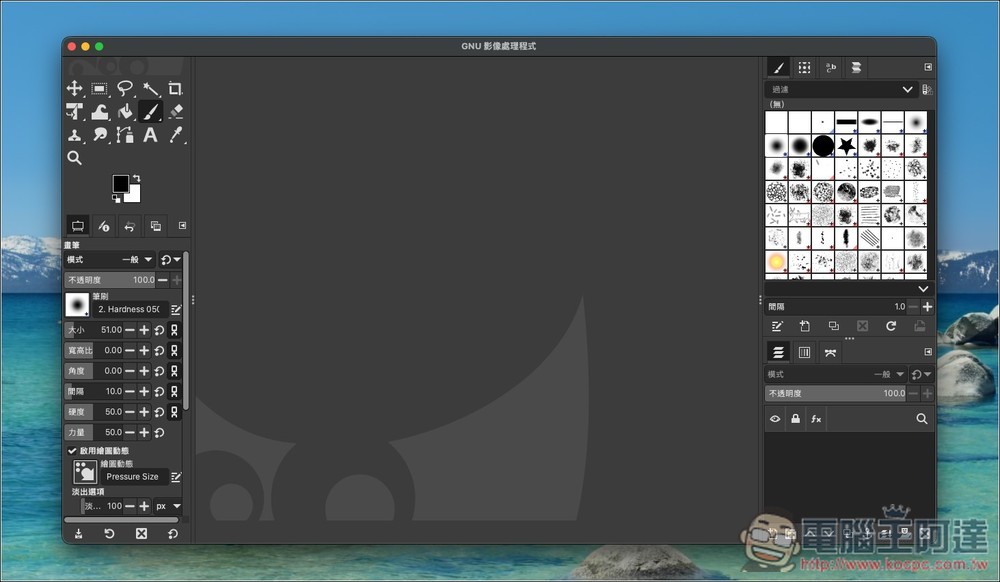
The picture below is the original interface of GIMP, which is really cool:
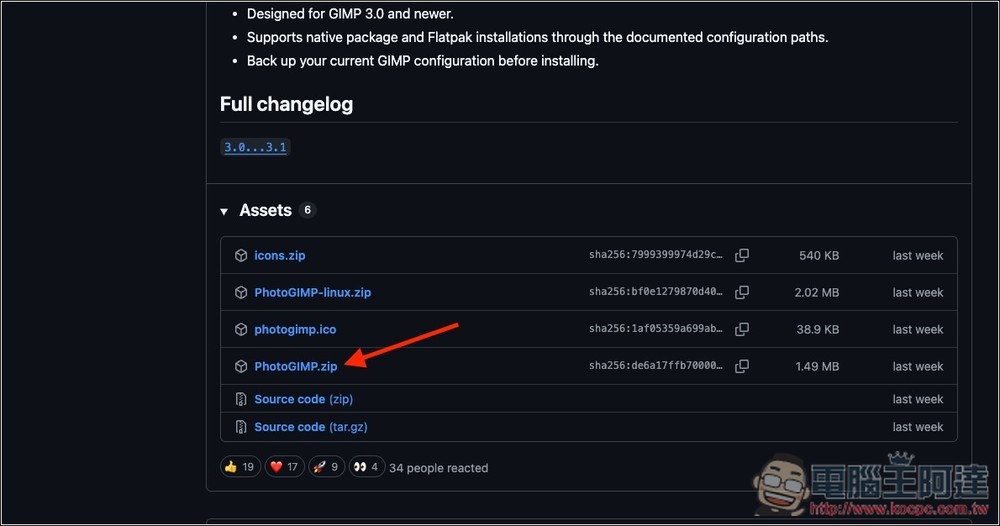
Click the link above to enter the download page of the PhotoGIMP project. For the Windows and macOS versions, download PhotoGIMP.zip. For the Linux version, download the zip file with the word linux:
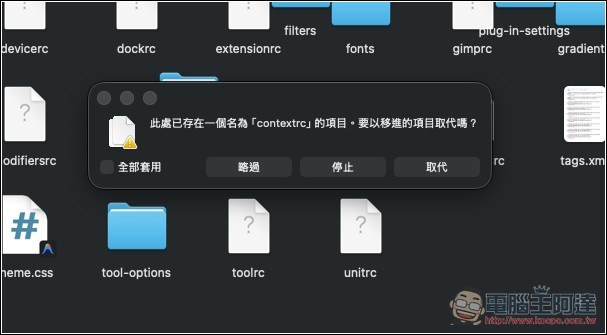
After downloading, unzip it and paste all the files in the folder into the GIMP folder. The GIMP folder for Mac is in “~/Library/Application Support/GIMP”. For the Windows version and detailed operation procedures, you can read PhotoGIMP documentation:
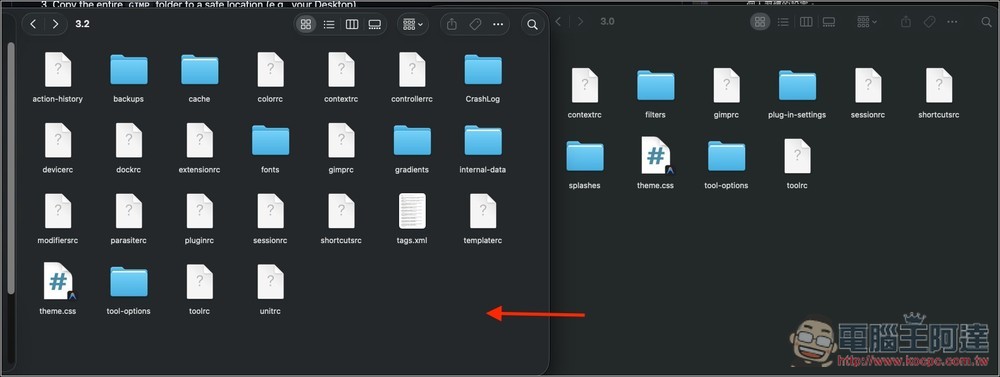
All are selected to replace:
Then open the GIMP software again, and you will see that the interface becomes similar to Photoshop:
Source: KOCPC Chinese