


When searching for settings such as Bluetooth or brightness in Windows 11, you can only find the corresponding settings page, which you have to open manually and adjust yourself. Although everyone has long been used to this, it is actually a bit troublesome to operate—especially for settings you are unfamiliar with, where it may take some time to figure out how to adjust them. In the future, this will no longer be so troublesome. In the new version of Windows 11 Search that Microsoft is now testing, you can directly enter commands like “Turn on Bluetooth,” and it will be completed right in the search results, without needing to open the Settings app—and it is not even implemented through Copilot or a large language model.
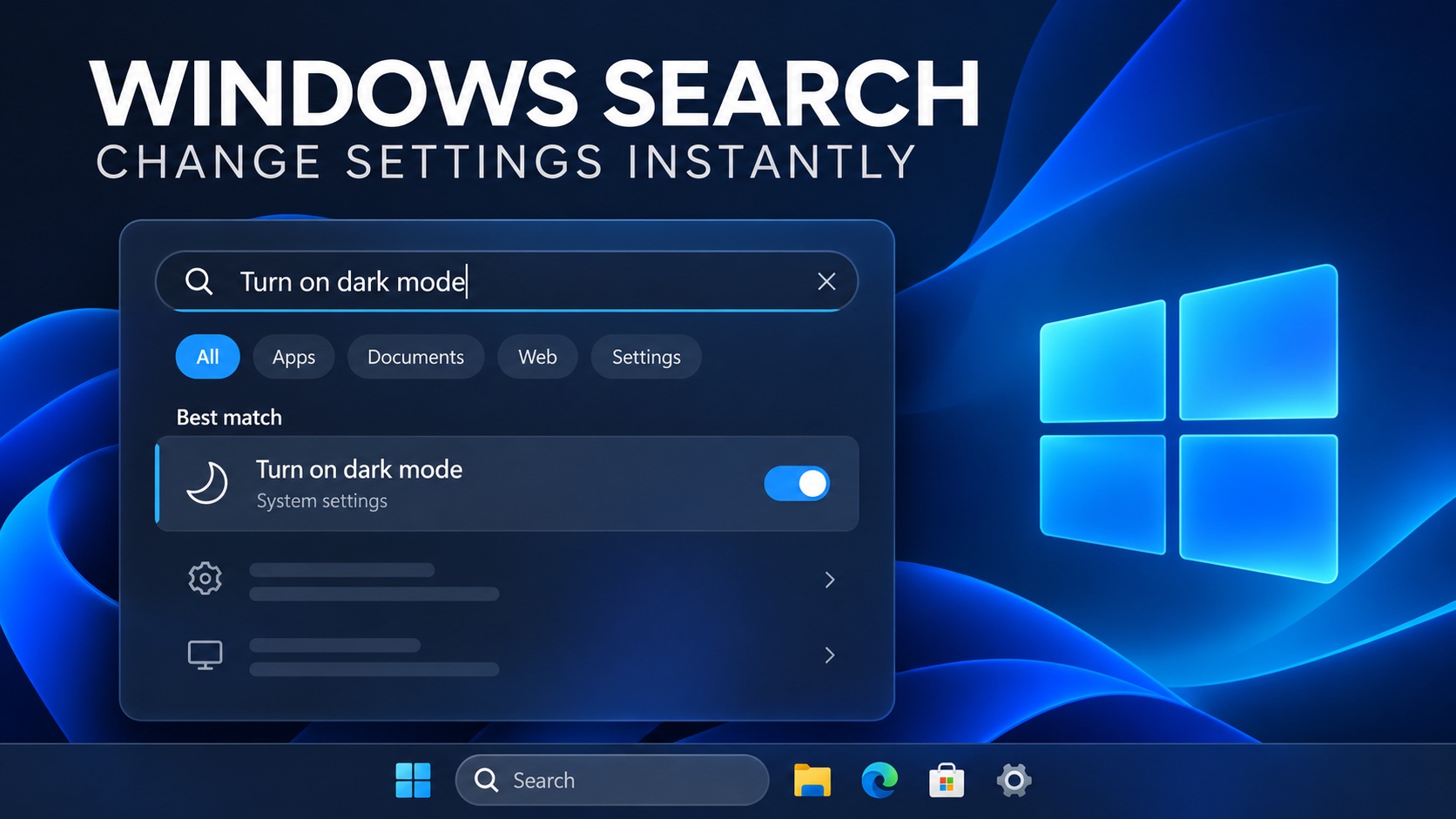
Image source: Wccftech
Windows 11 search gets a major upgrade! Type “turn on Bluetooth” to change settings directly—no need to open the Settings page anymore.
According to foreign media Wccftech According to reports, in the Windows 11 Insider Preview Beta release notes a few days ago, Microsoft specifically noted that Windows Search, rebuilt with WinUI 3, lets users turn on dark mode or Bluetooth, adjust screen brightness, mute the device, or arrange windows directly from search; this feature is also called “Inline Actions.”
Using it is also simple: press Win + S or click the search box on the taskbar, then just enter a natural-language command, and the corresponding action will appear at the top of the search results. For example, with “Turn on dark mode,” a dark mode toggle will appear directly in the results; click it once to switch, with no need to go through “Settings → Personalization → Colors.”
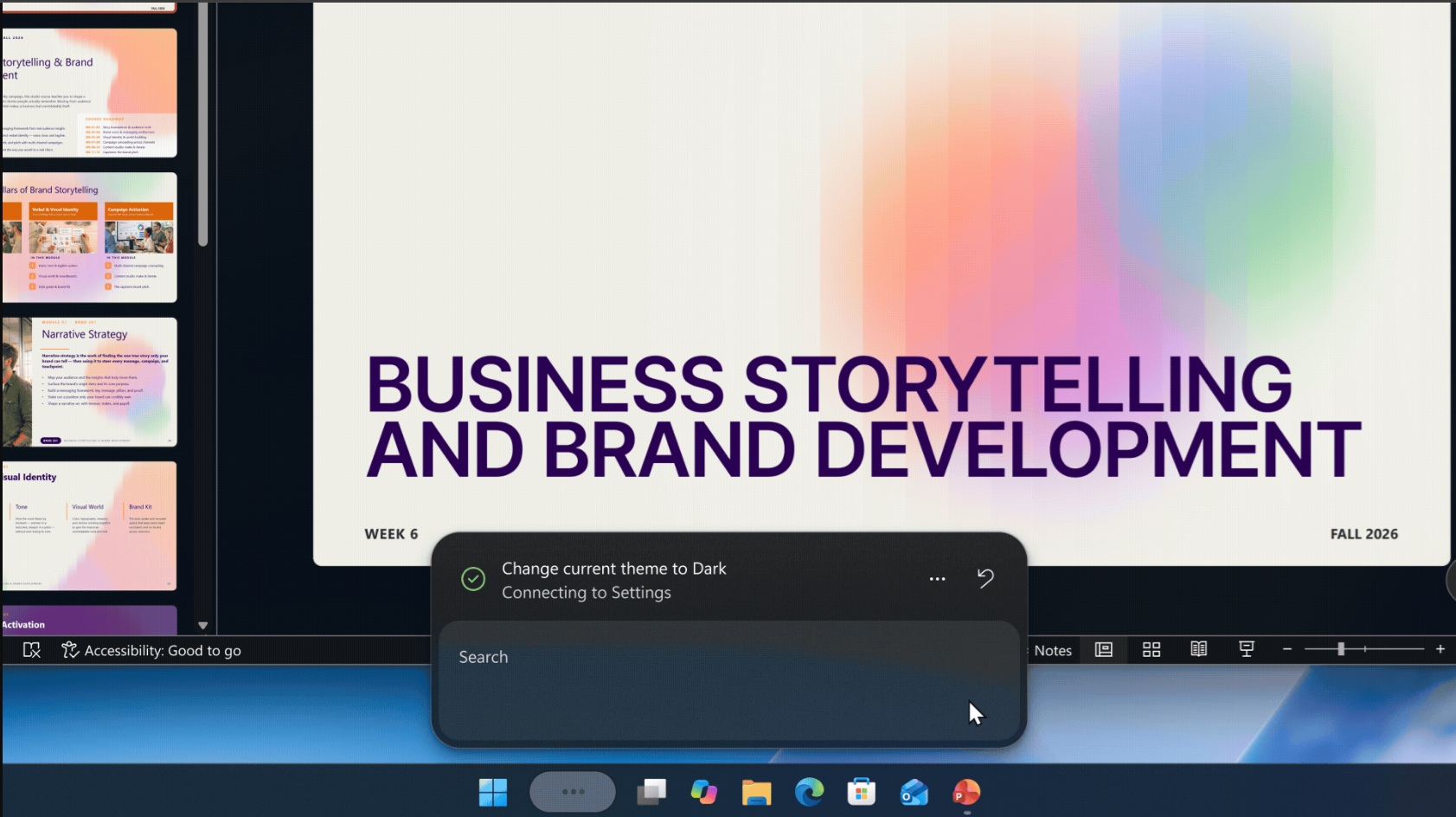
Image source: Wccftech
The following are examples of instructions currently published by Microsoft:
| English instructions | Executable operations | Type |
|---|---|---|
| Switch to dark mode | Switch to dark mode | System Settings |
| Turn on Bluetooth | Turn on Bluetooth | System Settings |
| Turn on night light | Turn on Night Light | System settings |
| Dim my screen | Lower the screen brightness. | System settings |
| Mute | Mute the volume | Audio |
| Set volume to 80% | Turn the volume to 80%. | Audio |
| Bigger mouse pointer | Enlarge the mouse cursor | System Settings |
| Minimize all my windows | Minimize all windows | Window Management |
| Arrange windows on screen | Arrange application windows | Window Management |
| Snap Notepad and Calculator | Align the notepad and the abacus side by side. | Window management |
| Open Microsoft Edge and Word snapped | Open Edge and Word at the same time and split them left and right. | Window management |
Note, however, that it seems not every command supports completing the adjustment directly; some operations will first show a confirmation or open the corresponding settings page. In addition, in the current beta, only Win + S and the taskbar search box bring up the new interface; the one in the Start menu is still the old version.
You can operate it just by entering natural language. Many people might think this must be an AI feature, right? Is it only available on Copilot+ PCs? The good news is, that’s not the case.
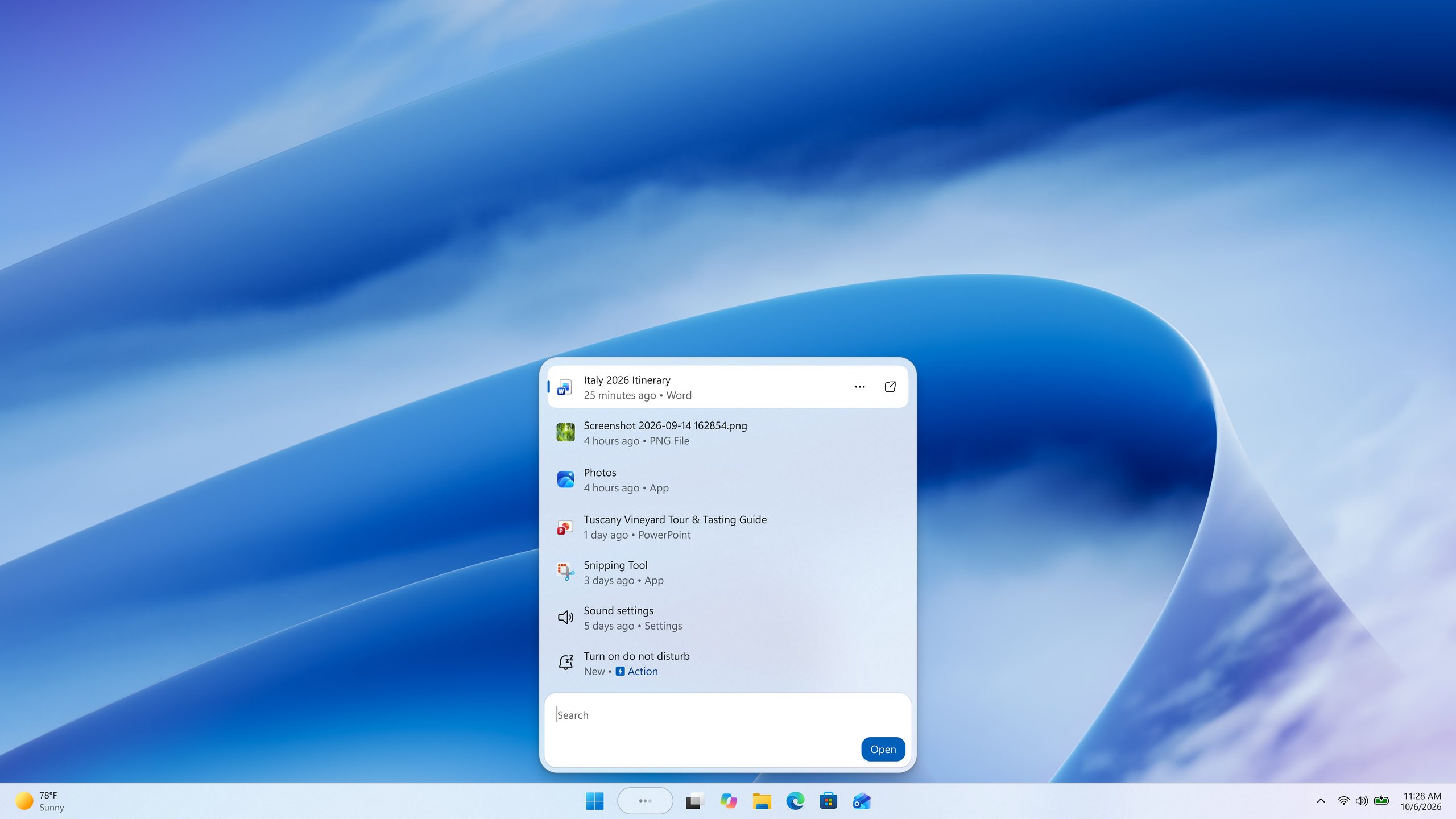
Image source: Wccftech
Microsoft previously explained to the media that Inline Actions is powered by a small machine learning model running on the local CPU, used to quickly understand what the user wants to do and then match it to the correct action. It is not generative AI like an SLM or LLM, so it does not require an NPU.
And that’s not all—Pavan Davuluri, Executive Vice President of the Windows division, has publicly said that “thousands” of such actions will roll out by the end of the year.
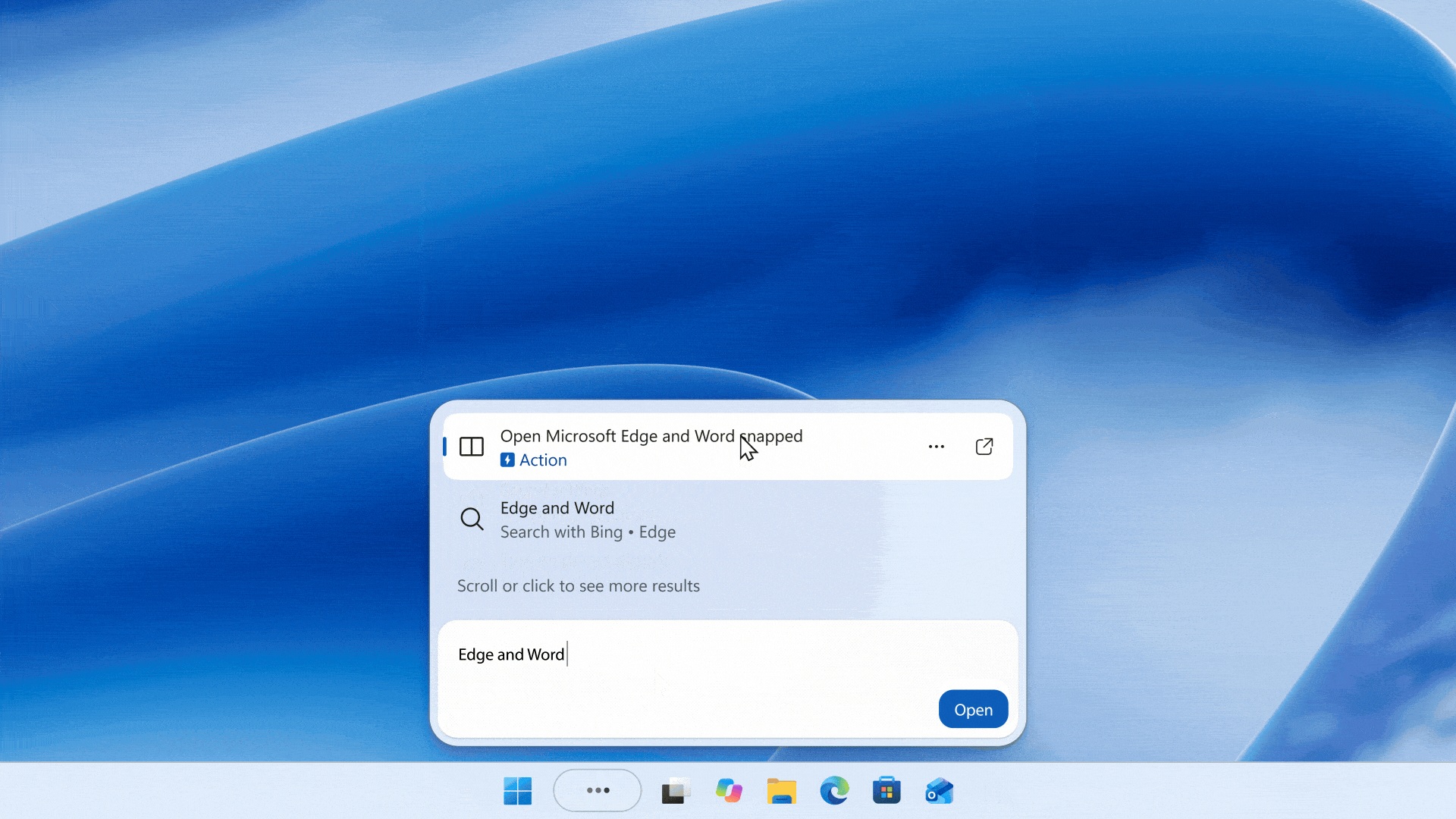
Image source: Wccftech
It’s also important to understand that Inline Actions and Microsoft’s planned Copilot search integration are two separate things. Microsoft does indeed plan to let taskbar search optionally connect to Copilot, so you can see AI-generated answers directly in search and then jump to the Copilot app with one click to continue the conversation. Neither the core features of the new search nor Inline Actions are powered by Copilot.
If you want to try it now, go to Settings → Windows Update → Windows Insider Program, click Get started and link your Microsoft account, select the Beta or Experimental channel, then restart and update to the corresponding test build. That said, beta builds inevitably have bugs, so it’s advisable to try them on a spare computer.
Also note that this is a gradually rolling out feature; even if you have installed a compatible test build, you may not see the new search experience right away. In addition, if your system language is Traditional Chinese, this feature is currently unavailable (it only supports English), and you will have to wait for Microsoft to add support for more languages.
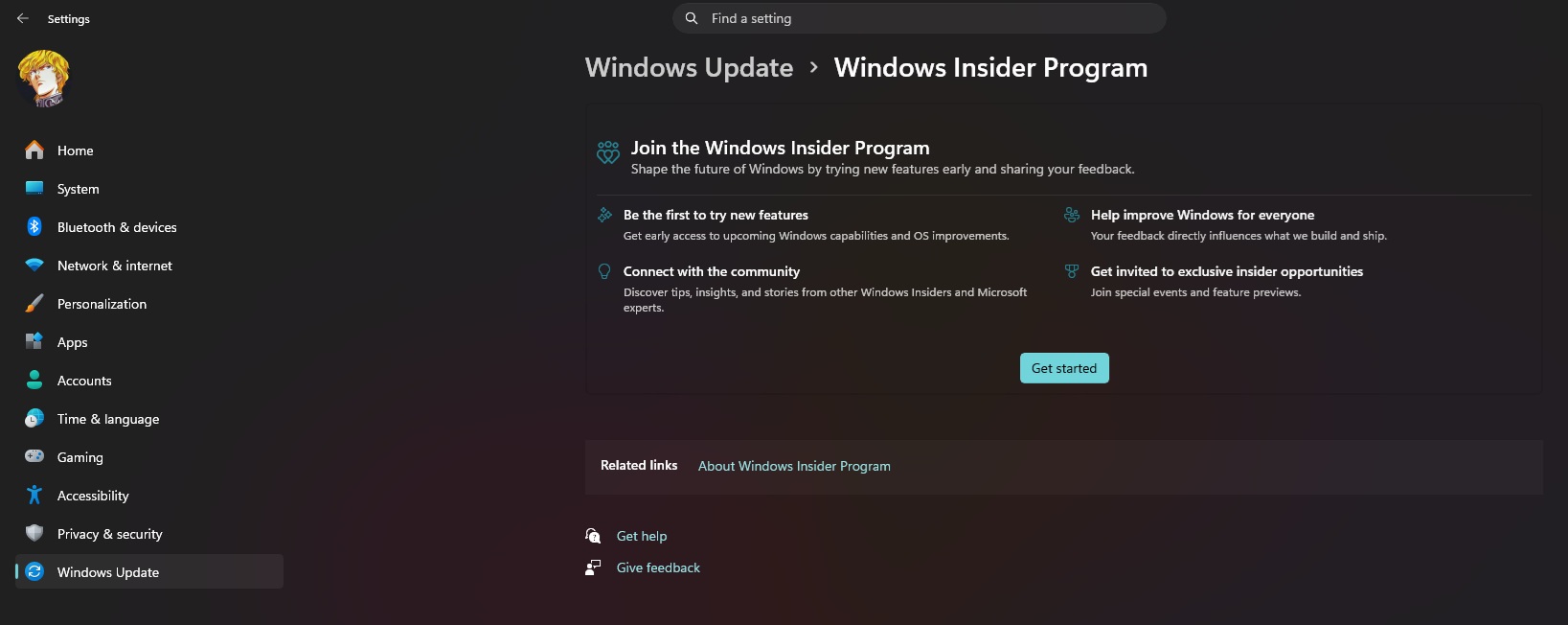
Image source: Wccftech
Source: KOCPC Chinese