


I’ve used Google Maps for many years as a mere tool. Turn it on when you need navigation, follow the route, and turn it off when you reach your destination. It’s that simple.It’s always been reliable and predictable, and perhaps that’s why I never thought to delve into the seemingly inconspicuous features.Until recently, I started to notice some little hidden settings that quietly changed the entire user experience. When I really put these features to use, Google Maps became completely different, and even my daily commute became much smoother.
Instantly improve your commute with these Google Maps features
Check traffic conditions before setting off
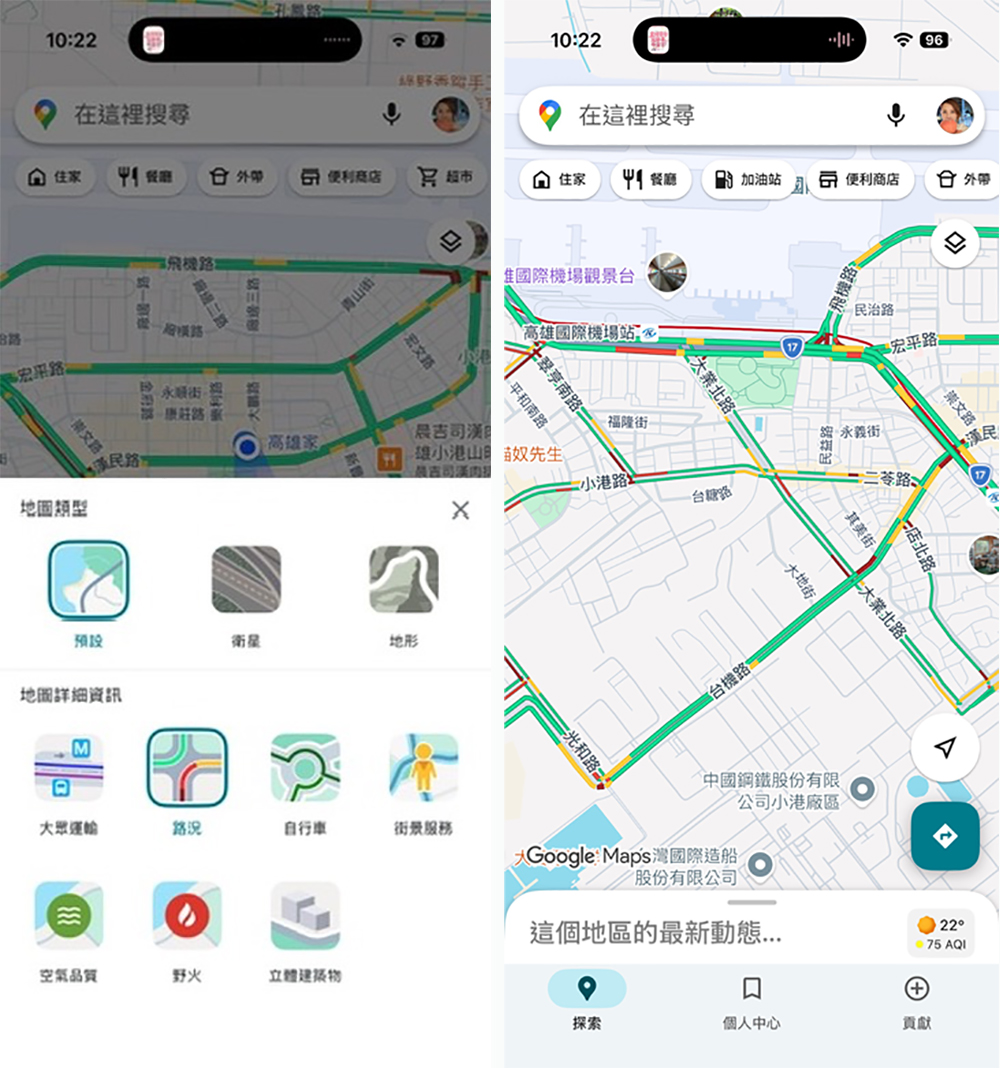
For years, I always paid attention to traffic conditions after inputting my destination. I never thought I could actually know the traffic conditions before planning my route. Now, my first step before heading out is to open Google Maps and switch to the traffic layer. Click the layer icon (the stacked square) in the upper right corner of the main screen and select “Traffic”. The roads in the entire area will immediately be displayed in green, orange, and red, clearly showing the real-time congestion level.
I can zoom out to get a quick overview of overall traffic, or zoom in to see conditions at specific intersections. Over time, I would even take a look before deciding whether to go out. Sometimes when I see traffic jams starting in a certain direction, I will simply adjust my itinerary and completely change my original plan.
Gestures that make map navigation easy and convenient
When most people use Google Maps, they click on the screen: pinch to zoom, drag the map, tap buttons. Although these movements are intuitive, they are often not comfortable when walking, carrying things, or holding a mobile phone with one hand. What really changed my experience was learning some smoother gesture operations.
The most basic and practical one is “double-click to zoom in”. No need to pinch with two fingers, just quickly tap twice on the area you want to view to instantly zoom in. Especially convenient when operating with one hand. More advanced is “single finger zoom”. Double-click on the map, but don’t let go the second time. Press and hold and then slide your finger up and down: slide up to zoom out and slide down to zoom in. This gesture has pretty much revolutionized the way I use maps with one hand—and let’s be honest, I hold my phone with one hand most of the time.
There are also some thoughtful tips worth remembering: tap the compass icon to instantly return the map to north and upward; slide up or down with two fingers to tilt the map and switch to a more three-dimensional perspective.
Use incognito mode when traveling occasionally
There’s one feature I’ve never noticed before: Incognito mode. It lets you use Google Maps without leaving a record of your searches and browsing history. I didn’t think I needed it at first, but later I found that it’s very suitable for those “one-time only” searches, such as places I want to know about temporarily, or travel inspiration that I don’t want to affect future recommendation results.
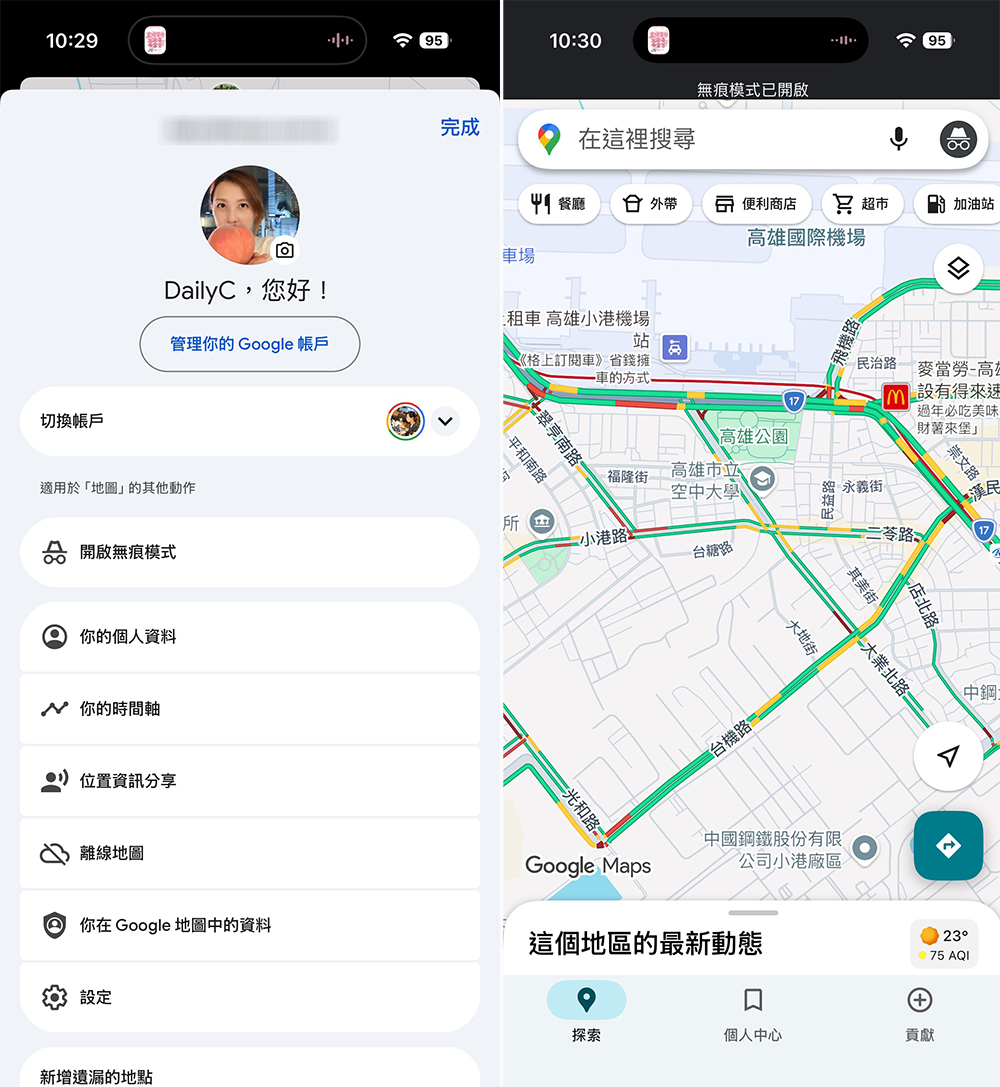
The way to turn it on is very simple: click on your profile picture in the upper right corner of Google Maps and select “Turn on incognito mode”. The interface will become slightly darker, and a small invisibility icon will appear at the top of the screen. Since starting to use incognito mode occasionally, I’ve found that Maps’ recommendations have become more accurate. Those random places I checked no longer interfere with subsequent suggestions, and the overall experience is closer to my actual needs.
Long press to instantly place the pin
This is an operation that is easily overlooked: just long-press anywhere on the map to quickly add a marker. After holding it down for a second, a red pin will pop up on the screen and you can choose to save, share, or navigate directly to that location.
In the past, I used to spend time guessing addresses, describing landmarks, or trying to explain in words “which corner it is.” I now use it more often to share precise meeting points in large public spaces, to mark unclear locations in search results, or to simply pass on my exact location when verbally explaining directions is too cumbersome.
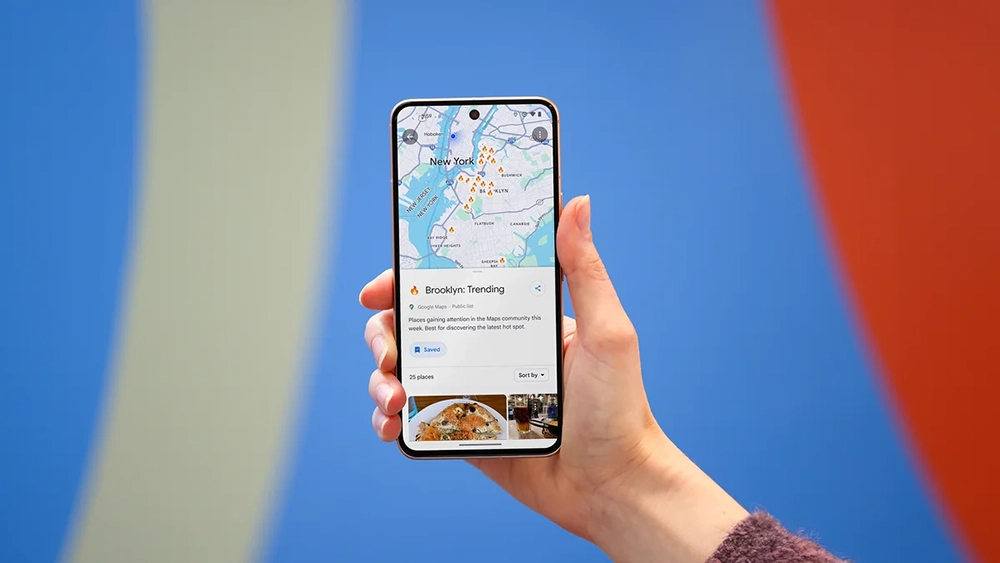
Save the list and let the map become your personal guide
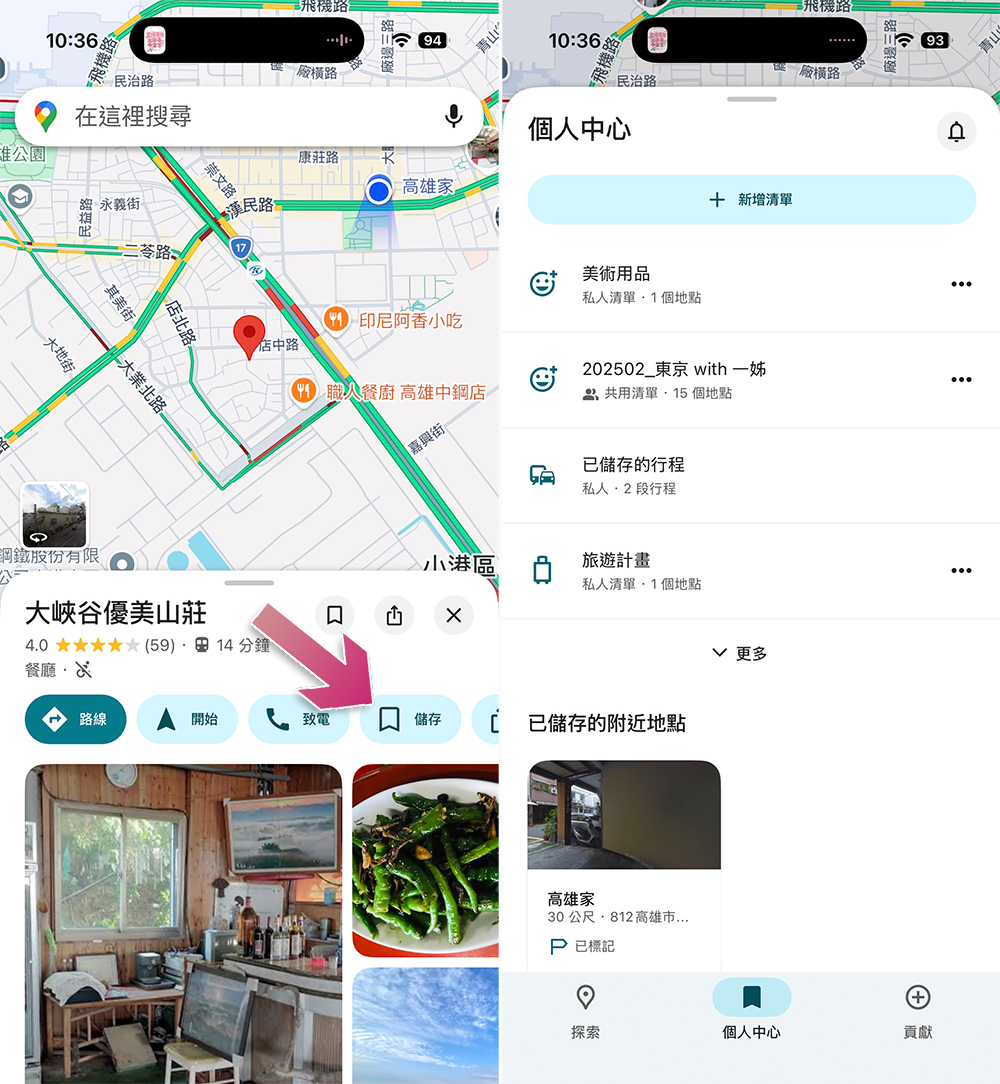
It wasn’t until I started organizing my own lists that I truly understood the value of the “save” button in Google Maps. Whenever you open a location’s information page, you’ll see a “Save” option. With one click, you can add the place to an existing list (like a “Favorites”) or create a new custom list.
The real change happened after I started to create categories for different situations: weekend brunch, quick errands, shops I want to try, attractions recommended by out-of-town friends, etc. With these lists, I no longer have to start from scratch every time I want to navigate. When someone asks me what’s for dinner, I go straight to my favorites list and pick one of the restaurants I’ve already seen or have always wanted to go to.
If there happens to be an opening in a certain area, I will first look at what I have saved nearby instead of randomly selecting the first search result. What’s even more surprising is that when small icons representing my lists began to appear on the map, the feeling of “this is my own map” was actually a bit satisfying.
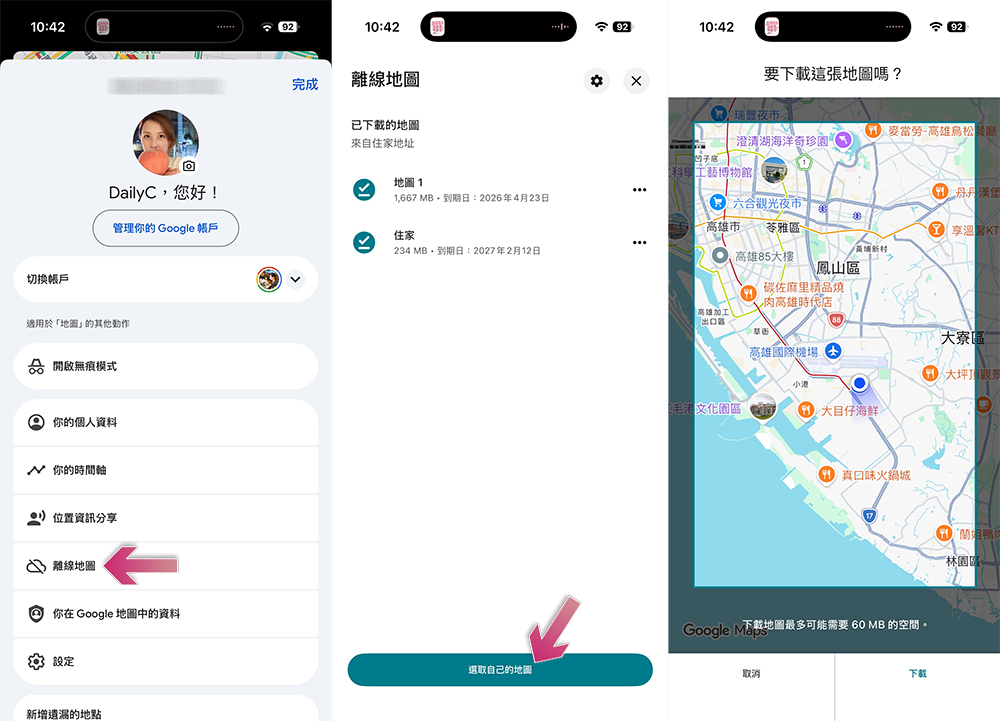
Offline maps make navigation reliable anywhere
Most of the time, Google Maps works so smoothly with mobile data that it’s easy to forget that the network signal is not always stable. It wasn’t until I encountered navigation lag in an area with weak signal that I realized how much I rely on a stable connection. Since then, whenever I know I’m going to a certain area, especially when traveling out of town, I download the map first.
The operation method is very simple: click on the personal avatar in the upper right corner of Google Maps, select “Offline Map”, then click “Choose your own map”, and then adjust the highlighted area so that it covers the range you want to download. Once downloaded, the map for the area will still work fine even without mobile data.
Now, whenever I know I’m going to be on a road with poor network coverage, I save the map in advance. This only takes a few minutes but can save you a lot of unnecessary trouble.
For most people, the role of Google Maps is simple: get you from point A to point B, navigation over, mission accomplished. But it does much more than just show you the way once you’ve set off. The familiar interface actually hides many tools that can help you plan more thoroughly before starting your trip. For example, you can add frequently used routes to your list so you can open them with one click at any time; or download offline maps in advance to avoid rushing when the network is unstable. Once you start exploring these features, you may find that you don’t need to look for alternatives at all.
Source: KOCPC Chinese