


If you own an Apple iPhone, charging it may have already become a routine part of your daily life. This process is so deeply ingrained that most people hardly give it a second thought. To be honest, compared with the iPhone’s other great features, charging an iPhone is far from a technological miracle. In addition, the charging process itself is quite boring, because you only need to plug the phone in and wait for it to charge. However, sometimes even such a simple charging process may not go as expected.
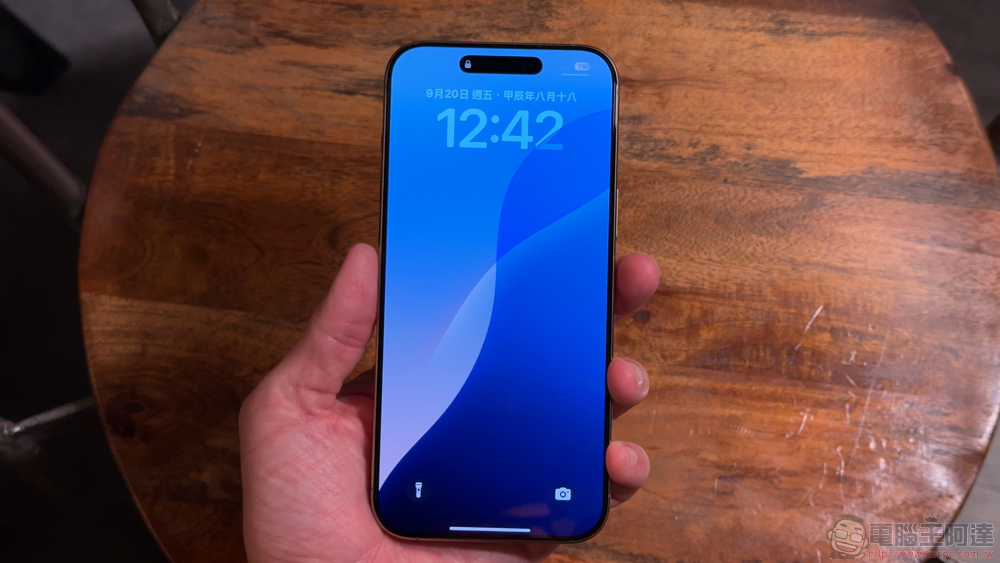
Why does the iPhone battery level decrease while charging?
Some iPhone users have encountered a rather strange problem: even when connected to a charger, the phone’s battery level continues to drop. In some cases, it drains even faster than when the charger is unplugged. If you’re experiencing this issue, you may want to head to a service center for a check right away. While that is certainly an option, it may be helpful to try some basic troubleshooting to find the root cause of the unexplained iPhone battery drain.

Is the iPhone too old, or is there a problem with the cable and charger combination?
When an iPhone continues to lose battery while charging, many people’s first thought is that something is seriously wrong with the phone. In fact, this phenomenon is often related to battery health. As usage time increases, an iPhone battery’s ability to hold a charge gradually declines, and battery life decreases accordingly. When the battery has aged to a certain point, charging efficiency may not keep up with power consumption, resulting in a situation where “the more it charges, the less battery it has.”
If your iPhone has been in use for several years, you may want to check its battery health first. Apple has a built-in feature in iOS: users only need to go to Settings > Battery > Battery Health & Charging to view the current maximum capacity. When the value falls below 80%, it usually means the battery has noticeably aged, and arranging a replacement is recommended.
However, the problem is not necessarily the battery itself. A faulty charger, an aging charging cable, or even a damaged charging port can all reduce charging efficiency and prevent the battery level from rising properly. If you suspect an accessory issue, try testing with another charger and charging cable. If the situation still does not improve after replacing the accessories, the problem is likely in the phone’s hardware. In that case, take the device to an Apple Authorized Service Provider for inspection so the cause of the fault can be further confirmed and repairs can be carried out.
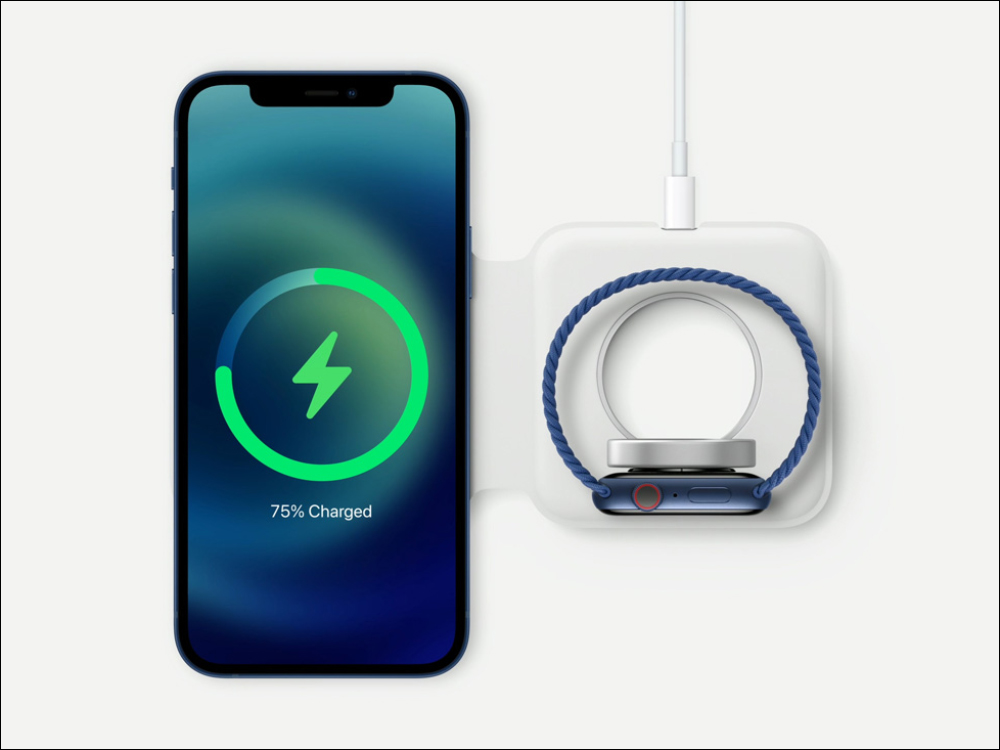
Are you using your favorite iPhone charger?
Because different manufacturers use different charging technologies and protocols, compatibility issues between iPhone and third-party chargers are not uncommon. If you notice that your phone is charging significantly more slowly, it is worth first checking whether the charger and charging cable you are currently using meet the iPhone’s requirements. If you suspect the accessories are causing the problem, you can switch to an Apple original charger and charging cable for testing. Sometimes simply replacing them with charging accessories that offer better compatibility can significantly improve charging efficiency.
Even if you don’t have the original charger on hand, you can use a simple test to determine whether the problem lies with the charging equipment. It is recommended to first charge the phone for about 10 minutes and observe whether the battery percentage increases. If the battery level barely changes or even continues to drop, it is likely that the charger or charging cable is not providing enough performance; it is recommended to replace it with a higher-quality, certified product. At the same time, avoid using cheap chargers of unknown origin or poor quality, so as not to affect charging efficiency or even compromise device safety.
In addition, most of the situations mentioned in this article assume charging from a wall outlet. If you are charging your iPhone through a laptop’s USB port, slower charging is actually quite common. The reason is that many laptop USB ports cannot provide the output power needed to support fast charging for modern smartphones. Therefore, if you encounter abnormally slow charging, it is recommended to test using a power outlet with an appropriate charger to confirm whether the phone returns to a normal charging speed.

Moisture is not good for phones.
Most smartphones today have some level of protection even if they haven’t received formal IP water- and dust-resistance certification. As for iPhones with an IP rating, they usually won’t have immediate problems in light rain or brief contact with water. However, this doesn’t mean the phone is completely unaffected by moisture. In fact, even a small amount of water vapor or liquid seeping inside the casing can cause battery or other hardware issues.
Cases of phone malfunctions caused by moisture are not uncommon, and one of the most common symptoms is abnormal overheating. When moisture affects the operation of internal components, the iPhone may not only overheat, but its battery may also drain noticeably faster. In some cases, the battery level may even drop as fast as 1% per minute, far higher than normal power consumption.
If your iPhone becomes abnormally hot and the battery drains quickly, stop using the phone immediately and try to turn off the screen or reduce device operation to lower power consumption and the risk of further damage. If you suspect the abnormal battery drain is related to water damage, do not repeatedly try to power on or charge the device. The safest approach is to send the device as soon as possible to an Apple Authorized Service Provider or a professional repair location for inspection, so technicians can confirm whether there is moisture or component damage inside.
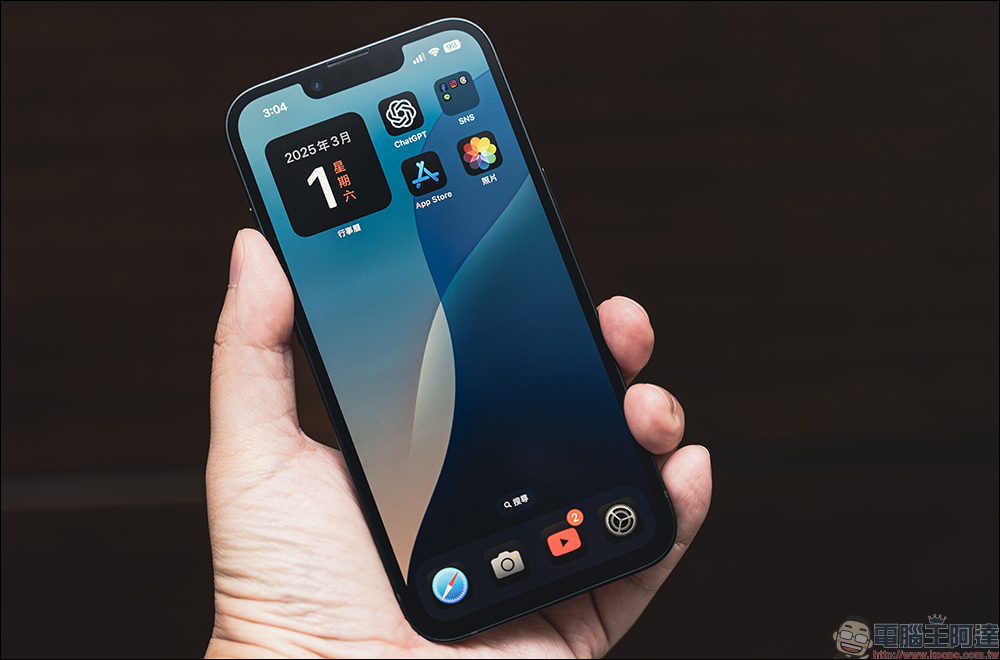
Can a software glitch cause the battery to drain quickly?
Generally speaking, when an iPhone experiences abnormal battery drain, the probability that it is directly related to the software itself is actually not high. Although some apps are indeed more power-hungry, they usually do not cause extreme situations where the battery level drops significantly in a short period of time. However, this does not mean that apps cannot be the source of the problem at all. Although App Store review mechanisms have become increasingly strict, greatly reducing the chance of malicious or problematic apps being listed, some apps may still have vulnerabilities after updates, insufficient optimization, or bugs, causing abnormal increases in background activity and thereby affecting battery life.
The good news is that iOS has built-in robust battery usage monitoring, allowing users to easily view the power consumption of each app and quickly identify suspicious ones. Here’s how to check:
- Open “Settings”.
- Click “Battery.”
- Scroll down to the “View battery usage by app” section.
- Check each app’s battery usage percentage and activity logs.
If you notice that an app you rarely use is consuming a large amount of battery, or its battery usage percentage is clearly higher than expected, it is likely the culprit behind the abnormal battery drain. In this case, it is recommended to temporarily remove the app and wait until the developer releases a fix update before reinstalling it.
Source: KOCPC Chinese