


AI voice input tools are becoming increasingly common these days, and we’ve covered them before. Typeless、SogaType、Vibing、Whispr Flow、SpeakSlow as well as HandyEach has its own pros and cons and may not meet everyone’s needs. Recently I came across this very useful one, “學舌鳥.” It is completely free to use, supports multiple local speech recognition models, and has a very unique built-in personalization training feature. In addition to records of past recognition errors (which can be added directly to the dictionary), it can also collect your recordings and use them to train a speech model exclusively for you (requires a computer with an NVIDIA graphics card) to improve recognition accuracy. Of course, it also has the all-important AI rewriting feature.
I tested it and the recognition speed is quite fast; currently only a Mac version is available.
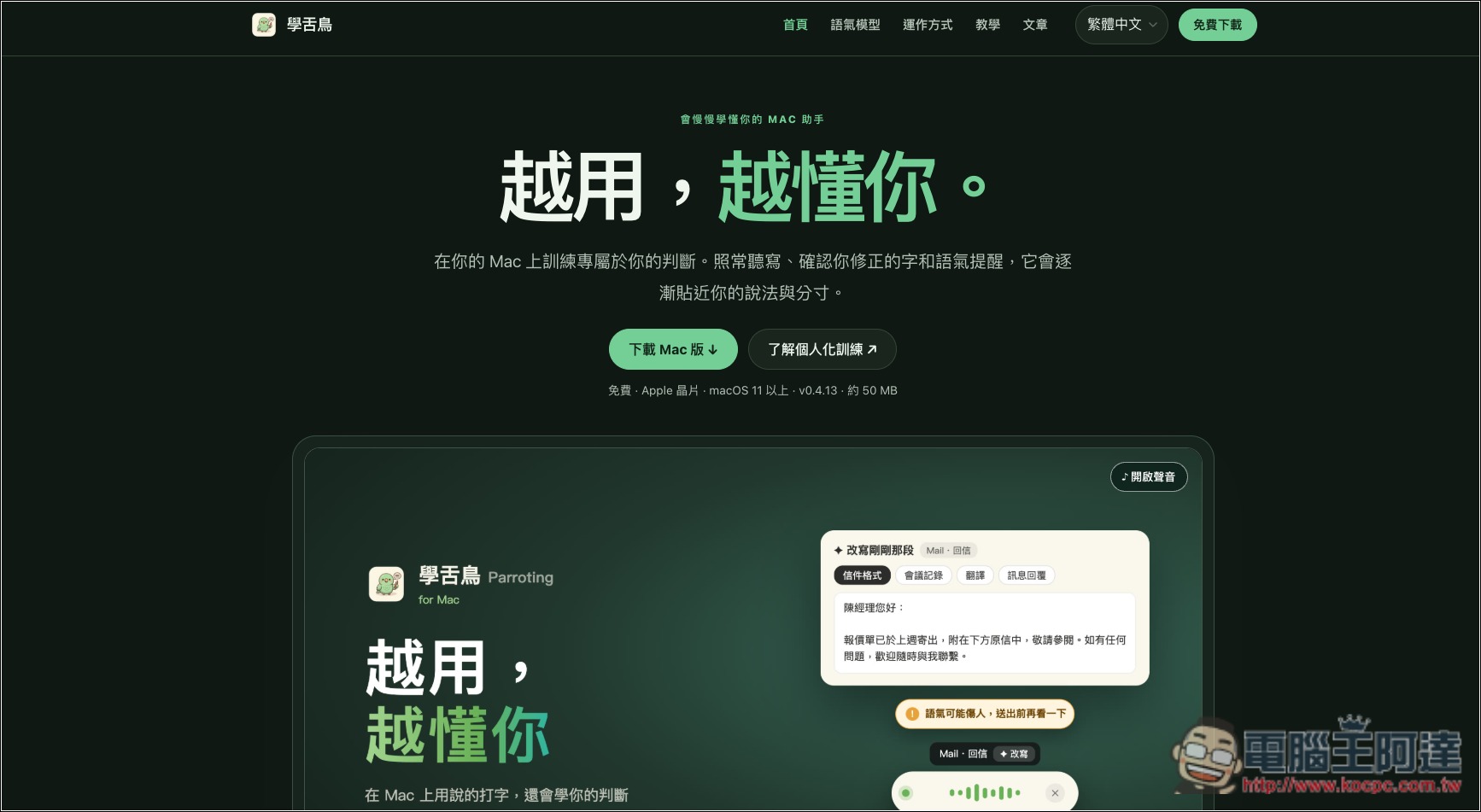
Introduction to “學舌鳥,” a free AI voice input tool for Mac
Parroting is a free AI voice input tool built specifically for Mac, featuring fast on-device speech recognition and personalized learning. Users can convert speech to text simply by speaking into a microphone. Speech recognition runs directly on the Mac without uploading recordings to the cloud, offering high privacy and efficiency.
In addition to basic voice input, it also offers an AI rewriting feature that can further organize the text after speech-to-text conversion and adjust the wording to make the content more suitable for actual use. For example, when dictating messages, writing emails, or organizing work notes, you don’t have to present the text exactly as you originally spoke; instead, you can use AI to make the text more natural and fluent. However, AI rewriting and on-device speech recognition are different features, and some rewriting methods require additional configuration of an AI service.
Another feature is what the company highlights as “the more you use it, the better it understands you.” 學舌鳥 offers a personalized dictionary: when speech recognition mishears a person’s name, product name, or proper noun, users can manually correct it and confirm adding it to the dictionary, so the next time the software encounters the same term, it can apply the correct spelling and reduce the hassle of repeated corrections.
In addition, it offers a personalized tone reminder feature. If you think the AI’s judgment of the text’s tone is incorrect, you can provide feedback. After accumulating at least 20 entries, you can perform personalized training locally on your Mac, so subsequent reminders better match your own expression habits.
As for speech recognition itself, 學舌鳥 also supports advanced model training. Users can use the built-in read-aloud recording feature to read the specified text sentence by sentence, check where the AI makes recognition errors, and export the recordings and correct text as training data. Then, through a separate open-source tool, they can use LoRA to fine-tune the SenseVoice Small model and build a dedicated speech recognition model that better matches their own pronunciation habits.
Key features
- Completely free: A free Mac version is available, and you can use basic voice input features without a subscription.
- On-device speech recognition: Process speech directly on your Mac to reduce reliance on cloud services.
- AI text rewriting: Can further organize dictated content and improve the way it is expressed.
- Personalized dictionary: remembers user-confirmed recognition errors to improve proper noun input.
- Tone reminder learning: After accumulating 20 feedback entries, personalized tone judgment can be trained.
- Train custom voice models: Supports data export, enabling personalized models through LoRA fine-tuning.
Go to the 學舌鳥 official website.
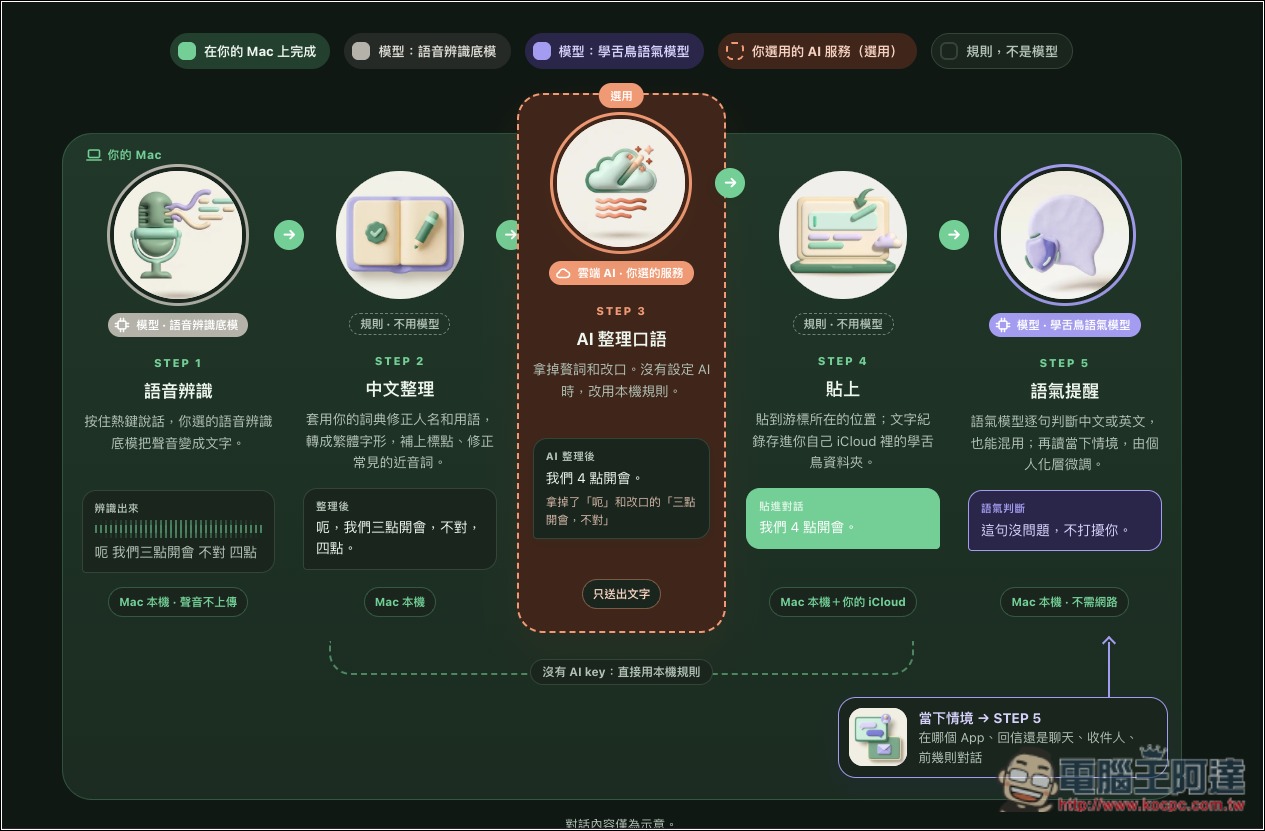
The following figure shows the processing flow provided on the official 學舌鳥 website. Except for AI rewriting, everything else runs locally:
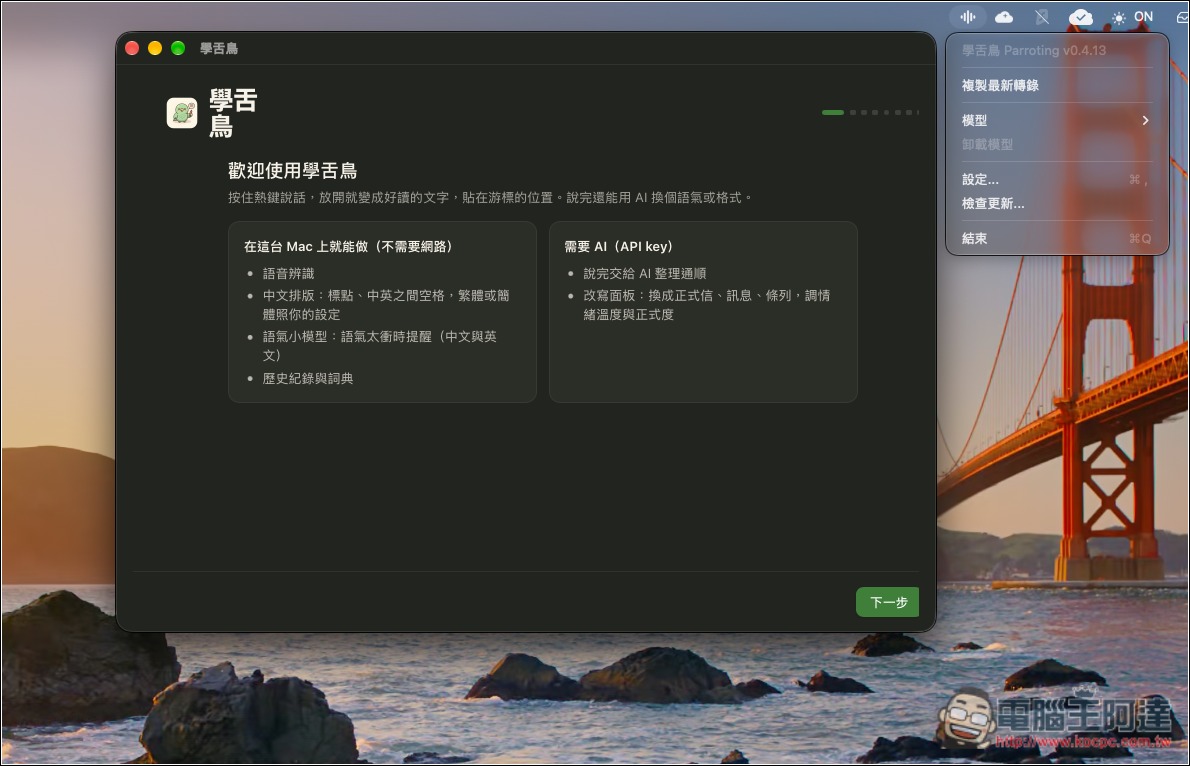
After installation, open it and you’ll see the small Mockingbird icon in the menu bar at the top right. Open it to proceed with the initial setup:
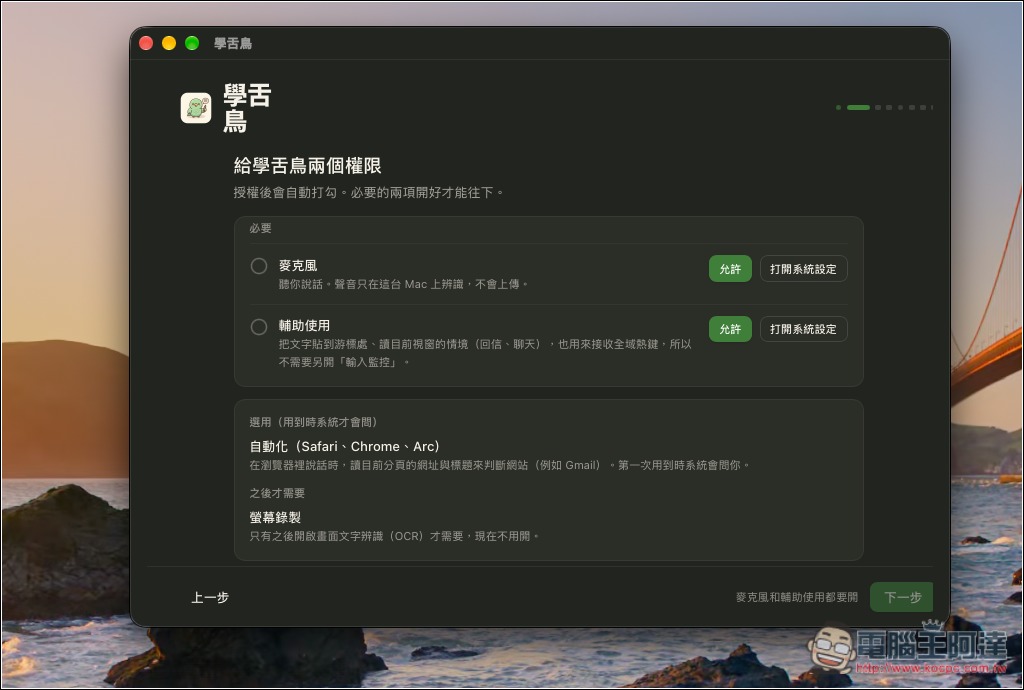
Like other AI voice input tools, it needs microphone and Accessibility permissions. For the optional items below, just allow them when you actually need to use them:
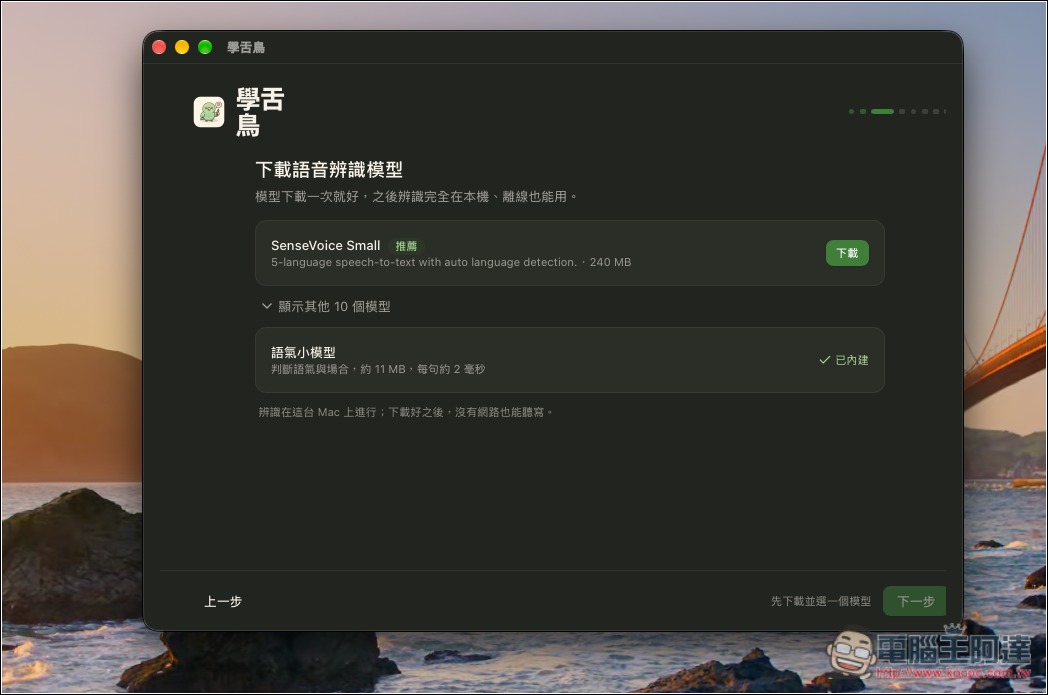
Next, download the speech recognition model you want to use. The default recommendation is SenseVoice Small, which supports 5 languages, including Traditional Chinese. I’ve tested this one and it’s very good—fast and accurate:
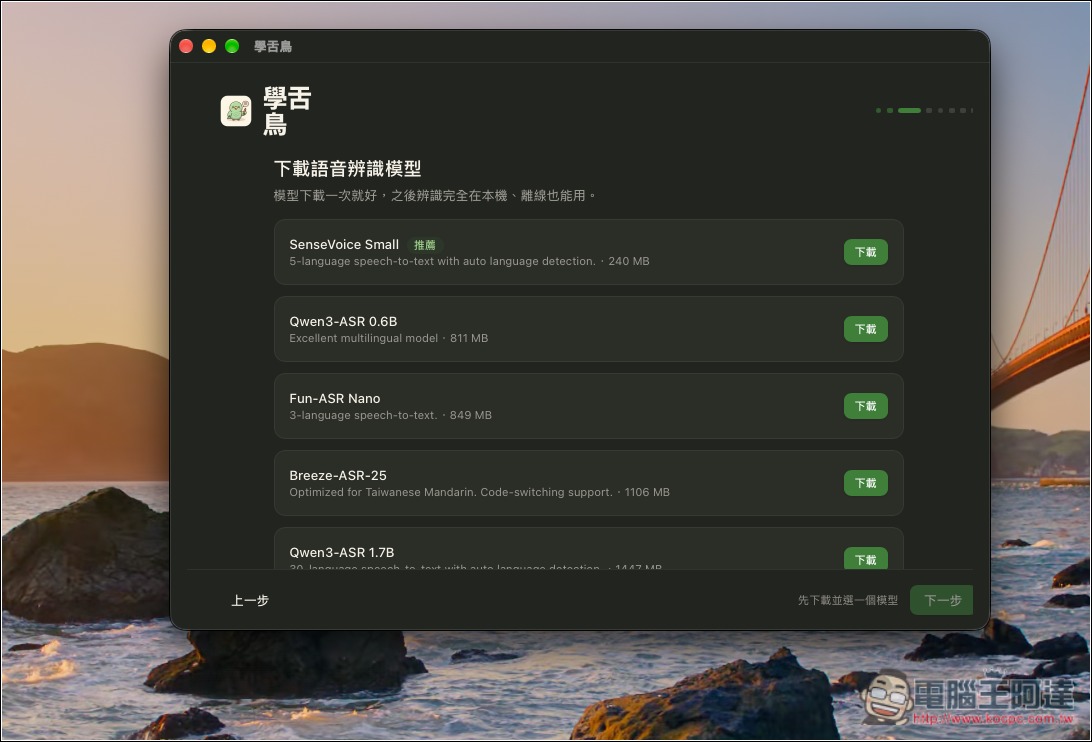
Of course, if you don’t like it, you can also download other models, such as Qwen3-ASR 0.6B, Breeze-ASR-25, etc. The file size is usually shown next to each model. Generally, the larger the file, the higher the recognition accuracy, but the speed will be relatively slower:
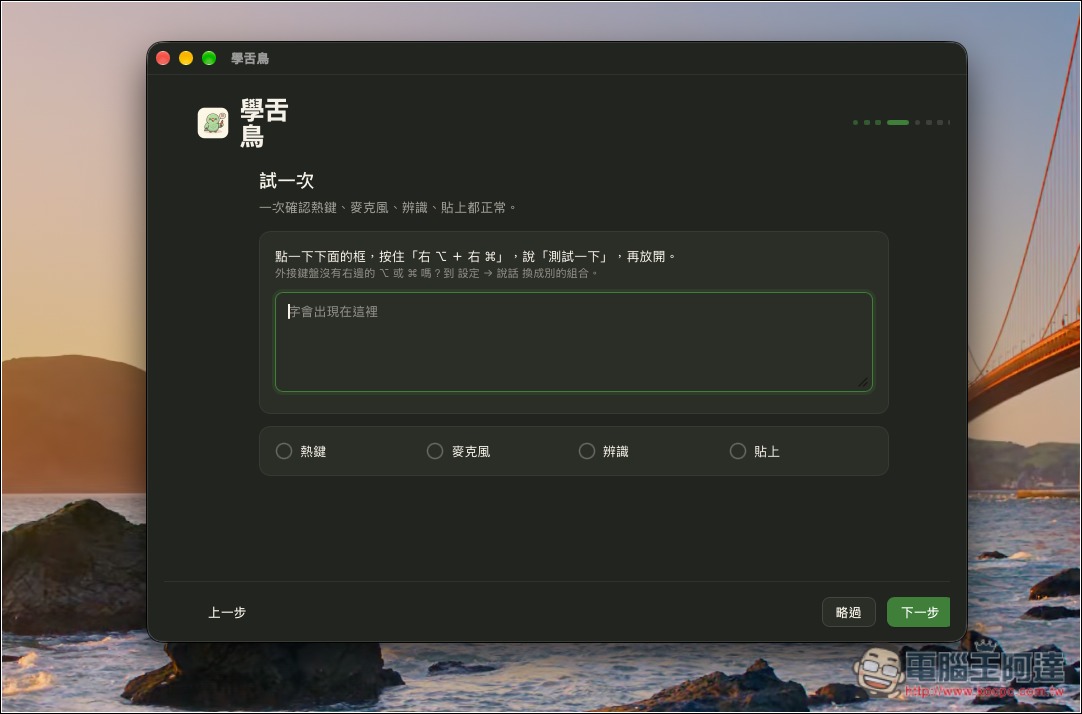
Next, you’ll get to try it:
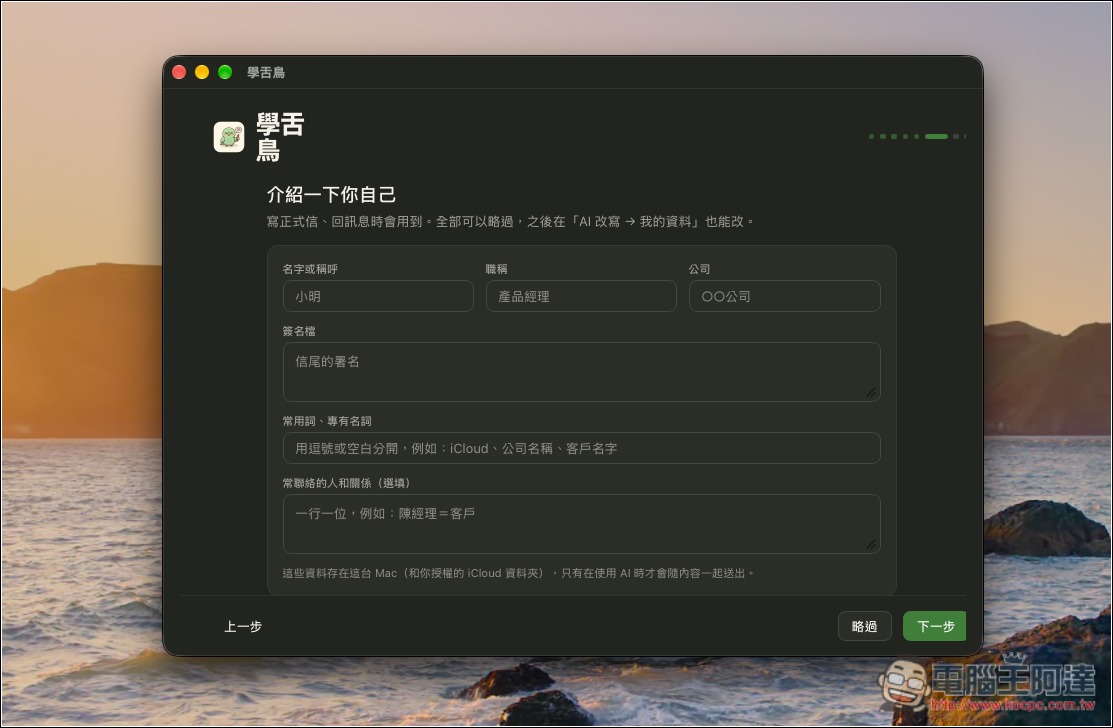
It also provides a self-introduction form to fill out, making it easier to write formal letters and reply to messages in the future:
If you need AI rewriting, enter the API Key:
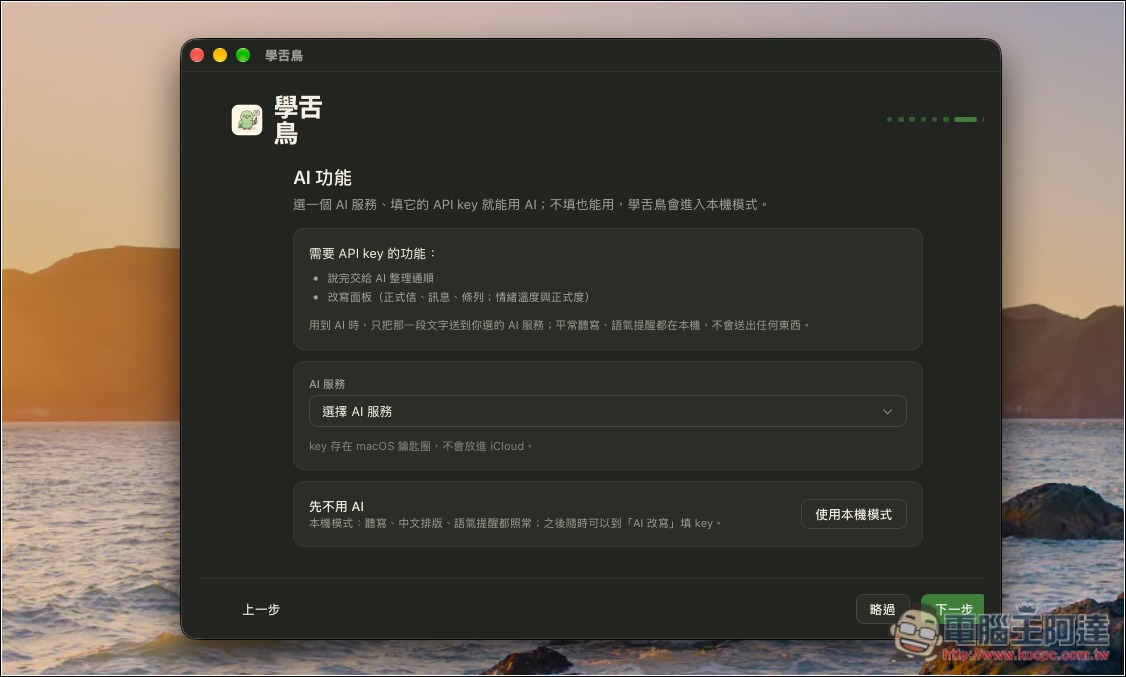
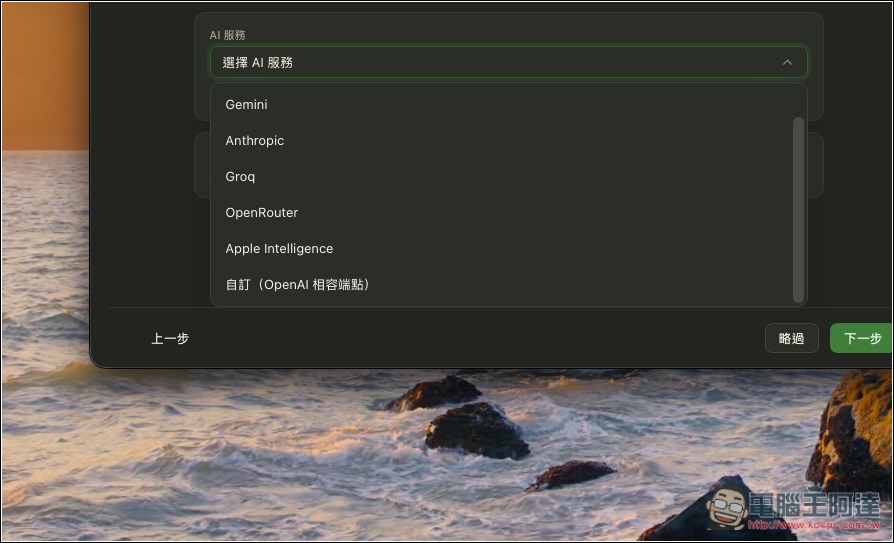
People who don’t want to use an API Key can also use Apple Intelligence:
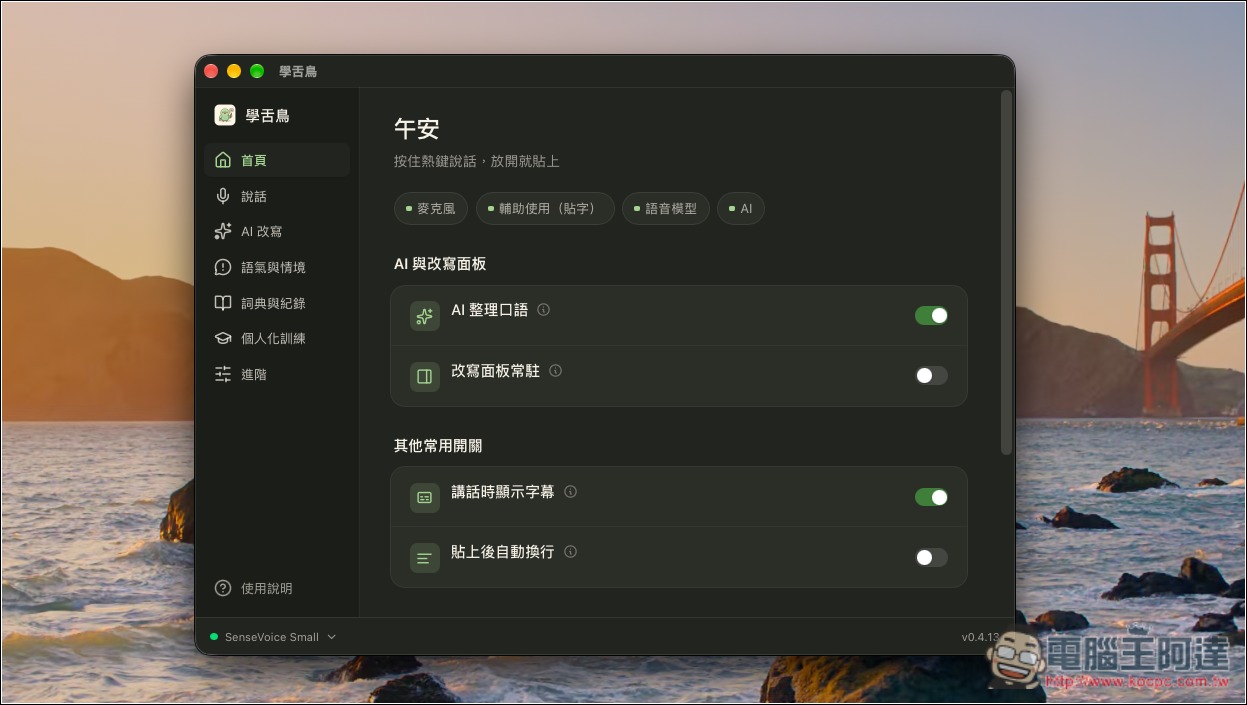
Then you can start using it:
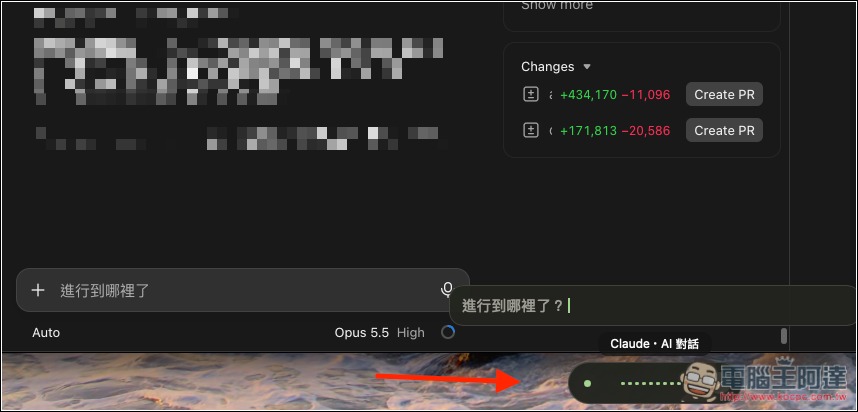
When you press the shortcut key, a recording prompt will pop up at the bottom. While you speak, the recognized content will appear above the prompt. After you finish speaking, the text will be pasted to the location you specify. The usage is the same as other AI voice input tools:
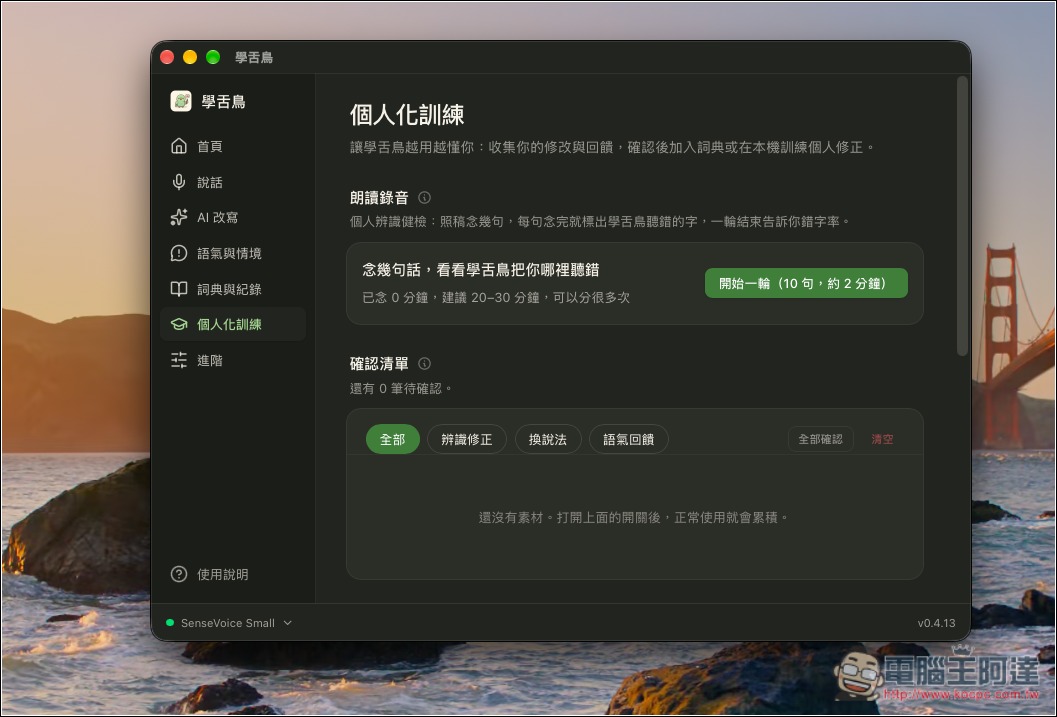
On the personalized training page, the read-aloud recording at the top is used to collect data to train your own voice model. Each round will ask you to say 10 sentences:
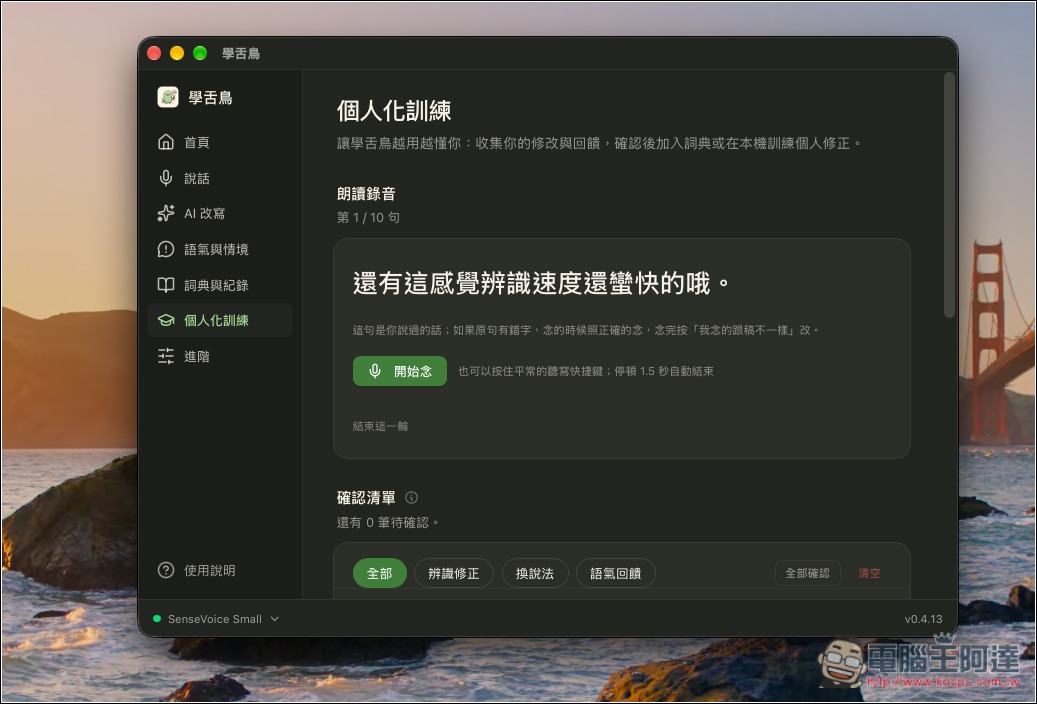
The screen will display the sentence you need to read aloud:
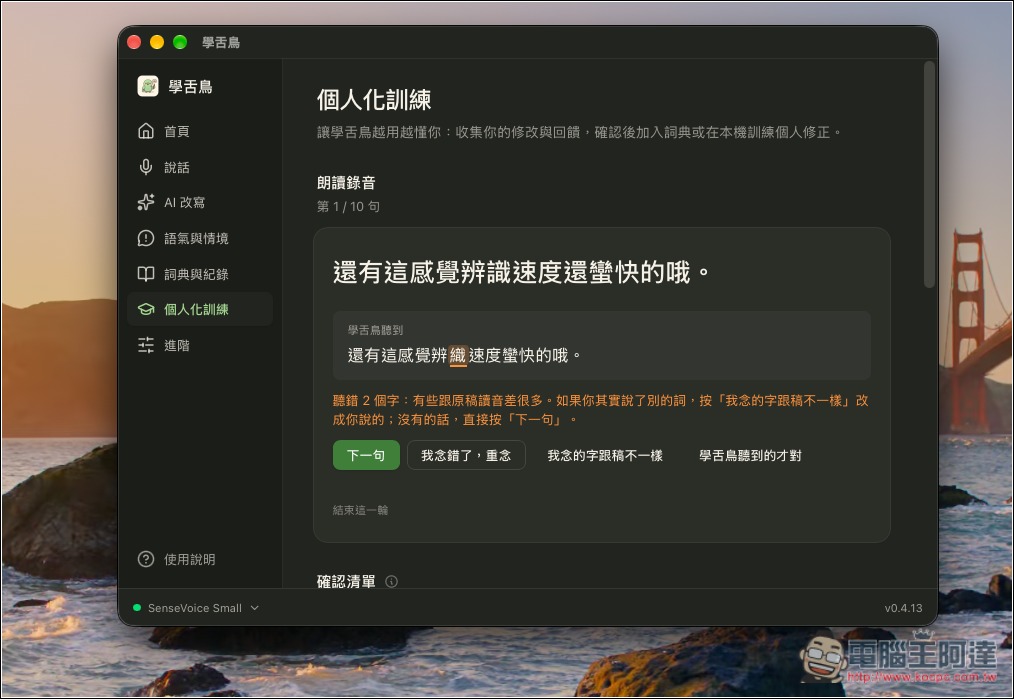
After reading it aloud, select the correct option; if it is recognized incorrectly, just press Next sentence:
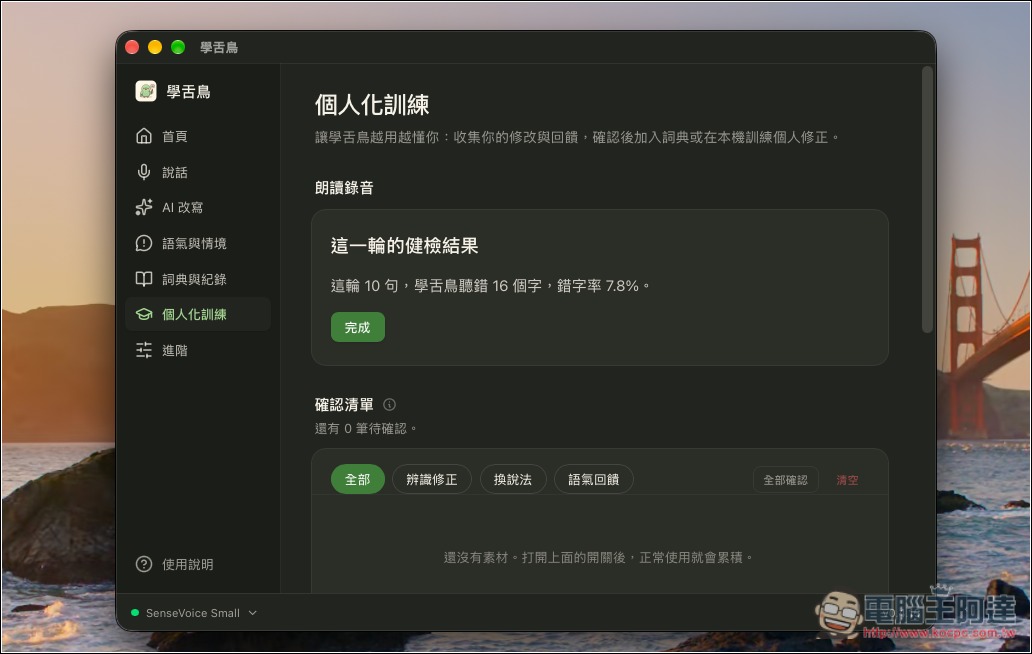
Even if you don’t plan to train a model, you can still use this feature to test Mockingbird’s typo recognition rate:
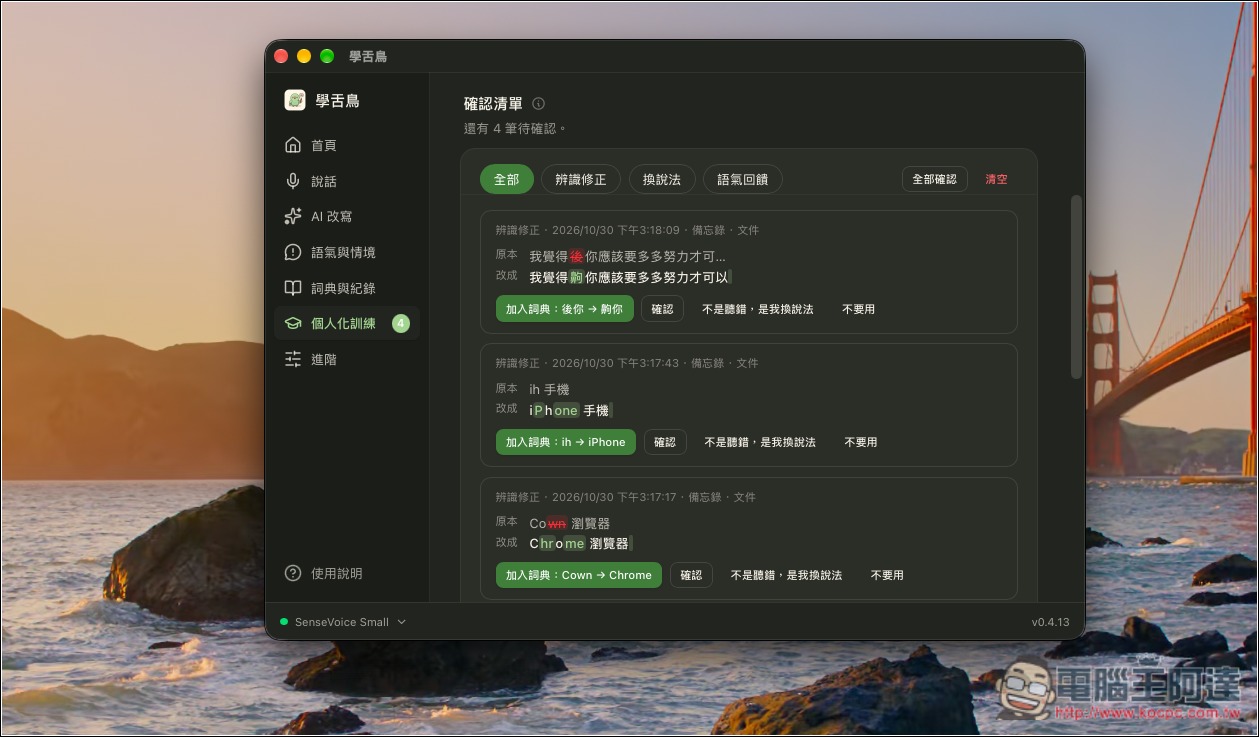
During use, if it detects that you made changes to the recognition result, they will appear in the confirmation list under Personalized Training, allowing you to add the errors directly to the dictionary:
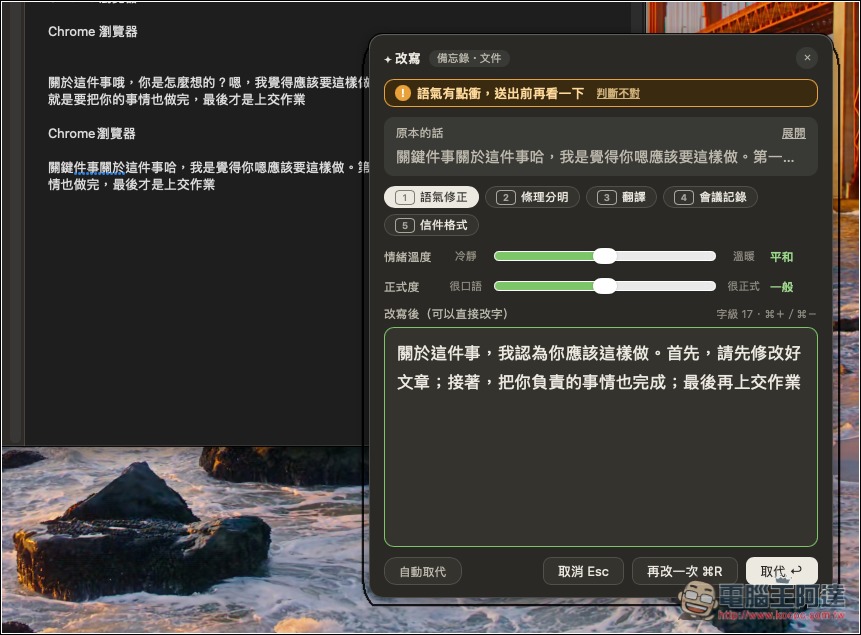
The AI rewriting feature also offers this panel, allowing you to rewrite content into the format you need. Both emotional temperature and formality can be adjusted:
Overall, my experience has been good. It correctly recognizes what I say 99% of the time, except for some English, which can still be misrecognized even after I add it to the dictionary. However, this can be optimized through AI rewriting.
Source: KOCPC Chinese