


In daily life, we often need to send files remotely to others, especially files for schoolwork or work. Many people use their own cloud storage, but this requires uploading first. Small files are okay, but large files take some time. After the recipient downloads them, they may forget to delete them when they get busy, and the files quietly take up cloud storage space. In this case, Safe2Send is another great option.
Safe2Send is a P2P peer-to-peer file transfer tool that sends files through a private room in the browser. This means that as long as you and the other person enter this room, you can send files directly to each other through the browser. Files are not uploaded to any cloud server, no registration is required, and there is no file size limit.
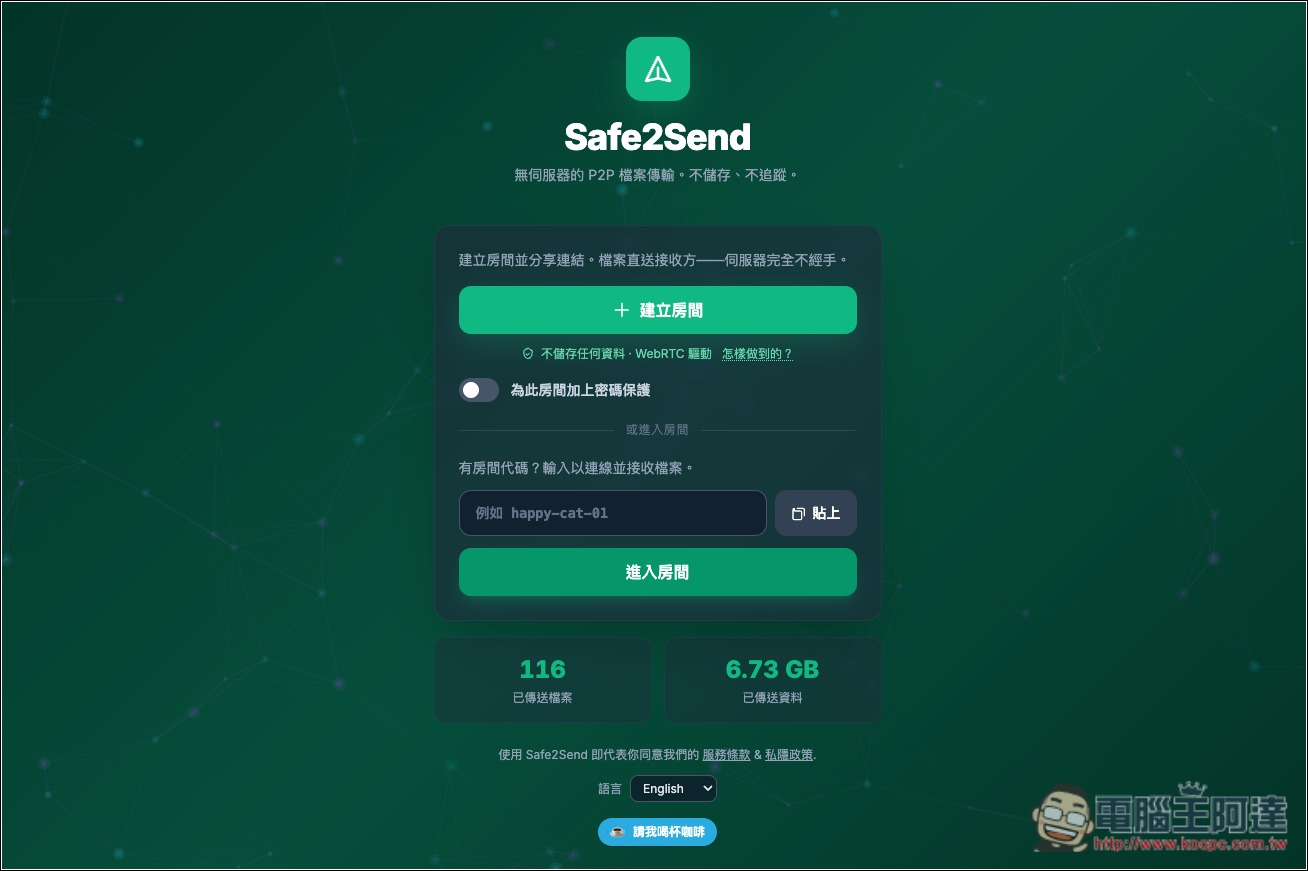
Introduction to Safe2Send, a Free P2P File Transfer Tool
Safe2Send is a free online P2P (Peer-to-Peer) file transfer tool. No account registration or software download/installation is required—just use a browser to send files directly between two devices. Whether you’re on Windows, Mac, Android, or iPhone, you can establish a connection using any browser that supports WebRTC.
Its biggest feature is the use of WebRTC technology for peer-to-peer transmission. Unlike typical cloud sharing services, files do not need to be uploaded to a third-party storage space first; instead, they are transmitted directly from the sender’s browser to the recipient’s browser. The official statement says that the server is only responsible for helping the two parties establish a connection and does not receive or store file contents, and that the transmission process is also protected by WebRTC’s DTLS encryption mechanism.
The process is quite simple. After going to the Safe2Send official website, click “Create Room,” and the system will generate a dedicated sharing link and room code. Then, simply send the link to the other party, or ask them to enter the room code; once both parties are successfully connected, you can start sending files or folders. When creating a room, you can also set a password to prevent others who obtain the link from joining directly.
In addition to basic file transfer, Safe2Send also offers real-time chat, allowing you to communicate with the recipient during the transfer. If the network suddenly disconnects, it can use data temporarily stored in the browser to resume the unfinished transfer after reconnecting, reducing the hassle of resending the entire file.
It supports a Traditional Chinese interface, so you don’t need to worry about not being able to understand it. For people who occasionally need to transfer files between their phone and computer, or share large files temporarily, it’s a fairly convenient choice.
However, there are a few things to keep in mind when using it. Safe2Send supports only one sender and one receiver per room, and a room expires 6 hours after it is created. Because it uses real-time peer-to-peer transfer, both parties must be online at the same time, and neither can close the web page during the transfer.
Key features
- Completely free, no registration required: You don’t need to create an account or subscribe to a paid plan—just open the website and start using it.
- P2P peer-to-peer transfer: Send files directly via WebRTC without having to upload them to cloud storage first.
- File and folder support: send individual files or share entire folders.
- Room password protection: You can set a password when creating a room to reduce the risk of unauthorized access.
- Encrypted transmission: Uses WebRTC’s DTLS encryption mechanism to protect transmitted data.
- Supports resumable transfers: after a network disconnection, you can reconnect and continue an unfinished transfer.
- Built-in instant chat: communicate with the recipient while sending files.
- Traditional Chinese interface: Offers multiple language options including Traditional Chinese, and is easy to use.
- No cloud storage required: The company says files do not pass through its servers, and the content sent is not retained.
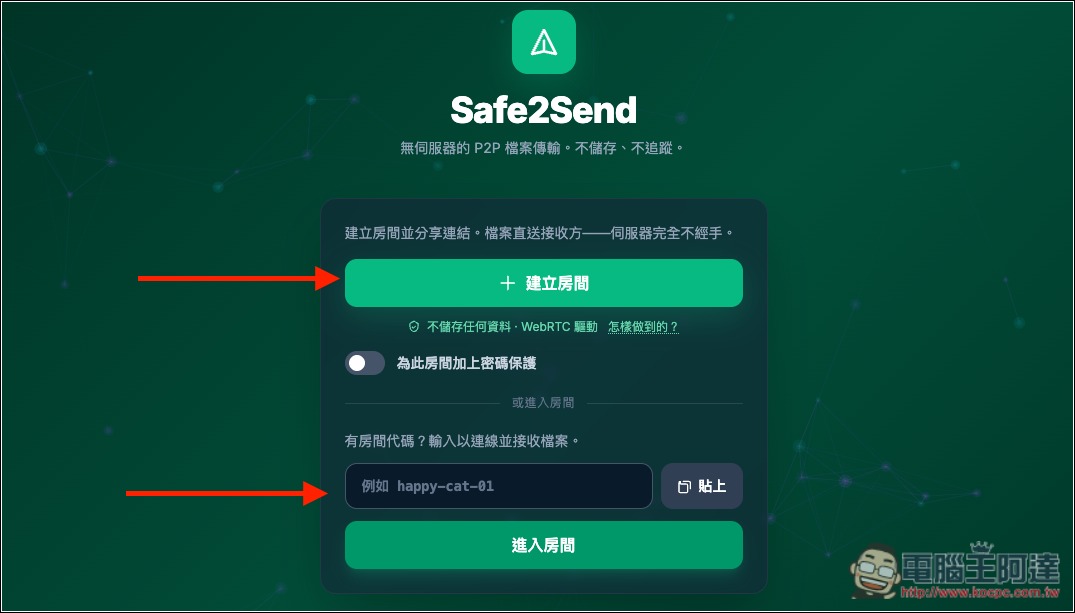
After clicking the link above to enter Safe2Send, click “Create Room” to create a new room. If you want to join someone else’s room, enter the code below and click “Join Room”:
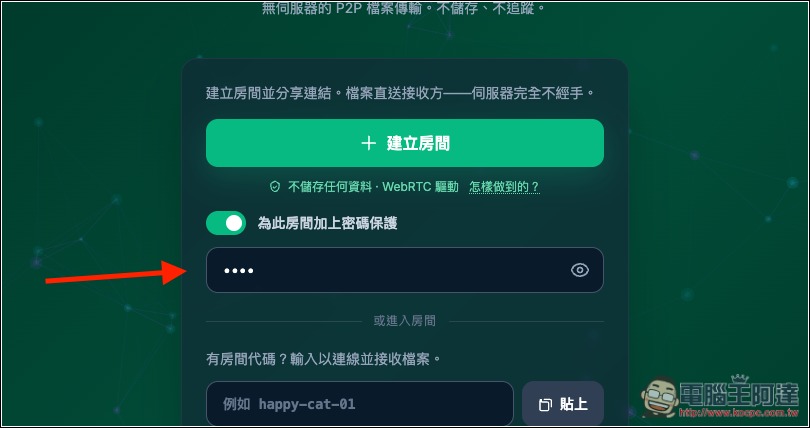
If you’re worried about unauthorized people sneaking into the room, you can also set a password for protection:
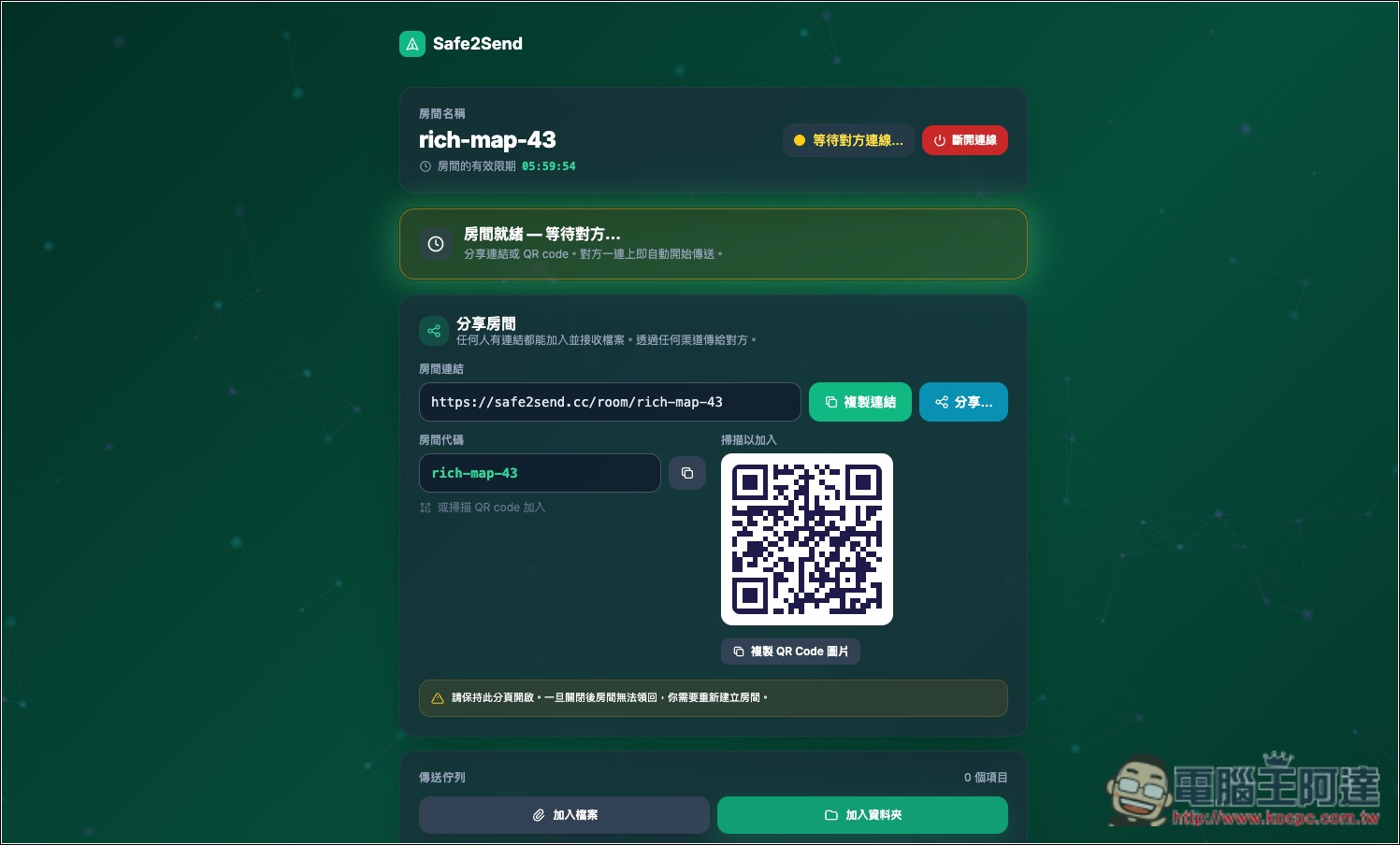
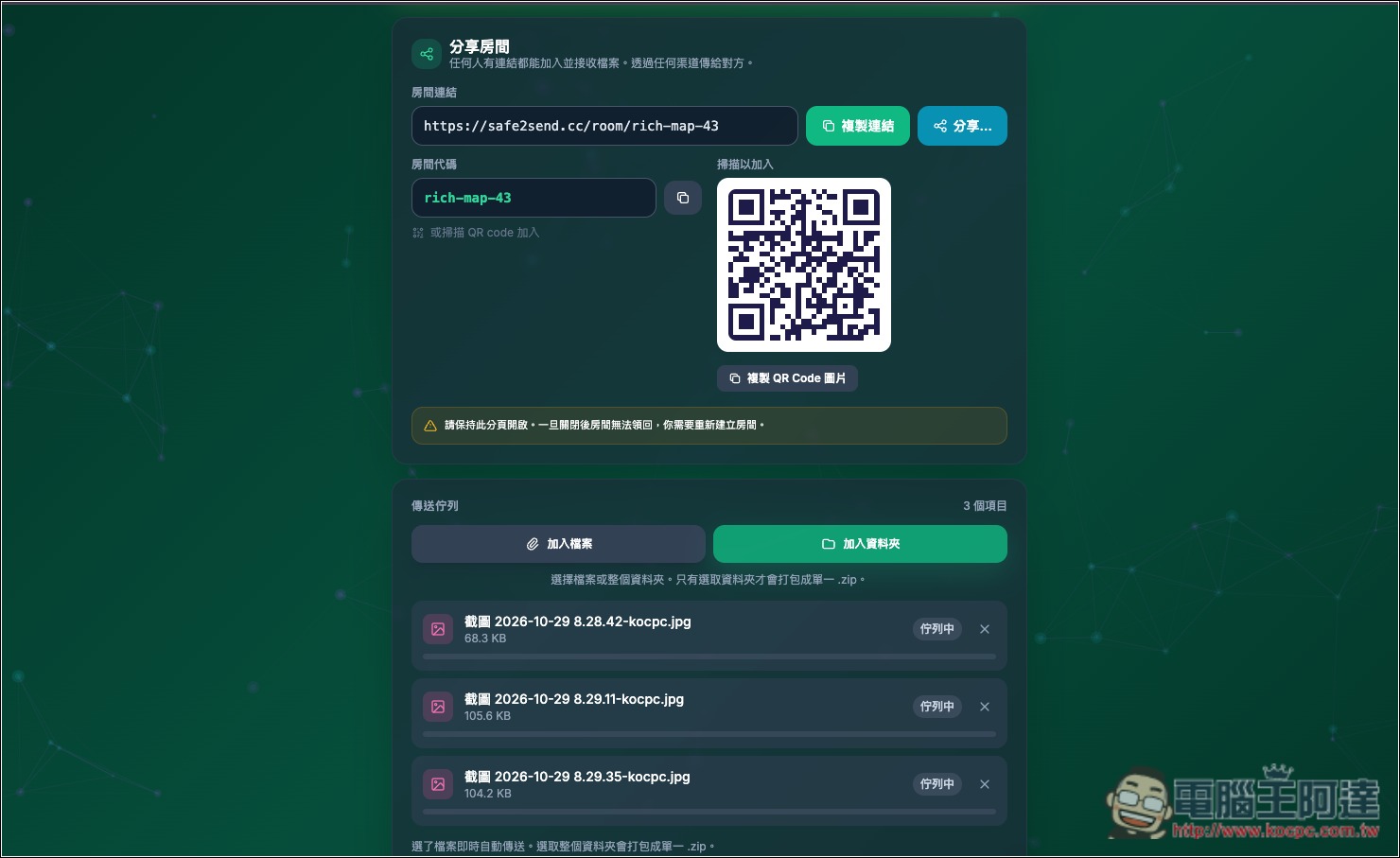
After the room is created, a share link and room name will appear at the top. The other person only needs to paste the link to enter the room directly. There is also a QRCode:
Next, you can drag in the files and folders you want to share. When you drag them in, they won’t be sent immediately:
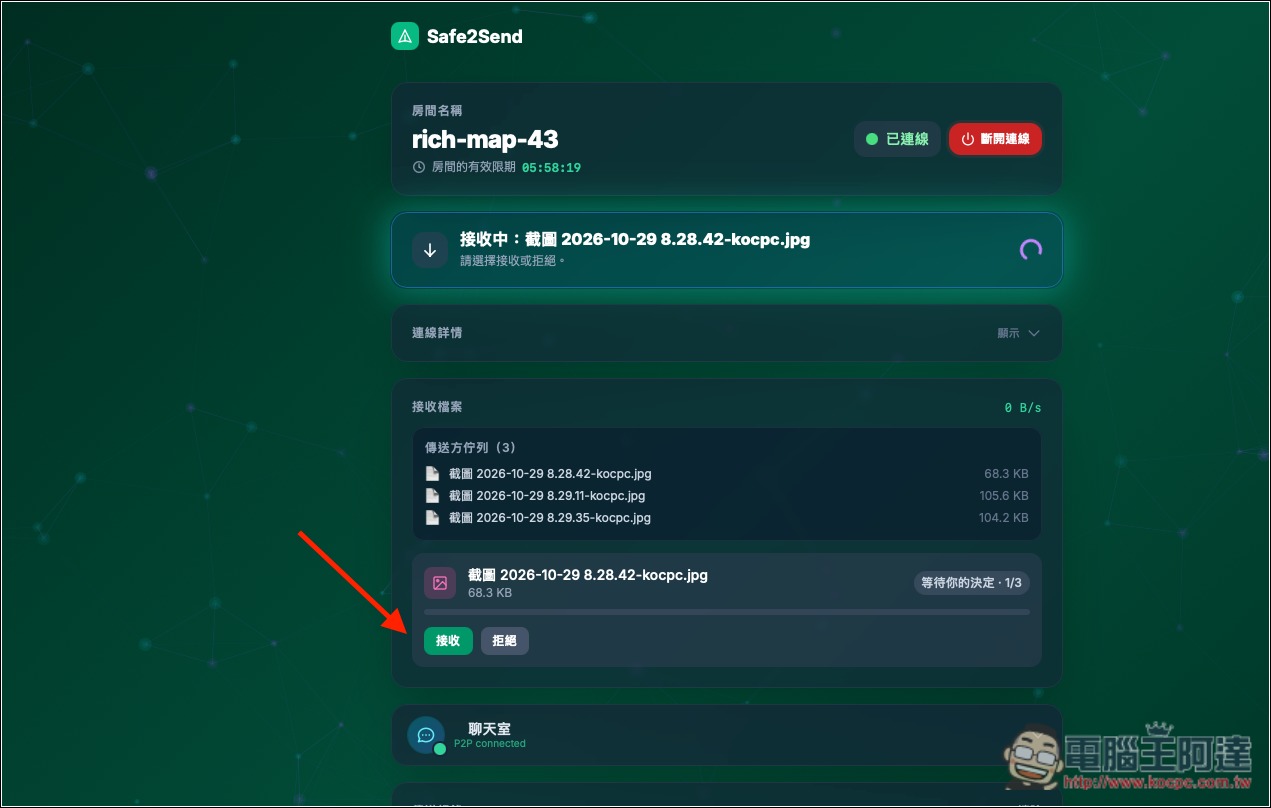
The image below is what the other party sees. Before you press Send, the file will be pending; once you press it, the other party will receive a notification:
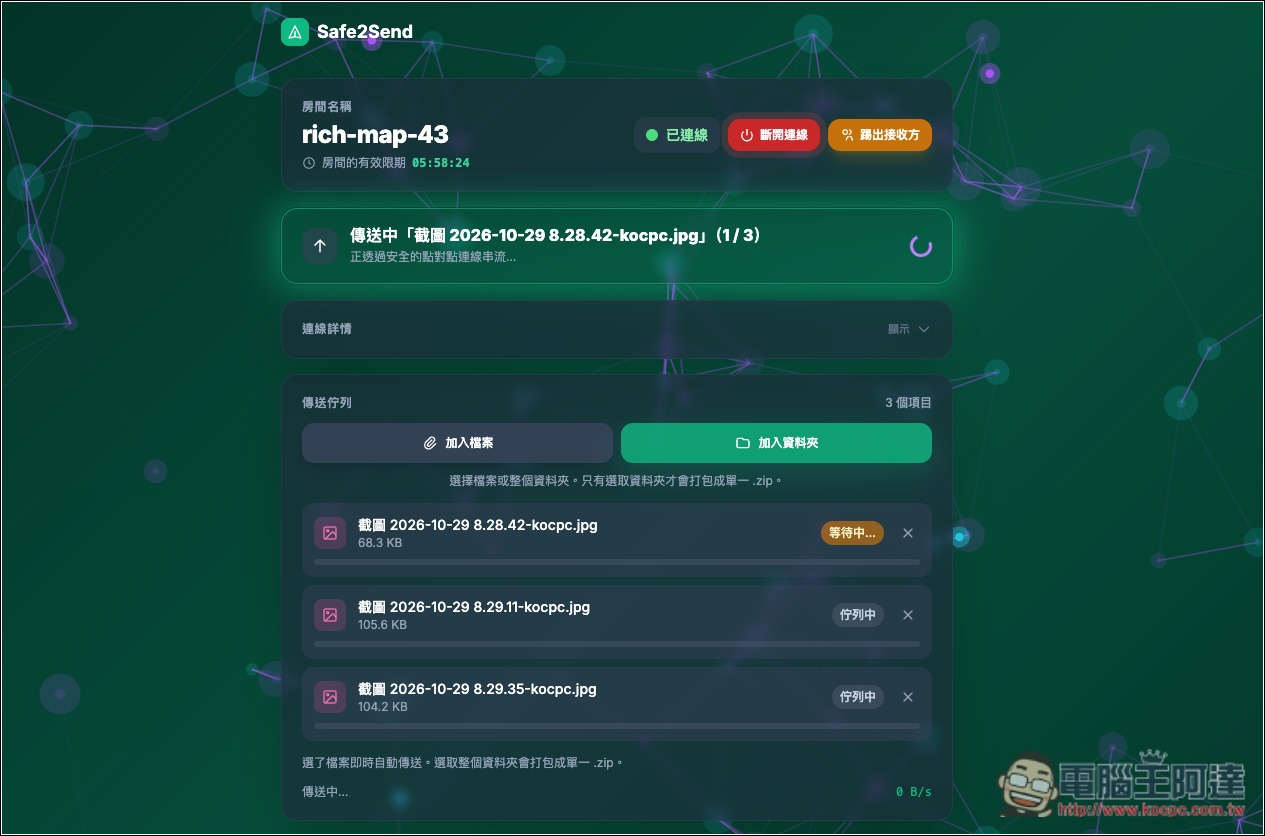
The transfer will only actually begin after the other party clicks Accept. Remember, you must not close this tab during this process:
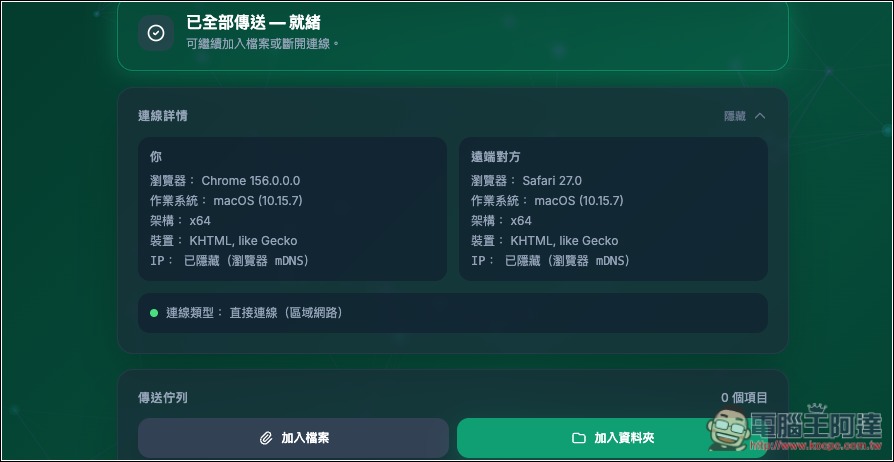
If you want to confirm whether it’s the other party, you can compare the connection details:
Source: KOCPC Chinese