


Nowadays, many people improve their foreign language skills by watching YouTube videos. Along the way, they inevitably encounter words they are not very familiar with or do not understand at all, and they may write them down to review and reinforce later. This article introduces a pretty decent free extension called “Subtitle Translator.” When you see an unfamiliar word, just hover your mouse over the subtitle and you can immediately get the Chinese translation of the word. You can even click once to save it to your vocabulary library and review anytime in the dashboard using flashcards and Quiz tests. It is very convenient to use, and the vocabulary library can also be exported/imported, making it easy to pair with other apps for learning.
However, there are some drawbacks in operation, which I’ll share below.
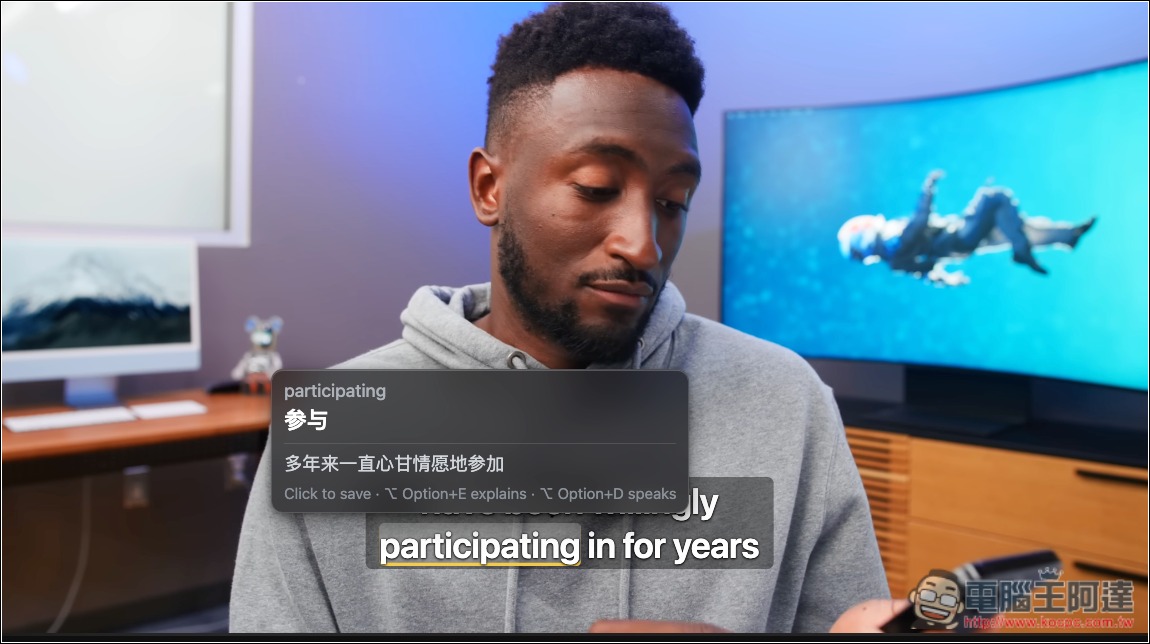
Subtitle Translator: Tap to save words you don’t know from YouTube, and review them with flashcards and quizzes.
Subtitle Translator is a free Chrome extension that mainly helps users learn unfamiliar words directly while watching foreign-language videos on YouTube and other websites, without constantly pausing the video or switching tabs to look up words in a dictionary. Its biggest feature is not just real-time translation, but the ability to save unfamiliar words encountered while watching videos and then reinforce memory through Flashcards, Quiz, and other methods.
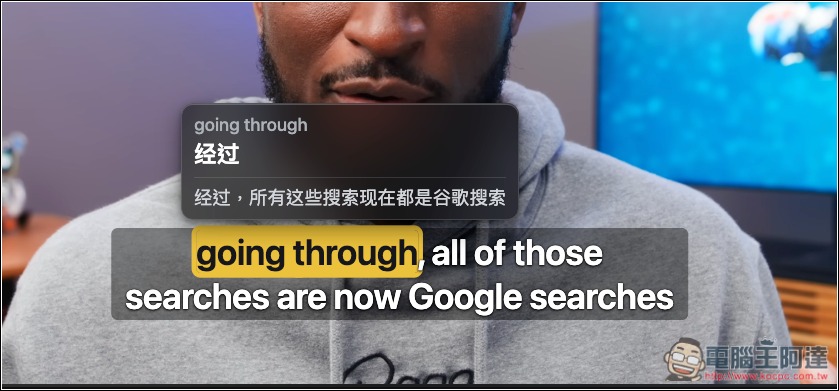
Using it is quite simple. After installing the extension, just turn on YouTube’s English captions and hover your mouse over any word you don’t understand. A Chinese translation will appear immediately, along with a translation of the full sentence, helping you understand what the word means in different contexts. If you think the word is worth remembering, just click to add it to your personal vocabulary list, saving it together with the complete sentence in which it originally appeared. There’s no need to copy, paste, or organize anything manually.
In addition to individual words, Subtitle Translator also supports saving phrases—simply select consecutive text with your mouse to save the entire phrase. For common English idioms, slang, or phrasal verbs, the built-in AI feature can provide further explanations, so you don’t have to rely solely on word-by-word translation to guess the meaning.
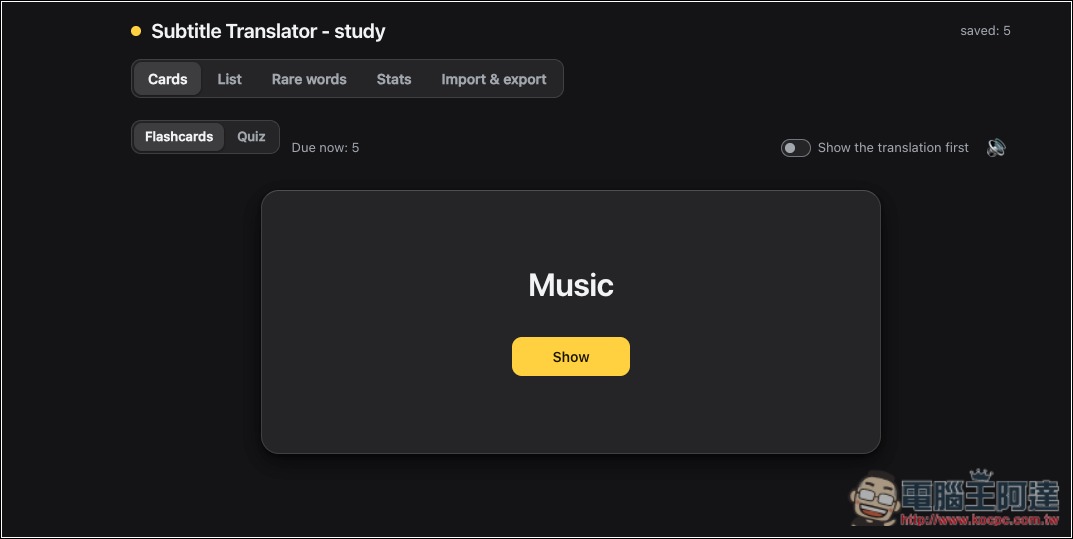
In terms of learning features, saved words can be reviewed with Flashcards, and paired with Quiz-style self-tests, you can further check whether you’ve truly memorized the words rather than only knowing what they mean when you see the translation. Translation is done locally through Chrome’s built-in AI, so it’s very fast.
Key Features
- Instant mouse translation: Hover over a word in the video subtitles to see the translation immediately, without switching to another website.
- Save words with one click: click an unfamiliar word in the subtitles to add it to your personal word bank, and the full example sentence is saved automatically.
- Flashcards: Review using saved vocabulary, combined with spaced repetition to strengthen memory.
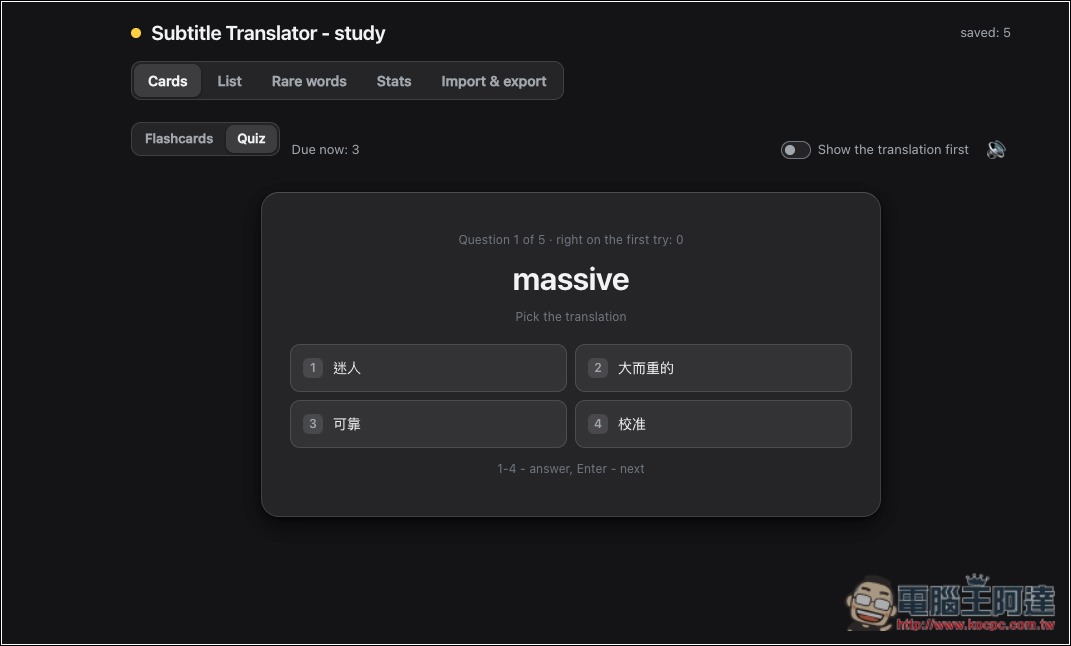
- Quiz Learning Test: Check your familiarity with vocabulary through quizzes to help identify what you’re not yet familiar with.
- Phrase bookmarking feature: supports selecting multiple words with the mouse and saving the complete phrase together with its translation.
- AI explanation feature: Provides more detailed explanations for English idioms, slang, and phrasal verbs.
- Bilingual subtitle mode: You can view the original and translated subtitles at the same time, making it easier to understand the meaning of complete sentences.
- Word Read-Aloud: Supports reading individual words or entire subtitle lines aloud to help you become familiar with English pronunciation.
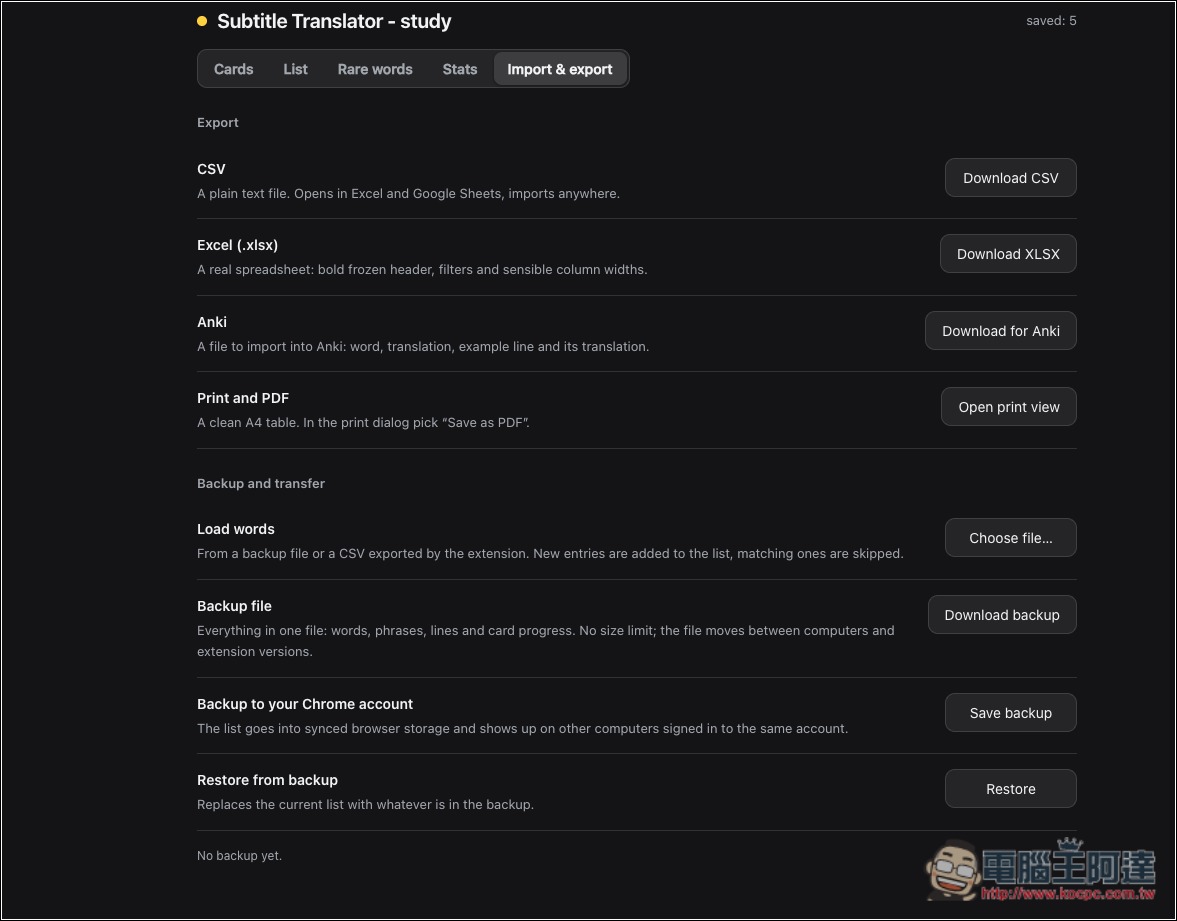
- Multi-format export: Saved content can be exported to CSV, Excel, Anki, and PDF, making it easy to back up or move to other learning tools.
- Free, no registration required: Use Chrome’s built-in translation model, no need to purchase additional API quota, and after downloading the model, you can translate offline.
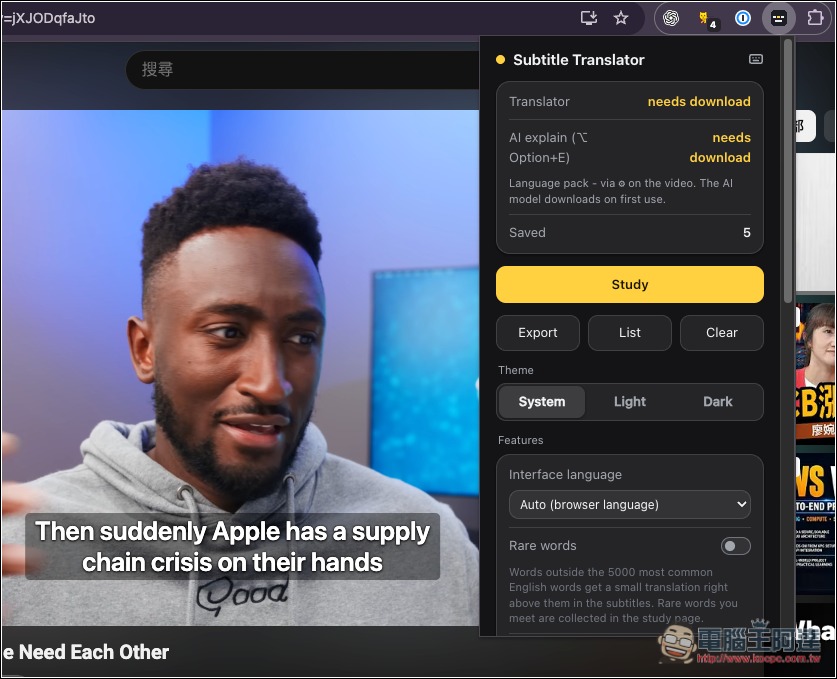
After the Subtitle Translator extension icon feature is turned on, the screen shown below appears. Although the translation section at the top indicates that a download is required, and the AI model can be downloaded through the small settings icon that appears over the video, when I used it, no matter how hard I looked, I couldn’t find the Subtitle Translator settings icon. This is the drawback I mentioned earlier; I don’t know why the settings function isn’t just placed in the menu. However, this doesn’t affect the translation and word bank functions, which still work normally:
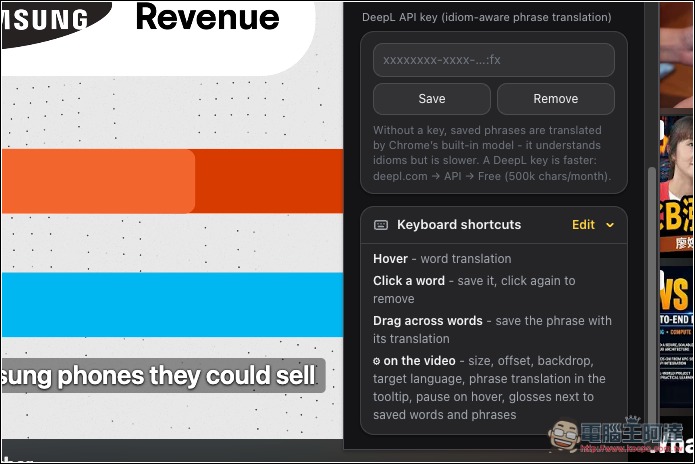
It also supports DeepL API Key and hotkeys, and the hotkeys can be customized to suit your usage habits:
When watching YouTube videos, hover your mouse over a word you don’t understand, and it will show the Chinese meaning and a translation of the whole sentence. Click once to save it to your vocabulary list, and a notification will also appear at the top. Since I couldn’t find this tool’s settings, my translation only displays Simplified Chinese. In theory, it should be possible to change it to Traditional Chinese; you’ll have to try that part yourselves:
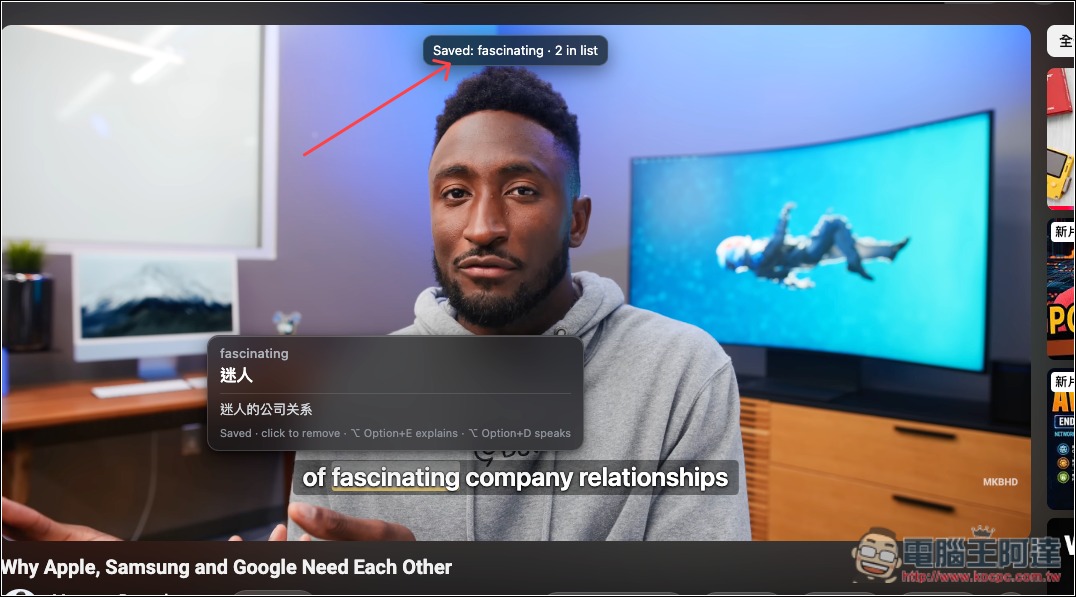
You can also search and bookmark phrases:
When you want to review vocabulary, just click the Study feature on the extension icon to open the vocabulary library backend; it defaults to Flashcards:
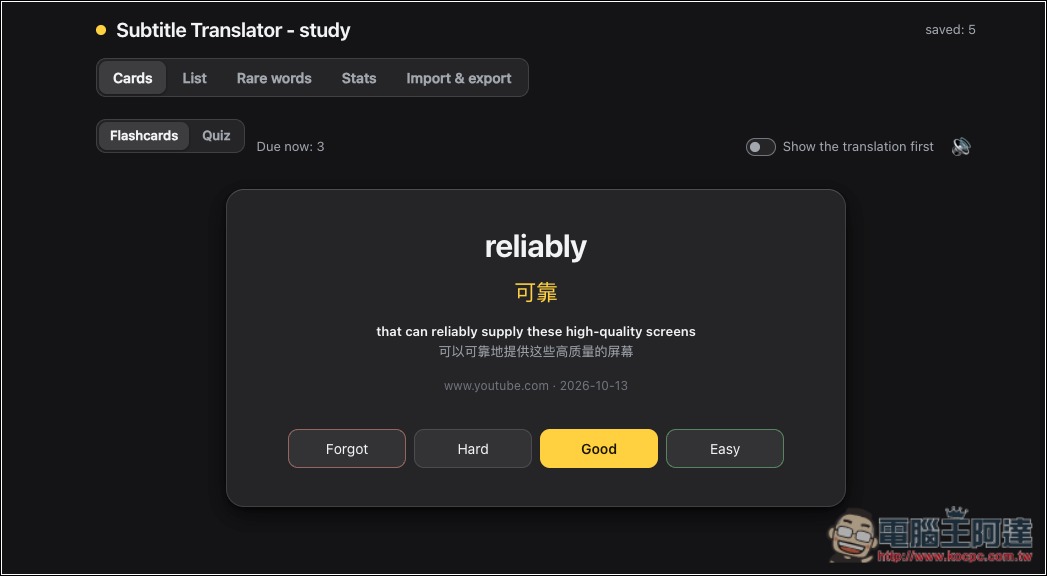
Tapping it will show the Chinese translation and the YouTube sentence from that moment, and below it will also let you choose your familiarity with the word:
Quiz learning test, it will display four options for you to choose:
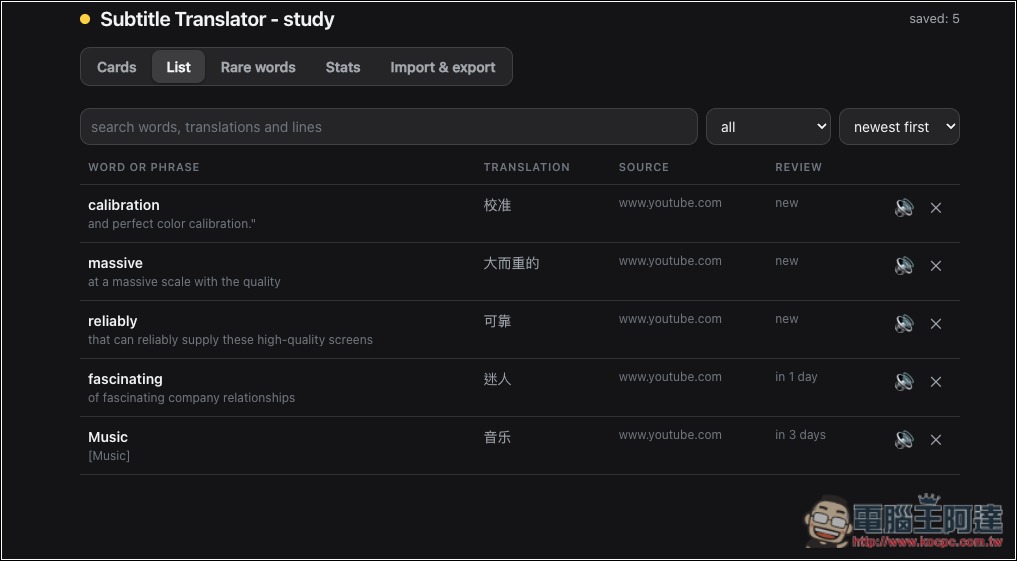
If you become very familiar with words after studying them later, you can manage and delete them in the List:
Supports multiple export/import formats:
Source: KOCPC Chinese