


I would think about it in the past Mac Install in macOS、Linux Most people who use virtual machines are developers, but with the birth of Openclaw, many Mac users will choose to use macOS in order to reduce risks. virtual machineinstalled in. If you are using an Apple Silicon Mac, then VirtualBuddy is the preferred virtual machine software, designed for Apple Silicon design, adopt Apple The official Virtualization.framework is hardware accelerated, so compared to ordinary VM virtual machines, it can run more efficiently and is said to be close to native. In addition, installing a macOS virtual machine is also very simple. It can be completed with just a few clicks of the mouse, and even Mac novices can get started quickly.
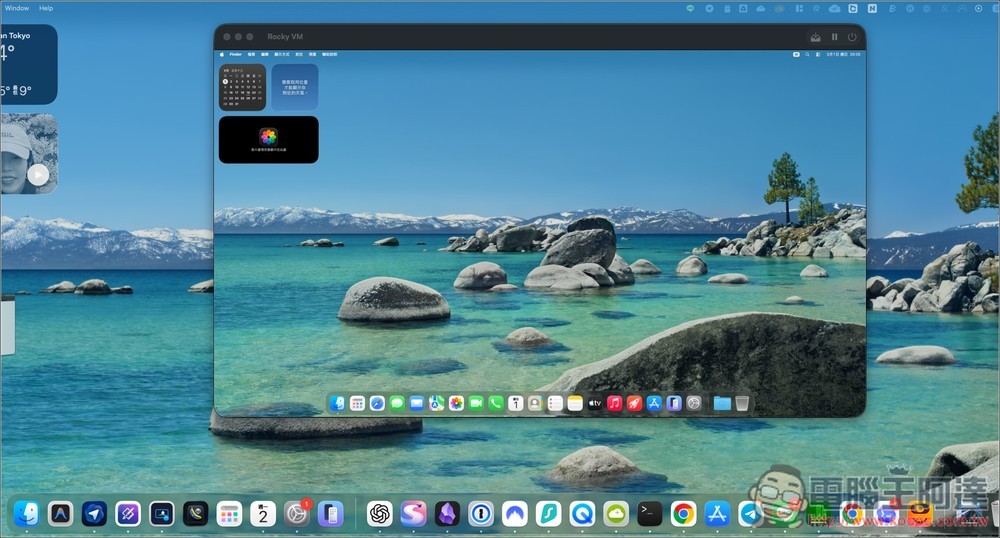
VirtualBuddy introduction and installation tutorial
VirtualBuddy is a virtual machine software specially designed for Apple Silicon Mac. Its main purpose is to allow users to create and run multiple macOS virtual systems on their Mac. The difference from general virtual machine software is that it is developed based on Apple’s official Virtualization Framework, so it is usually better in terms of performance and compatibility. It is especially suitable for developers to test apps, test new system versions, or advanced users who need an isolated environment.
Another feature is the built-in macOS installation wizard, which can directly download the system image from Apple servers and automatically create a virtual machine, eliminating the need to manually handle complex configuration processes. Users can also import IPSW system files or customize download links. In addition, it also supports Linux ARM systems such as Ubuntu.
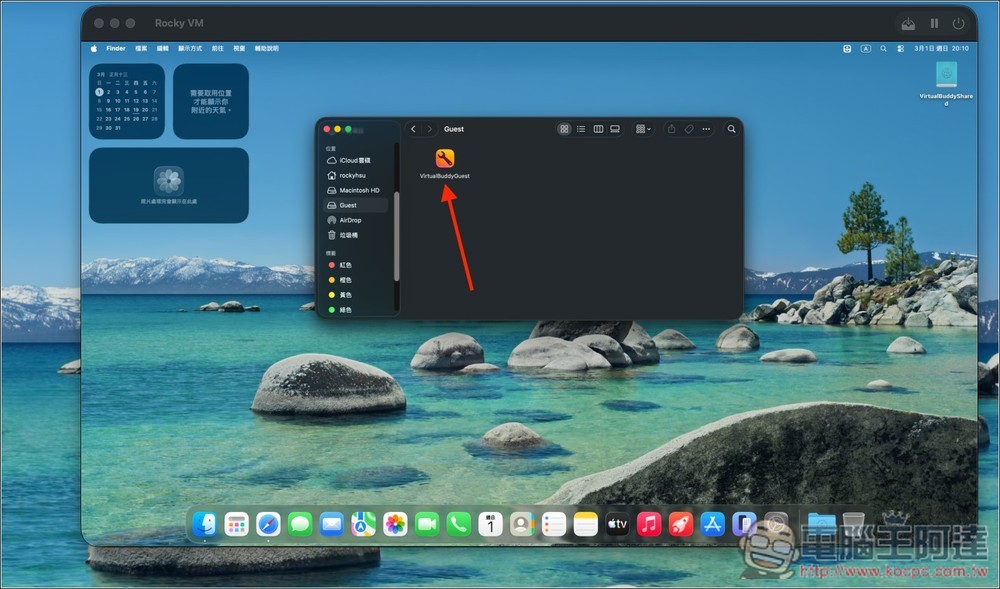
In terms of use, VirtualBuddy also provides functions such as clipboard sharing, folder sharing, network connection, virtual hardware customization, etc., and can improve the integration between the host and the virtual machine through the VirtualBuddyGuest tool, such as automatically mounting shared folders.
Main features
- Supports Apple Silicon Mac
- Built-in macOS installation wizard, automatic download system
- Supports importing IPSW or customizing download sources
- Can run ARM Linux (such as Ubuntu)
- Clipbook sharing and folder sharing functions
- Paired with APFS replication technology to quickly create replicas
- Free and open source
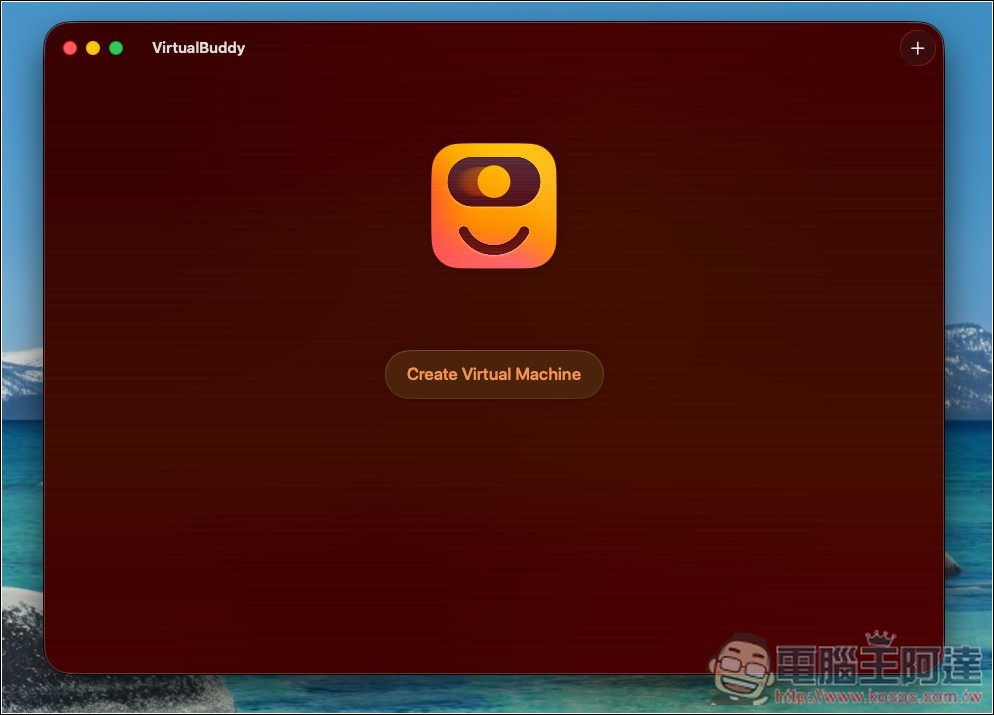
VirtualBuddy is open source software. After clicking the link above to download the latest version and installing it, you will see this very streamlined screen when you open it. Click “Create Virtual Machine” to create a virtual machine:
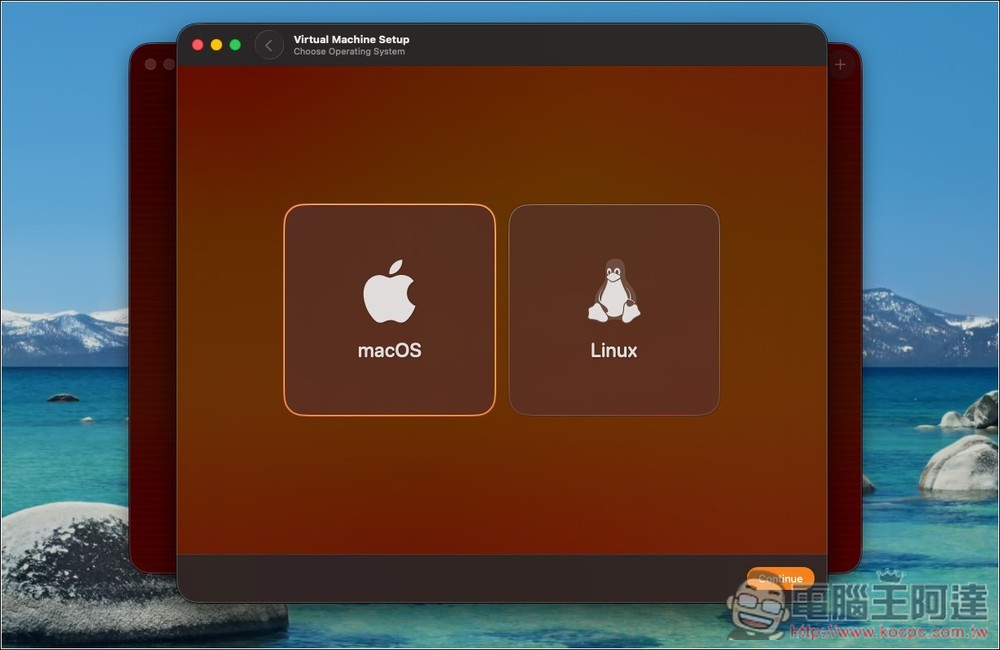
Choose whether you want to install macOS or Linux operating system, I installed macOS:
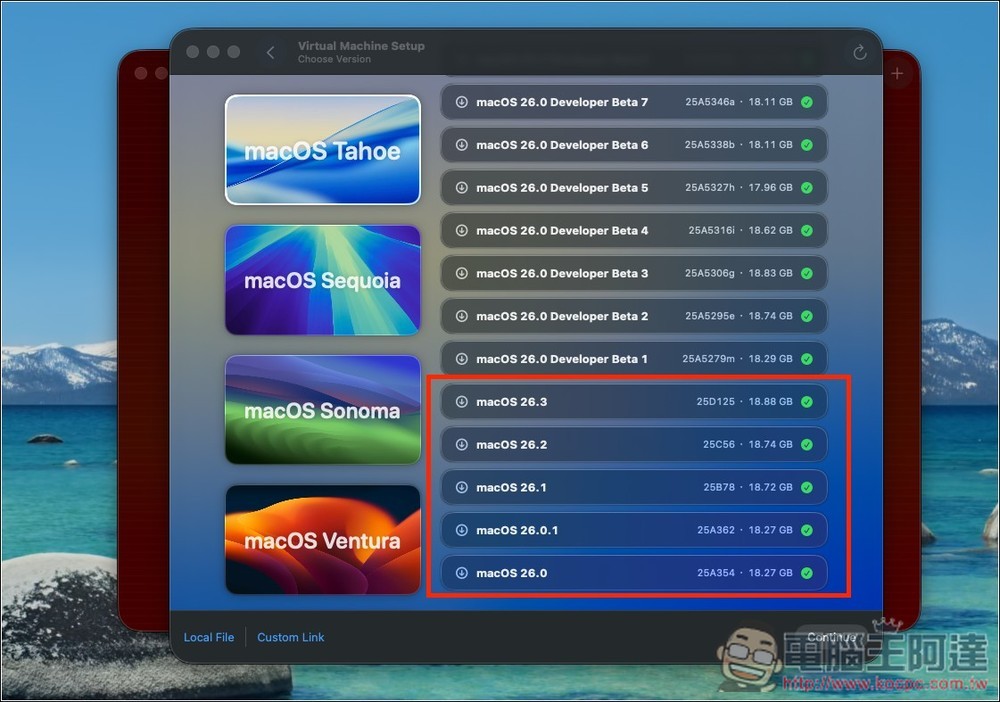
The screen will list all macOS versions that can be installed, including developer versions, and the amount of storage space required will be indicated on the right side of each one:
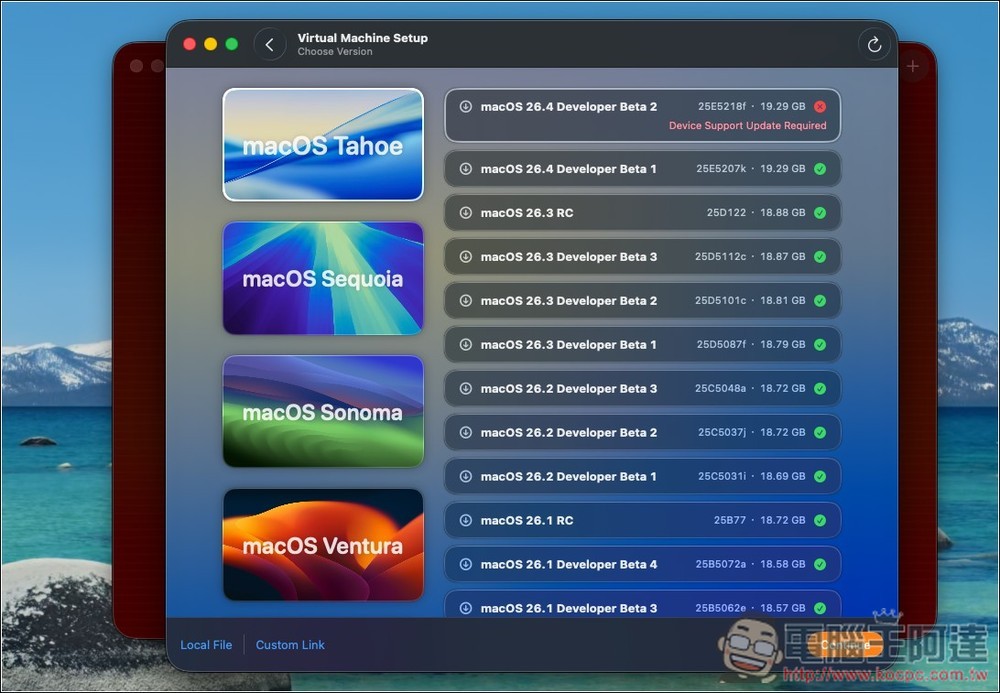
Move the menu to the bottom and you will find the official version of macOS. The latest macOS 26.3 also has:
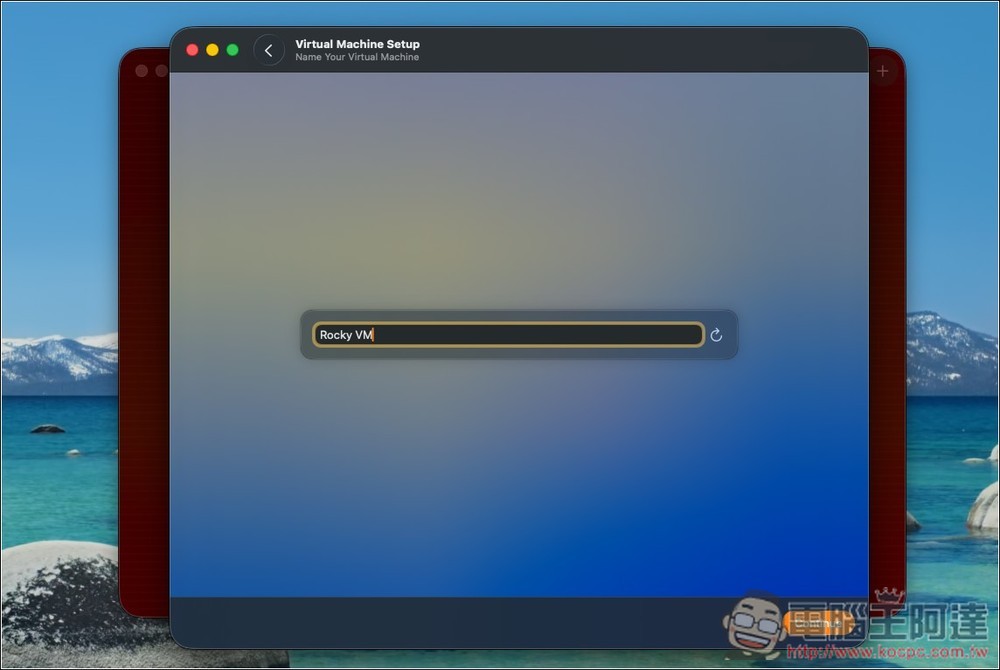
Then follow the on-screen instructions to install. First, set the name of the virtual machine:
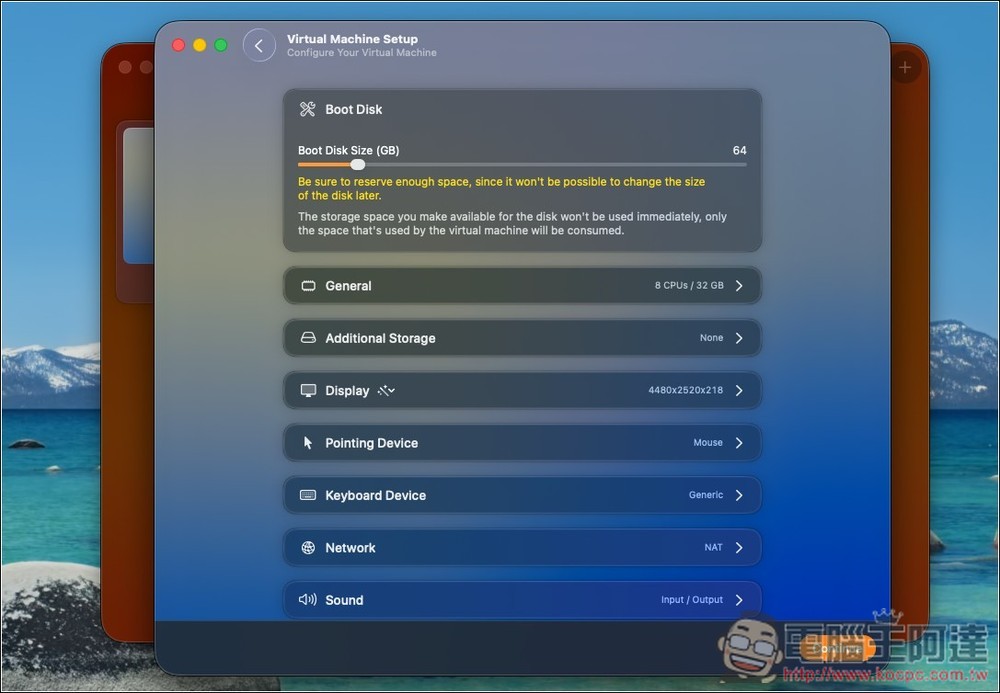
Next is the virtual machine hardware configuration, including hard disk capacity, number of CPUs and memories, monitor resolution, etc.:
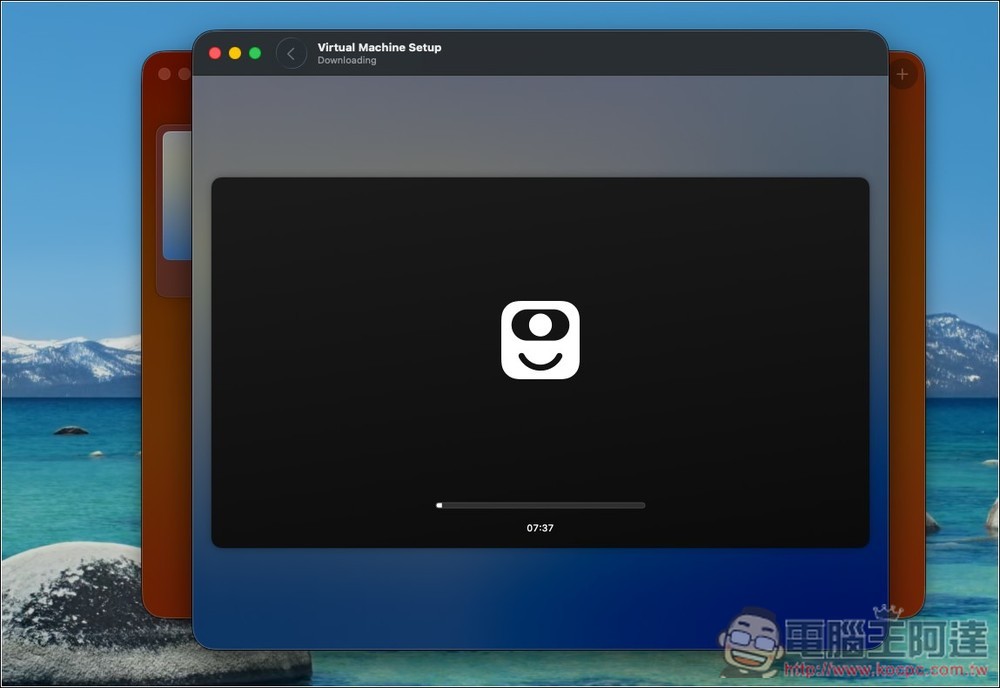
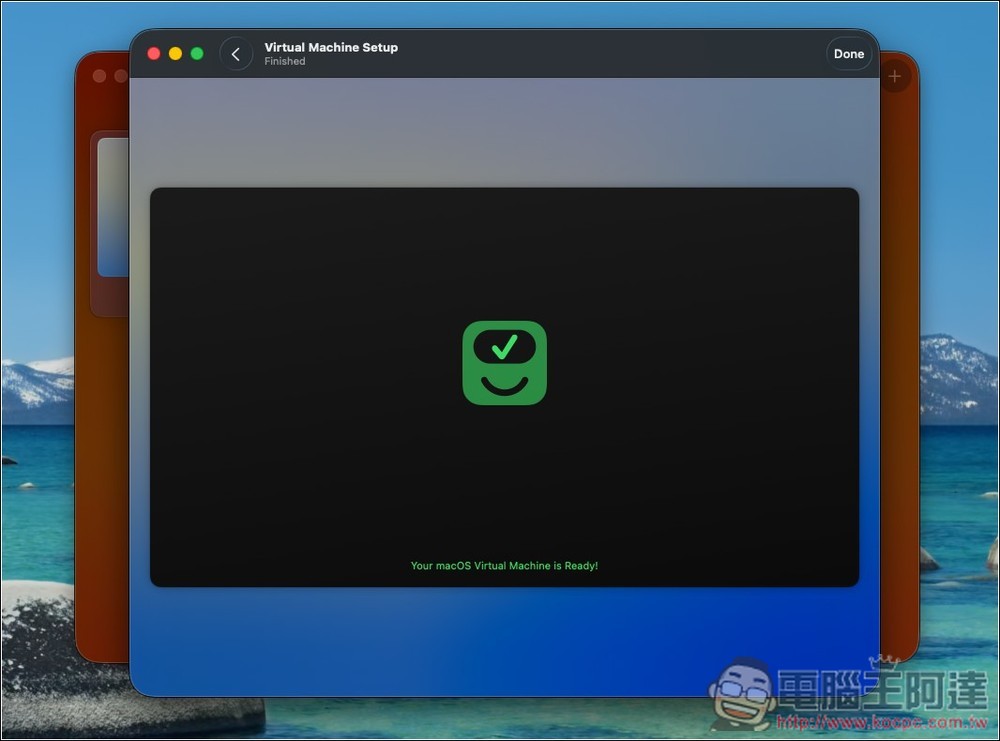
After configuration, the installation of the macOS operating system will begin, and wait for the screen to finish:
When Ready is displayed, it means it is completed. Click Done in the upper right corner:
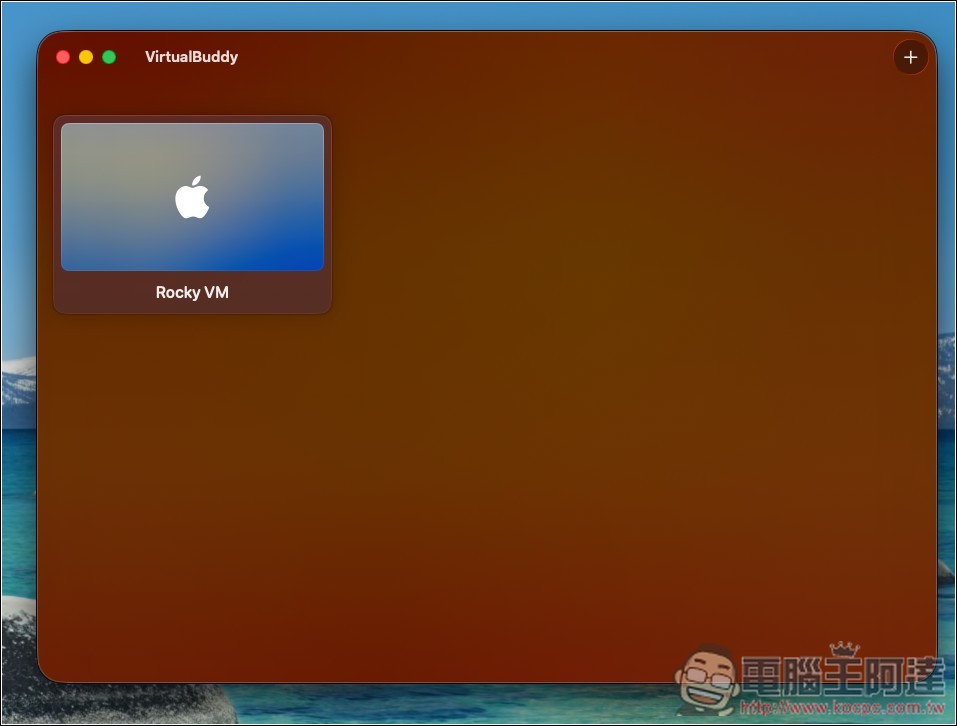
Double click to open your virtual machine:
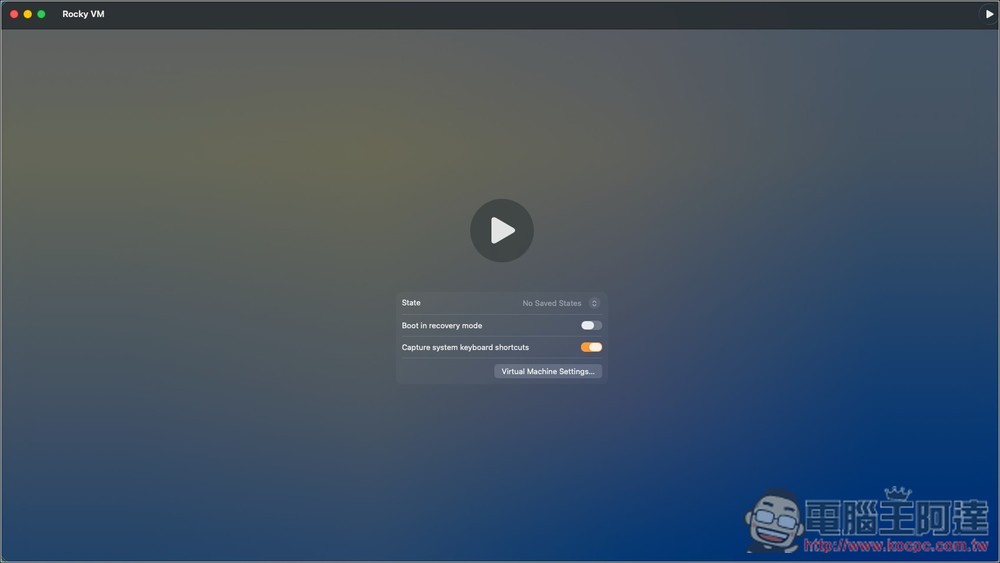
Press the play icon to start running:
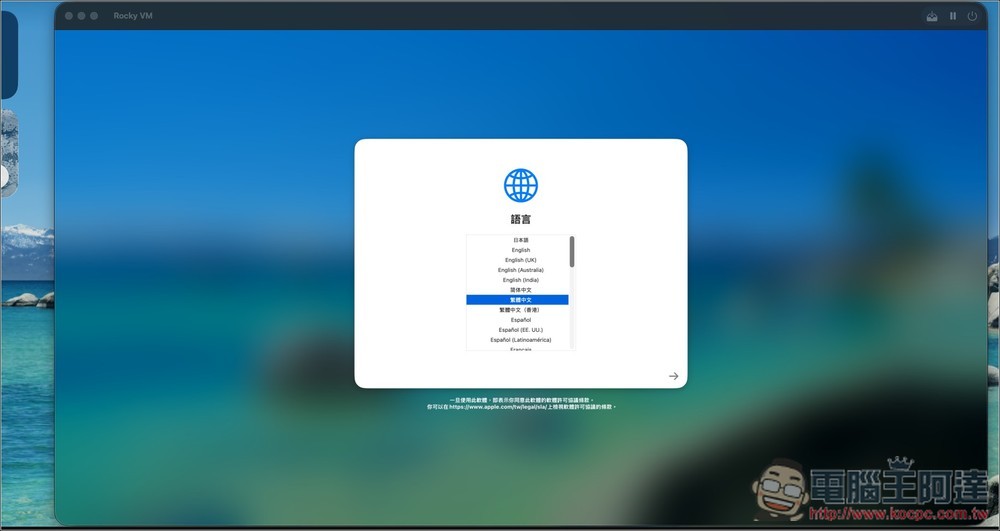
You will see the familiar macOS initial setup screen. Once everything is set up, you can start using it:
If you want to enable local sharing of the clipboard, go to the Guest hard drive and enable VirtualBuddyGuest:
Source: KOCPC Chinese