


Like many Windows users, I used to rely on the system’s built-in security mechanisms to protect my computer. Although I was no stranger to Windows Security Center, for a long time I had mostly kept the default settings and hadn’t made any special adjustments. It wasn’t until recently that I read aMicrosoft’s report on the latest cyber threatsLater, I realized that default settings may not be enough to deal with all risks. The report pointed out that some malware disguises itself as popular legitimate applications and, without users noticing, quietly disables various Windows security protections, paving the way for subsequent attacks.
The hidden Windows 11 security settings you should enable
This also made me start re-examining the built-in security features in Windows 11, and I enabled several settings that were easy to overlook in the past but are quite useful. The best part is that they can all be done through simple steps, without modifying any complicated registry entries. Below are the features I think are most worth turning on.
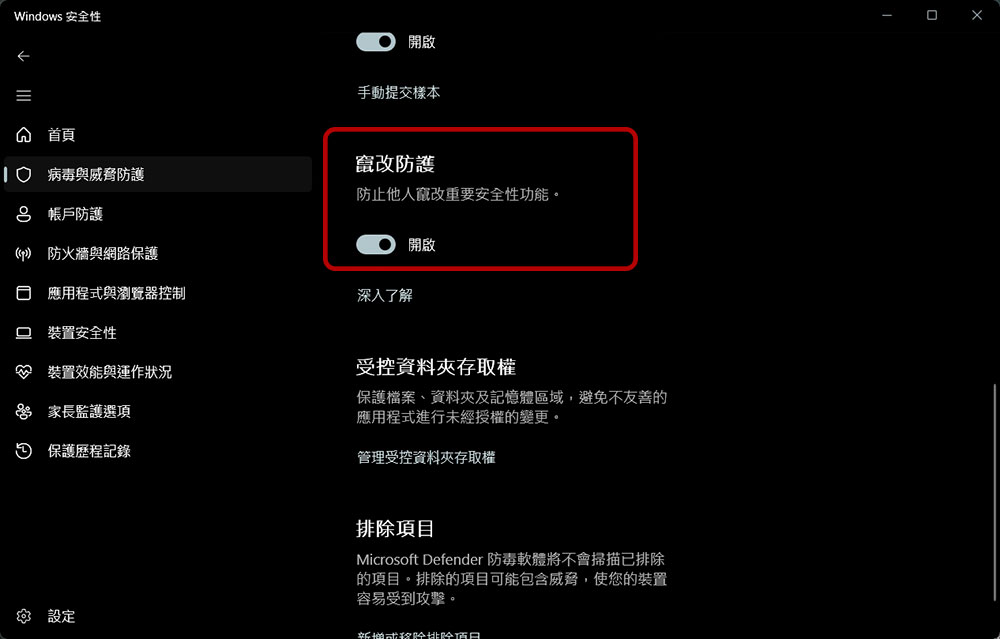
Tamper protection
When malware wants to take control of your computer, its first step is often not to launch an attack immediately, but to try to disable antivirus software or other security mechanisms. By gradually removing these protections, malware can escalate its privileges without being detected, ultimately causing files to be tampered with, personal data to leak, and even the system to be completely taken over.
Tamper protection prevents apps or background processes from making unauthorized changes to important Windows security settings. Even if malware gains administrator privileges, it cannot easily disable critical protection features. In addition, it can block suspicious registry modifications, further improving system security.
Enable Path
Settings → Privacy & security → Open Windows Security → Virus & threat protection → Manage settings → Turn on “Tamper protection”
Controlled Folder Access
If your computer stores financial data, work documents, medical records, or other important files, Controlled folder access is well worth enabling. The biggest threat from ransomware is that it encrypts your important files, making them inaccessible until you pay the ransom. Many attacks even sneak in through seemingly legitimate programs, and by the time users notice something is wrong, it is often already too late.
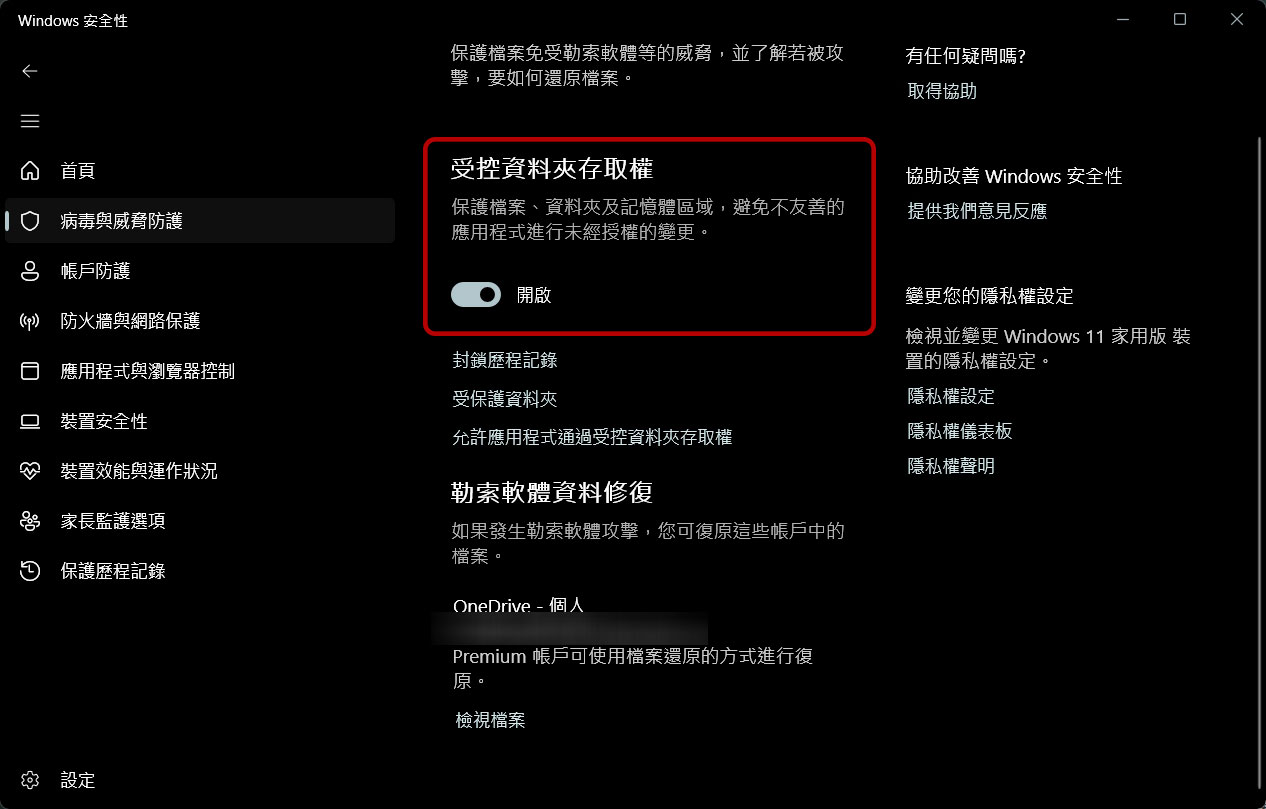
Controlled folder access can restrict apps’ permission to modify specific folders, preventing unauthorized programs from arbitrarily modifying or encrypting files. When an unknown or untrusted app tries to access a protected folder, Windows automatically blocks the action and sends a notification.
Enable Path
Settings → Privacy & security → Open Windows Security → Virus & threat protection → Manage ransomware protection → Turn on “Controlled folder access”
Once enabled, you can choose the folders you want to protect and add trusted applications to the allowlist, balancing security and convenience.
Smart App Control
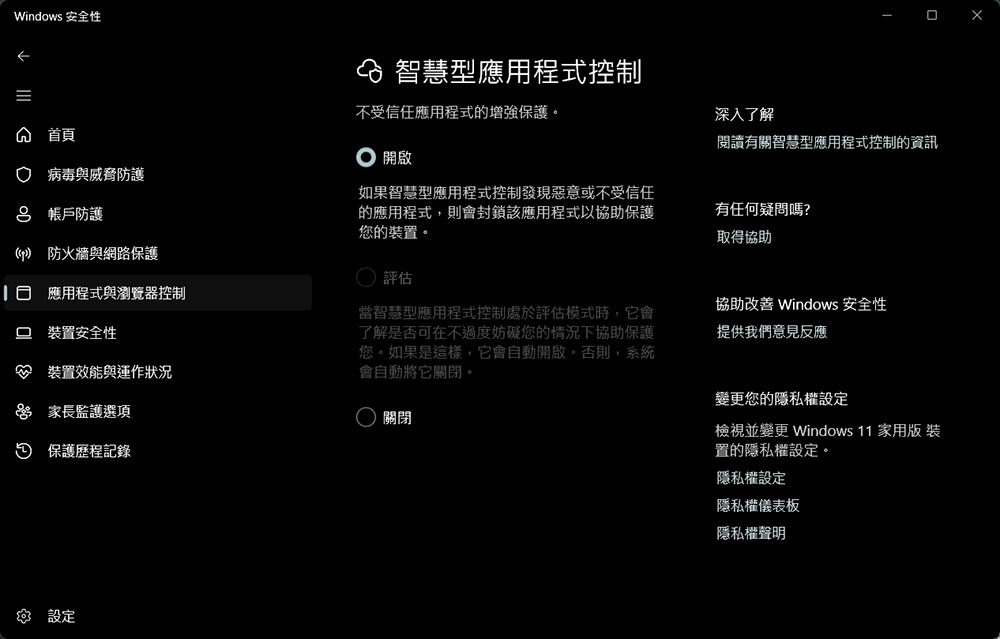
I frequently download and test various new software, so I especially value security features that can block potentially risky programs, and Smart App Control is one of them. Unlike traditional User Account Control (UAC), it does not pop up a prompt when a program is run; instead, it automatically assesses an app’s trustworthiness through Microsoft cloud threat intelligence and digital signature verification.
If the system determines that a program has a history of malicious behavior or does not meet Microsoft’s trust standards, it will block it from running outright, reducing the risk of infection at the source.
Activation Path
Settings → Windows Security → App & browser control → Smart App Control settings → Turn on feature
Of course, for some advanced users, this feature may be somewhat strict. If you don’t want to be overly restricted, at least it’s recommended to enable file extension display and get into the habit of checking file formats to avoid accidentally opening suspicious files.
Dynamic lock
Many people like to take their laptops to cafés, libraries, or coworking spaces to work. However, when working in public environments, one of the biggest risks is forgetting to lock your computer when you briefly leave your seat, and Dynamic Lock can effectively solve this problem. As long as you pair your phone with your computer via Bluetooth, Windows can detect whether the phone is still nearby. When the system determines that the phone has moved a certain distance away, it automatically locks the computer, so you don’t need to manually press a keyboard shortcut every time you leave your seat.
Although this feature cannot 100% prevent all risks, it can add an extra layer of protection for personal privacy and data security. The setup steps are as follows:
- Open Settings
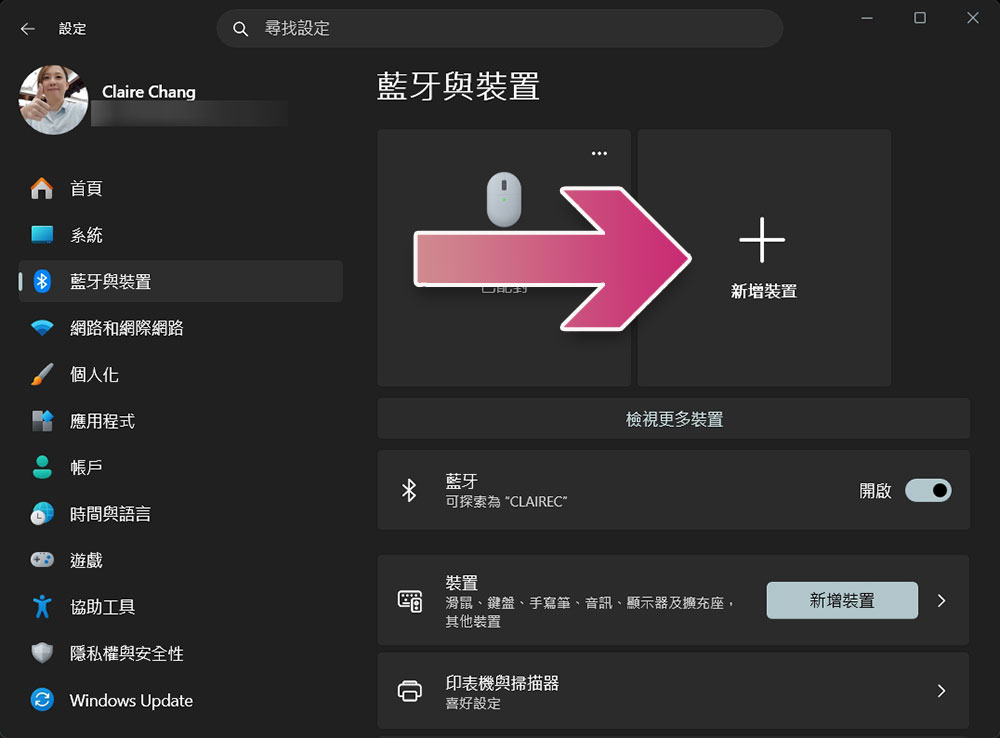
- Go to “Bluetooth & devices”
- Tap “Add Device” and complete pairing with your phone.
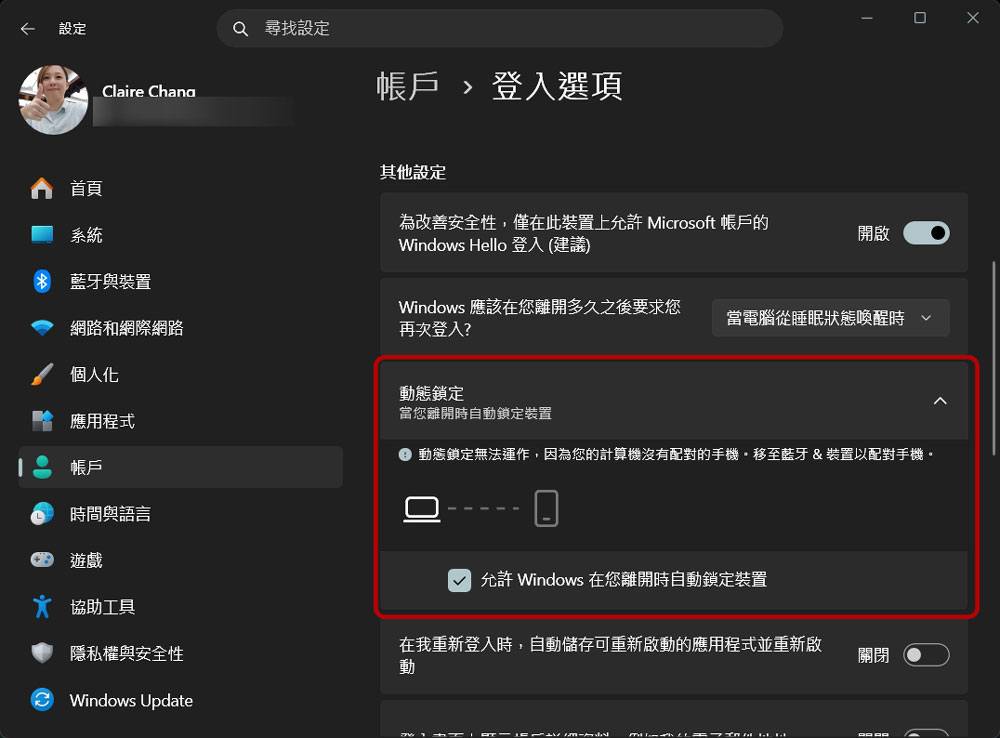
- Go to the “Account” tab.
- Click “Login Options”
- Find “Dynamic Lock”
- Check “Allow Windows to automatically lock your device when you leave.”
It’s not just antivirus software—Windows Security Center is actually more powerful than you think.
Many people still prefer to install third-party antivirus software, but Windows 11’s built-in Windows Security already provides quite comprehensive protection. In addition to basic malware scanning, it can defend against ransomware, block unauthorized changes to security settings, restrict high-risk applications from running, and even automatically lock the device when the user steps away. More importantly, most of these features can be used with a simple toggle and do not require a professional technical background.
If, like me, you’ve always stuck with the default configuration, take a few minutes to check the settings in Windows Security. Enabling a few useful features can greatly improve your computer’s overall security and make everyday use more reassuring.
Source: KOCPC Chinese