


Last week, Google announced free monthly Colab GPU compute credits for Google AI subscribers. While this is great news for Google AI users, those who have never used Colab may not know what they can use it for. This article recommends a very useful Skill: once installed, it lets Codex call Colab to generate AI videos for you, using the latest MiniMax H3 video. More importantly, a video costs only about 1 compute unit (12 seconds), meaning Google AI Pro users can generate up to 200 AI videos per month.
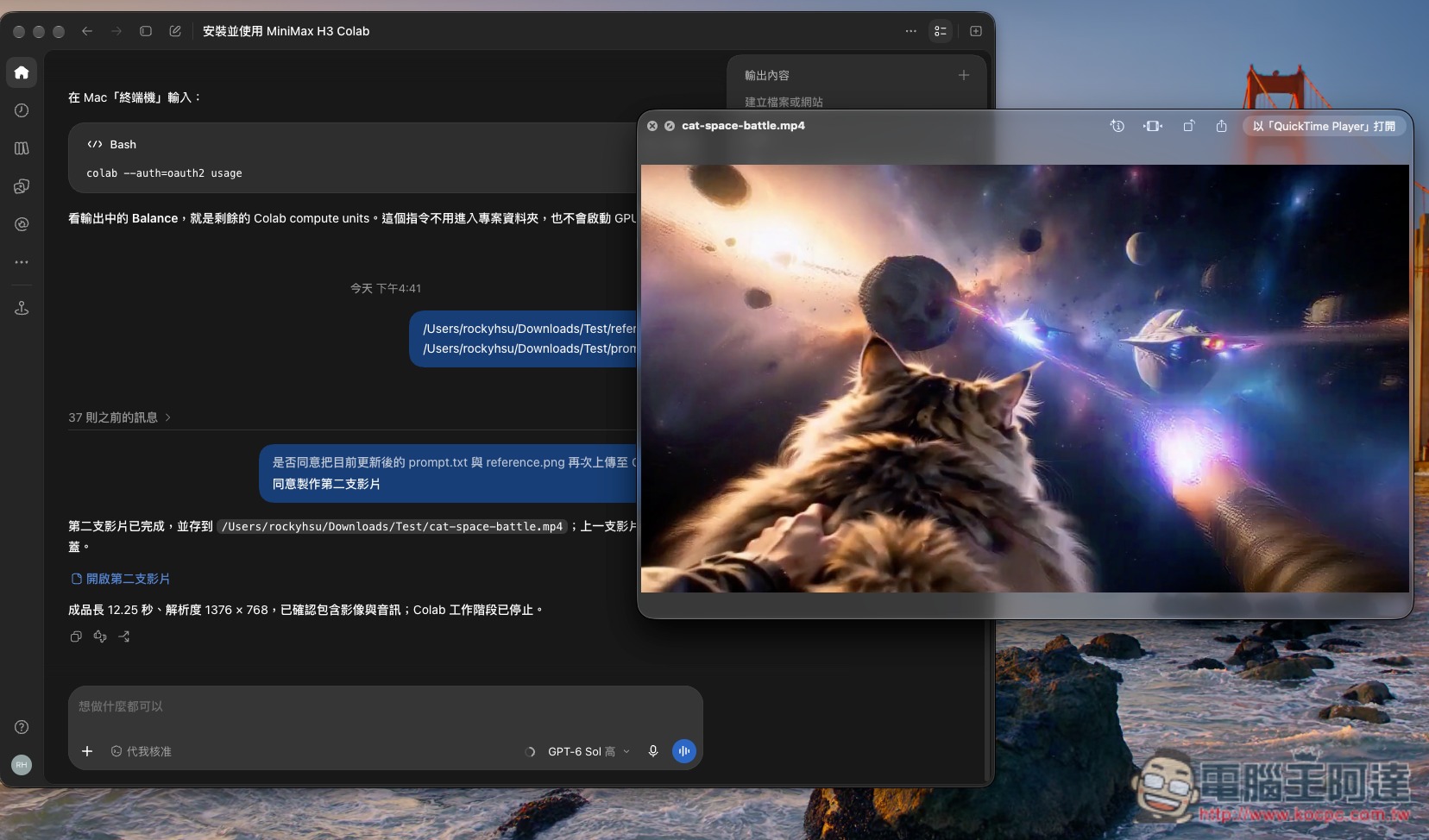
Google AI subscribers now get Colab GPU credits every month.
For those who are unclear, here’s a quick explanation as well.
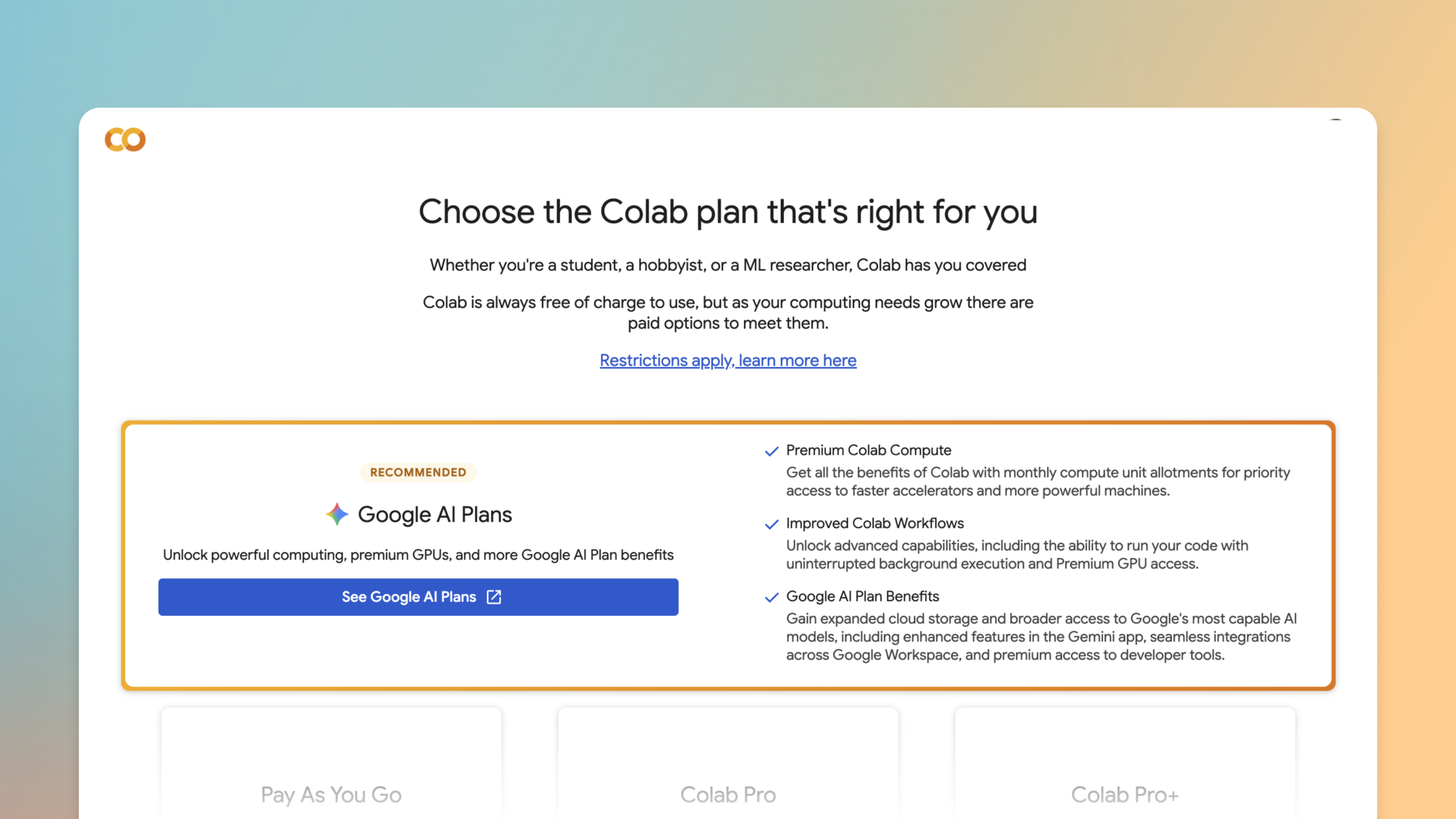
Google last week atOfficial blogIt was announced that Google AI subscription plans are beginning to integrate advanced Google Colab benefits. That is, if you already subscribe to a Google AI plan, you can now not only use services such as Gemini and Google AI Studio, but also receive additional advanced compute resources from Colab, including higher-priority high-speed accelerators and a more powerful compute environment.
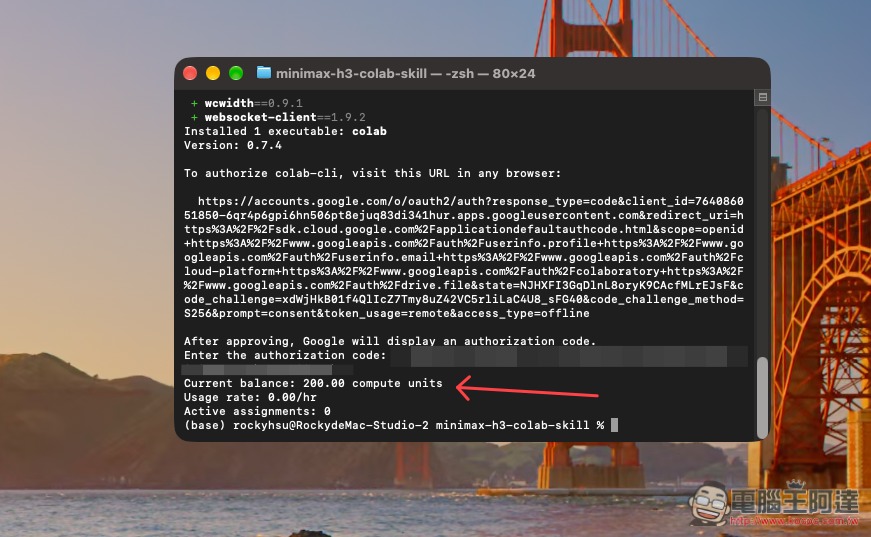
For example, with Google AI Pro, it currently provides 200 Colab Compute Units per month, which are Colab compute credits. I tested my own AI Pro account and it действительно has 200 CU, which can be used directly for Colab’s GPU runtime.
If you’re a Google AI Ultra user, in addition to getting advanced compute benefits for Colab as well, Google also explicitly provides Premium GPU access and uninterrupted background execution. This means that even if you close the browser tab, longer training or AI generation tasks can continue running, making it more convenient for users who need to run models for extended periods.
How to use the MiniMax H3 Colab Skill to generate AI videos
MiniMax H3 Colab Skill is an open-source Skill designed specifically for Codex. Its main purpose is to let Codex directly run MiniMax H3 video generation via Google Colab’s cloud GPU, without needing to install the full model on your own computer or prepare a high-end graphics card with tens of GB of VRAM. This Skill uploads local reference images, prompts, and other data to Colab, then the remote GPU completes MiniMax H3 Ref2VA inference, and finally automatically downloads the generated video back to the local machine.
Using it is simple: after installing Skill and Google Colab CLI and completing Google OAuth2 authorization, you can have Codex directly assist with the subsequent process.
All you need to do is prepare the images and the video description you want to generate. The rest, such as starting a Colab session, uploading assets, running the model, waiting for generation, and getting the final MP4 file, is handled by Skill.
MiniMax H3 Colab Skill currently supports adding 1–9 reference images at a time, and the order of the images corresponds respectively to
Go to the MiniMax H3 Colab Skill project
Here, I’ll use Mac as an example; Windows works pretty much the same way.
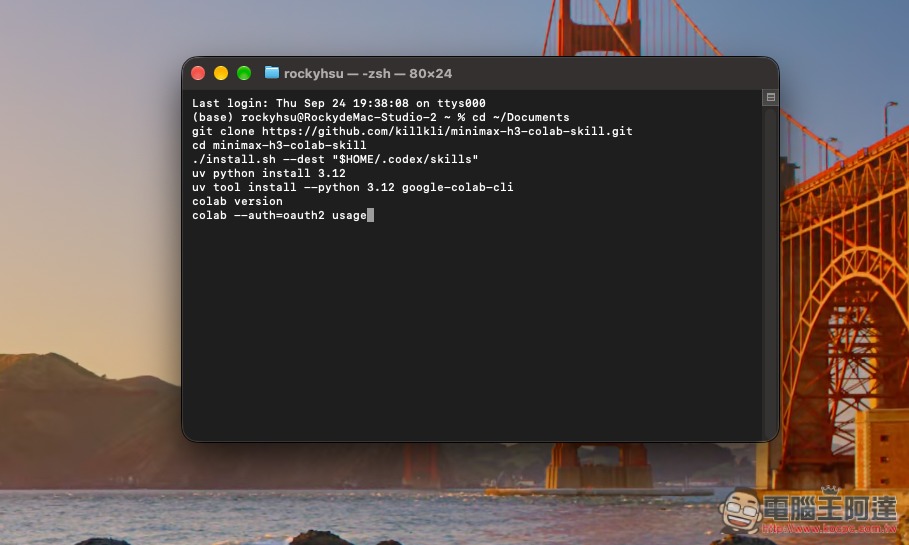
For installation, if you want the simplest way, just give the project link to Codex and ask Codex to install it for you. If you don’t mind the hassle, you can also copy the command below and paste it into the terminal to send:
git clone https://github.com/killkli/minimax-h3-colab-skill.git
cd minimax-h3-colab-skill
./install.sh
uv python install 3.12
uv tool install --python 3.12 google-colab-cli
colab --auth=oauth2 usage
And what this long string of instructions does is the following:
- Download the MiniMax H3 Colab Skill project.
- Enter the project folder you just downloaded.
- Run the installation script to install this Skill.
- Install Python 3.12 with uv.
- Install Google Colab CLI using Python 3.12.
- Sign in to Colab with Google OAuth2 and check the current Colab compute quota usage.
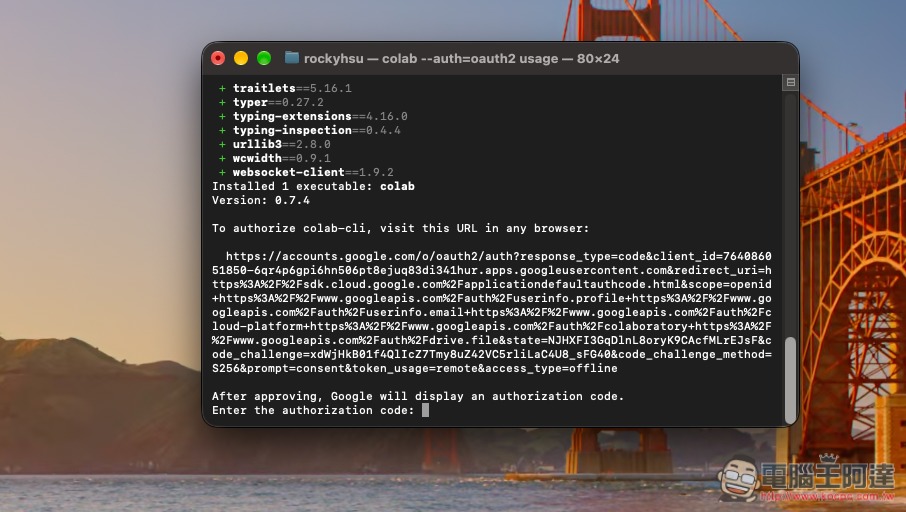
When you reach the Google OAuth2 sign-in to Colab step, it will ask you to enter a verification code; just copy the URL shown on the screen and paste it into your browser:
Sign in to your Google Account, allow the access scopes, and click Next:

Then the verification code will be displayed below; copy the whole thing:
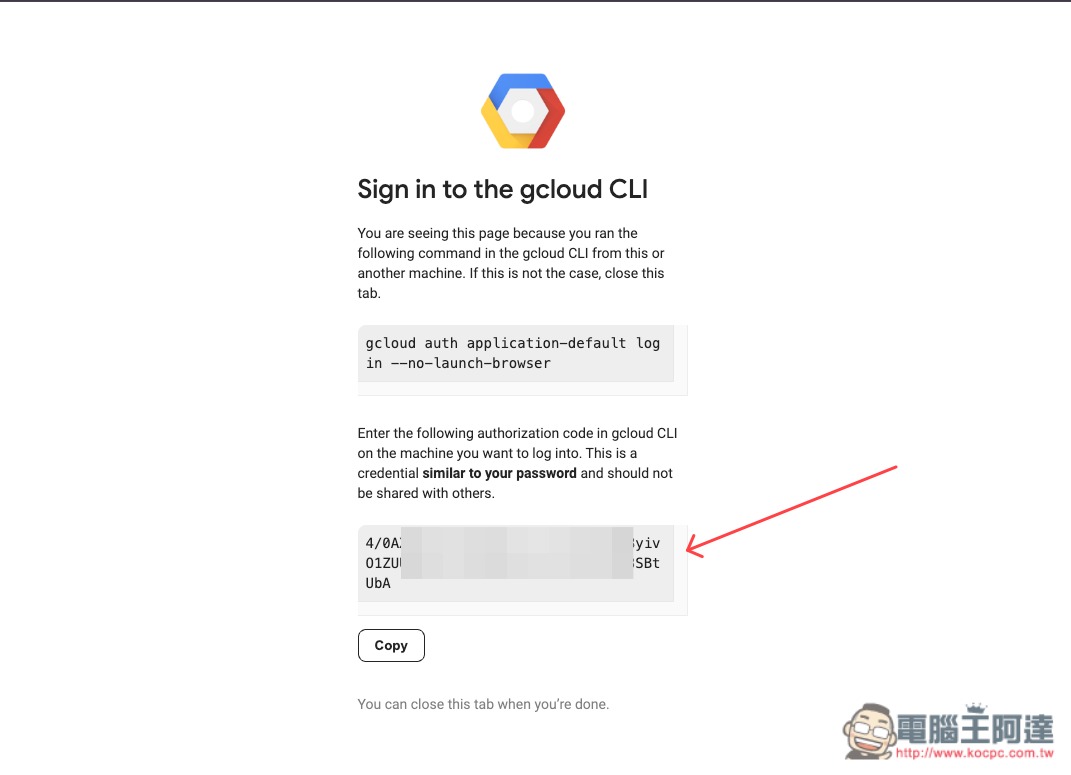
Paste it back into the terminal and press Enter. If it shows how much quota you currently have left, that means you’re done. Mine is a Google AI Pro account, so it’s currently 200 compute units per month:
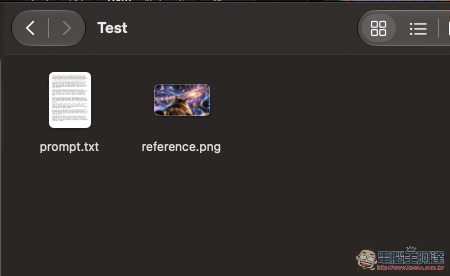
Next, in any folder, prepare a text file (.txt) containing the prompt and reference images. You can have up to 9 reference images. Record the paths of these files:
My approach is to just throw it into Codex, and Codex will activate the minimax-h3-colab skill to call Colab:
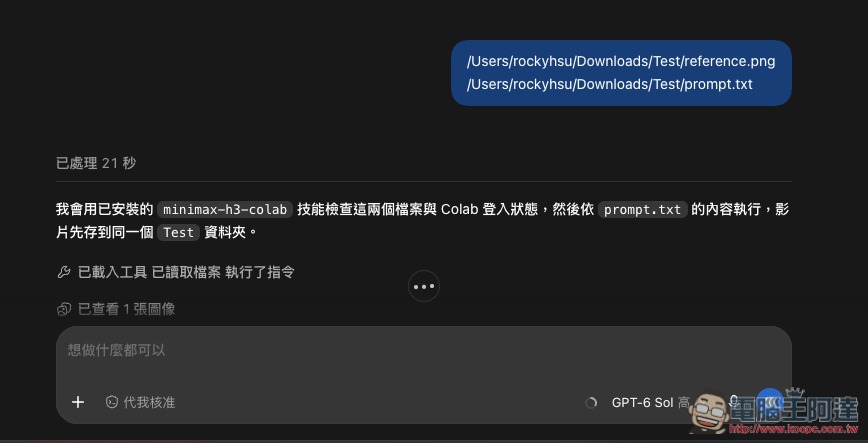
It asks for my consent to upload these files every time, and once authorized, Codex will start processing:

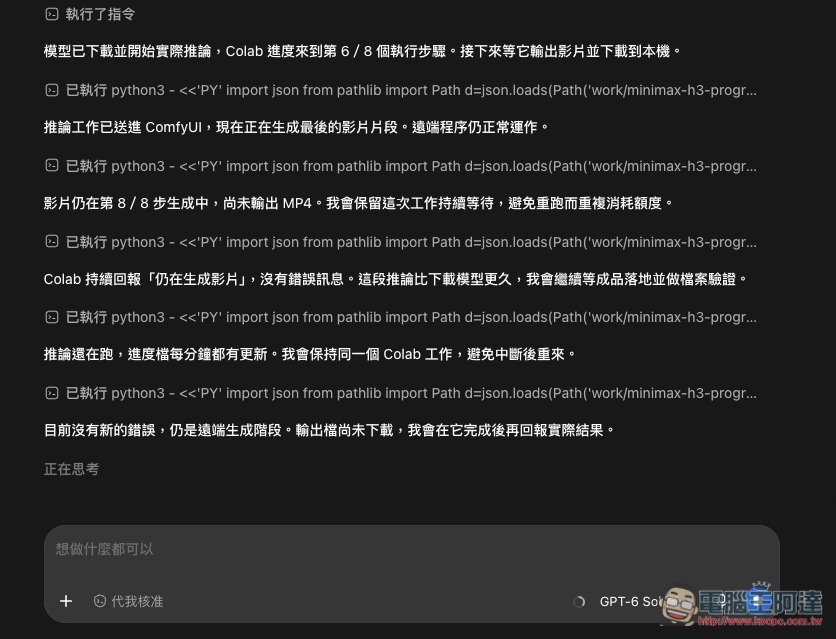
It will also report the current status at any time:
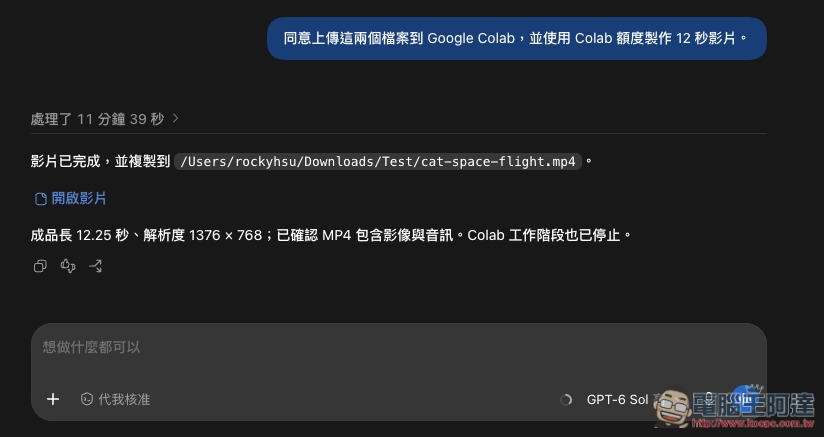
Once complete, the video will be saved to the same path as the prompt:
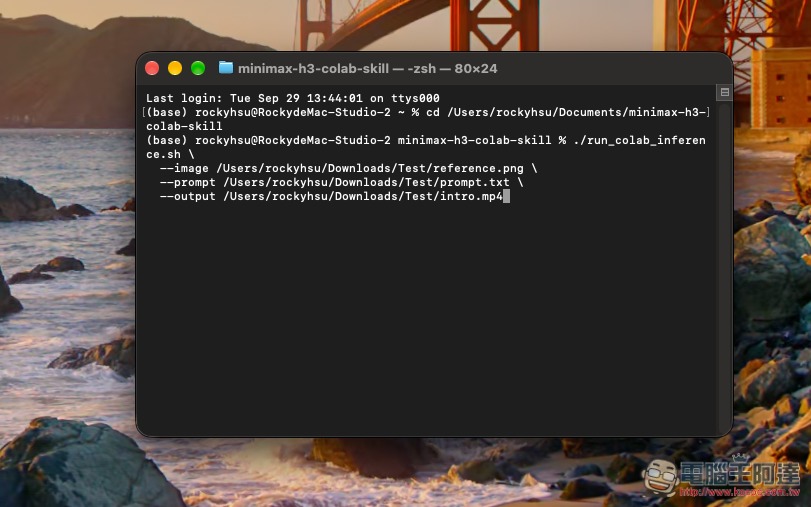
Of course, you can also run it via the terminal. After navigating into the skill folder, just enter the command below. image is the reference image location, prompt is the prompt file location, and output is the save location and filename after generation:
./run_colab_inference.sh
--image /absolute/path/reference.png
--prompt /absolute/path/prompt.txt
--output /absolute/path/result.mp4
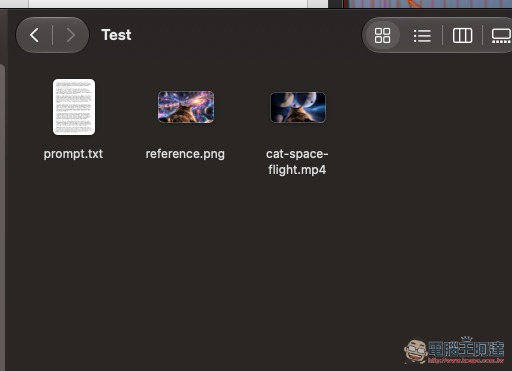
After generation is complete, you’ll see the video in the folder:
This is one of the videos I generated:
Source: KOCPC Chinese