


If you are used to using Win + Shift + S to take quick screenshots, you must know how time-saving it is. But in the latest Windows 11, there is actually a more powerful shortcut key hidden: Win + Shift + T. It can capture editable text directly from the screen, allowing you to instantly convert content in images, PDFs, presentations, and even videos into copyable plain text.
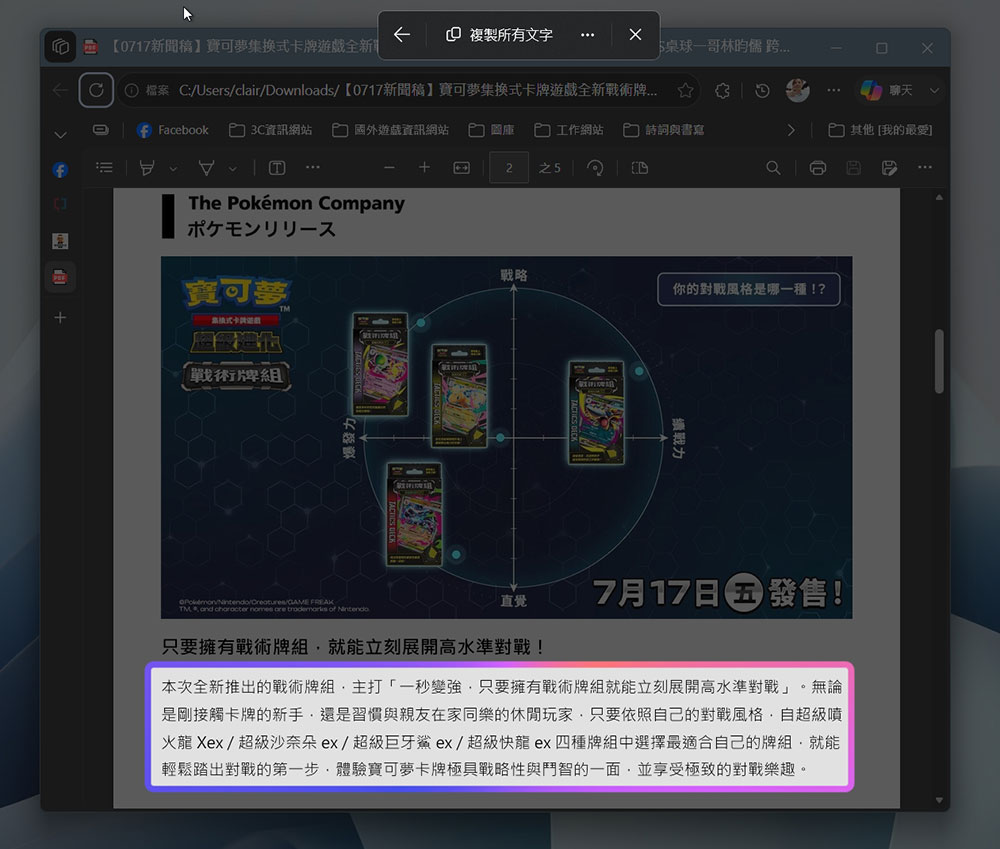
How to quickly copy screen text using Windows 11 shortcut keys
Press Win + Shift + T to activate the “Text Operation” function, which is the built-in OCR capability of the snipping tool. You don’t need to take a screenshot first and then open another application to process it. Just drag the mouse to select the text on the screen, and the system will automatically recognize it and let you copy it.
This feature extracts text from screen content through optical character recognition (OCR), and is particularly suitable for processing information that “looks like text but cannot be selected”, such as scanned PDFs, screenshots in chat software, presentation slides, photos of logos or receipts, and paused video frames. Windows usually only takes a few seconds to complete the recognition, so there is no need to manually restart it.
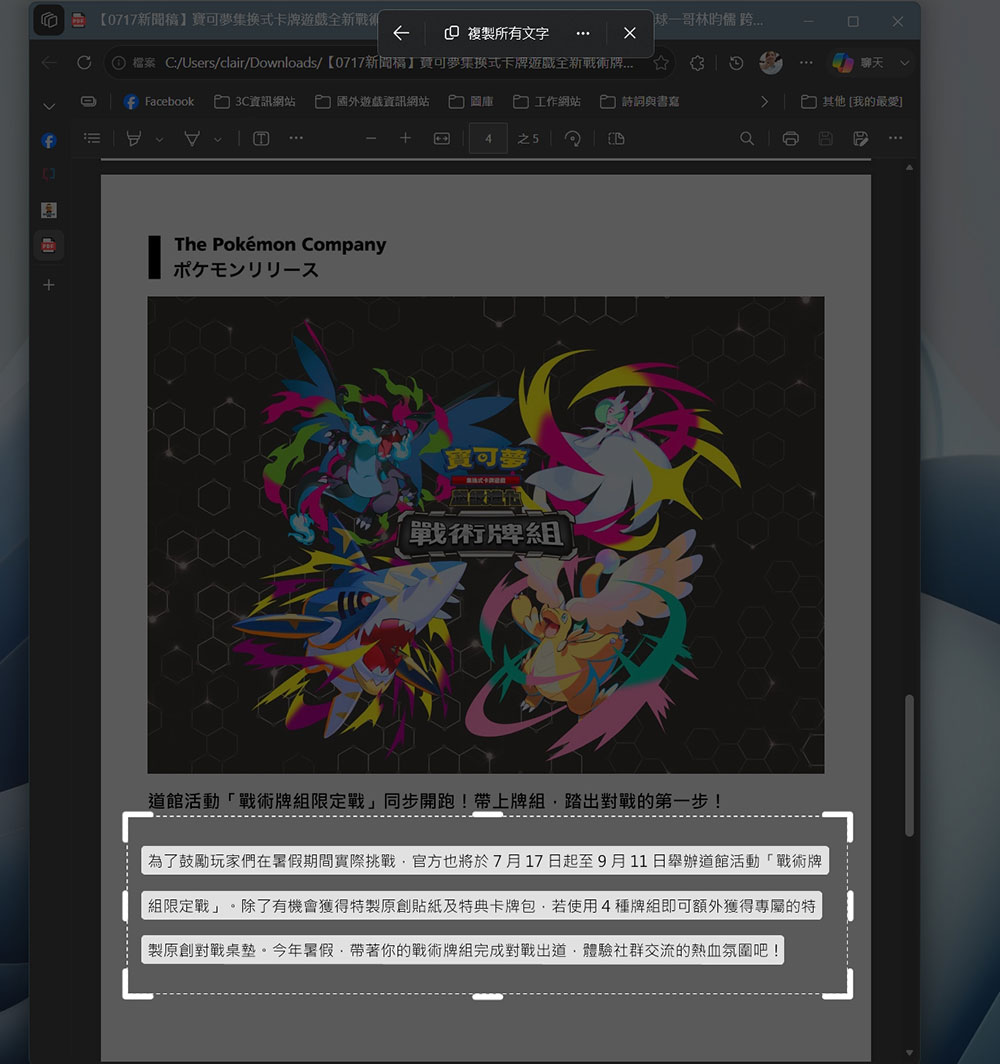
It’s much simpler than the traditional OCR process, and you don’t have to save screenshots or rely on browser extensions, PowerToys, or online OCR services. It has no limit on the number of times it can be used, and in my tests, the recognition effect when faced with special fonts or complex backgrounds was better than expected. Many OCR tools will retain the original line endings, causing the paragraph spacing after pasting to be manually sorted; but “Text Operation” allows you to clean up line breaks and paragraph symbols before copying, making the content after pasting cleaner.
The whole process only takes a few seconds:
-
Press Win + Shift + T
-
Drag the mouse to select the text you want to extract
-
Check the recognition results and fine-tune the selection range if necessary
-
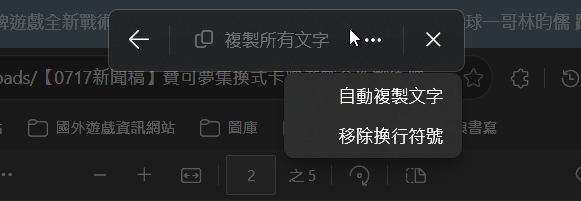
Enable automatic copying or removal of line breaks in the three-dot menu
-
Click “Copy All Text”
-
Press Ctrl + V to paste where needed and make subsequent edits.
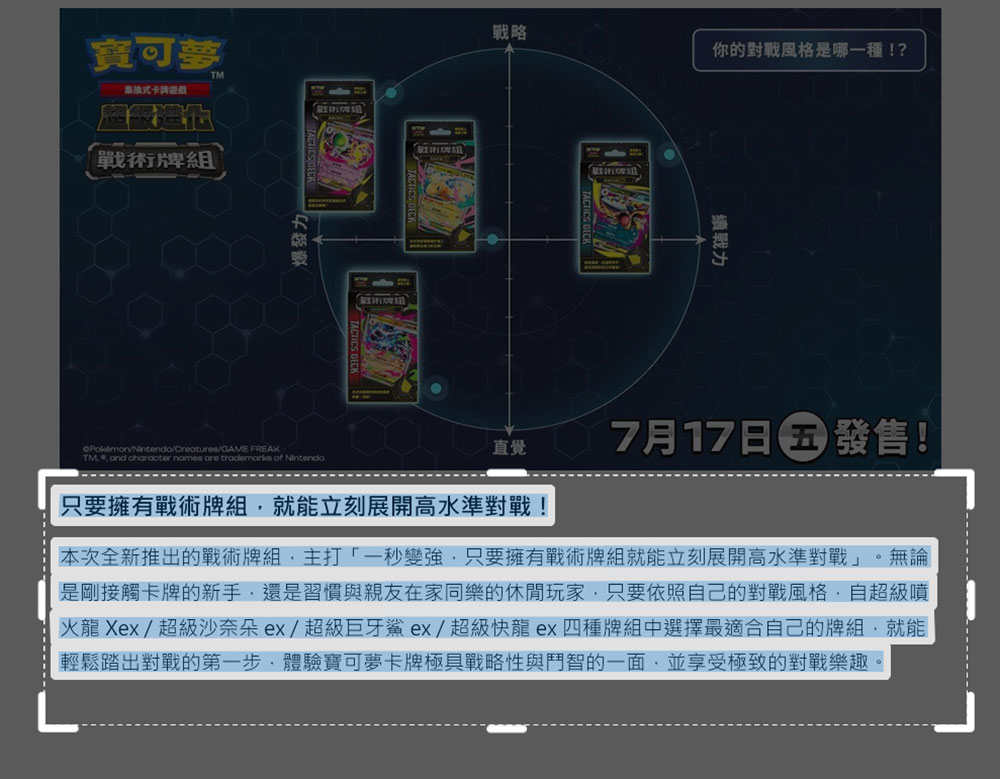
Unlike copying formatted text from Word or a web page, OCR obtains plain text. When pasting it into Word, Outlook, Excel or other applications, it will automatically apply the format of the target application. There is no need to use “Paste Special” or “Paste Text Only”.
Source: KOCPC Chinese