


Google has succeeded in keeping the Pixel simple and easy to use, but behind that simplicity lies a surprising cost. Some of the most useful features are either disabled by default or buried deep in the settings menu, leaving many users unaware they even exist. That’s why every time I get a new Google Pixel phone, I make it a priority to adjust a few important settings before settling into everyday use.
6 Google Pixel features that are off by default but worth enabling
Improve tactile sensitivity
I’m in the habit of putting on a screen protector the moment I get a new phone, but that extra layer of glass does affect the touch experience to some degree. This difference is especially noticeable with thicker tempered glass protectors, where the screen sometimes responds more slowly to taps or doesn’t swipe as smoothly.
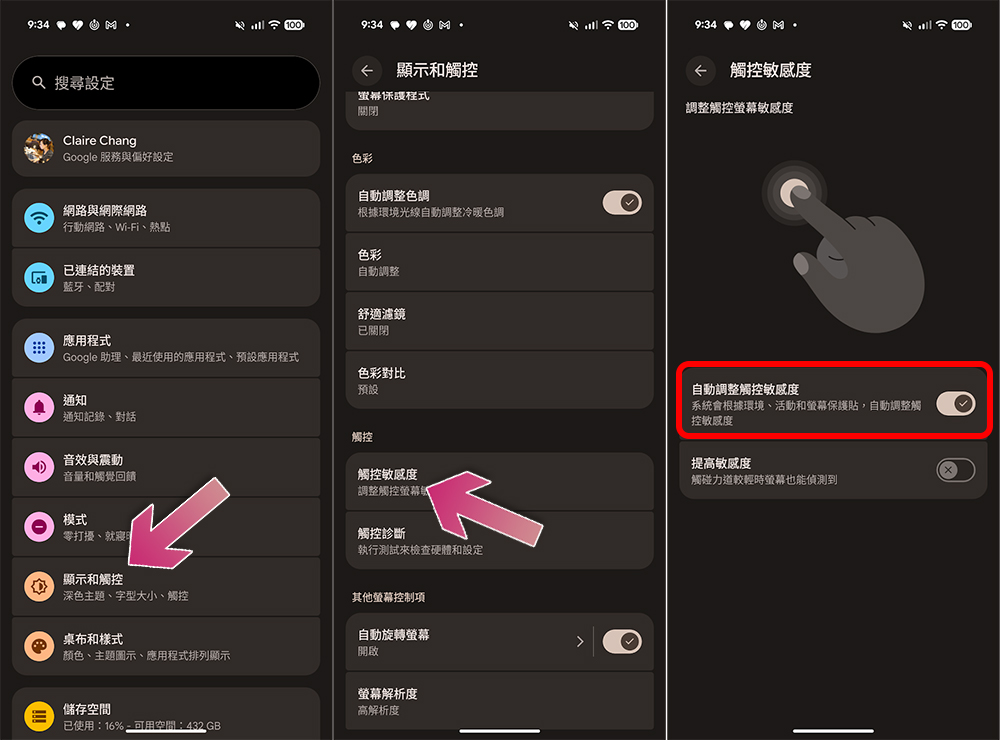
If you’re using a Pixel phone, you can enable the relevant feature by going to Settings >> Display and touch >> Touch sensitivity >> Automatically adjust touch sensitivity, which increases the screen’s sensitivity to touch input and compensates for the impact of a screen protector.
Don’t underestimate this setting—it makes the overall experience noticeably smoother and more natural when typing, scrolling through pages, or using the back gesture.
Turn on notification history
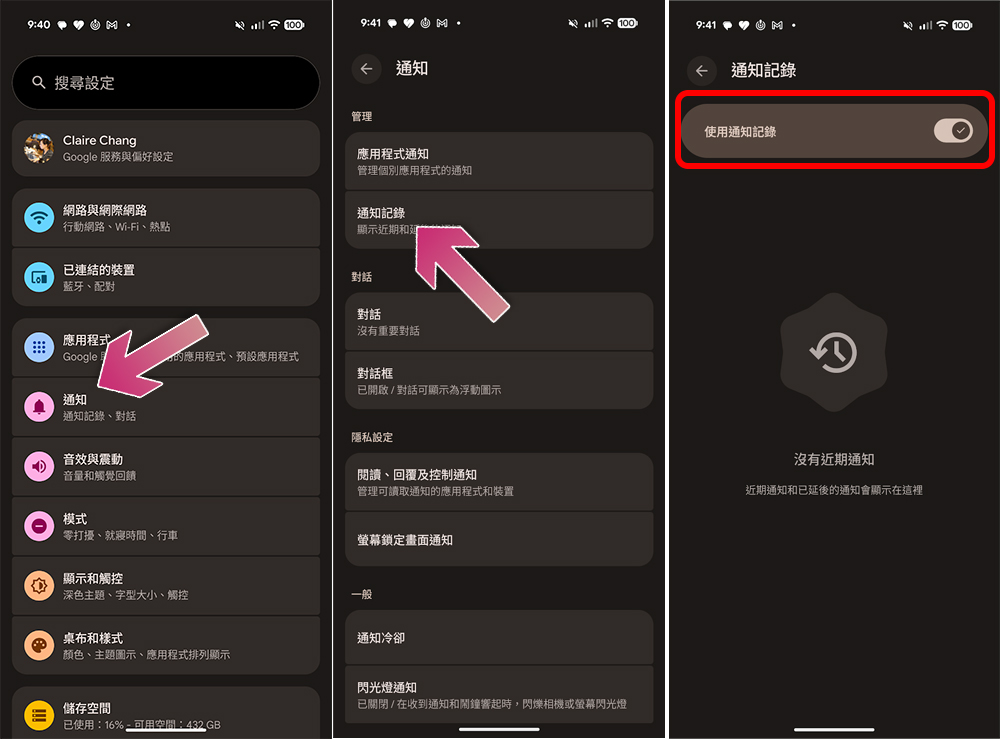
Accidentally swiping away notifications is a problem almost everyone has faced, and I’ve long lost count of how many important messages I’ve missed because of it. Whether it’s package delivery status, one-time verification codes, or chat message previews, they can all be dismissed before you even get a proper look. To fix this annoyance, the first thing I do every time I use a new Pixel phone is enable the “Notification History” feature.
Once you enable it via “Settings > Notifications > Notification history,” Pixel will save the content of recently dismissed notifications, allowing you to go back and review information you may have missed. This feature is especially useful for users with a high volume of notifications, as it helps prevent missing critical messages due to accidental dismissal.
Enable screen awareness
I’m used to setting the Pixel’s screen auto-off time to be shorter to reduce unnecessary battery drain. However, when I’m focused on reading something, this setting can sometimes become inconvenient. For example, when reading long articles, checking recipes, going through emails, or reviewing travel plans, if my hands aren’t operating the screen for a moment, it may dim or turn off prematurely.
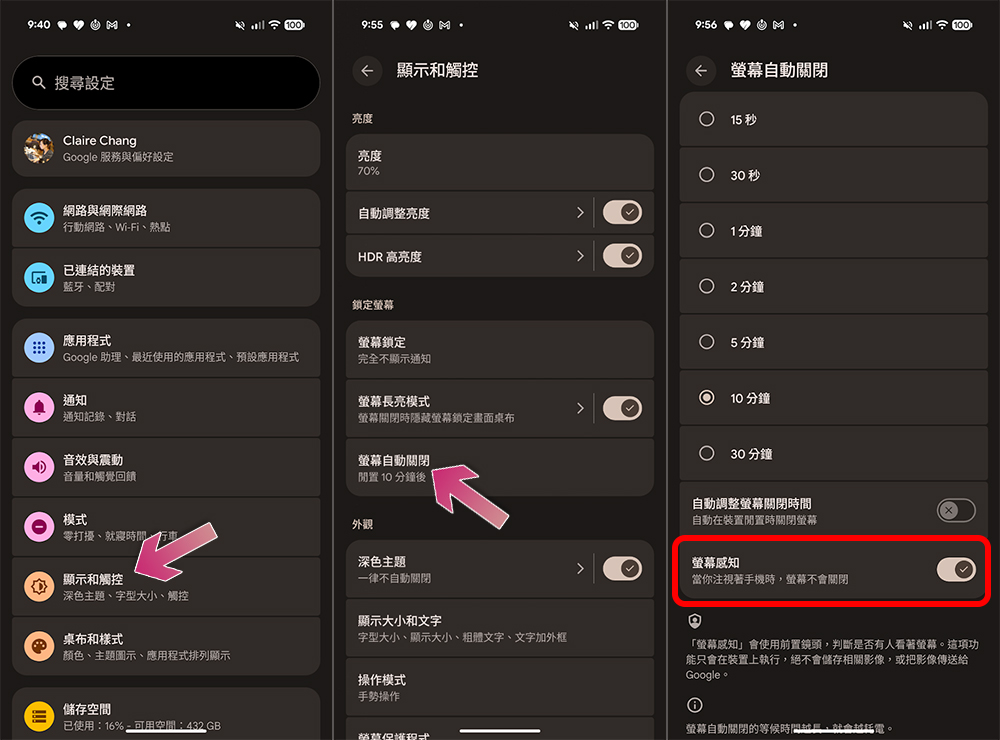
Fortunately, Pixel offers the “Screen Attention” feature. Users can go to “Settings >> Display & touch >> Screen timeout >> Screen Attention” to enable this option, allowing the phone to use the front camera to determine whether someone is still looking at the screen.
This feature not only maintains better battery life, but also prevents the screen from waking frequently while reading, making the experience smoother.
Enable automatic vibration adjustment
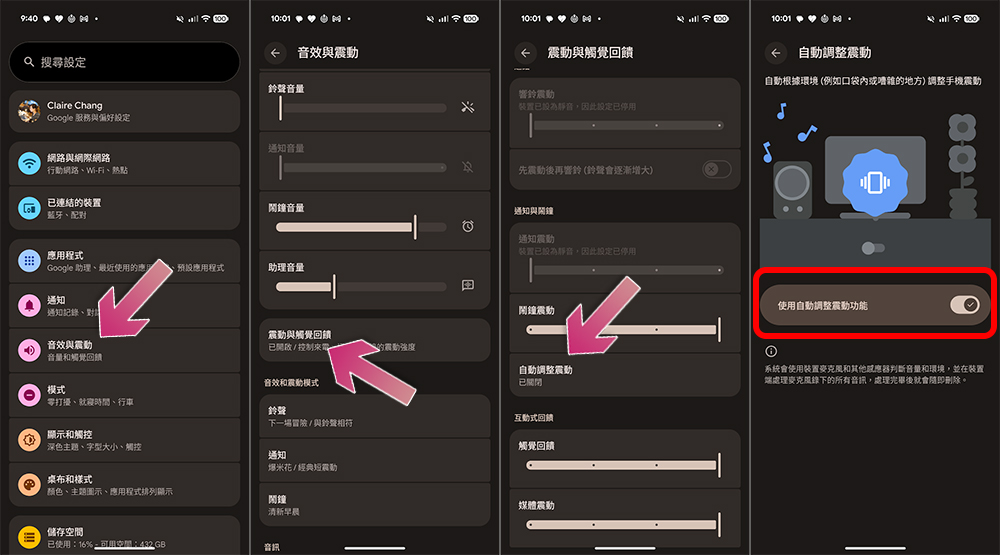
A fixed vibration intensity doesn’t suit every usage scenario, which is one of the reasons I like Pixel’s “adaptive vibration” feature. For example, when commuting outdoors or in a noisy environment, a stronger vibration can make notifications easier to notice. But when the phone is on a desk or nightstand, the same vibration intensity can feel overly jarring.
After enabling this feature via Settings >> Sound & vibration >> Vibration & haptics >> Auto-adjust vibration, the Pixel can dynamically adjust vibration feedback based on environmental conditions and device state. In actual use, important notifications can still be perceived immediately, while in situations where high-intensity alerts are not needed, the phone can notify in a softer way.
Enable the clear call feature.
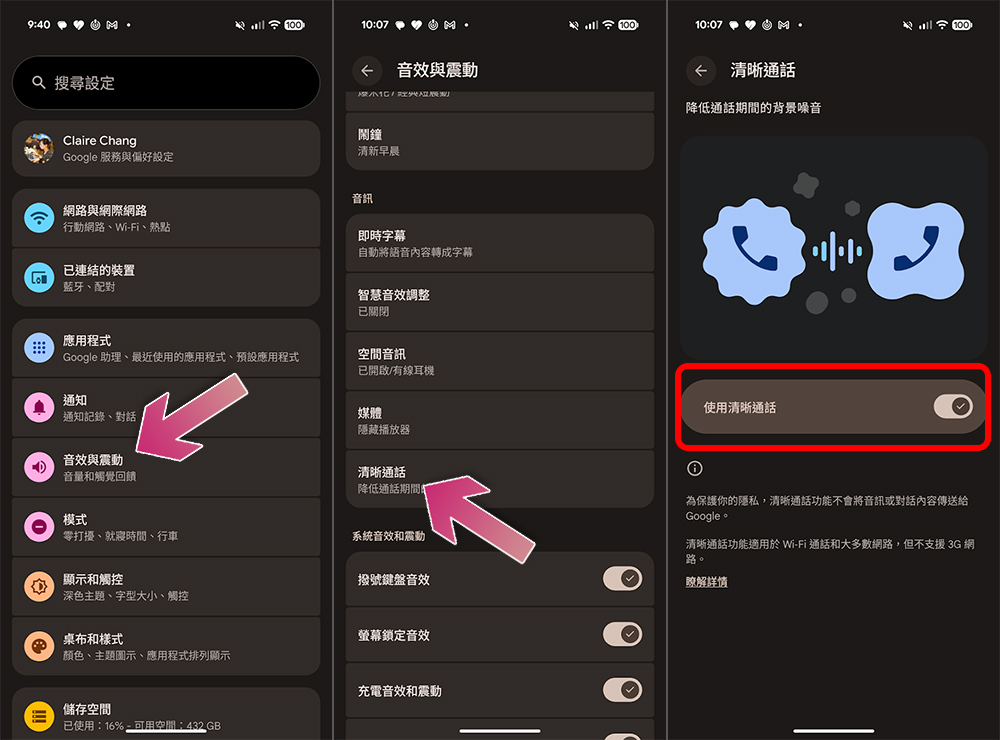
Even though messaging apps are becoming more and more popular, phone calls remain an indispensable way of communicating in daily life, and background noise is often one of the biggest factors affecting call quality. When I’m in a café, on a busy street, or in other noisy environments, I don’t want the other person to have to struggle to make out my voice. That’s why I always turn on the “Clear Calling” feature on my Pixel.
Users can find this setting under Settings >> Sound & Vibration >> Clear Calls. Once enabled, the system uses on-device processing technology to filter background noise, enhance voice, and improve overall call quality. More importantly, this feature runs continuously in the background with no extra operation needed. For features like this that genuinely improve daily experience, I think it should be enabled by default from the moment you turn on the device.
Enable delayed notification display
In everyday use, not all notifications are worth interrupting what you’re doing to check right away. Sometimes I might be in a situation where it’s inconvenient to respond when an important message, work reminder, or app notification comes in, but I also don’t want to miss the chance to follow up later by simply swiping the notification away.
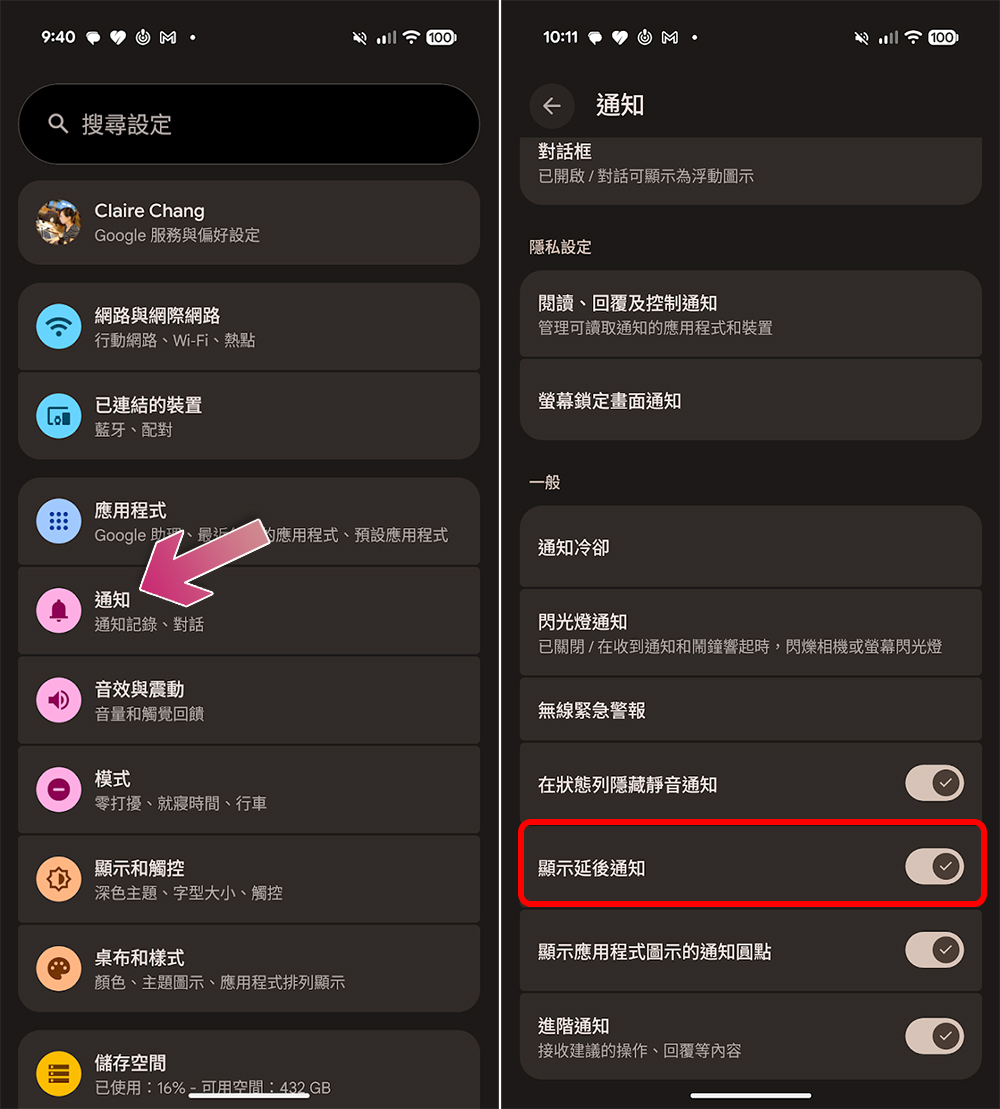
To resolve this issue, you can enable Pixel’s “Show delayed notifications” feature. Users can turn on this setting via Settings >> Notifications >> Show delayed notifications.
Once enabled, some notifications will support a snooze reminder feature, allowing users to temporarily hide notifications and receive the reminder again later. Compared to handling notifications immediately or deleting them outright, this feature offers a more flexible third option.
Google has built a remarkably good default experience for the Pixel, but some genuinely useful features aren’t given enough exposure. Quite a few hidden settings are buried deep in the system menus, so users often miss them. Yet these features can make a real difference in daily details like notification management, call quality, and touch response. With just a few minutes of setup, you can take the overall Pixel experience to the next level.
Source: KOCPC Chinese