


“Immersive Translate” can be said to be one of the most widely used translation extensions right now, and it really is quite good. However, if you want to try something else, or are looking for a translation extension that better fits your needs, then the “Trancy” recommended in this article is definitely worth a try. Not only does it offer bilingual side-by-side translation and multiple translation engines, but it also supports bilingual subtitles and translation features for video sites like YouTube, Netflix, and Udemy, which is pretty impressive. More importantly, it’s a translation tool designed with language learning at its core, and it even provides a dedicated learning center where you can pick a video that interests you and learn a new language through features like subtitles, word lookup, grammar analysis, and listening and speaking practice.
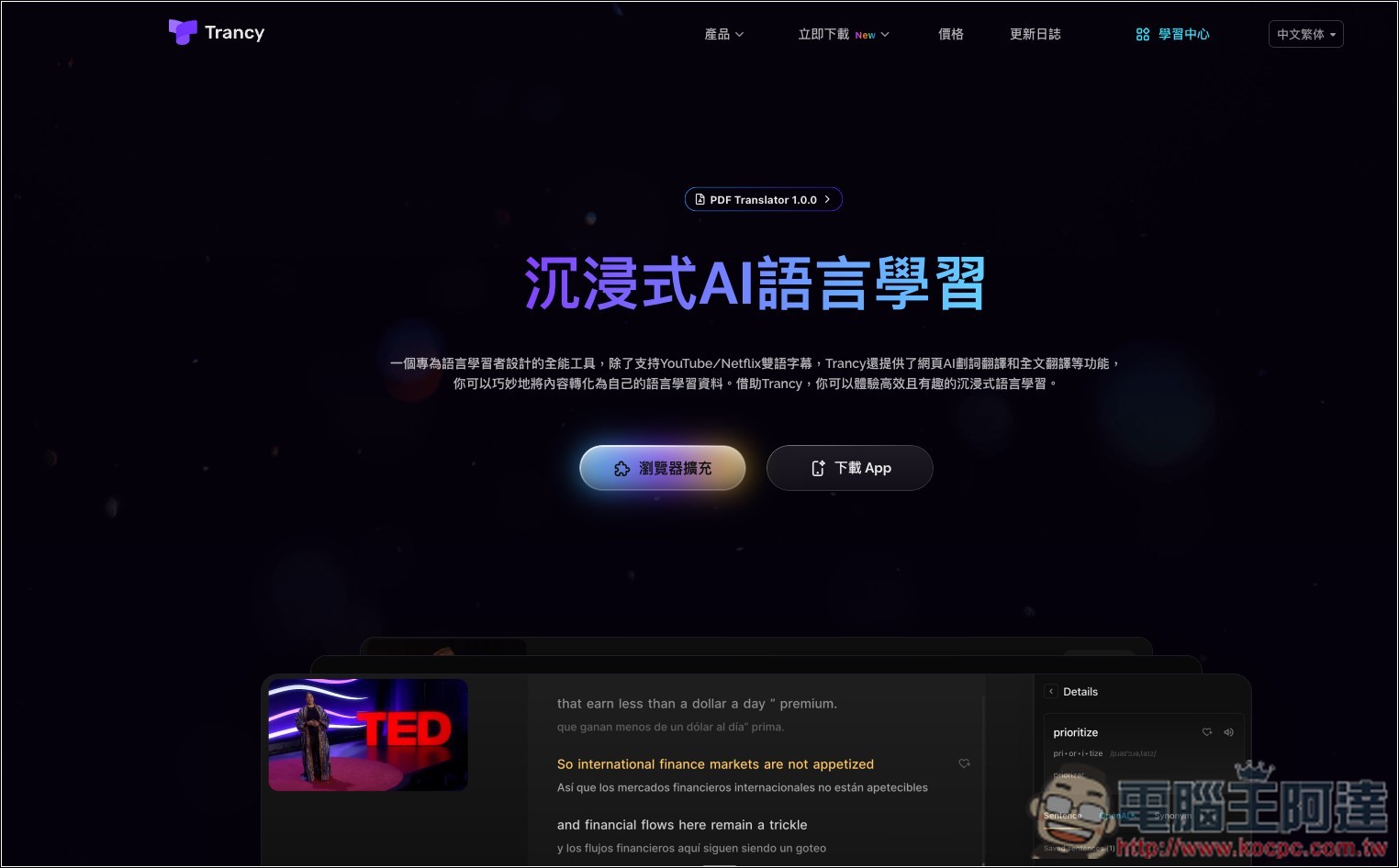
Introduction to the Trancy Extension
Trancy is a browser extension that combines bilingual translation with language learning. If you often read foreign-language websites, watch YouTube or Netflix, and are also learning English, Japanese, or another language, this tool is perfect for you. Unlike typical translation extensions that simply translate what you don’t understand into Chinese, it aims to turn the web pages and videos you encounter every day into language learning materials, allowing you to build vocabulary and train your listening and speaking skills while engaging with content you enjoy.
It covers even the most basic webpage translation features, including full-text bilingual side-by-side translation, quick paragraph translation, and word or sentence selection translation. When full-text translation is enabled, the original text and Chinese translation appear together directly, so you don’t need to keep switching to Google Translate when reading foreign news or instructional articles. It also supports AI translation engines—the free version lets you choose Google, SiliconFlow, or enter your own API.
What makes Trancy more distinctive is its “bilingual video subtitles,” which support mainstream video and online learning platforms such as YouTube, Netflix, Disney+, HBO, TED, Coursera, and Udemy. When playing a video, you can simultaneously display the original subtitles and translated subtitles, look up words you don’t understand directly, and for more complex sentences, use AI to analyze sentence structure and grammar. YouTube also has a smart sentence segmentation feature that reorganizes the originally fragmented subtitles into more natural, readable sentences.
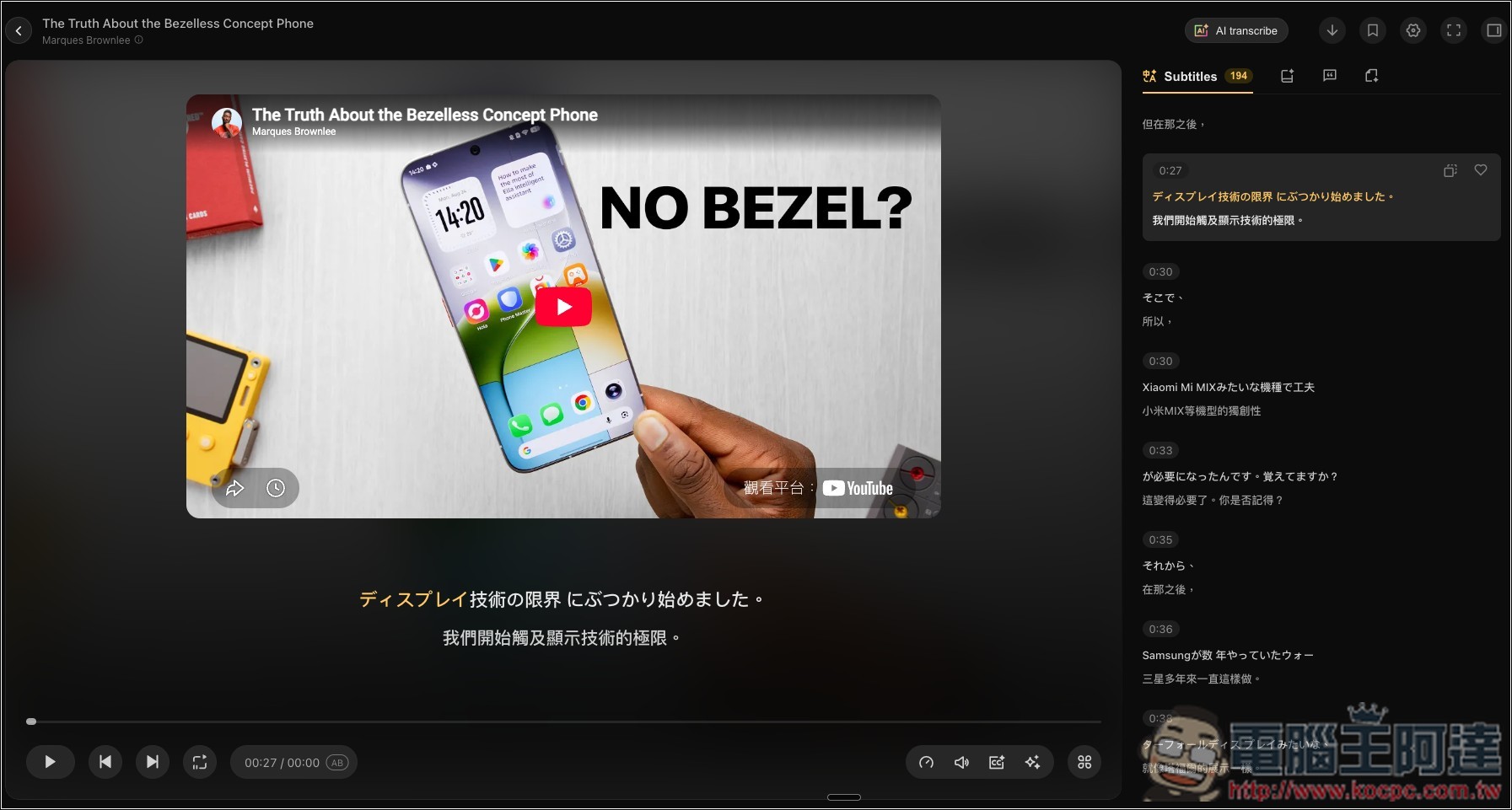
Additionally, Trancy also offers a dedicated “Subtitle Reading Mode” that shrinks the video to one side of the screen and arranges the full subtitles in an article format, making it easier to understand the context. You can also save unfamiliar words and useful sentences. The saved videos, words, and sentences can be organized in the Learning Center to build your own language learning database for later review.
Key Features
- Supports full-page bilingual side-by-side translation of web content.
- Supports quick translation of selected words, sentences, and paragraphs.
- Customizable translation engine
- Supports bilingual subtitles on platforms such as YouTube, Netflix, Disney+, HBO, TED, Udemy, and Coursera.
- Smart sentence segmentation for YouTube subtitles to enhance the reading experience.
- Provide a subtitle reading mode that can organize subtitles into article form.
- AI vocabulary explanation, sentence structure, and grammar analysis
- Vocabulary, new words, and useful sentence collection
- Build a personal video and language learning database.
- Supports listening, read-along, and speaking practice
Go to the Trancy official website
Trancy offers browser extensions for many browsers, including Chrome, Edge, Firefox, Brave, Safari, etc. Here I’ll use the Chrome version as an example; the operations are basically the same.
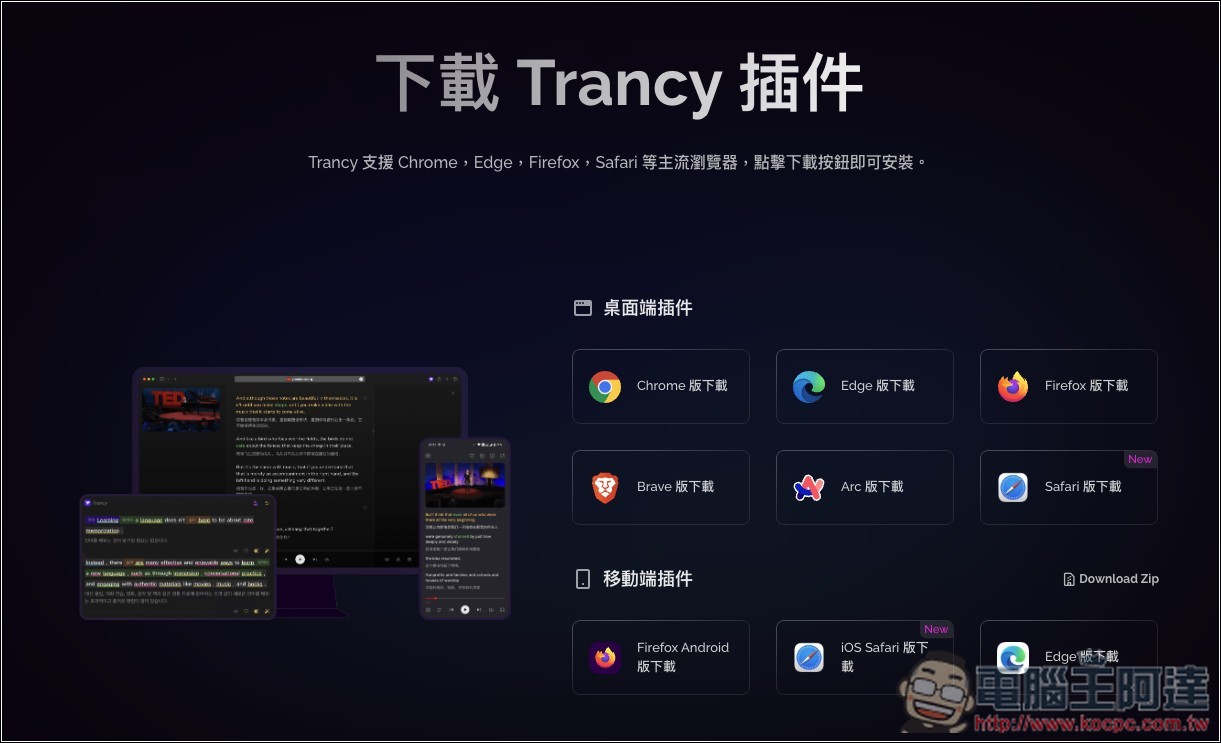
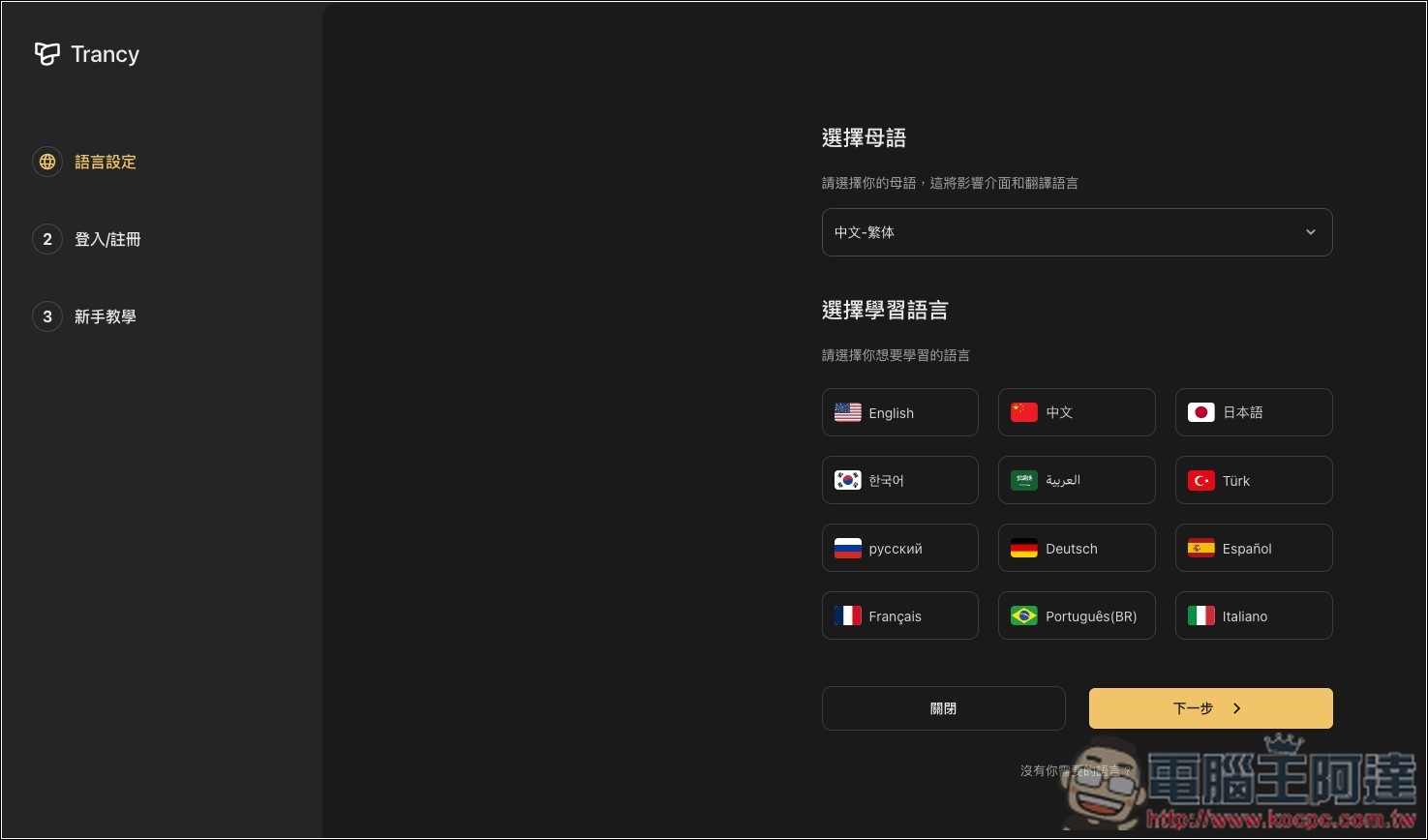
After installation, there will be some basic language settings; choose your native language and the language you want to learn:
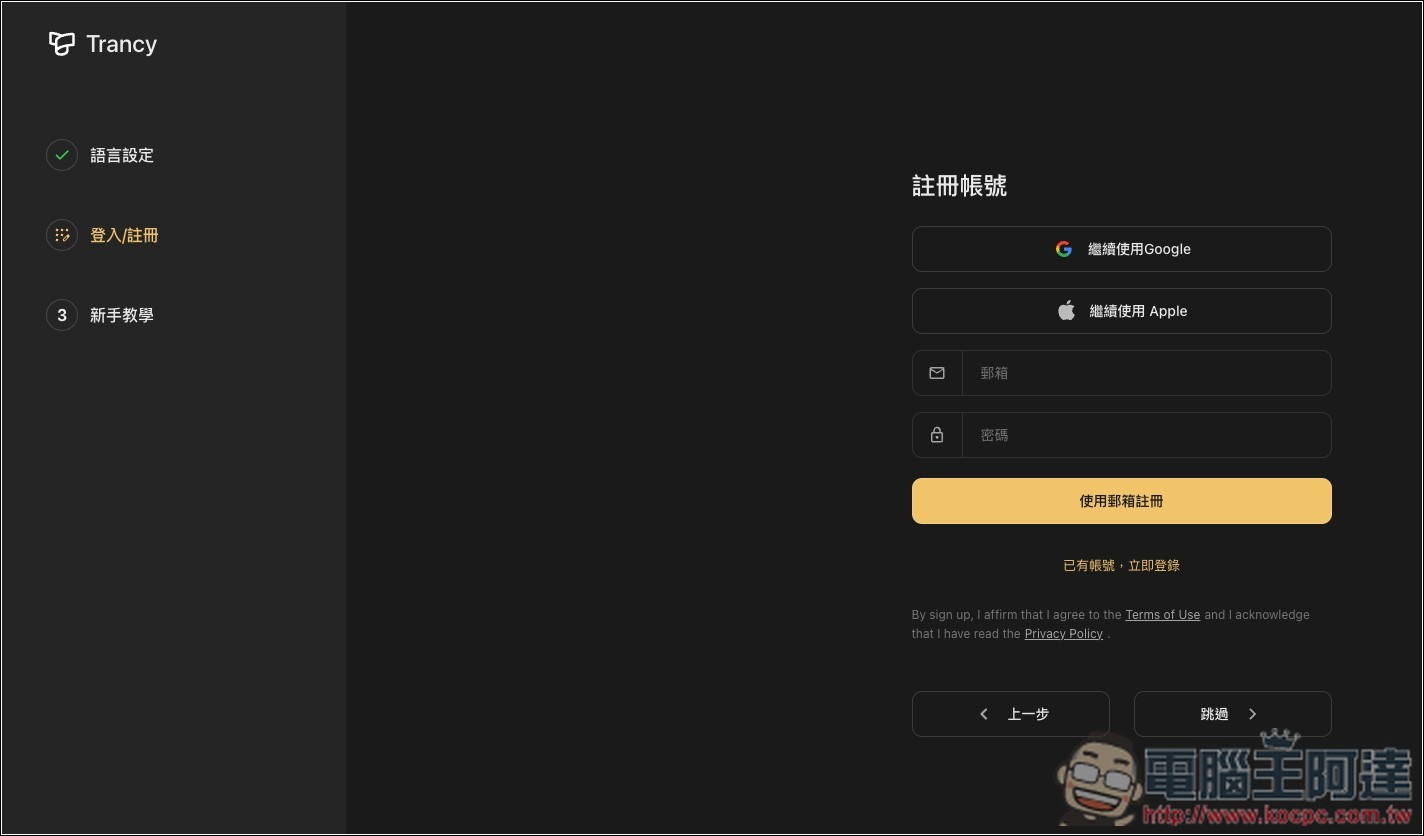
You can choose to log in or not, but logging in is recommended so you can access the full features, including the most important one: language learning.
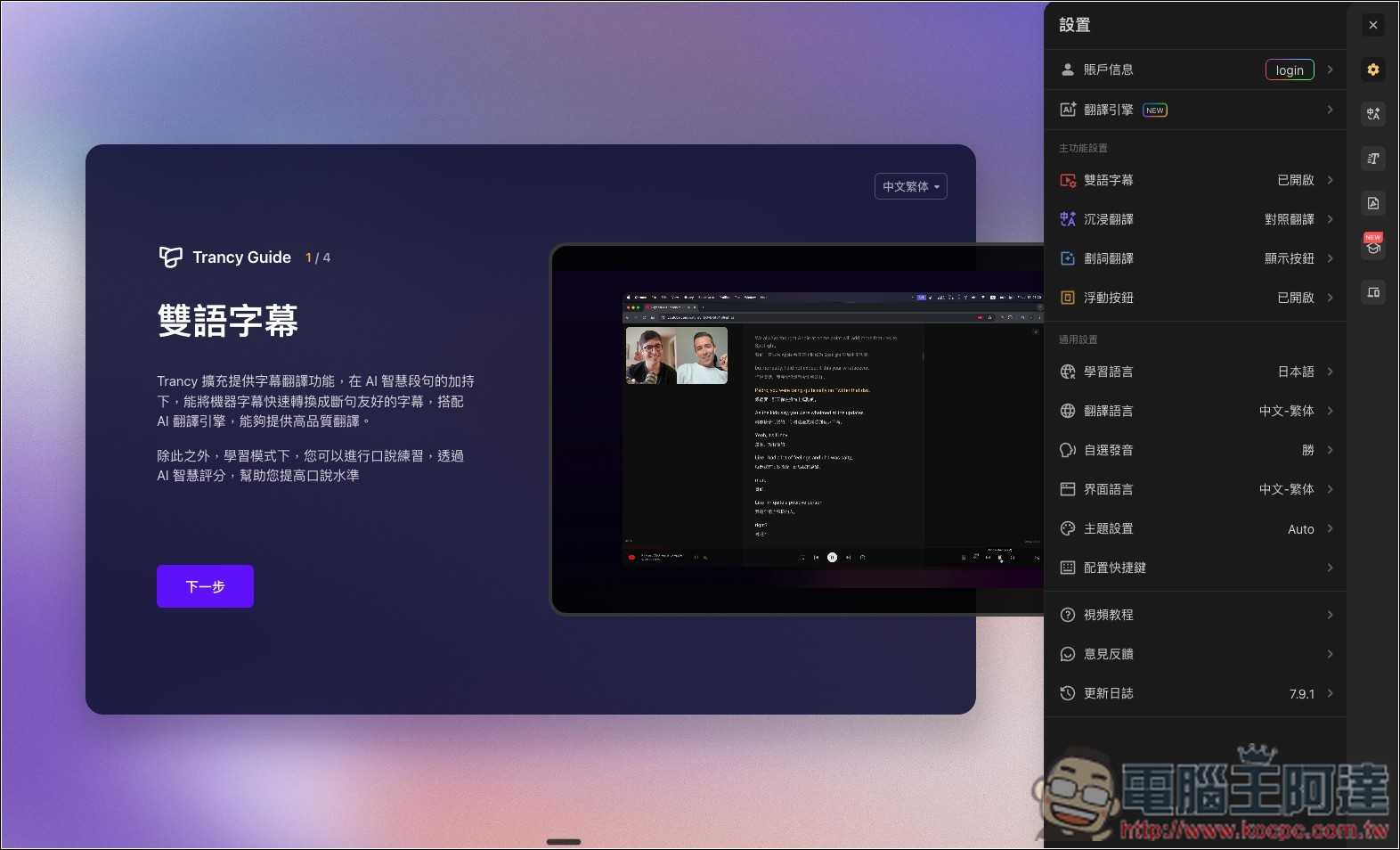
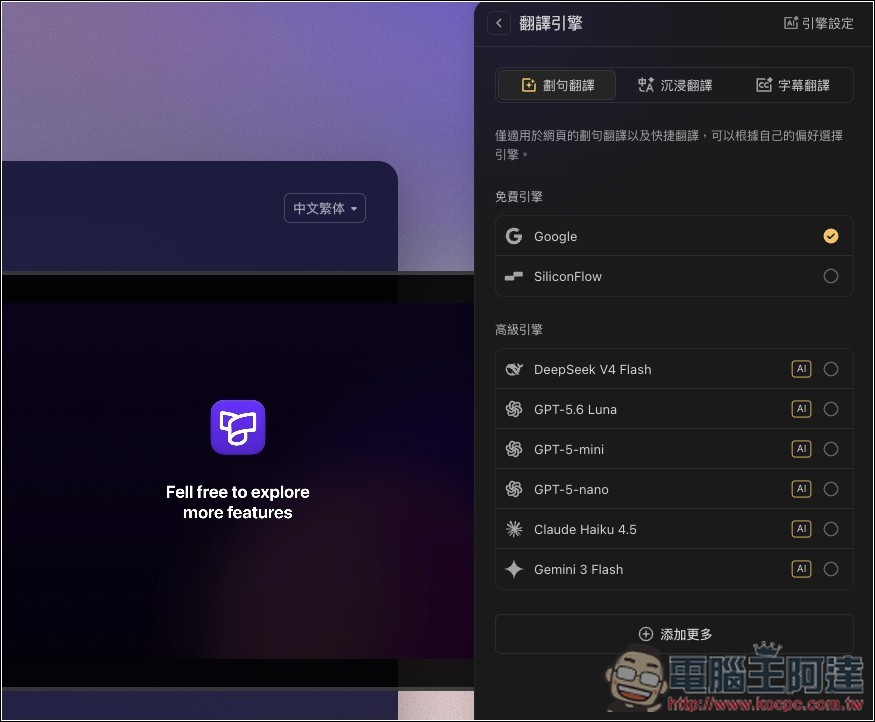
Next, a feature introduction will appear, along with a control panel on the right side, so you can check if the settings are what you want. The default translation engine is Google, but you can change it to others:
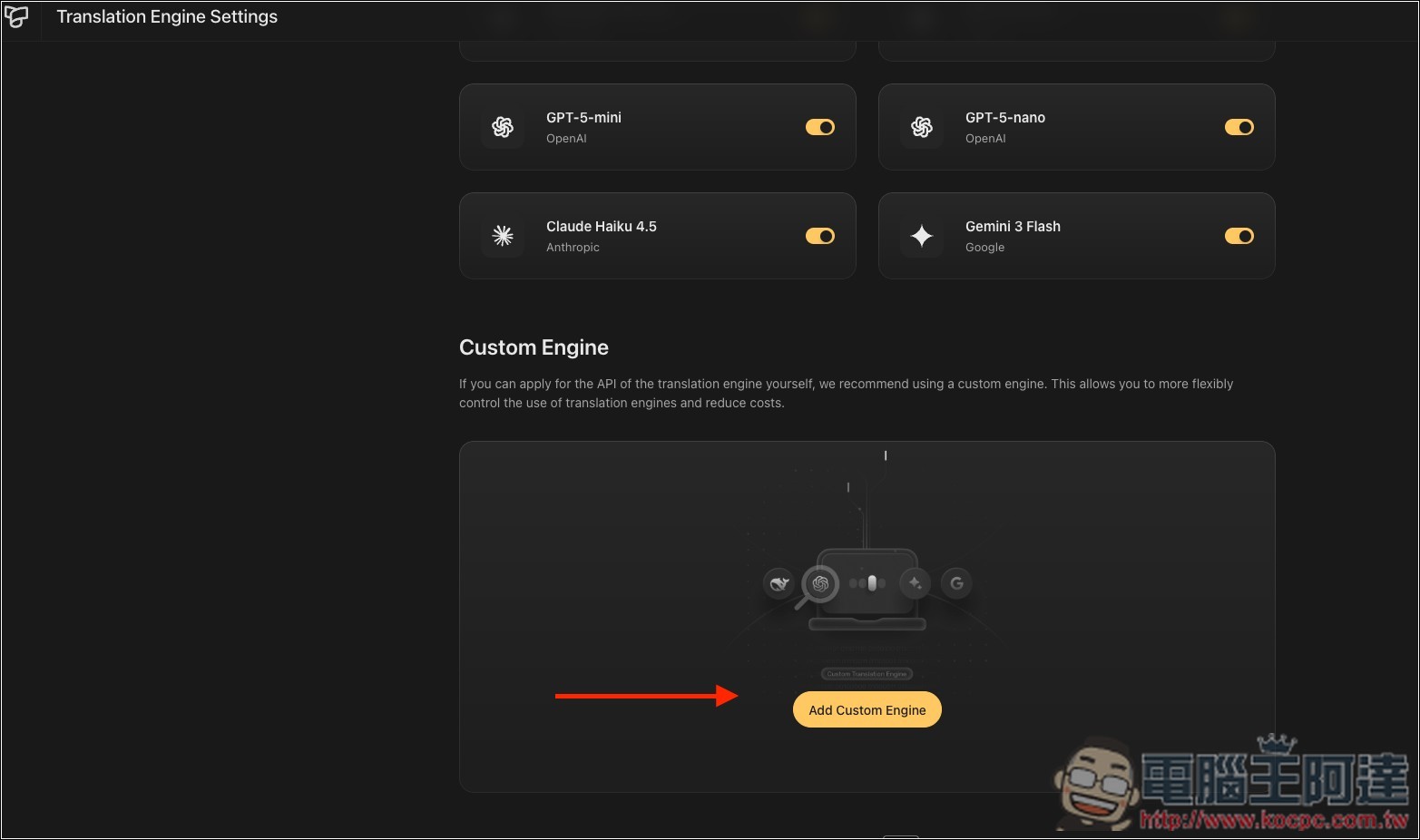
Google and SiliconFlow are free to use, while premium engines are for paying users only. You can also manually add other AI translation engines, such as local ones or by entering your own API key, by clicking “Add More” below:
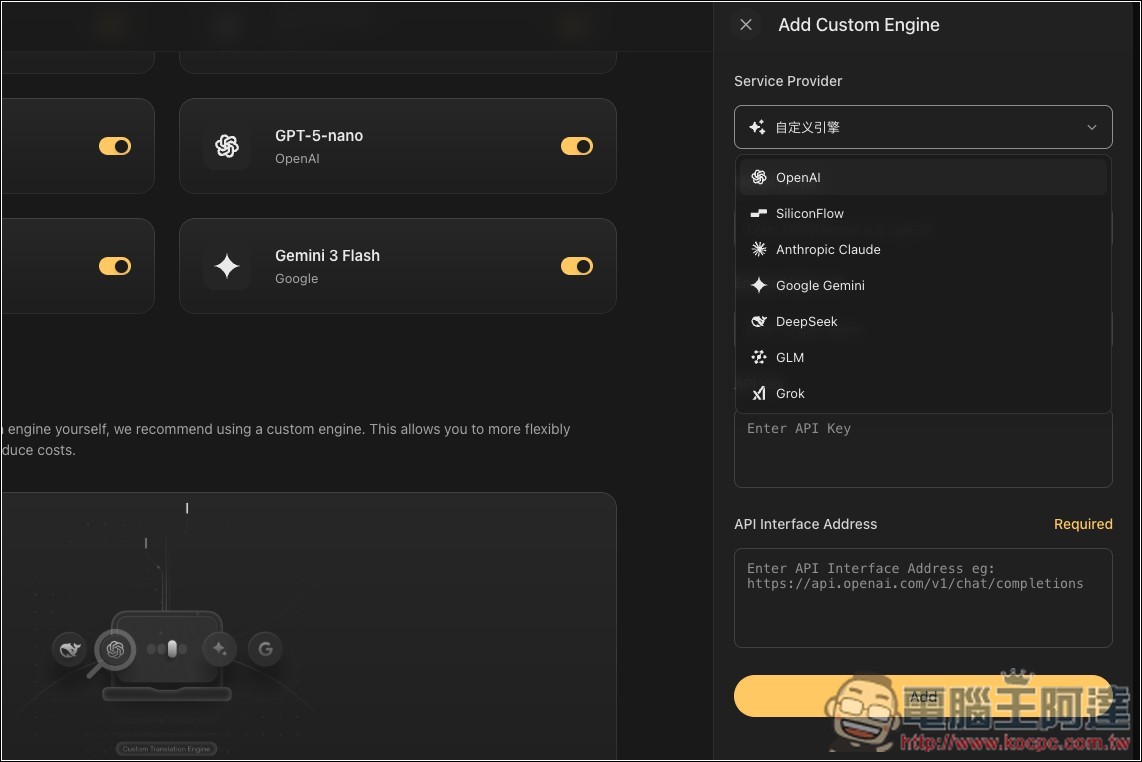
You will enter this backend and click Add Custom Engine at the bottom:
On the right, you can select the engine you want to add:
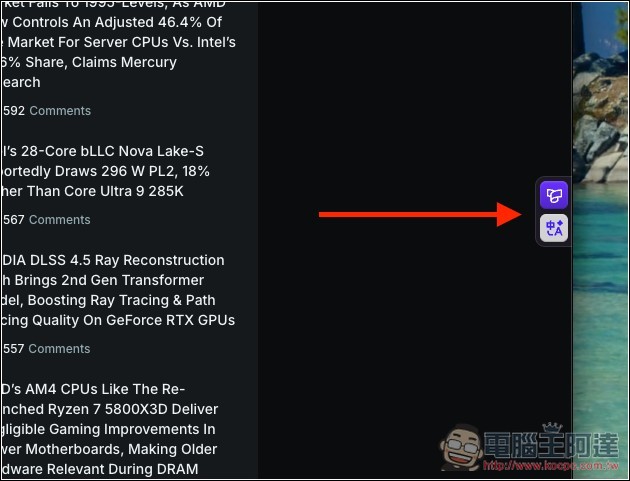
The usage is the same as Immersive Translate: a small function icon will appear on the right side of the webpage, and clicking it will perform the translation:
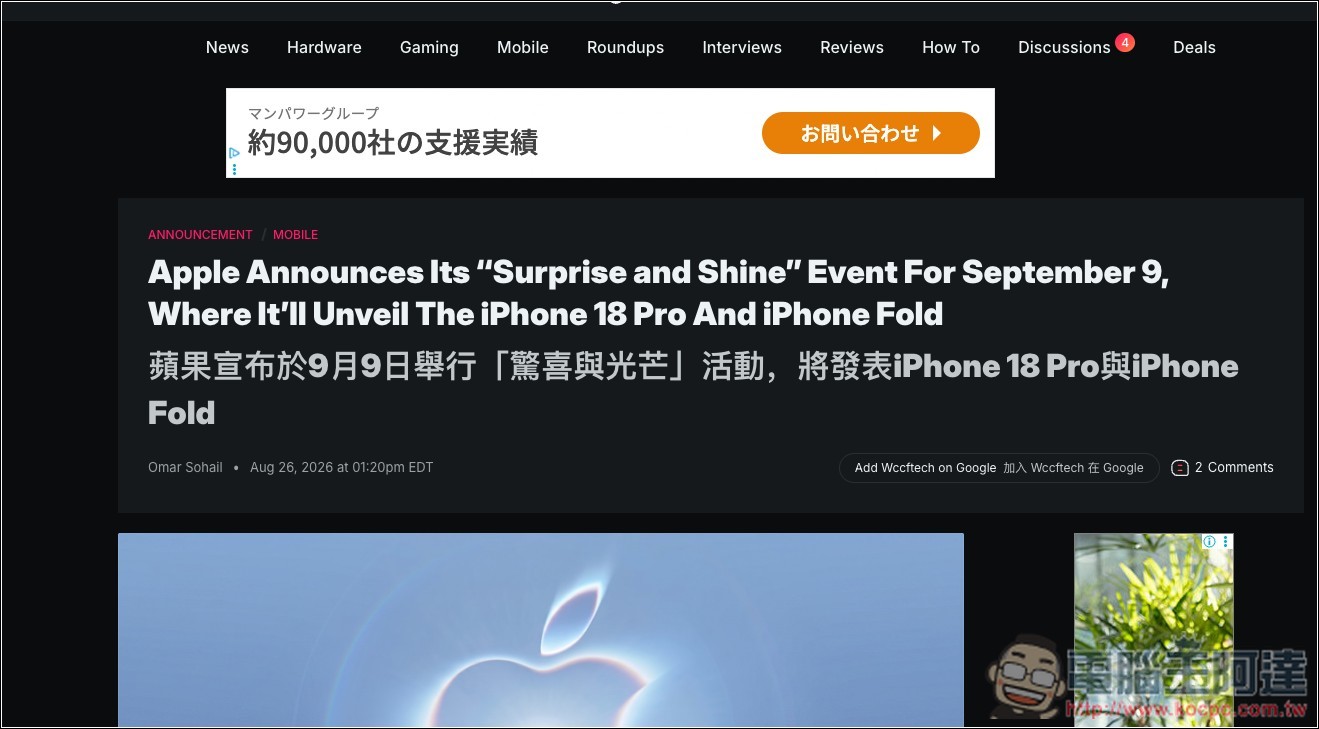
雙語對照翻譯
Bilingual comparison translation
The image below shows the bilingual side-by-side translation effect. By default, it appears below the original text, and you can also change the style or even set up a whitelist:
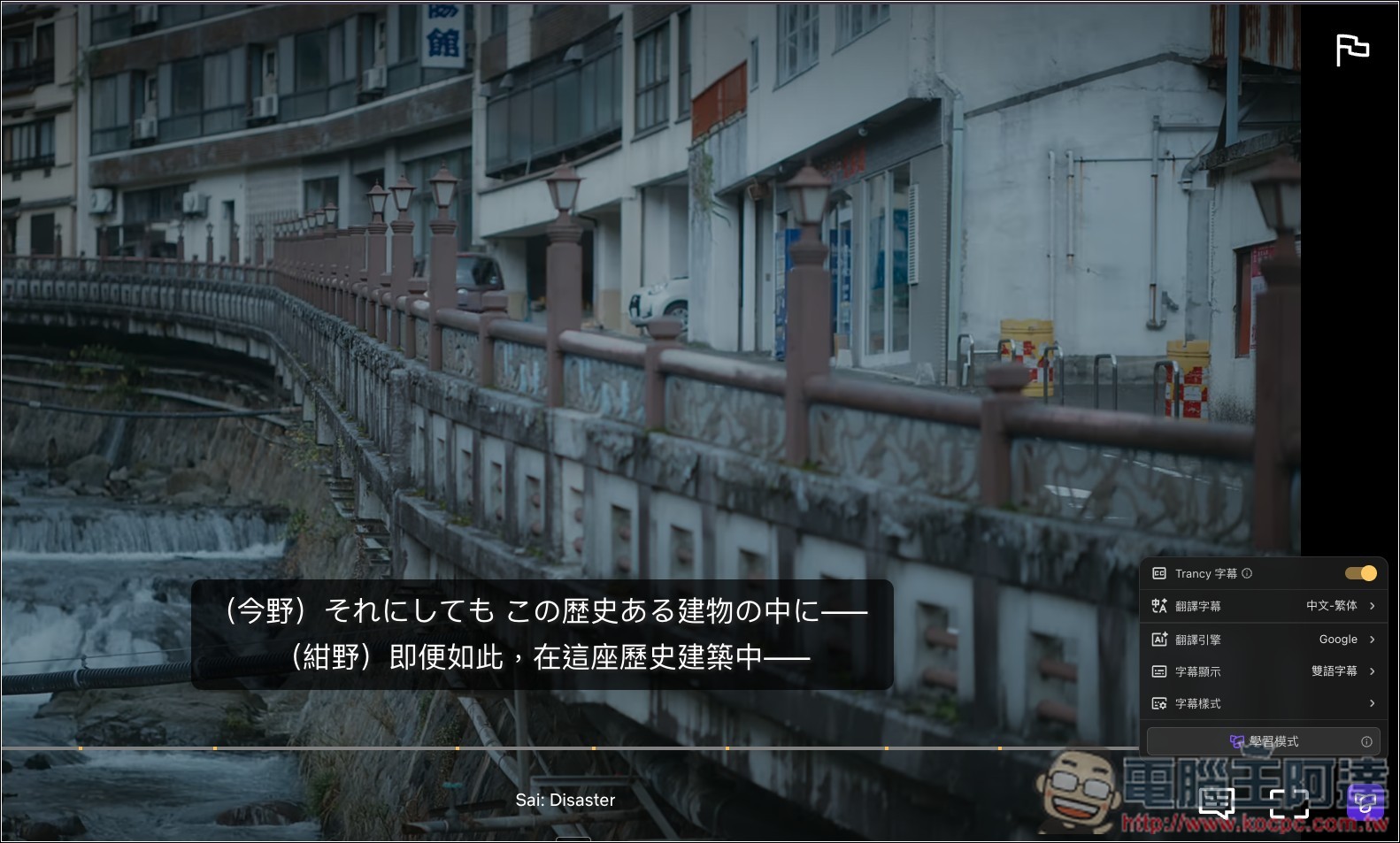
Bilingual subtitles for audio-visual content
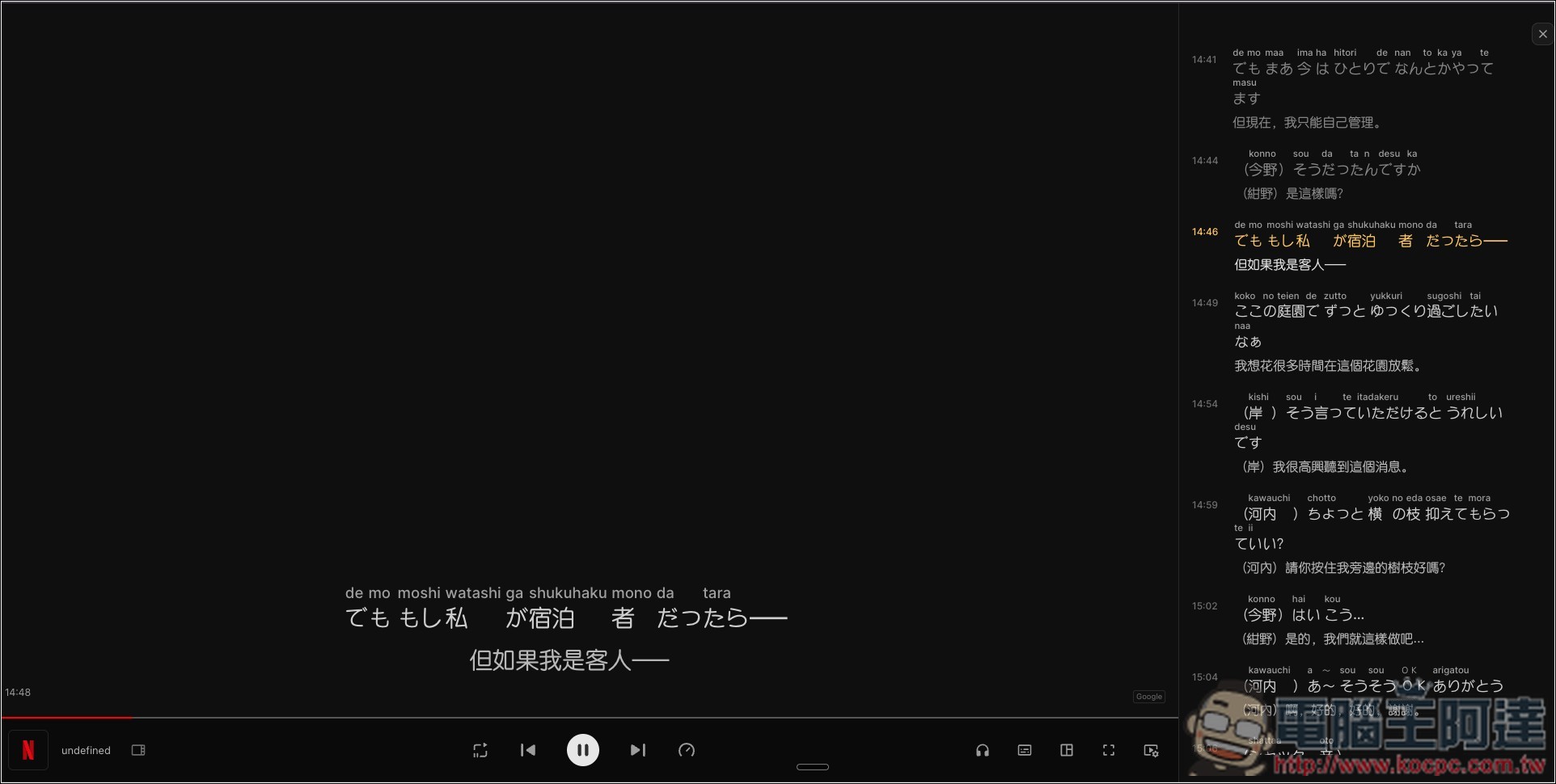
The image below is a Netflix screen. I’m playing a Japanese movie with only Japanese subtitles, so I open the Trancy subtitle feature in the bottom right corner and set it to display bilingual subtitles. Then, the Traditional Chinese translation appears below the subtitles:
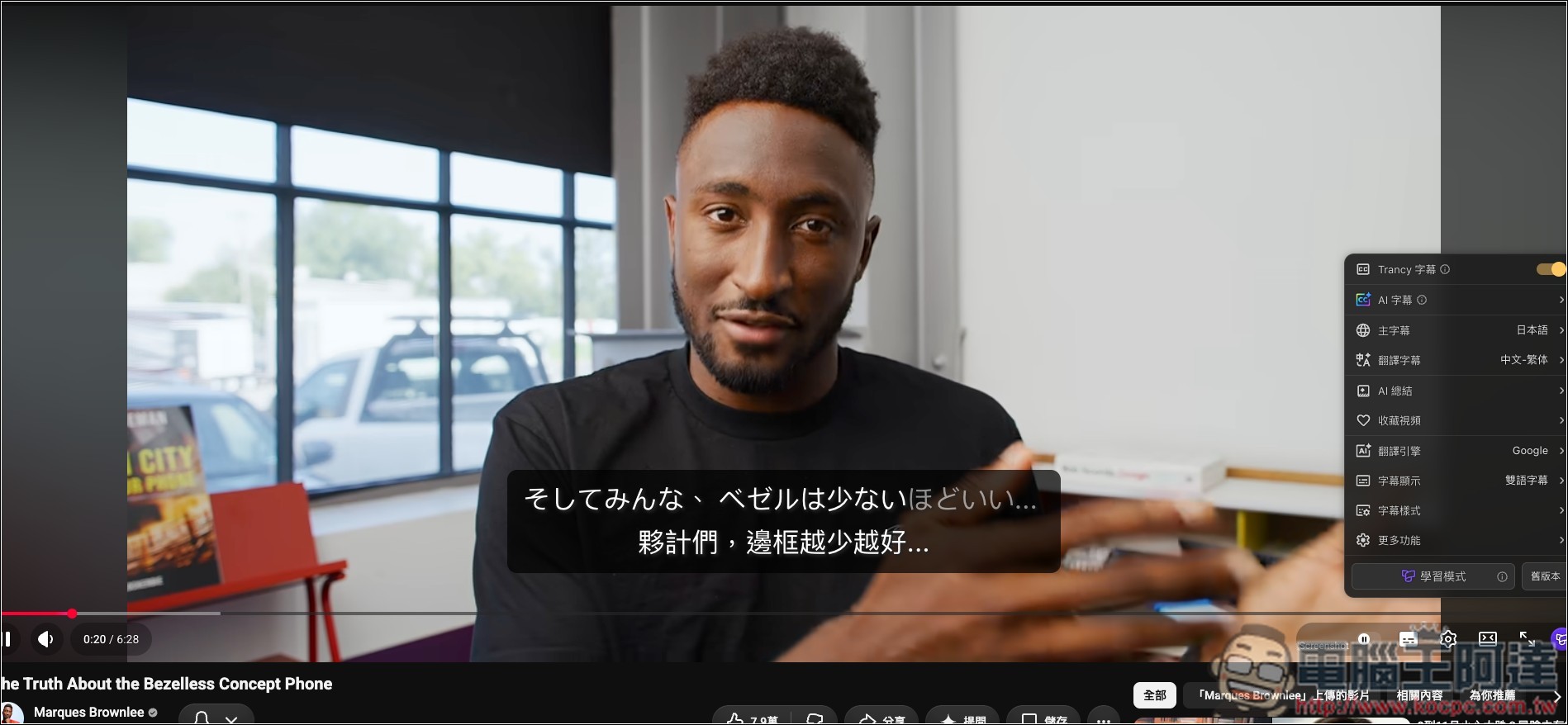
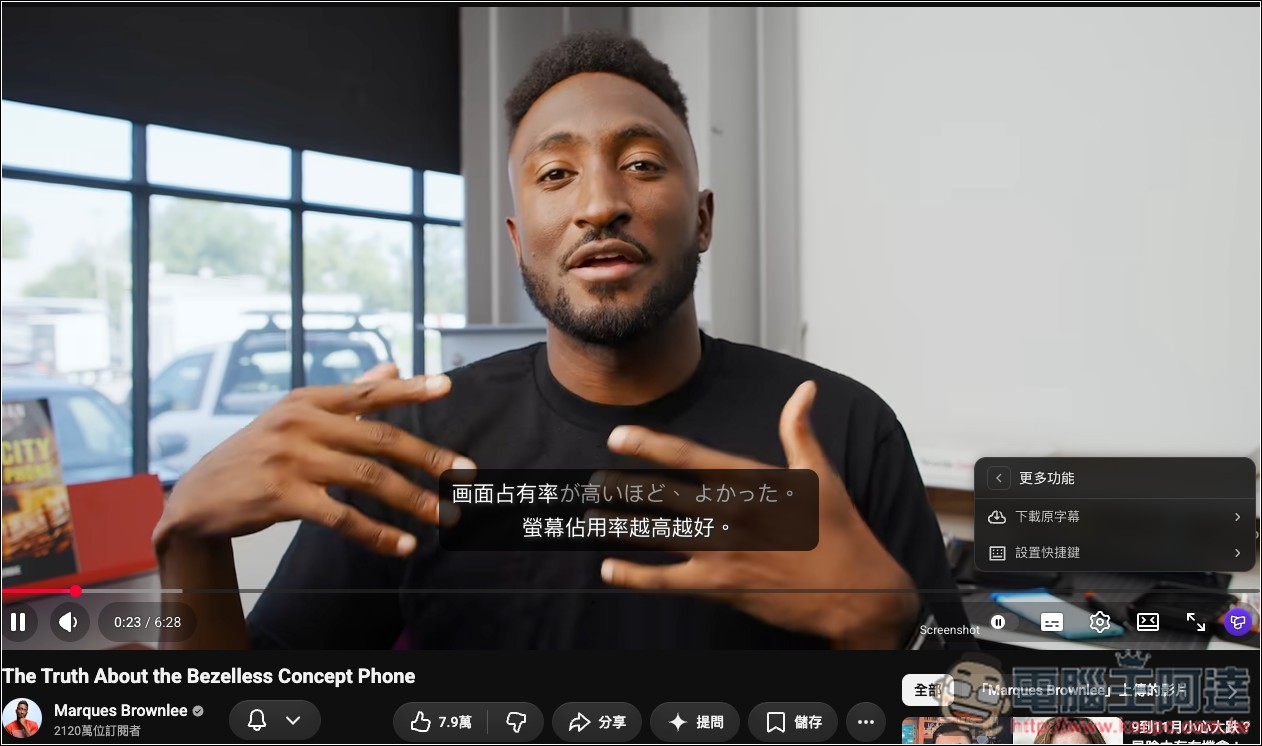
Same with YouTube, and more importantly, I have my main subtitles set to Japanese; this video is in English, and it even automatically translates the original subtitle language into Japanese:
YouTube also provides the option to download the original subtitles:
Learning mode
After clicking the learning mode at the bottom right of the video, you’ll see a screen like this. The left side is the original video (Netflix has screenshot protection, so it’s a black screen, but there is actually a picture), and the right side has bilingual subtitles for each timestamp, along with pronunciations. This is really nice:
YouTube too — it will also take you straight to the learning dashboard, which has more learning features:
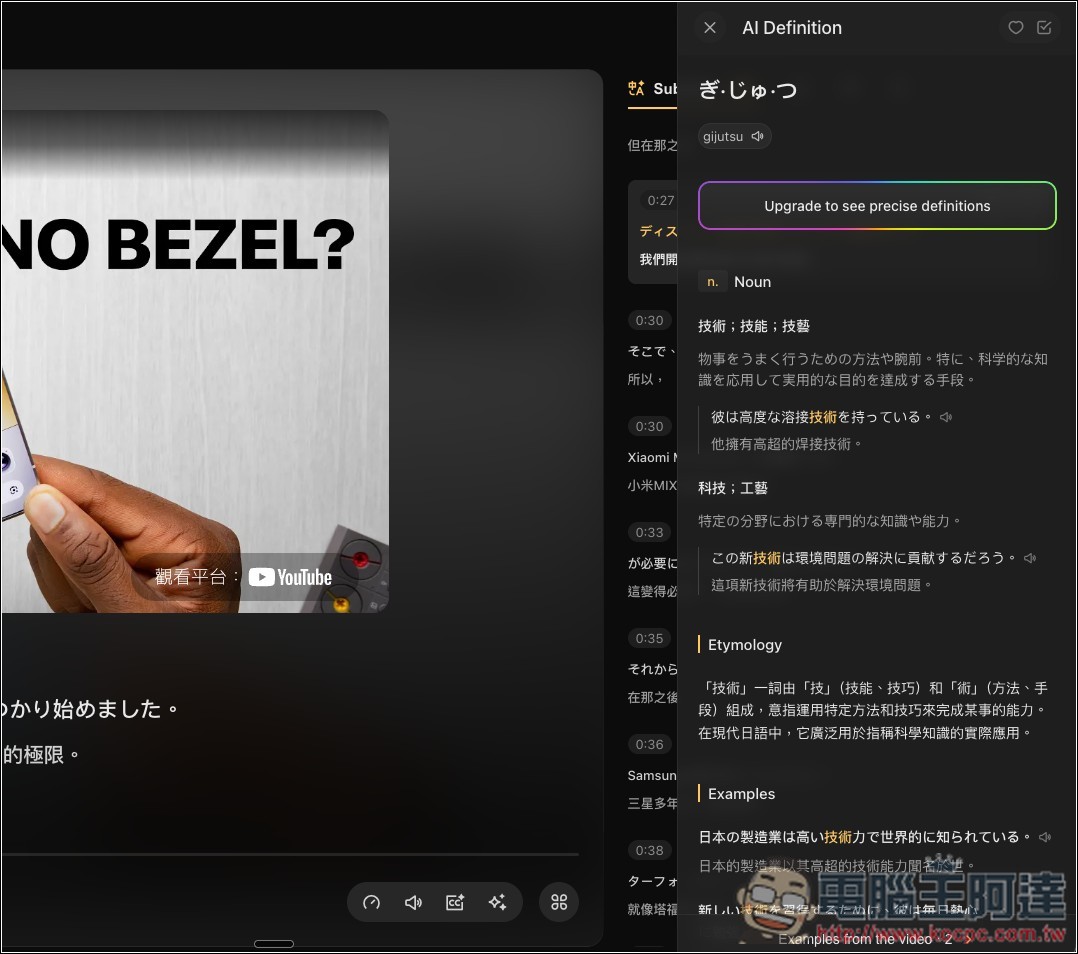
When you encounter a word you don’t know, just tap it and it will automatically open an AI explanation screen, showing you the Chinese meaning, part of speech, example sentences, and more—even letting you hear the pronunciation. Trancy has a lot of features, so I’ll leave the rest for readers to explore on their own.
Source: KOCPC Chinese