


Although not many people are willing to download apps these days, I still want to promote a new vibe coding project, which is also the official app of our website, “電腦王阿達”. Actually, this app is the second version of the news reading app from 電腦王阿達. The first version was made ten years ago using an app generator, but since I didn’t have app development and follow-up maintenance capabilities, it was taken down eight or nine years ago. Now with the help of AI, we’ve finally developed a new version. This time, I’ll briefly introduce the features and how to use it.
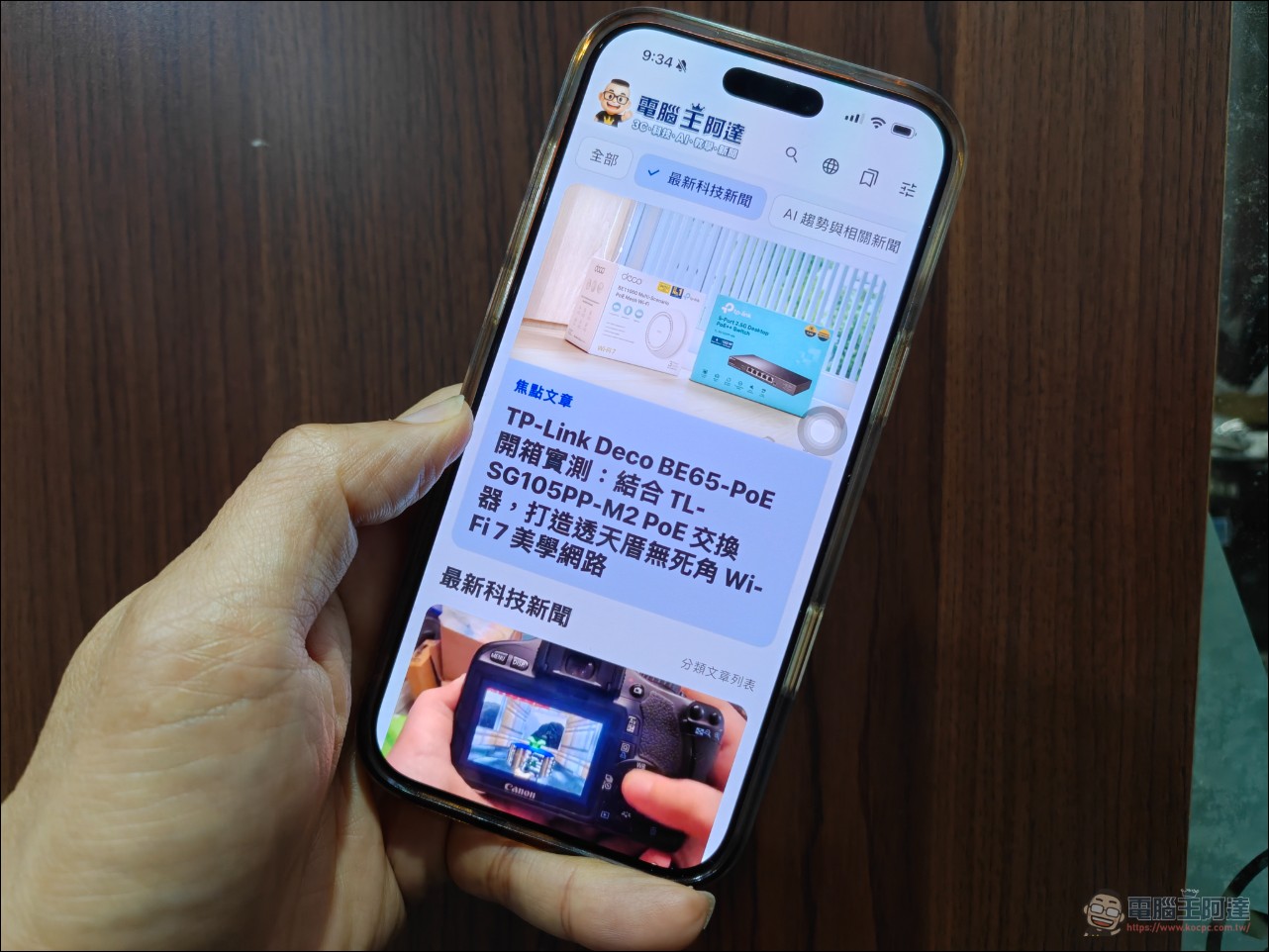
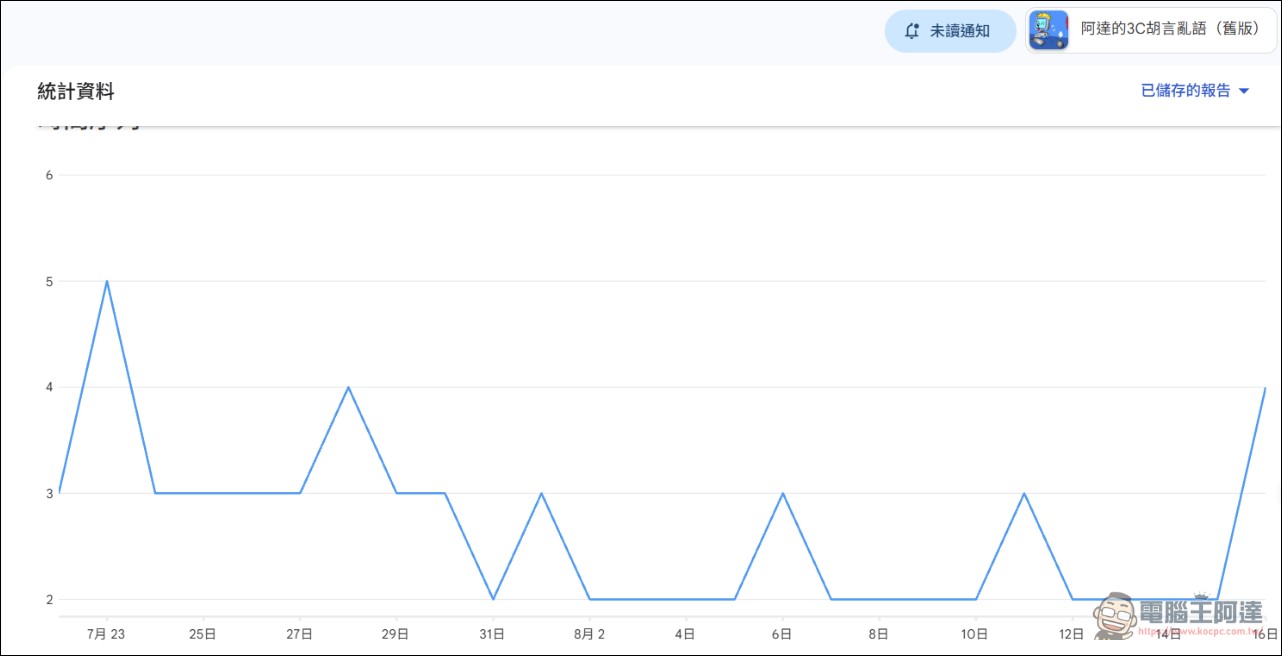
My previous version of the 電腦王阿達 app has been offline for years now, but what surprises me the most is that people still use it to this day. It was once the number one Android news app for a while back then. I didn’t have the ability to revamp it in the past, but now with AI’s help, I think I should fulfill my long-standing wish (to revive this app).
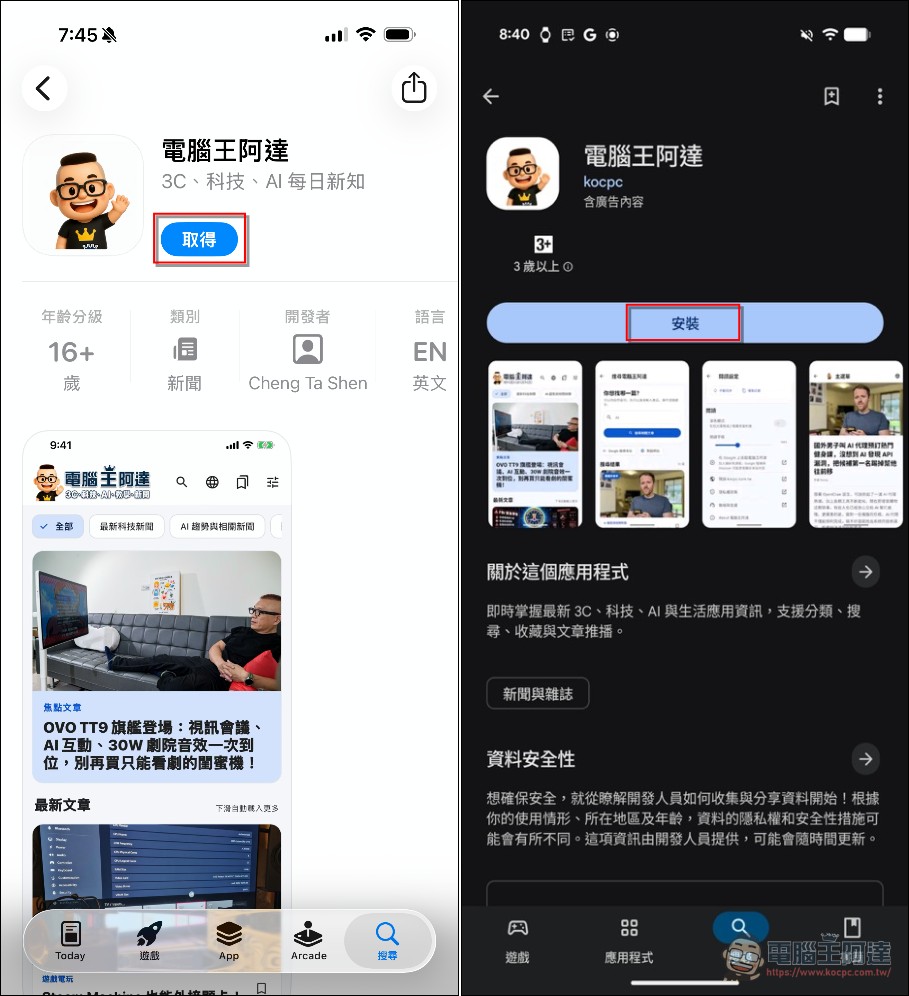
First, please go to the Play Store (Android: tap here) or App Store (iOS: tap here), search for and download the 電腦王阿達 app. This app currently has no ads, and reading articles has no ads or pop-ups either. It shouldn’t have any for a while (maybe later we’ll add a bottom banner, or maybe never). Feel free to use it.
This app is built with the Flutter framework, mainly because it’s easy to port across platforms. The website backend also has a push notification server set up, and the entire process was built through conversations with Codex. In principle, AI first writes the proposal and how to implement it, then I provide feedback and direction before development starts. If you want to understand how to vibe coding more smoothly, you can watch this video of mine. Basically that’s it—the human’s role, besides communicating with AI, is also to catch bugs:
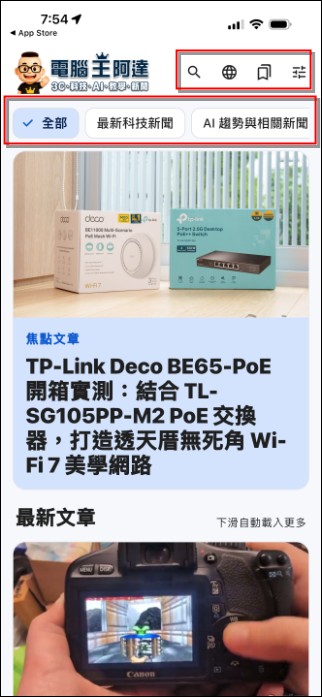
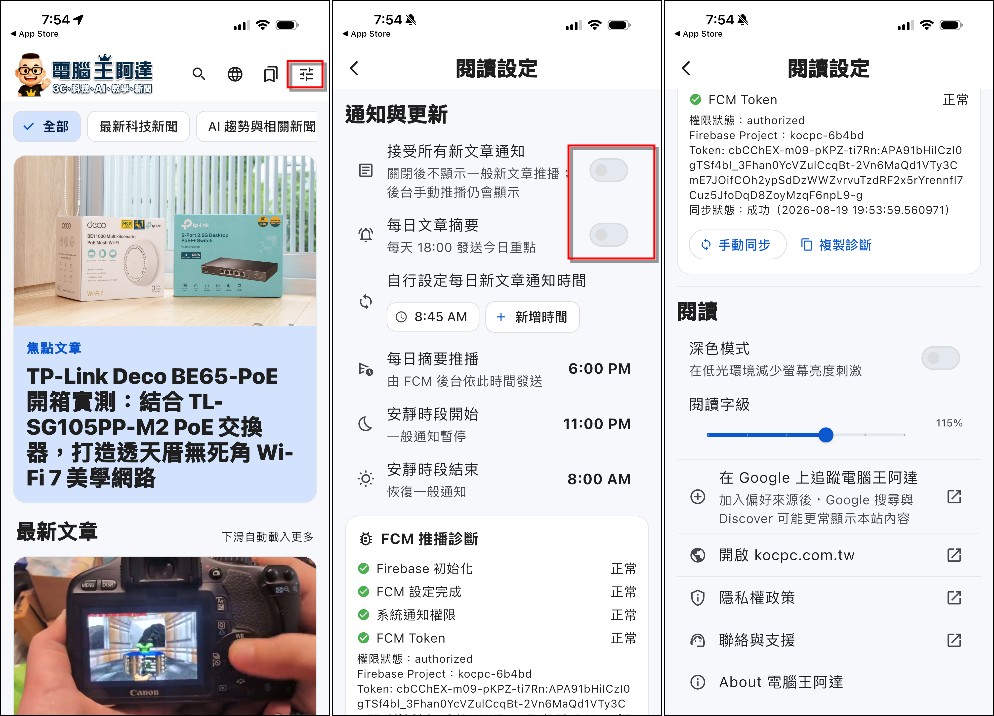
Next, let me briefly introduce the features. The main screen is simple, similar to a mobile version of the website. The functions at the top right are: search, open website, favorites (can be marked by yourself), and settings. The second row is the main article categories that can be swiped left and right:

After clicking a category, you can scroll down to read news; in principle, it will keep loading:

Clicking “Settings” allows you to configure article push notifications, which are turned off by default. You can enable them based on your needs. If you want to avoid too many notifications, you can set up a daily summary and specify the delivery time. Below that, there are options for start time and quiet hours, though you’re not required to set them. Further down, you can adjust reading mode, font size, and other preferences. If you want to see the latest news more often, click “Follow Computer King Adia on Google”:
Once you click into the article, you can read it, and the embedded content works fine (that took a while to figure out). No ads are up yet—I’ll deal with that later. At least here, I can decide what ads to show (the web version often pops up full-screen overlays, which isn’t what I want, and I have no control over it).

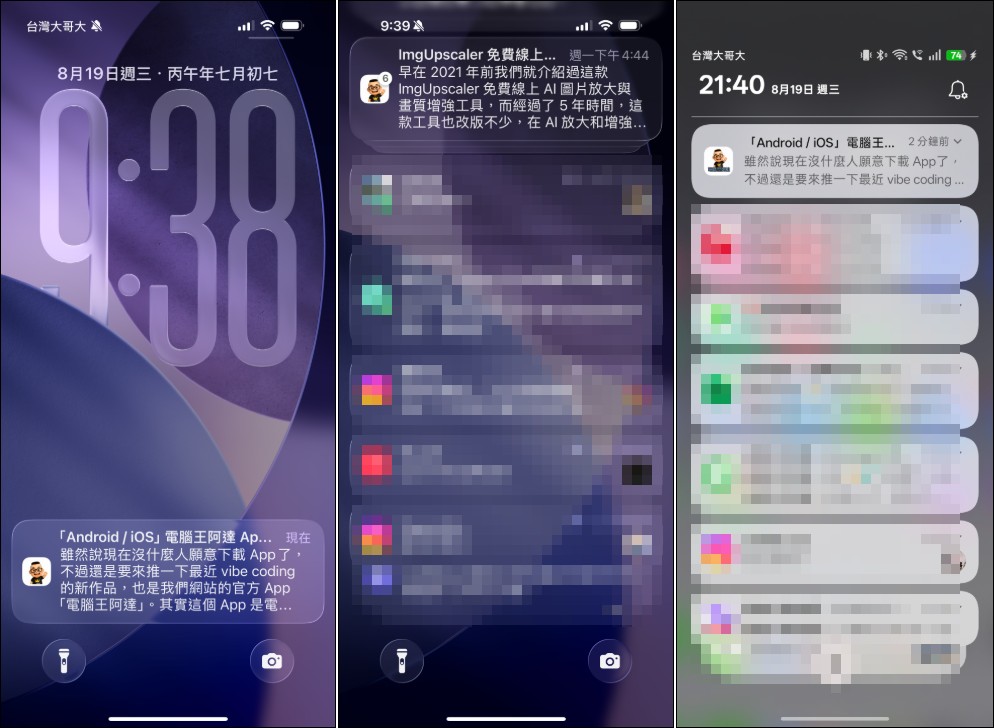
If you have notifications turned on, you’ll get an alert at the scheduled time or when a new article goes live.
In addition, you can also click the App download link at the end of this article to choose to download the App:

Also, if possible, please help everyone click on「Add to favoritesPlease check 電腦王阿達, so our content will appear more often at the top of phone recommendations and Google search results (bow):

Finally, a quick reflection: software development itself isn’t really hard—it’s getting the app published that involves a ton of work. Even with AI’s help, I hit quite a few pitfalls, mostly around iOS. But in the end, I managed to get it published successfully, which is something to celebrate. Also, if you come across any bugs, feel free to email me (koc@kocpc.com.tw).
Source: KOCPC Chinese