


Most people create presentations using PowerPoint or Google Slides. They’re not hard to use, but every time you need to edit a presentation file, you still have to open those tools. Although there are online versions, things can get a bit tricky in certain situations—like when you’re in an environment with no internet and your computer doesn’t have the offline version installed. Recently, I came across this impressive Bento Slides. It’s an HTML-based presentation file that not only lets you play the slides but also allows direct editing once opened, meaning you no longer need any presentation tool to edit or create presentations.
The editing features basically cover everything you need, and the interface is similar to most presentation tools, so it’s very easy to pick up. It also has a major selling point: you can have AI create presentation files for you. Here’s a demonstration.
Bento Slides Introduction and Usage Guide
Bento Slides is a free, open-source, and highly distinctive presentation tool. The biggest difference from traditional presentation software like PowerPoint and Google Slides is that Bento Slides packages the entire presentation, editor, player, images, animations, and related resources into a single HTML file. Users don’t need to install extra software or register an account—just open the .bento.html file in a browser to view, edit, and present slides, and it even works fully without an internet connection.
Another major feature is that it’s designed to work seamlessly with AI agents. The presentation content is stored as structured data in HTML, so AI tools like Codex, Claude, Cursor, and Gemini can directly read and modify it. Users just need to describe what they want in natural language—such as “add a product comparison page,” “turn this data into a bar chart,” or “redesign this slide”—and the AI can directly edit the original Bento Slides file.
In terms of presentation features, Bento Slides isn’t limited to basic text and image layouts—it also supports charts, animations, Morph transitions, video, audio, speaker notes, interactive effects, and more, making it possible to create presentations that are far richer than standard static slides. Assets like images can also be embedded directly into HTML, so once you’re done, you only need to share a single file to hand the entire presentation to someone else.
Additionally, Bento Slides adopts a local-first design, with presentation files primarily stored on the user’s own device.
Key features
- Free and open source: Provided under an open source model, free to use.
- Single HTML file: presentation, player, and editor can all be packaged into one file.
- No installation required: open, edit, and play directly in your browser.
- Supports offline use: files are stored locally and can be opened without an internet connection.
- Suitable for AI agent operation: tools like Codex, Claude, and Cursor can directly modify presentations.
- Supports Morph animation: enables transition effects that change element position, size, and more.
- Built-in chart functionality: supports data visualization with bar charts, line charts, pie charts, scatter plots, and more.
- Supports multimedia: can add images, videos, audio, and animation effects.
- Supports Speaker Notes: suitable for formal presentations and speeches.
- Assets can be embedded directly into files: resources such as images can be placed inside the HTML, so there’s no need to package a separate folder when sharing.
- Local-first design: Users can take control of their presentation files and data.
Go to the Bento Slides official website
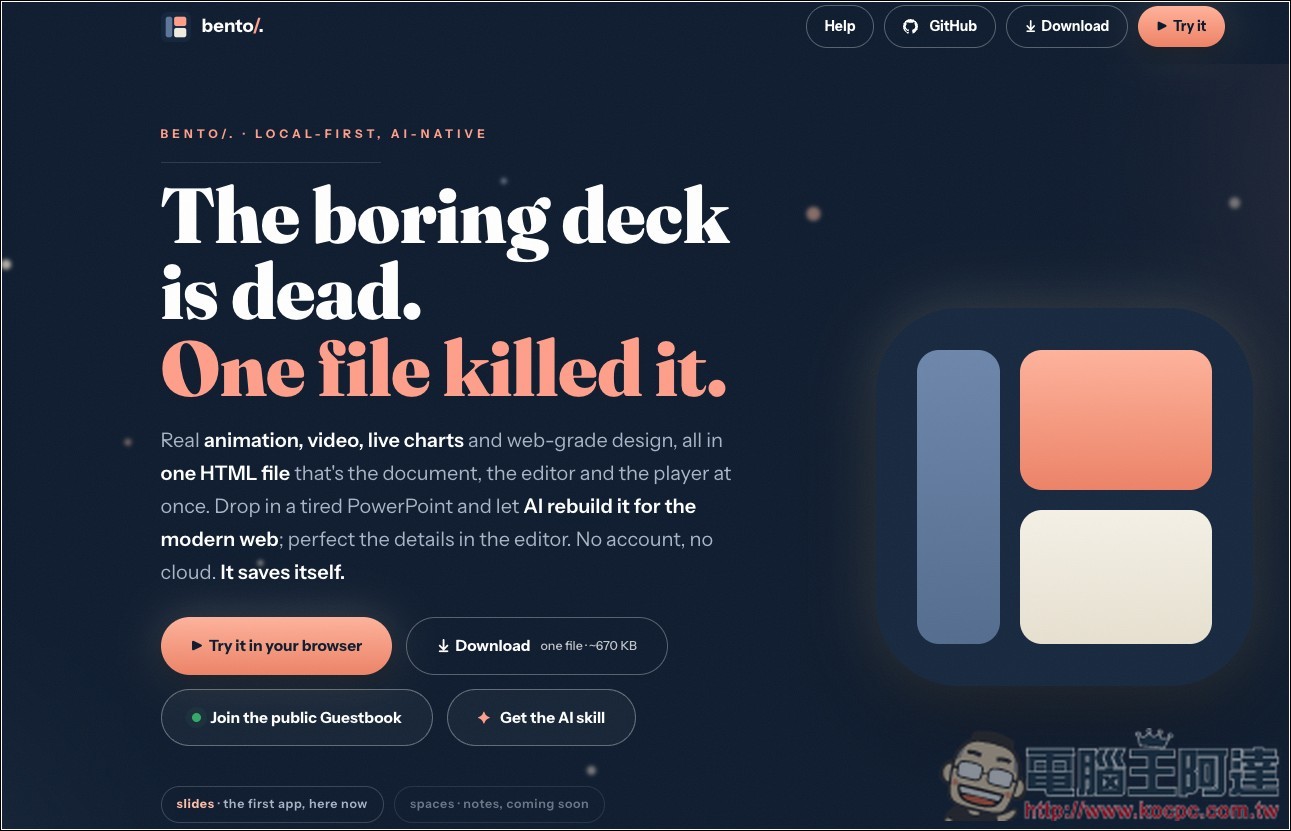
After following the link above to Bento Slides, you can try it online first, then decide whether to download the HTML file (click Download to download). Click “Try it in your browser” to experience it online:
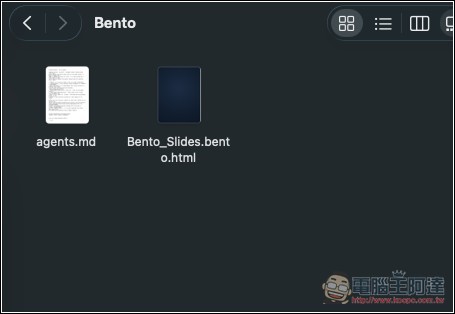
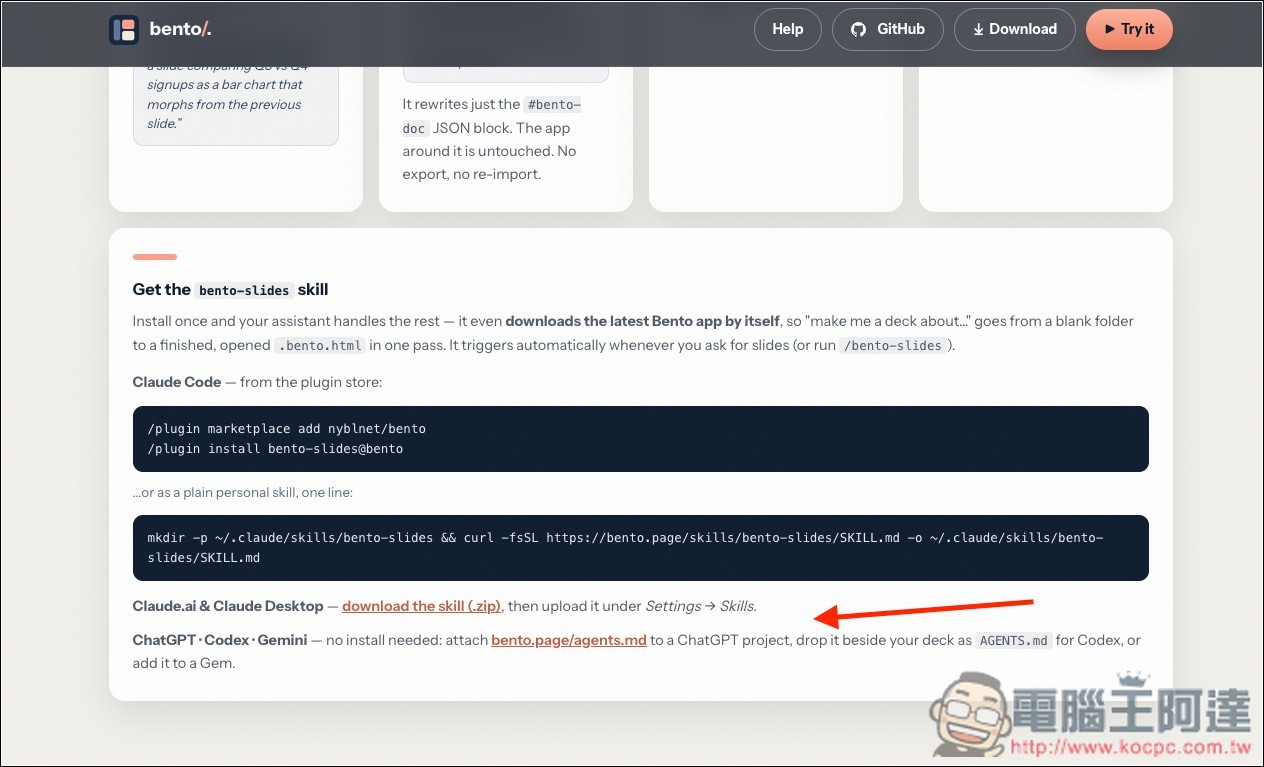
If you download it, you’ll get this .html file, which opens the same way as it does online. The agents.md next to it is the operation guide file that needs to be provided for the AI to read when we demonstrate using Codex to automatically create a presentation later. This file can also be found on the webpage from earlier:
Clicking “Get AI Skill” will automatically scroll to this section, depending on whether you want to pair it with Claude, Codex, or Gemini:
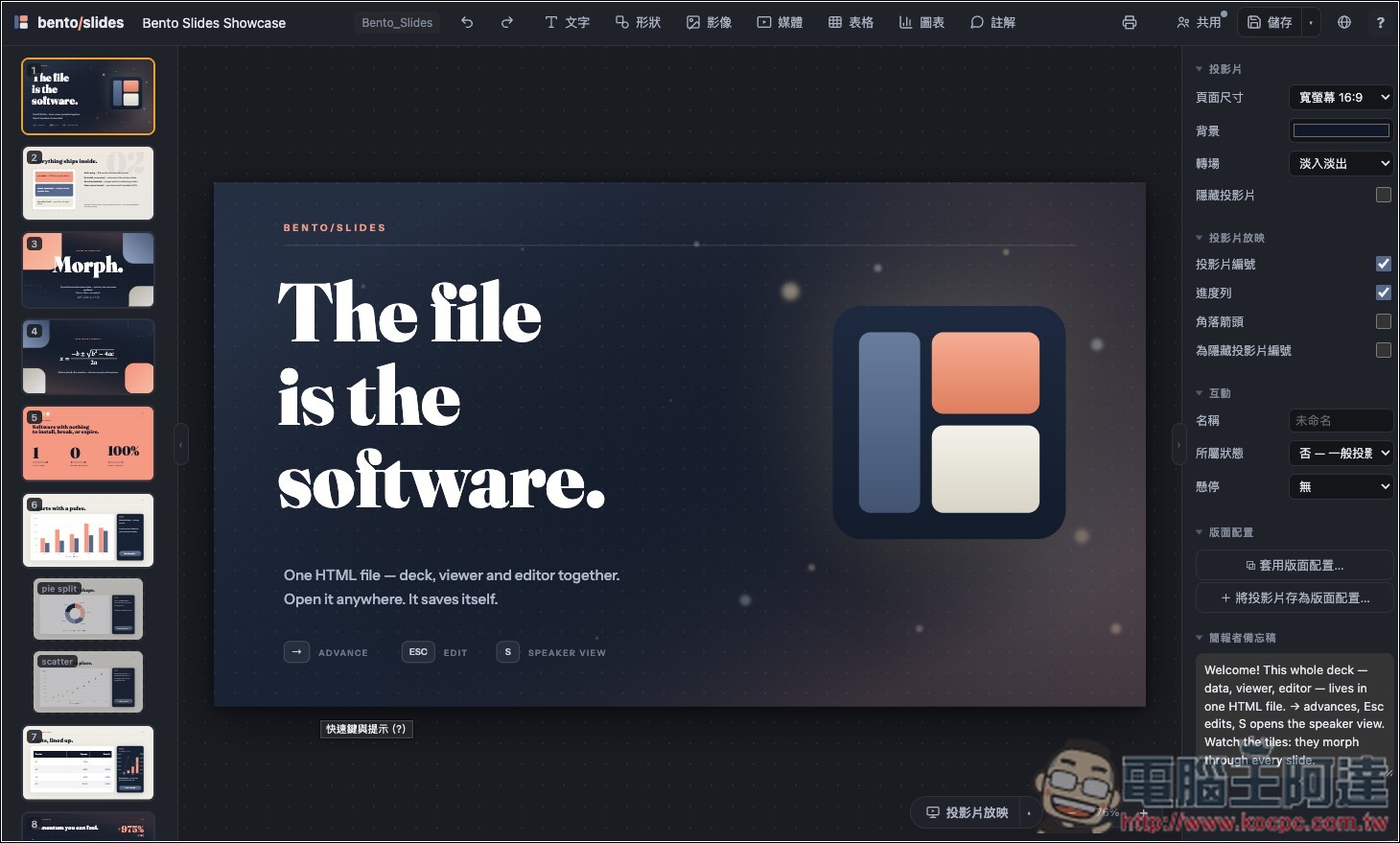
The image below shows what Bento Slides looks like when opened in HTML: it is a presentation editor, with various tools at the top, settings on the right, and slides on the left.
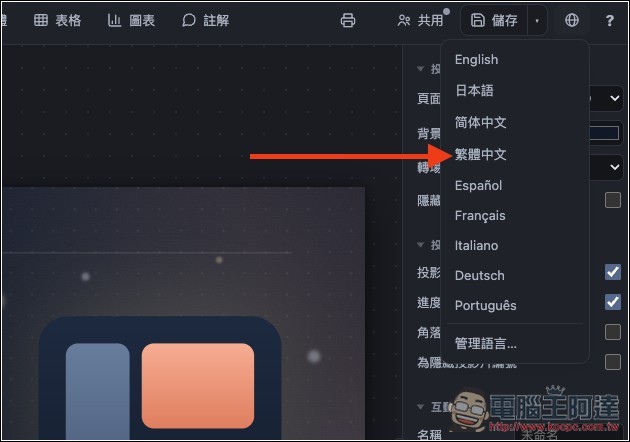
If it doesn’t open in Traditional Chinese, click the globe icon in the top right corner to switch languages:
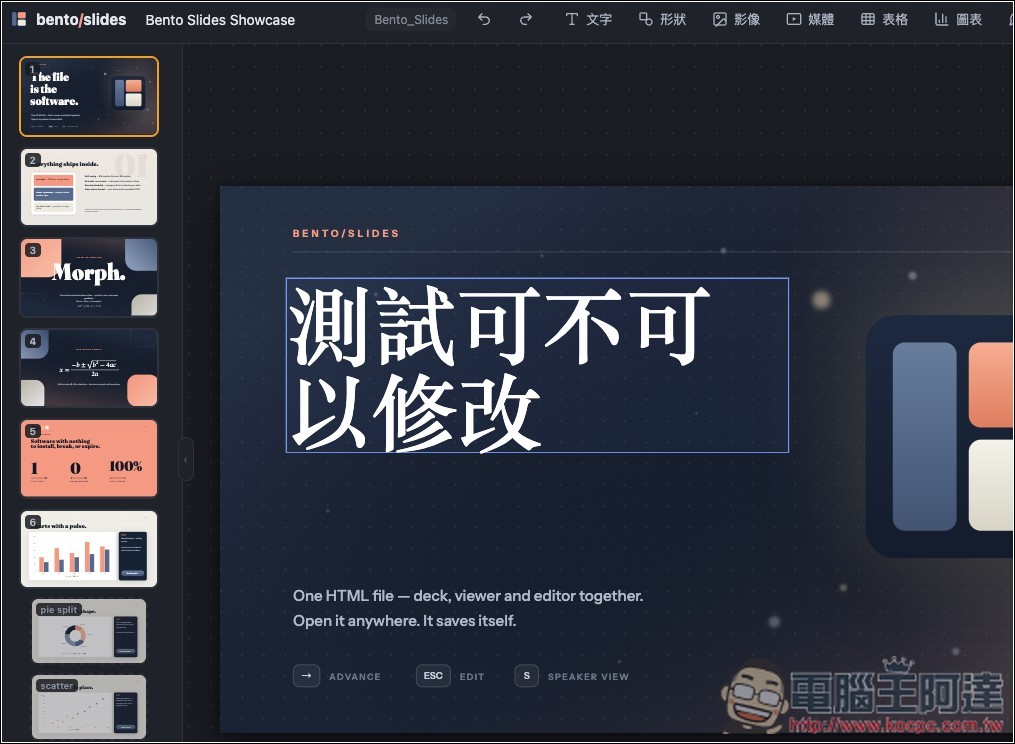
Text, images, and other objects in the presentation can all be edited:
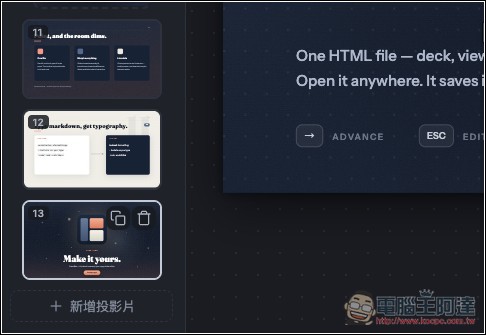
Each slide can also be deleted, or you can add more slides:
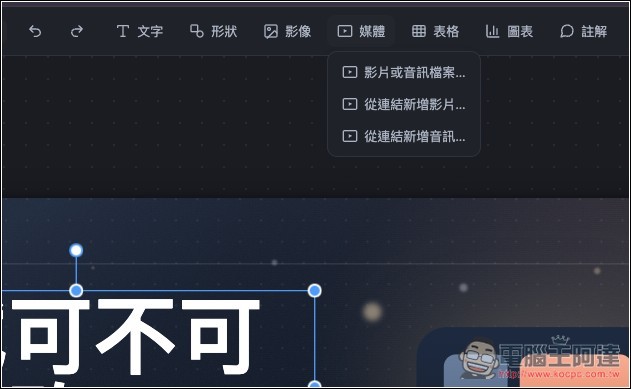
It also supports inserting media, whether video or audio, and you can add them from a link:
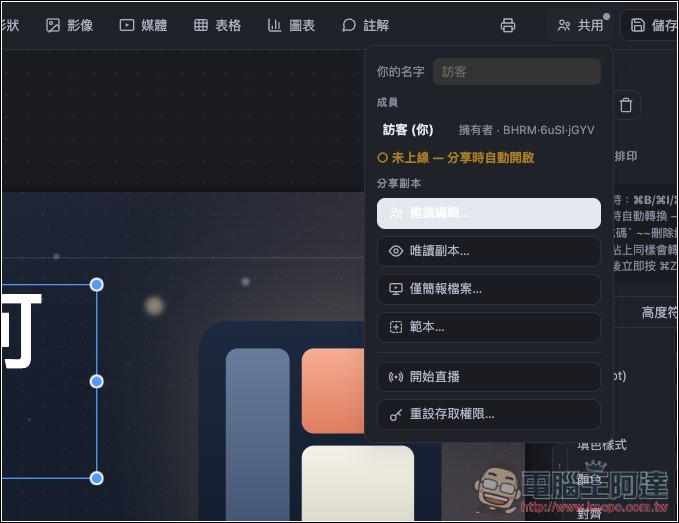
It also offers a sharing feature, allowing you to invite colleagues or friends to edit this presentation file together:
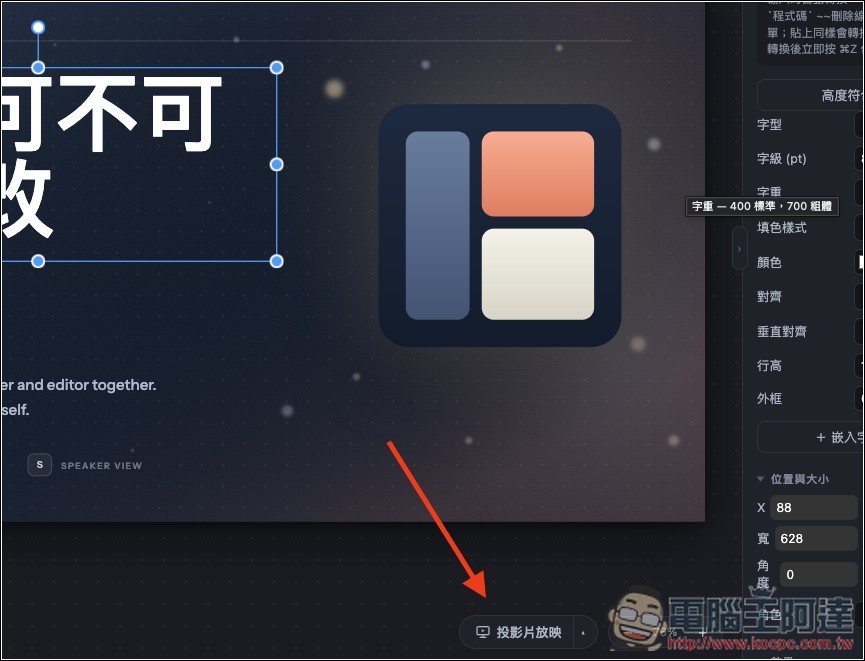
If you want to play the presentation, click the “Slideshow” below:
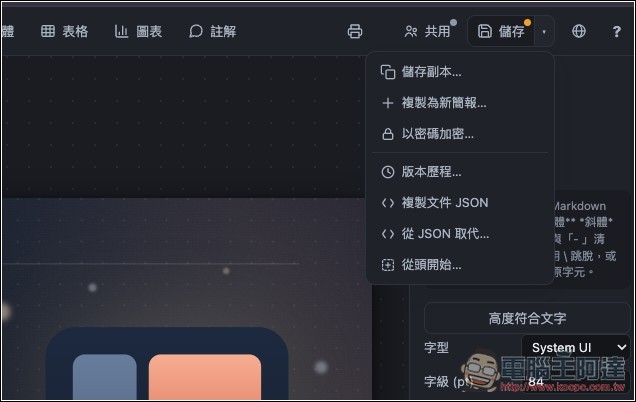
The save function is in the top-right corner. If needed, you can also add a password to this presentation file. The features are quite comprehensive:
I won’t go into detail about the editing features—feel free to explore them yourself.
Next, let’s see how to get an AI agent to automatically create or edit a presentation. I’m using Codex for this. One thing to keep in mind first is that the presentation file and the AGENTS.md instruction file we just downloaded need to be in the same folder. That way, before creating anything, the AI will read this skill file first and understand the overall structure.
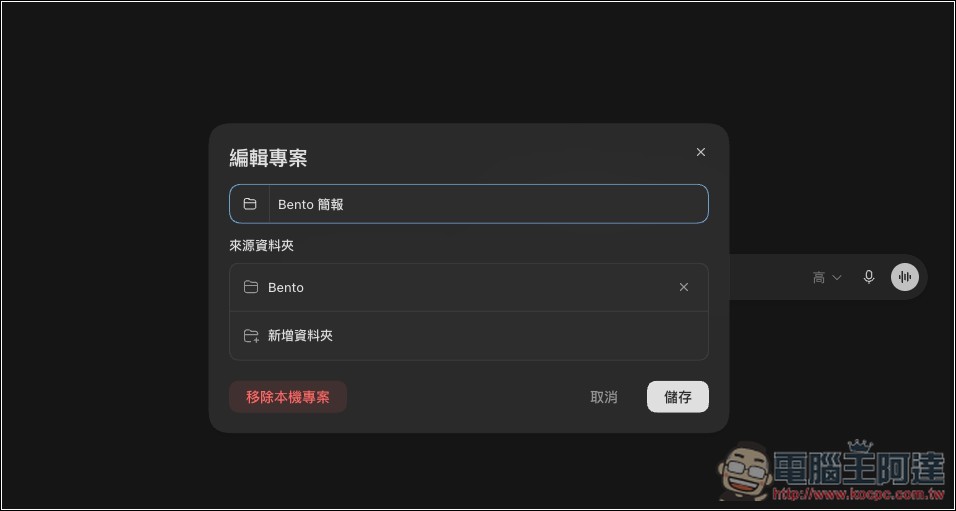
In Codex, I added a Bento presentation and set the source folder to the one containing the presentation file and the skill file:
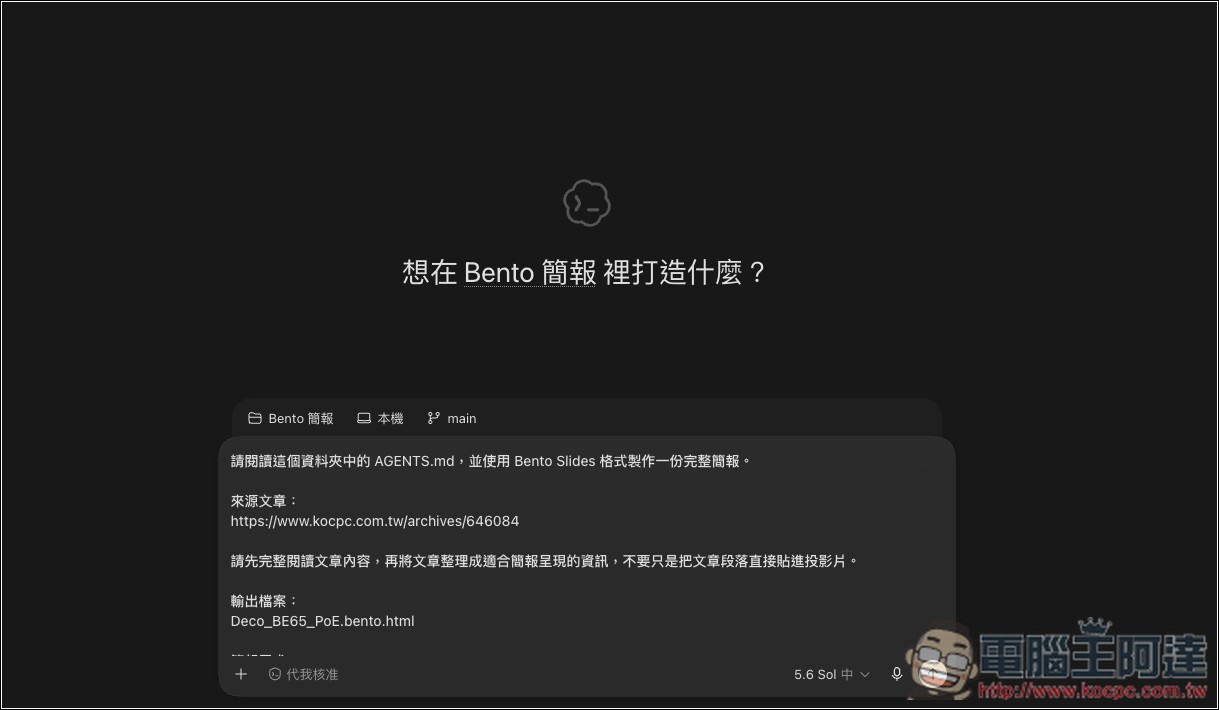
I’m asking AI to help me TP-Link Deco BE65-PoE Unboxing and Real-World TestTurn this article into a presentation. Before doing so, read the AGENTS.md skill file first. There are also some additional content requirements below:
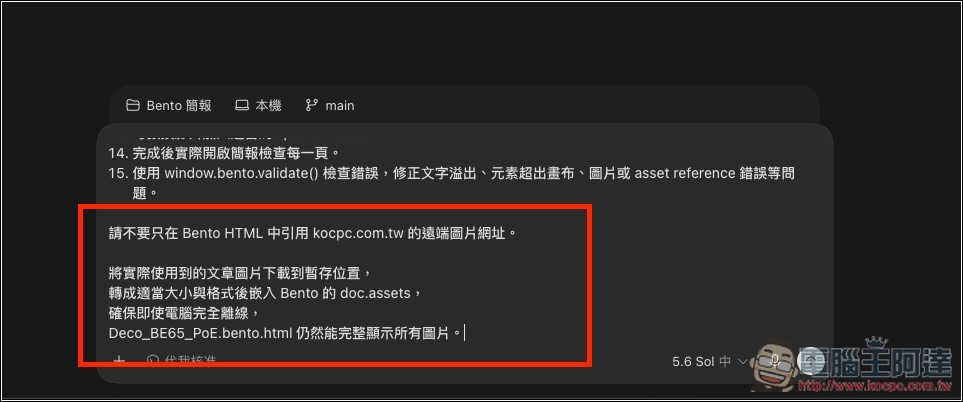
It’s also recommended to add this prompt afterward, because Bento’s official specification requires that to maintain a true “single HTML file”, images should be converted to Data URIs and placed in doc.assets, then referenced using asset:.
Please don’t just use remote image URLs from kocpc.com.tw in the Bento HTML.
Download the article images that are actually used to a temporary location.
After converting to the appropriate size and format, embed it into Bento’s doc.assets.
Ensure that even if the computer is completely offline,
Deco_BE65_PoE.bento.html can still fully display all images.
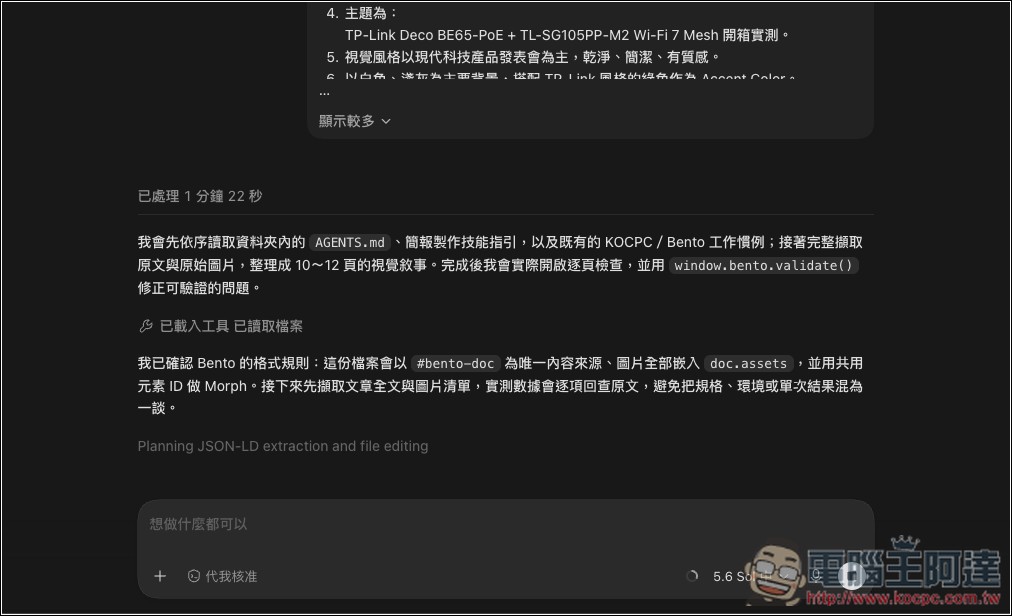
The AI will start processing; just wait for it to finish:
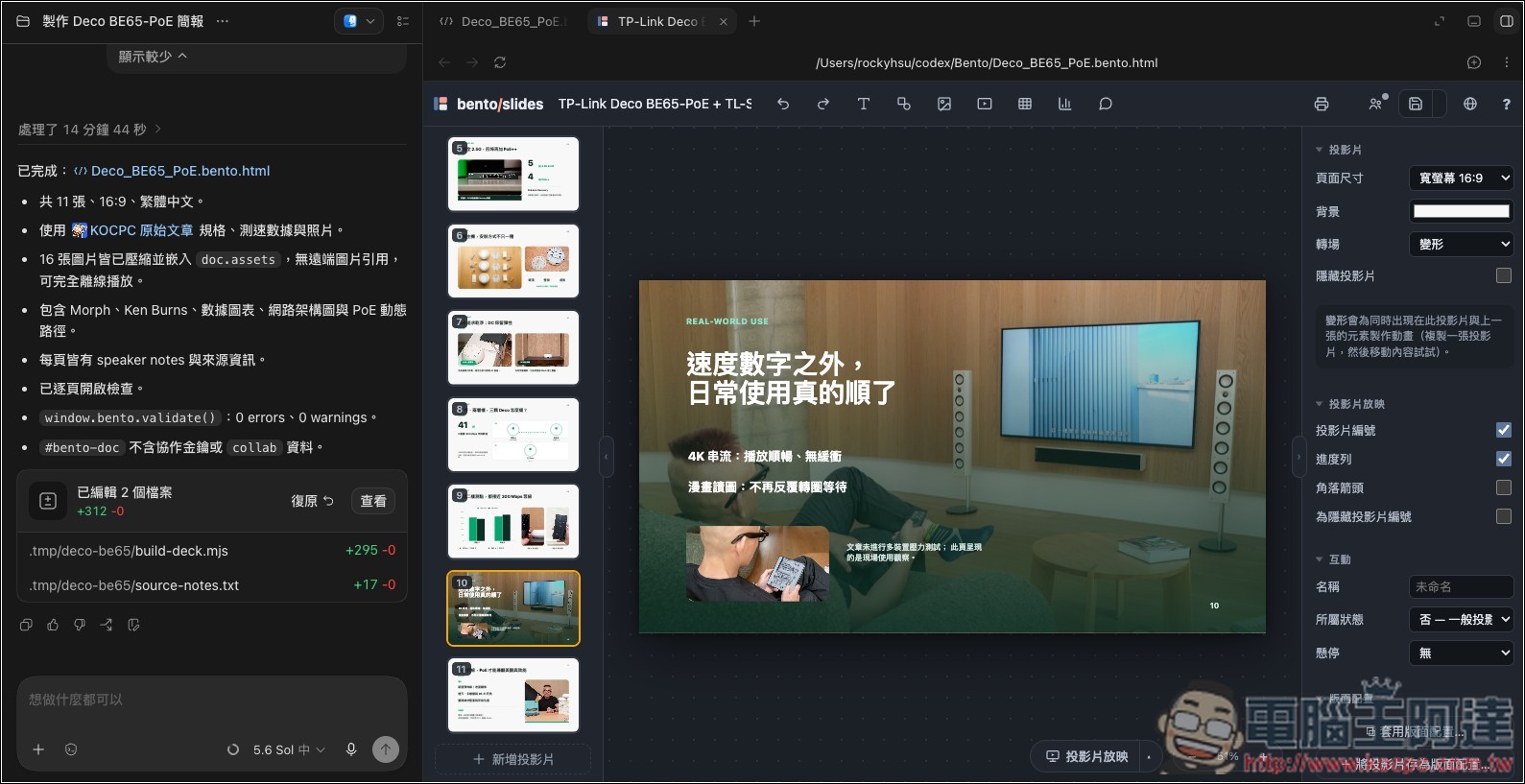
After completing, I opened the HTML file and saw that it had turned the TP-Link article into a presentation for me. The content was pretty much perfect—it did everything I asked, with each slide including an image and key text:
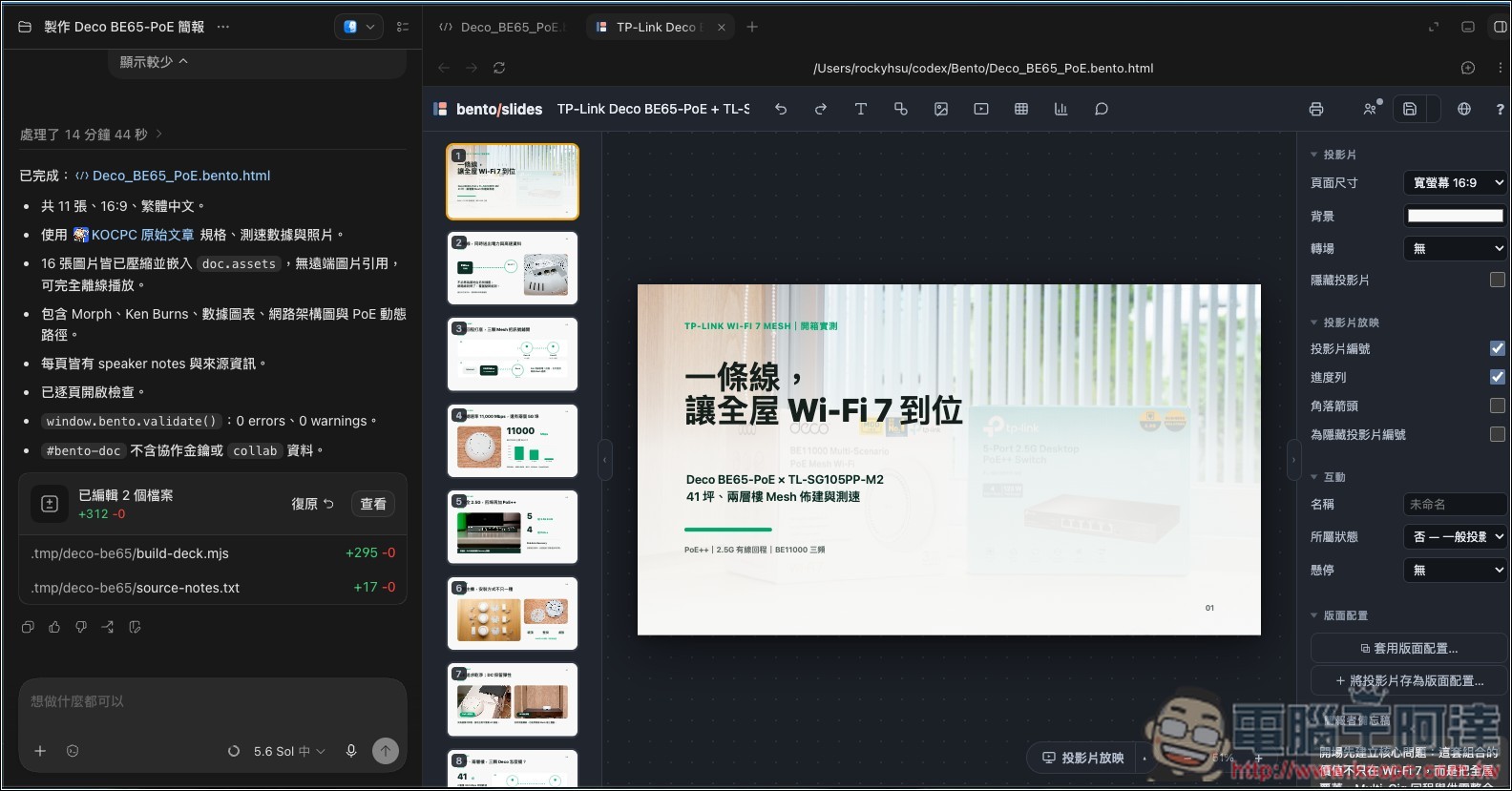
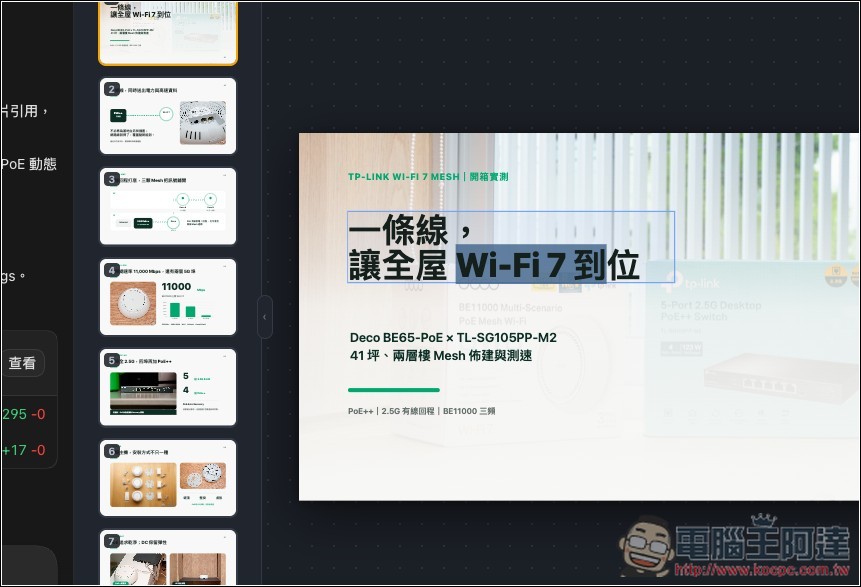
Of course, the content of every slide can also be modified:
Source: KOCPC Chinese