


everyone knows Windows 11 Has Microsoft Defender built-in Antivirusfunction to protect your computer from viruses at any time. However, what you may not know is that in addition to basic protection, Windows 11 actually also hasransomwareAfter the protection function is turned on, as long as it is a protected folder, there is no need to worry about being infected by ransomware, and there is no need to install third-party anti-virus software. However, this function is turned off by default and needs to be turned on manually. For those who need it, I will teach you how to turn it on.
Teach you how to turn on ransomware protection in Windows 11
The first thing you need to know is that Microsoft deliberately turned off the ransomware protection feature in Windows 11 by default. The reason is to consider the compatibility and convenience of the software.
Many non-problematic software, such as games, backup software, photo editing tools, etc., will directly read and write protected folders such as files, pictures, and desktops. If the default is turned on, it is likely to cause a large number of unintentional notifications, and users must manually allow them one by one, which will be very troublesome.
After it is turned on, it may also interfere with normal use and requires a little more effort to manage. For example, it will always be blocked at the beginning. You must add these software to the whitelist before it can be used normally. It may even be blocked when copying files in File Manager.
Although it seems a bit troublesome, once turned on, the protection against ransomware will be significantly improved, especially when used together with Microsoft Defender real-time protection.
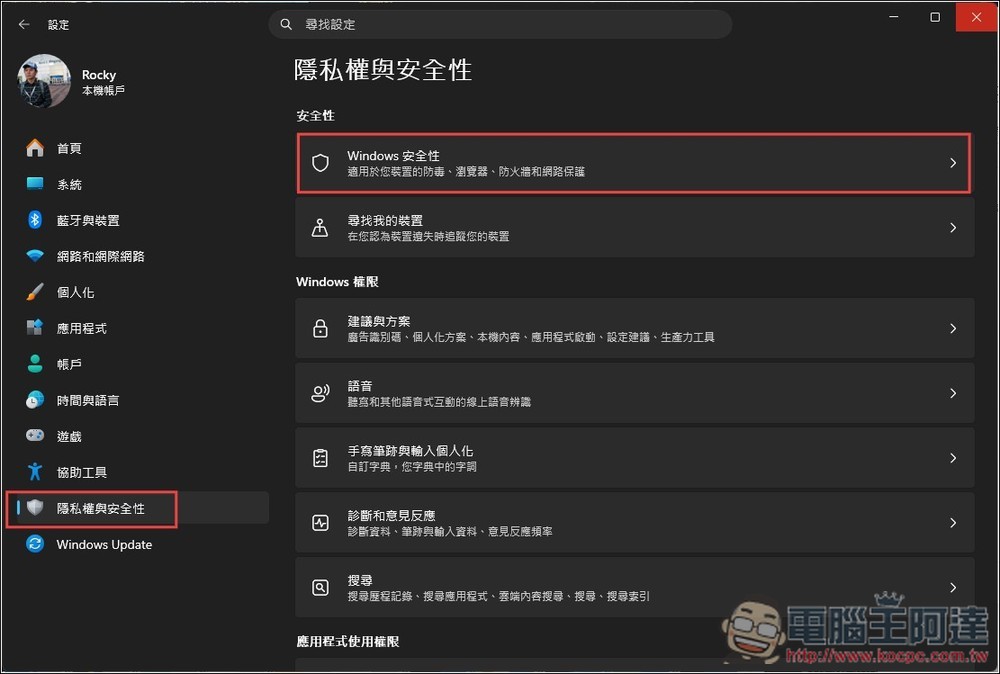
Open Settings, go to the “Privacy & Security” menu, and then click “Windows Security”:
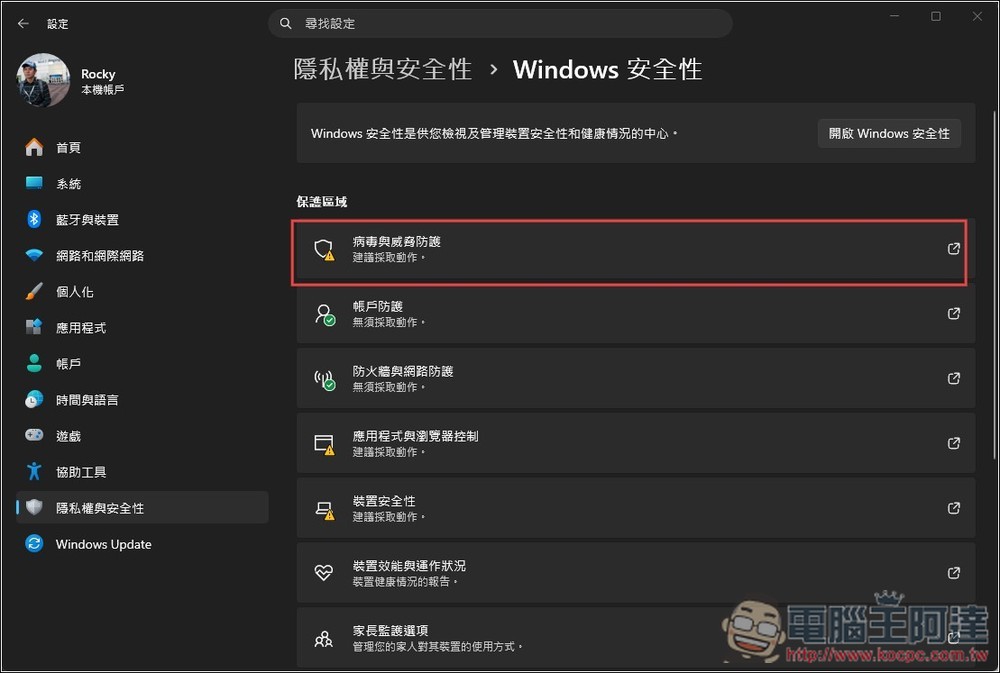
Then go to “Virus and Threat Protection”:
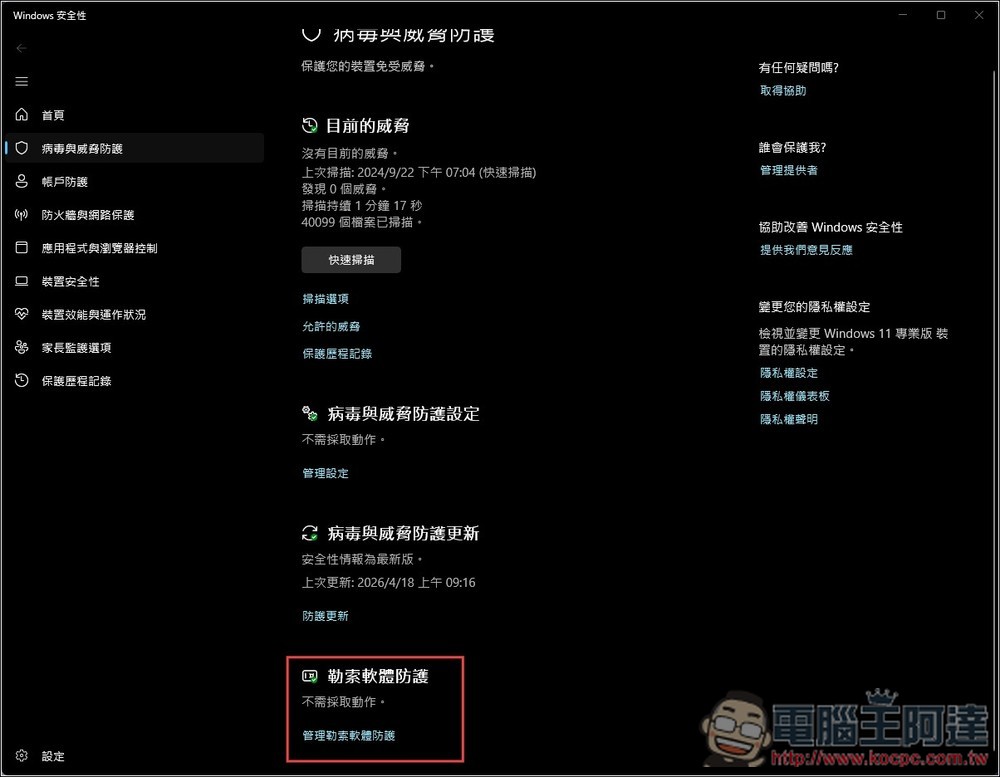
Scroll down and you will see “Ransomware Protection” and go to “Manage Ransomware Protection”:
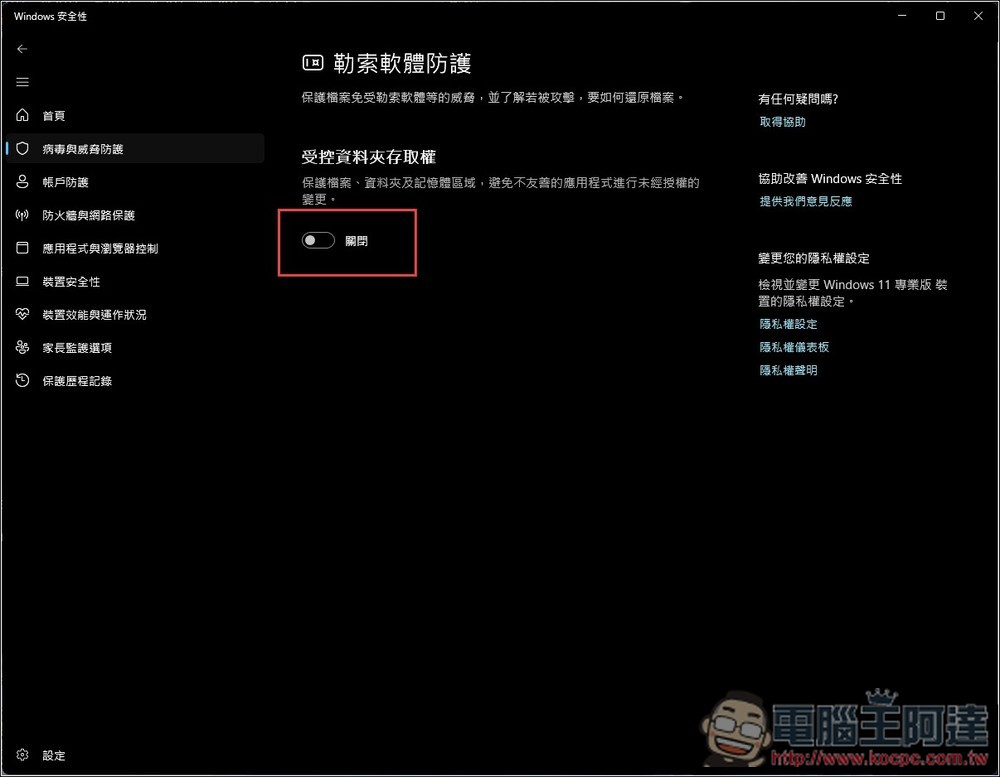
Turn on Controlled Folder Access to enable ransomware protection:
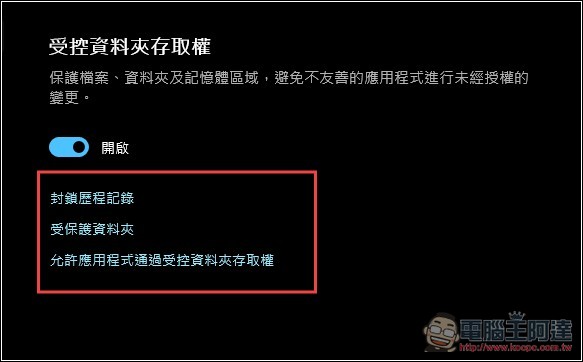
Once enabled, there will be three setting functions, including “Block History”, “Protected Folder” and “Allow Applications to Access Controlled Folders”:
After enabling the ransomware protection function, Microsoft officially recommends using it with OneDrive to form a multi-layered protection concept, which is simply “blocking + backup + recovery” to greatly reduce the risk of permanent data loss caused by ransomware.
When OneDrive cloud backup is turned on, protected folders are automatically synced to OneDrive, so even if they are encrypted locally, there is still a clean version in the cloud.
In addition, OneDrive also has a built-in “ransomware detection” function. When a large number of abnormal modifications are detected, a notification will be sent immediately and you will be guided to use the “Restore Your OneDrive” function to restore the entire folder to the state it was in for up to 30 days before the attack. This means that even if your data is ransomware, you can still restore it to a good old version.
If you only use the ransomware protection function, you can only block it, but there is no way to recover the encrypted files.
Of course, this can also be achieved through third-party cloud services, such as Google Cloud. However, since OneDrive is Microsoft’s own tool, it must be better integrated with Windows 11 and will not be blocked by CFA.
Source: KOCPC Chinese