


Talking on the phone in a noisy environment is often not an easy task. A newborn baby at home starts babbling, a dog suddenly barks, the sound of cars on the street or the background sound of a coffee shop may make it difficult for the other party to focus on your voice. If you are using an iPhone, there is actually a feature that is often overlooked that can effectively improve this situation. “Voice Isolation” can strengthen your voice during calls and reduce surrounding noise, making it easier for the other party to hear everything you say.
Image by Lukas Gehrer from Pixabay
Turn on iPhone’s hidden feature “Voice Isolation” to make calls clearer
Voice isolation is not a completely new concept. Apple will add voice isolation and “wide spectrum” microphone mode to FaceTime calls as early as 2021 with iOS 15. At that time, it was mainly used for video and Internet voice calls, allowing users to maintain clear voice quality in less than ideal environments. It was not until 2023 that Apple officially extended voice isolation to general phone calls in iOS 16.4, so that more people can benefit from daily use. However, among the three current microphone modes, only voice isolation can be used for general phone calls, and the wide spectrum is still limited to FaceTime.
Image by Lukas Gehrer from Pixabay
What’s special is that voice isolation is not hidden in the “Settings” app, but can only be enabled during a call, which means you cannot turn it on in advance, but once enabled, it will automatically apply to all subsequent calls until you manually turn it off. This design is quite convenient for people who often talk on the phone outdoors, commuting or in noisy environments. The steps to enable voice isolation are as follows:
- Make a call first, or answer the call.
- During a call, swipe down from the upper right corner of the screen to open the control center.
- Above the Control Center, you will see a “Phone Control” button. Click.
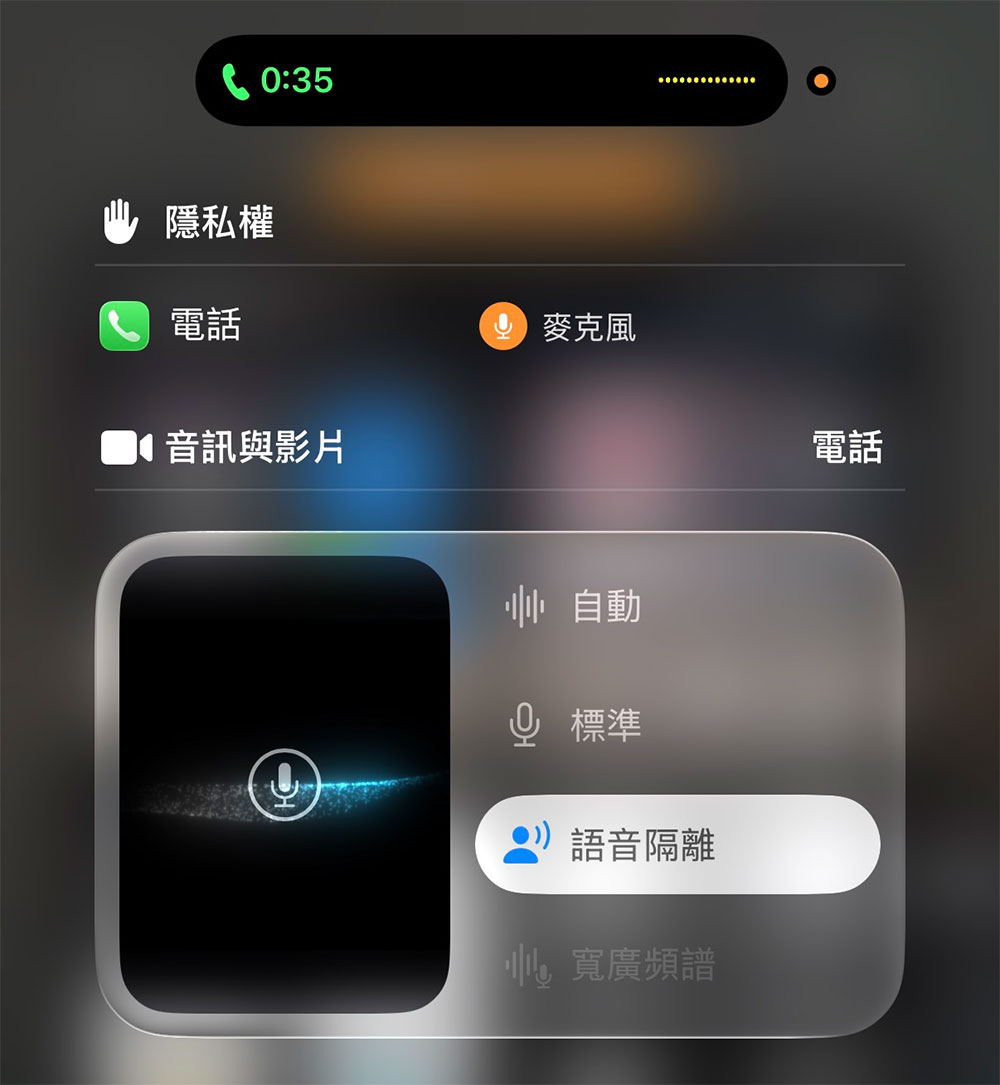
- In the pop-up microphone mode menu, select “Voice Isolation”.
Once done, iPhone will immediately begin enhancing your voice and suppressing background noise. If you later want to restore the default state, just open the same menu again during a call and select “Standard”.
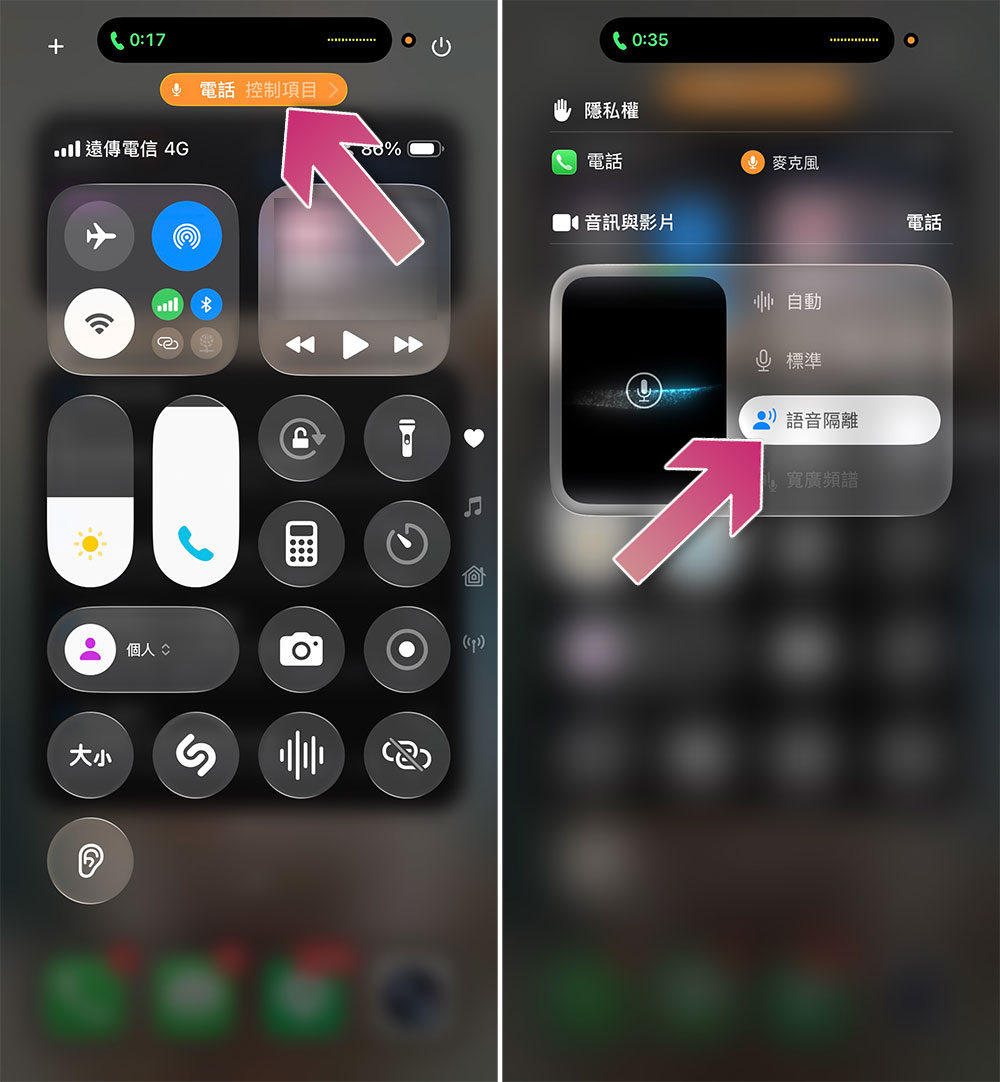
In this microphone mode menu, you will see three options: “Standard”, “Voice Isolation” and “Wide Spectrum”, which represent different sound collection strategies and are suitable for different situations.
- Voice isolation
It will prioritize capturing your voice and reduce environmental noise as much as possible, such as wind, car, keyboard or other human voices. This is the most suitable mode for general phone calls, especially when you are in a noisy environment. - Broad spectrum
It adopts the completely opposite strategy. It will preserve all the sounds in the environment as much as possible, allowing the other party to hear a more complete live atmosphere, not just your voice. This is especially useful when multiple people share a phone, or when the other party needs to hear surrounding sounds, such as remote meetings, instrument demonstrations or live situation reports. However, the wide spectrum currently only supports FaceTime and has not yet been opened to ordinary phone calls. Since it still appears in the phone control menu, it is not ruled out that it will be expanded to ordinary calls in the future. - automatic
Switch to the most suitable microphone strategy based on your current call style. Apple mentioned in official documentation: “For example, when using the earpiece for calls, Auto mode enables voice isolation to reduce ambient noise; when using the speaker for calls, it switches to Standard mode.” In other words, if you are not sure which one to choose, it is also a good choice to let iPhone judge for itself.
The addition of voice isolation makes the iPhone call experience more relevant to modern usage scenarios. Whether you are on the subway, on the street, in the office, or with children and pets at home, this feature can make your voice easier to hear. Although it’s a bit hidden, once you get used to it, you’ll find it greatly improves call quality.
Source: KOCPC Chinese