


It’s no surprise that AI is profoundly changing the way Google search works, and Google is at a critical juncture where it must strike a balance between “traditional search” and “AI answers.” AI summarization does bring convenience, but the quality of current answers is still inconsistent: sometimes it is not accurate enough, and sometimes it is difficult to control. As models continue to improve, AI summaries will eventually become more reliable, but at least at this stage, it is still not a source of information that can be completely relied on.
A complete list of Google search operators, 35 instructions to make search results more accurate
Another obvious change is that in almost every search, social posts such as Reddit and Facebook are pushed to the top of the results page. The logic behind this is simple. In an era when AI content is emerging, content created by humans has become more valuable than ever before, and Reddit and other social platforms are among the most representative. However, the Reddit posts that appear at the top of search results are often older and the information is no longer fresh. The cumulative effect of these factors has been that search quality has gradually declined over the past few years, and even though Google is still working hard to provide the best answers, search results sometimes fall short of what you expect.
The good news is that you can actually tweak your Google search results yourself. After all, Google is still a search engine, and its goal is to find the information you really want. And through a specific set of search parameters, you can more precisely control how search results are presented. Search parameters are not new; they have been around for years, but most people are not familiar with them. There are hundreds of ways to combine parameters, and it is indeed not easy to remember them all, but once you start using it, you will immediately feel the improvement in search quality. Through the combination of different parameters, you can find the content you really need faster and more accurately.
This guide will focus entirely on these search parameters. After extensive testing and compilation, we have compiled more than 35 of the most practical Google search parameters to help you customize your search results and obtain the information you are looking for more efficiently.
35 Google search operators
For ease of use, I’ve divided search operators into categories, including basic search operators that everyone should remember and can use every day, as well as advanced operators for finding specific search results.
Use these search parameters to find exactly what you’re looking for
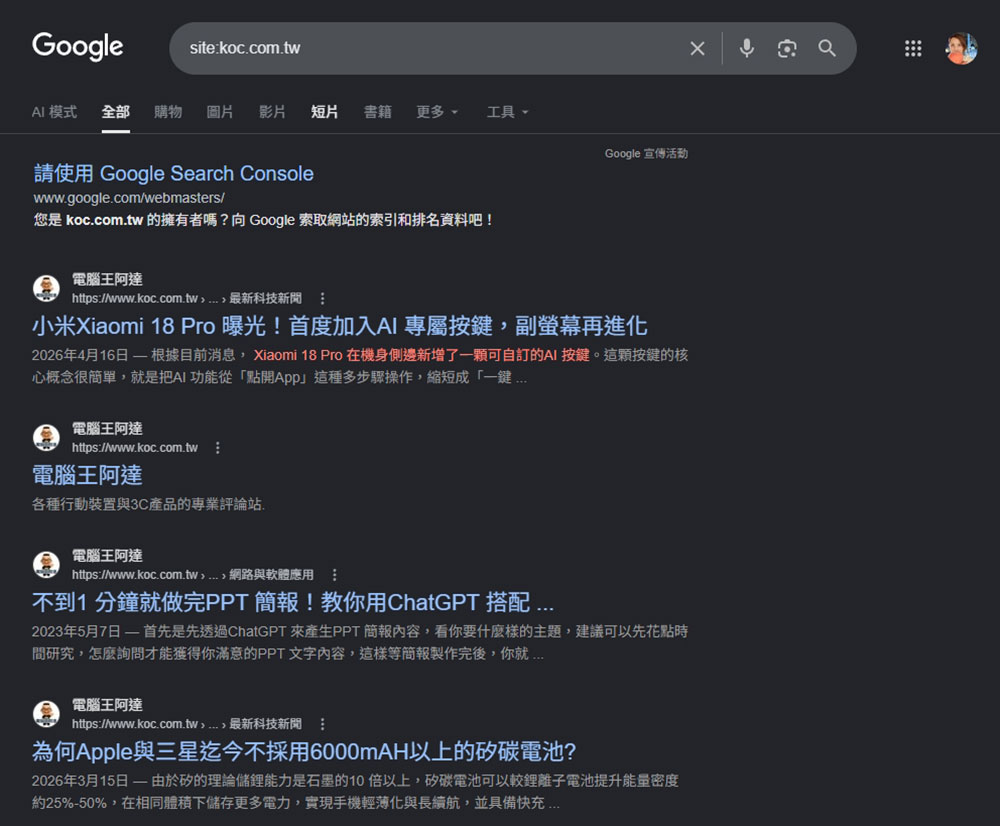
- Site:
Get results from a single specific website.
For example: “site:kocpc.com.tw” only displays all pages of Computer King Ada.
- intitle:
Displays web pages that contain the exact keyword in the page title.
For example: “intitle: iPhone” will display pages containing the word “iPhone” in the title, from any website.

- allintitle:
You can use this operator if you want the returned page title to contain multiple words.
For example: “allintitle: product management roadmap” displays all search results that contain the term “product management roadmap” in the title. Note that these words can appear anywhere in the title.

- inurl:
Some websites will use different titles to attract attention, but most of them will use the exact keywords in the URL. Additionally, most websites have categories in their URLs, so if you’re looking for a specific category, this operator is your best choice. For example: “guides” appears in the URL.
For example: “inurl: Claude” will return all results that contain the word Claude in the URL.

- allinurl:
Looks for results that contain all keywords in the URL. This is the best option if you want to search for pages that contain multiple keywords in the URL.
For example: “allinurl:AI tools for students” displays all pages that contain these words in the URL.

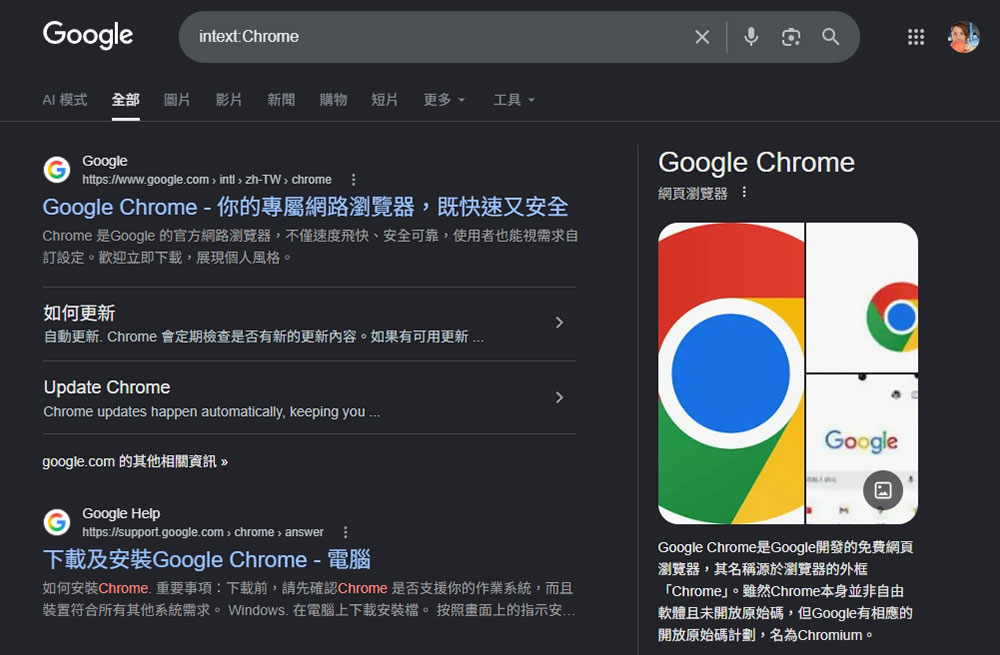
- intext:
This is the best option if you are researching a specific topic and want to get in-depth search results looking for pages with precise text in the main content.
For example: “intext: Chrome” displays all pages that contain the word “Chrome” in the text.
- allintext:
Finds pages whose text contains all of the specified words. Use this search parameter if you’re looking for pages whose text contains multiple specific words.
For example: “allintext:beginner product management comprehensive roadmap download”, it will display pages that contain these words in the main content.

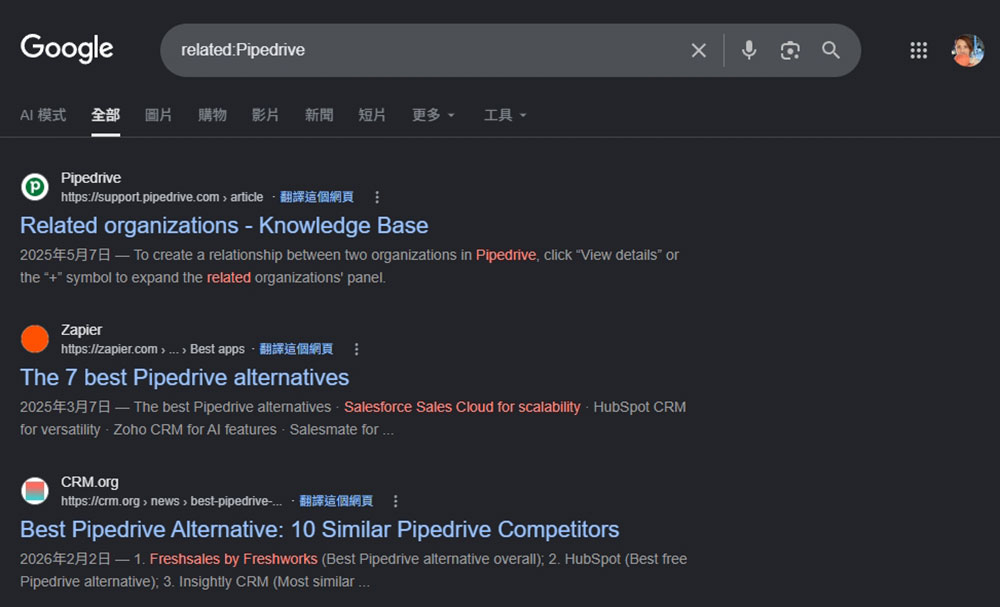
- related:
If you want to perform a competitive analysis and are looking for similar websites that cover the same topic, use this method to find all related websites.
For example: “related:Pipedrive” will display all related pages and competitors of Pipedrive.
- “ ”:
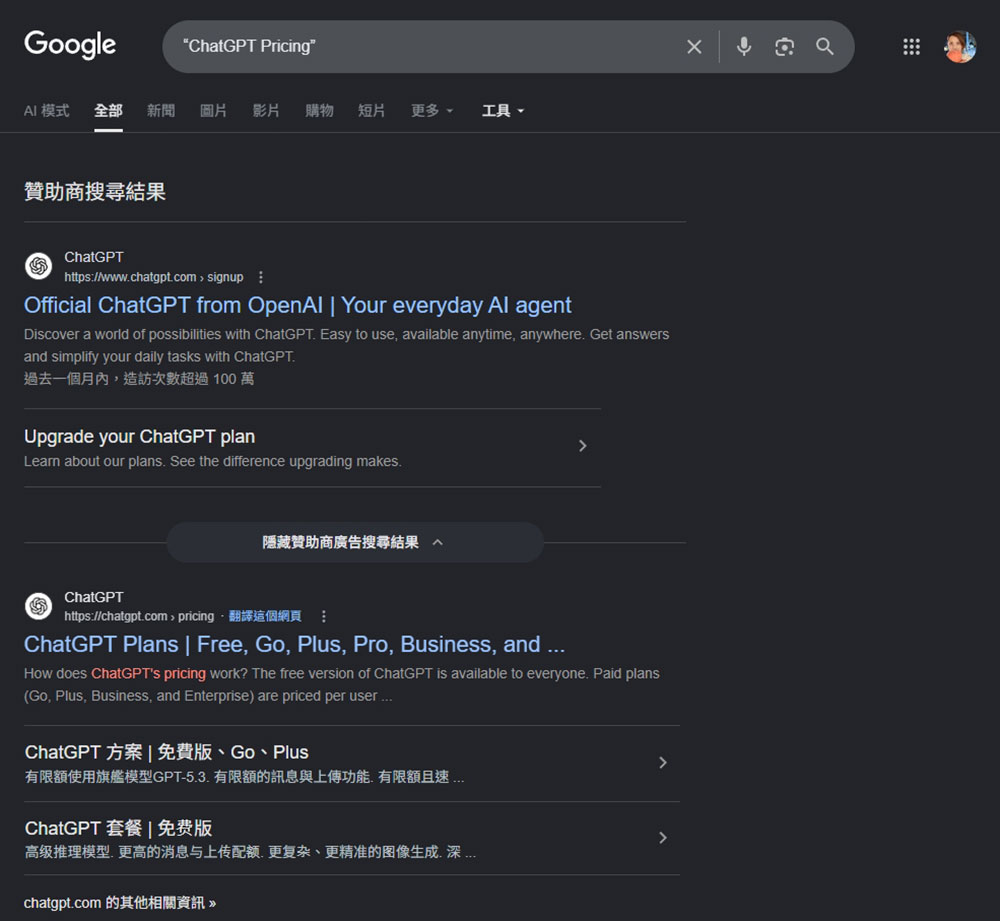
To find all complete search results that contain a specific search term, you can insert the text between quotation marks. For example: “iPhone 18 Pro colors”.
For example: “”ChatGPT Pricing”” will display all pages containing “ChatGPT Pricing” content.
- -:
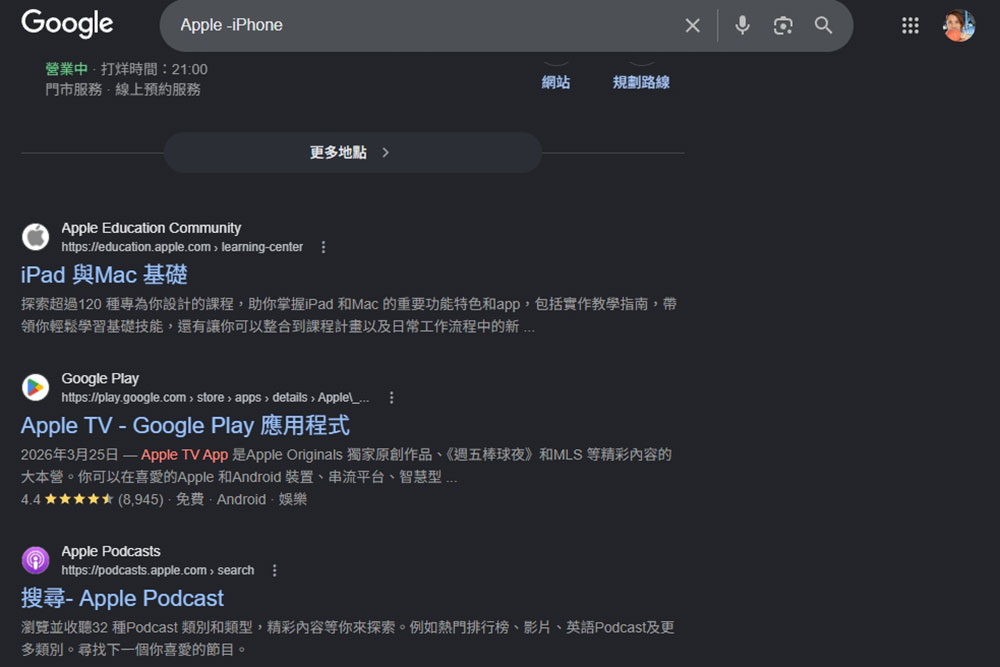
Remove search results that contain specific keywords. Use search operators to further narrow the scope of search results and exclude unwanted results.
For example: “Apple -iPhone” displays all results related to Apple but does not include iPhone.
- OR:
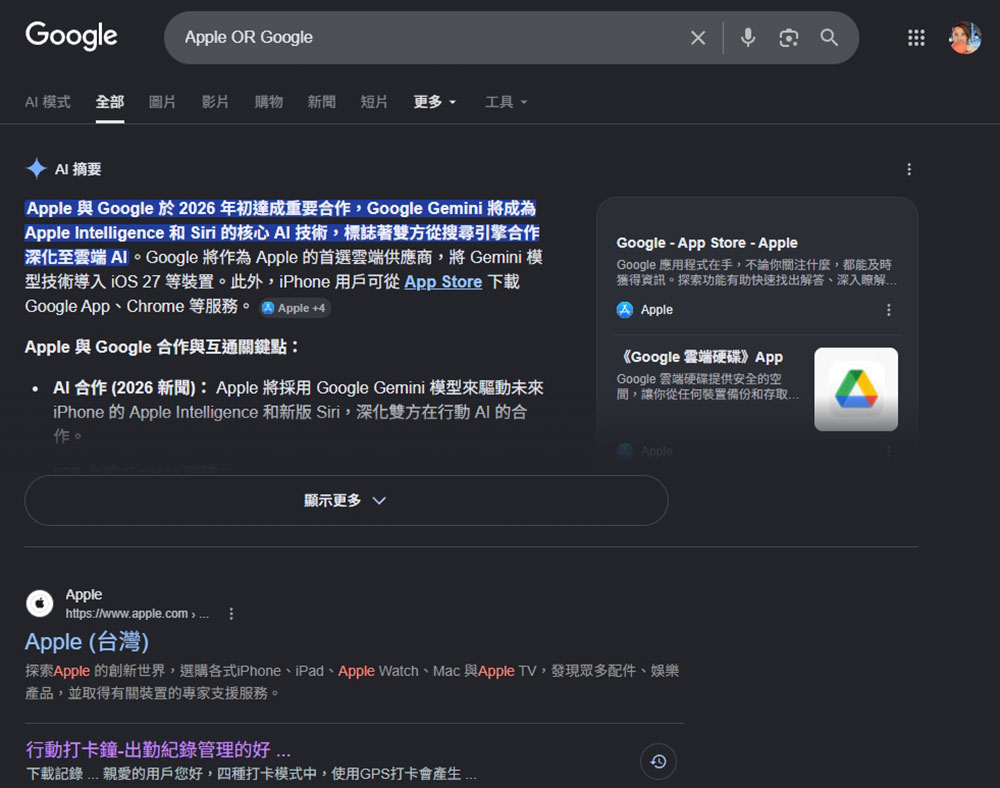
Find results that contain either of these two words. Sometimes, you need to search for results that contain one of the words you are looking for, in which case this can be very helpful.
For example: typing “Apple OR Google” will show results for both Apple and Google. Please remember that “OR” is an operator and must be capitalized.
- *:
You can use * to fill in the words you’re not sure about or don’t know in the sentence, and Google will try to autocomplete and suggest the results you want. Although its accuracy is not as good as some tools, it can still meet basic needs.
For example: “best * apps for students”, if you are looking for the best student apps, you can use *, which will group Google search results by different app types.

- before:
Find search results published before a specific time.
For example: “site:kocpc.com.tw android before:2026-01-01” is to filter out Android-related articles published on the Computer King Ada website before January 1, 2026. You can use date filters with other search operators, primarily sites and topics.

- after:
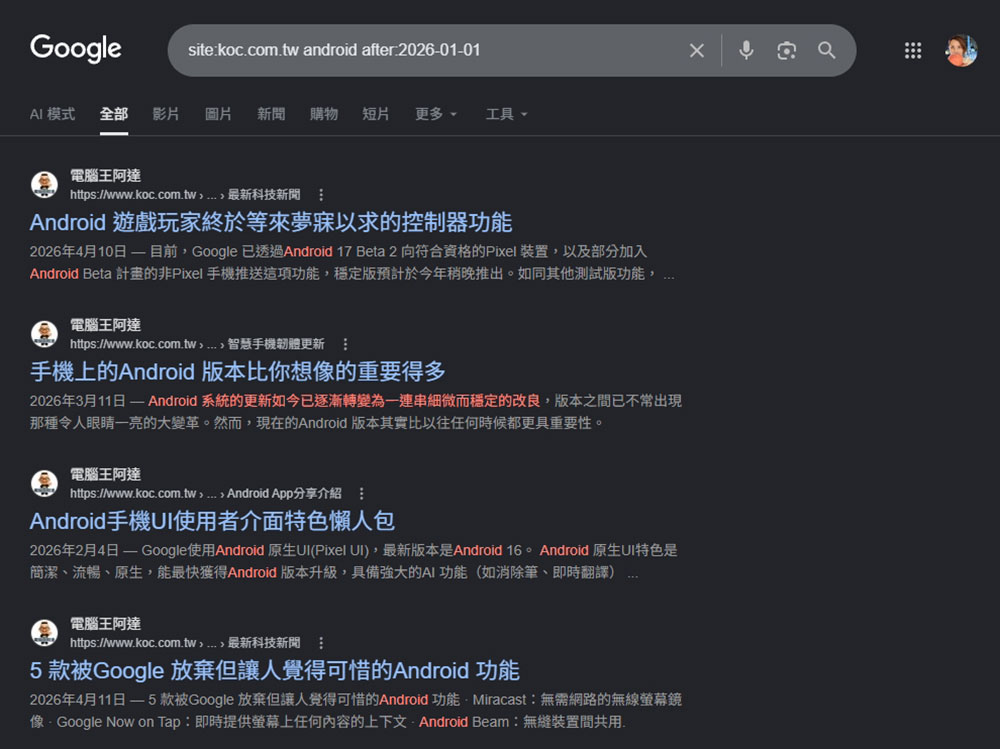
Find search results published after a specific time.
For example: “site:kocpc.com.tw android after:2026-01-01” is to filter out Android-related articles published on the Computer King Ada website after January 1, 2026.
- after:date before:date:
Find web pages within a specified date range.
For example: “kocpc.com.tw after:2025-01-01 before:2025-12-31” refers to finding articles published on the Computer King Ada website between January 1, 2025 and December 31, 2025.

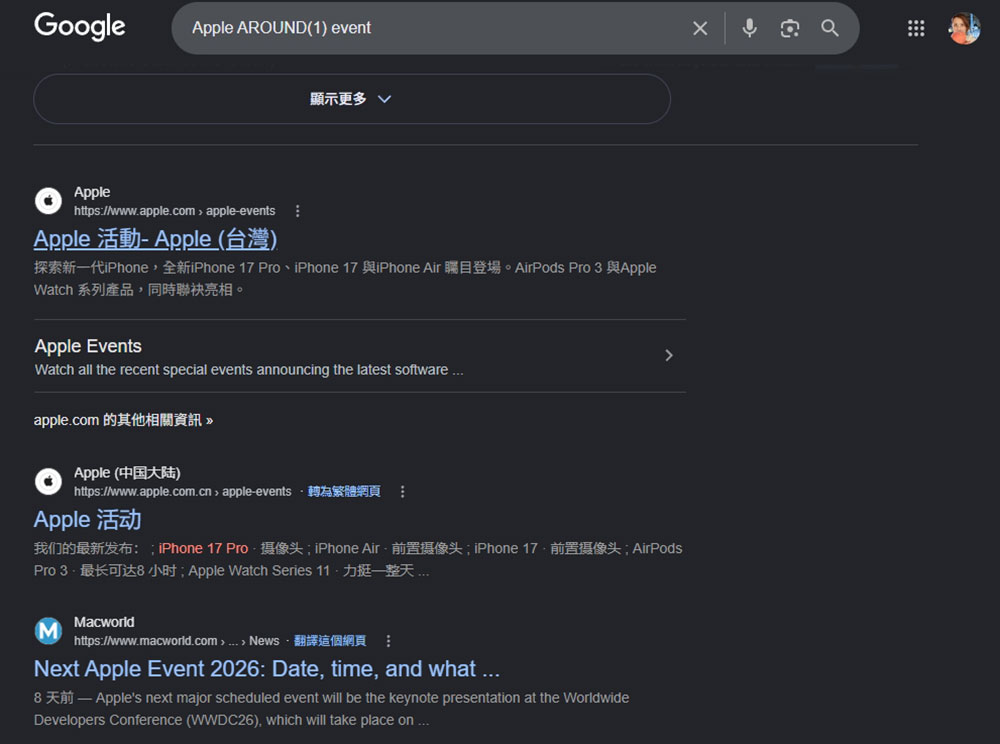
- AROUND(X):
Find pages where two words in the title are adjacent to each other. This is great if you want to combine two words and get search results.
For example: “Apple AROUND(1) event” instructs Google to search for the words “Apple” and “Events” side by side. Here, X represents the single word spacing between them. The apple AROUND (3) event displays a page in which the words “Apple” and “Event” are three words adjacent to each other.
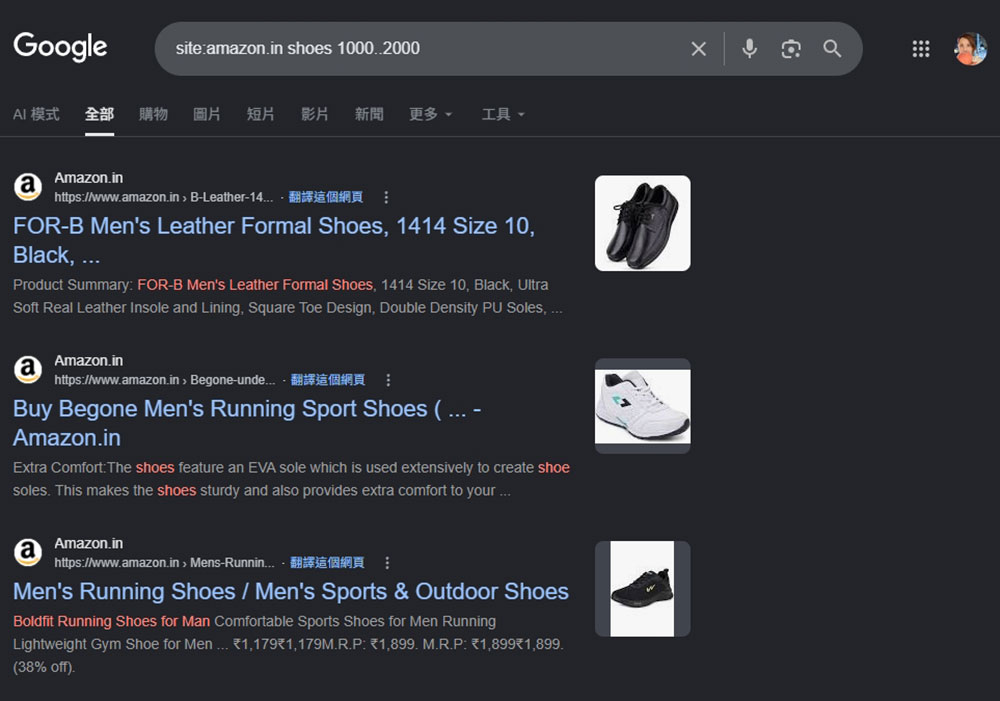
- ..:
Searching for pages within a specific range of numbers is best used to find a list of articles with numbered titles, and is also suitable for filtering results for a specific date.
For example: “site:amazon.in shoes 1000..2000” displays all pages on Amazon with shoe product numbers between 1000 and 2000.
- Source:
Find all the latest news from a specific website. You can also specify a topic and it will use that website as a source of information to bring you all relevant news.
For example: “iPhone 18 Source: “Computer King Ada”” can display all iPhone 18 articles on the Computer King Ada website.

Find a specific page
- loc:
Find all results for a specific location. This is very helpful if you are looking for local information or doing travel research.
For example: “iPhone stores loc:”Taipei”” can display all iPhone store locations in Taipei.

- news location:
You can also use the location parameter to get all news related to a specific location.
For example: “news location:”Taipei”” to display all news related to Taipei.

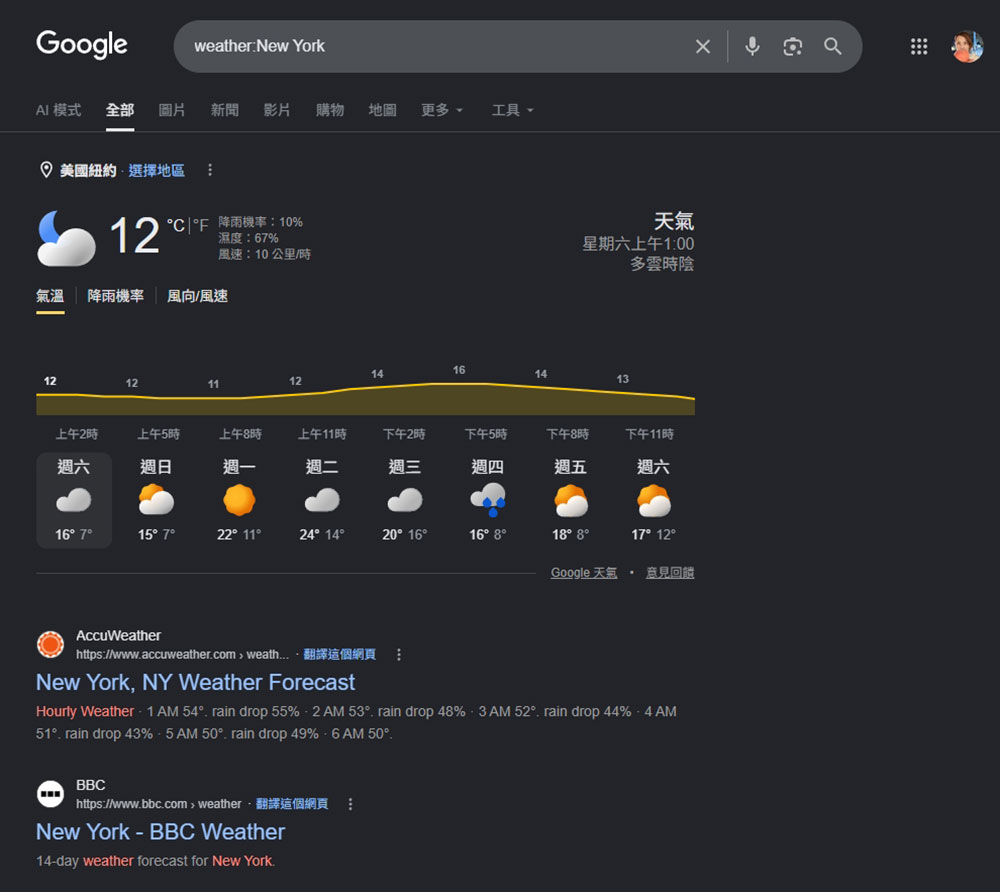
- weather:
Find weather information for a specific location. If you have the native weather app installed, it will automatically open and obtain weather information for that location.
For example: “weather:New York” displays all weather results in New York.
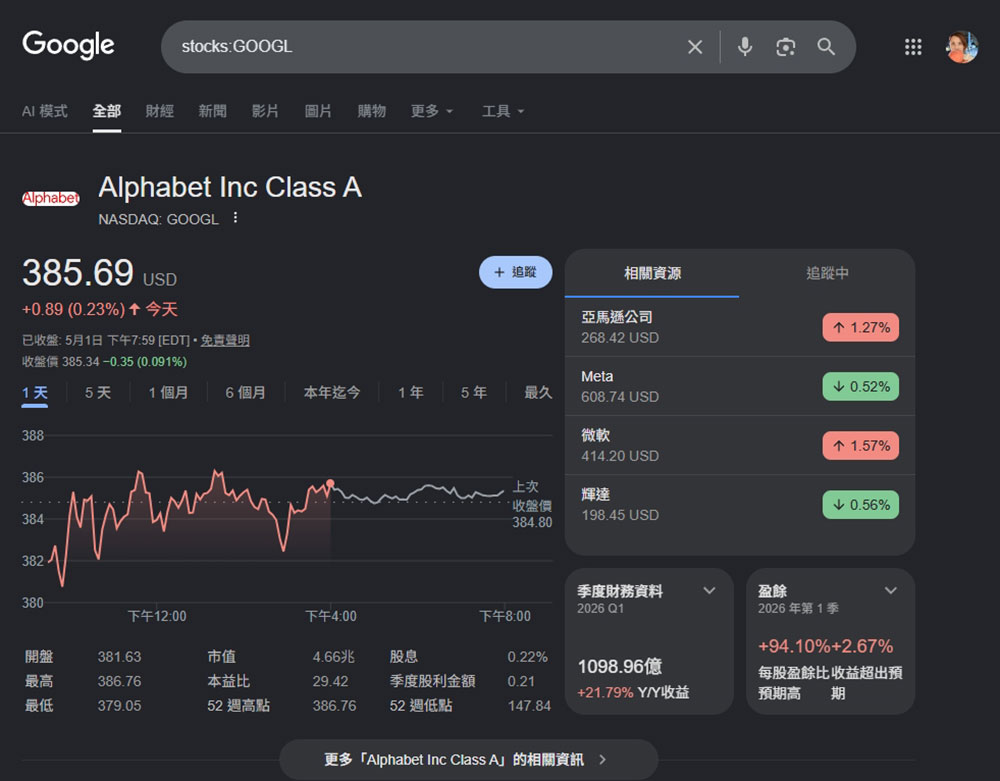
- stocks:
Find stock trading results for any company.
For example: “stocks:GOOGL” only displays all stock information pages related to Google.
- movie:
Find pages related to a specific movie.
For example: “movie:star war” will display all pages related to the movie “Star Wars”.

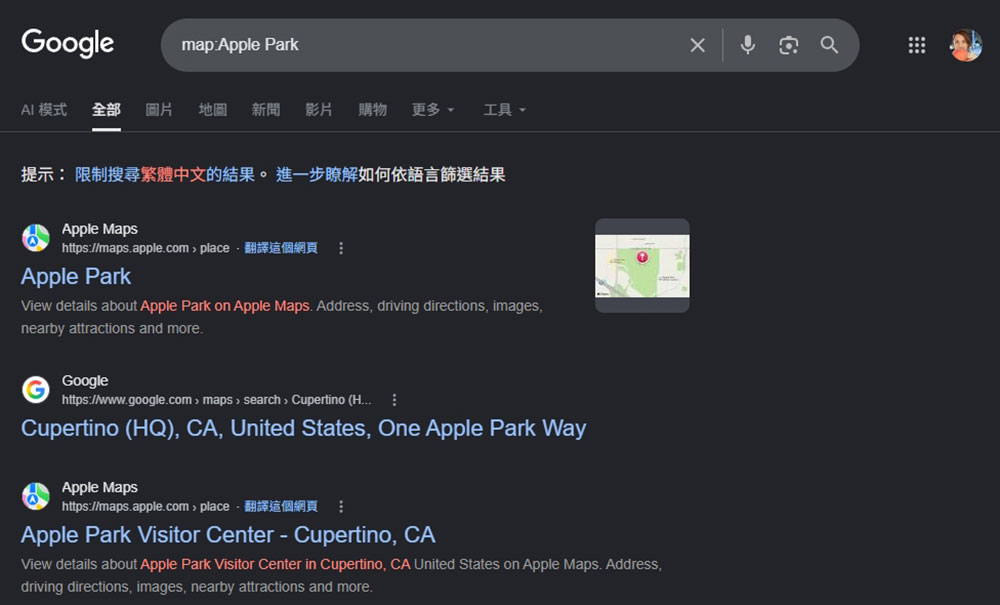
- map:
Show map pages related to your search. If you’re specifically looking for a location, using this operator will give you the exact same map results as your query.
For example: “map:Apple Park” will display pages related to the Apple Park map.
Find a specific file format
- filetype:pdf:
Find all PDF files of a specific topic.
For example: “product management filetype:pdf” will display all pdf files related to product management.

- filetype:ppt:
Not only PDF files, you can also find PPT files related to any topic.
For example: “product management filetype:ppt” will display all results related to product management in ppt file format.

- filetype:doc:
You can also use search operators to find DOC files.
For example: “product management filetype:doc” will display all doc file results related to product management.

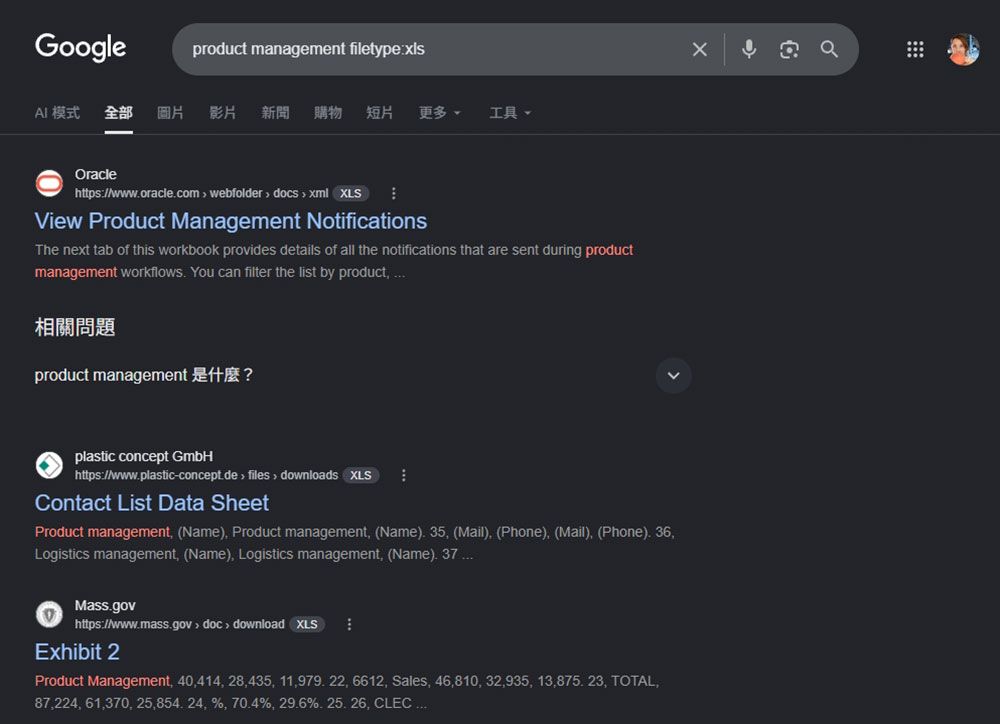
- filetype:xls or filetype:xlsx:
Find all Excel files related to the same topic. Since Excel file formats are different, you can add an OR parameter between the two to find files matching any format.
For example: “product management filetype:xls” will display all Excel pages related to product management topics.
- Site:example.com Topic filetype:pdf:
Find specific files from specific websites. If a site contains specific files, you can use the site operators for themes and file types.
For example: “site:openai.com AI filetype:pdf” can display PDF files about AI on the OpenAI website.

- Site:brand.com product name filetype: pdf:
Find an official guide or manual for a specific product. Although Google actively displays manuals provided by brands directly, you can still find the original guide using this operator.
For example: “site:sony.com PlayStation 5 filetype: pdf” can display all PlayStation 5-related PDF files on the Sony.com website.

- define:
Quickly find the definition of a word. Since Google’s “define:” search operator has been launched, using this parameter format, AI will return results in the definition format, and a complete definition and explanation can be obtained.
For example: “define:blockchain” will display the definition of blockchain.

tool
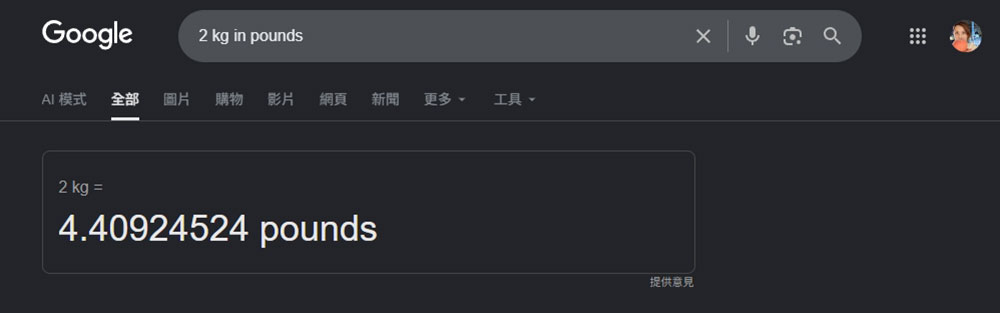
- in:
Convert one unit to another.
For example: “2 kg in pounds” will show how many pounds are equal to 2 kilograms.
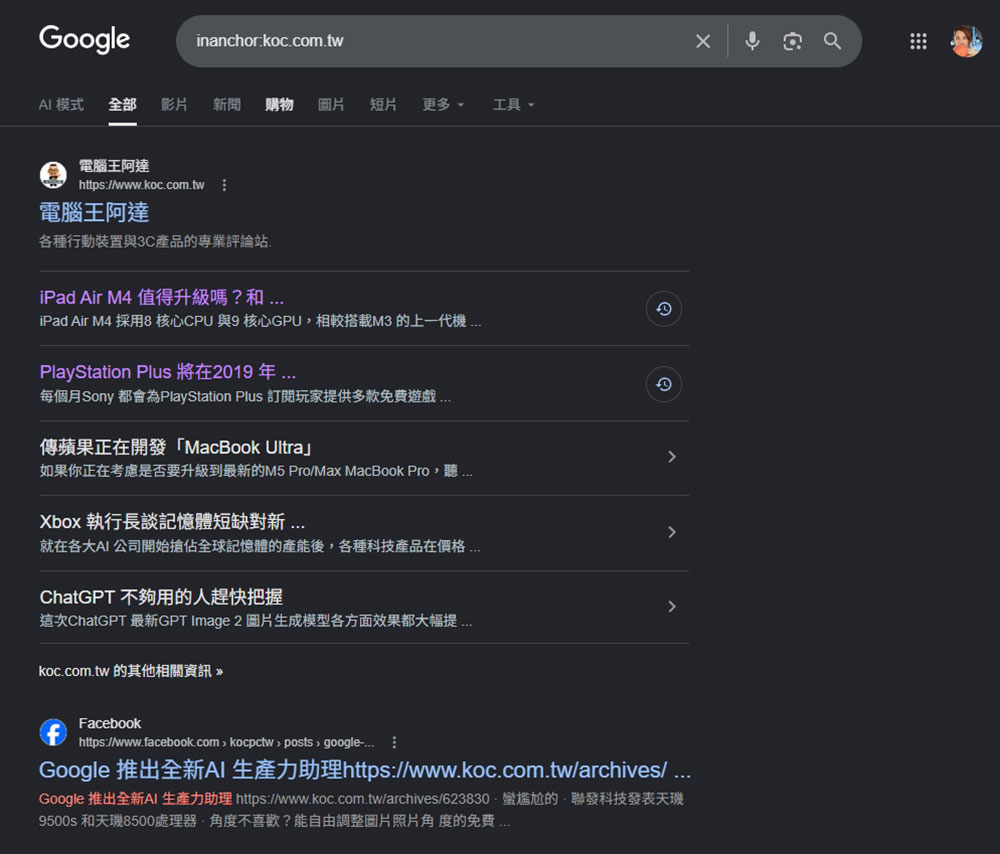
- inanchor:
Displays pages that contain specific backlinks, which is useful for SEO researchers who want to find which pages use specific backlinks.
For example: “inanchor:kocpc.com.tw” displays all websites whose main content contains Computer King Ada.
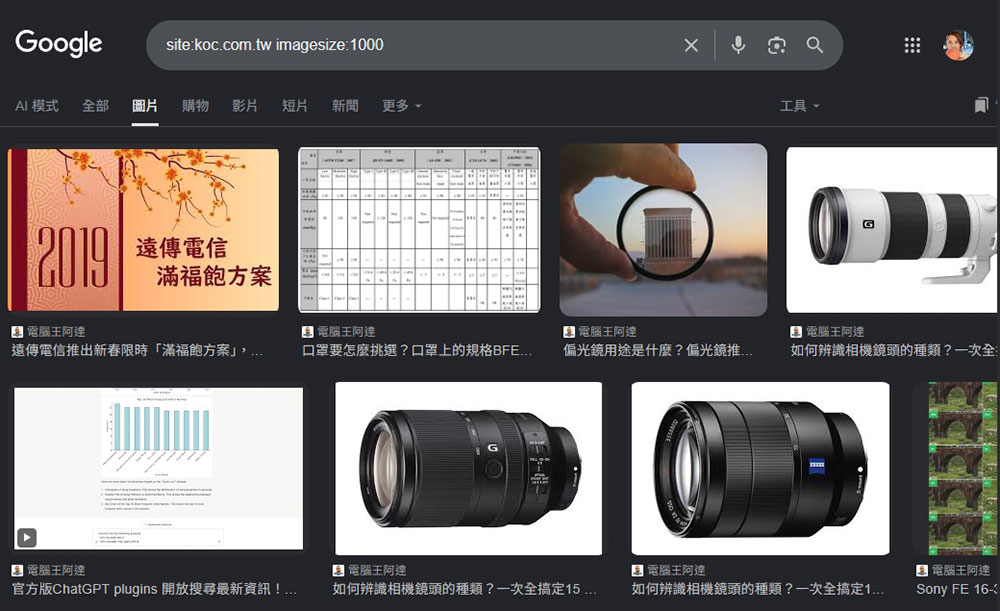
- imagesize:
Find all images in a Google search that match a specific size.
For example: “site:kocpc.com.tw imagesize:1000” displays all images with that specific size on the Computer King Ada website.
- site:.edu or gov or org
Find all results for a specific domain type. .edu is used for educational websites, .gov is used for government websites, and .org is used for organizational websites.
For example: “Internet security site:.gov” displays all Internet security related pages from the government.

FAQ
- Why don’t some Google search operators work for me?
Google will test new operators and deprecate existing operators. However, be sure to check that the parameter structure is correct as results can sometimes vary depending on the query. - What should I do if my Google search results are few after using search operators?
If there are fewer search results, it may be because there are a limited number of pages related to your search topic. You can modify the search conditions to get better search results. - Do Google search operators work on mobile devices?
Google search operators work the same way on mobile devices as they do on desktop devices.
Source: KOCPC Chinese