


When you are constantly focused on your work, just the slightest interruption can interrupt your thoughts, whether it comes from the outside world or the system itself. Whether it’s a notification, a pop-up, or a flashing icon, it’s more than just a brief interruption. Studies show that it can take up to 20 minutes to regain focus after a distraction, making small interruptions big stumbling blocks. Therefore, anything you can do to reduce unnecessary distractions from your computer will be helpful.
Turn these settings off to reduce distractions in Windows 11
Windows has a long and recurring history of interference. Advertisements, advice, gadgets and well-intentioned tips all compete for traction, especially when you’re busy working. When setting up a new Windows 11 system, these are the first settings I turn off to keep my work quiet and predictable.
Mute Notification Center to protect your focus
Notification Center is one of the biggest sources of distractions in Windows 11. At this time, there is a mountain of app reminders, system reminders, tips, suggestions, calendar reminders and promotion reminders. Some of them are indeed useful, but most of them are not that urgent and rarely relevant to your current work. The problem is not a single notification, but the constant interruptions that prevent you from focusing on your work.
The fastest way to mute sound in Windows 11 is to start with notification settings:
- Open the Settings application and enter the system.
- Click on the notification.
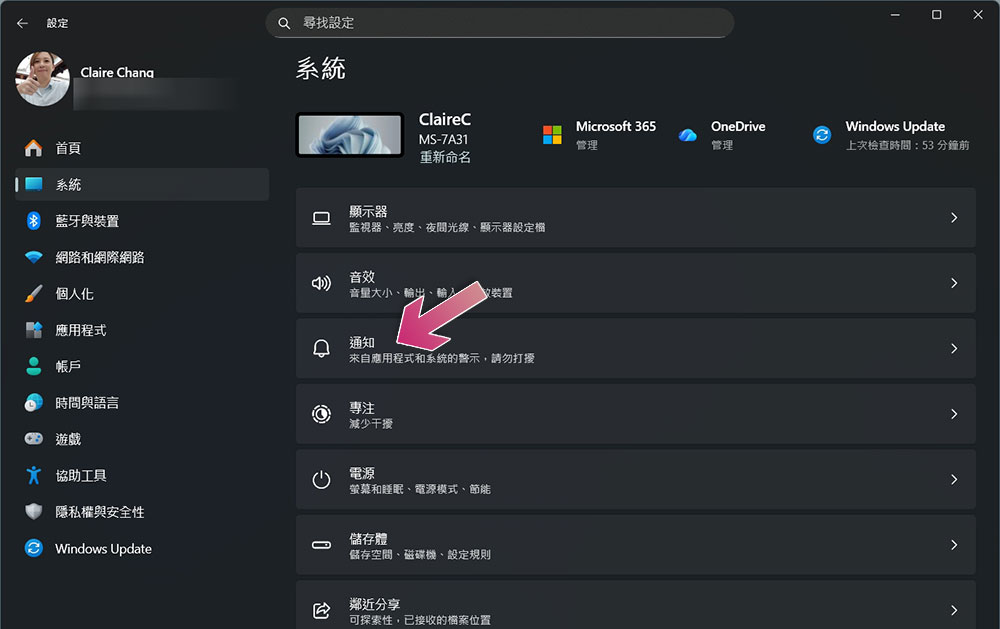
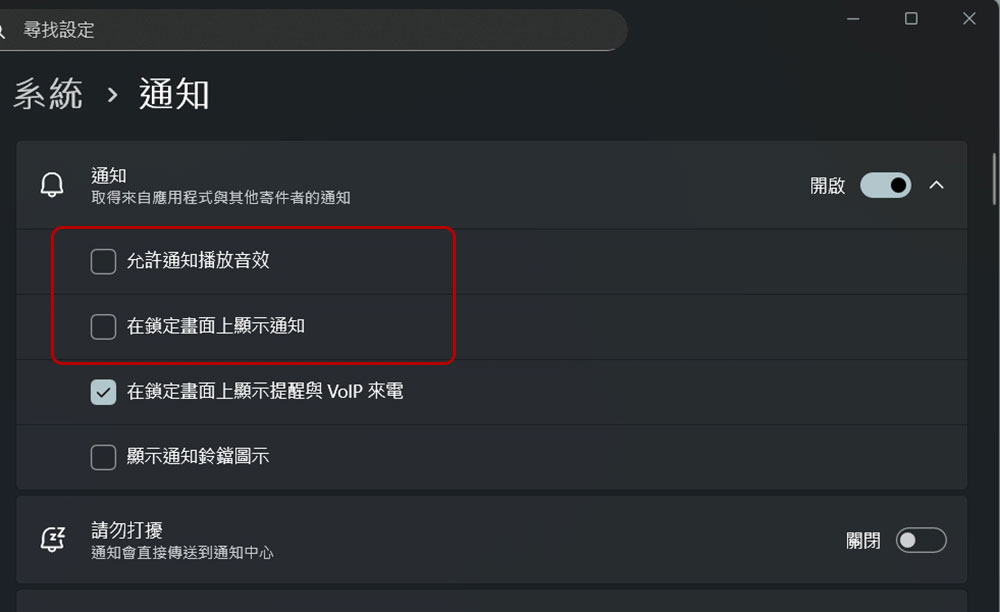
- Notifications mostly come from application reminders, system reminders, etc. Expand the collapse menu of notifications. The author recommends turning off “Allow notifications to play sound effects” and “Show notifications on the lock screen”.
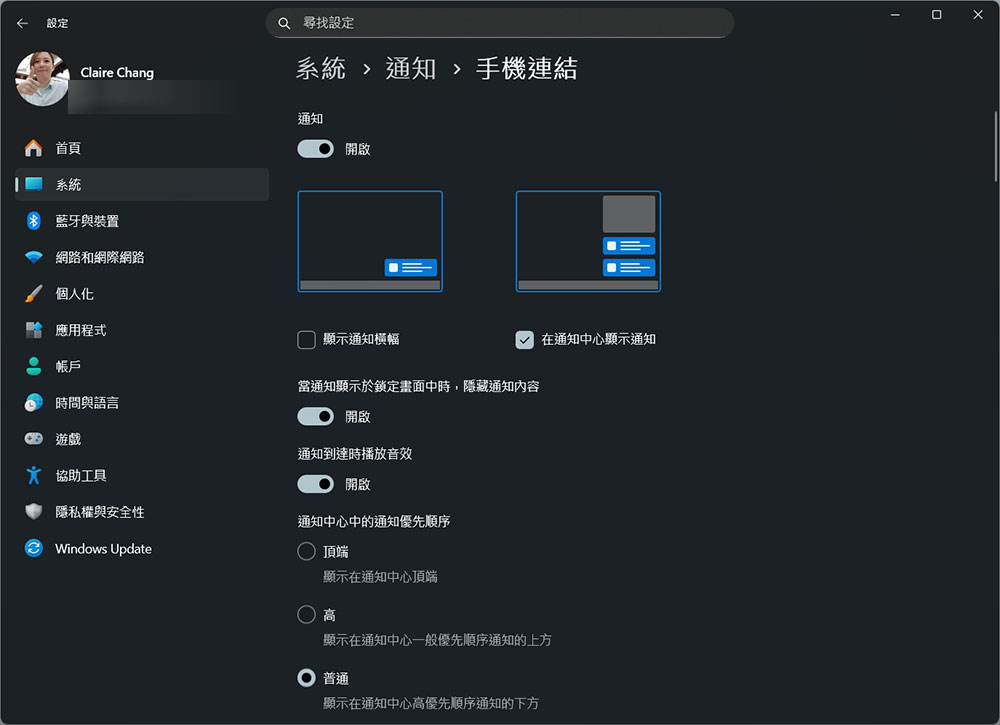
- Then scroll down to the app list and turn off any notifications that don’t require immediate interruption. Browsers, background tools, and Windows features like Tips and Suggestions are all common culprits. For apps I want to pay attention to, I go into settings to turn off banners and sound effects so notifications stay in the background rather than popping up on the current screen.
Stop the widget panel from stealing your attention
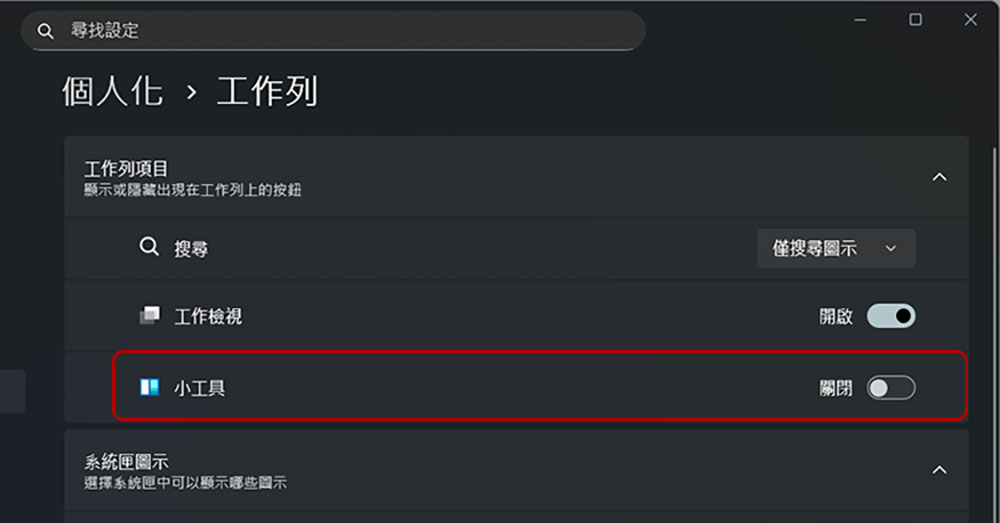
Another area where Windows 11 continues to cause disruption is with gadgets and the News Feed. They display headlines, weather updates, sports scores, market breakdowns, and trending news that isn’t relevant to your regular work. Even when they’re not open, widget icons in the taskbar update and animate, becoming a distraction designed to make you click. If you don’t rely on gadgets, the easiest way is to remove them entirely:
- Open the Settings app and enter “Personalization”.
- Select “Task Bar”.
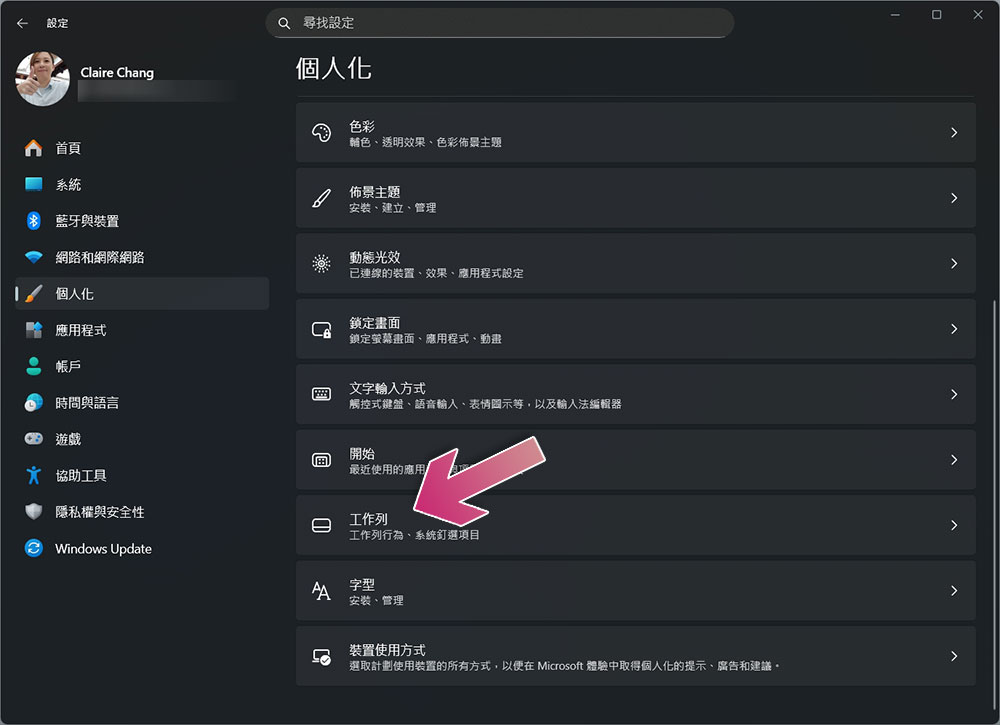
- Turning off Gadgets will completely remove the gadget’s icon from the taskbar and completely prevent News Feed from appearing.
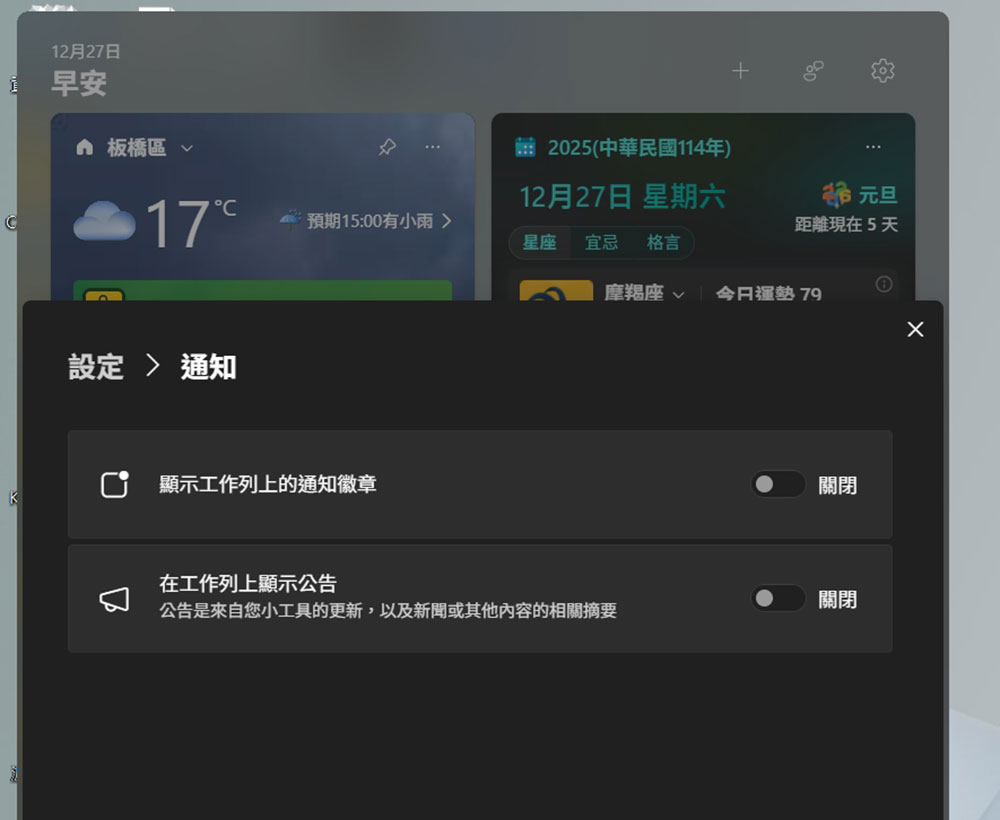
If you want to keep gadgets but reduce distractions, you can also open the gadget panel, click the gear icon in the upper right corner to enter “Settings”, and then turn off both items in “Notifications” to only display the information you really care about.
Turn off intrusive Windows system ads
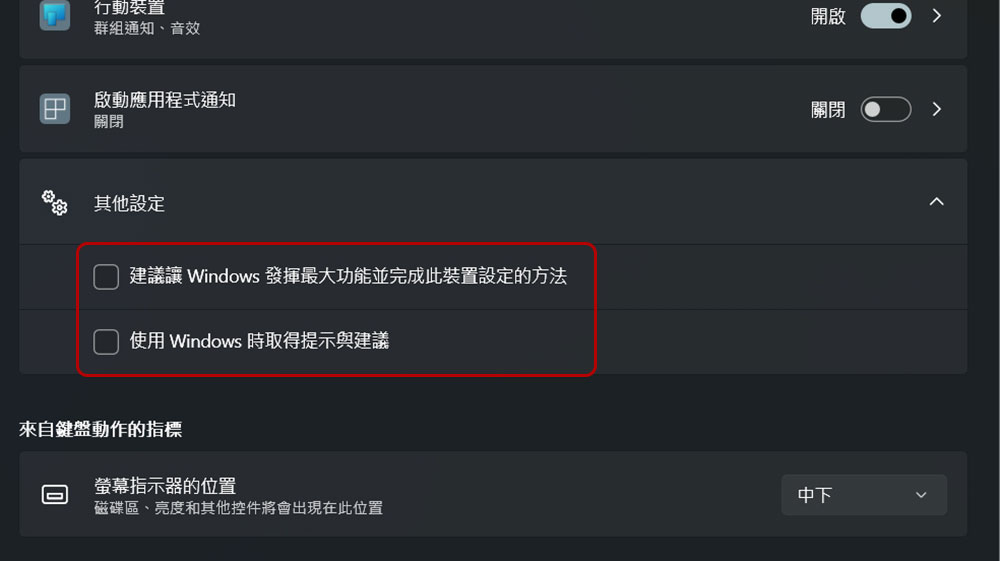
Windows 11 doesn’t just interrupt you with app notifications, it also displays system-level ads disguised as tips, advice, and helpful reminders. These prompts will pop up to encourage you to try Microsoft services, complete device setup, switch your browser to Edge, enable sync, or explore new features you didn’t actively ask for. Taken individually, these prompts may seem innocuous, but taken together they make it feel like the system is constantly trying to sell upgrades or guide the use of services. Most of these prompts can be turned off in the same place. These settings don’t affect core functionality, but greatly reduce the need for Windows to constantly interrupt you with promotional ads:
- Open the Settings application and click to enter “System”.
- Then select “Notifications”.
- Scroll down to the bottom of the application, expand the “Other Settings” menu, and cancel all items there.
After years of using Windows, I’ve found that most distractions are optional, even if they are enabled by default. Taking a few minutes to turn off notifications, widgets, news feeds, and system promotions can significantly make your operating system more predictable and quieter. Once the distractions are gone, you can really focus on the task at hand.
Source: KOCPC Chinese