


Do you also often iPhone Put it on mute and miss important calls or messages when you get busy? Or maybe in a meeting or in a movie theater, it’s not suitable to hear the notification sound at all, but you want to be able to grasp it immediately.notifydynamic. As usage scenarios become more and more diverse, sound or vibration alone is no longer enough.
this time iOS 26.2 The update has made key enhancements to notification prompts, making visual reminders more intuitive and flexible. Not just the original flash, but alsoscreenIt can itself become a reminder tool. This change gives the iPhone a non-intrusive but clear reminder method when used in quiet environments, low-light spaces, or even on the desktop. It is worth understanding in depth what differences it will bring in actual use.
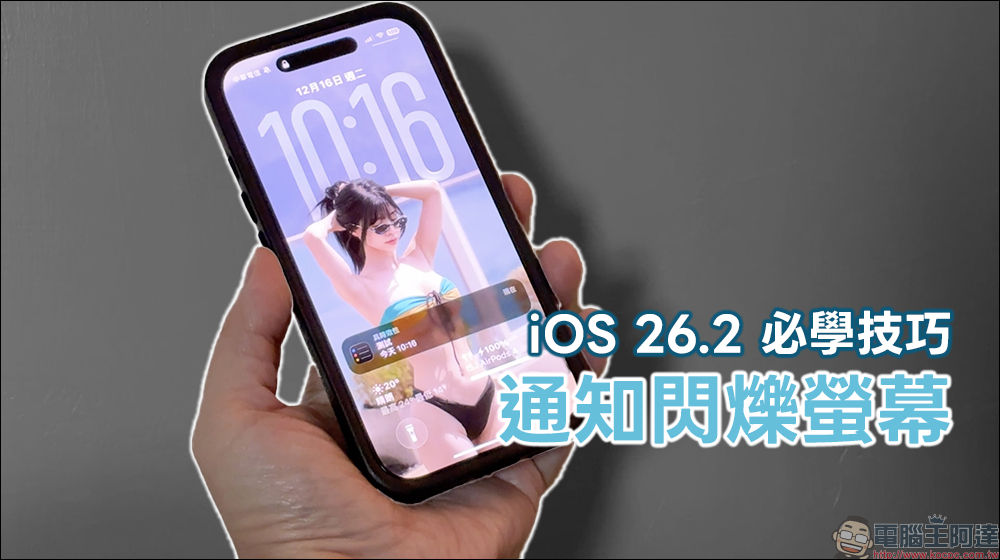
iOS 26.2 must-learn tips: How to turn on iPhone notification screen flash in the most practical way
With the official launch of iOS 26.2, Apple has once again made detailed enhancements to the accessibility features. One of the most interesting updates is the advanced iPhone notification flash prompt function. In the past, this feature was mostly reserved for specific groups, such as hearing-impaired or hearing-impaired users, to help detect incoming calls or messages. However, in the new version of the system, Apple has rethought the usage context, making this feature no longer just an auxiliary tool, but a notification option that everyone can use flexibly.
exist iOS 26.2 Previously, the iPhone’s notification flash was mainly through the main lens LED flash on the back of the fuselage. Whenever there is an incoming call or message, the light will flash, providing a silent visual reminder. However, this design also has obvious limitations. For example, if the phone is placed face up on the table, the flash on the back is actually difficult to notice.
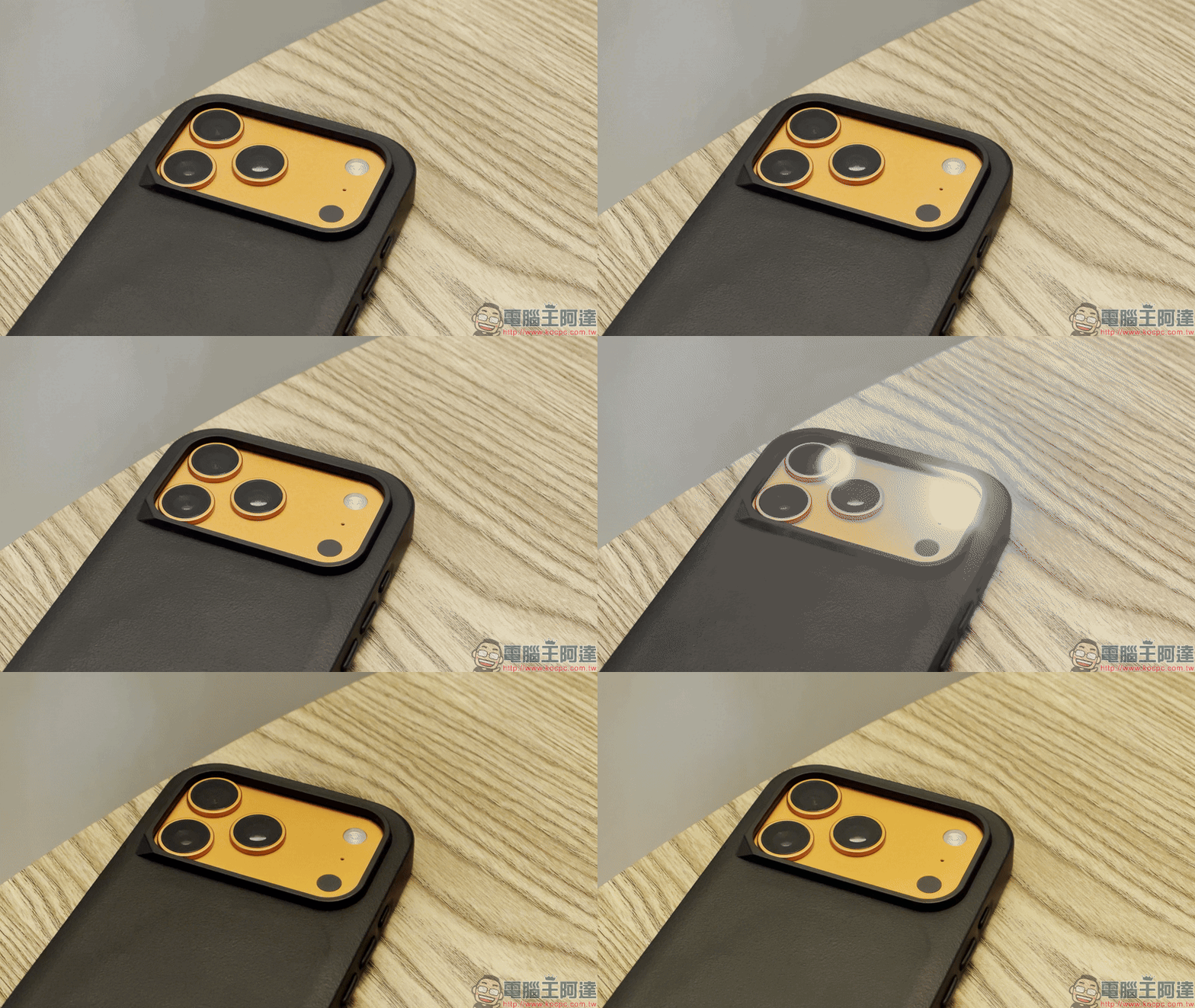
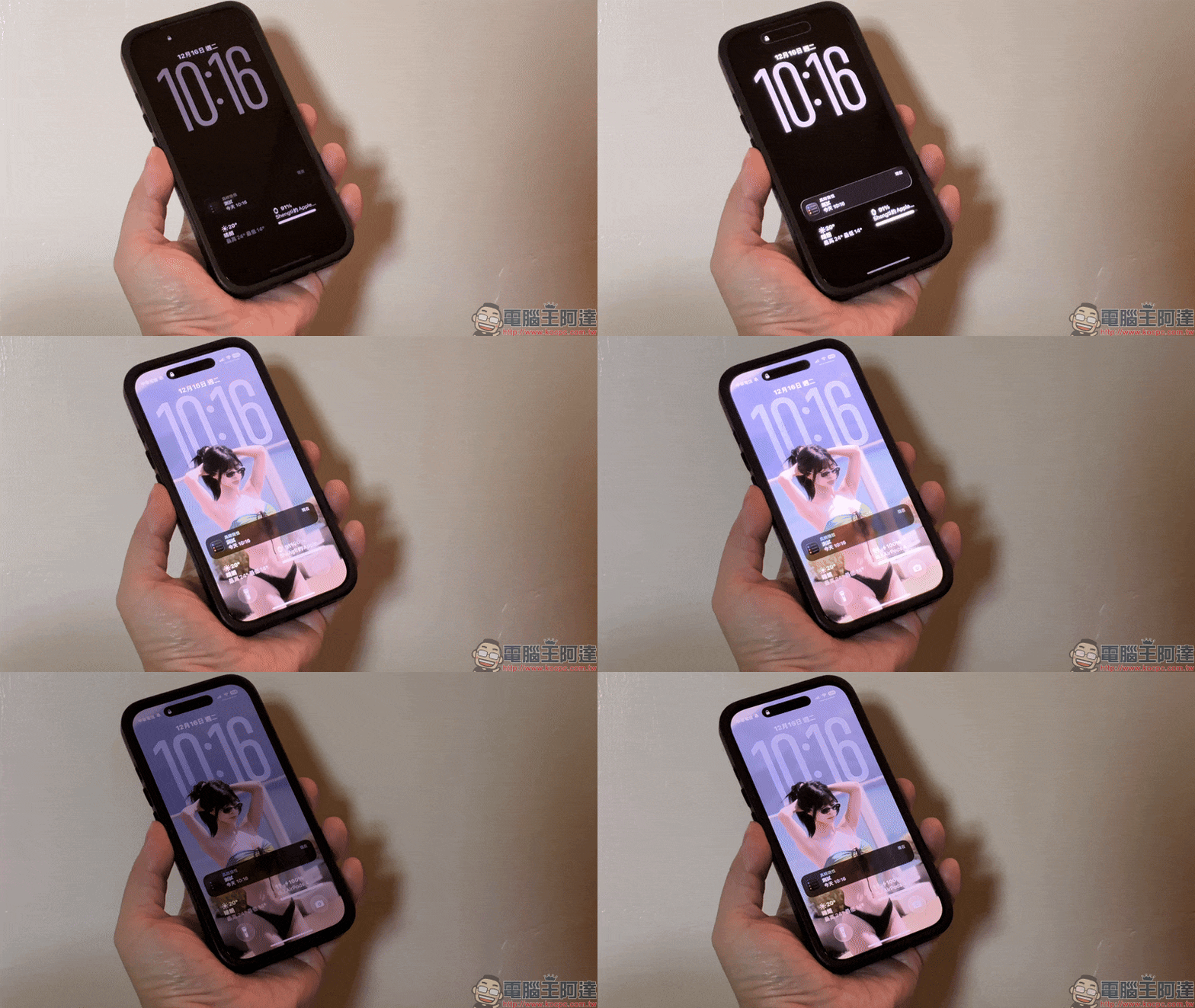
After this update, Apple has added a “screen flicker” prompt that allows the entire iPhone display screen to briefly flash white when a notification is received. For people who are accustomed to placing their mobile phones on the desktop with the screen facing up, this change will be felt almost immediately. Even in a completely silent state, as long as the screen flashes with your peripheral vision, you will know that there is a new notification.
iPhone notification flash prompt setting tutorial
If you want to enable the notification flashing function of iOS 26.2, the setting process is actually very simple. You only need to enter the system settings to complete. First, open the iPhone’s “Settings” app, click “Accessibility”, and then enter “Audio & Vision”.
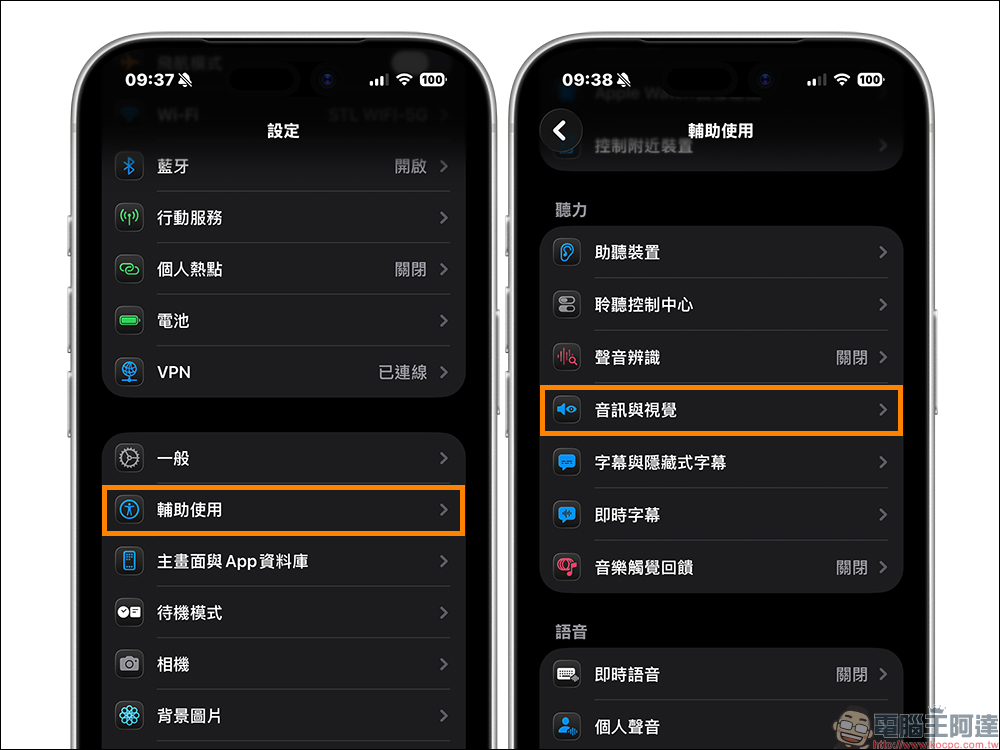
Scroll down on the page and you will see the “Flash when prompted” option. Click on it to start setting. Starting from iOS 26.2, in addition to the original “LED Flash”, there is a new “Screen” option. Users can choose which one to turn on, or a “blink both” setting.
After entering the flash reminder settings, turn on the “Flash when receiving reminder” function, and then you can choose the appropriate reminder method according to your own usage habits.
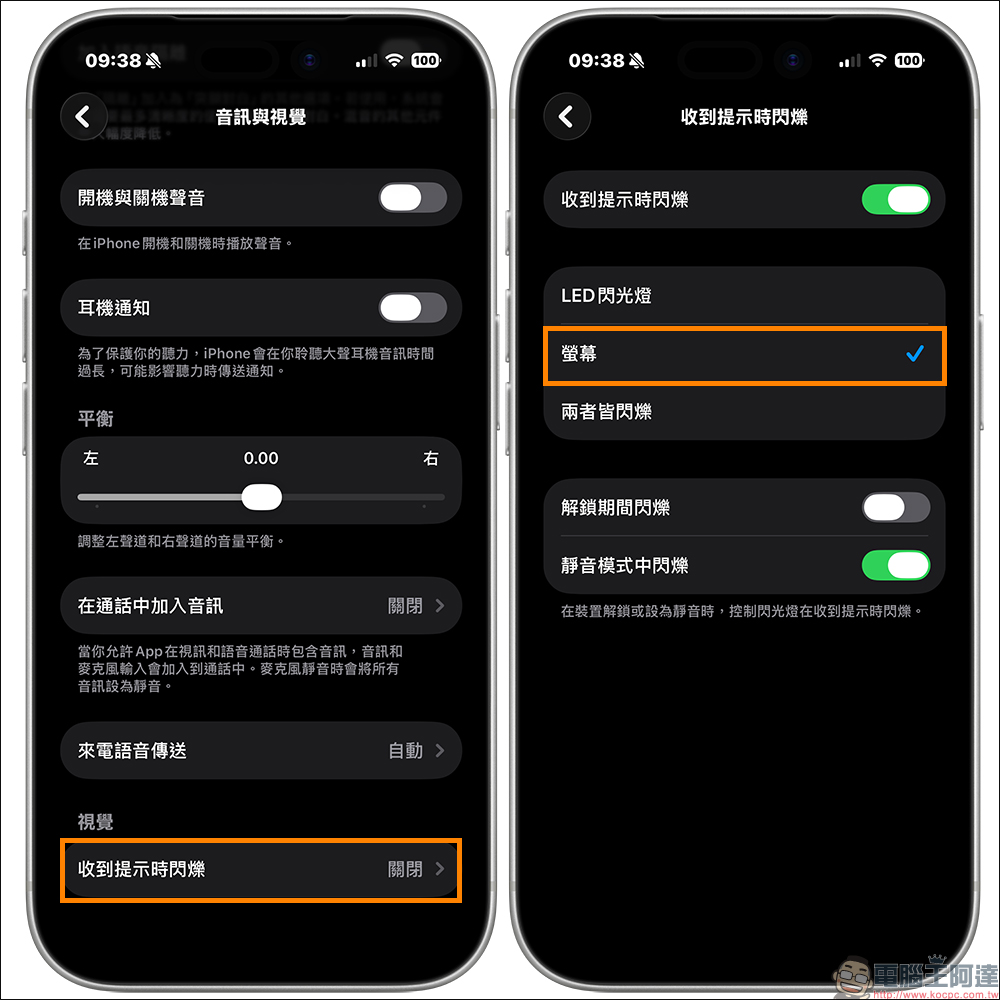
The “LED Flash” mode uses the lens flash on the back of the iPhone to alert you, and is suitable for situations where the phone screen is facing down or is placed in a bag. “Screen flicker” mode briefly lights up the entire display screen, making it ideal for desktop use or low-light environments. If you want the reminder effect to be more clear, you can also choose to flash simultaneously to let the screen and LED flash remind you simultaneously.
In addition, the system also provides more detailed control options, such as whether to flash only when the iPhone is unlocked, or to retain the flash reminder when silent mode is turned on. These settings allow users to adjust the level of interference according to different life rhythms.
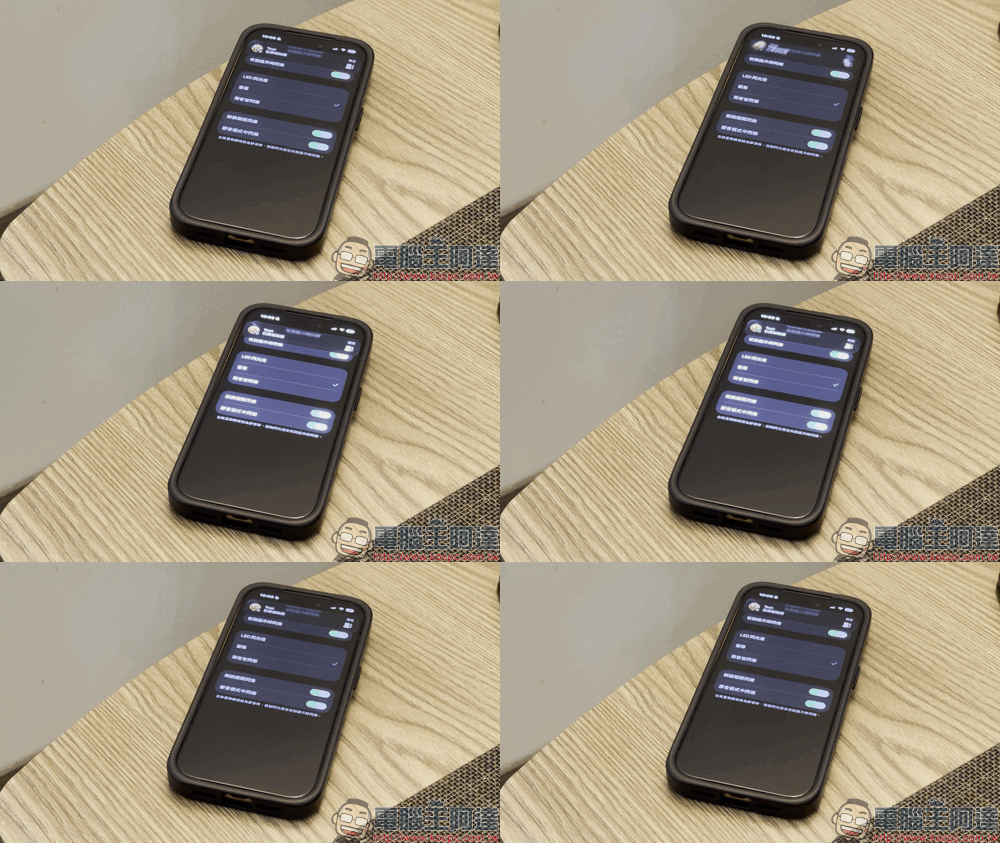
What usage scenarios is suitable for notification screen flashing?
Screen flicker alerts are particularly suitable for several common scenarios. The first is that when working or having a meeting, the mobile phone must be silent, but important contacts cannot be completely missed. The second type is in movie theaters, theaters or lecture venues where it is inconvenient to vibrate or make sounds. The third type is at night or in a low-light environment. Screen flickering is more intuitive than sound and will not disturb others.
In addition, this feature can also be used as an alternative for users who originally rely on Apple Watch vibration notifications. When you don’t want to wear the watch for the moment, or the watch is charging, you can maintain a certain sense of immediacy by matching the screen flashing prompt.
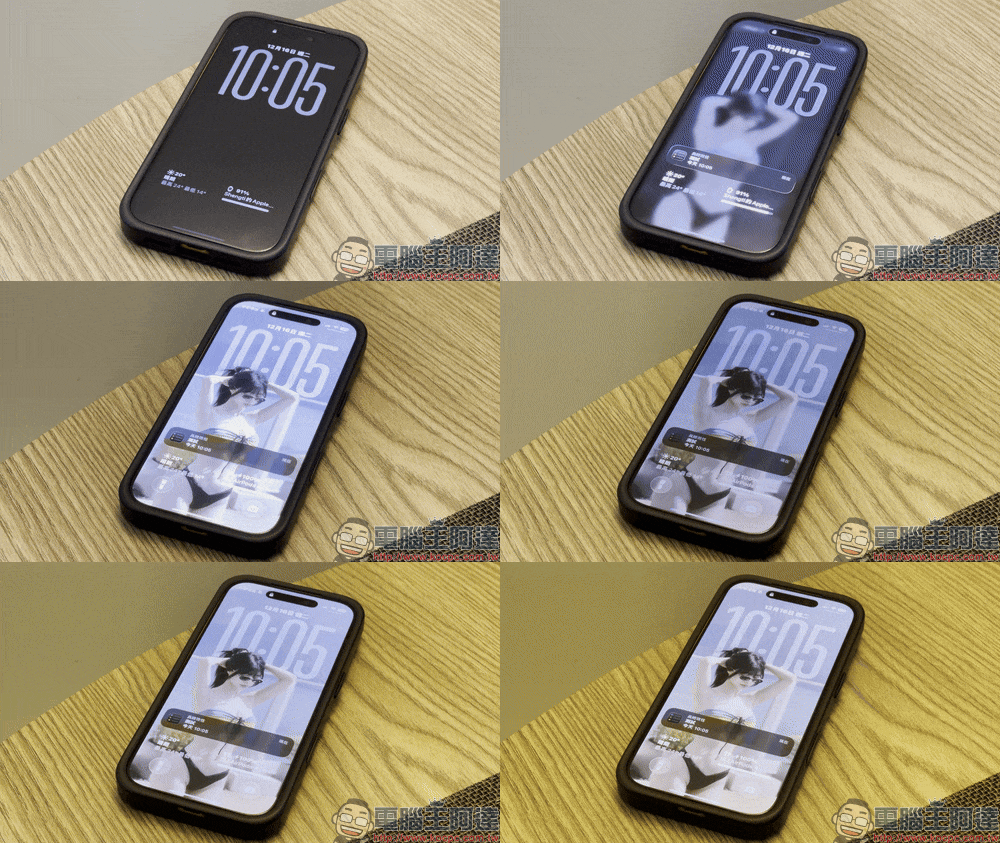
After the screen flashing is actually turned on, whenever a new notification comes in, the screen will flash white light quickly. It does not last long, but it is highly recognizable. It’s easy to notice even if you’re not looking at your phone. For people who usually keep their phones silent for long periods of time, this reminder method saves more power than vibrating and is less likely to be ignored.
However, please note that if you are using your phone in a very dark environment, such as before going to bed, the frequent screen flickering may be a little dazzling. It is recommended to turn it off or adjust the use time according to the situation, so that the function can be used when you really need it.
Conclusion
This time iOS 26.2 strengthens the notification flash prompt. On the surface, it seems to be just one more option, but in fact it reflects Apple’s emphasis on flexibility of use. It has evolved from a single and relatively limited auxiliary function to a notification tool that can meet the daily needs of most people, making iPhone closer to users in different life scenarios.
If you have upgraded to iOS 26.2, it is highly recommended to take a few minutes to enter the settings to try this new feature. You can also set it up for the elders at home or relatives and friends who need silent reminders. Perhaps just a small flicker of the screen can prevent you from missing an important call or a key message.
Further reading:
Source: KOCPC Chinese