


At the WWDC 2024 event, Apple launched iOS 18 / iPadOS 18, which provides many new features for iPhone and iPad users. The feature not only imports some features that have been available to Android users for years, but also introduces a slew of new accessibility features. One of the great features is eye tracking, which allows you to use the Face ID lens to control iPhones and iPads with your eyeballs without the need for any additional hardware. Next we’ll explain what eye tracking is, its functionality, and how to use it.
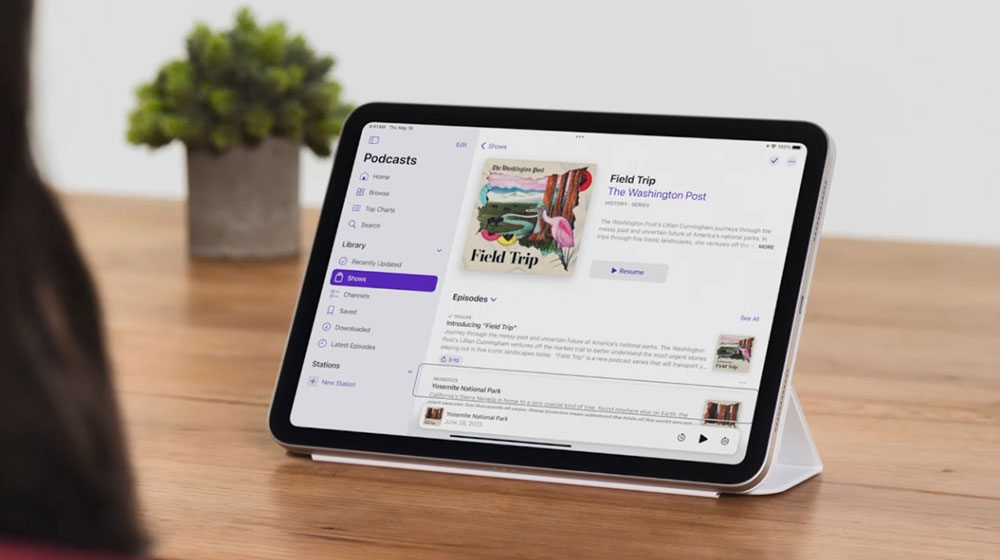
How to set up and use eye tracking on iOS 18 / iPadOS 18?
What is the eye tracking feature in iOS 18 / iPadOS 18?
The iPhone comes with a new eye tracking feature in iOS 18, which uses the Face ID camera to help users control the iPhone with their eyes. This accessibility feature is designed for users with physical disabilities, and it’s worth noting that eye tracking is calibrated in seconds and uses on-device machine learning to set up and allow users to control the feature securely within the device, without sharing any data with Apple.
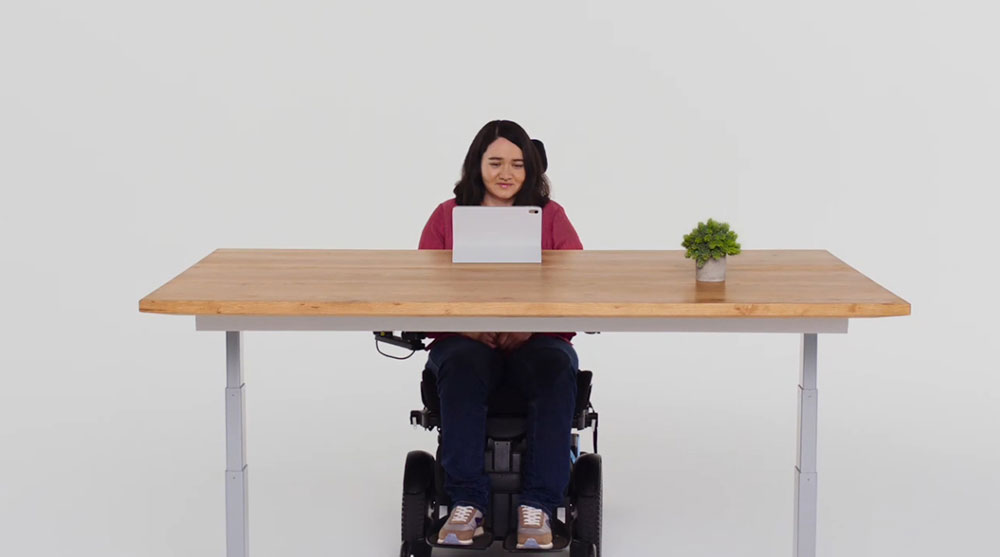
Apple explainsSays: “Eye tracking works across iPadOS and iOS apps without requiring additional hardware or accessories. With eye tracking, users can navigate through various elements of the app and use dwell controls to activate each element, accessing additional features such as physical buttons, swipes, and other gestures using only their eyes.”
How to use eye tracking on iOS 18 / iPadOS 18?
Before using eye tracking on iOS 18, you must first confirm a few things. First, make sure your phone is on a stable surface 30 centimeters away, remove any dirt from the Face ID lens, and make sure there’s enough light. You can use eye tracking on your iPhone after installing the update to iOS 18, right! The same applies to iPadOS 18!
Enable eye tracking
- Open the Settings app and click “Accessibility”.
- Click “Eye Tracking” in the “Body Movements” category.
- Turn on the eye tracking switch.
- Next is a series of eyeball calibrations, which can be used after the calibration is completed.
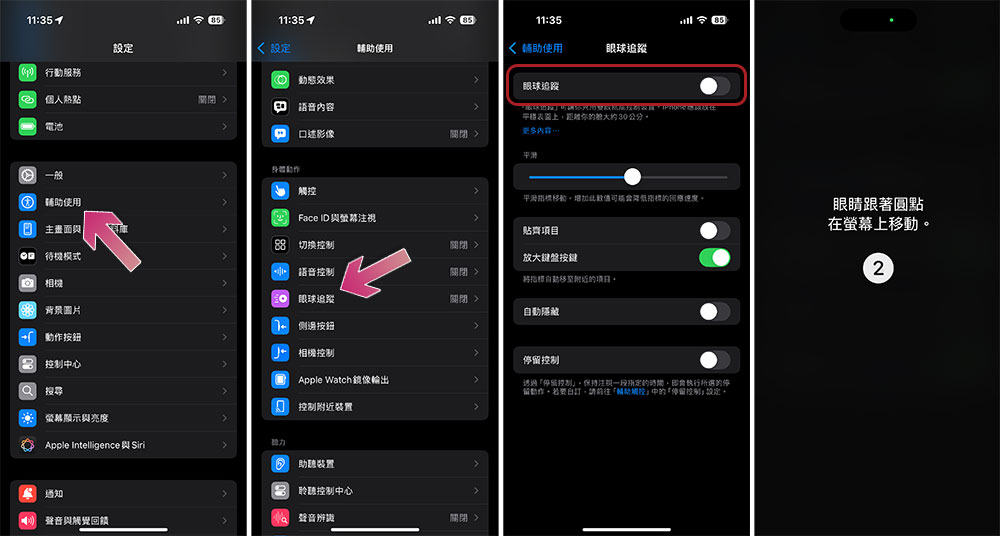
The entire process takes just a few seconds, and then you can control your phone with your eyes. Note that there’s a bit of a learning curve when using eye tracking on an iPhone, and furthermore, you shouldn’t expect it to work like the Apple Vision Pro. Once the eye tracking function is enabled, you can turn on “Dwell Control”. Using Dwell Control, you can control various operations, such as opening Control Center, launching Siri, accessing Notification Center, scrolling up/down, changing the volume, taking screenshots, locking the device, etc.
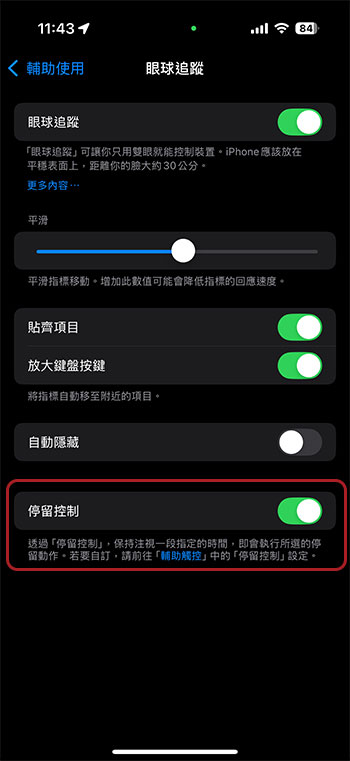
Eye tracking on iPhone also allows you to adjust some settings to make the feature work to your liking. You can use the smoothing slider to increase or decrease the sensitivity of the indicator. There is a toggle button called “Align Items” that allows you to highlight UI elements next to indicators. There is also an option to automatically hide the cursor when not in use.
Source: KOCPC Chinese