


The official version of iOS 18 was launched yesterday, and I believe many people should have upgraded. This time iOS 18 has added a lot of new functions, large and small. If you are not familiar with them yet and want to know which are the new iOS 18 features that are most worth trying and can’t be missed, this article will sort out 5 new features that I feel are very useful after using them.
This time iOS 18 opens up many customization functions, from the control center, desktop, to lock screen, so the first new function that you must try is of course “customization”.
1. Customized control center
When you open the iOS 18 Control Center, you should immediately feel that the screen is different from the past. Now it is no longer just one page, but provides up to 5 pages of Control Center. There is a small symbol prompt on the right, and you can switch to different pages by sliding up or down:
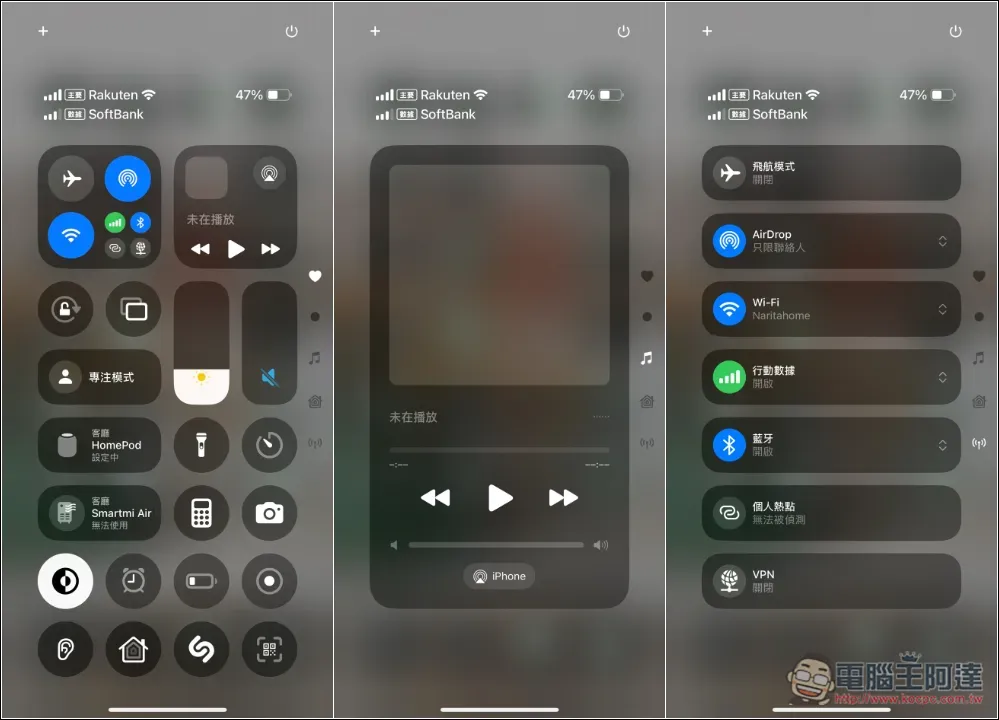
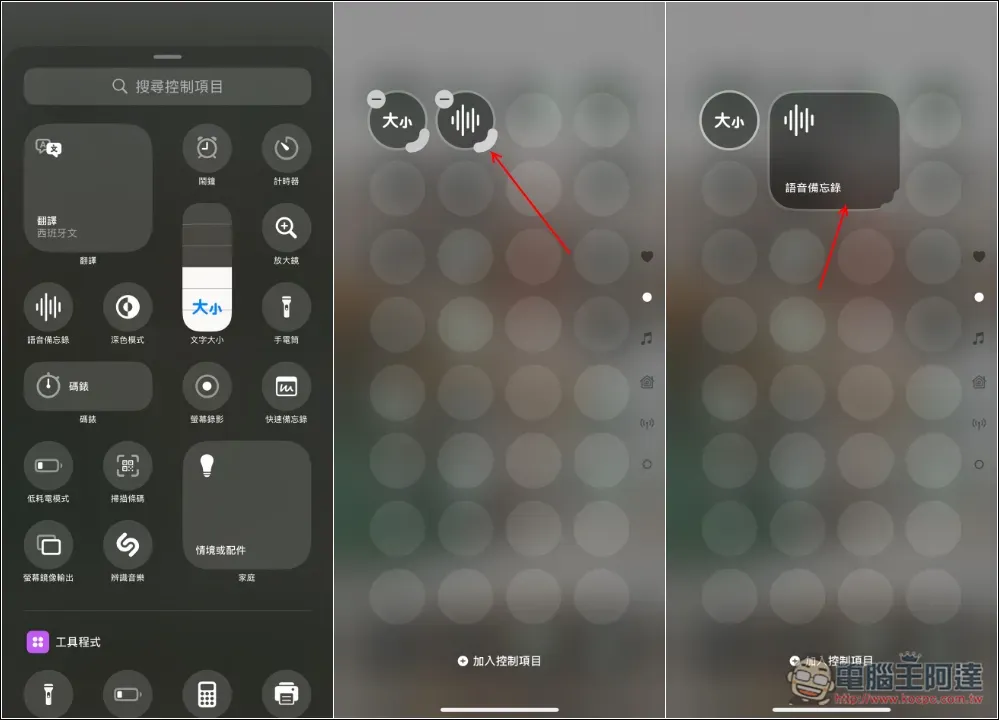
There is an extra + symbol in the upper left corner, and you can edit the current control center by pressing it. Not only can each control function be resized by dragging the lower right corner, but the icon displayed will also change according to the size. This also means that even if you place the same function as others, you can design a control center screen that is unique to you:
2. Customize desktop and lock screen
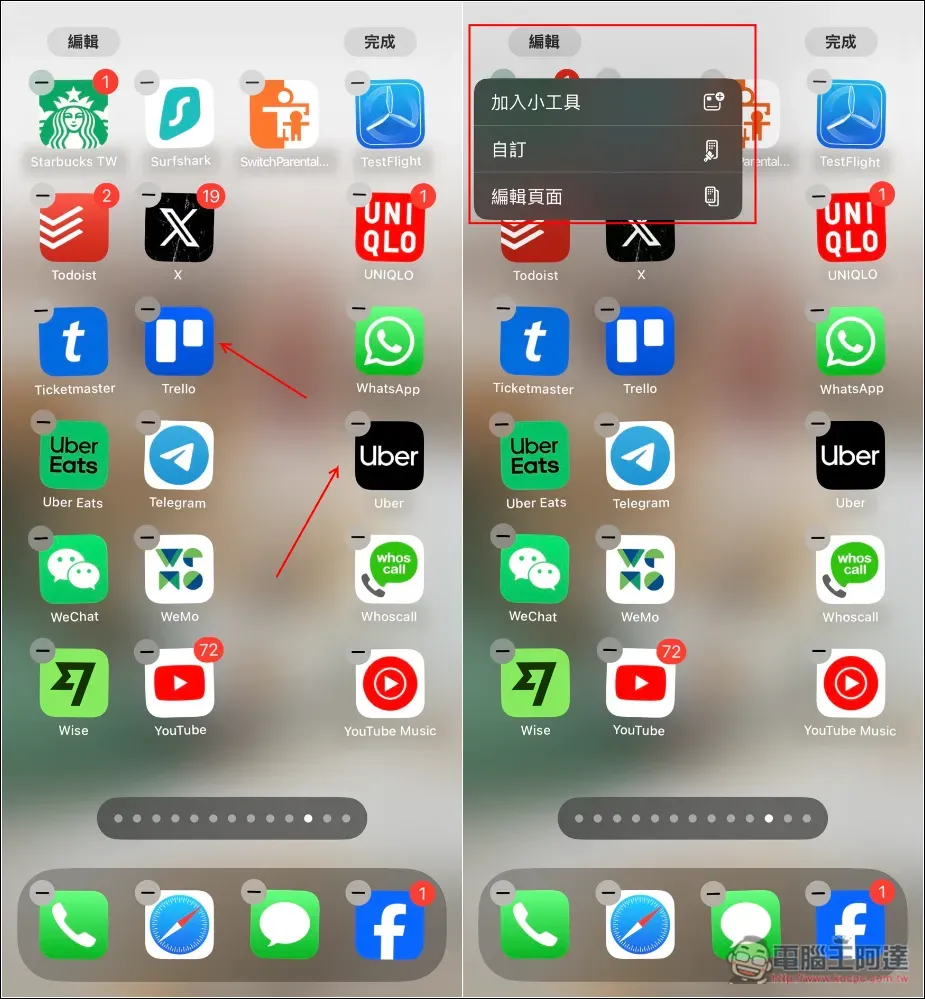
There are also a lot of changes in the customized desktop of iOS 18. The first is the icons on the home screen. Now you can arrange them in the desired shape according to your preferences, instead of just going from top to bottom like before. This change is quite good. If the background of the main screen contains photos of people or pets, you don’t have to worry about the icon being blocked in your face. There is also an edit button on the upper left side of the jumping screen. After pressing it, you can choose “Add Gadget”, “Customize” and “Edit Page”. Be sure to play with the customization functions:
You can customize the color of the icon, and it will switch immediately after pressing it. For example, I originally used light color. After pressing dark color, all icons and backgrounds will automatically adjust to dark color:
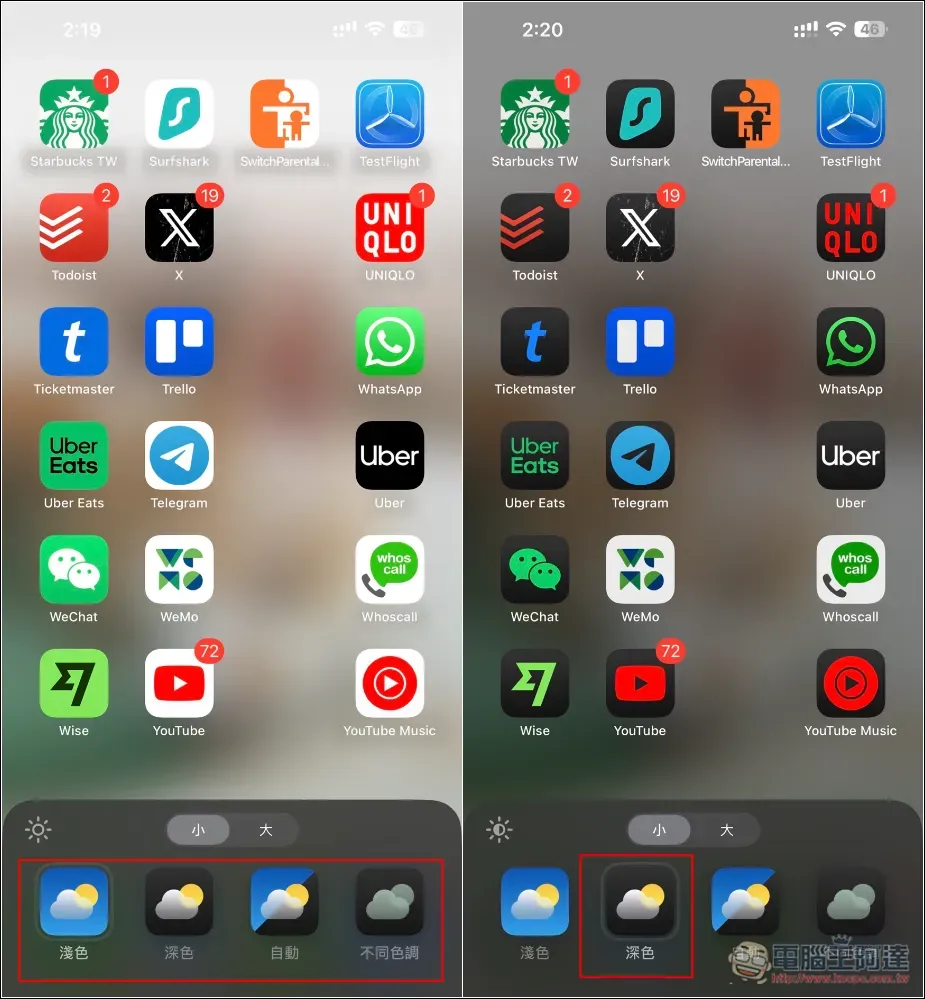
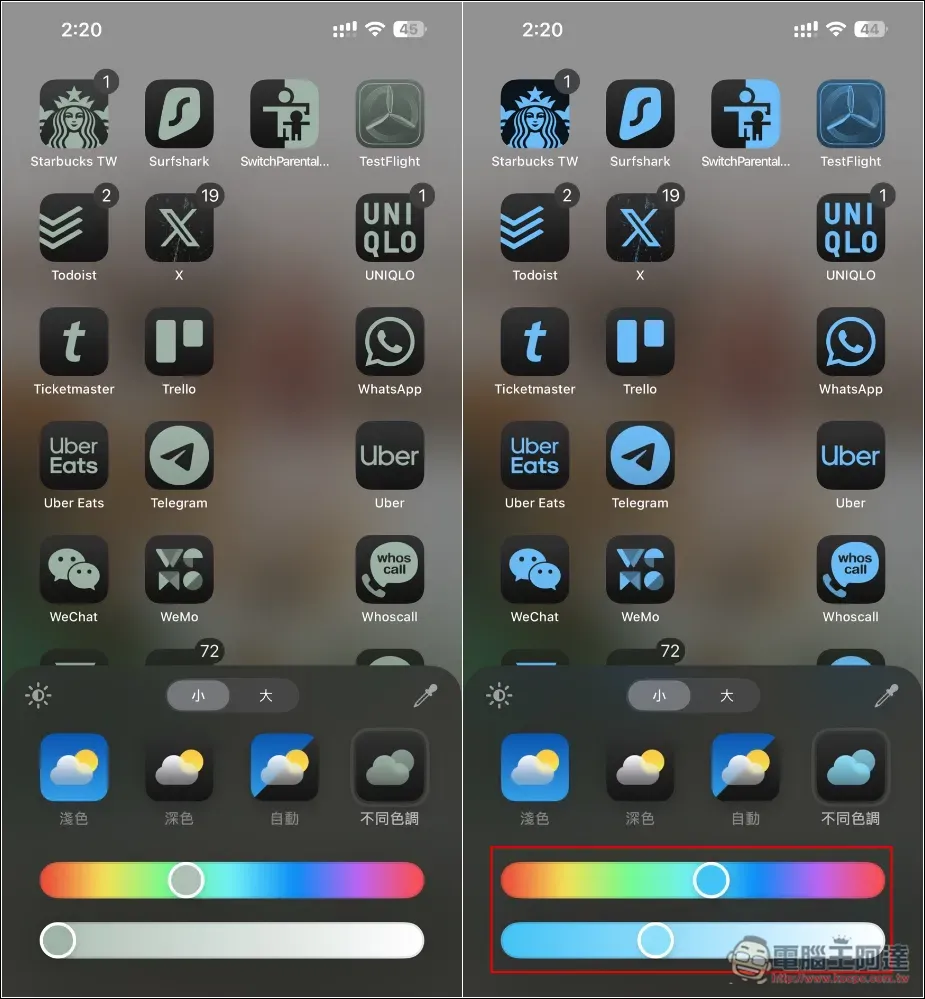
For different tones, you can set the color yourself. For those who like the icon to have a single color, you can adjust it from here:
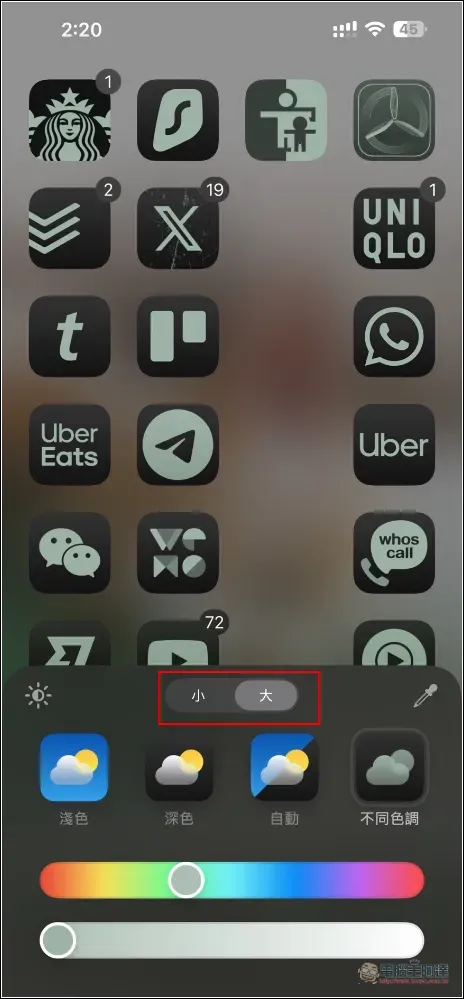
There is a “Small/Large” button at the top to select the size of the icon display. If it is large, the icon name will be hidden, making the entire screen look cleaner:
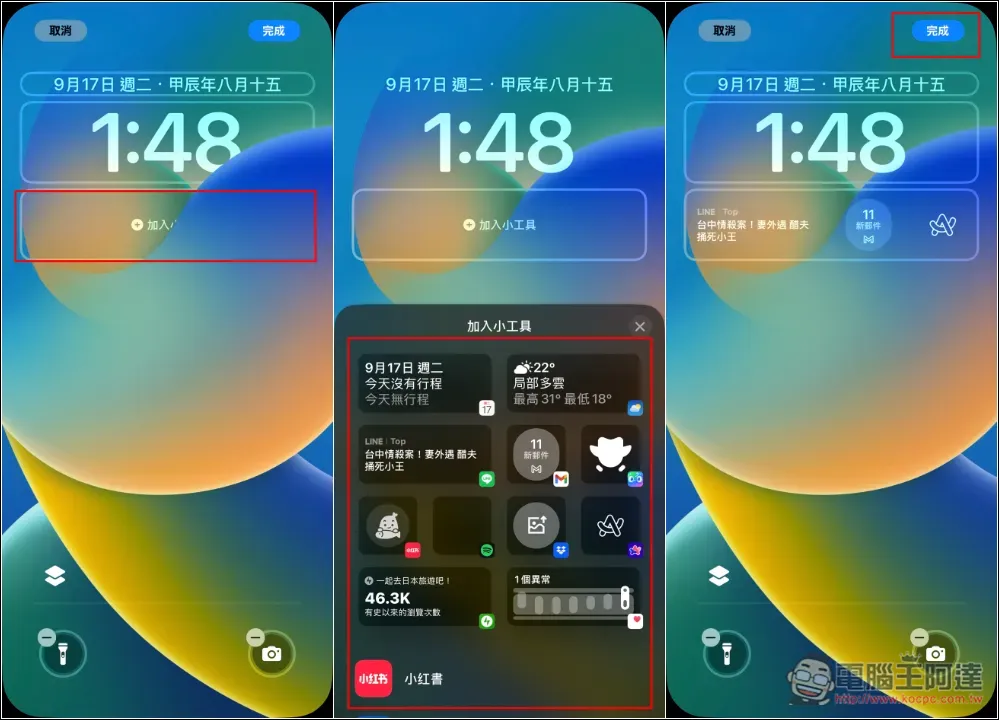
Widgets can now be added to the lock screen, but there are only four widgets at most, and there is no way to add more. There are also the default flashlight in the lower left corner and the camera in the lower right corner. Now they can be changed to other tools. You can first remove the default ones and then change them to other tools:
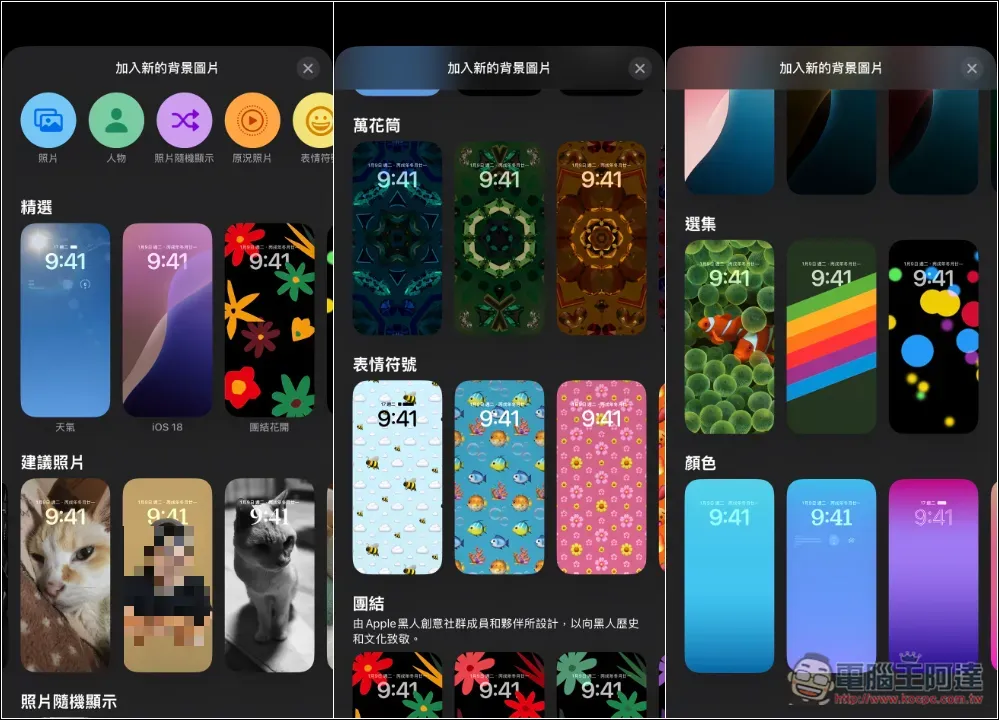
There is also a new feature that I like very much: “Add new background image”. Not only does it provide a lot of free lock screen wallpapers, but in the suggested photo section, it will also automatically capture photos on your iPhone that you may be interested in and make them into wallpapers for you to use quickly:
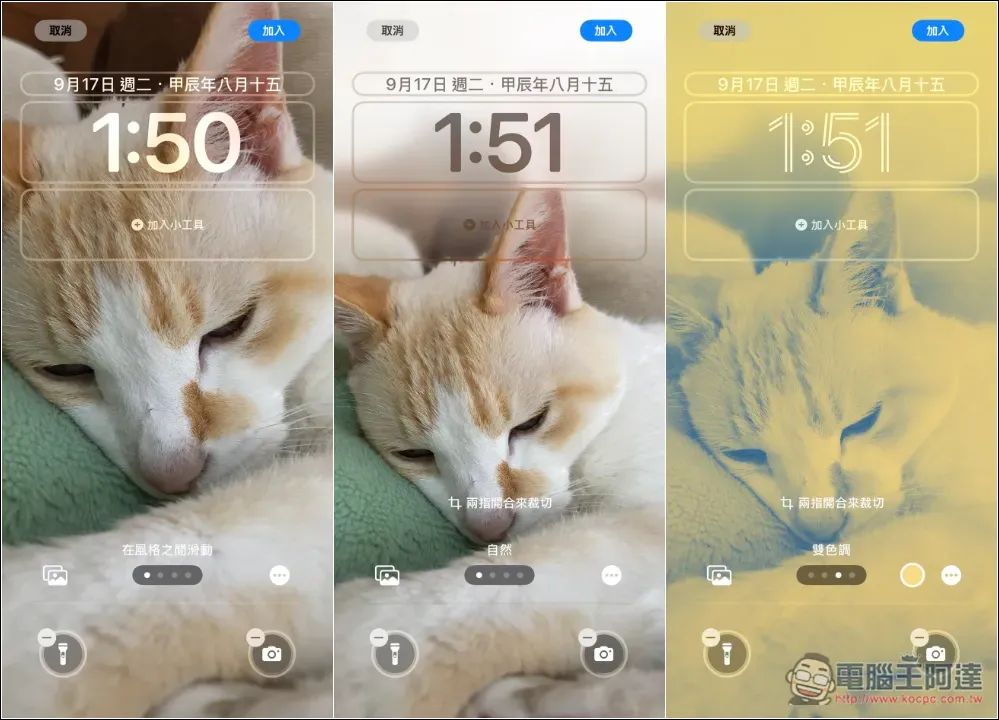
You can zoom in or out of the picture by sliding with two fingers. When zooming out, it will automatically blur the background of the picture, making the entire picture look more coordinated and the subject more obvious. It even provides different tones:
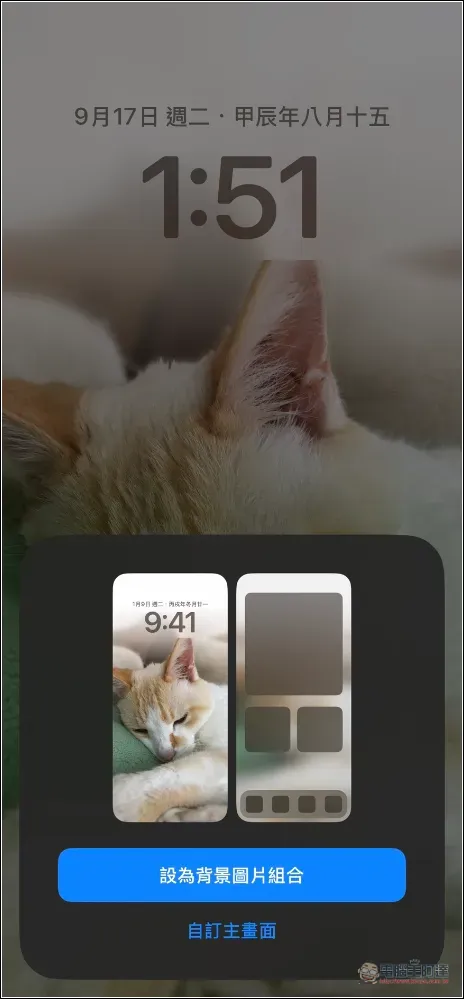
If you are satisfied, you can also apply it directly to the lock screen and home screen:
3. Hide App
Many people have some apps on their iPhones that they don’t want to be used by others, especially for some gentlemen. iOS 18 has a new hidden app function, which not only hides it, but also requires Face ID from the beginning, which means that no one can secretly open your hidden apps.
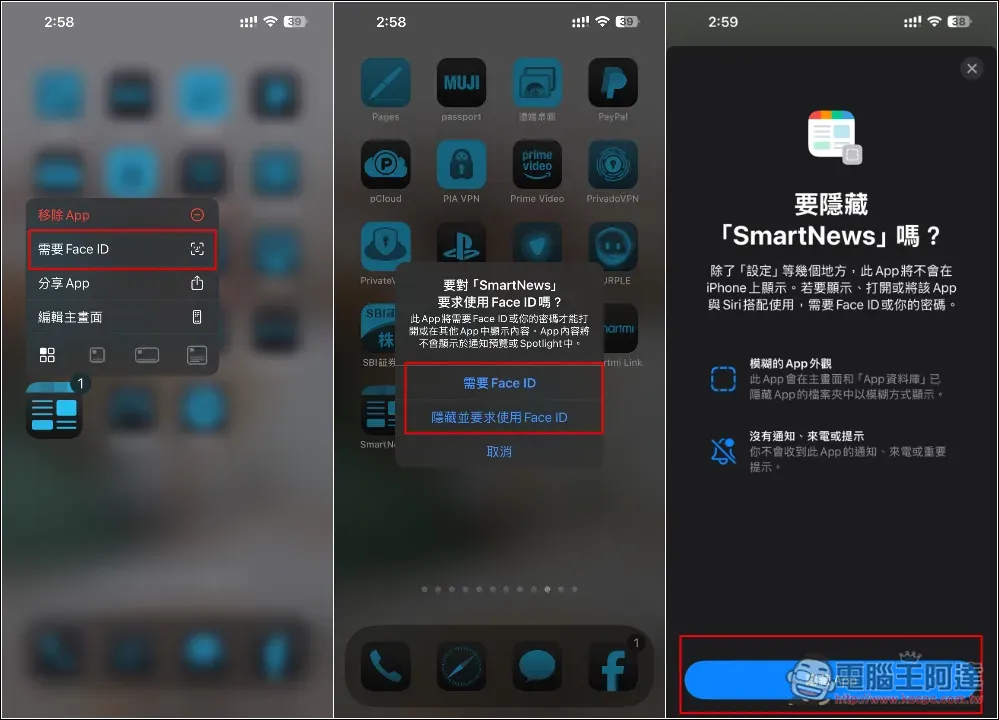
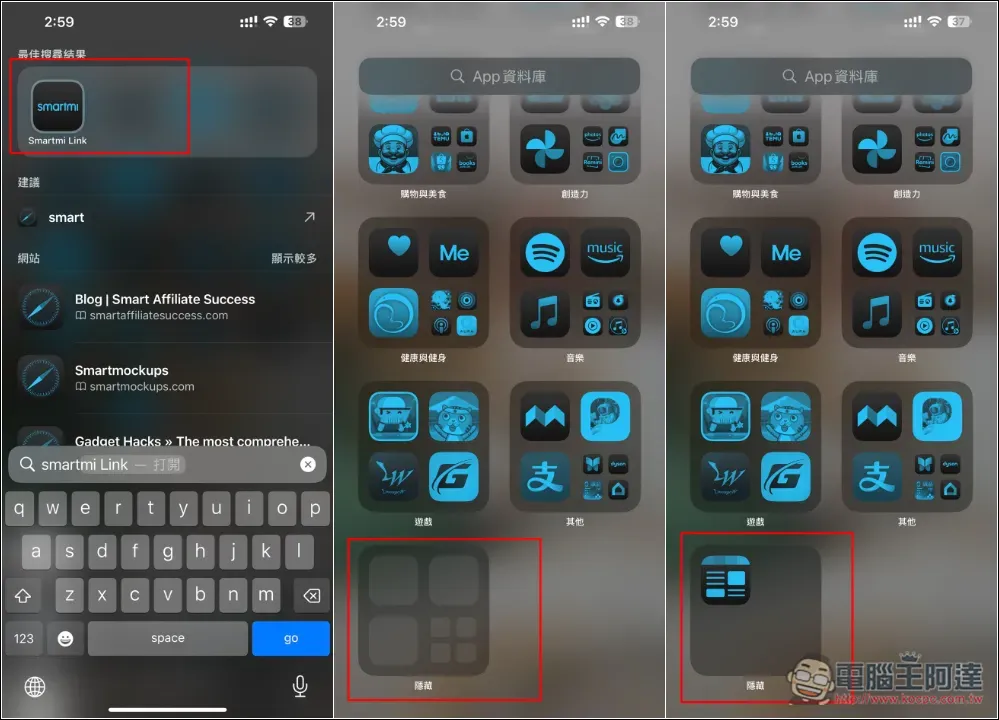
The method of use is also very simple. Just long press the app you want to hide. In the function menu, you will find the new “Face ID required” function.
After pressing, you can choose two methods. “Require Face ID” means that the app is not hidden, but Face ID verification is required when opening it. “Hide and require the use of Face ID” means hiding and locking it. If you choose to hide it, a description will pop up to tell you how it works. No problem, press the button below to hide the app and it will be hidden:
I tried searching and couldn’t find it. Go to the bottom of the App database and you will find a new hidden folder. The default is completely blank and no apps can be seen. After pressing it, you need Face ID to unlock it. The apps in the hidden folder will be displayed only after the unlocking is successful:
4. Free Password
Although there are many useful password management tools now, such as 1Password and LastPass, they all require payment. iOS 18 will separate the original iCloud keychain function into a password app, making it easier for you to manage passwords, and it is completely free. Other platforms such as Windows can also be used through the iCloud web version.
However, it may have just been launched, and its functions are still much less than professional password management tools such as 1Password. For example, it does not support the import function and cannot import data stored in other password management tools into the password app with one click.
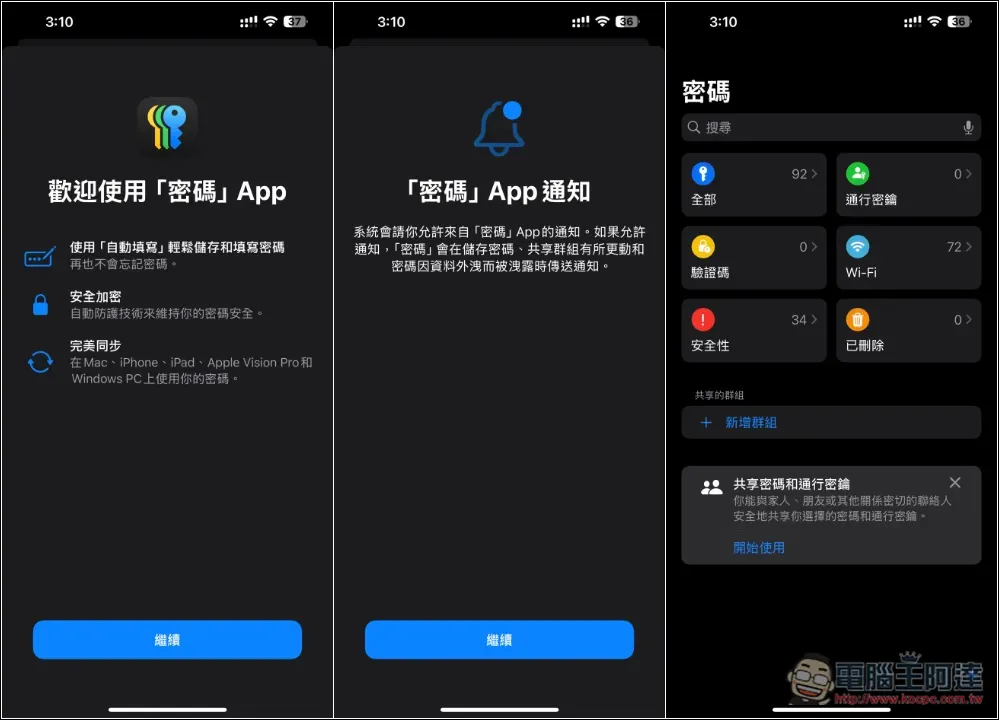
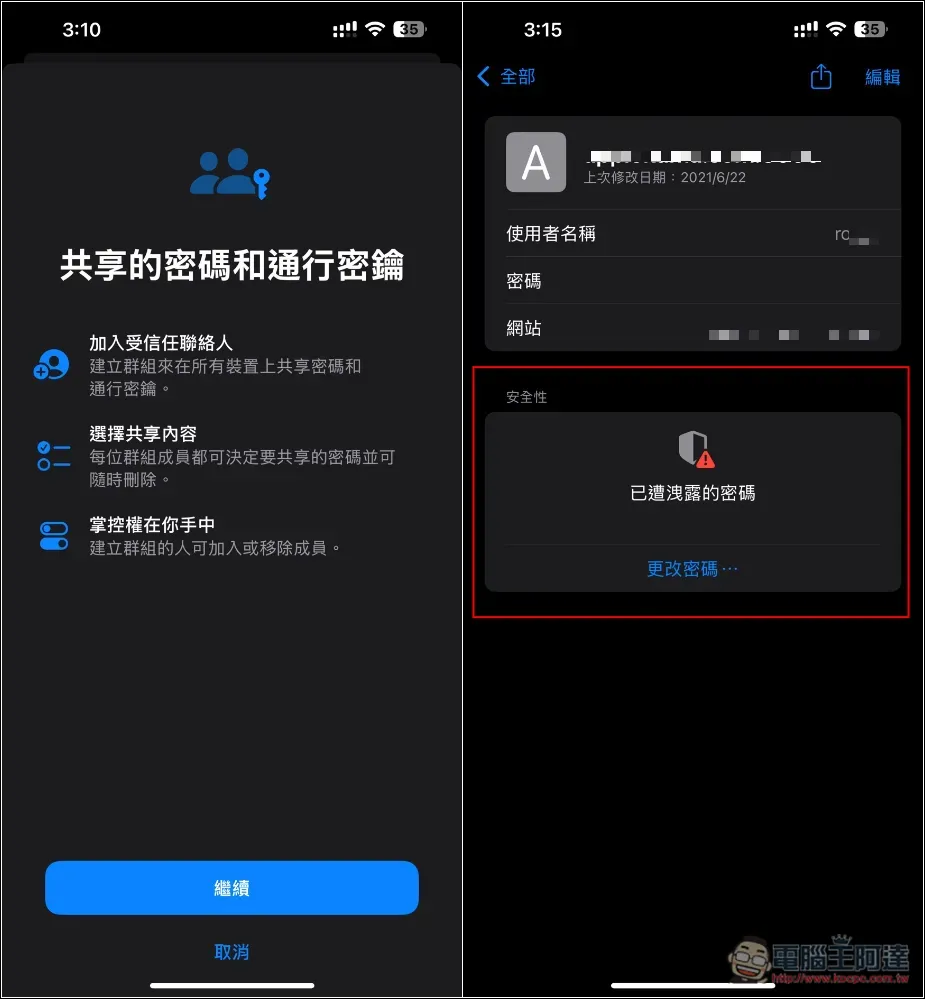
However, there is support for “shared passwords and passkeys”, which allows you to share your passwords with other group members. It will also automatically detect whether your stored password is a compromised password. If so, it will remind you to change your password:
5. Hide distracting items
Although Safari originally has a reading mode, which can make web pages cleaner and more suitable for reading, sometimes due to web design, the reading mode does not work properly. The most common thing is that after switching to reading mode, only the first half of the article will be displayed, and the entire second half of the message will be displayed.
Safari in iOS 18 now has a “Hide Distracting Items” function, which can eliminate specified blocks. As shown in the figure below, when reading this article, this block will appear when you swipe up. I want to hide it. At this time, click on the original reading mode icon, and a menu will pop up. At the top is the newly added “Hide Distracting Items”. Then click on the block I want to hide, and it will disappear after pressing the Hide button:
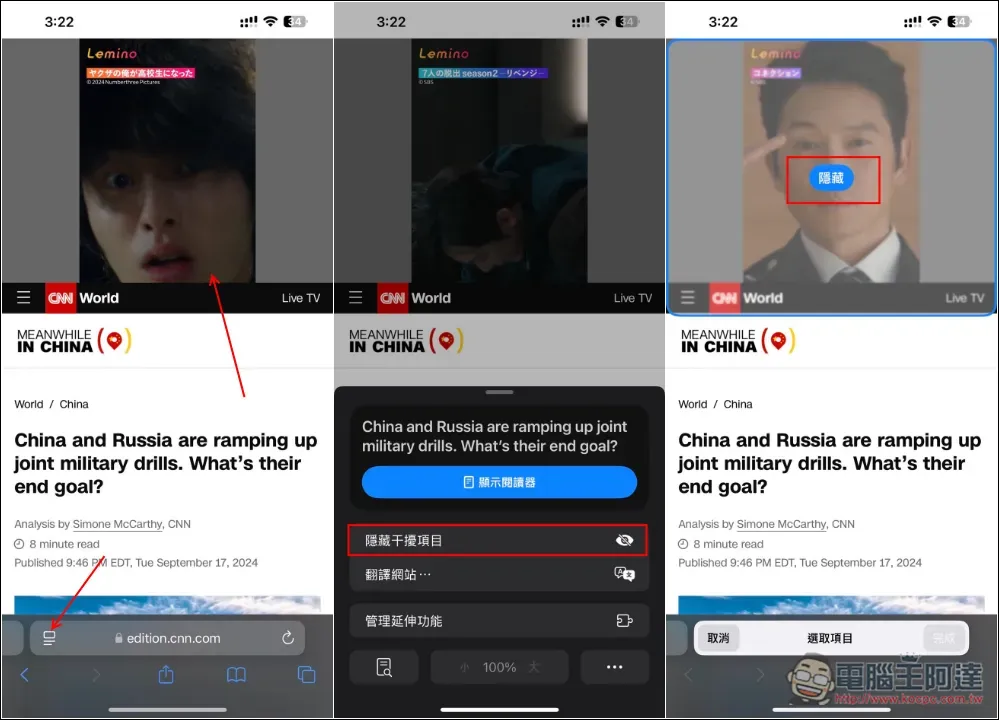
Like this:
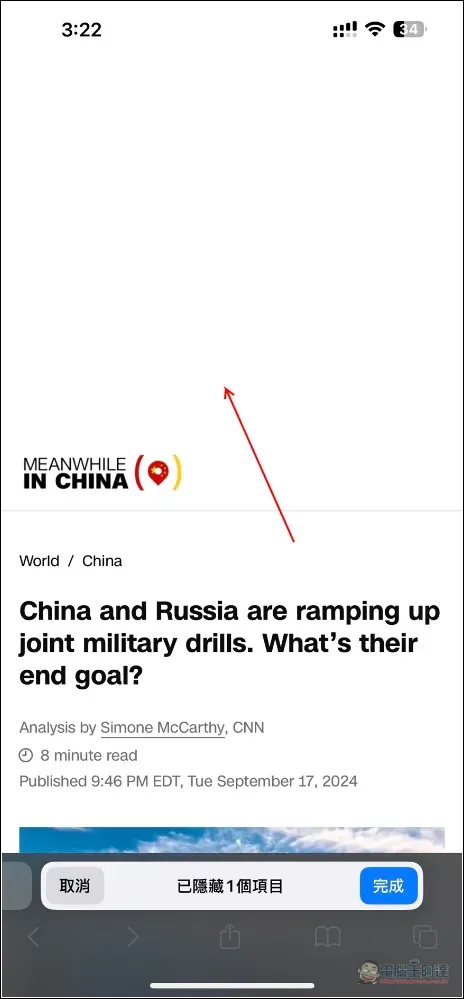
The same goes for the inner pages of articles. If there are sections you don’t want to see, click Hide and they will disappear:
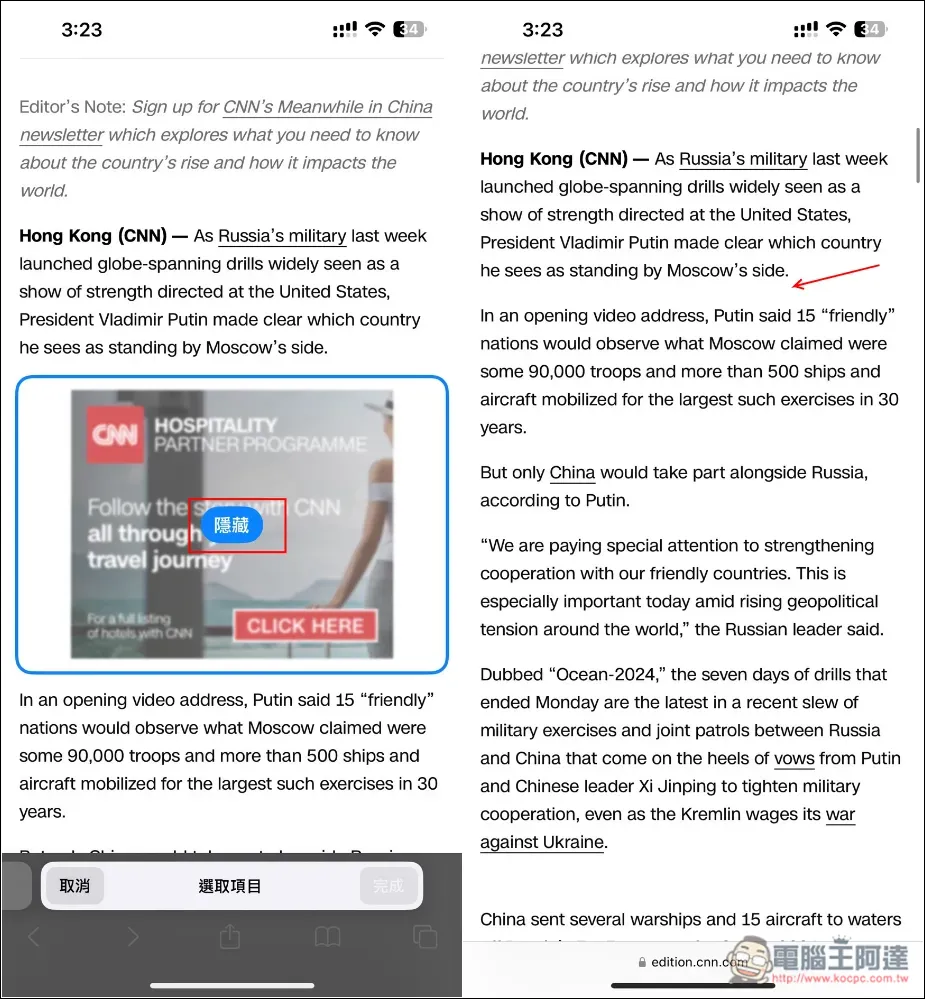
However, please note that if you hide advertisements, the next time you return to this web page, advertisements will still appear. There is no way to completely hide them. Only functional blocks or images will not appear again.
Should I wait to see if there is any disaster first, or should I upgrade to iOS 18 directly?
For those who have not upgraded to iOS 18, most of them are probably worried about whether there will be a disaster? For example, some commonly used apps have poor support.
From what I have tested so far, if you are not the kind of person who likes to customize your iPhone, there is no need to upgrade to iOS 18 when it is first launched, because all the new features now can only be said to improve the user experience, and nothing changes the way we use iPhone or improves efficiency.
The only most attractive Apple Intelligence, Chinese will not be supported until next year, so if you are not in a hurry, hold off for now. It will be safer if you can wait for the next update version before upgrading.
Source: KOCPC Chinese