


I believe everyone should know that Google has its own AI service called Google Gemini. Although Google itself is the basis for the Transformer mechanism of all large language models (LLM), it is honestly not going very smoothly on the AI track. When the previous Bard was revised to Gemini, the official display of amazing resultsBeing Kicked, Accelerated and Edited, happened again laterToo politically correct when producing imagesAn unexpected surprise, but it still cannot be denied that Google is still the industry leader in AI-related applications. Not to mention that Google also owns Android, the largest mobile device ecosystem. It is quite reasonable to replace the original Google Assistant with Gemini. Apple is also working in this direction. The mobile application of Gemini has been tested in the United States before. Recently, Ada also found that it is available in Taiwan (it may have been LAG). Here I will also share what I personally tested and found out what Google Gemini can currently do. If you know more useful applications, you are also welcome to share them with me.
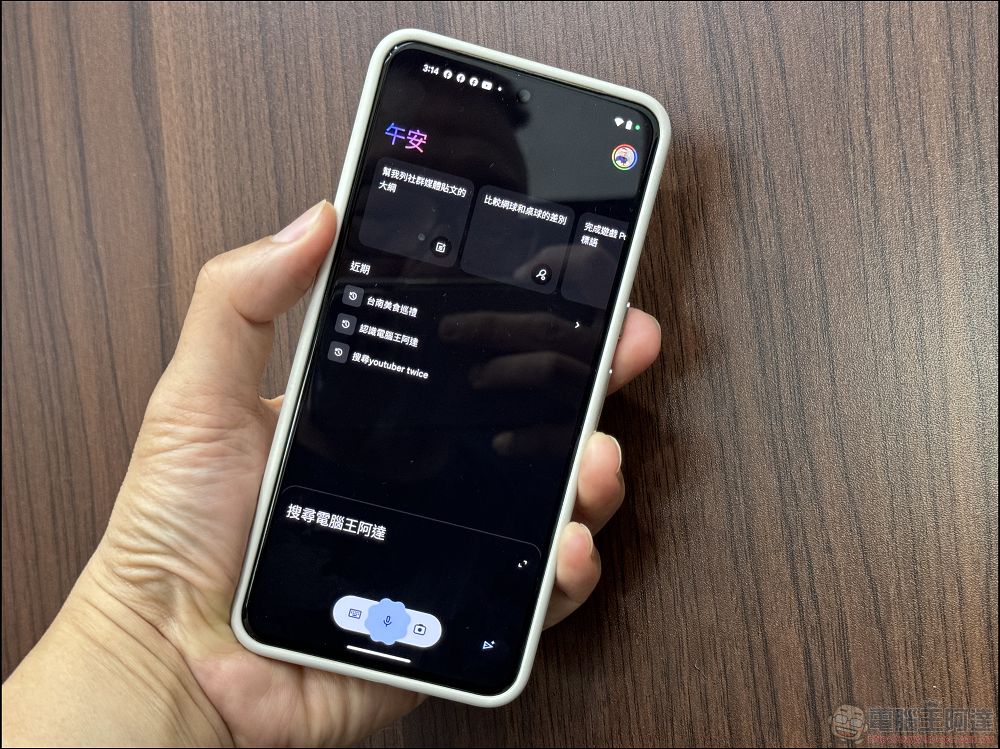
How to use Google Gemini App?
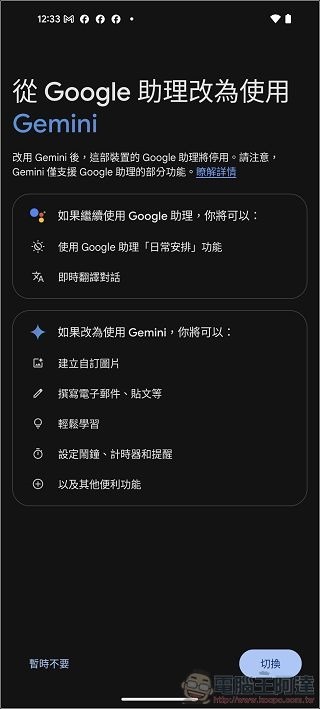
Want to use it on mobile phone Google Gemini, it is also quite simple. Just go to Google Play Store and search for Gemini, and you can install and use it for free. When you use it for the first time, the system will ask if you want to replace Google Assistant with Gemini. Of course, you have to choose to switch (if you are not used to it, cut it off and restore it):
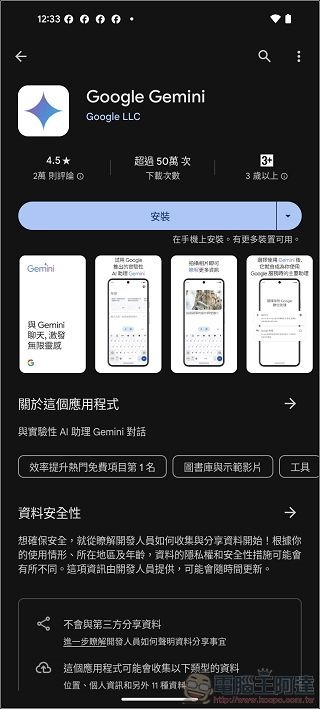
Click here to download Google Gemini App
After installation, you can start using it. There will be some examples at the top. If you ask it directly, it will tell you that various text contents can be generated:
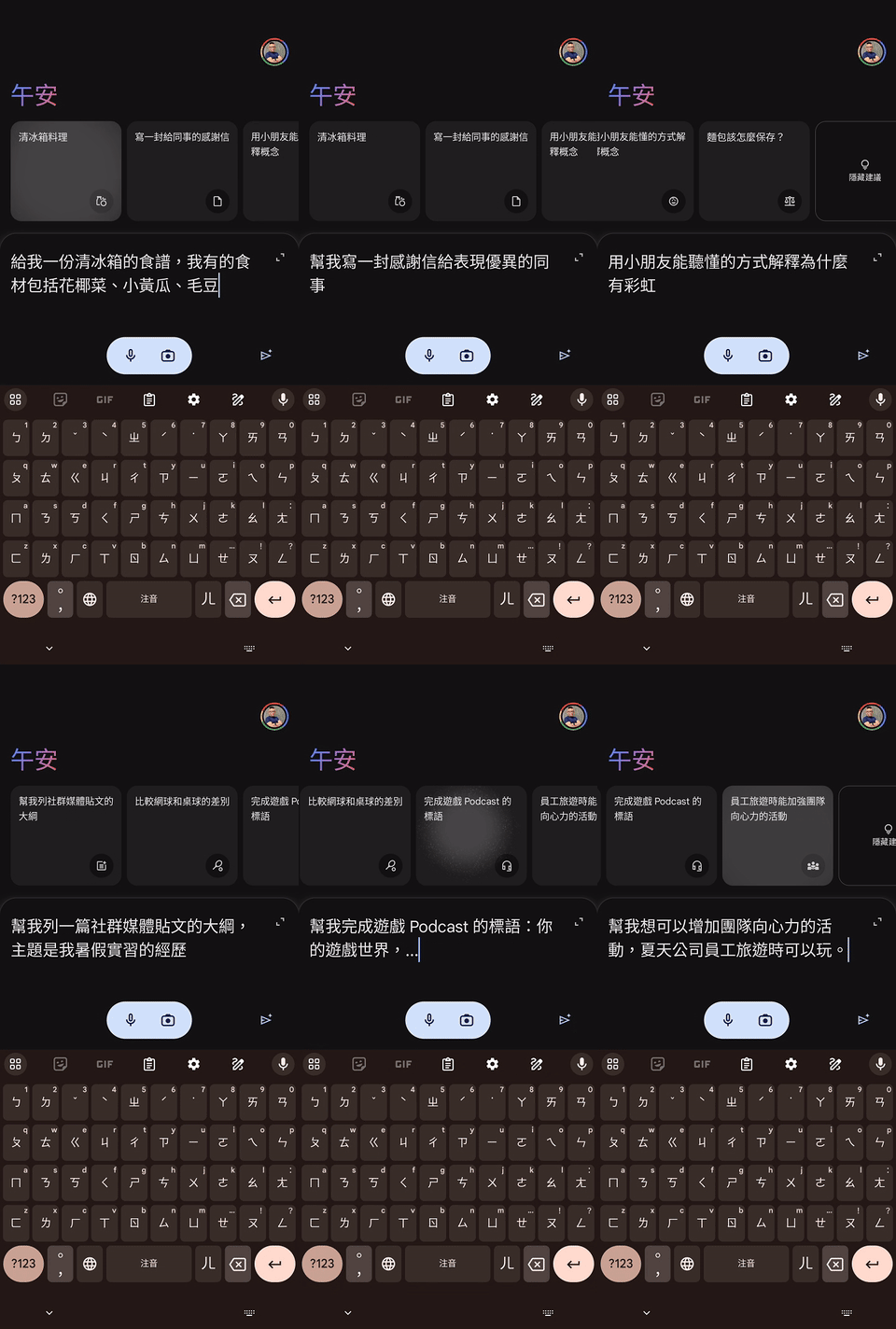
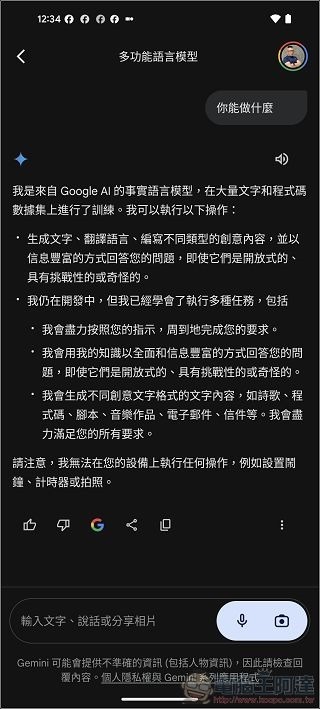
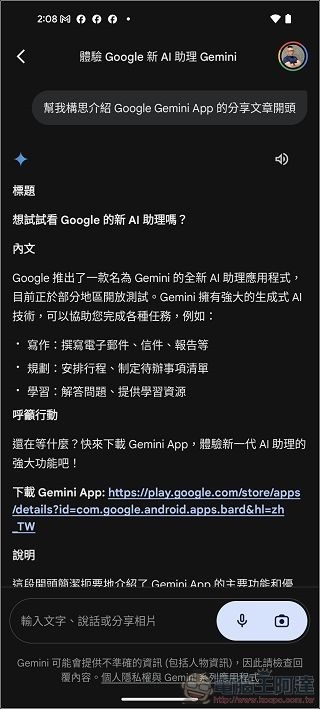
Let’s test it directly. I originally wanted to ask Gemini to help me think of the beginning. Although the writing is good, I can’t use it for the internal text:
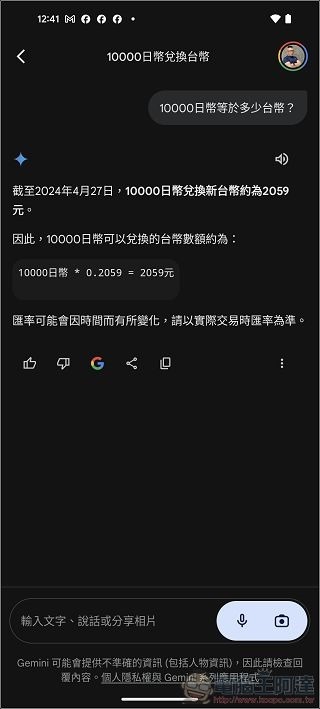
The biggest difference between Google Gemini and other LLMs is that it combines Google’s powerful search engine functions and various ecosystems. It can basically answer some real-time questions correctly, such as the current exchange rate, food recommendations near your current location, etc.:
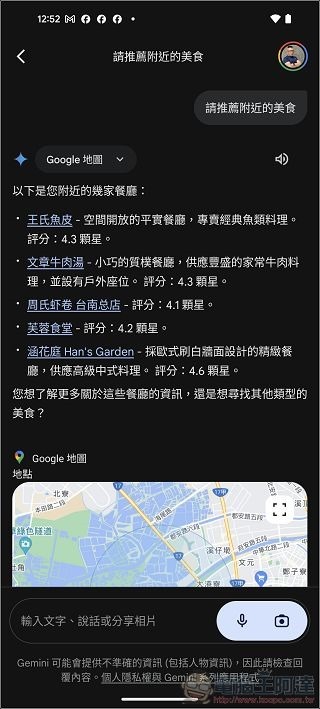
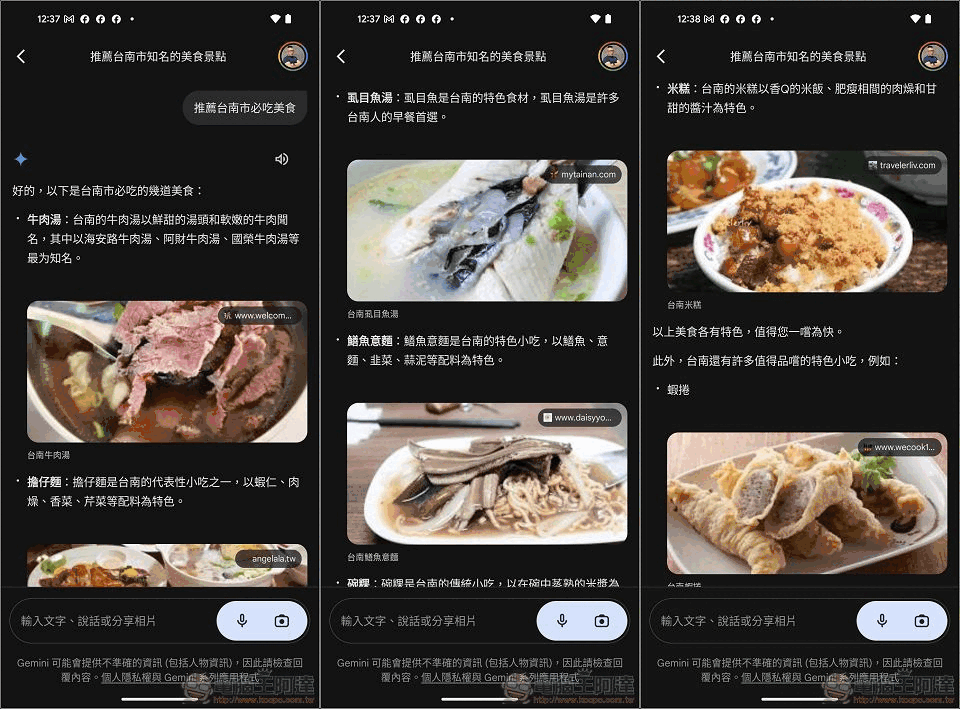
Ask it to recommend restaurants and attractions, and there will be content with pictures and texts:
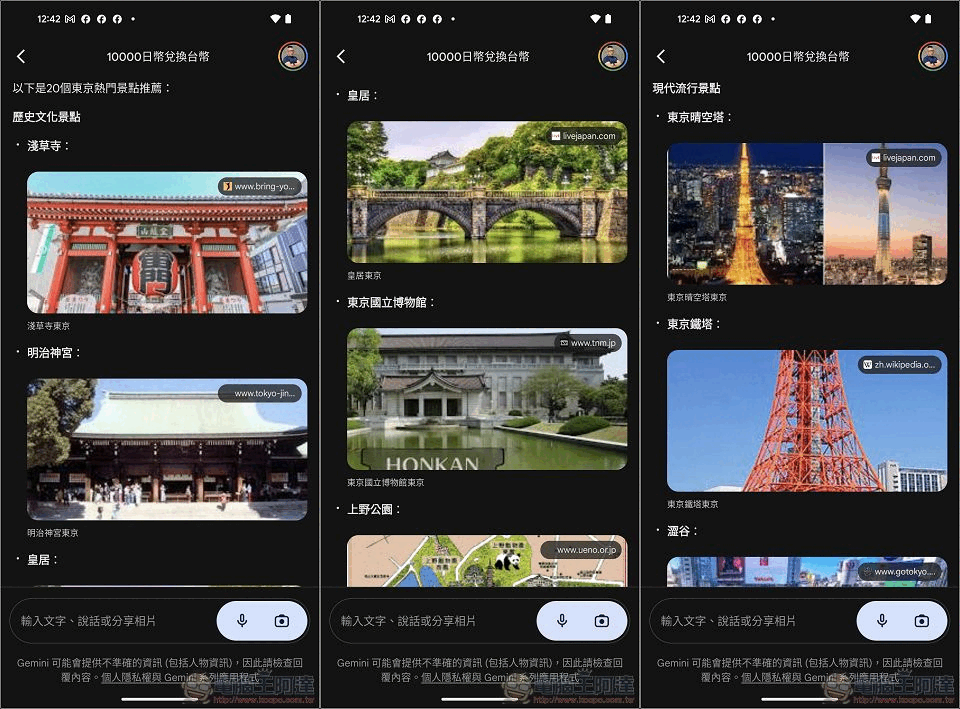
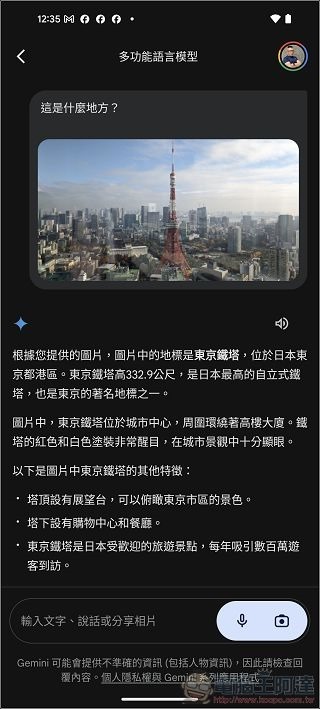
You can also ask it to introduce the history and characteristics of the scenic spot by taking photos:

In addition, if you want to quickly understand the key points of the content when browsing the web, just press and hold the power button on the page to call Gemini, and click “Add this screen”:
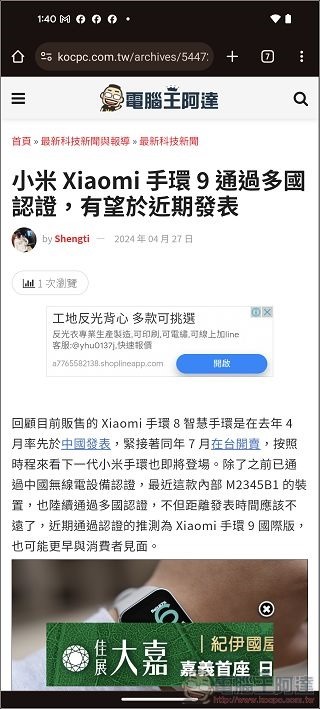
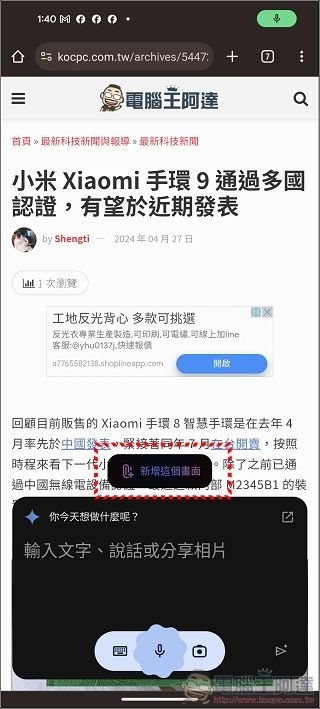
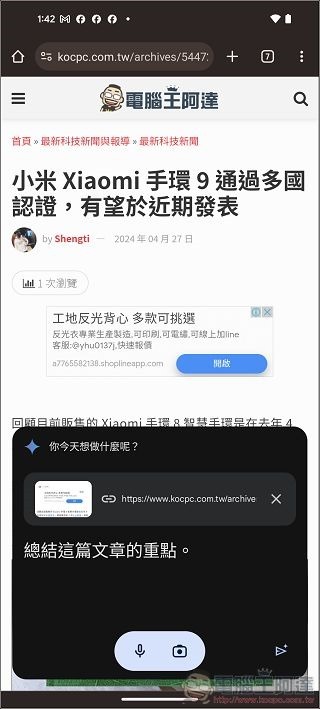
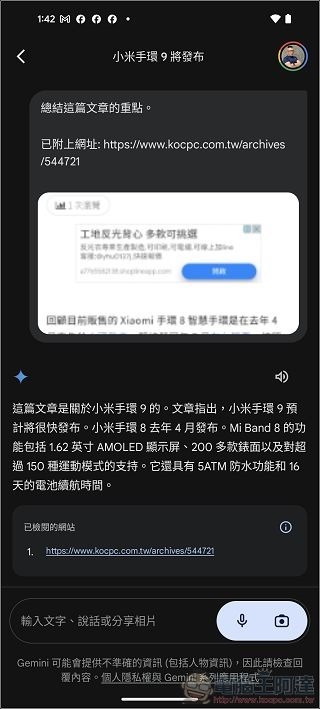
You can ask Gemini to help you quickly summarize the key points of the content:
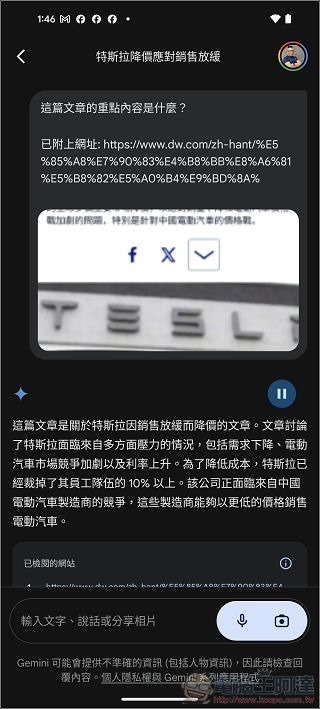
In actual testing, most websites can retrieve content and get the results we need. However, I tested websites such as CNN and found that although Gemini has a summary, it will immediately pop up a message that the content cannot be read (maybe there are some considerations?):
I also tested using Gemini to start the alarm clock, and it was possible to turn it on and off again (the self-introduction above said it was not possible):
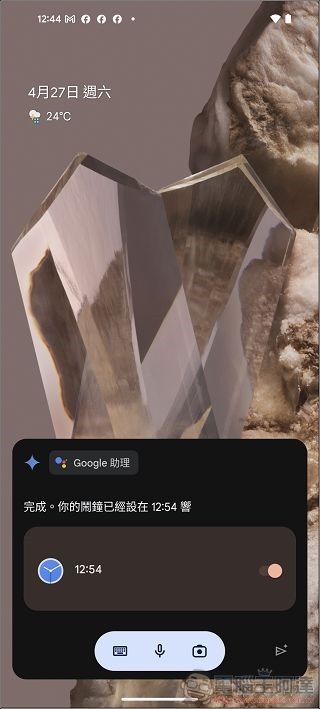
There are currently things that Gemini cannot do or cannot do well.
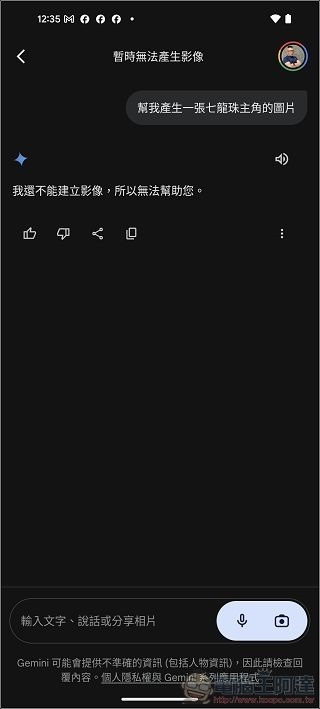
Although Google Gemini seems to be very powerful, there are some things that it cannot currently do or has problems. For example, generating images is still unavailable because of the previous large package:
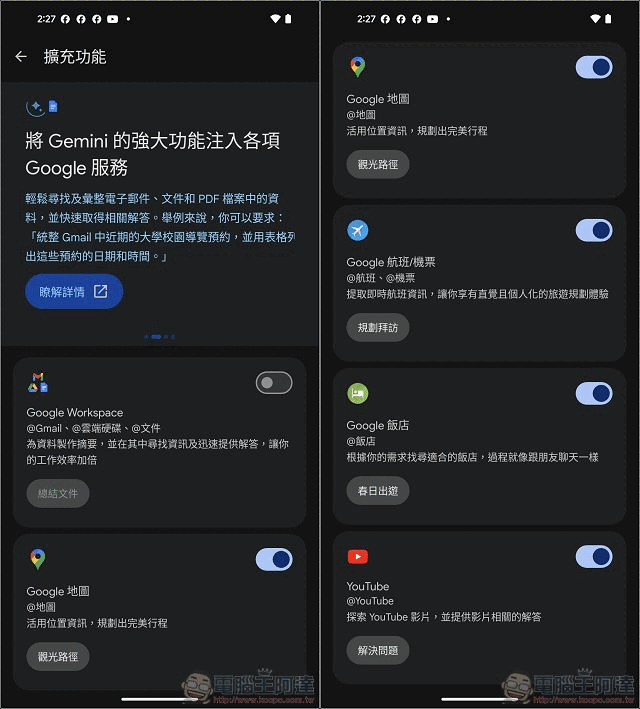
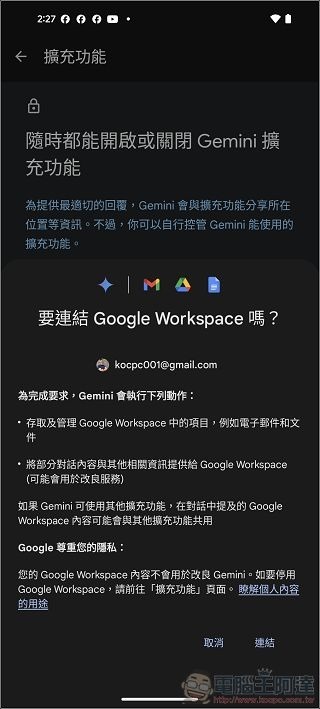
In addition, Gemini’s settings can be connected to functions such as Gmail, but after enabling it, it cannot be called out in the Gmail App or Gemini itself to help write and reply (maybe I don’t know how to do it yet):
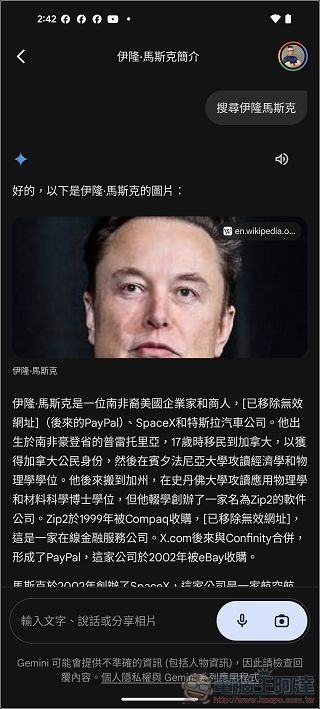
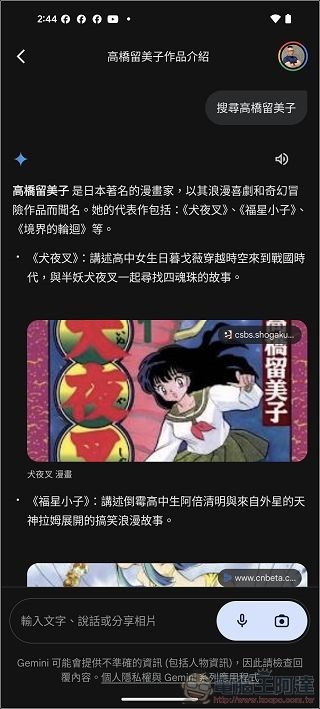
In addition, when you ask it to search for famous people, most of the displayed content is correct:
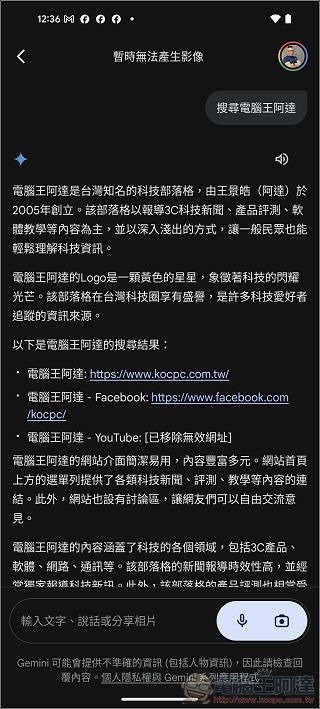
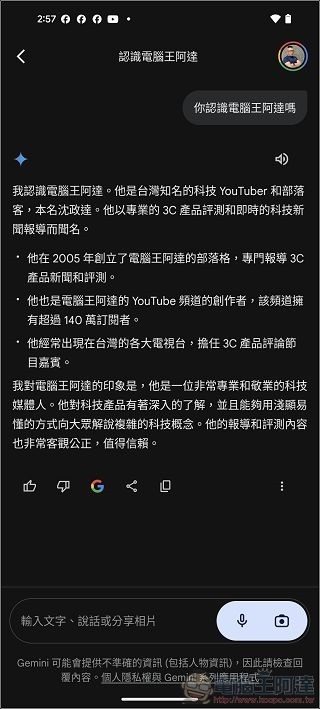
But unknown people like Ada are easily misunderstood (LLM traditional arts), so when using such services, it is recommended that you do fact-checking or not believe everything:
Source: KOCPC Chinese