


For those who have purchased ChatGPT Plus membership, they will often use DALL-E to generate AI pictures. In the past, if part of the generated pictures were not satisfactory, they had to be regenerated. But recently, OpenAI has finally added a local editing function, which allows you to specify the area to be changed and let DALL-E regenerate it. It also provides a variety of style options to facilitate users to quickly convert AI pictures into other picture styles.
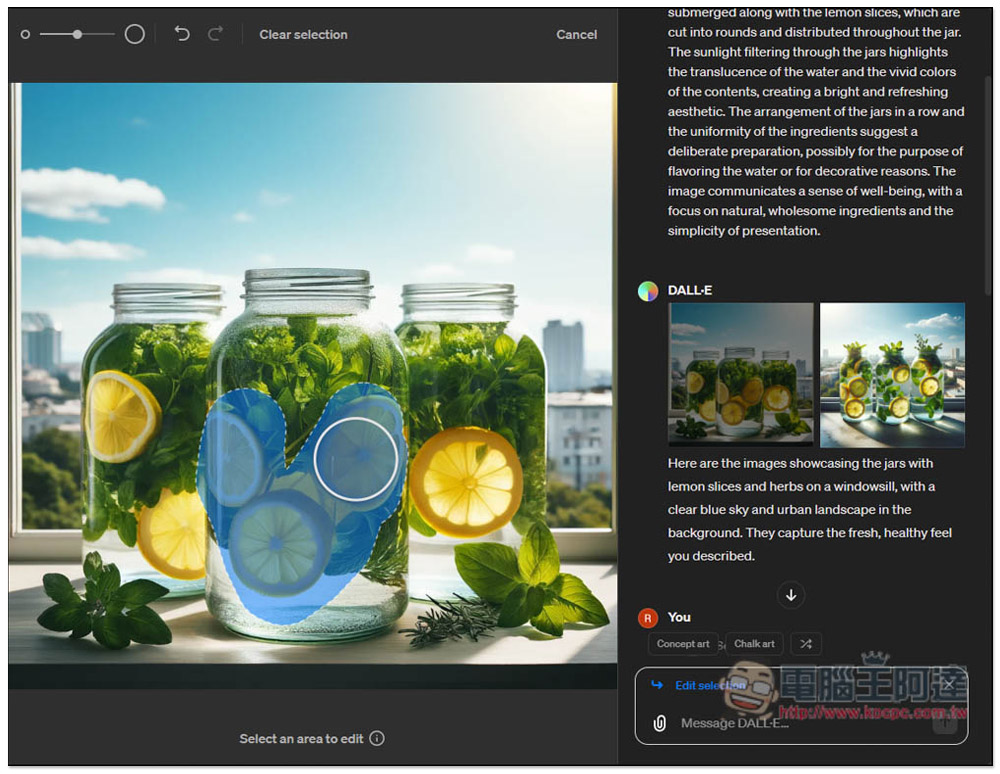
ChatGPT DALL-E adds new functions of partial editing and conversion style prompts, and teaches you how to use them
Recently, OpenAI’s official
You can also get inspiration on styles when creating images in the DALL·E GPT. pic.twitter.com/mRrkwJKHyq
— OpenAI (@OpenAI) April 3, 2024
The method of use is also very simple and intuitive. When I tested it, the effect was pretty good. However, sometimes when I encounter partial editing, the regenerated effect does not have the content I requested, and I need to regenerate or use other prompts. It is recommended to apply the image generation style from the beginning. Of course, you can also wait until the image you want is generated and then change it to another style. However, this may become another image, causing the details you want to be missing.
Replenish:The DALL-E image generation function is only available to ChatGPT Plus members and is not available in the free version.
After opening the DALL-E chat window of ChatGPT, you will see some options above the input box, such as: Sai-fi, Cubism, Digital art, Anime, etc. This is the picture style. If there is nothing you want, click the double arrow icon on the far right to provide more style options:
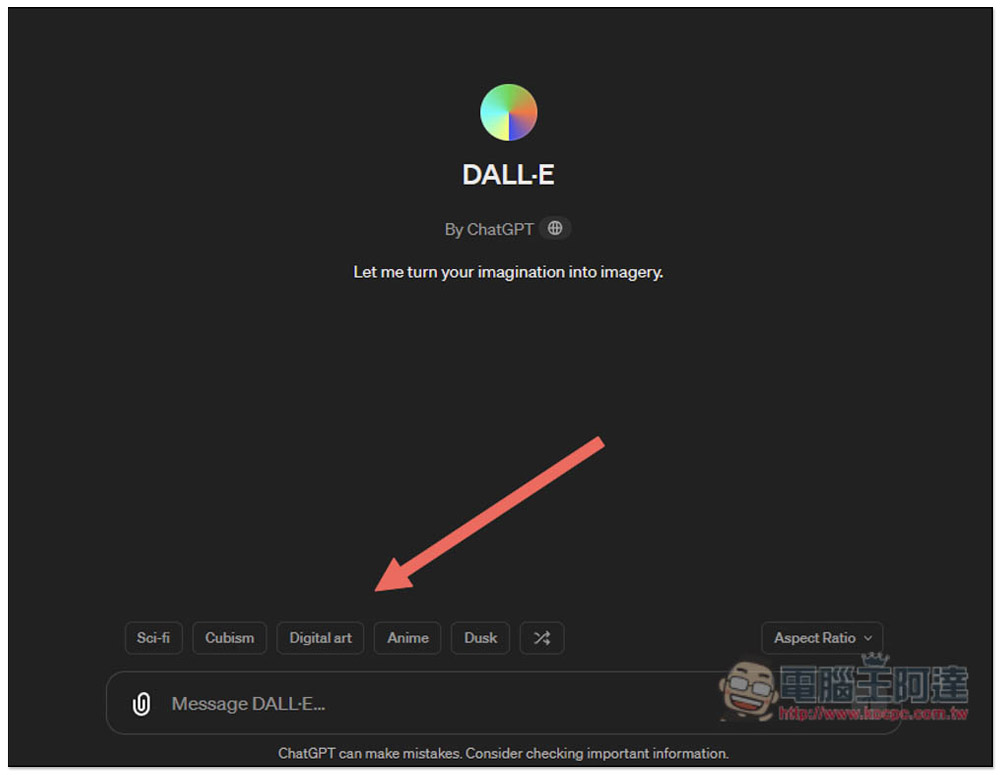
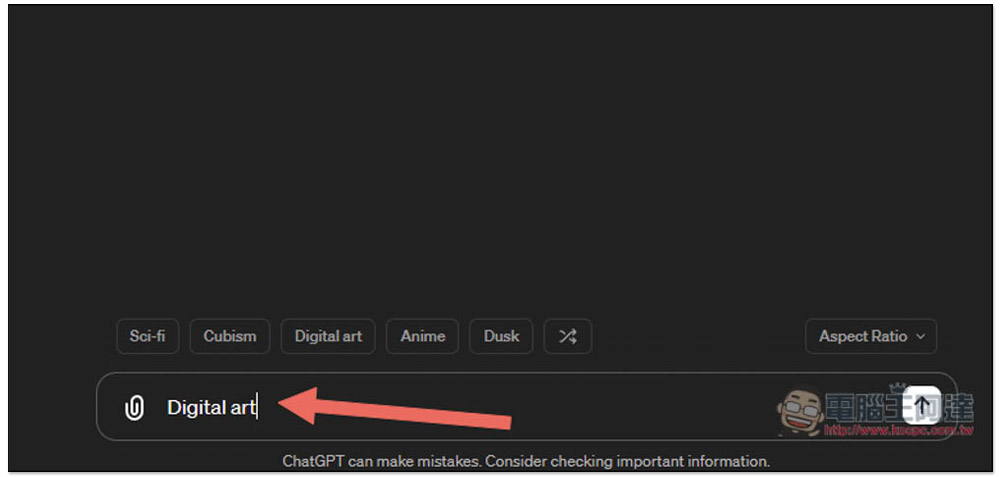
After pressing any style, it will be automatically entered into the box:
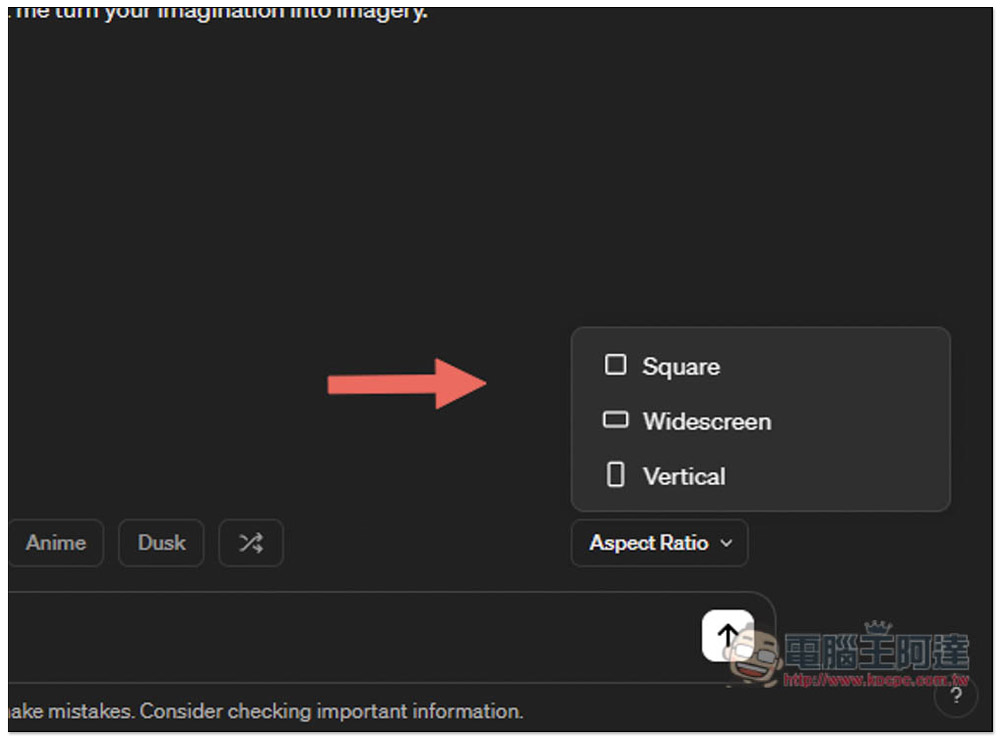
Aspect Ratio on the right allows you to select the image size, with three options: Square, Widescreen and Vertical:
The method of using local editing is as follows. After the image is generated and opened, you will see a pencil icon above. This is the editing function:
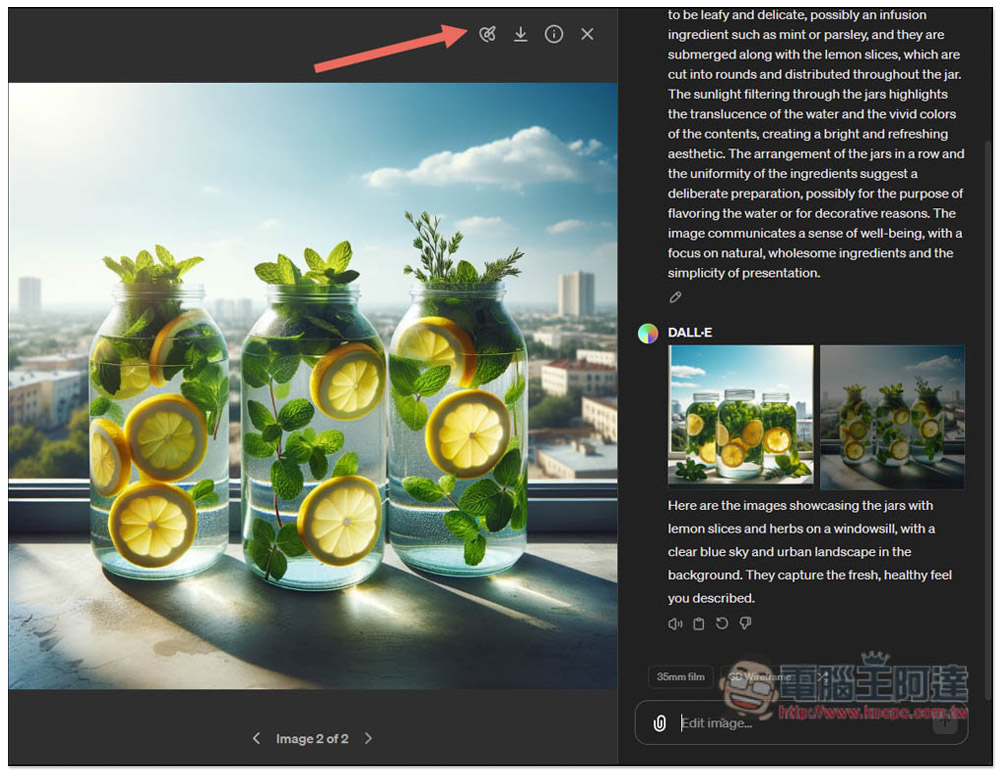
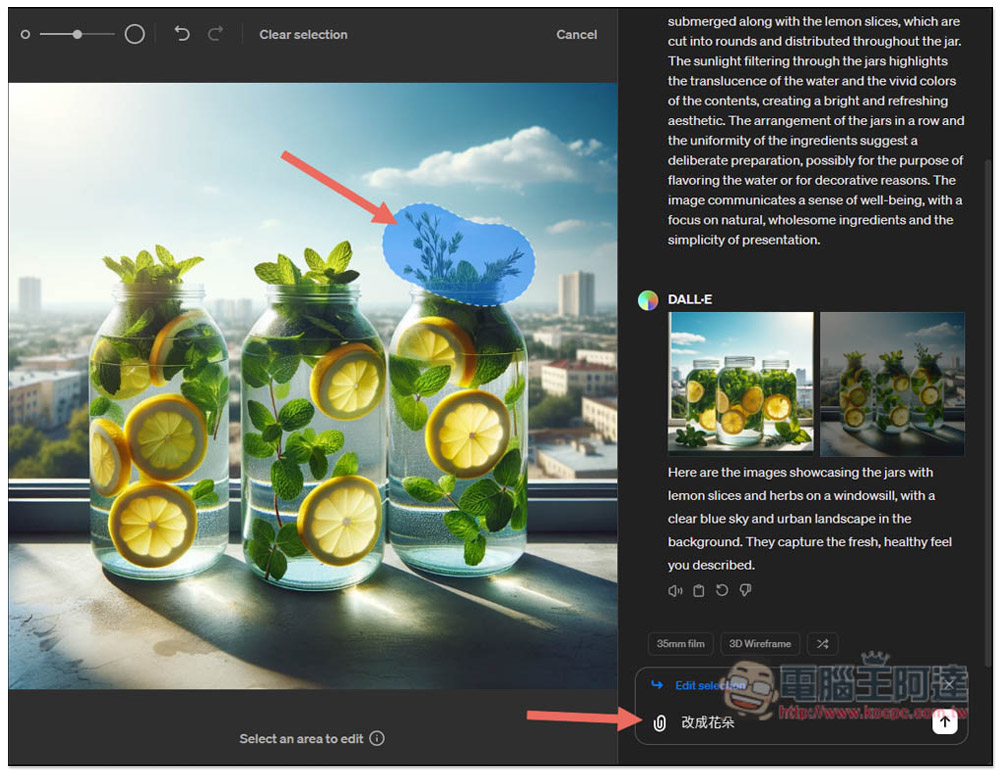
Then draw the area you want to change locally. You can change the brush size in the upper left corner. After you finish drawing, enter the content you want to change in the lower right corner. For example, I want to change this area to a flower, and then press the Enter key to send:
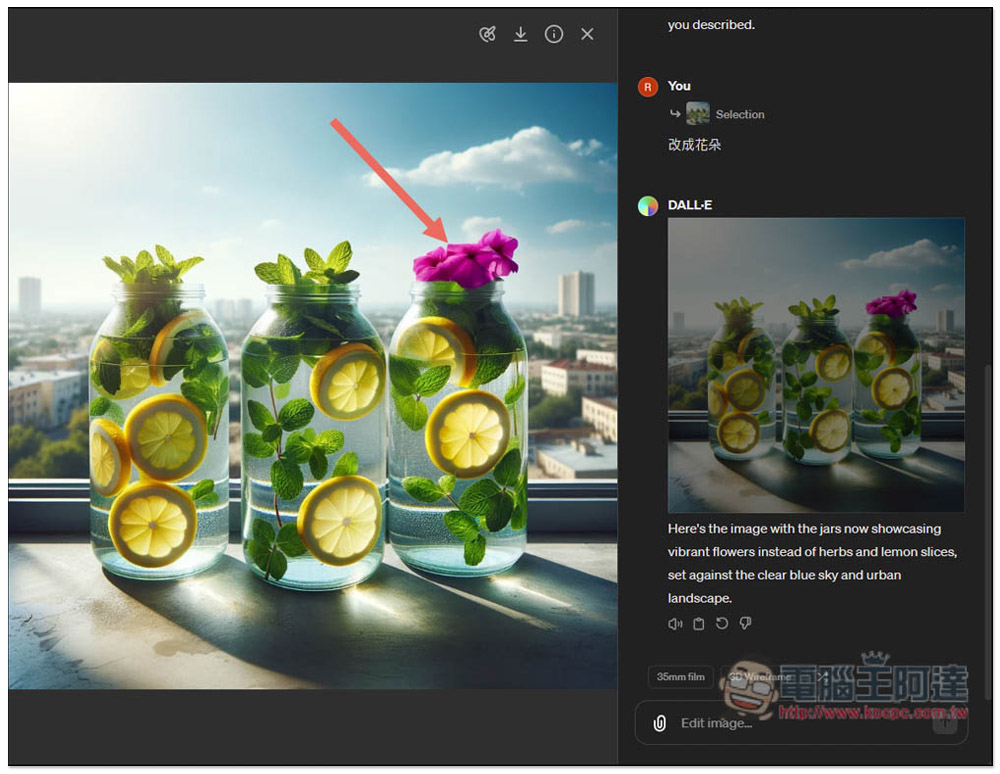
DALL-E will only regenerate this area, and indeed it will be changed to a flower. If you are not satisfied, you can also locally edit it again until the image you want is generated:
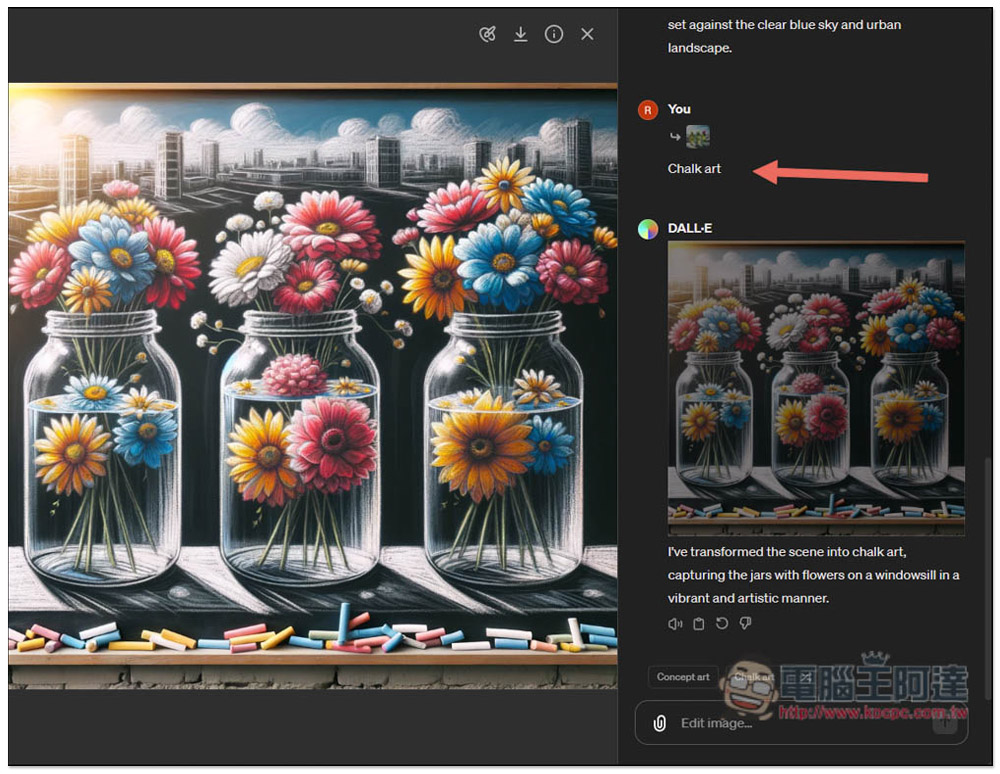
Picture style options will also be provided here. If you want to change other picture styles, just click on the style option you want:
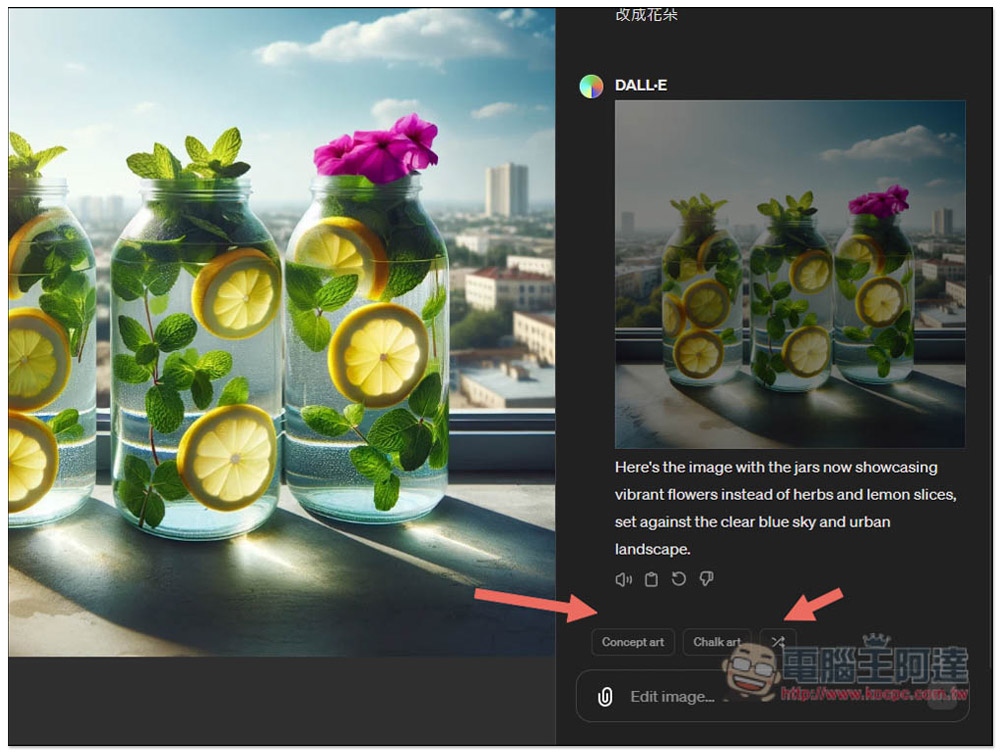
When I choose Chalk art, it becomes a regenerated picture with completely different details. That’s why I suggested setting the picture style first and then editing it locally:
ChatGPT DALL-E has added partial editing, which makes it much more convenient. As long as AI generates a satisfactory picture in the future, there is no need to give up the whole picture because of the details. You can slowly edit the parts and regenerate until the whole picture is satisfactory.
It is also hoped that in the future DALL-E can provide the ability to generate low-resolution images at the beginning, and then generate high-resolution images after they are fully edited, so that the waiting time can be greatly reduced.
Source: KOCPC Chinese