


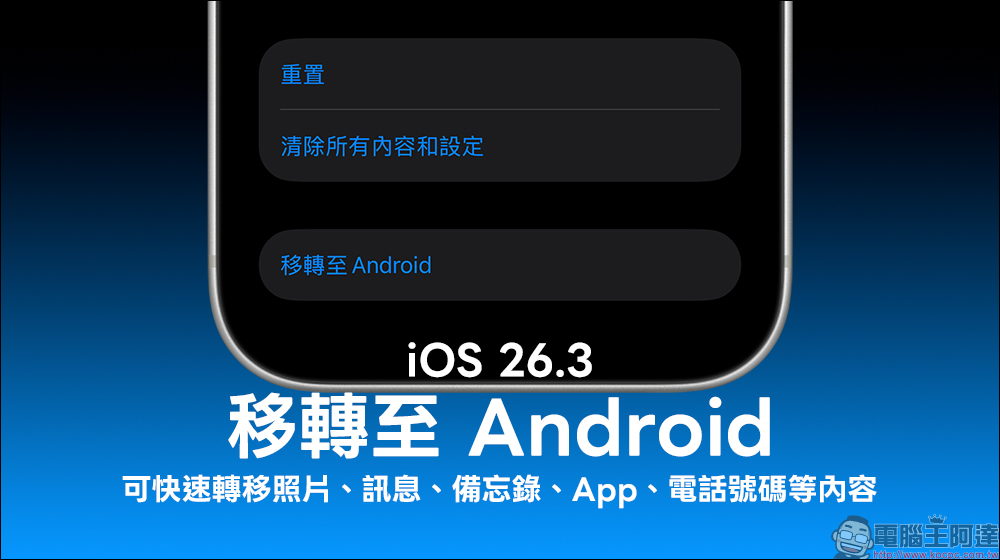
I wanted to start from the past iPhone switch to Android, data transfer always makes people love and hate it. Photos are easy to process, but messages are often stuck. Notes and app settings are even more troublesome. Apple in the latest iOS 26.3 , a new built-in feature has been quietly added to allow iPhone users to more intuitively transfer important data to Android devices when switching devices.
The whole process does not require downloading additional apps. Just put the two phones together to start pairing and transferring. From photos, messages, notes to some apps and phone numbers, the transfer options are integrated at once, making changing platforms no longer as painful as before. The emergence of this feature also symbolizes that the boundaries between iOS and Android are slowly loosening. For users who plan to switch, it is definitely worth paying attention to.
Want to switch to Android from iPhone? iOS 26.3 new features make data transfer super easy
For a long time, data transfer between iPhone and Android has been a pain point for many users. Even though Google and Apple have each launched transfer tools, the process is complicated and the support projects are limited, making the actual operation always a bit awkward. With iOS 26.3 Beta, Apple has finally added the new “Move to Android” function to the system’s built-in level, officially turning the matter of changing platforms into a native system option rather than an additional auxiliary tool to be installed.
The biggest feature of this update is “simplification”. Whether it is the operation steps, connection methods, or the types of data that can be transferred, they are more intuitive than in the past and closer to the needs of ordinary users.
You can start transferring without installing an app
Before iOS 26.3, if you wanted to transfer data from iPhone to Android, you mostly had to rely on third-party apps or official Google tools. The process often required repeated authorizations, account logins, and even compatibility issues. The new “Move to Android” feature eliminates the need to download any additional apps.
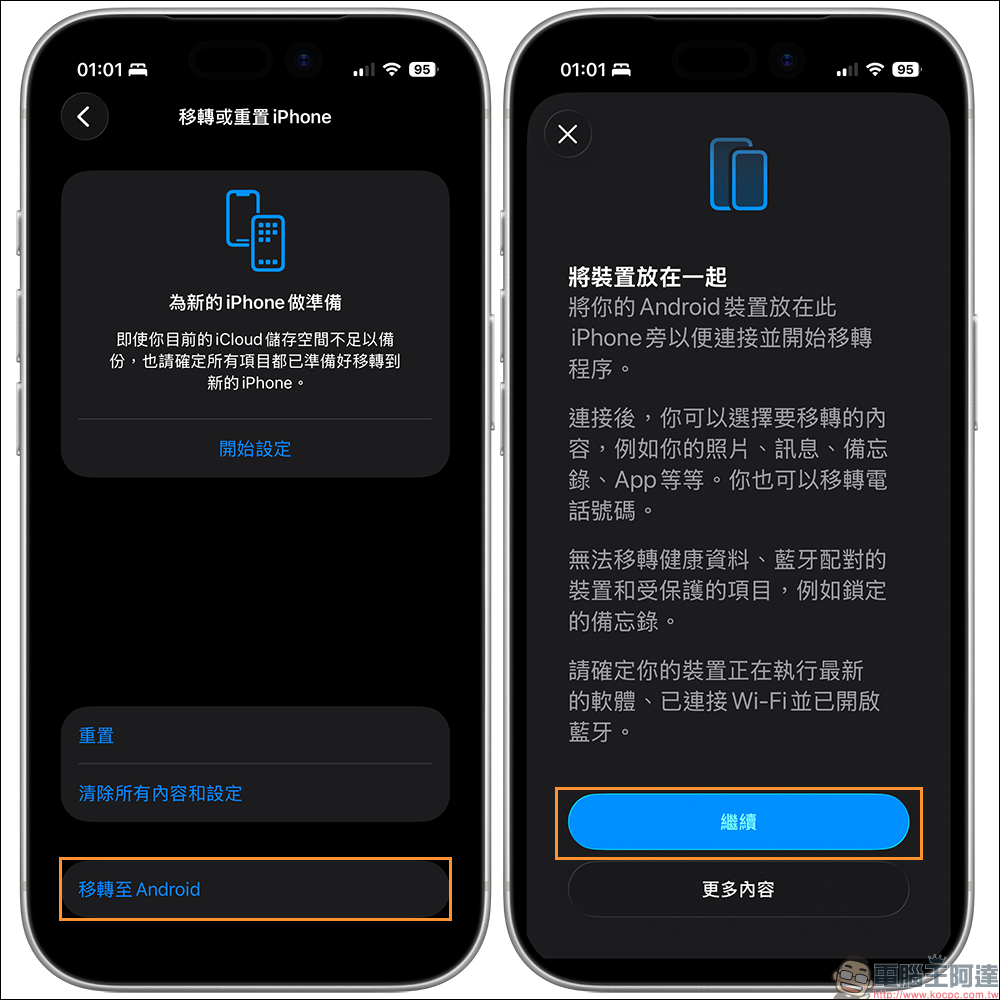
Users only need to put their iPhone and Android phone together, and the system can start the pairing process. This design is very similar to the data transfer experience when switching from iPhone to iPhone. For users who are familiar with iOS, there is almost no need to relearn it.
What data can be transferred?
The migration projects supported by iOS 26.3 this time are quite complete and cover most important data that are used daily, including:
- Photos & Videos
- Text messages and conversation history
- Memo content
- Some apps and their basic information
- saved password
- Phone numbers and related settings
For users who usually use a lot of built-in memos, text messages or photos, this kind of support range can already solve most of the anxiety of switching phones.
What data cannot be transferred?
Of course, not all information can be taken away completely. Apple also clearly lists several items that are not supported for transfer, including:
- health related information
- Paired Bluetooth device
- Protected items, such as locked notes
These restrictions are mainly related to privacy, security and system architecture, and are not unexpected. In particular, health data involves differences between Apple Health and the Android platform, and currently cannot be directly transferred.
Requirements for wireless transfer
To successfully use the Move to Android feature, both devices must meet some basic requirements:
- Both iPhone and Android devices need to be updated to the latest version of the system
- Both phones must be connected to the same Wi-Fi network
- Bluetooth function must be turned on
Once these conditions are met, the wireless transmission process can be started. The entire operation does not require plugging in wires or setting additional complicated options.
Dual choice of QR Code and pairing code
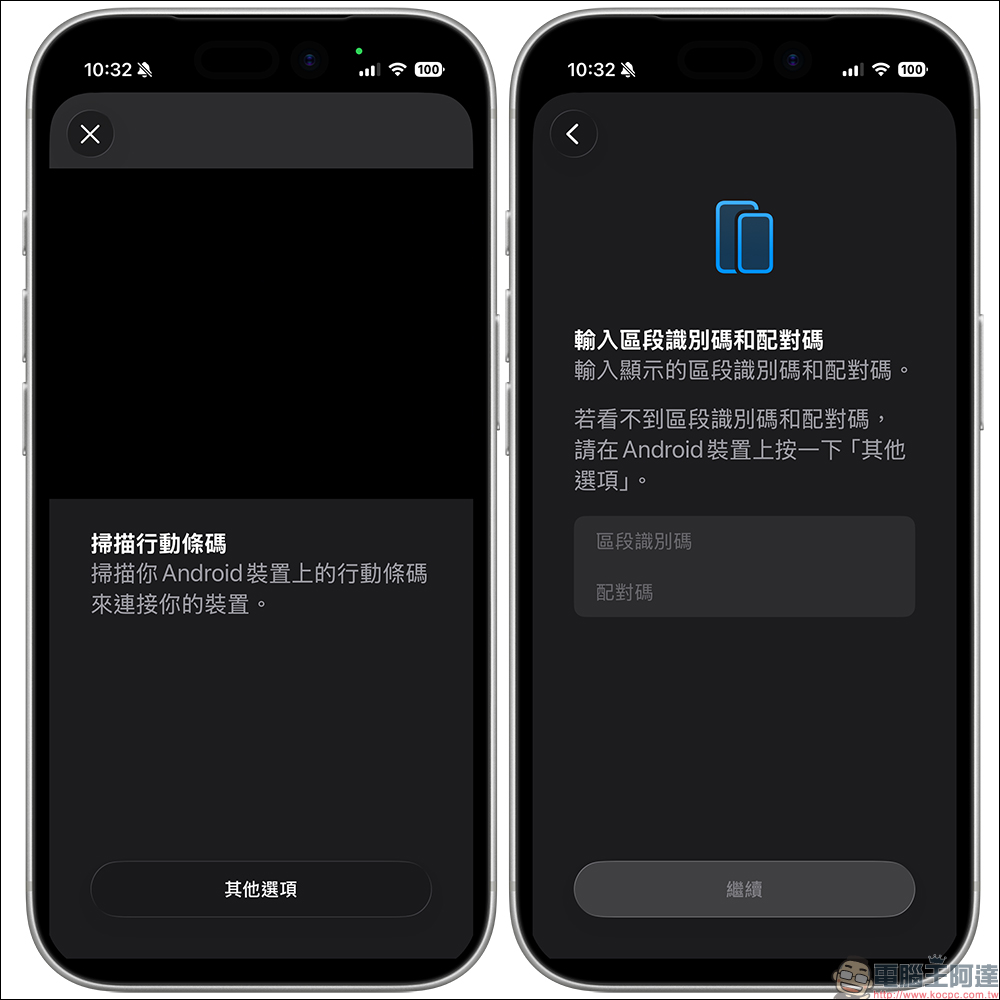
In actual operation, the system provides two pairing methods. The first is to display the QR Code on the Android device and let the iPhone scan it and start the connection directly. This method is intuitive and fast, and is very suitable for general users.
If you cannot use QR Code due to environmental or device restrictions, you can also use session ID and pairing code to connect. This dual-scheme design ensures that pairing can be successfully completed in different situations.
See the actual operation process at once
The overall process is actually very simple. The following are the basic steps:
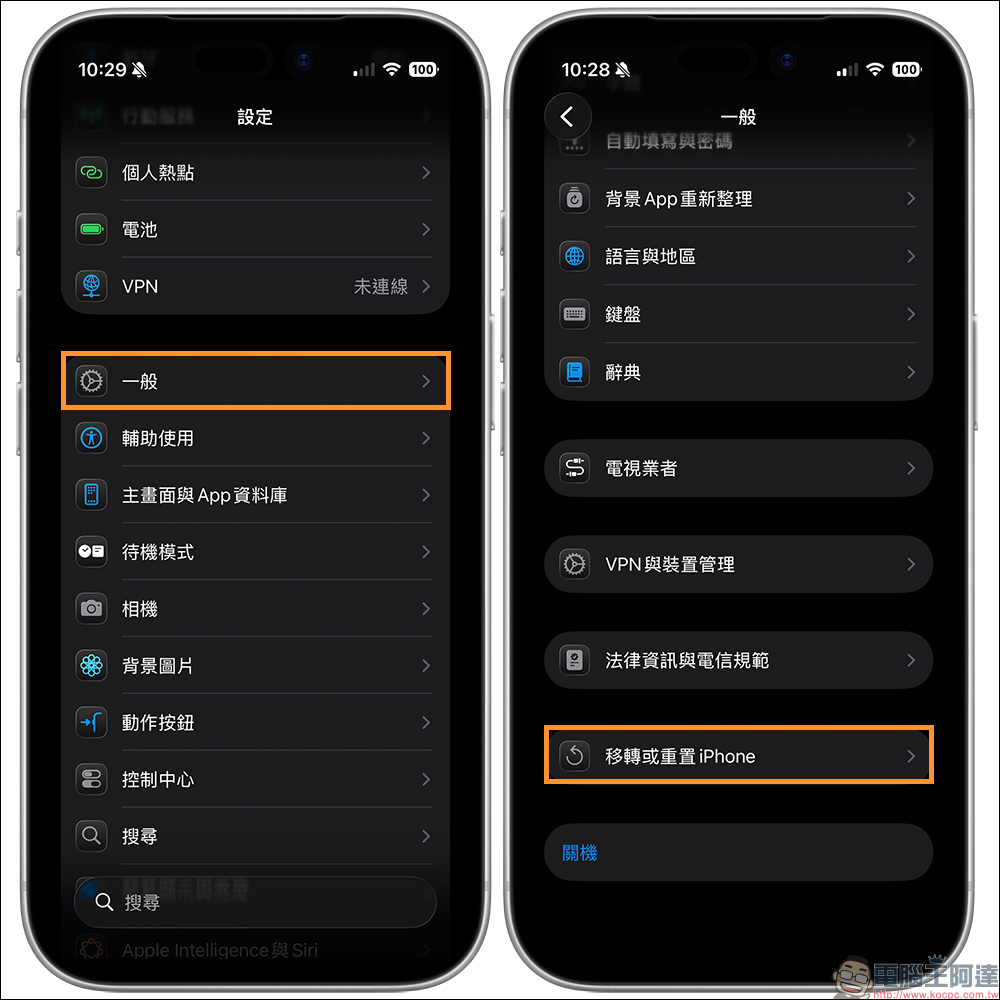
- Open iPhone’s Settings
- Enter “General”
- Click “Move or Reset iPhone”
- Select “Move to Android”
- Follow the on-screen instructions to place your Android device next to your iPhone
- After pairing is complete, select the data items you want to transfer
- Just wait for the transfer to complete
Throughout the process, the system will clearly prompt each step, making it less likely to make mistakes even if it is the first operation.
Conclusion
The new “Move to Android” feature in iOS 26.3 may seem low-key, but it is actually a very critical change. It not only improves the replacement process, but also represents a small step in Apple’s loosening of system closure. For users, this means they can have less worries and more freedom when choosing mobile phones in the future.
If you happen to be planning to switch to Android, or just want to know about future possibilities in advance, then this feature is definitely worth trying for yourself.
Further reading:
Source: KOCPC Chinese