


Many iPhone users will use the Safari browser on their phones, but only by using it, and may miss some very useful functions. Apple’s recent iOS update has brought a series of changes to Safari, but don’t give up if you feel a little awkward sometimes. Safari is highly customizable. From navigation to display interface, simple adjustments can provide you with a better browsing experience.
When using the Safari browser on iPhone, you should learn these settings
Switch to reader
Reader is an underrated feature in Safari that improves the browser experience, especially when reading large amounts of text. When Safari is enabled, web pages are formatted to display only text and images, removing all distractions such as navigation menus and ads. The only disadvantage of the reader is that not all websites support it, but you can often use it in articles, and you can find it on longer pages that contain abstracts and tables of contents.
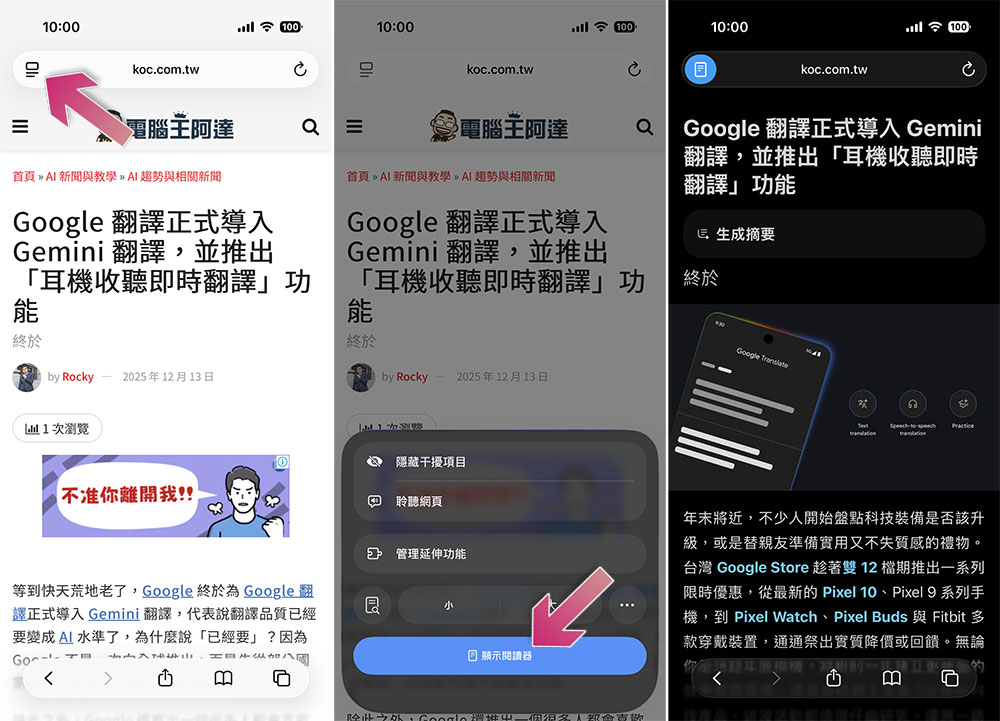
To launch Safari on a specific web page, do this:
- Click the Page Settings button to the left of the address bar.
- Click the “Show Reader” button.
- To return to the default web page, follow the steps above and click “Hide Reader”.
-
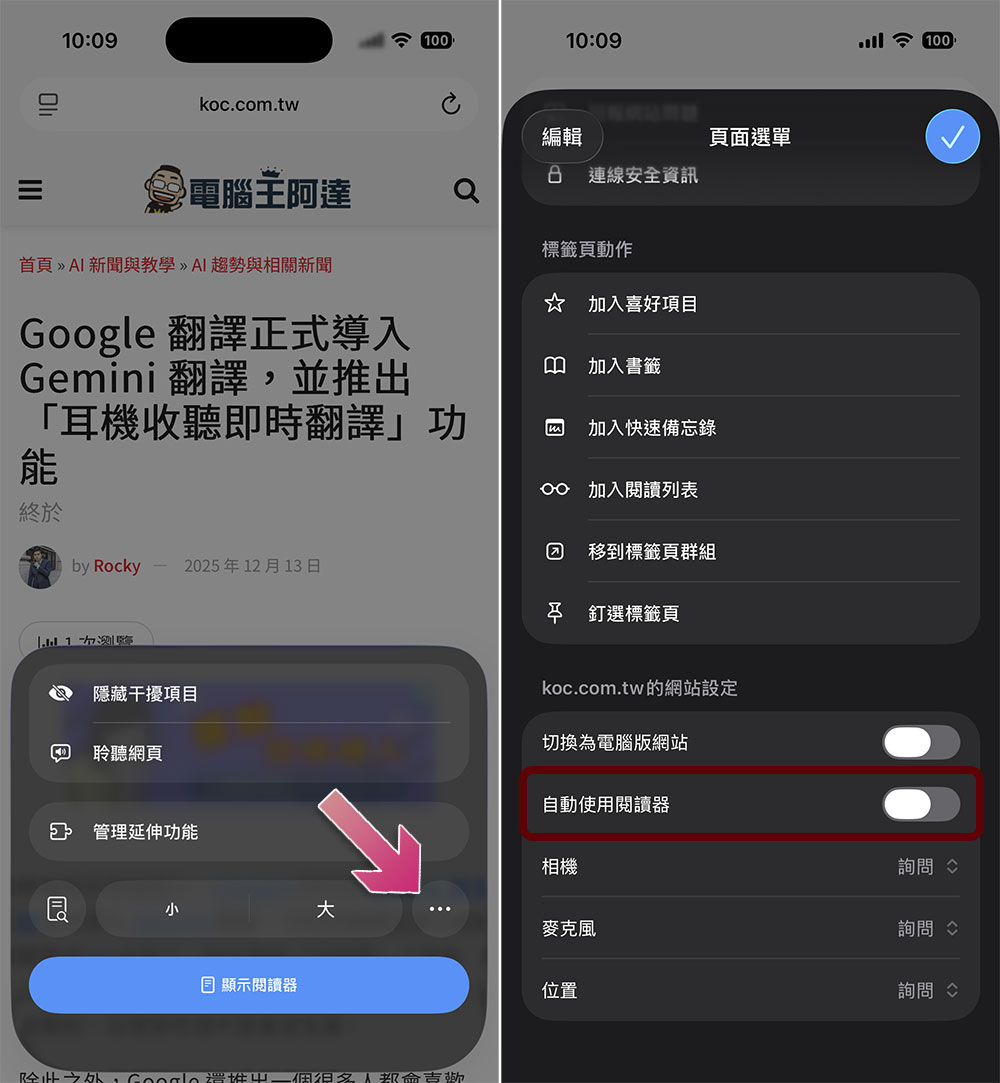
You can also automatically use Reader to manage specific websites. Go to a supported website and click the Page Settings button.
-
Click the three-dot settings button in the menu.
-
Enter the “Page Menu” and turn on the “Automatically use Reader” switch.
Change the appearance of your reader
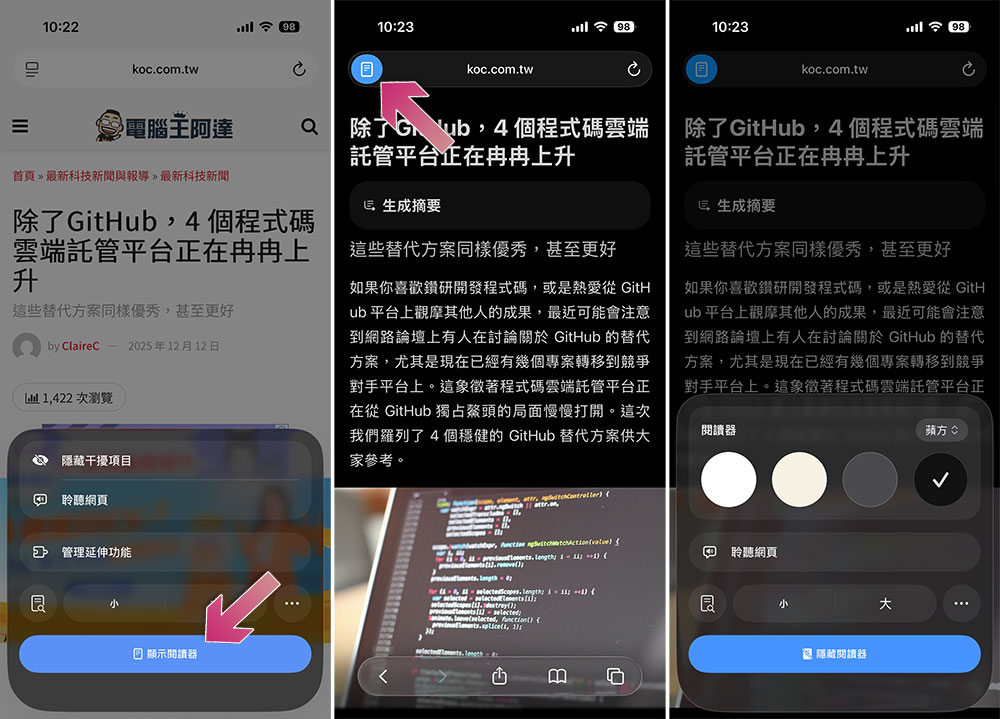
Safari’s Reader is not only a convenient tool for reading articles on iPhone, but it also has some great personalization features that allow you to switch the appearance while immersed in reading. In Reader mode, you can customize the font and text size on the page, and change the page background and color. To personalize your page, follow these steps:
- On a browser-enabled page, click the Page Settings button to the left of the address bar.
- Click “Show Reader”.
- Click the Page Setup button again in Reader mode.
- From the options that pop up, you can change the background color, font, and text size.
Hide distracting elements
One of the best features Safari got when Apple launched iOS 18 is Hide Distractions, a setting that lets you block out clutter while browsing. With this feature, you can click and make distracting elements on the webpage such as pop-ups, ads, and videos disappear, allowing you to focus more on the content you want to read. This feature is a good alternative for web pages that don’t support reader mode.
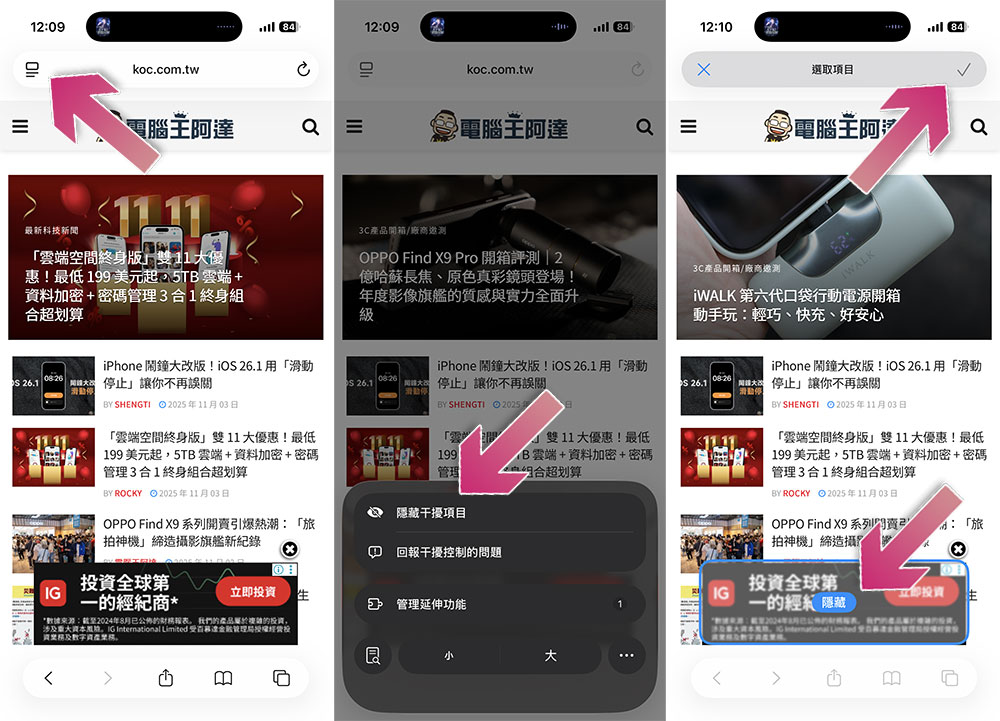
- On any page in Safari, click the Page Menu button next to the address bar.
- Select “Hide distractions” from the menu.
- Click on the web page element you want to hide and click the blue “Hide” button (you can select multiple elements).
- Just click the “√” in the upper right corner after selecting.
Revamp Safari’s start page
You can completely change the look of the Safari start page. Safari allows you to switch background slideshows and customize the content and order of the start page display. To edit the Safari start page, follow these steps:
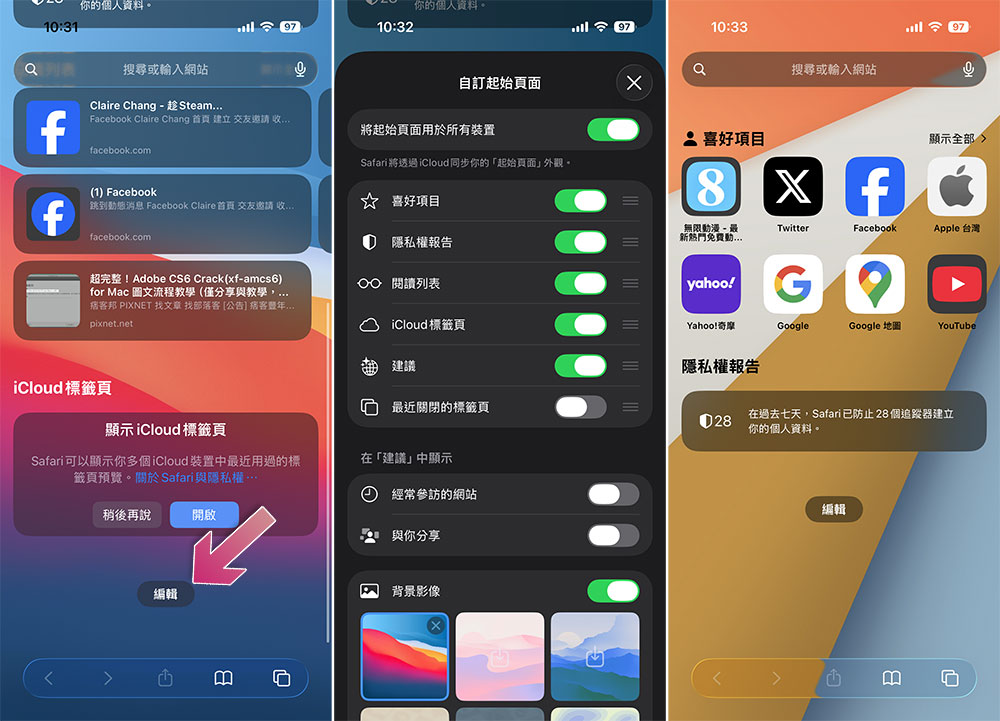
- Scroll to the bottom of the home page and click the “Edit” button.
- From this page you can toggle the elements you see on the start page, such as favorites, reading lists, and recommendations, or even turn them off to keep them clean, and you can rearrange the order in which these elements appear on the start page.
- Scroll down and you can also choose different background images to change the atmosphere of the start page.
Customize your Safari interface
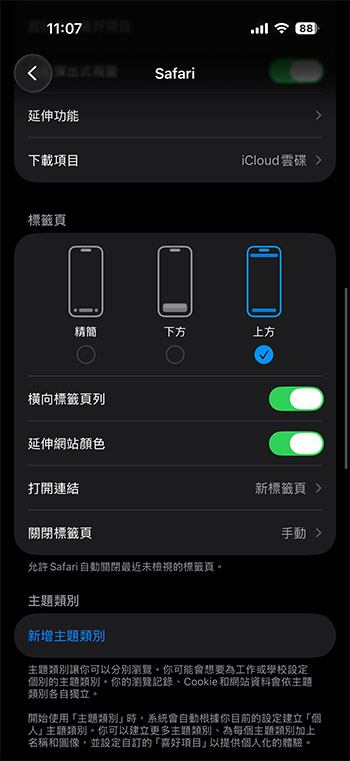
iOS 26 also comes with a slew of updates to your iPhone apps, features, and most importantly, navigation and interface. Safari’s default toolbar is in streamlined mode, hiding buttons such as bookmarks, sharing, and paging. You can adjust the taskbar to your preferred position using the following methods:
- Open the Settings app.
- Search for “Safari”.
- Scroll down to choose the placement position among three options: streamlined, lower, and upper.
Using Safari on iPhone means you can take advantage of simple gestures to save time and energy while browsing. You can also customize Safari right from your iPhone’s Settings app, from website and privacy changes to how the browser searches.
Source: KOCPC Chinese