


Nowadays when surfing the Internet, many people will want to use VPN To protect online privacy and security, although there are many on the marketFree VPN, but its safety is worrying, and it may become “even more unsafe” if it is not used properly. If you are using Microsoft Edge, in fact, it already has a built-in free VPN function: “Edge “Secure Internet VPN”, but it is hidden in the settings and needs to be turned on manually. I will teach you how to operate it below.
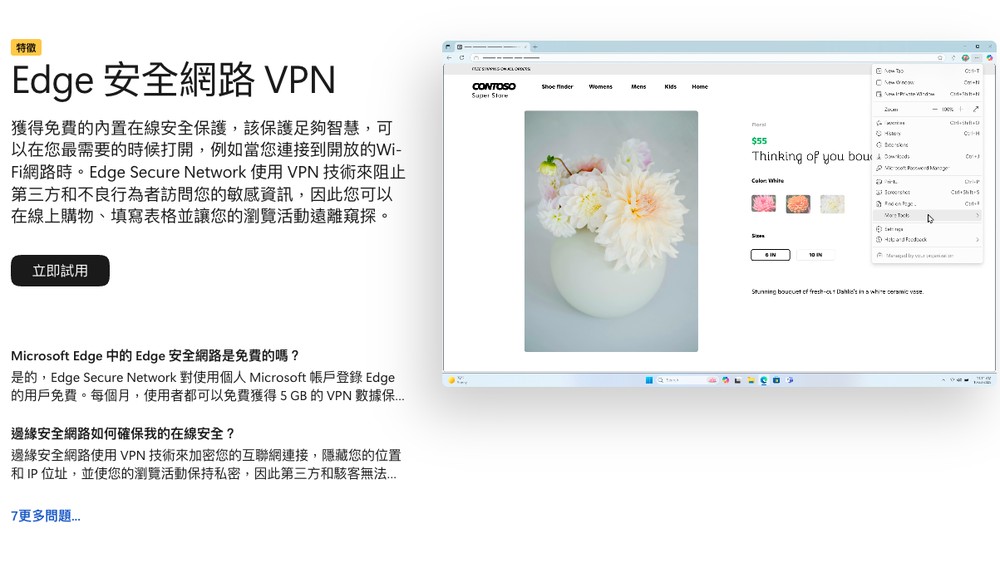
What is Edge Secure Network VPN?
Edge Secure Network is a “browser-level VPN” built into the Microsoft Edge browser. When turned on, Edge will first encrypt web traffic in the browser and then forward it through a cooperative VPN network, making it more difficult for outsiders to directly see your original IP and reducing the risk of your connection data being peeked on unsecured networks (such as public Wi-Fi). Cloudflare provides underlying network support.
How to use the free VPN feature built into Microsoft Edge?
The method of use is very simple. You only need to go into the settings to turn it on and log in to your Microsoft account (yes, you must log in). Then you can specify the website to enable VPN traffic.
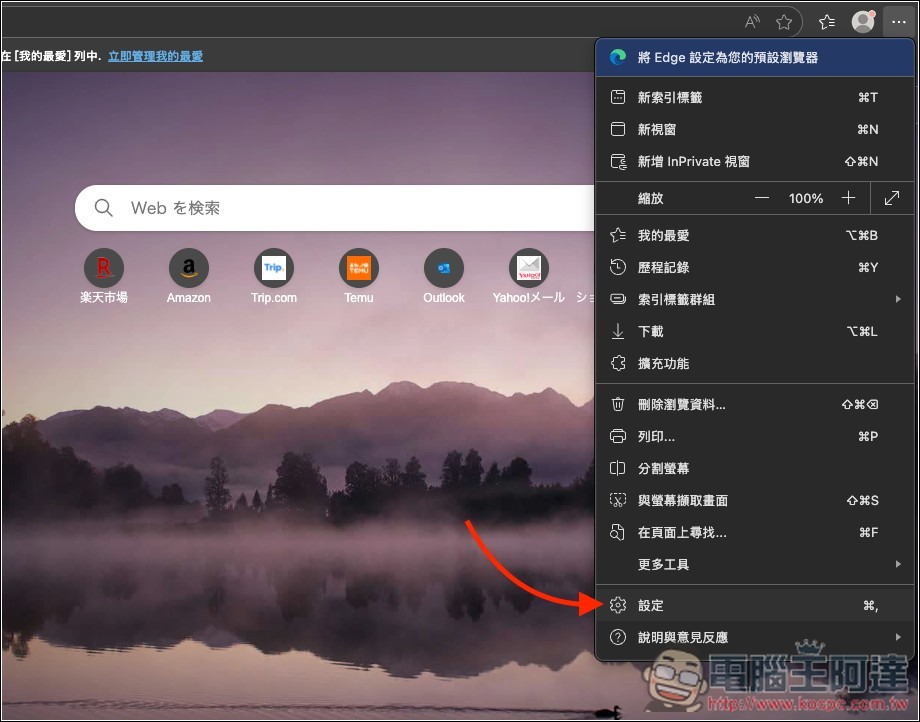
Open the menu in the upper right corner of Microsoft Edge and go to settings:
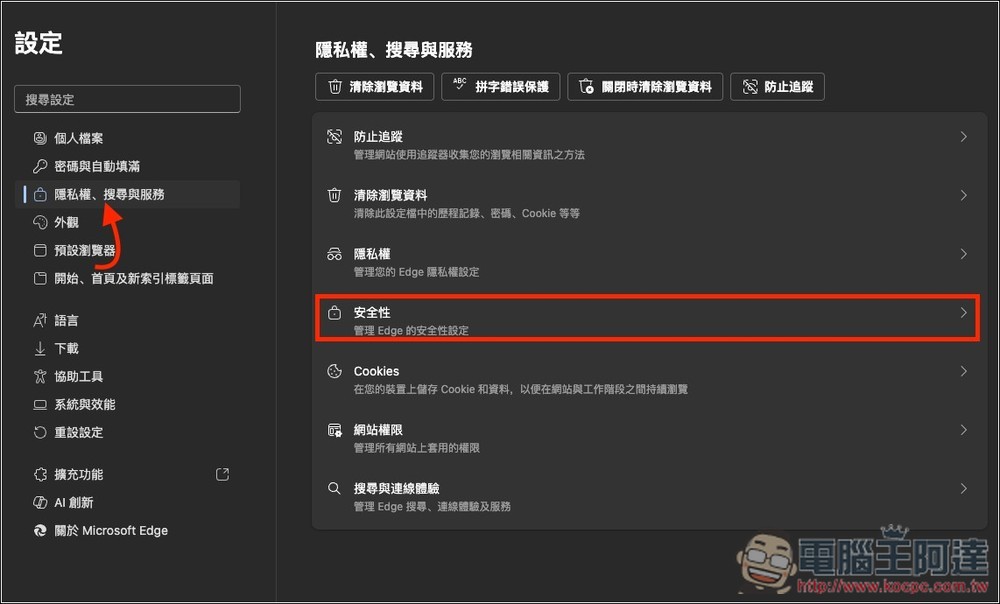
After selecting “Privacy, Search & Services”, enter “Security”:
Scroll down and you will see the option of “Use Microsoft Edge Secure Network”. This is the built-in free VPN. The following also explains the 5GB free data per month:
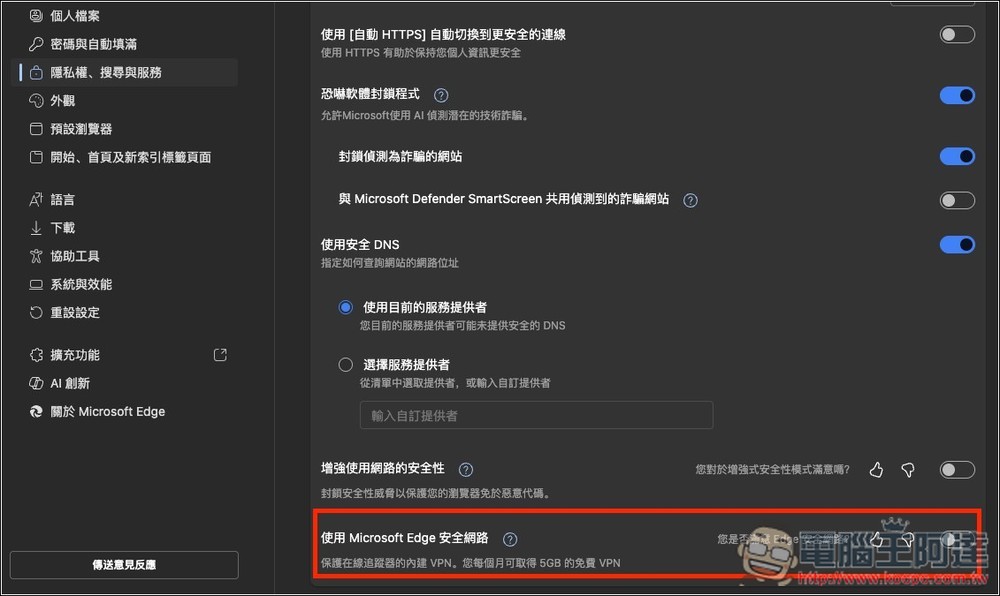
After turning on the switch next to it, a small selection box will pop up on the right, click “Get VPN for Free”. If you have not logged in to your Microsoft account, you will be asked to log in:
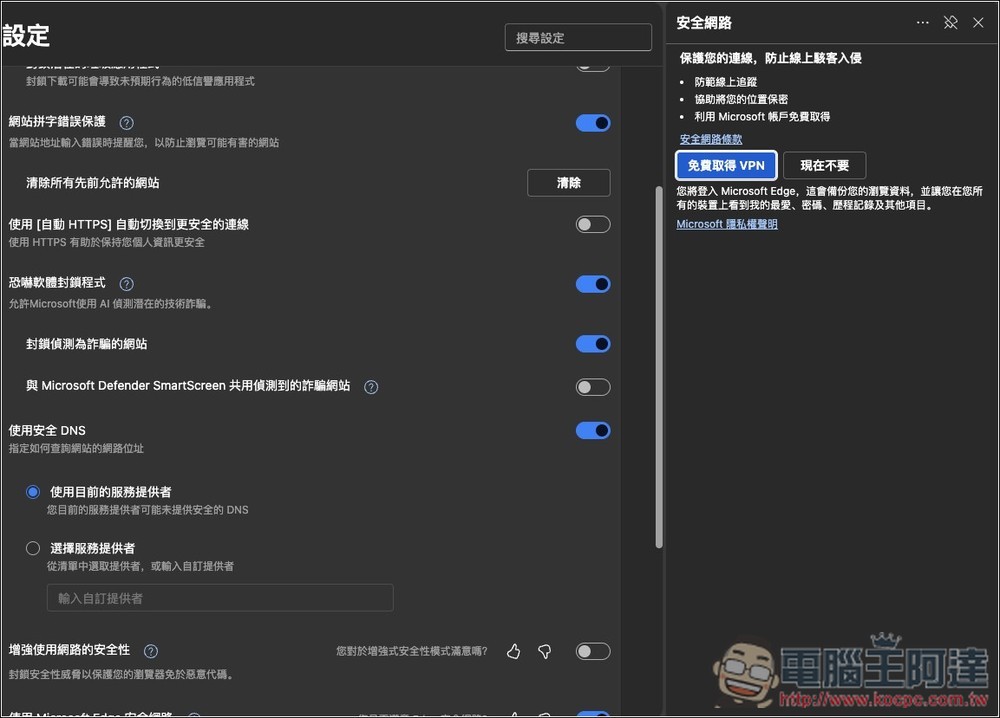
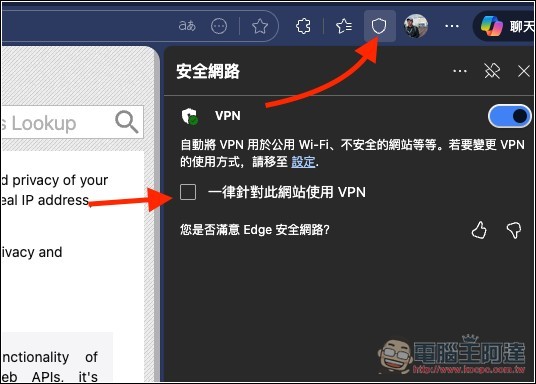
Then in the toolbar in the upper right corner, there will be an icon similar to a shield. This is the VPN. You can open it at any time to set whether to enable the VPN function. Generally speaking, Edge will automatically enable the VPN function on public Wi-Fi, unsecured networks, etc. If you have certain websites that you want to enable VPN at all times, after entering the website, turn on the “Always use VPN for this website” function below, so that Edge will automatically enable VPN when you enter this website in the future. There is also a whitelist function, you can go into the settings to add:
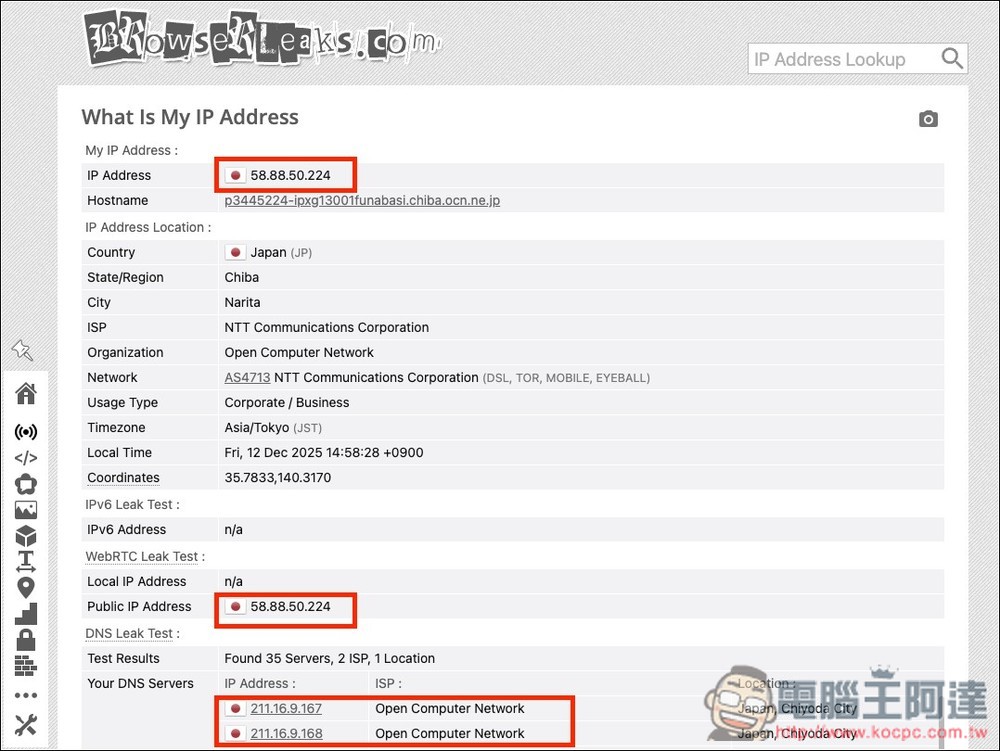
The picture below is an IP that I have not turned on the VPN function, starting with 58.88:
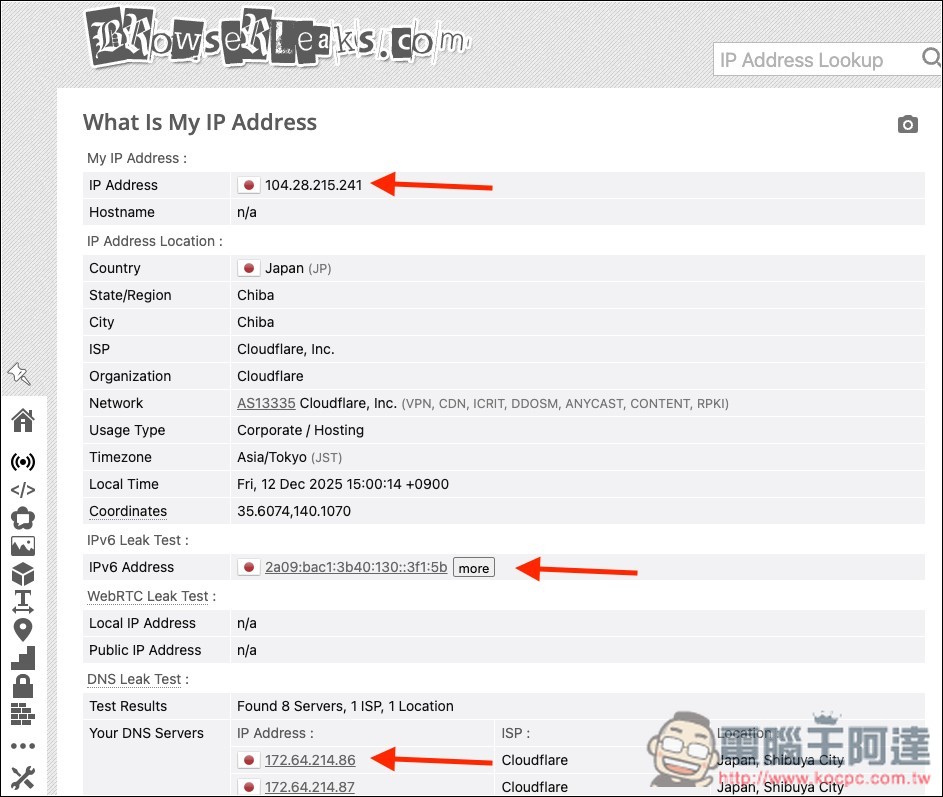
After turning on the VPN, the IP location changes. Likewise in Japan, the DNS will also show that it is provided by Cloudflare:
How is it different from regular VPNs?
Traditional VPNs are mostly device/system-level VPNs. Once turned on, the entire device’s network (including other browsers, apps, and background programs) will use the VPN channel. The Edge Secure Network VPN is considered a “light version” and only protects “traffic within Edge.”
In addition, the following functions are also different.
- Unable to locate/cross-region: The Edge secure network prefers “privacy and security” and will automatically connect to servers near your region. This means that you cannot freely select a country to cross-region, so it is not suitable for unlocking country-specific content.
- Different usage/function limits: Edge has a monthly data limit of 5GB, which cannot be used for streaming videos.
Precautions for use
This part is important: don’t think of it as a “traditional VPN.” After you turn on the Edge secure network, it does not mean that “the entire computer is in the VPN.” Your traffic in other browsers, LINE, Steam, cloud synchronization, downloaders, apps, etc. still goes through the original network and is not protected.
- Protect Edge traffic only:Other apps are not included
- Traffic quota: 5 GB per month (will be deactivated when used up)
- Streaming without VPN: Official explanation: In order to save credit, some streaming websites will not be routed to secure networks.
- Not suitable for unlocking cross-region content: Unable to select server and have no ability to unlock.
- Account login required: Use requires logging in to a personal Microsoft account.
Source: KOCPC Chinese