


The best thing about Android devices is the high degree of personalization and customization they have always provided. Recently, iPhone has also provided more customization options, slightly ahead of Android in lock screen widgets. The lock screen widget used to be part of Android Jelly Bean, but the feature was removed with the launch of Android Lollipop in 2014. Luckily, lock screen widgets are making their way back with the latest version of Android 16.
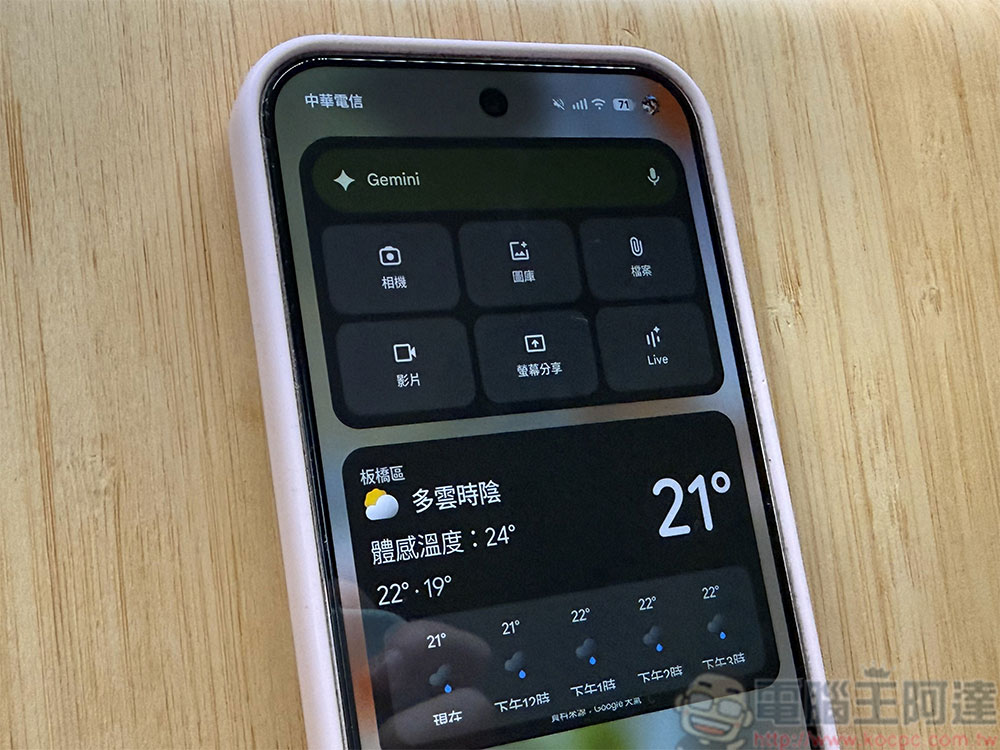
How to change the lock screen widget on Google Pixel?
It’s not difficult to change the lock screen widget. Before you add widgets to your lock screen, make sure you’re using the correct version of the software. Lock screen widgets aren’t easily available on the Pixel 10 series or other Pixel devices. With the Android 16 update, the lock screen widget is returning to Android and Pixel phones.
After you confirm the operating system version, you can easily add gadgets to the Pixel lock screen, but this is a two-stage operation that must be enabled in the Settings app first and then set in the lock screen. Below we will tell you step by step how to do it.
Enable lock screen gadget
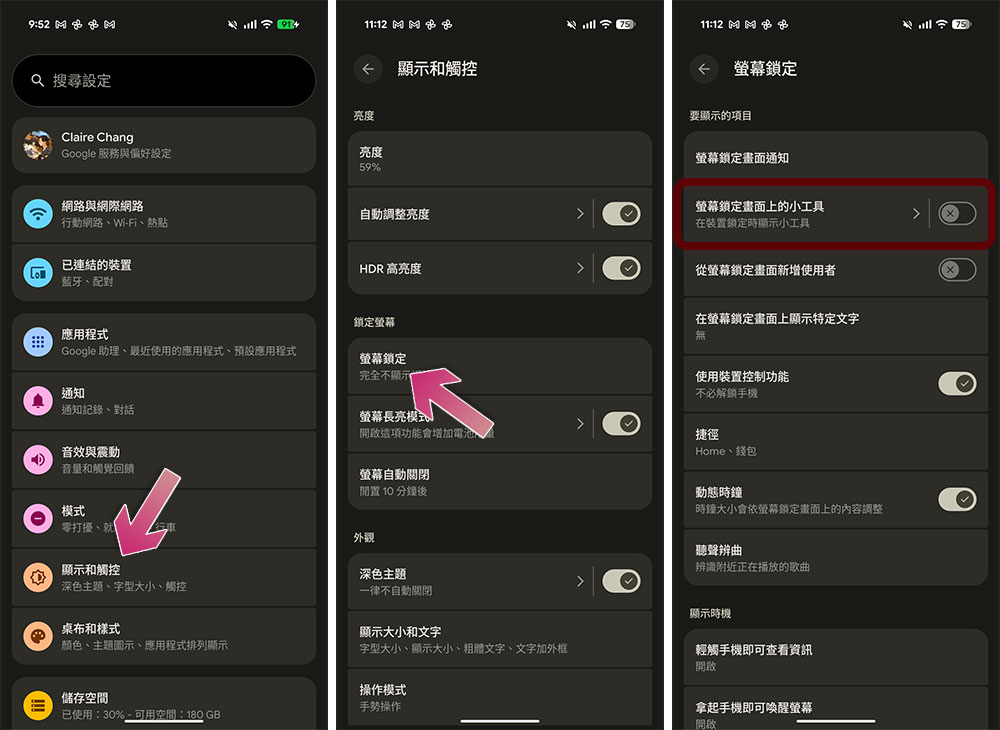
The first thing is to enable the lock screen widget. This part is turned off by default and you must turn it on manually.
- Open the Settings app.
- Click to enter “Display and Touch”.
- Click “Screen Lock”.
- Turn on the “Widgets on screen lock screen” option.
Added lock screen widget
After enabling it in the previous step, lock your phone first. Next, wake it up but do not unlock it to enter the homepage. Follow the steps below to access and add lock screen gadgets:
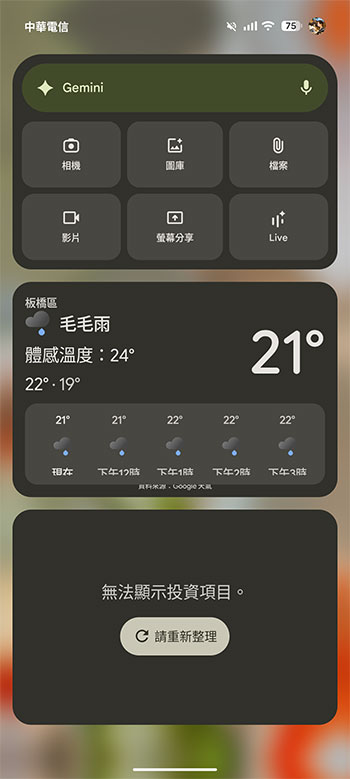
- Swipe left on the lock screen and you’ll see a new page, available once unlocked.
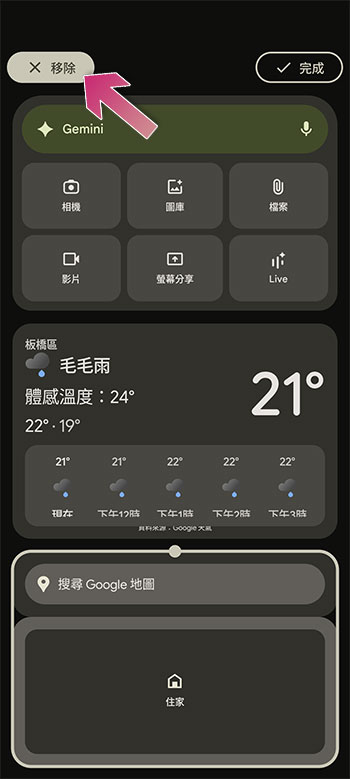
- Several gadgets enabled by default will be displayed on the page, such as weather, Gemini tools, etc.
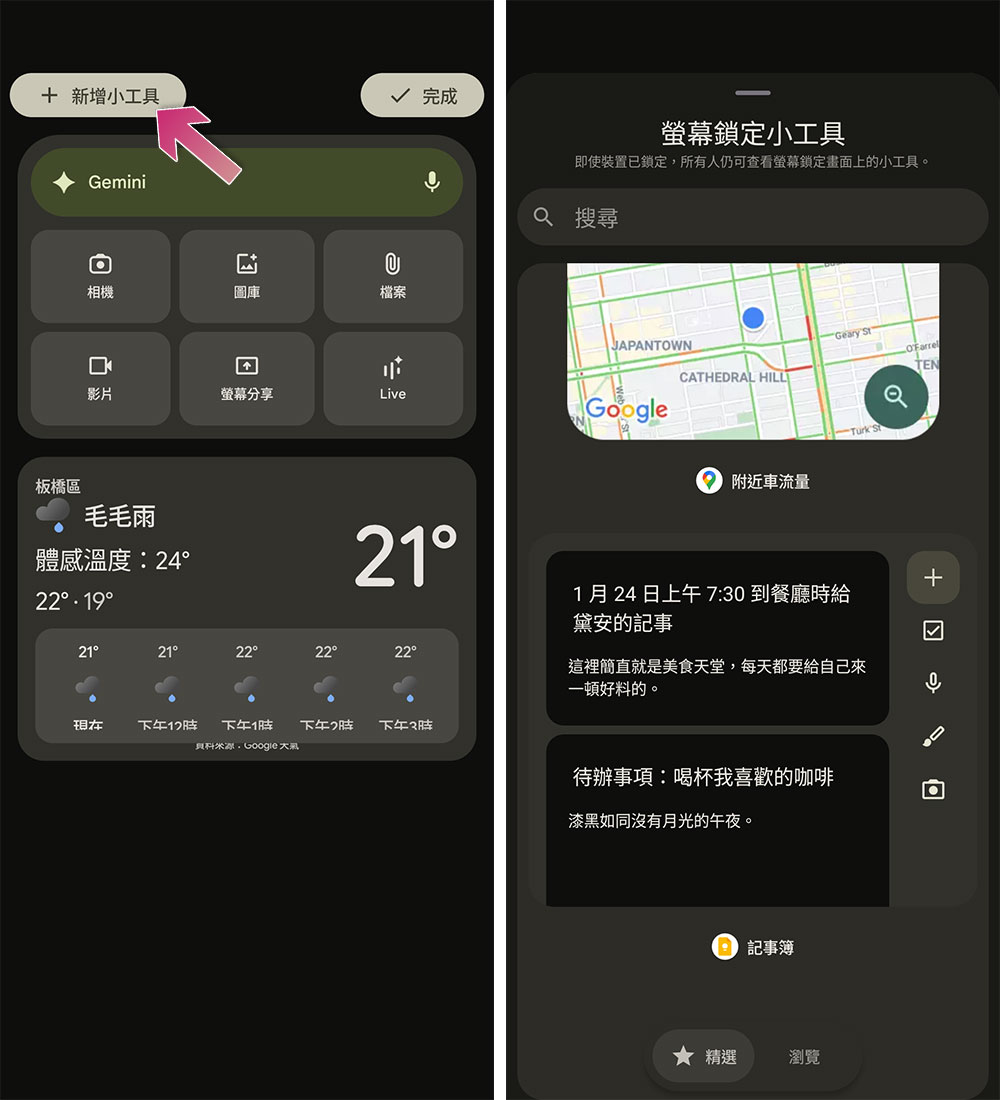
- If you want to add a new widget, just long press the screen to enter the editing mode.
- Click the “Add Widget” button in the upper left corner; you can see the widget options just like you see when editing the homepage. After selecting, you can add the widget to the lock screen. You can drag to adjust its position and size, and finally click “Done”.
- If you want to remove it, long press the specified widget box and click “Remove” in the upper left corner, and finally click “Done”.
Overall, it’s great news to see widgets making a comeback on Android. I can quickly access my most used widgets without having to unlock the device. The interface still needs some tweaking, but overall it’s pretty convenient.
Source: KOCPC Chinese