


I don’t know if you have ever experienced it. When you scroll through Instagram or Threads, an HDR photo or video suddenly pops up in the feed, and you are immediately startled by the sudden high brightness. HDR content certainly has its merits, but sometimes it can become a nuisance when viewed on a mobile phone. “Enhanced HDR Brightness” is a new feature added by Google on Pixel, launched as part of the Android 16 QPR2 update that started rolling out last week.
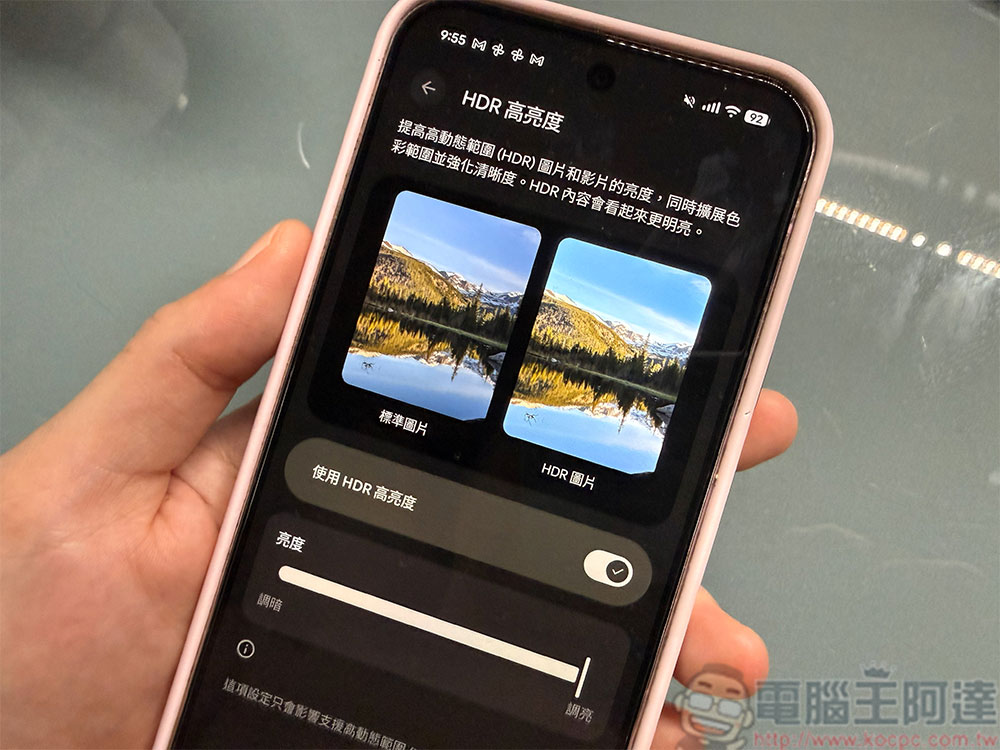
How to control visually damaging HDR photos and videos on Pixel phones?
How to use Enhanced HDR Brightness in Android 16 QPR2?
Before you get started, you’ll want to make sure your Pixel phone has been updated to Android 16 QPR2. As long as the update is completed, the rest is a matter of finding where to set it:
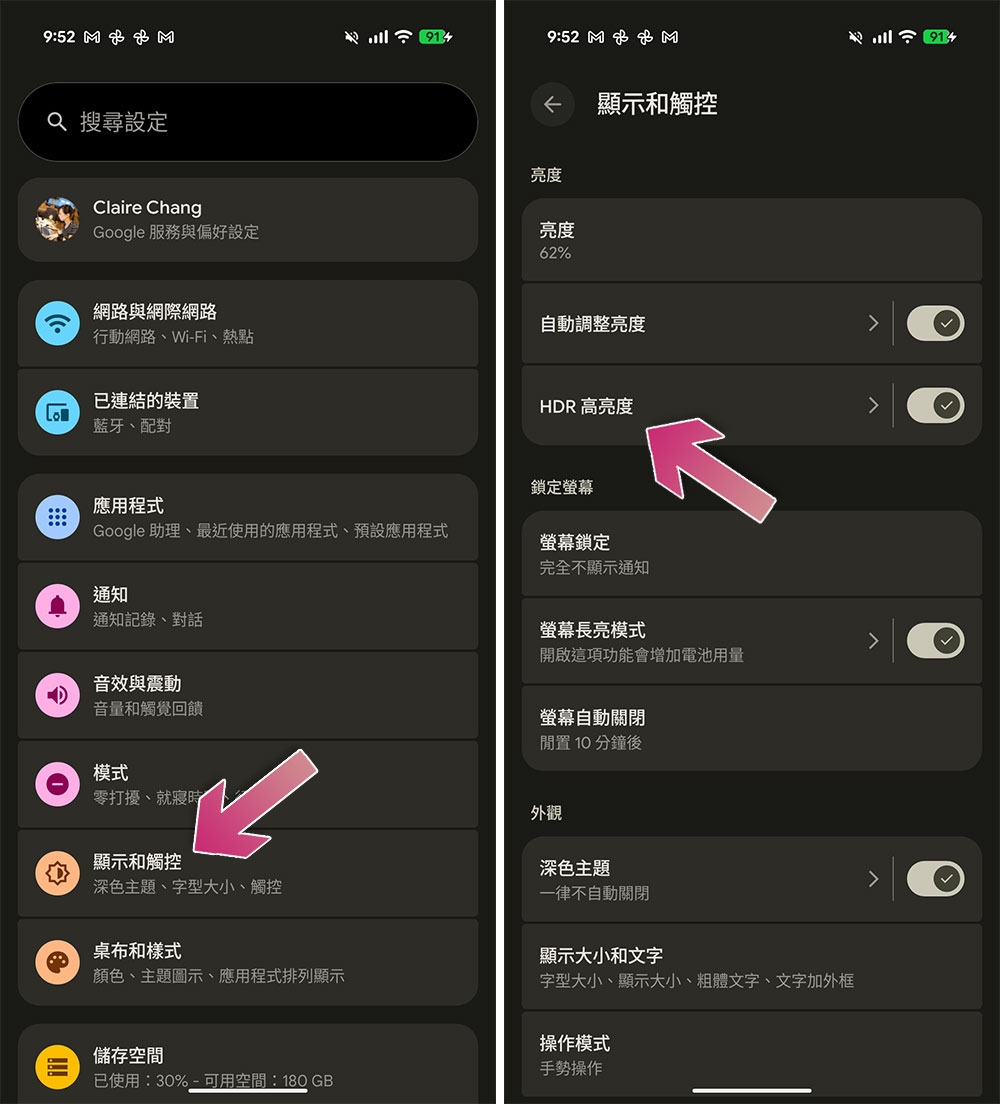
- Open the Settings app on your Pixel phone.
- Click “Display & Touch”.
- Click “HDR Highlight”. By default, HDR High Brightness is enabled, which means you will see full HDR photos and videos. If you don’t like it, you can tap the switch on the back to turn it off. However, if you turn it off, HDR Brightness will be completely disabled.
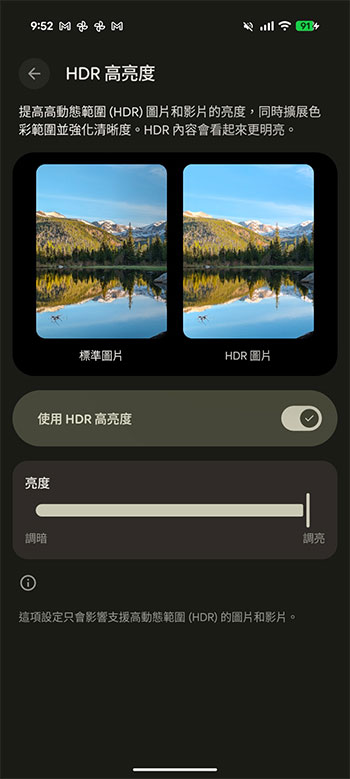
- On this page, Google will provide two sample pictures, and you can instantly see the difference between turning HDR brightness on and off. If you don’t want to turn off HDR High Brightness completely, but want a little more control, you can use the Brightness slider to dim or brighten it. The author found that about 50-60% is a very visual-friendly point. You can try it out to see which brightness suits you best.
Even if you 100% support HDR, I think everyone can agree that being able to turn off or reduce HDR brightness according to personal preference can provide more flexible control. After all, you are a mobile phone user, and the screen should not make you feel uncomfortable. This is a very practical tool that can keep your eyes comfortable.
Source: KOCPC Chinese