


After months of testing with Windows Insiders, Microsoft has finally officially launched the “Hey Copilot” voice wake-up command to all Windows 11 users. This feature allows you to summon AI from your computer just by saying “Hey Copilot.” This is part of Microsoft’s ongoing plan to make Copilot in Windows feel like a true assistant, integrated into apps, the taskbar, and now even your voice.
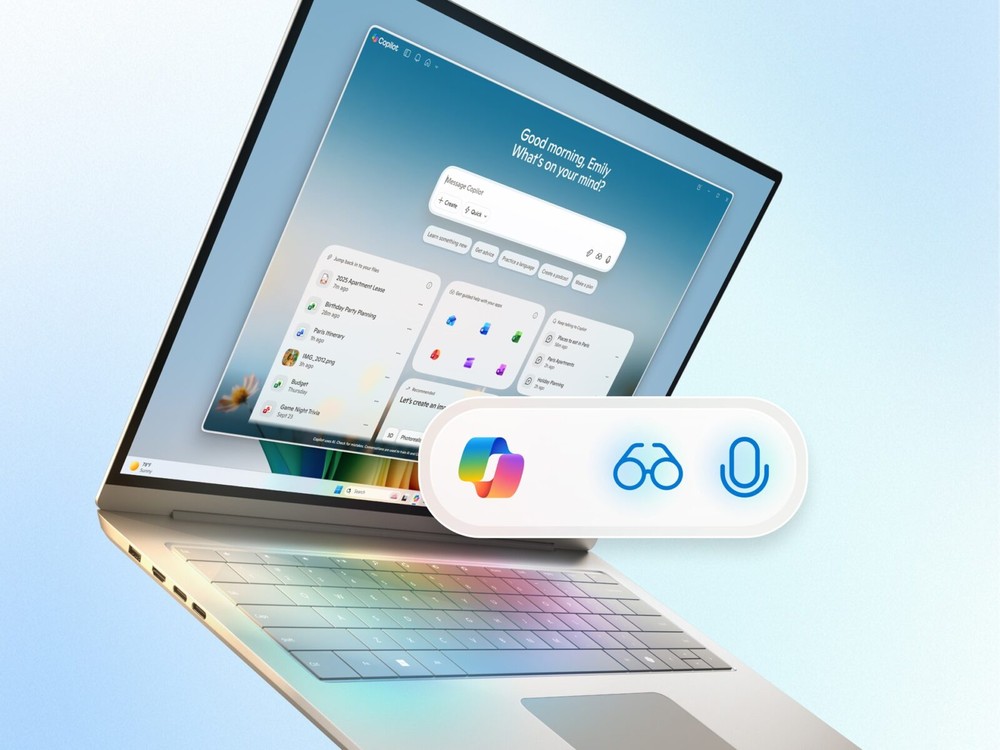
How to enable “Hey Copilot” in Windows 11?
The new voice-triggered feature, available through the Copilot app for Windows, allows users to interact with AI assistants in a faster, more natural way without touching a keyboard or mouse. However, by default, the voice call function is turned off. In this tutorial, we’ll walk you through enabling it in Windows step by step.
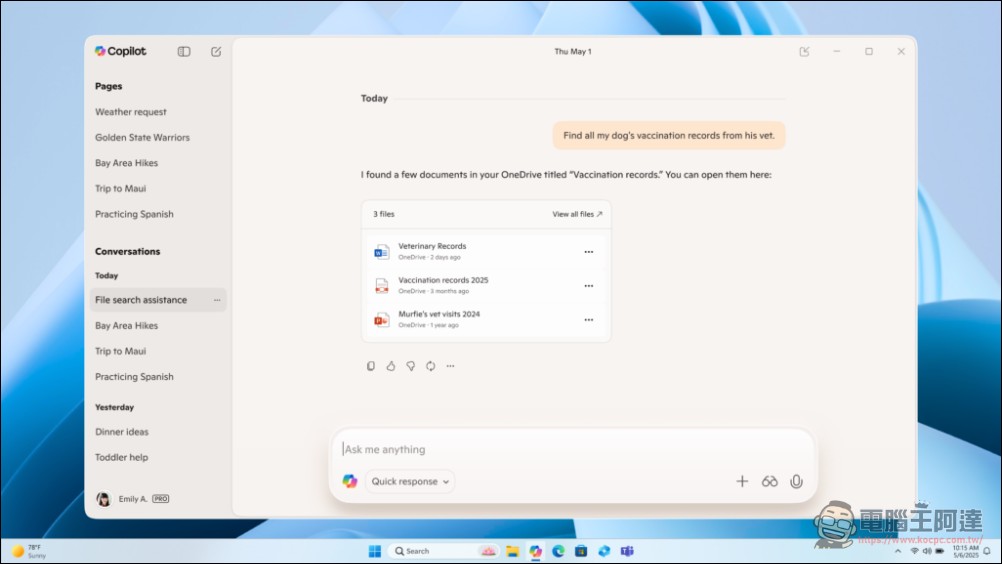
To enable “Hey Copilot”, please follow the steps below to quickly enable it in just a few clicks.
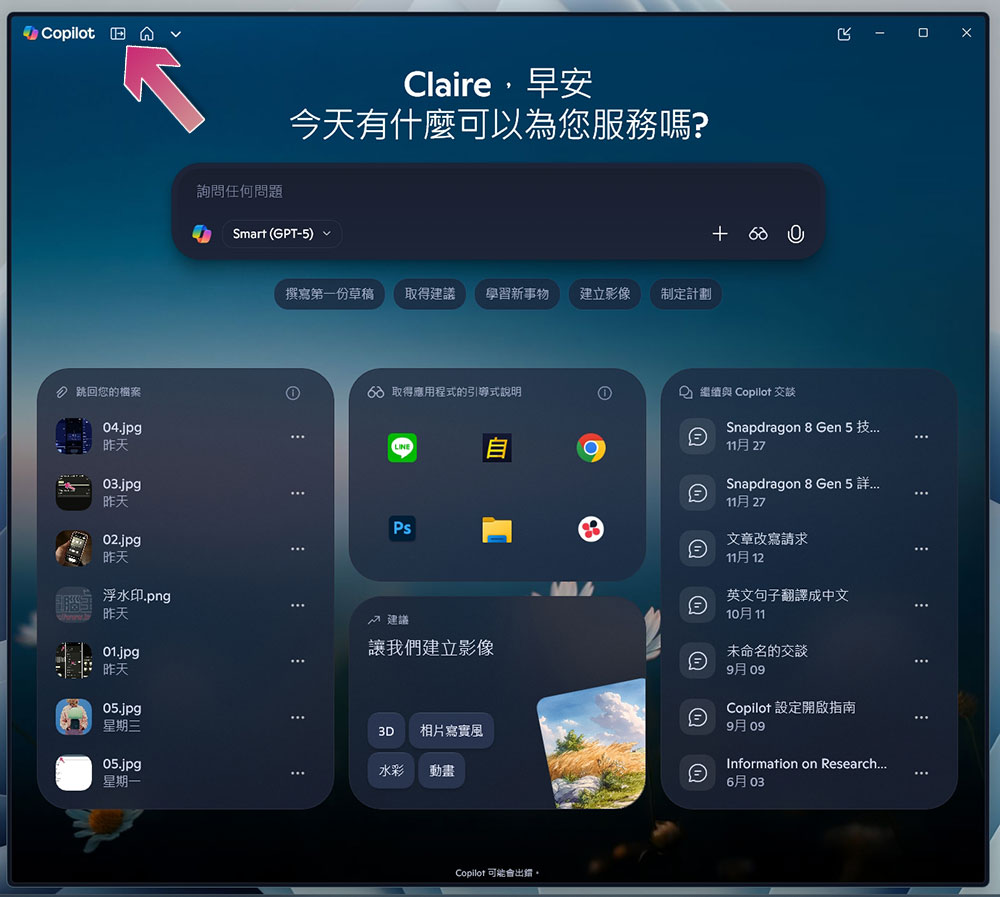
- Open the Copilot app on your Windows 11 computer.
- Click the icon in the upper left corner to slide out the sidebar.
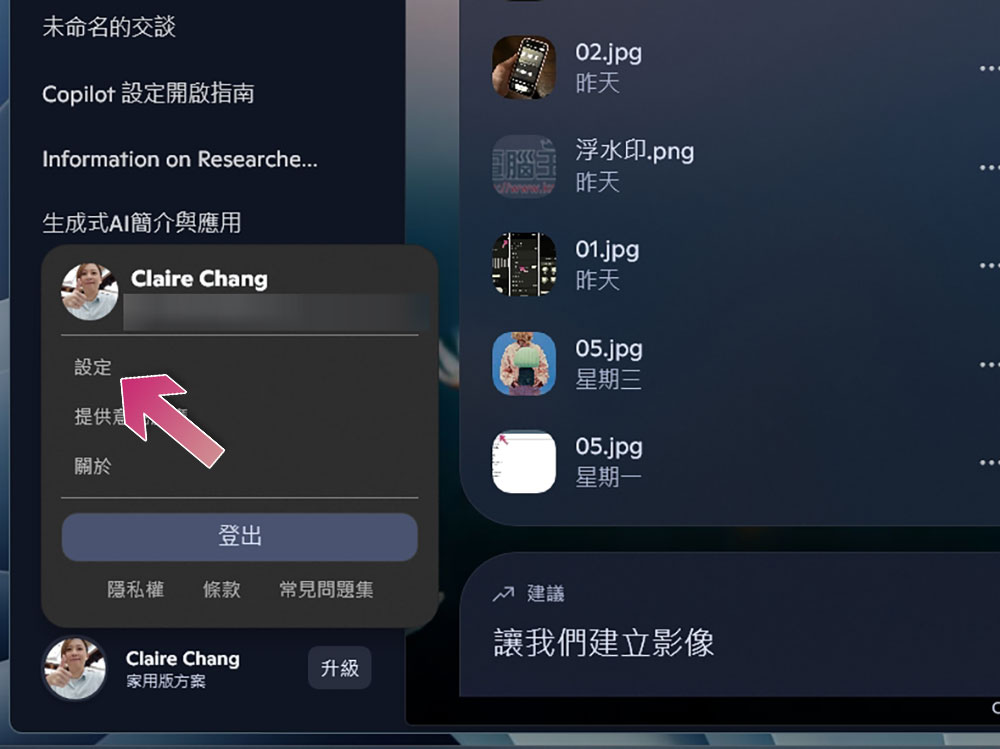
- Click on your profile picture in the lower right corner and select “Settings”.
- Scroll down in the settings menu, find the “Voice Mode” section, and turn on the switch next to “Listen to Hey Copilot to start a conversation.”

- If desired, you can also select your preferred voice sound from the drop-down menu.

The steps are that simple. After this function is enabled, you just need to say “Hey Copilot” and Copilot will respond with a prompt tone and microphone coverage sound, ready to receive your instructions at any time. You can ask a question, open an app, or end the conversation by saying “goodbye.” After a few seconds of silence, Copilot will automatically shut down.
Source: KOCPC Chinese