


As of the end of 2025, Apple has a market share of up to 50% in the tablet market. The iPad is the first choice for many people. Combined with an industrial-grade body, long battery life, and a software experience that is unmatched by other tablets, whether you are a student with a limited budget or a professional, you can find a model that suits you. It is not difficult to understand why the iPad is so successful.
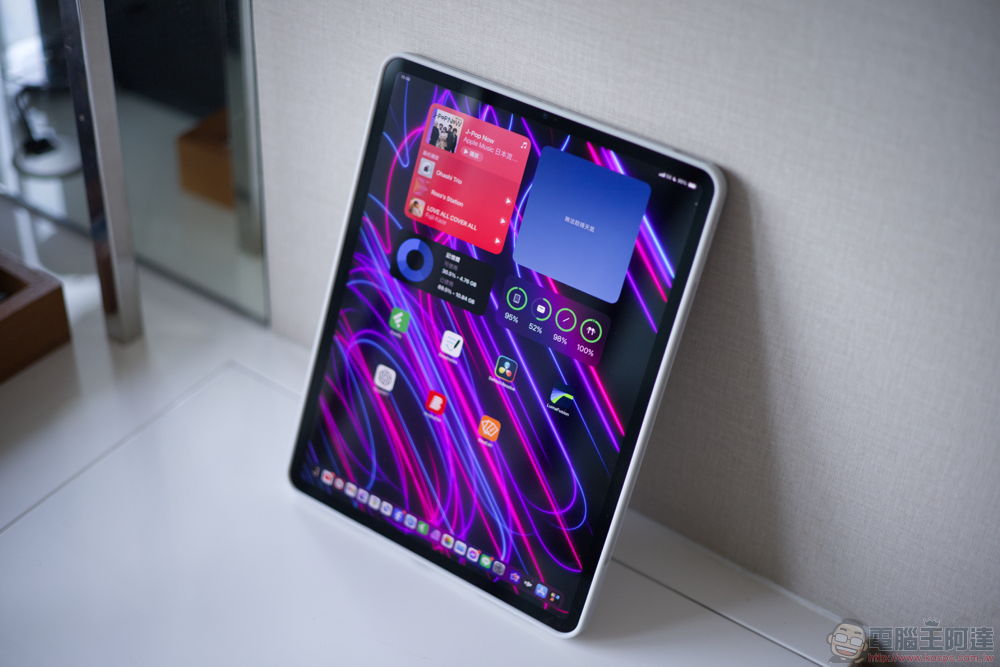
4 simple iPad settings to improve your reading experience
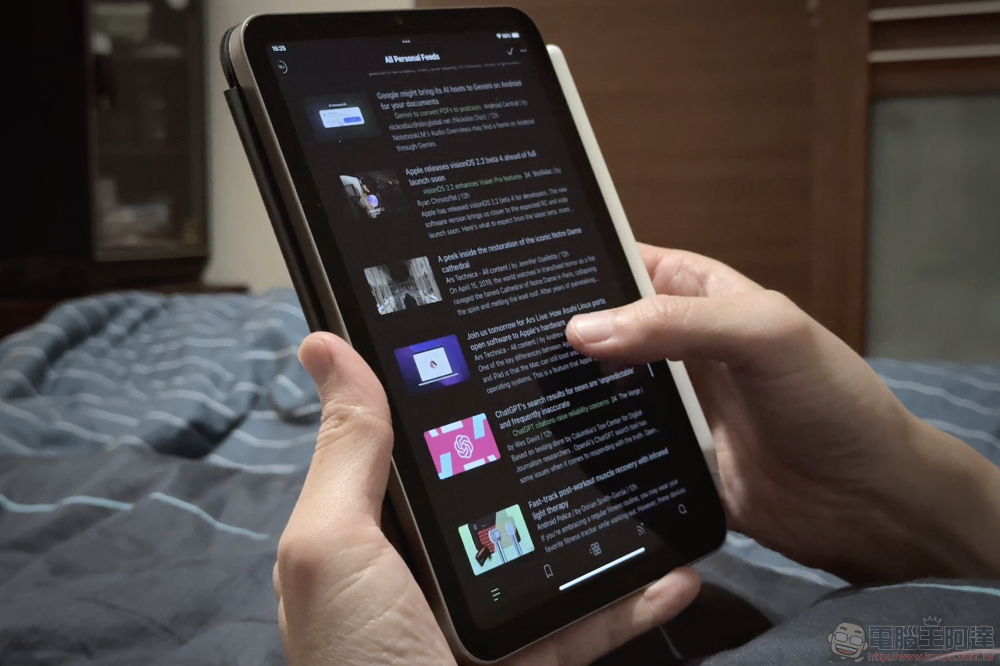
With so much professional software in iPadOS, it’s sometimes easy to forget about the basic functions that tablets are better at than smartphones, like reading books. Products like e-book readers offer e-ink displays and up to a month of battery life, making them quite reader-friendly. iPad provides an out-of-the-box experience, and its wide and sharp screen is suitable for reading books and documents, but you can also turn it into an e-reader through some simple settings. Most adjustments can be made through the Settings app, but we’ll also take advantage of the customization options built into the Apple Books app, which comes preloaded on the iPad.
Adjust iPad display settings
From the iPad mini’s relatively compact 8.3-inch screen to the iPad Pro’s roomy 13-inch panel, there’s quite a variety of screen size options when shopping for Apple tablets, and despite differences in panel technology and refresh rates, the display experience across all models is generally very enjoyable. That being said, because the iPad is designed to be more than just static text, it’s not an e-reader-first experience.
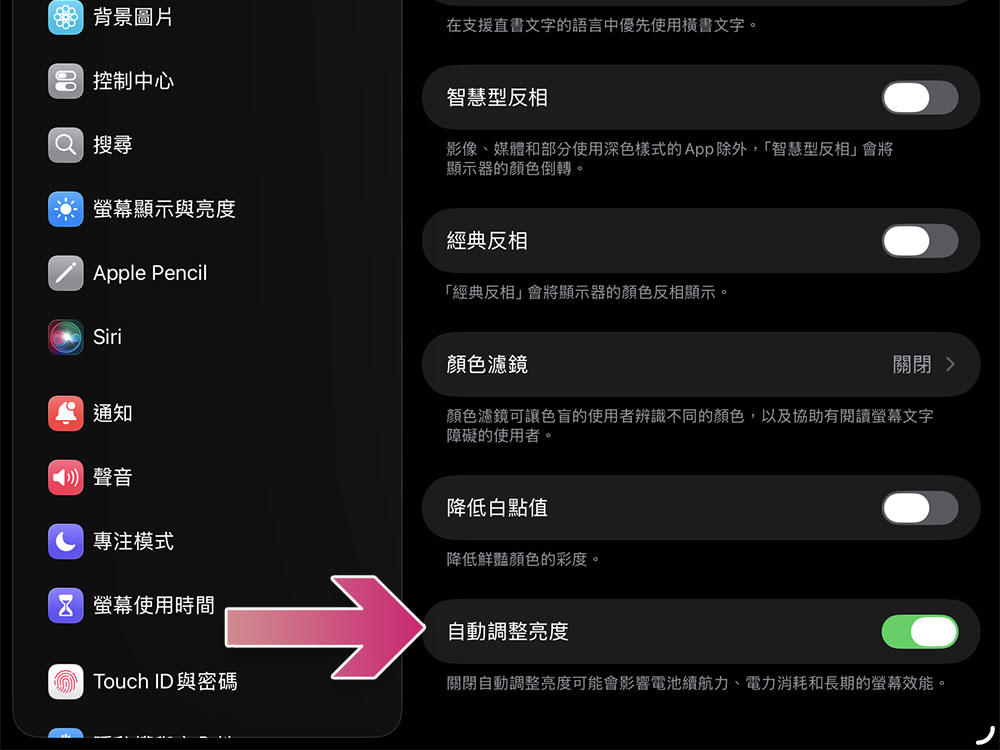
First of all, if the brightness keeps being adjusted up or down while reading, it is recommended to turn it off. You usually won’t notice everything moving on your screen, but it might bother you when you’re reading. To turn off automatic brightness on iPad, follow these steps:
- Open the Settings app.
- Enter “Auxiliary Use”.
- Click “Display & Text Size”.
- Scroll down to the bottom and turn off “Auto-Brightness”.
Now you can manually fine-tune the brightness while reading a book. If you often turn down the lights and read in bed before bed, and your iPad’s lowest brightness might still be a little too bright, you can also try using other accessibility features. In the same menu, click the “Reduce White Point Value” toggle and use the slider to further dim the iPad’s screen. Turning on the “bold text” option may also help.
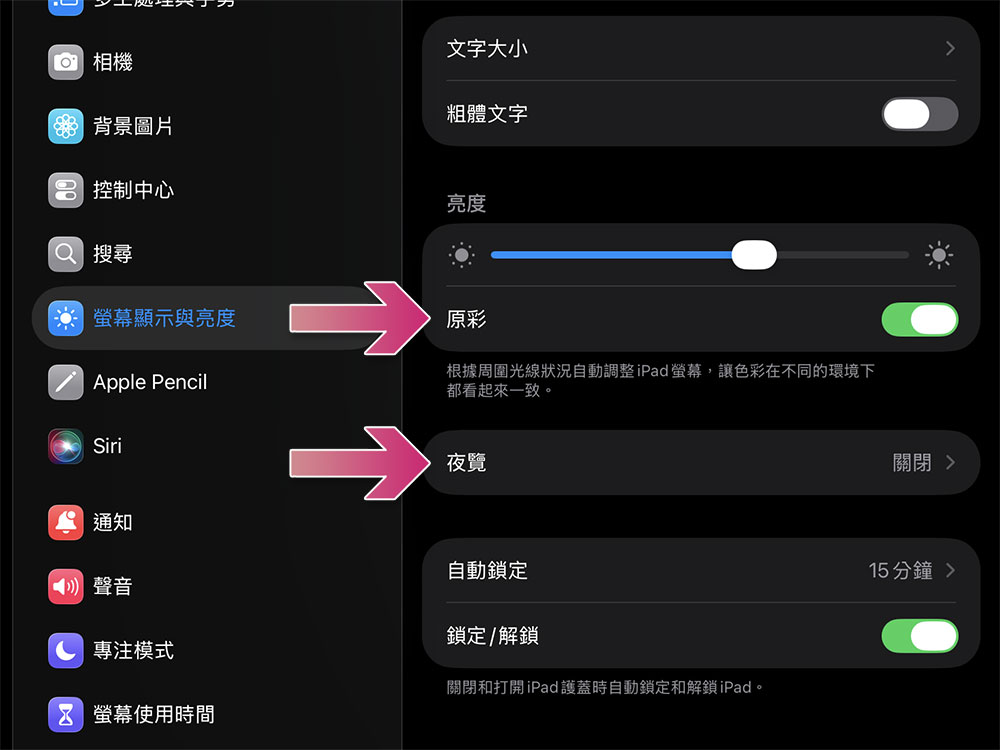
In “Settings >> Screen Display & Brightness”, you can also set the auto-lock option to “Never” to prevent the iPad display from going to sleep and avoid interrupting reading when half of the screen turns off.
Turn on original color and night view
Part of the reason why e-book readers are popular among readers is because of the advantages of electronic ink display technology, which can reduce eye fatigue, improve battery life, and make text look more natural. The iPad’s LCD or OLED screen has advantages over the e-ink screen in other usage situations, but it still doesn’t feel as comfortable as the e-ink screen when browsing hundreds of pages at a time.
On modern iPads, you have the following options to adjust:
- Open the Settings app.
- Go to “Screen Display and Brightness”.
- There are two functions that can be enabled
- original color
This is a unique feature of Apple that measures the intensity and color of light in the environment and then makes subtle adjustments to the iPad screen to match your ambient light. When this feature is turned on, the white balance and color of the screen will be automatically adjusted to reduce eye fatigue. - night tour
If you read before bed, the iPad’s built-in blue light filter may help. Practically similar to True Tone, but can be manually adjusted to achieve a more pronounced effect. You can set the night shift to automatically start and end based on your daily schedule, or you can manually select the color temperature.
- original color
Customize your Apple books experience
While you can download third-party e-book reader apps, Apple has pre-installed the Books service on the iPad, which I hope you’ll take advantage of, and it’s actually a full-fledged app. If you don’t have it installed on your iPad yet, you can download it for free from the App Store. You can use it to buy and browse books. In addition to the system settings we have adjusted to make iPad more suitable for e-books, there are customization options that can be adjusted directly in the Apple Books app.
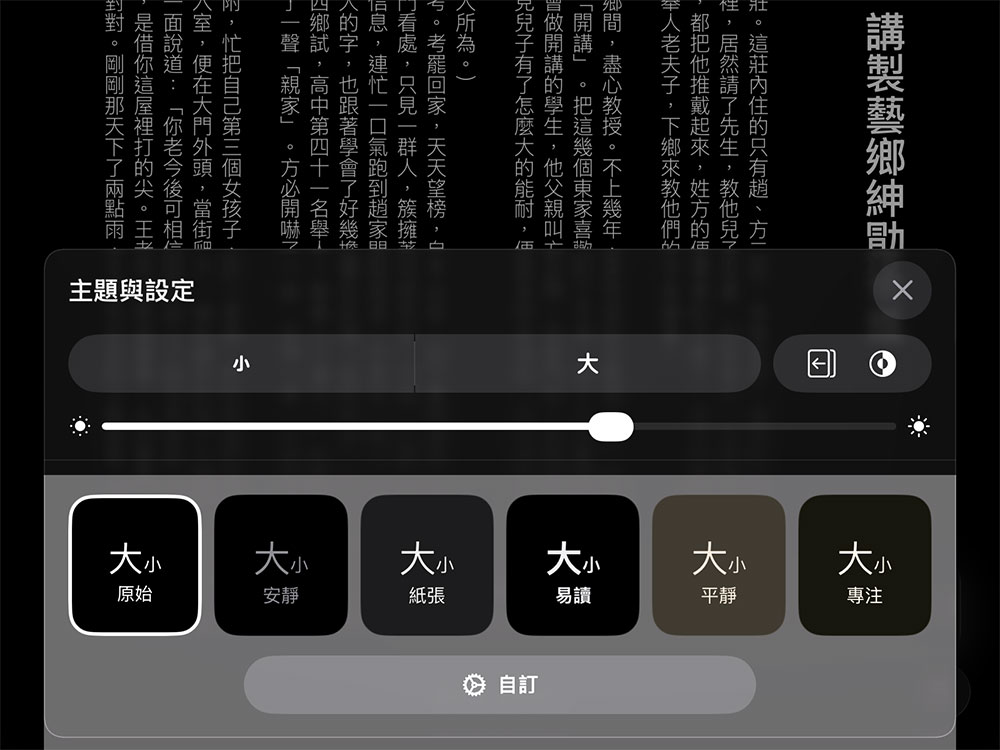
- Open a book in Apple Books
- Click the small icon in the lower right corner of the screen.
- Select “Themes & Settings”.
- You can then customize your reading experience by adjusting things like font size, display brightness, and page turning animations. If you don’t like the preset background, you can also switch themes from here.
- Click the “Customize” button at the bottom, and you can also change your own, apply and cancel bold, and fine-tune line spacing, character and character spacing.
- If you turned off auto-brightness in the previous step, a slider in the Apple Books app lets you adjust the brightness manually.
Set “Reading” focus mode
Focus mode lets you manage notifications and calls by whitelisting certain apps and contacts on your device. For example, you can set up an “at-home” focus mode that blocks all notifications in Gmail and the Workgroups app, and create another account to do the same while at work. There are a few preset focus modes you can switch between quickly, but Apple lets you customize and create your own rules.
If you read a lot on your iPad, you can set up focus mode just for reading time.
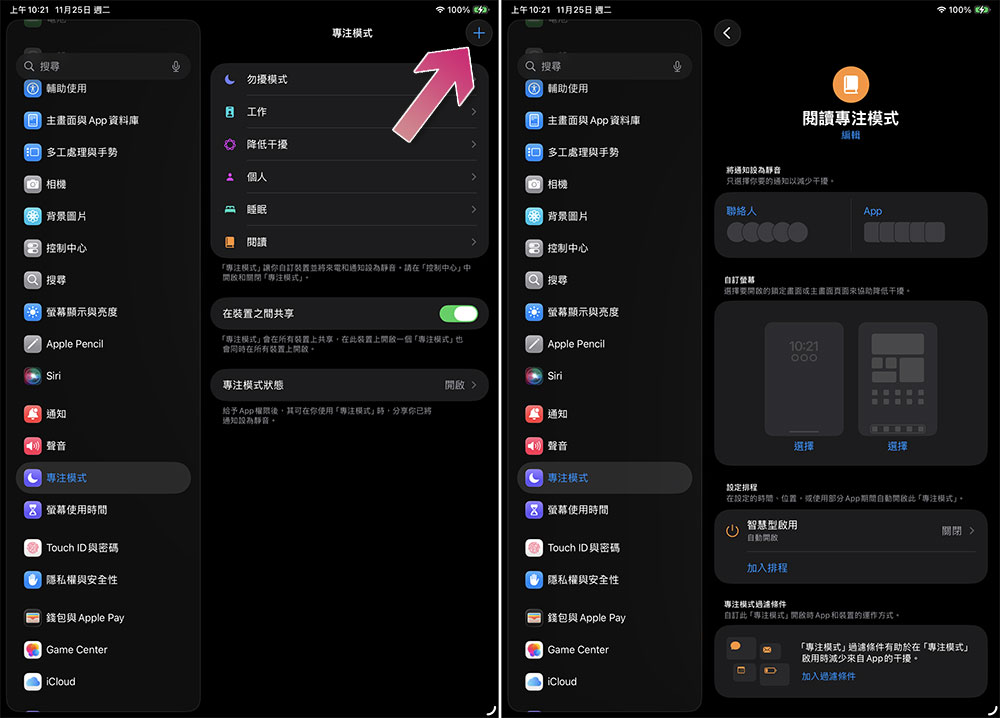
- Open the Settings app.
- Select “Focus Mode” on the right sidebar.
- Click the “+” sign in the upper right corner and select “Read” the template. If you don’t see it, select “Customize” and rename it to something you like.
- You can set which apps and contacts are allowed to receive notifications in this mode, so you won’t be interrupted by distractions while you immerse yourself in your favorite novel.
Although the iPad screen is sharper and brighter than a dedicated e-book reader, these simple settings can effectively reduce eye fatigue and reduce distractions. After adjusting the above settings, you can then make full use of the iPad’s large screen and immerse yourself in the world of reading.
Source: KOCPC Chinese