


Android has a neat built-in feature for separating your digital life from your work life. You can create separate profiles for work and life, isolate the two spaces, and switch between them as needed. In this way, you will not receive notifications from work during family reunion dinners, nor will you receive family group message sharing while at work. It can effectively turn a mobile phone into two devices that can be used for work and life. How to do this?
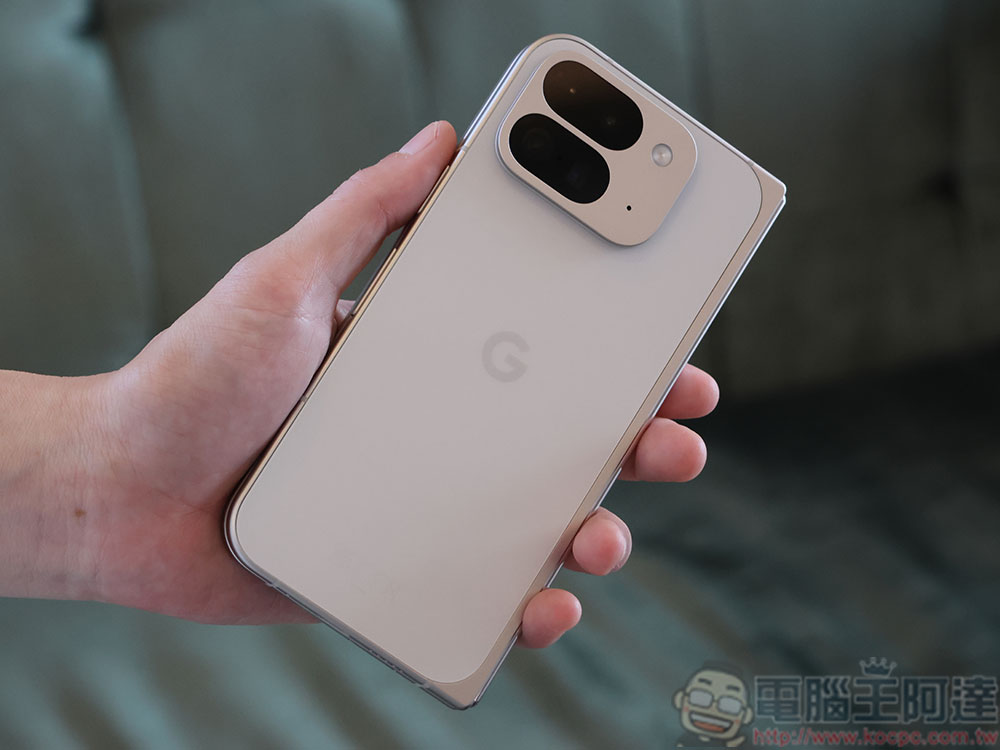
How to set up different accounts on your Android phone to separate work and life
Android’s profile functionality is similar to the “Users” functionality you see on Windows and macOS. Just like Windows allows you to create multiple users, each with their own space, account, settings, and app selections, you can create multiple user profiles on Android.
Just like on Windows, you can use profiles to manage shared access to devices, such as a tablet shared by everyone in your family. You can manage these multiple profiles yourself and create as many profiles as you need, but there is a premise that this feature consumes a lot of resources, so if you set too many profiles, the device may slow down.
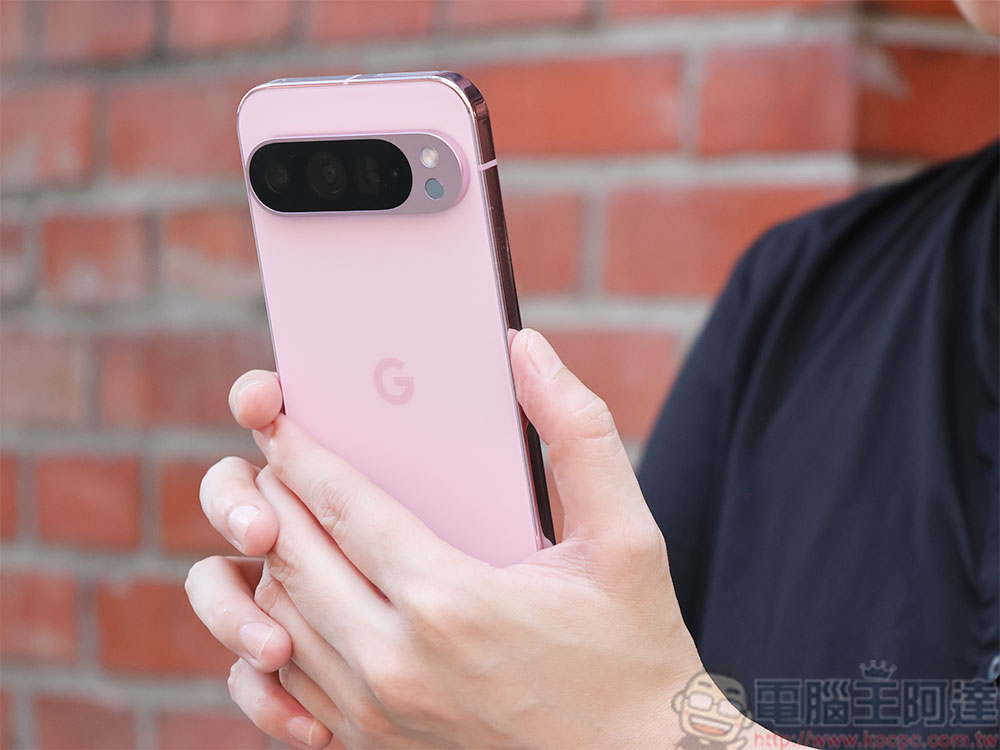
When you create a new profile, your phone will behave the same as when you first booted it. Android will walk you through the setup process again, so you can sign in with a different Google Account and even set up a different screen lock. The phone in the new profile looks just like it did when it was first launched, and you don’t even have to import contacts at this point if you choose. Even if you install the same application on both profiles, the application data will not be synchronized. You won’t see files and media from your personal profile in your work profile, and vice versa. This means there is zero chance of accidentally sending a selfie while you are in your work profile. The same goes for notifications. They only exist in their own profiles. There is no overlap between profiles in terms of data other than shared hardware.
How to create a new profile?
Since Android Lollippop, every Android operating system supports multi-user, but your phone may not have this feature because brands sometimes disable multi-user support, so even though this feature is available in the native version of Android, you may not be able to use it. Below we use Google Pixel mobile phone as an example:
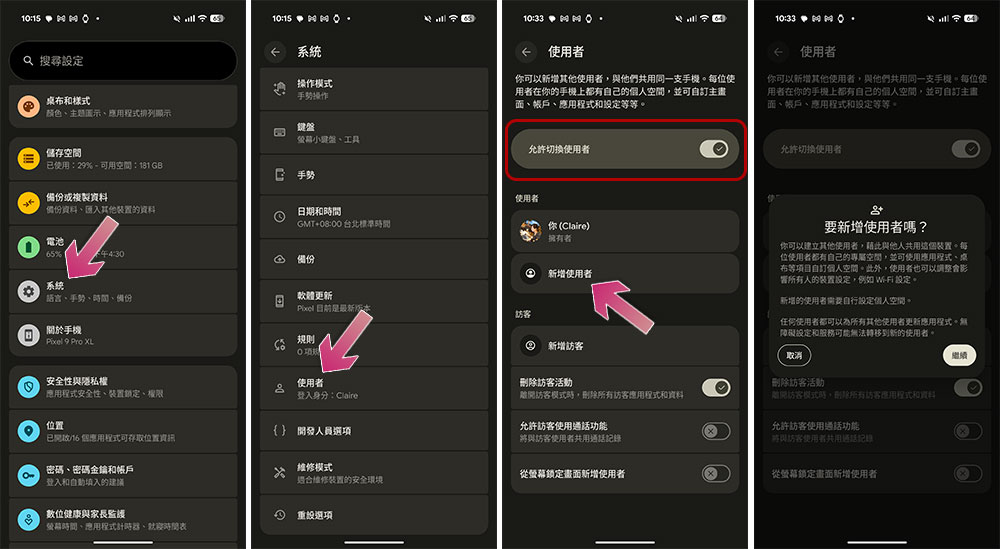
- Open the Settings application and click “System”.
- Select “User”.
- Next, turn on the “Allow user switching” switch.
- Below you can add new users.
- Follow the on-screen instructions to create a new user.
- To switch profiles, look for the profile icon in the notification bar and click it. There should be a switcher in the shortcut.
Source: KOCPC Chinese