


Google Photos is a popular gallery app thanks to its convenient features, including cloud backup, image editing, photo organization, and seamless sharing. You can go beyond viewing and downloading photos as it includes AI features like Magic Eraser and Magic Editor, and works across multiple devices including Android phones, Android tablets, iPhones, Macs, and Windows computers. This time we will tell you how to access Google Photos on any device.
How do I access Google Photos on any device?
How do I automatically sync Google Photos across devices?
Once you back up Google Photos, you can access the photos you take on any device and it will automatically save the photos and videos to your Google Account. After you sync your account to Google Photos, you can log in to your Google Account from your smartphone, tablet, or computer to access your photos. Google provides 15GB of storage space by default, and you can also pay for a subscription Google One servicesExpand more or manage storage space. You can check how much storage is used by Google Photos in your Google One account. You can also view storage details after logging in to your account.
To turn on automatic synchronization in Google Photos, follow the steps below:
- Open the Google Photos app and sign in to your Google Account.
- Click on your profile picture in the upper right corner.
- Select “Backup”.
- Turn on the “Auto Backup” switch.

By default, Google Photos will only back up when there is a Wi-Fi connection, but if you want to be able to back up when connected via mobile data, you can set it up as follows:
- Open the Google Photos app.
- Click on your profile picture.
- Select “Backup”.
- Click the gear icon in the upper right corner to enter backup settings.
- Click “Mobile Data Usage”.
- You can set the upper limit of backup data available daily. Of course, if you have an all-you-can-eat plan, you can also choose “unlimited”.

How to access Google Photos on any phone?
The Google Photos app comes pre-installed on most Android phones. If your device doesn’t have the app, you can download it from the Google Play Store. If you are using an iPhone or iPad, please download from Apple App Store Download the iOS app.
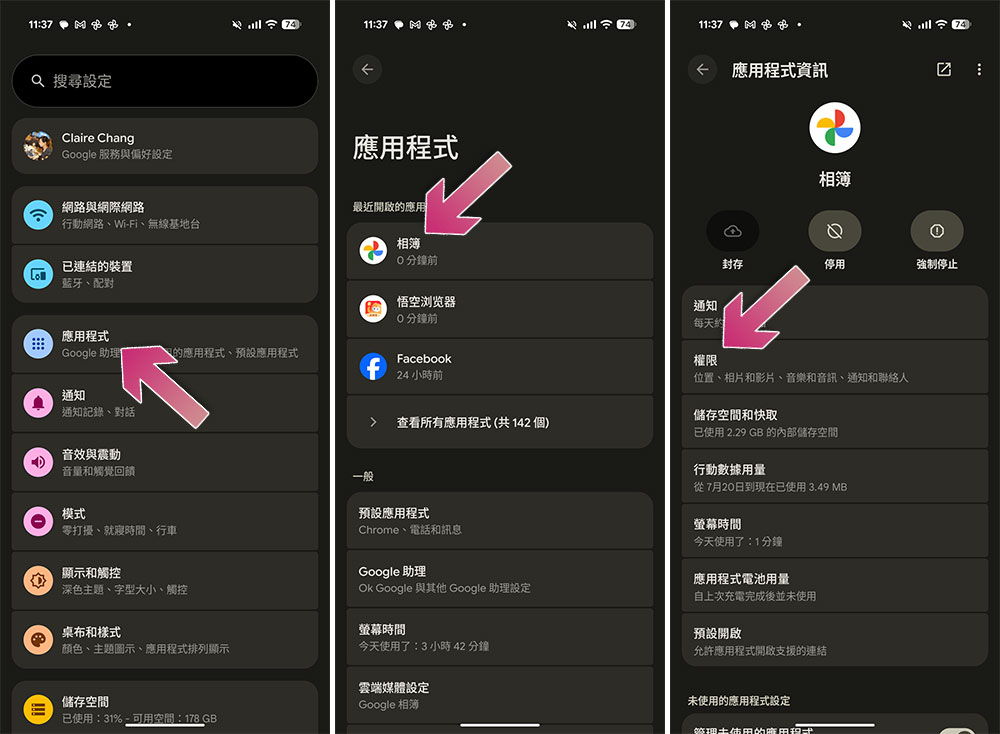
After installing the app, launch Google Photos and log in to your Google Account. Make sure you give it the necessary permissions to access your photos and videos. Android can be turned on in “Settings >> Applications >> Google Photos >> Permissions”.
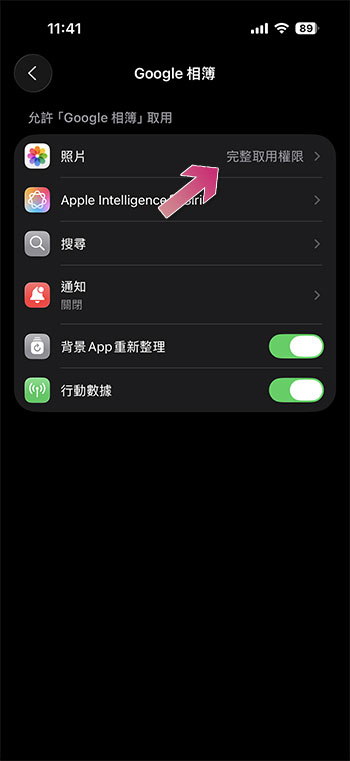
For iOS, you can open the “Settings” application and select “Google Photos” from “App” to view the permissions.
How do I access Google Photos on a Windows PC or Mac?
If you have backed up your photos and videos, you can view and download them on your computer. Here’s how to access Google Photos from Windows or Mac:
- Open any web browser.
- Go to “photos.google.com」。
- Sign in to your Google Account.
- You can view, edit, download and delete photos or videos.
Google Photos lets you access your photos and videos from any device after you’ve backed them up to the cloud. After you turn on automatic backup and log in to your Google account, the photos in your new phone will be displayed on other devices, eliminating the time and procedure of additional transfers.
Source: KOCPC Chinese