


After upgrading to iOS 26, many iPhone users immediately discovered that their “screenshots” had changed. The familiar small thumbnail in the lower left corner now pops up directly into the entire full-screen editing interface. Although this design allows people to add notes, draw highlights or share directly, it is more cumbersome for users who are accustomed to taking screenshots continuously, or who just want to finish taking screenshots quickly.
The good news is that Apple actually retains the switching option. Users can freely turn on and off the full-screen preview function in the settings, and there is no problem if they want to restore the old thumbnail mode. The following will take you step by step to set up and understand the ins and outs of this new screenshot interface.
Does iOS 26 make screenshots full screen? Teach you 3 steps to return to the old thumbnail interface!
In the past, after pressing the screenshot key combination (side key + volume key) on the iPhone, a small clickable thumbnail would appear in the lower left corner of the screen. Only when you click on it will you enter the editing page. But in the iOS 26 system, this process has been simplified to “one step.” As soon as the screenshot is completed, the preview screen will be displayed directly on the full screen, and editing tools such as annotations, magnifying glasses, and text boxes will be automatically loaded. This design actually responds to the usage habits of many users.
For example, when a teacher needs to quickly mark key points in class, a designer needs to point out the details of a picture, or a marketer needs to immediately take a screenshot and send it to a group for reporting, they can directly edit and upload it, and complete it all at once. No need to click on the thumbnail more than once, and no need to worry about forgetting to save it. For people who take screenshots heavily, this is undoubtedly a more efficient workflow.
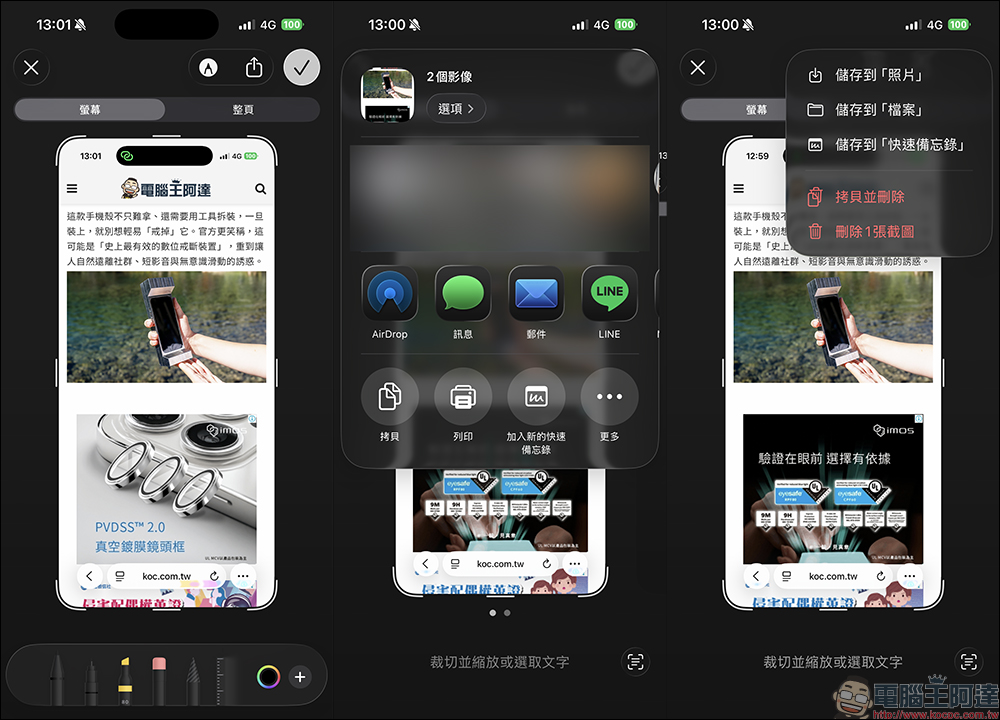
However, there are also many people who feel uncomfortable with this “sudden big picture”. For example, when you want to take multiple screenshots in succession, you have to exit the editing interface before continuing each time, which makes the process more cumbersome. Moreover, the full-screen preview will temporarily block the screen, which is indeed a bit disturbing for users who want to compare information in real time or perform continuous action operations.
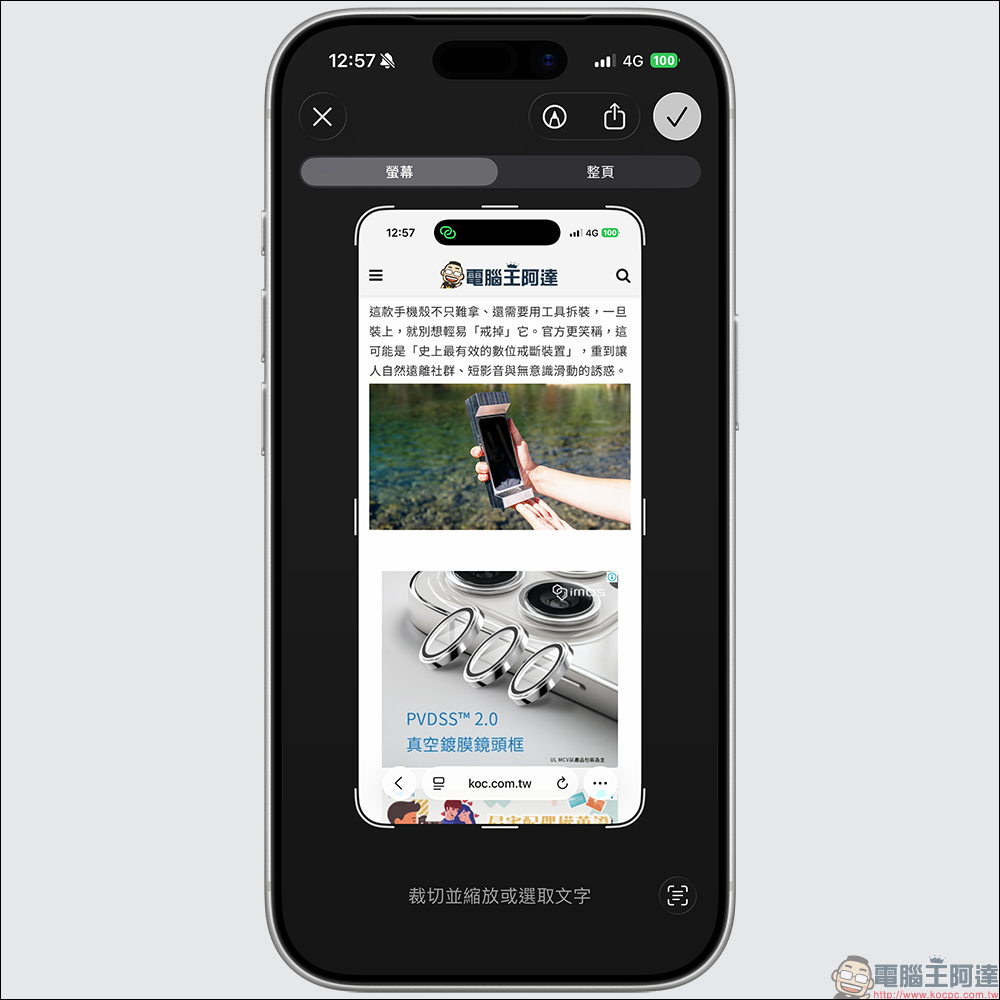
Fortunately, Apple has a solution in mind when designing iOS 26. You can switch back to the previous way of displaying small thumbnails in the lower left corner.
The setting method is as follows:
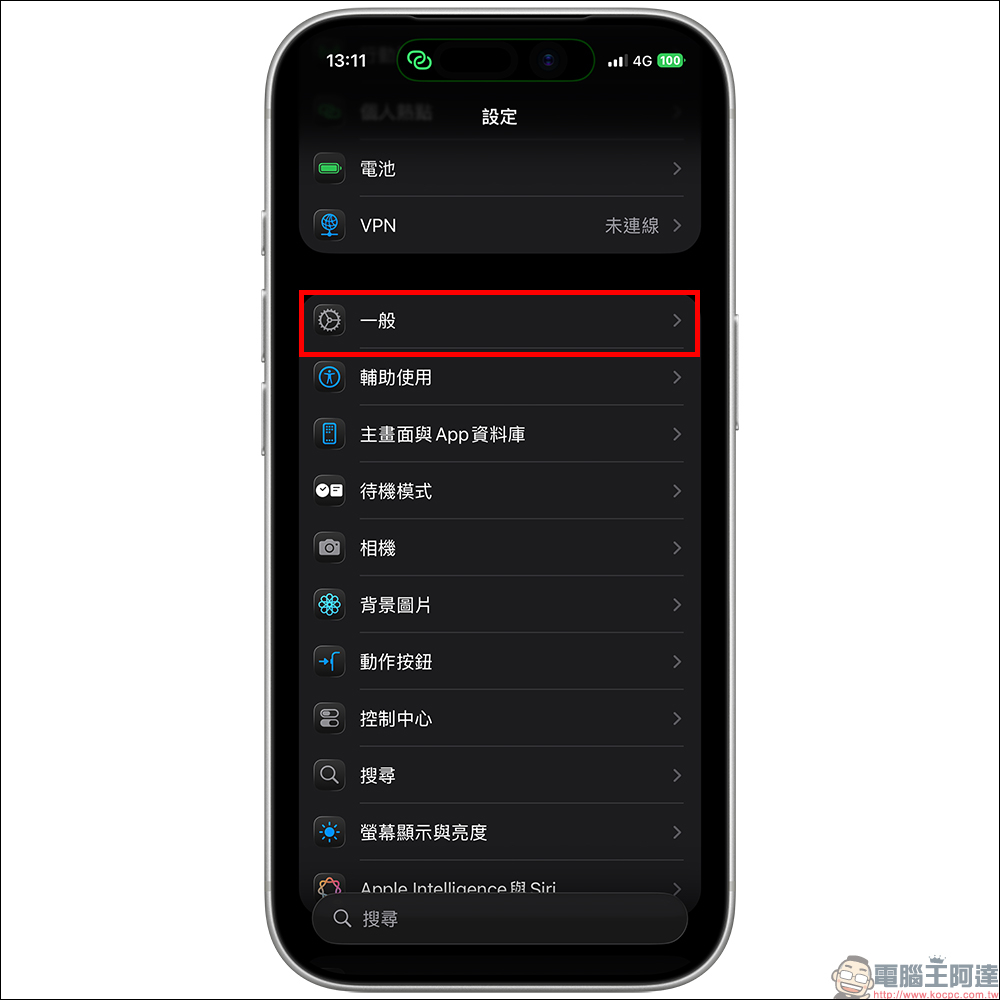
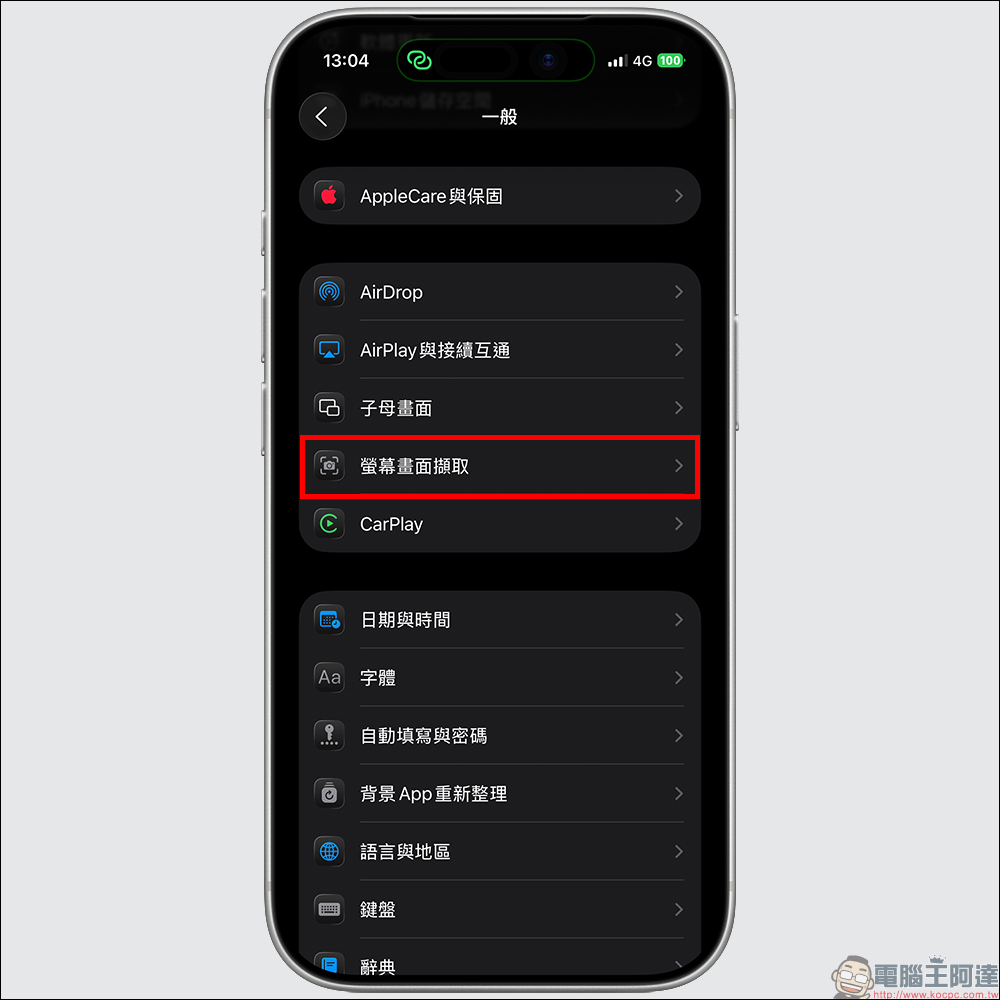
Open the iPhone’s “Settings” app and click “General”:
Then select “Screen Capture”:
Finally, find the “Full Screen Preview” option and turn off the switch:
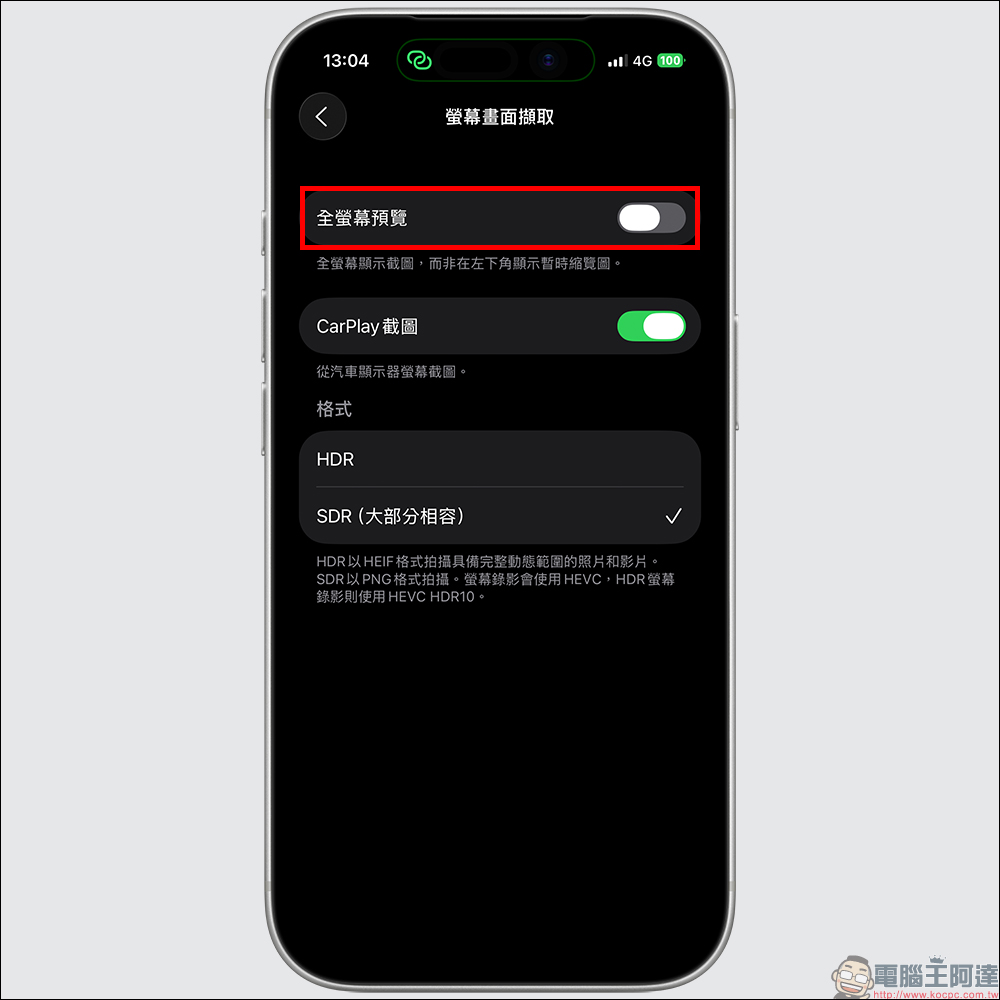
Once completed, taking screenshots will return to the traditional mode. A thumbnail will appear in the lower left corner of the screen and will not jump directly into the full-screen editing interface. If you want to mark or crop, just click on that thumbnail. This kind of design is actually very considerate, allowing users to freely adjust according to their personal habits without being forced to accept new operating methods.
On the contrary, if you are the kind of heavy user who “retouches, uploads, and adds annotations immediately after taking a screenshot,” you can also follow this process to manually turn on the full-screen screenshot preview function of iOS 26. Once enabled, the screenshot screen will automatically expand into a full-screen editing interface and provide a complete annotation toolbar, such as brushes, highlighters, shapes, signatures, magnifying glasses, text boxes, etc. You can also click the “Share” button immediately to send the edited image directly to your friends, share it on LINE or social media.
Extended applications: screenshots are not just screenshots, but can also be used more intelligently
In addition to interface changes, the screenshot function of iOS 26 is also equipped with a new generation of smart recognition capabilities, which is limited to the “image query” function of iPhone 15 Pro and newer models. In the full-screen preview, the system can automatically recognize text, links, and phone numbers. Users can copy or open them by just pressing and holding them, without having to go into the photo album to find them. This integration is also tied to Apple Intelligence’s real-time semantic analysis. Screenshots are no longer just “static pictures”, but interactive information.
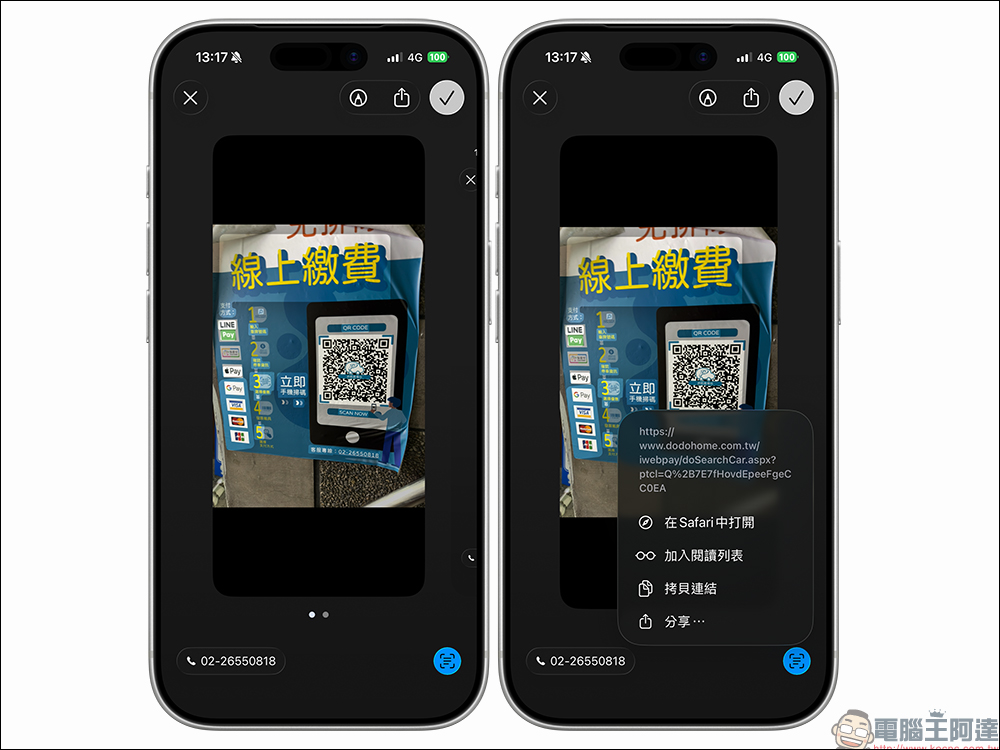
For example:
- Take a screenshot of product information from a shopping website, and you can directly long press the text to jump to the page.
- Take a screenshot of the meeting information, and the system will identify the date and time, allowing you to add a calendar with one click.
- Cut off the QR Code and your iPhone will automatically recognize it and prompt you to open the relevant link.
These small details make the screenshot function more like a “digital memo”, which is particularly useful for working people.
Conclusion
Overall, the full-screen screenshot preview function of iOS 26 is not just an interface fine-tuning, but reflects Apple’s desire to create a “real-time processing” user experience at the system level. It makes screenshots smarter and more integrated, while also retaining the freedom for users to “return to simplicity.”
If you are a user who likes speed and accuracy, turning on the full-screen preview can save you a lot of time; if you prefer a low-interference process, then turn it off and return to the small thumbnail in the lower left corner to still maintain a familiar and efficient rhythm.
Further reading:
Source: KOCPC Chinese