


Have you ever had such an experience? wearing AirPods Sounds like you like itmusicOr a podcast, you are immersed in the exclusive rhythm, but because the car starts or there is a Bluetooth device nearby, the sound is suddenly switched to other places. The suddenness and embarrassment of that moment often make people frown.
In fact, this situation is not uncommon, and Apple’s latest iOS 26 Here, a new setting has been added to address this real pain point in use. Its design may seem low-key, but it can completely change your daily listening experience. Where exactly is this new option hiding? In what situations can it be used? Next, I will take you step by step to understand.
Worried about music being cut when wearing AirPods in the car? This super thoughtful new feature in iOS 26 helps you get it done
Many people wear AirPods as an almost daily standard when commuting to and from work. They rely on them for music, podcasts, and voice messages. But as soon as you start the car or walk to the company meeting room, the iPhone may automatically detect the external Bluetooth system and immediately transfer the music or calls to it.
Apple originally designed this “auto-switching” mechanism to save users trouble and allow audio to automatically go to the most commonly used devices. But in fact, many people don’t need such “consideration.” Sometimes I just want to listen quietly with headphones on and don’t want to broadcast it publicly. It is also possible that if there are other people in the car, the music suddenly jumps to the speakers, which may cause embarrassment. Or the sound source is switched when you just answer the phone, and the conversation content is easily overheard accidentally. Not only do these situations interrupt the experience, they can sometimes be disturbing.
New settings in iOS 26: little surprises hidden in the menu
In iOS 26, Apple has added a seemingly unobtrusive but useful option. It is not placed in a conspicuous position, but hidden in the sub-menu of “Settings”. Just find and open it, and you’ll have “master control” of your music. The name of this option just illustrates its core concept: to keep the sound where the user wants it most, rather than being dominated by the external environment. In other words, it does not force you to use only one playback method, but allows you to actively decide whether to automatically switch.
If you want to give it a try, you can follow these steps:
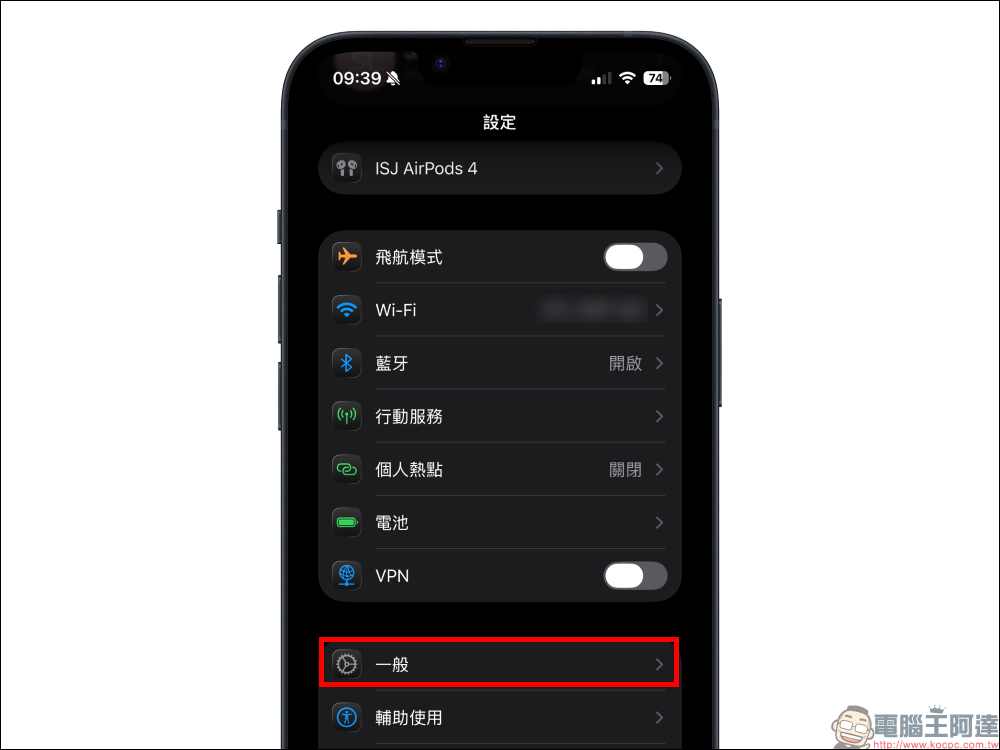
1. Open the iPhone’s “Settings” and find and click “General”:
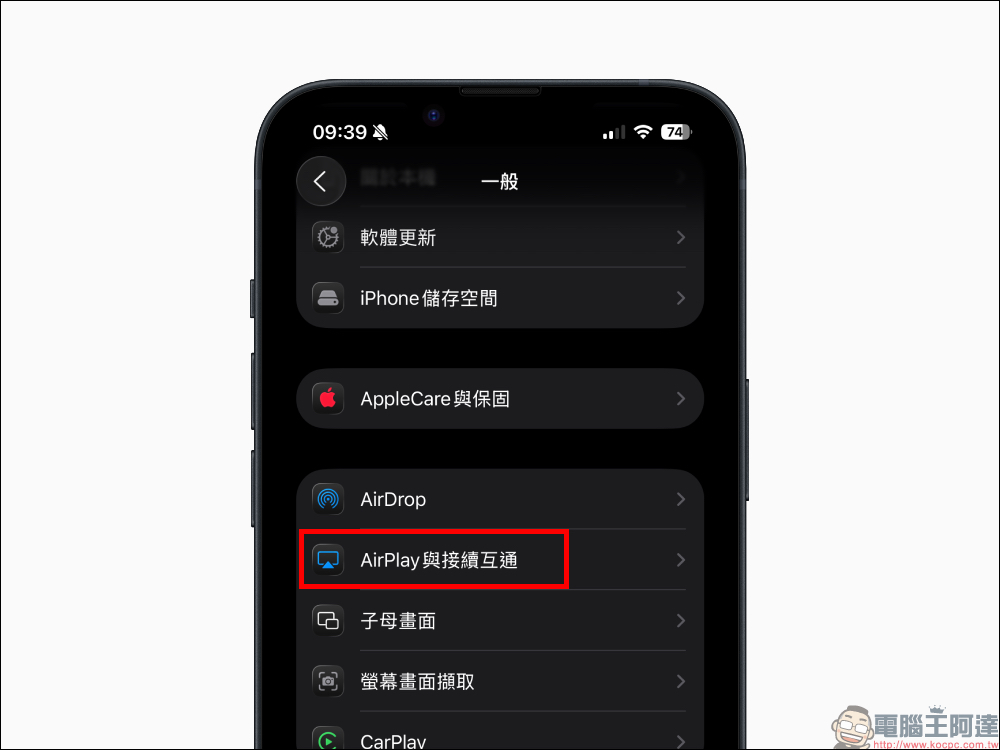
3. Click “AirPlay and Continuous Interoperability” to enter:
4. Find “Keep using headphones to play audio”:
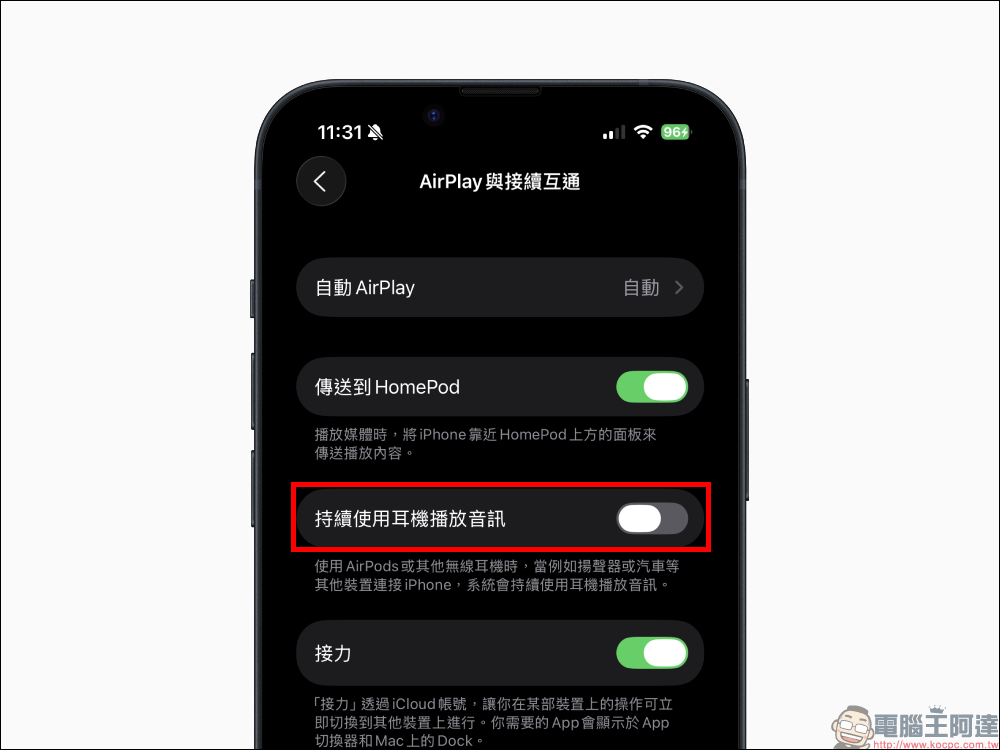
5. Turn on the “Always use headphones to play audio” setting switch:
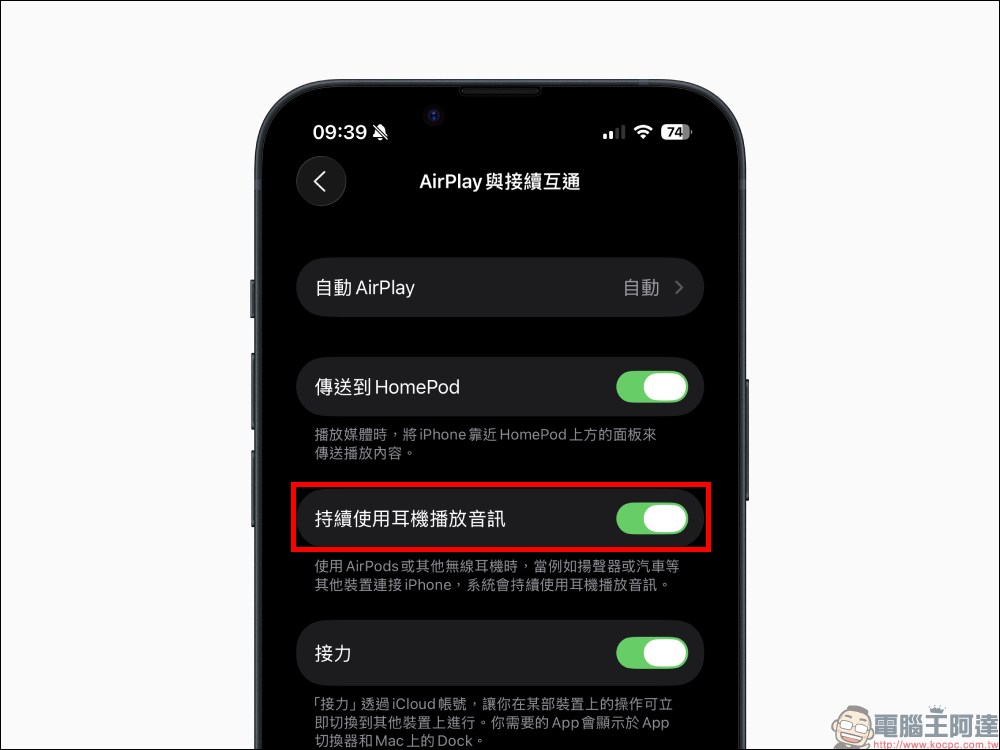
In this way, when you are wearing AirPods or other Bluetooth headphones, even if the car or speaker is connected to the iPhone, the audio will not jump randomly. Of course, if you want to switch to car audio, you can still choose it manually in the control center or CarPlay.
Although the most intuitive application scenario of this function is “getting in the car without being interrupted”, its practicality goes far beyond that.
- Home environment: Many people have smart speakers or Bluetooth speakers at home, which automatically connect when their mobile phones are near. As a result, the music originally in the headphones suddenly became loudly broadcast in the living room.
- Office: Conference rooms are often equipped with Bluetooth speakers. When the mobile phone automatically switches the sound source, music or notification sounds are instantly played during the meeting, which is quite embarrassing.
- Party occasions: Friends gather together, someone’s mobile phone accidentally connects to the live speaker, music or video sound comes out inexplicably, interrupting the atmosphere.
This setting allows the headset to maintain priority and avoid these “social landmines” from happening in an instant. It’s worth mentioning that this new feature is not a “one size fits all” setting. It protects your headphone usage priority, but does not restrict you from switching to other devices. If you want to use the car audio or external speakers, you can still switch manually at any time. This design not only avoids the trouble of automatic jump, but also retains the freedom of choice.
Conclusion
The spirit behind this new audio setting in iOS 26 is to “put the choice back into the hands of the user.” It is not about showing off skills, nor is it a complicated major update, but a thoughtful detail that can help you avoid a lot of abruptness and embarrassment in your daily life.
From commuting to home, from work to parties, this function may be the kind of small change that “once you use it, you can’t live without it.” Although it is just a switch hidden in the settings, for people who rely on AirPods or Bluetooth headphones every day, it may be one of the most interesting updates in iOS 26.
Further reading:
Source: KOCPC Chinese